> ## Documentation Index
> Fetch the complete documentation index at: https://notes.kodekloud.com/llms.txt
> Use this file to discover all available pages before exploring further.
# Demo Registering a Component
> Guide showing how to register and import components into Backstage, including local and remote catalog imports, UI registration, refreshing, and unregistering entities.
In this lesson we'll walk through registering your first real component in Backstage. You'll learn where Backstage loads example entities from, how to register a local component, how to import a `catalog-info.yaml` from a remote Git repository, and how to refresh or unregister entities from the Catalog.
## Where the examples come from
A newly provisioned Backstage instance includes example entities imported via the backend configuration (`app-config.yaml`). At the top of the config you typically have base URLs:
```yaml theme={null}
app:
baseUrl: http://147.182.170.10:3000
backend:
baseUrl: http://147.182.170.10:7007
cors:
origin: http://147.182.170.10:3000
```
Search for the `catalog` section to find static imports (locations). Files referenced with `type: file` are resolved relative to the backend process (usually `packages/backend`):
```yaml theme={null}
catalog:
import:
entityFilename: catalog-info.yaml
pullRequestBranchName: backstage-integration
rules:
- allow: [Component, System, API, Resource, Location]
locations:
# Local example data, file locations are relative to the backend process, typically `packages/backend`
- type: file
target: ../../examples/Entities.yaml
# Local example template
- type: file
target: ../../examples/template/template.yaml
rules:
- allow: [Template]
```
Follow the relative path to `examples/Entities.yaml` and you'll find example entities such as an `example-website` component and an example API:
```yaml theme={null}
# examples/Entities.yaml (excerpt)
owner: guests
---
apiVersion: backstage.io/v1alpha1
kind: Component
metadata:
name: example-website
spec:
type: website
lifecycle: experimental
owner: guests
system: examples
providesApis: [example-grpc-api]
---
apiVersion: backstage.io/v1alpha1
kind: API
metadata:
name: example-grpc-api
spec:
type: grpc
lifecycle: experimental
owner: guests
system: examples
definition: |
syntax = "proto3";
```
This is why the Catalog UI shows example components — they are imported from that file.
## Registering a real component (auth service)
Below is a minimal Node.js Express service that we'll register with Backstage:
```javascript theme={null}
import express from "express";
const app = express();
app.get("/", (req, res) => {
res.send("Hello World!");
});
const port = 3000;
app.listen(port, () => {
console.log(`Example app listening on port ${port}`);
});
```
To register this service, create a `catalog-info.yaml` at the root of your project describing the component. The required fields are `apiVersion`, `kind`, `metadata`, and `spec`. Example:
```yaml theme={null}
apiVersion: backstage.io/v1beta1
kind: Component
metadata:
name: auth-service
description: authentication service
tags:
- javascript
links:
- url: https://google.com
title: Admin Dashboard
icon: dashboard
type: admin-dashboard
spec:
type: service
lifecycle: production
owner: guests
```
Notes:
* `spec.type` is a free-form string; teams should agree on a consistent taxonomy (e.g., `service`, `website`, `library`) so catalog browsing and filtering remain useful.
* `owner` should point to an existing user or group entity in the Catalog. The default Backstage instance includes example entities such as `guest` and `guests`; this is why `guests` works in examples.
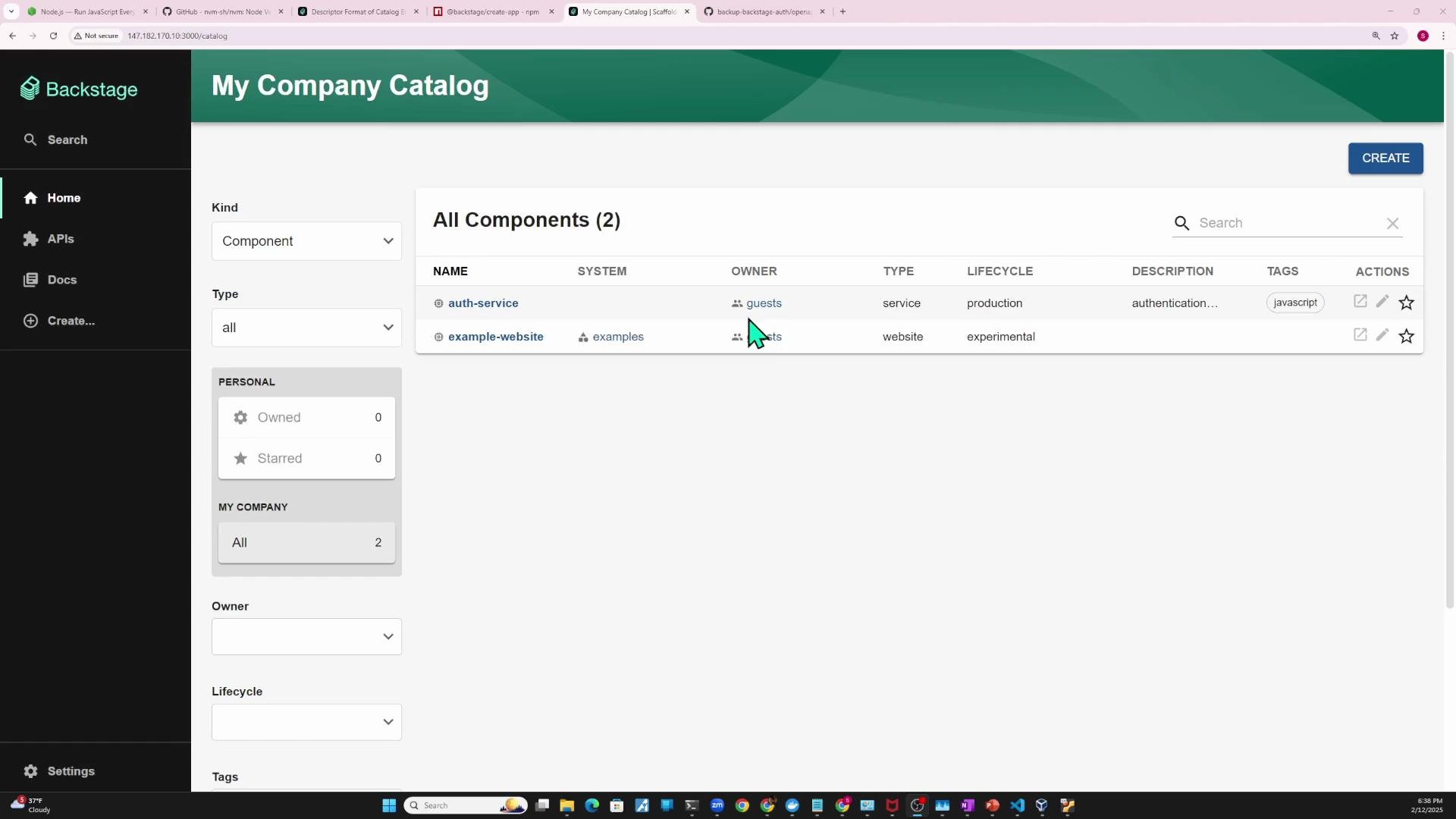
When the auth component is present in the Catalog, Backstage displays its metadata (owner, type, lifecycle, tags, and links):
 ## Four common ways to import a component into Backstage
* Static import from the Backstage repository (local file)
* Static import from a URL (e.g., a `catalog-info.yaml` stored on GitHub)
* Register via the Backstage UI (Register Existing Component)
* Automatic registration via templates or repository-scanning integrations
A concise overview:
| Method | When to use | Example |
| ------------------------ | -------------------------------------------------------------- | ---------------------------------------------------------------------------------------- |
| Local `file` import | For local/backstage-repo-driven demos or self-hosted examples | Add `- type: file` with `target: ../../examples/auth-entity.yaml` in `app-config.yaml` |
| Remote `url` import | When `catalog-info.yaml` lives with your source code in a repo | Add `- type: url` with `target: https://github.com/you/repo/blob/main/catalog-info.yaml` |
| UI registration | Quick one-off imports without editing backend config | Use "Register Existing Component" in Backstage and paste the `catalog-info.yaml` URL |
| Templates / integrations | For automated at-scale registration across many repos | Use scaffolding templates or code host scanning/integrations |
### Static import (local file)
1. Save your `catalog-info.yaml` as a local entity file, for example `examples/auth-entity.yaml`.
2. Add a `file` location to `app-config.yaml` (paths are relative to `packages/backend`):
```yaml theme={null}
catalog:
import:
entityFilename: catalog-info.yaml
pullRequestBranchName: backstage-integration
rules:
- allow: [Component, System, API, Resource, Location]
locations:
- type: file
target: ../../examples/Entities.yaml
- type: file
target: ../../examples/auth-entity.yaml
- type: file
target: ../../examples/template/template.yaml
rules:
- allow: [Template]
```
3. Restart the Backstage backend (or `yarn dev` in development). After the backend restarts, the new component should appear in the Catalog.
### Static import (from GitHub)
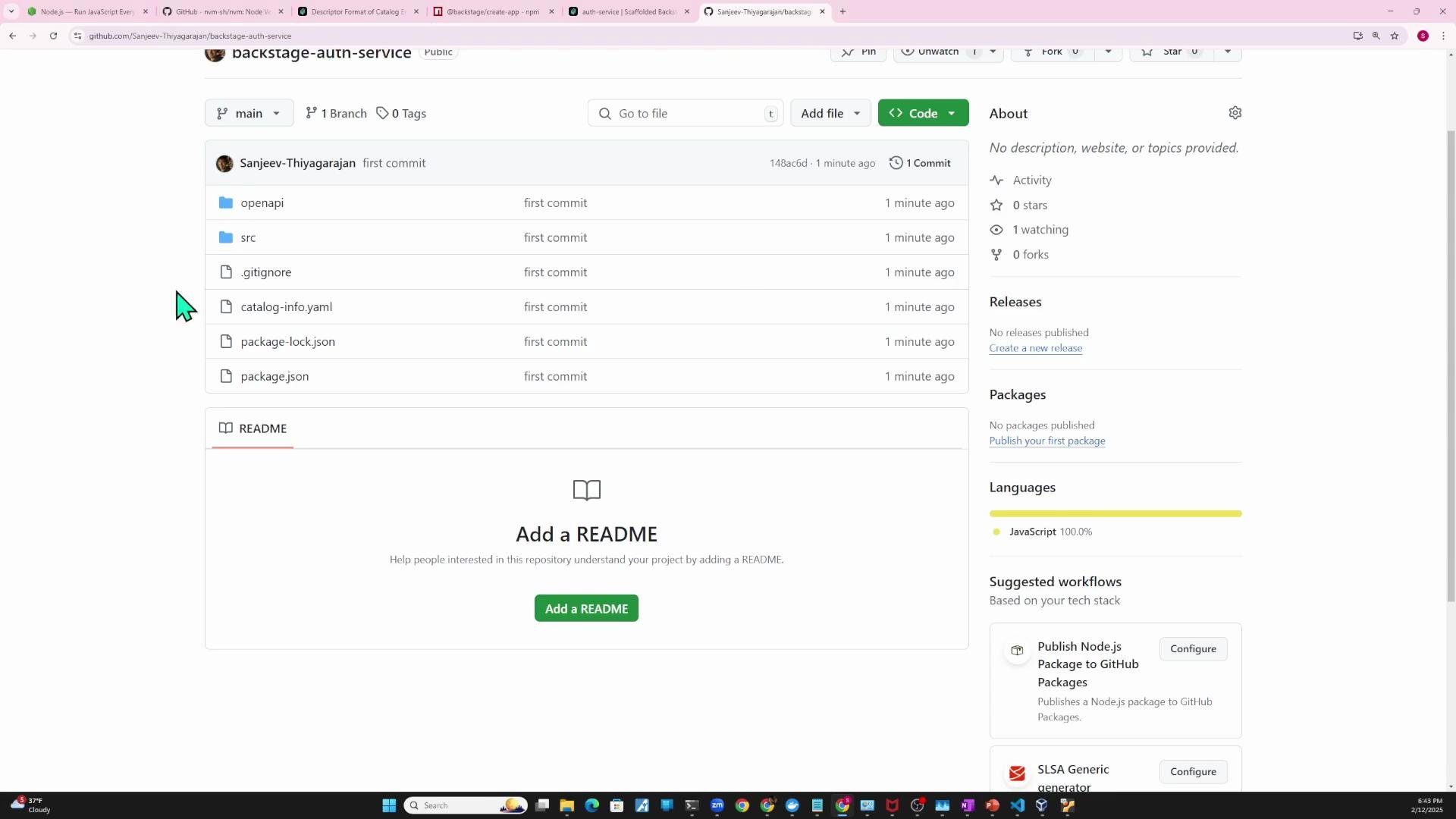
A common pattern is to keep `catalog-info.yaml` in the same repository as the service and let Backstage import it via URL.
Example Git commands to push your project to GitHub:
```bash theme={null}
echo "# backstage-auth-service" >> README.md
git init
git add .
git commit -m "first commit"
git branch -M main
git remote add origin https://github.com/Sanjeev-Thiyagarajan/backstage-auth-service.git
git push -u origin main
```
Add the remote `catalog-info.yaml` as a `url` location in `app-config.yaml`:
```yaml theme={null}
catalog:
import:
entityFilename: catalog-info.yaml
pullRequestBranchName: backstage-integration
rules:
- allow: [Component, System, API, Resource, Location]
locations:
- type: file
target: ../../examples/Entities.yaml
- type: url
target: https://github.com/Sanjeev-Thiyagarajan/backstage-auth-service/blob/main/catalog-info.yaml
- type: file
target: ../../examples/template/template.yaml
rules:
- allow: [Template]
```
Restart the backend. When Backstage imports the entity from GitHub, the Catalog will show the `auth-service` entry and the provided repository link will be clickable.
## Four common ways to import a component into Backstage
* Static import from the Backstage repository (local file)
* Static import from a URL (e.g., a `catalog-info.yaml` stored on GitHub)
* Register via the Backstage UI (Register Existing Component)
* Automatic registration via templates or repository-scanning integrations
A concise overview:
| Method | When to use | Example |
| ------------------------ | -------------------------------------------------------------- | ---------------------------------------------------------------------------------------- |
| Local `file` import | For local/backstage-repo-driven demos or self-hosted examples | Add `- type: file` with `target: ../../examples/auth-entity.yaml` in `app-config.yaml` |
| Remote `url` import | When `catalog-info.yaml` lives with your source code in a repo | Add `- type: url` with `target: https://github.com/you/repo/blob/main/catalog-info.yaml` |
| UI registration | Quick one-off imports without editing backend config | Use "Register Existing Component" in Backstage and paste the `catalog-info.yaml` URL |
| Templates / integrations | For automated at-scale registration across many repos | Use scaffolding templates or code host scanning/integrations |
### Static import (local file)
1. Save your `catalog-info.yaml` as a local entity file, for example `examples/auth-entity.yaml`.
2. Add a `file` location to `app-config.yaml` (paths are relative to `packages/backend`):
```yaml theme={null}
catalog:
import:
entityFilename: catalog-info.yaml
pullRequestBranchName: backstage-integration
rules:
- allow: [Component, System, API, Resource, Location]
locations:
- type: file
target: ../../examples/Entities.yaml
- type: file
target: ../../examples/auth-entity.yaml
- type: file
target: ../../examples/template/template.yaml
rules:
- allow: [Template]
```
3. Restart the Backstage backend (or `yarn dev` in development). After the backend restarts, the new component should appear in the Catalog.
### Static import (from GitHub)
A common pattern is to keep `catalog-info.yaml` in the same repository as the service and let Backstage import it via URL.
Example Git commands to push your project to GitHub:
```bash theme={null}
echo "# backstage-auth-service" >> README.md
git init
git add .
git commit -m "first commit"
git branch -M main
git remote add origin https://github.com/Sanjeev-Thiyagarajan/backstage-auth-service.git
git push -u origin main
```
Add the remote `catalog-info.yaml` as a `url` location in `app-config.yaml`:
```yaml theme={null}
catalog:
import:
entityFilename: catalog-info.yaml
pullRequestBranchName: backstage-integration
rules:
- allow: [Component, System, API, Resource, Location]
locations:
- type: file
target: ../../examples/Entities.yaml
- type: url
target: https://github.com/Sanjeev-Thiyagarajan/backstage-auth-service/blob/main/catalog-info.yaml
- type: file
target: ../../examples/template/template.yaml
rules:
- allow: [Template]
```
Restart the backend. When Backstage imports the entity from GitHub, the Catalog will show the `auth-service` entry and the provided repository link will be clickable.
 ## Entity updates and refresh behavior
* Backstage polls configured locations on a schedule (the default may be tens of minutes). If you change the `catalog-info.yaml` in GitHub, the Catalog might not reflect the change immediately.
* To fetch updates sooner, use the Catalog UI's refresh action for the entity; this schedules a refresh run for that location.
Example: change the `owner` in GitHub from `guests` to `auth-team`:
```yaml theme={null}
apiVersion: backstage.io/v1beta1
kind: Component
metadata:
name: auth-service
description: authentication service
tags:
- javascript
links:
- url: https://google.com
title: Admin Dashboard
icon: dashboard
type: admin-dashboard
spec:
type: service
lifecycle: production
owner: auth-team
```
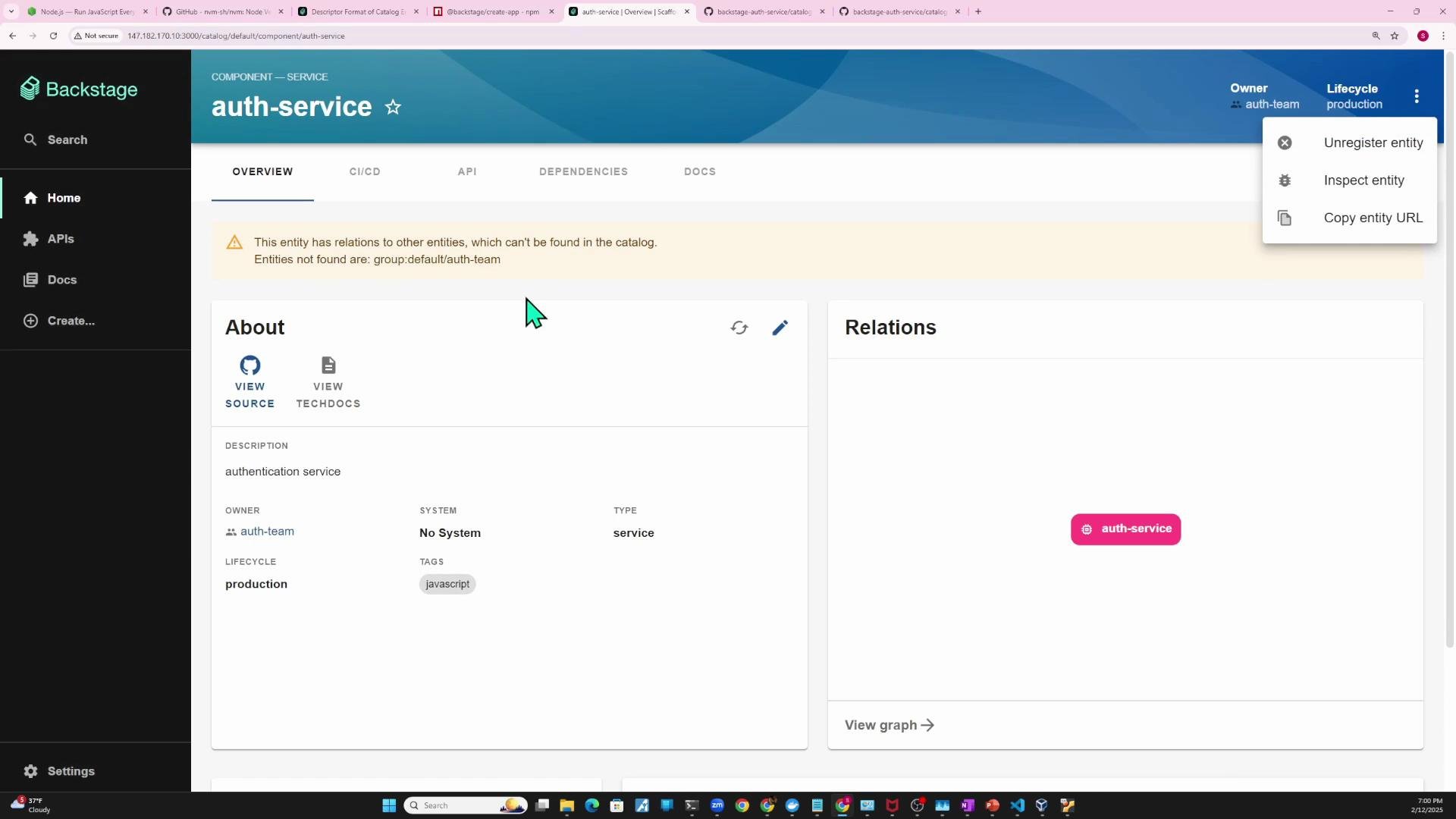
If `auth-team` is not present as a group entity in the Catalog, Backstage will surface a missing-relation warning on the component page. The default Backstage example includes `guest` and `guests` entities; here's the example `org.yaml` that provides them:
```yaml theme={null}
---
apiVersion: backstage.io/v1alpha1
kind: User
metadata:
name: guest
spec:
memberOf: [guests]
---
apiVersion: backstage.io/v1alpha1
kind: Group
metadata:
name: guests
spec:
type: team
children: []
```
If you reference a non-existent owner like `auth-team`, either add a corresponding group entity or reference an existing group location in `app-config.yaml`.
## Inspecting and unregistering entities
* From the Catalog UI you can inspect an entity, view its raw YAML/JSON, and perform actions like unregistering the entity.
* Unregistering removes the location Backstage used to import the entity (file or URL).
## Entity updates and refresh behavior
* Backstage polls configured locations on a schedule (the default may be tens of minutes). If you change the `catalog-info.yaml` in GitHub, the Catalog might not reflect the change immediately.
* To fetch updates sooner, use the Catalog UI's refresh action for the entity; this schedules a refresh run for that location.
Example: change the `owner` in GitHub from `guests` to `auth-team`:
```yaml theme={null}
apiVersion: backstage.io/v1beta1
kind: Component
metadata:
name: auth-service
description: authentication service
tags:
- javascript
links:
- url: https://google.com
title: Admin Dashboard
icon: dashboard
type: admin-dashboard
spec:
type: service
lifecycle: production
owner: auth-team
```
If `auth-team` is not present as a group entity in the Catalog, Backstage will surface a missing-relation warning on the component page. The default Backstage example includes `guest` and `guests` entities; here's the example `org.yaml` that provides them:
```yaml theme={null}
---
apiVersion: backstage.io/v1alpha1
kind: User
metadata:
name: guest
spec:
memberOf: [guests]
---
apiVersion: backstage.io/v1alpha1
kind: Group
metadata:
name: guests
spec:
type: team
children: []
```
If you reference a non-existent owner like `auth-team`, either add a corresponding group entity or reference an existing group location in `app-config.yaml`.
## Inspecting and unregistering entities
* From the Catalog UI you can inspect an entity, view its raw YAML/JSON, and perform actions like unregistering the entity.
* Unregistering removes the location Backstage used to import the entity (file or URL).
 ## Registering via the UI
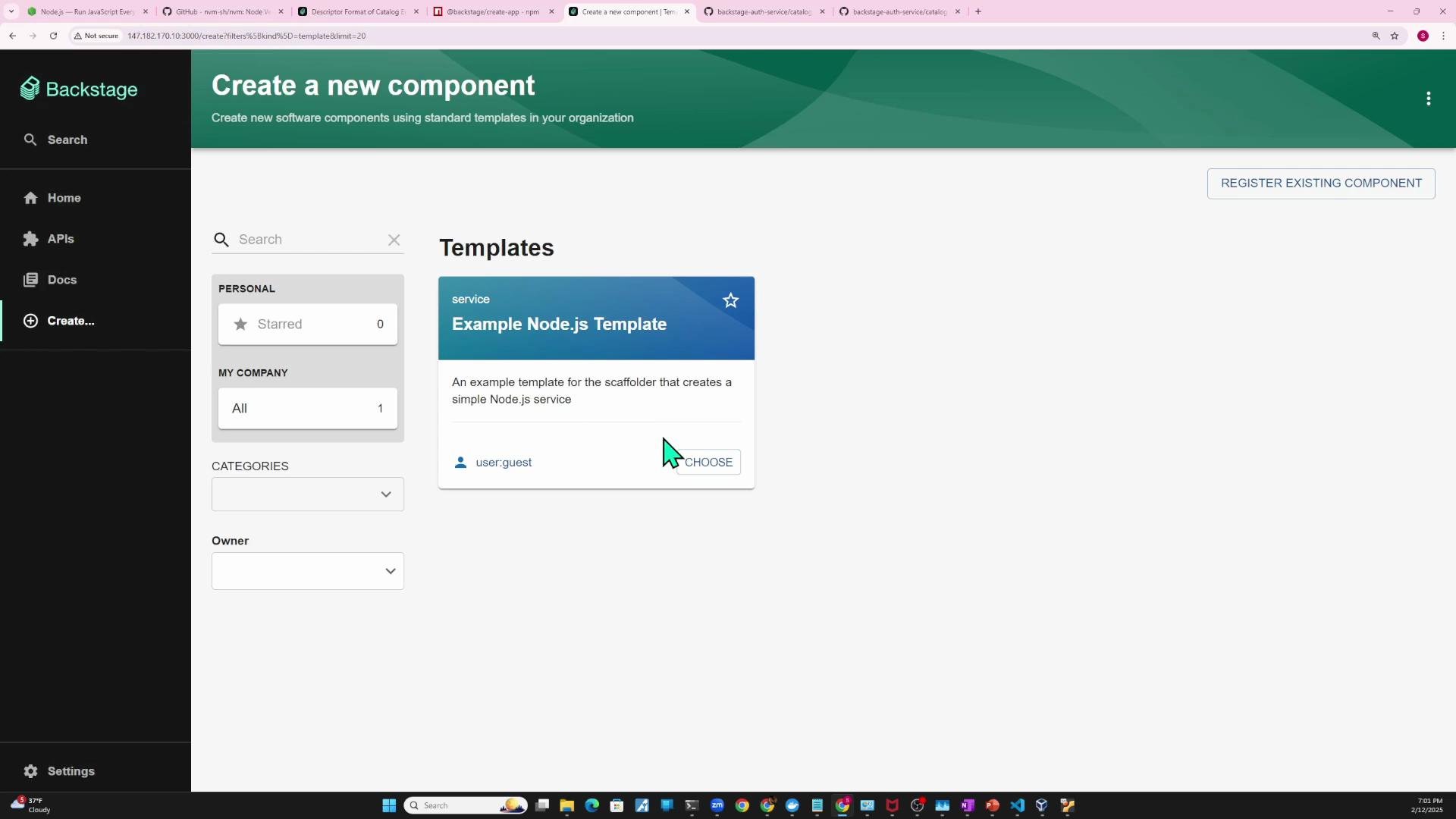
Alternatively, use the Backstage UI to "Register Existing Component" and paste the URL to your `catalog-info.yaml`. Backstage will analyze the entity and show what will be imported; you can then import it directly without editing backend config.
## Registering via the UI
Alternatively, use the Backstage UI to "Register Existing Component" and paste the URL to your `catalog-info.yaml`. Backstage will analyze the entity and show what will be imported; you can then import it directly without editing backend config.
 ## Templates and repository scanning
* Scaffolding templates can create and register `catalog-info.yaml` automatically when you generate new projects.
* Integrations and code-host scanning allow Backstage to discover `catalog-info.yaml` files across many repositories and import them at scale.
## Summary — choosing an approach
1. Add a local `file` location in `app-config.yaml` and restart the backend — useful for demos and local Backstage repo examples.
2. Add a `url` location pointing to a remote `catalog-info.yaml` and restart the backend — recommended for production repositories.
3. Use the Backstage UI (“Register Existing Component”) to import an entity by URL — convenient for quick imports.
4. Use templates or repository-scanning integrations to auto-create and register `catalog-info.yaml` files across many repositories.
After changing `app-config.yaml`, restart the Backstage backend (or `yarn dev` when developing) so new locations are picked up. If you update a `catalog-info.yaml` in a remote repository, use the Catalog's refresh action to fetch updates sooner than the configured polling interval.
## Links and references
* Backstage Catalog documentation: [https://backstage.io/docs/features/software-catalog/what-is-the-software-catalog](https://backstage.io/docs/features/software-catalog/what-is-the-software-catalog)
* Backstage entity model overview: [https://backstage.io/docs/features/software-catalog/descriptor-format](https://backstage.io/docs/features/software-catalog/descriptor-format)
* Backstage scaffolder & templates: [https://backstage.io/docs/features/software-templates/creating-templates](https://backstage.io/docs/features/software-templates/creating-templates)
This completes the demo for registering a component with Backstage.
## Templates and repository scanning
* Scaffolding templates can create and register `catalog-info.yaml` automatically when you generate new projects.
* Integrations and code-host scanning allow Backstage to discover `catalog-info.yaml` files across many repositories and import them at scale.
## Summary — choosing an approach
1. Add a local `file` location in `app-config.yaml` and restart the backend — useful for demos and local Backstage repo examples.
2. Add a `url` location pointing to a remote `catalog-info.yaml` and restart the backend — recommended for production repositories.
3. Use the Backstage UI (“Register Existing Component”) to import an entity by URL — convenient for quick imports.
4. Use templates or repository-scanning integrations to auto-create and register `catalog-info.yaml` files across many repositories.
After changing `app-config.yaml`, restart the Backstage backend (or `yarn dev` when developing) so new locations are picked up. If you update a `catalog-info.yaml` in a remote repository, use the Catalog's refresh action to fetch updates sooner than the configured polling interval.
## Links and references
* Backstage Catalog documentation: [https://backstage.io/docs/features/software-catalog/what-is-the-software-catalog](https://backstage.io/docs/features/software-catalog/what-is-the-software-catalog)
* Backstage entity model overview: [https://backstage.io/docs/features/software-catalog/descriptor-format](https://backstage.io/docs/features/software-catalog/descriptor-format)
* Backstage scaffolder & templates: [https://backstage.io/docs/features/software-templates/creating-templates](https://backstage.io/docs/features/software-templates/creating-templates)
This completes the demo for registering a component with Backstage.