> ## Documentation Index
> Fetch the complete documentation index at: https://notes.kodekloud.com/llms.txt
> Use this file to discover all available pages before exploring further.
# Section Introduction
> Guide to customizing Backstage UI and adding plugins, covering the design system, color theming, third party plugin integration, and creating custom plugins to extend developer portals
In this lesson we'll focus on two closely related goals: customizing the Backstage user interface and adding new functionality with Backstage plugins. Together these capabilities let you tailor the developer portal’s look-and-feel to your brand and extend it with custom or third-party features that improve developer experience.
What you'll learn:
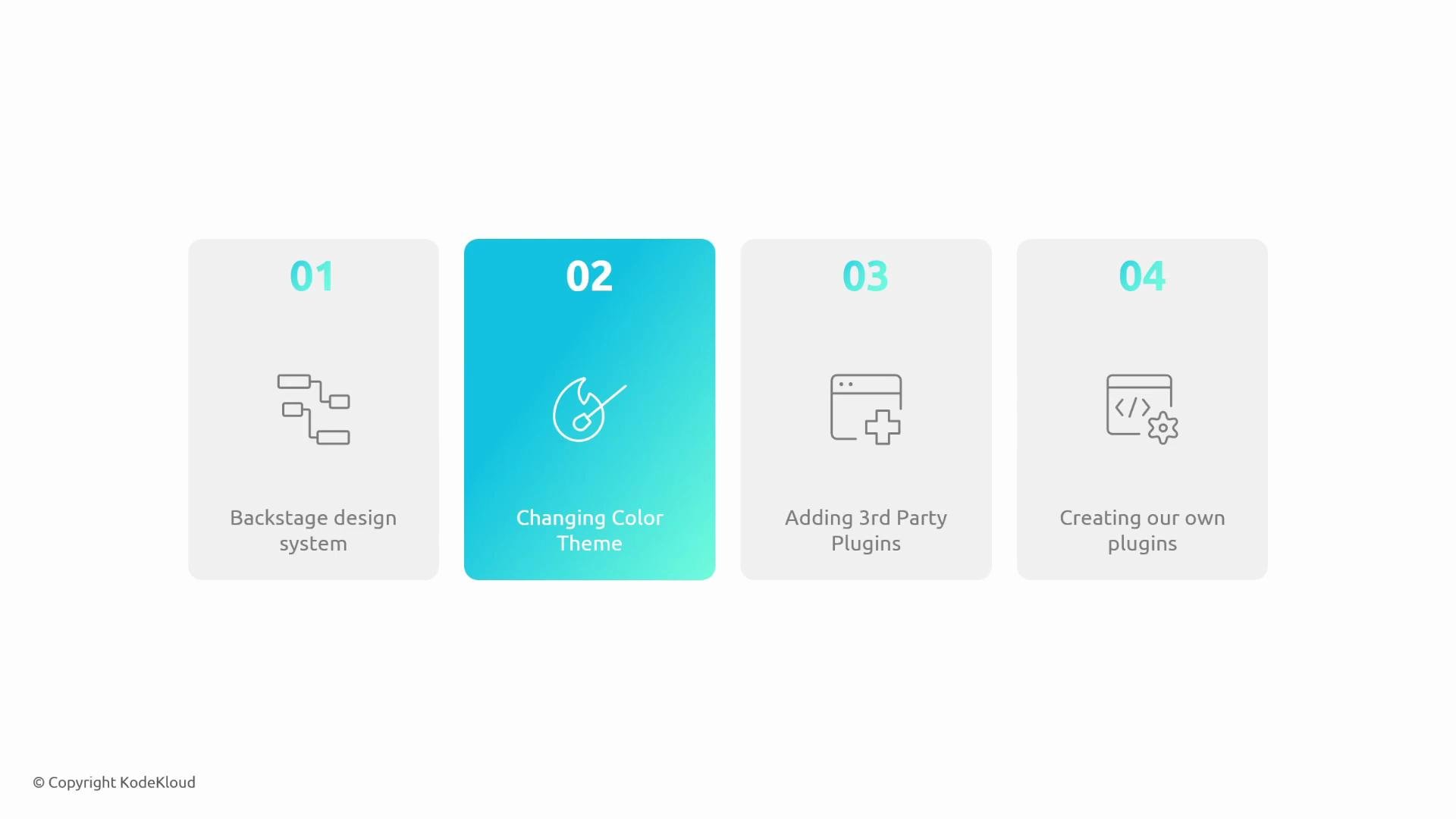
* An overview of the Backstage Design System and layout primitives for building consistent interfaces.
* How to change and configure color themes to align Backstage with your organization’s brand.
* How to install and integrate third‑party plugins from the community or vendors.
* How to scaffold, develop, and register your own plugins to introduce new capabilities.
| Topic | What you'll learn | Why it matters |
| -------------------------- | ----------------------------------------------------------------------- | -------------------------------------------------------------- |
| Backstage Design System | Core UI components, layout primitives, and accessibility considerations | Build consistent, accessible pages and components faster |
| Changing the color theme | Theme configuration, color overrides, and dark/light modes | Match the portal to your brand and improve visual coherence |
| Adding third‑party plugins | Installation, configuration, and integration patterns | Reuse community features and extend Backstage quickly |
| Creating custom plugins | Scaffolding, backend/frontend wiring, and registration | Add bespoke features tailored to your organization’s workflows |
 Before you begin, ensure you have a working local Backstage app (the App template or an existing instance). Familiarity with React, TypeScript, and basic plugin structure will make following the examples easier. If you need setup help, the Backstage docs include quickstart and local development guides.
Links and references
* Backstage official site: [https://backstage.io/](https://backstage.io/)
* Backstage Design System: [https://backstage.io/docs/design-system/](https://backstage.io/docs/design-system/)
* Theming and customization: [https://backstage.io/docs/features/theming/overview](https://backstage.io/docs/features/theming/overview)
* Plugin development guide: [https://backstage.io/docs/plugins/overview](https://backstage.io/docs/plugins/overview)
* Community plugins catalog: [https://backstage.io/plugins/overview](https://backstage.io/plugins/overview)
Before you begin, ensure you have a working local Backstage app (the App template or an existing instance). Familiarity with React, TypeScript, and basic plugin structure will make following the examples easier. If you need setup help, the Backstage docs include quickstart and local development guides.
Links and references
* Backstage official site: [https://backstage.io/](https://backstage.io/)
* Backstage Design System: [https://backstage.io/docs/design-system/](https://backstage.io/docs/design-system/)
* Theming and customization: [https://backstage.io/docs/features/theming/overview](https://backstage.io/docs/features/theming/overview)
* Plugin development guide: [https://backstage.io/docs/plugins/overview](https://backstage.io/docs/plugins/overview)
* Community plugins catalog: [https://backstage.io/plugins/overview](https://backstage.io/plugins/overview)