> ## Documentation Index
> Fetch the complete documentation index at: https://notes.kodekloud.com/llms.txt
> Use this file to discover all available pages before exploring further.
# Authentication
> Explains Backstage authentication setup, OAuth workflow, user entity mapping, and integrating automatic user provisioning from external identity providers to enable successful sign‑in.
In this lesson we cover how to implement authentication for a Backstage instance, explain the typical sign-in workflow, and show how to ensure users from external identity providers can successfully sign in.
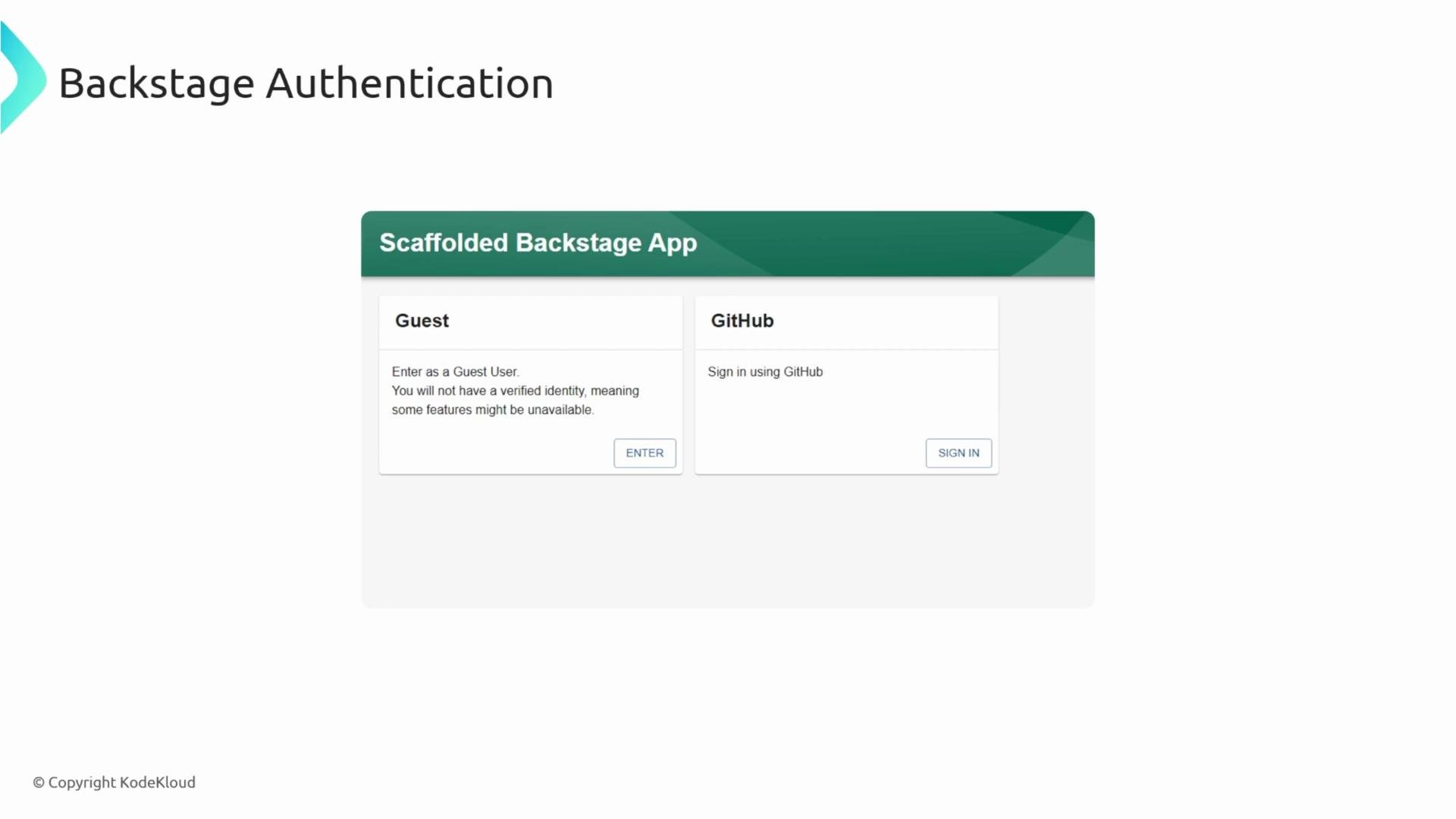
By default, a freshly scaffolded Backstage app provides a single "Guest" login option, which allows anyone to access the instance without identity verification. For production deployments you will usually want to restrict access so only authorized users can sign in.
 ## Supported identity providers
Backstage integrates with many identity providers so you can offer one-click sign-in options on the login page. Common providers include:
* GitHub
* Auth0
* Google
* OneLogin
* SAML / OIDC providers (custom integrations)
| Provider | Typical use case | Docs / setup |
| -------- | ------------------------------------------------------------------ | ------------------------------------------------------------------------------------------------------------------------------------------------------------------------------ |
| GitHub | Developer-centric teams who want OAuth login and organization sync | [https://docs.github.com/en/developers/apps/building-oauth-apps/authorizing-oauth-apps](https://docs.github.com/en/developers/apps/building-oauth-apps/authorizing-oauth-apps) |
| Auth0 | Flexible identity platform for enterprises and apps | [https://auth0.com](https://auth0.com) |
| Google | G Suite / Google Workspace authentication | [https://accounts.google.com](https://accounts.google.com) |
| OneLogin | Enterprise SSO with SAML/OIDC | [https://www.onelogin.com](https://www.onelogin.com) |
After you configure a provider in Backstage, its sign-in button will appear on the login page.
## How the authentication workflow works (OAuth example)
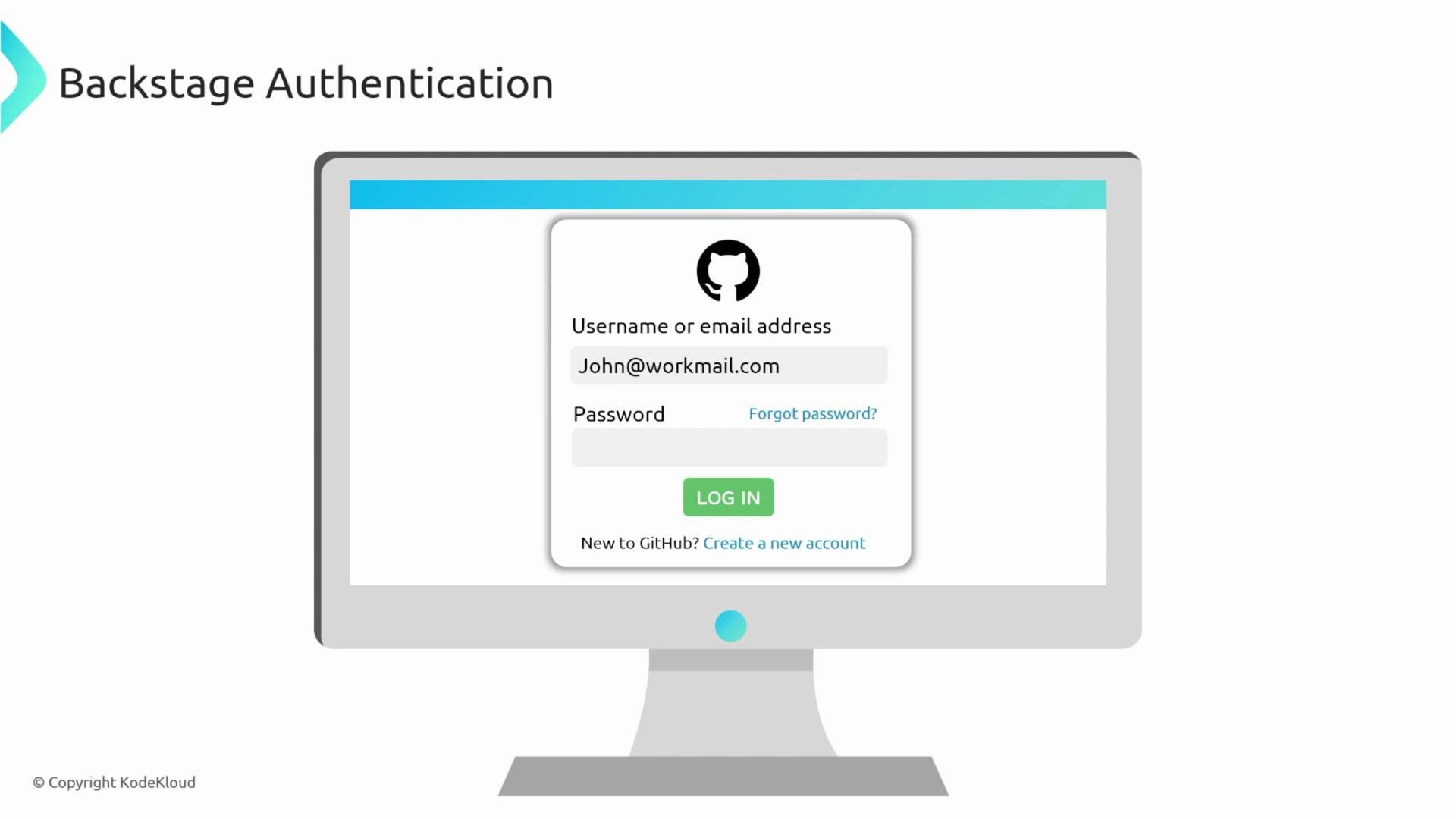
Consider a typical GitHub OAuth flow:
1. The user is already signed into GitHub in their browser (for example, as `john`).
2. They click "Sign in with GitHub" on the Backstage login page.
3. GitHub authenticates the user and returns identity information (username, email, etc.) to Backstage.
4. Backstage attempts to find a matching `User` entity in its catalog using the received identity information.
## Supported identity providers
Backstage integrates with many identity providers so you can offer one-click sign-in options on the login page. Common providers include:
* GitHub
* Auth0
* Google
* OneLogin
* SAML / OIDC providers (custom integrations)
| Provider | Typical use case | Docs / setup |
| -------- | ------------------------------------------------------------------ | ------------------------------------------------------------------------------------------------------------------------------------------------------------------------------ |
| GitHub | Developer-centric teams who want OAuth login and organization sync | [https://docs.github.com/en/developers/apps/building-oauth-apps/authorizing-oauth-apps](https://docs.github.com/en/developers/apps/building-oauth-apps/authorizing-oauth-apps) |
| Auth0 | Flexible identity platform for enterprises and apps | [https://auth0.com](https://auth0.com) |
| Google | G Suite / Google Workspace authentication | [https://accounts.google.com](https://accounts.google.com) |
| OneLogin | Enterprise SSO with SAML/OIDC | [https://www.onelogin.com](https://www.onelogin.com) |
After you configure a provider in Backstage, its sign-in button will appear on the login page.
## How the authentication workflow works (OAuth example)
Consider a typical GitHub OAuth flow:
1. The user is already signed into GitHub in their browser (for example, as `john`).
2. They click "Sign in with GitHub" on the Backstage login page.
3. GitHub authenticates the user and returns identity information (username, email, etc.) to Backstage.
4. Backstage attempts to find a matching `User` entity in its catalog using the received identity information.
 ## Common failure: "No matching User entity"
If Backstage cannot find a corresponding `User` entity in the catalog for the identity returned by the provider (and you haven't configured auto-provisioning or a custom mapping), the login fails. For example, if GitHub returns the username `john` but there is no `User` entity with metadata name `john`, the sign-in attempt will be rejected.
## Common failure: "No matching User entity"
If Backstage cannot find a corresponding `User` entity in the catalog for the identity returned by the provider (and you haven't configured auto-provisioning or a custom mapping), the login fails. For example, if GitHub returns the username `john` but there is no `User` entity with metadata name `john`, the sign-in attempt will be rejected.
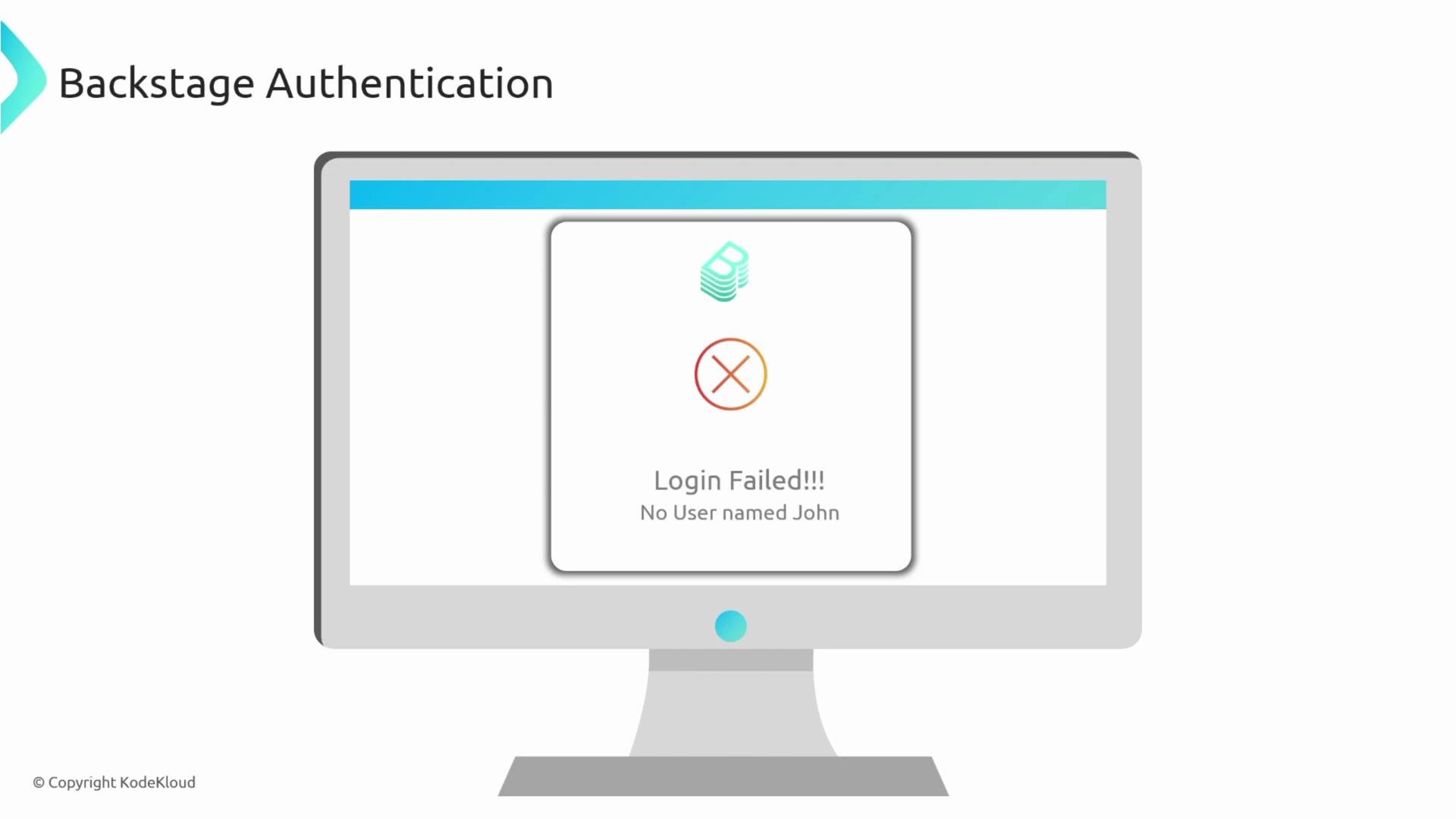 The reason is simple: by default Backstage expects the identity provider username to match a catalog `User` entity metadata name exactly. To allow the user `john` to sign in with GitHub, create a `User` entity in the Backstage catalog with the corresponding metadata name. Example:
```yaml theme={null}
apiVersion: backstage.io/v1alpha1
kind: User
metadata:
name: john
spec:
profile:
displayName: john
email: john@example.com
memberOf: [team-b, employees]
```
Once a matching entity exists, the GitHub-authenticated user can sign in successfully.
By default, Backstage requires the identity provider username to match a catalog `User` entity metadata name exactly. To avoid manual creation of every user, configure integrations to automatically import users from external systems (for example, a GitHub organization, LDAP, or another user directory).
## Automating user and team provisioning (integrations)
Rather than creating user entities manually, you can import users and teams into Backstage using integrations. These integrations synchronize users and groups from external systems so Backstage already contains the required `User` entities when users attempt to sign in.
Common integration sources:
| Integration source | What it provides | Typical mapping |
| ------------------------------ | ------------------------------------ | --------------------------------------------------- |
| GitHub Organizations | Users, teams, org membership | Map GitHub usernames to `User` entity metadata name |
| LDAP / Active Directory | Users and groups from your directory | Map distinguished names or usernames to entities |
| SCIM / IDaaS (Auth0, OneLogin) | Programmatic user provisioning | Auto-create `User` and `Group` entities via API |
The reason is simple: by default Backstage expects the identity provider username to match a catalog `User` entity metadata name exactly. To allow the user `john` to sign in with GitHub, create a `User` entity in the Backstage catalog with the corresponding metadata name. Example:
```yaml theme={null}
apiVersion: backstage.io/v1alpha1
kind: User
metadata:
name: john
spec:
profile:
displayName: john
email: john@example.com
memberOf: [team-b, employees]
```
Once a matching entity exists, the GitHub-authenticated user can sign in successfully.
By default, Backstage requires the identity provider username to match a catalog `User` entity metadata name exactly. To avoid manual creation of every user, configure integrations to automatically import users from external systems (for example, a GitHub organization, LDAP, or another user directory).
## Automating user and team provisioning (integrations)
Rather than creating user entities manually, you can import users and teams into Backstage using integrations. These integrations synchronize users and groups from external systems so Backstage already contains the required `User` entities when users attempt to sign in.
Common integration sources:
| Integration source | What it provides | Typical mapping |
| ------------------------------ | ------------------------------------ | --------------------------------------------------- |
| GitHub Organizations | Users, teams, org membership | Map GitHub usernames to `User` entity metadata name |
| LDAP / Active Directory | Users and groups from your directory | Map distinguished names or usernames to entities |
| SCIM / IDaaS (Auth0, OneLogin) | Programmatic user provisioning | Auto-create `User` and `Group` entities via API |
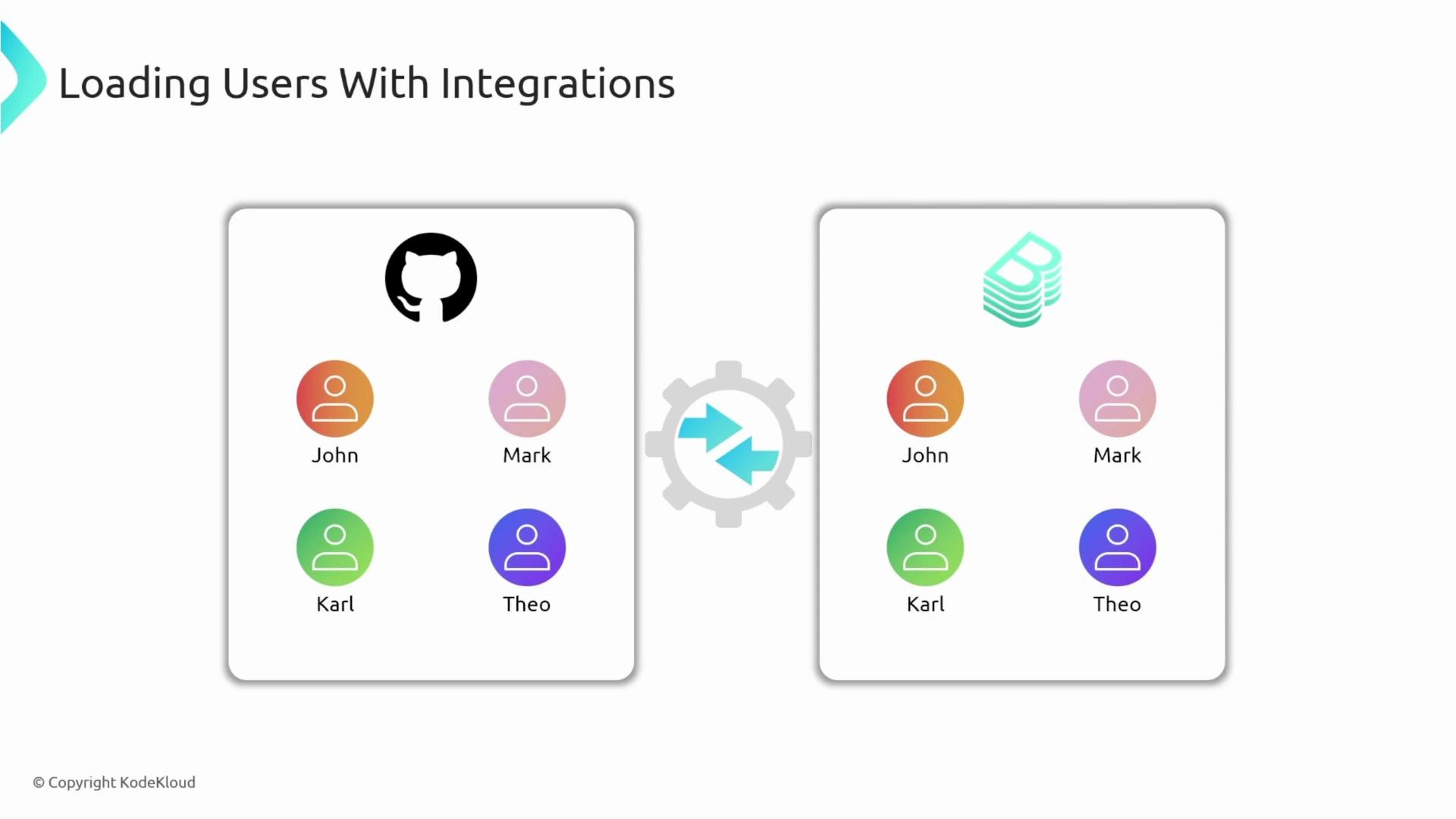 With integrations in place, Backstage will have the required `User` entities ahead of authentication, allowing seamless sign-in and centralized access control.
## Troubleshooting checklist
* Confirm the identity provider is configured in Backstage and the sign-in option appears on the login page.
* Verify the provider returns the expected username/email in the identity payload.
* Ensure a corresponding `User` entity exists in the Backstage catalog with a matching metadata name (or configure mapping/provisioning).
* Consider enabling automatic user import or SCIM provisioning to avoid creating users manually.
## Links and references
* [Backstage Authentication and Identity](https://backstage.io/docs/auth/)
* [GitHub OAuth docs](https://docs.github.com/en/developers/apps/building-oauth-apps/authorizing-oauth-apps)
* [Auth0](https://auth0.com)
* [OneLogin](https://www.onelogin.com)
With integrations in place, Backstage will have the required `User` entities ahead of authentication, allowing seamless sign-in and centralized access control.
## Troubleshooting checklist
* Confirm the identity provider is configured in Backstage and the sign-in option appears on the login page.
* Verify the provider returns the expected username/email in the identity payload.
* Ensure a corresponding `User` entity exists in the Backstage catalog with a matching metadata name (or configure mapping/provisioning).
* Consider enabling automatic user import or SCIM provisioning to avoid creating users manually.
## Links and references
* [Backstage Authentication and Identity](https://backstage.io/docs/auth/)
* [GitHub OAuth docs](https://docs.github.com/en/developers/apps/building-oauth-apps/authorizing-oauth-apps)
* [Auth0](https://auth0.com)
* [OneLogin](https://www.onelogin.com)