> ## Documentation Index
> Fetch the complete documentation index at: https://notes.kodekloud.com/llms.txt
> Use this file to discover all available pages before exploring further.
# Template Basics
> Guide to creating and using Backstage scaffolder templates, covering parameters, steps, templating, and outputs for project generation and catalog registration.
In this lesson we'll learn how to create Backstage templates and review the core syntax used to scaffold and provision new projects with the Scaffolder. Templates in Backstage are first-class entities (just like `Component` or `System`) — they are defined with a YAML entity whose `kind` is `Template`. A template entity contains metadata (name, title, description, owner, type) and three main `spec` sections:
* `parameters` — builds the UI form and gathers input,
* `steps` — executes the actions that implement the template logic,
* `output` — renders helpful links and values after success.
A minimal template entity looks like this:
```yaml theme={null}
apiVersion: scaffolder.backstage.io/v1beta3
kind: Template
metadata:
name: python-template
title: python template
description: Template for creating a new Python application
spec:
owner: user:guest
type: service
# These parameters define the input form in the frontend and gather input
# data for the execution of the template.
parameters: []
# Steps the template should perform.
steps: []
# Outputs are displayed to the user after a successful execution.
output: {}
```
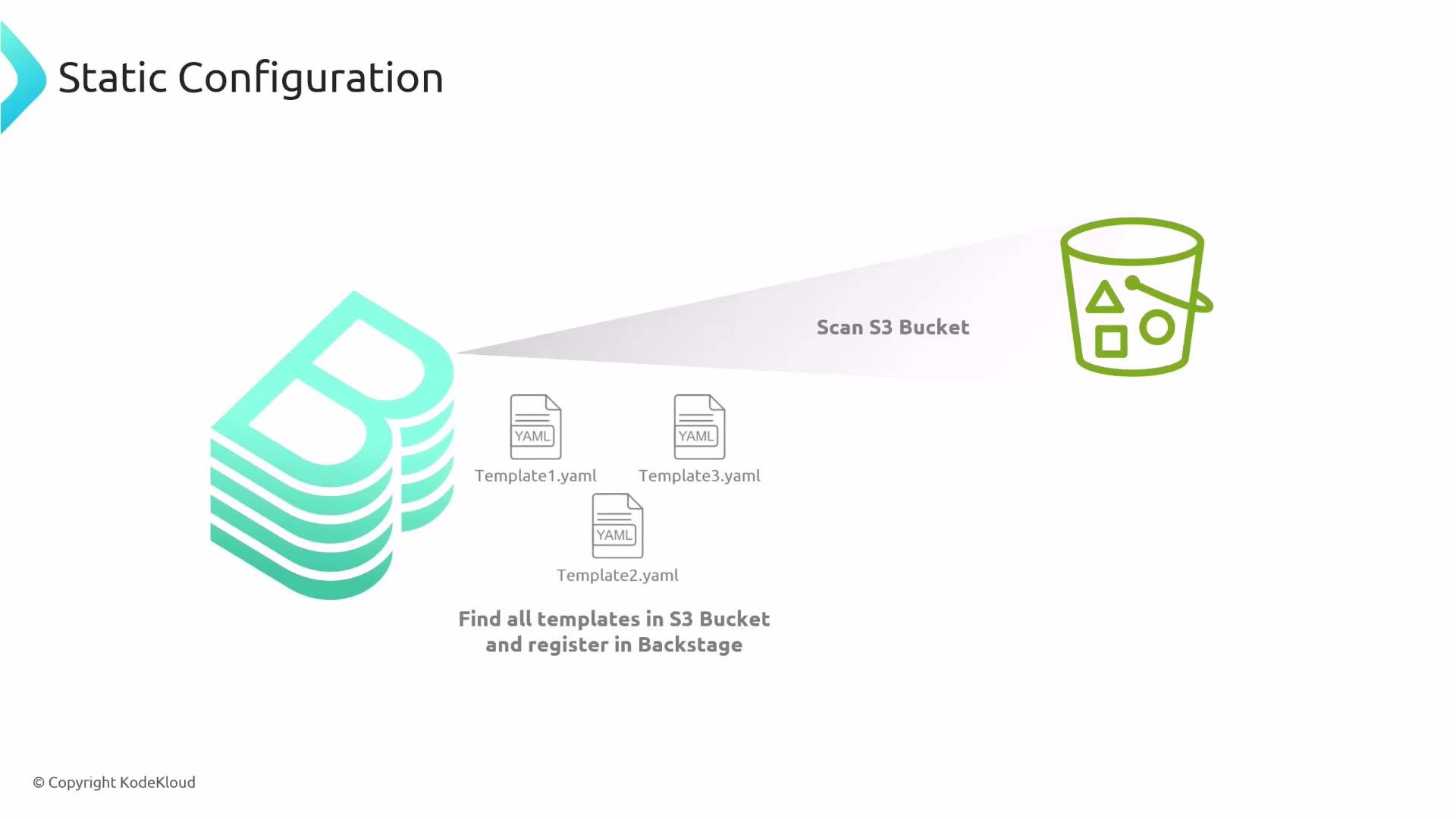
Register the template like any other Backstage entity: register it statically, add it to the catalog, or let Backstage scan remote locations (for example, [GitHub](https://github.com), [S3](https://aws.amazon.com/s3/)) to discover templates automatically.
 ***
## 1) Parameters — Building the Form
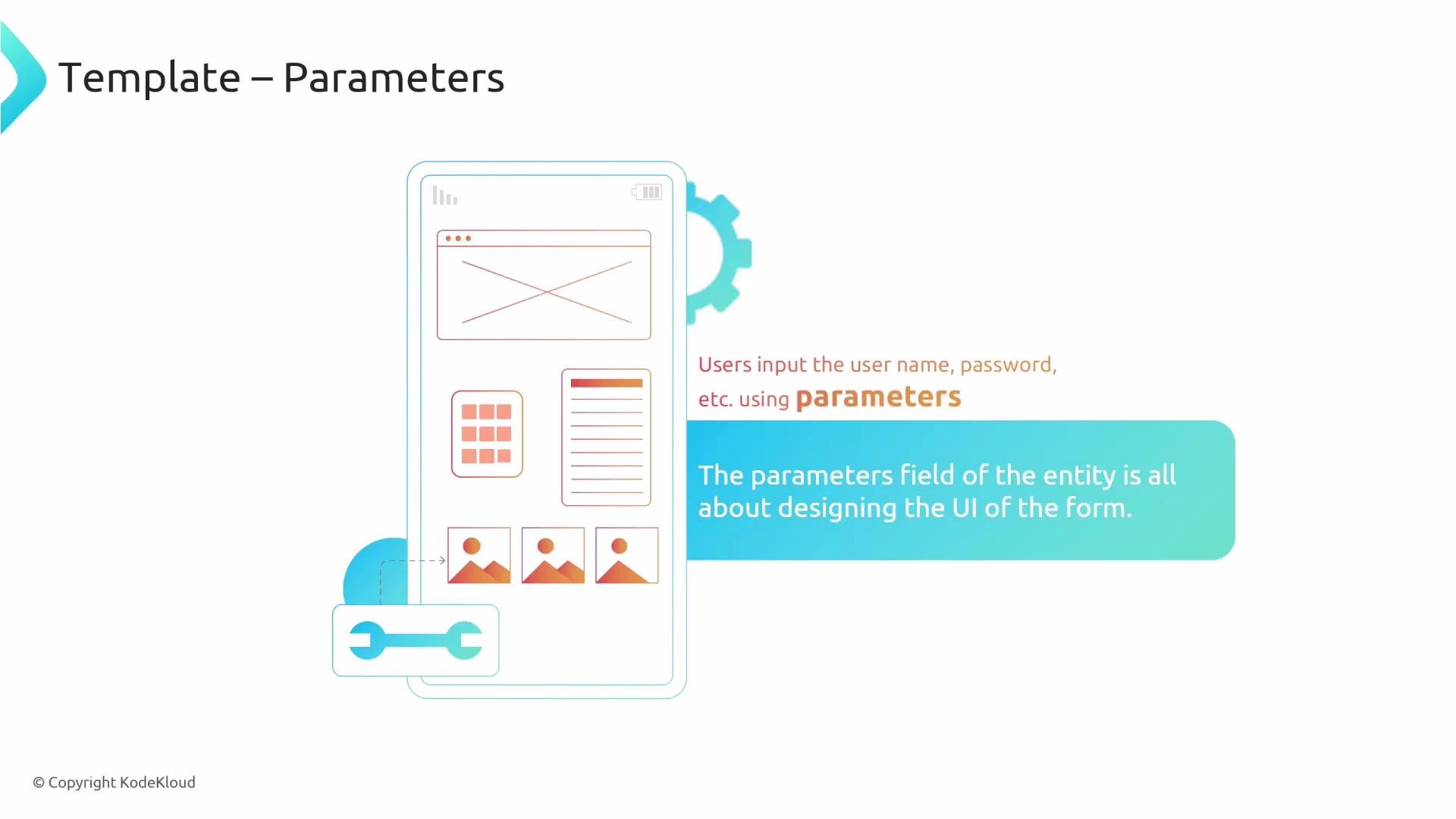
The `parameters` section defines the user-facing form used to collect input. Each item in the `parameters` array describes a page (or step) in the multi-page form. Within a parameter/page you declare `properties` — the fields that appear on that page.
***
## 1) Parameters — Building the Form
The `parameters` section defines the user-facing form used to collect input. Each item in the `parameters` array describes a page (or step) in the multi-page form. Within a parameter/page you declare `properties` — the fields that appear on that page.
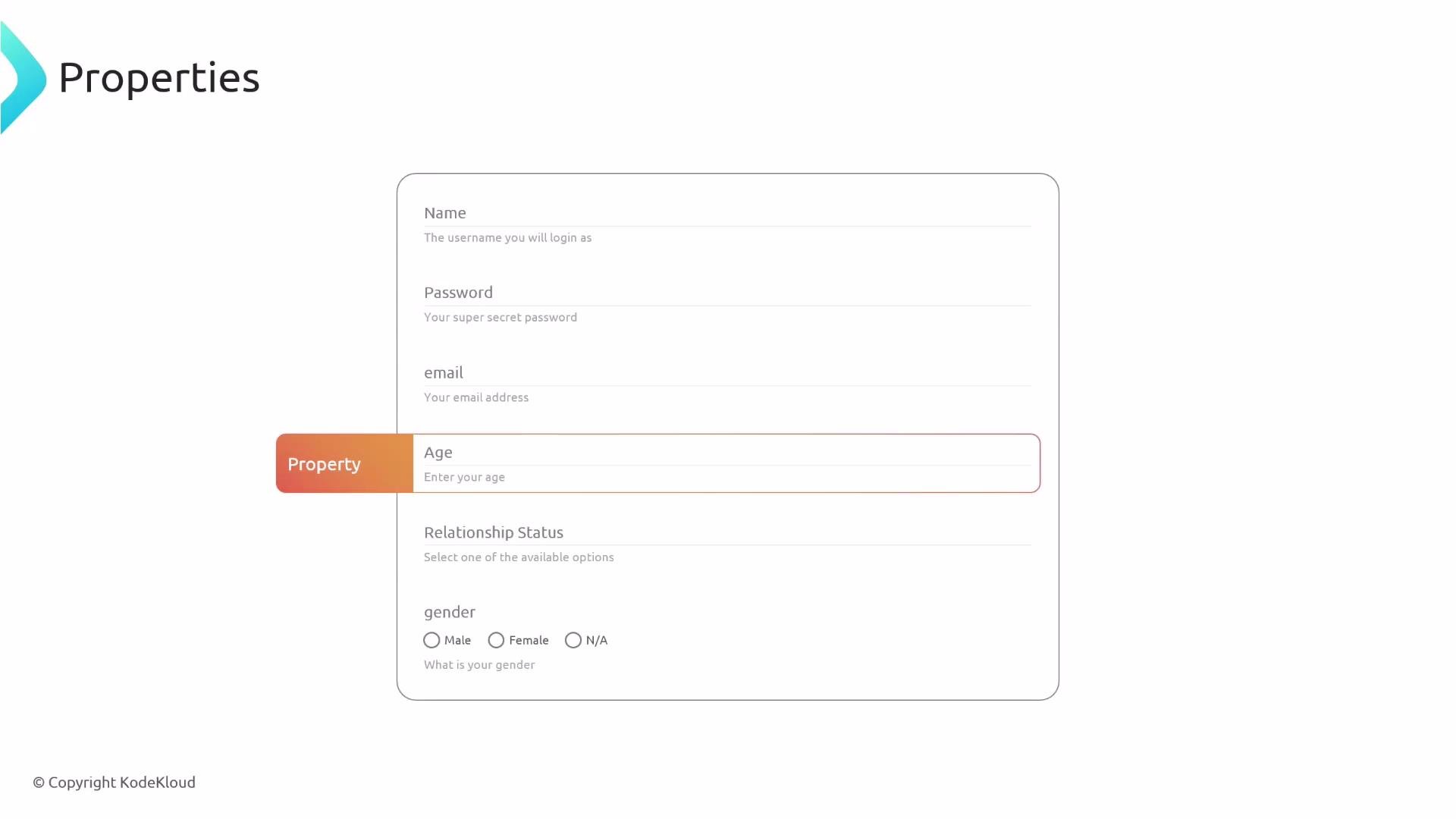
 Each property typically has:
* an internal `name` (the YAML key used to reference the value),
* a `title` (shown to the user),
* a `type` (string, number, boolean, array, etc.),
* a `description`,
* optional UI hints such as `ui:placeholder`, `ui:autofocus`, `ui:widget`, or `ui:field`.
Example — a single page with basic fields:
```yaml theme={null}
parameters:
- title: Fill in some steps
required:
- name
properties:
name:
title: Name
type: string
description: Unique name of the component
username:
title: Username
type: string
description: The username you will log in as
ui:placeholder: "my-username"
ui:autofocus: true
password:
title: Password
type: string
description: Your super-secret password
email:
title: Email
type: string
description: Your email address
ui:widget: email
ui:placeholder: "example@domain.com"
```
Common property patterns and validation:
* Number with range:
```yaml theme={null}
age:
title: Age
type: number
description: Enter your age
minimum: 0
maximum: 120
```
* Enum (dropdown):
```yaml theme={null}
relationshipStatus:
title: Relationship Status
type: string
description: Select one of the available options
enum:
- Single
- Married
- Divorced
```
* Radio buttons (single selection shown inline):
```yaml theme={null}
gender:
title: Gender
type: string
description: What is your gender
enum:
- Male
- Female
- N/A
ui:widget: radio
ui:options:
inline: true
```
* Multi-select checkboxes:
```yaml theme={null}
interests:
title: Select Interests
type: array
items:
type: string
enum:
- hiking
- movies
- dancing
uniqueItems: true
ui:widget: checkboxes
```
* Boolean (yes/no) — radio or checkbox:
```yaml theme={null}
yesno:
title: Do you have any children?
type: boolean
ui:widget: radio
acceptTerms:
title: Accept Terms and Conditions
type: boolean
description: Please accept the terms and conditions
```
Each property typically has:
* an internal `name` (the YAML key used to reference the value),
* a `title` (shown to the user),
* a `type` (string, number, boolean, array, etc.),
* a `description`,
* optional UI hints such as `ui:placeholder`, `ui:autofocus`, `ui:widget`, or `ui:field`.
Example — a single page with basic fields:
```yaml theme={null}
parameters:
- title: Fill in some steps
required:
- name
properties:
name:
title: Name
type: string
description: Unique name of the component
username:
title: Username
type: string
description: The username you will log in as
ui:placeholder: "my-username"
ui:autofocus: true
password:
title: Password
type: string
description: Your super-secret password
email:
title: Email
type: string
description: Your email address
ui:widget: email
ui:placeholder: "example@domain.com"
```
Common property patterns and validation:
* Number with range:
```yaml theme={null}
age:
title: Age
type: number
description: Enter your age
minimum: 0
maximum: 120
```
* Enum (dropdown):
```yaml theme={null}
relationshipStatus:
title: Relationship Status
type: string
description: Select one of the available options
enum:
- Single
- Married
- Divorced
```
* Radio buttons (single selection shown inline):
```yaml theme={null}
gender:
title: Gender
type: string
description: What is your gender
enum:
- Male
- Female
- N/A
ui:widget: radio
ui:options:
inline: true
```
* Multi-select checkboxes:
```yaml theme={null}
interests:
title: Select Interests
type: array
items:
type: string
enum:
- hiking
- movies
- dancing
uniqueItems: true
ui:widget: checkboxes
```
* Boolean (yes/no) — radio or checkbox:
```yaml theme={null}
yesno:
title: Do you have any children?
type: boolean
ui:widget: radio
acceptTerms:
title: Accept Terms and Conditions
type: boolean
description: Please accept the terms and conditions
```
 ### Built-in UI fields
Backstage ships useful UI pickers that simplify capturing structured values from your catalog and repository hosts. Use the corresponding `ui:field` and `ui:options` to configure behavior.
| UI field | Purpose | Example |
| ----------------- | ----------------------------------------------- | ----------------- |
| Entity picker | Select an entity from the Backstage catalog | See example below |
| Owner picker | Choose a user or group from the catalog | See example below |
| Repository picker | Pick a code repository and constrain hosts/orgs | See example below |
* Entity picker (`ui:field: EntityPicker`):
```yaml theme={null}
entity:
title: Entity
type: string
description: Entity of the component
ui:field: EntityPicker
ui:options:
allowArbitraryValues: false
```
* Owner picker (`ui:field: OwnerPicker`):
```yaml theme={null}
owner:
title: Owner
type: string
description: Owner of the component
ui:field: OwnerPicker
ui:options:
catalogFilter:
kind:
- User
- Group
```
* Repository picker (`ui:field: RepoUrlPicker`):
```yaml theme={null}
repoUrl:
title: Repository Location
type: string
ui:field: RepoUrlPicker
ui:options:
allowedHosts:
- github.com
allowedOrganizations:
- my_organization
```
### Conditional fields
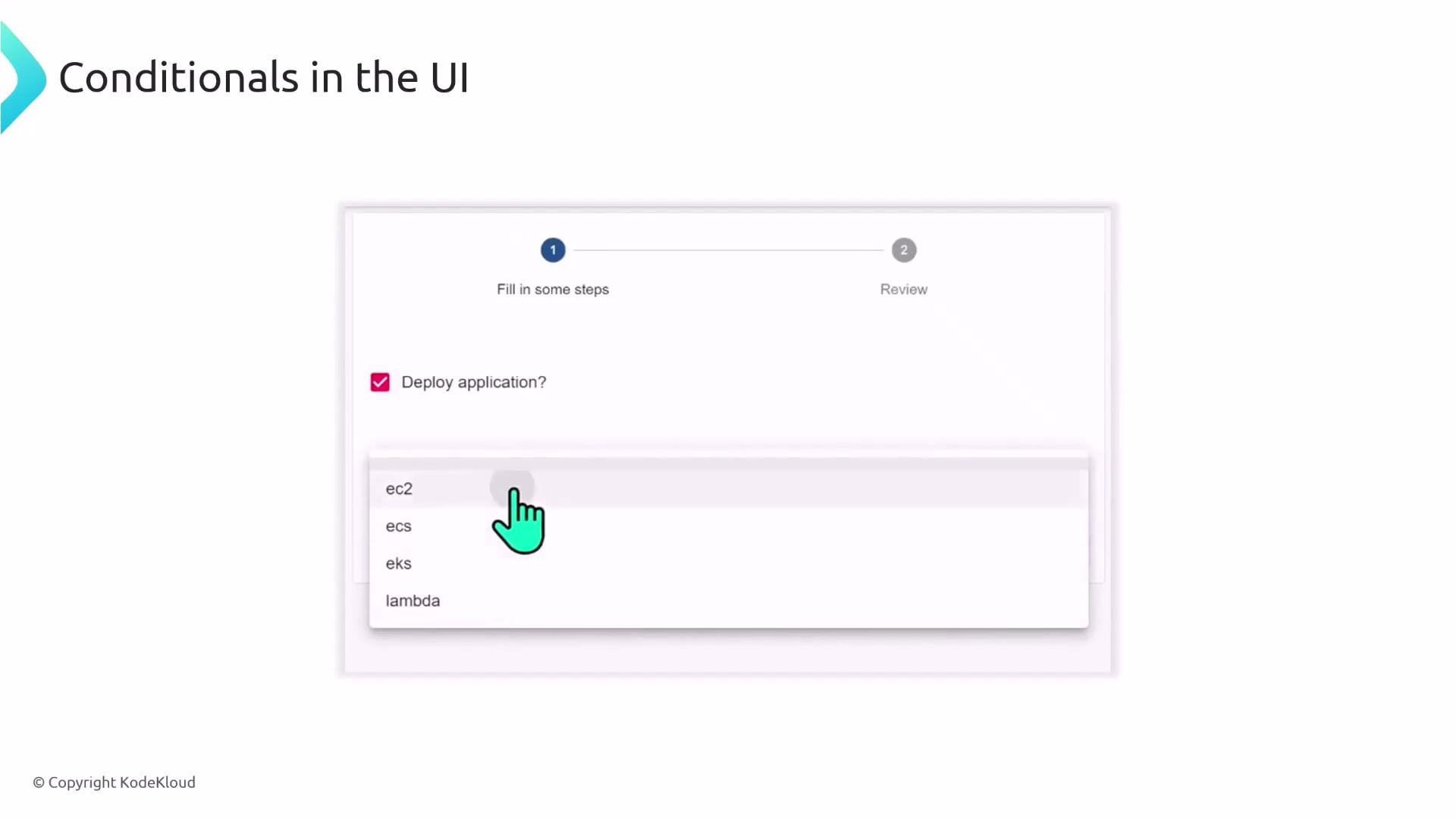
Use JSON Schema `dependencies` to show or hide fields based on earlier answers. This keeps the form focused and relevant. Example: only ask for `platform` when `deploy` is `true`:
```yaml theme={null}
parameters:
- title: Fill in some steps
properties:
deploy:
title: Deploy application?
type: boolean
default: true
dependencies:
deploy:
allOf:
- if:
properties:
deploy:
const: true
then:
properties:
platform:
title: Platform
type: string
description: Select what compute platform to deploy to
enum:
- ec2
- ecs
- eks
- lambda
required:
- platform
```
### Built-in UI fields
Backstage ships useful UI pickers that simplify capturing structured values from your catalog and repository hosts. Use the corresponding `ui:field` and `ui:options` to configure behavior.
| UI field | Purpose | Example |
| ----------------- | ----------------------------------------------- | ----------------- |
| Entity picker | Select an entity from the Backstage catalog | See example below |
| Owner picker | Choose a user or group from the catalog | See example below |
| Repository picker | Pick a code repository and constrain hosts/orgs | See example below |
* Entity picker (`ui:field: EntityPicker`):
```yaml theme={null}
entity:
title: Entity
type: string
description: Entity of the component
ui:field: EntityPicker
ui:options:
allowArbitraryValues: false
```
* Owner picker (`ui:field: OwnerPicker`):
```yaml theme={null}
owner:
title: Owner
type: string
description: Owner of the component
ui:field: OwnerPicker
ui:options:
catalogFilter:
kind:
- User
- Group
```
* Repository picker (`ui:field: RepoUrlPicker`):
```yaml theme={null}
repoUrl:
title: Repository Location
type: string
ui:field: RepoUrlPicker
ui:options:
allowedHosts:
- github.com
allowedOrganizations:
- my_organization
```
### Conditional fields
Use JSON Schema `dependencies` to show or hide fields based on earlier answers. This keeps the form focused and relevant. Example: only ask for `platform` when `deploy` is `true`:
```yaml theme={null}
parameters:
- title: Fill in some steps
properties:
deploy:
title: Deploy application?
type: boolean
default: true
dependencies:
deploy:
allOf:
- if:
properties:
deploy:
const: true
then:
properties:
platform:
title: Platform
type: string
description: Select what compute platform to deploy to
enum:
- ec2
- ecs
- eks
- lambda
required:
- platform
```
 Design parameters to collect only what you need. Use `dependencies` to reveal advanced options, and prefer pickers (Entity/Owner/Repo) to reduce free-text errors.
Parameters build the UI and gather the input values you will reference inside `steps`. Next we look at how each step executes actions.
***
## 2) Steps — Executing Actions
The `steps` array contains the actions that implement the template behavior: fetch a skeleton, render templates, publish to Git, register catalog entities, provision cloud resources, etc. Each step should include:
* `id` — unique identifier used to reference that step's output,
* `name` — human-friendly name shown in the UI,
* `action` — the action plugin to run (for example `fetch:template`, `publish:github`, `catalog:register`),
* `input` — the configuration for the action (can use parameter and step output expressions).
Typical template flow:
1. Fetch a directory containing the skeleton/project template.
2. Render files with the provided `values`.
3. Publish the generated result to the Git host.
4. Optionally register the new component in the Backstage catalog.
Example: fetch a skeleton and publish to GitHub.
```yaml theme={null}
steps:
- id: fetch-base
name: Fetch Base
action: fetch:template
input:
url: ./content
values:
projectName: ${{ parameters.name }}
- id: publish
name: Publish
action: publish:github
input:
allowedHosts: ['github.com']
description: This is ${{ parameters.name }}
repoUrl: ${{ parameters.repoUrl }}
```
Notes:
* Map `parameters` into `input.values` for the `fetch:template` action so templates can use `values.*`.
* Refer to parameter values inside steps using the scaffolder expression syntax: `${{ parameters. }}`.
To register the generated component in the catalog, use `catalog:register` and reference outputs from prior steps. Step outputs are available via `steps[''].output.`. Example:
```yaml theme={null}
- id: register
name: Register
action: catalog:register
input:
repoContentsUrl: ${{ steps['publish'].output.repoContentsUrl }}
catalogInfoPath: '/catalog-info.yaml'
```
Always use inline code ticks when showing step references in text, for example: `steps['publish'].output.repoContentsUrl`.
***
## 3) Templating files (skeleton) and passing values into files
A platform team typically provides a skeleton directory with base files for new projects (source files, package manifests, a `catalog-info.yaml`, configuration, etc.). The `fetch:template` action copies that folder and renders files using the `values` you provide.
Inside skeleton files, reference the values using the templating syntax (commonly Mustache). Example `package.json` using `values.projectName`:
```json theme={null}
{
"name": "{{ values.projectName }}",
"version": "1.0.0",
"description": "",
"main": "index.js",
"scripts": {
"test": "echo \"Error: no test specified\" && exit 1"
},
"keywords": [],
"author": "",
"license": "ISC"
}
```
Map UI parameters into templating variables in your template `spec.steps.fetch-base.input.values`:
```yaml theme={null}
- id: fetch-base
name: Fetch Base
action: fetch:template
input:
url: ./content
values:
projectName: ${{ parameters.name }}
owner: ${{ parameters.owner }}
```
All files under `./content` will be rendered with `values.projectName`, `values.owner`, etc.
Example templated `catalog-info.yaml` inside the skeleton:
```yaml theme={null}
apiVersion: backstage.io/v1alpha1
kind: Component
metadata:
name: {{ values.projectName }}
spec:
type: service
owner: {{ values.owner }}
lifecycle: experimental
```
The templating engine supports helpers and filters to transform data (for example convert objects to YAML or JSON) — useful when injecting complex structures into YAML manifests.
***
## 4) Output — information shown to the user after success
The `output` section exposes links and useful metadata after the template run completes. Outputs usually reference step outputs using the `${{ ... }}` scaffolder expression syntax.
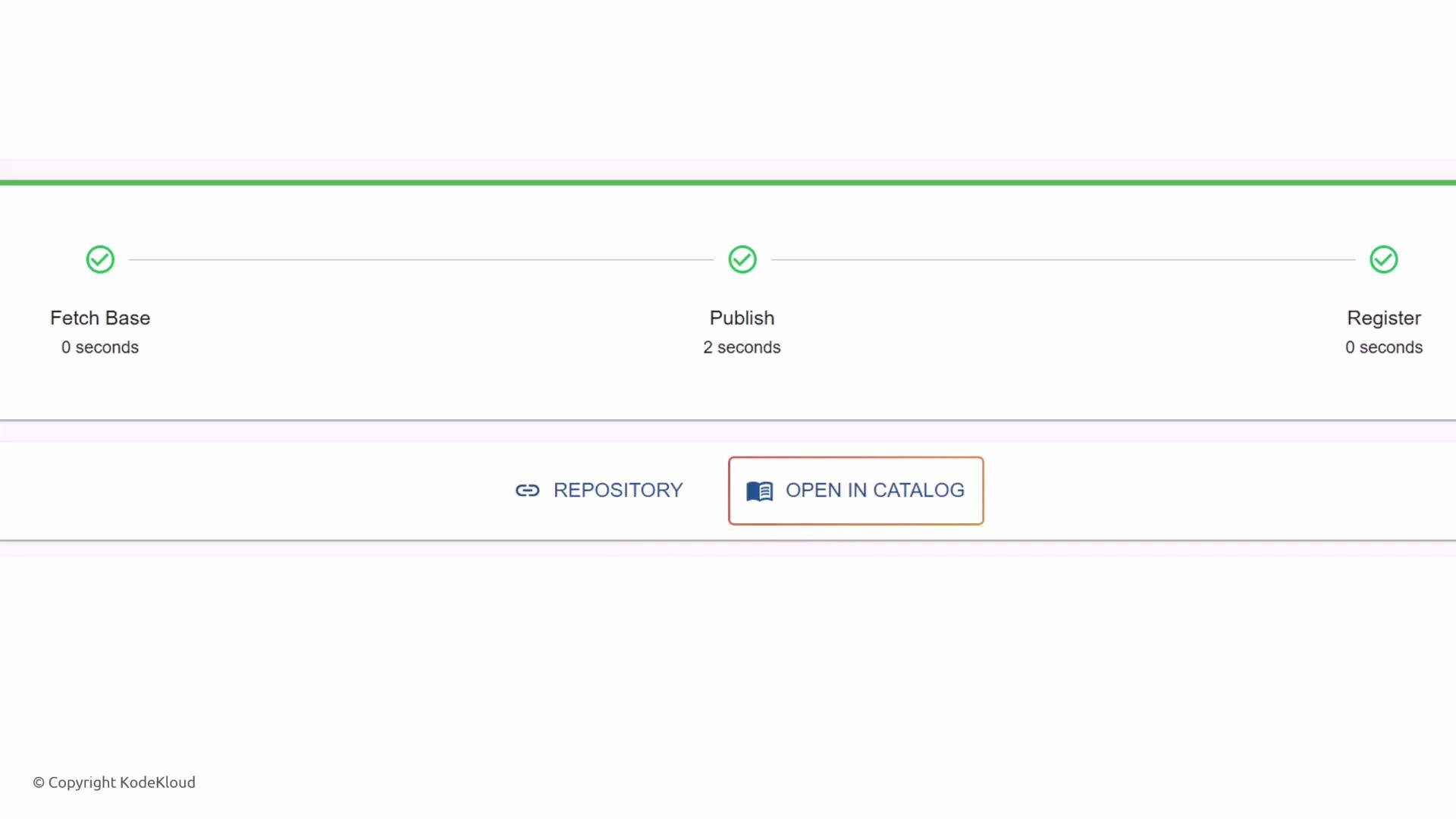
Example outputs that link to the created repository and the new catalog entity:
```yaml theme={null}
output:
links:
- title: Repository
url: ${{ steps['publish'].output.remoteUrl }}
- title: Open in catalog
icon: catalog
entityRef: ${{ steps['register'].output.entityRef }}
```
These outputs are rendered in the UI so the user can quickly navigate to the repository or the new catalog entry.
Design parameters to collect only what you need. Use `dependencies` to reveal advanced options, and prefer pickers (Entity/Owner/Repo) to reduce free-text errors.
Parameters build the UI and gather the input values you will reference inside `steps`. Next we look at how each step executes actions.
***
## 2) Steps — Executing Actions
The `steps` array contains the actions that implement the template behavior: fetch a skeleton, render templates, publish to Git, register catalog entities, provision cloud resources, etc. Each step should include:
* `id` — unique identifier used to reference that step's output,
* `name` — human-friendly name shown in the UI,
* `action` — the action plugin to run (for example `fetch:template`, `publish:github`, `catalog:register`),
* `input` — the configuration for the action (can use parameter and step output expressions).
Typical template flow:
1. Fetch a directory containing the skeleton/project template.
2. Render files with the provided `values`.
3. Publish the generated result to the Git host.
4. Optionally register the new component in the Backstage catalog.
Example: fetch a skeleton and publish to GitHub.
```yaml theme={null}
steps:
- id: fetch-base
name: Fetch Base
action: fetch:template
input:
url: ./content
values:
projectName: ${{ parameters.name }}
- id: publish
name: Publish
action: publish:github
input:
allowedHosts: ['github.com']
description: This is ${{ parameters.name }}
repoUrl: ${{ parameters.repoUrl }}
```
Notes:
* Map `parameters` into `input.values` for the `fetch:template` action so templates can use `values.*`.
* Refer to parameter values inside steps using the scaffolder expression syntax: `${{ parameters. }}`.
To register the generated component in the catalog, use `catalog:register` and reference outputs from prior steps. Step outputs are available via `steps[''].output.`. Example:
```yaml theme={null}
- id: register
name: Register
action: catalog:register
input:
repoContentsUrl: ${{ steps['publish'].output.repoContentsUrl }}
catalogInfoPath: '/catalog-info.yaml'
```
Always use inline code ticks when showing step references in text, for example: `steps['publish'].output.repoContentsUrl`.
***
## 3) Templating files (skeleton) and passing values into files
A platform team typically provides a skeleton directory with base files for new projects (source files, package manifests, a `catalog-info.yaml`, configuration, etc.). The `fetch:template` action copies that folder and renders files using the `values` you provide.
Inside skeleton files, reference the values using the templating syntax (commonly Mustache). Example `package.json` using `values.projectName`:
```json theme={null}
{
"name": "{{ values.projectName }}",
"version": "1.0.0",
"description": "",
"main": "index.js",
"scripts": {
"test": "echo \"Error: no test specified\" && exit 1"
},
"keywords": [],
"author": "",
"license": "ISC"
}
```
Map UI parameters into templating variables in your template `spec.steps.fetch-base.input.values`:
```yaml theme={null}
- id: fetch-base
name: Fetch Base
action: fetch:template
input:
url: ./content
values:
projectName: ${{ parameters.name }}
owner: ${{ parameters.owner }}
```
All files under `./content` will be rendered with `values.projectName`, `values.owner`, etc.
Example templated `catalog-info.yaml` inside the skeleton:
```yaml theme={null}
apiVersion: backstage.io/v1alpha1
kind: Component
metadata:
name: {{ values.projectName }}
spec:
type: service
owner: {{ values.owner }}
lifecycle: experimental
```
The templating engine supports helpers and filters to transform data (for example convert objects to YAML or JSON) — useful when injecting complex structures into YAML manifests.
***
## 4) Output — information shown to the user after success
The `output` section exposes links and useful metadata after the template run completes. Outputs usually reference step outputs using the `${{ ... }}` scaffolder expression syntax.
Example outputs that link to the created repository and the new catalog entity:
```yaml theme={null}
output:
links:
- title: Repository
url: ${{ steps['publish'].output.remoteUrl }}
- title: Open in catalog
icon: catalog
entityRef: ${{ steps['register'].output.entityRef }}
```
These outputs are rendered in the UI so the user can quickly navigate to the repository or the new catalog entry.
 Do not store production secrets (API keys, passwords) in template outputs or in the generated repository content. Use secret management integrations and environment-specific provisioning steps where appropriate.
***
## Quick Reference
| Section | Purpose | Common actions / keys |
| ------------ | ----------------------------------- | ------------------------------------------------------ |
| `parameters` | Build the UI form and collect input | `properties`, `required`, `dependencies`, `ui:field` |
| `steps` | Execute scaffolding logic | `fetch:template`, `publish:github`, `catalog:register` |
| `output` | Show links and metadata to the user | `links`, `entityRef`, `url` |
Links and references:
* Backstage Scaffolder docs: [https://backstage.io/docs/features/software-templates/creating-templates](https://backstage.io/docs/features/software-templates/creating-templates)
* Mustache templating: [https://mustache.github.io/](https://mustache.github.io/)
***
## Summary
Backstage templates let platform teams provide repeatable, self-service project scaffolds. Build templates by:
* defining `parameters` to collect structured input with pickers and conditionals,
* implementing `steps` to fetch skeletons, render files, publish code, and register catalog entries,
* exposing `output` links so developers can quickly navigate to the created resources.
Map UI `parameters` into `steps.input.values`, use `{{ values.* }}` inside skeleton files, and reference step results with the `${{ steps[''].output. }}` syntax to build robust, reusable templates for your Backstage platform.
Do not store production secrets (API keys, passwords) in template outputs or in the generated repository content. Use secret management integrations and environment-specific provisioning steps where appropriate.
***
## Quick Reference
| Section | Purpose | Common actions / keys |
| ------------ | ----------------------------------- | ------------------------------------------------------ |
| `parameters` | Build the UI form and collect input | `properties`, `required`, `dependencies`, `ui:field` |
| `steps` | Execute scaffolding logic | `fetch:template`, `publish:github`, `catalog:register` |
| `output` | Show links and metadata to the user | `links`, `entityRef`, `url` |
Links and references:
* Backstage Scaffolder docs: [https://backstage.io/docs/features/software-templates/creating-templates](https://backstage.io/docs/features/software-templates/creating-templates)
* Mustache templating: [https://mustache.github.io/](https://mustache.github.io/)
***
## Summary
Backstage templates let platform teams provide repeatable, self-service project scaffolds. Build templates by:
* defining `parameters` to collect structured input with pickers and conditionals,
* implementing `steps` to fetch skeletons, render files, publish code, and register catalog entries,
* exposing `output` links so developers can quickly navigate to the created resources.
Map UI `parameters` into `steps.input.values`, use `{{ values.* }}` inside skeleton files, and reference step results with the `${{ steps[''].output. }}` syntax to build robust, reusable templates for your Backstage platform.