> ## Documentation Index
> Fetch the complete documentation index at: https://notes.kodekloud.com/llms.txt
> Use this file to discover all available pages before exploring further.
# Demo GitOps Delivery with ArgoCD UI
> Walkthrough of using Argo CD web UI to create, sync, detect drift, and deploy Kubernetes manifests and Helm charts via GitOps.
Argo CD is a popular GitOps continuous delivery tool. In GitOps you declare the desired cluster state in a Git repository, and Argo CD continuously watches that repository and reconciles the live cluster with the declared state. This walkthrough uses the Argo CD web UI to build a mental model of application creation, syncing, drift detection, and Helm chart deployments before you manage Argo CD from the CLI.
## Prerequisites
* A Kubernetes cluster with Argo CD installed in the `argocd` namespace.
* Network access to the Argo CD server UI.
* For this demo we used the `admin` user with password `admin123` (replace with your secure password in real environments).
Use a secure admin password in production. You can create dedicated Argo CD users or integrate SSO instead of reusing the `admin` account.
## 1. Verify Argo CD pods
Confirm Argo CD components are running:
```bash theme={null}
kubectl get pods -n argocd
```
Example output:
```bash theme={null}
NAME READY STATUS RESTARTS AGE
argocd-application-controller-0 1/1 Running 0 7m
argocd-applicationset-controller-0 1/1 Running 0 7m
argocd-dex-server-656ffbf4b5-tcmhp 1/1 Running 0 7m
argocd-notifications-controller-0 1/1 Running 0 7m
argocd-redis-7c767cd79-kf8mf 1/1 Running 0 7m
argocd-repo-server-779879c89d-w7fxl 1/1 Running 0 7m
argocd-server-5c54c9fdd4-tpqnf 1/1 Running 0 7m
```
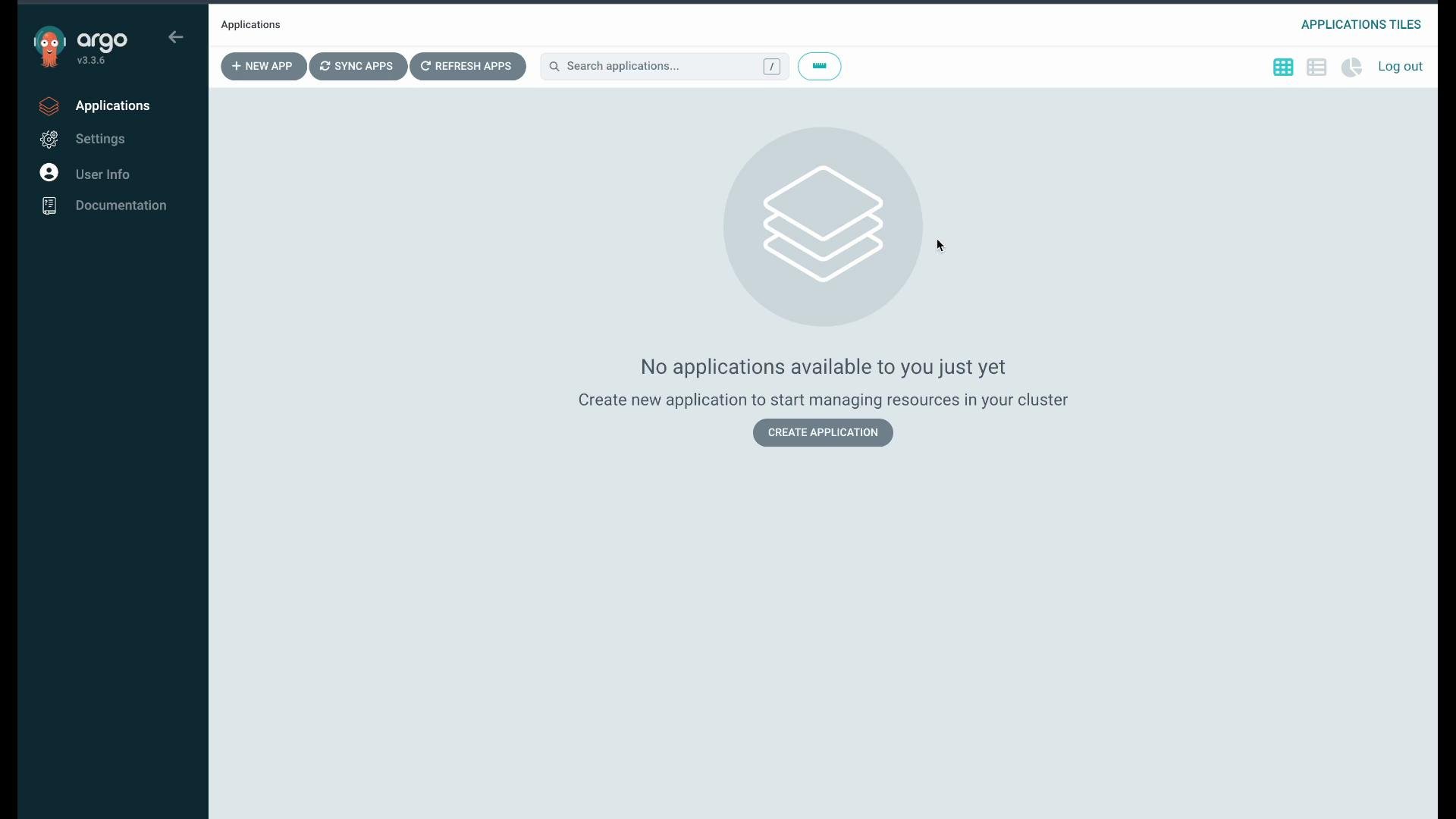
Log in to the Argo CD UI. On a fresh install the Applications view may be empty:
 ## 2. Create an application from manifests (guestbook example)
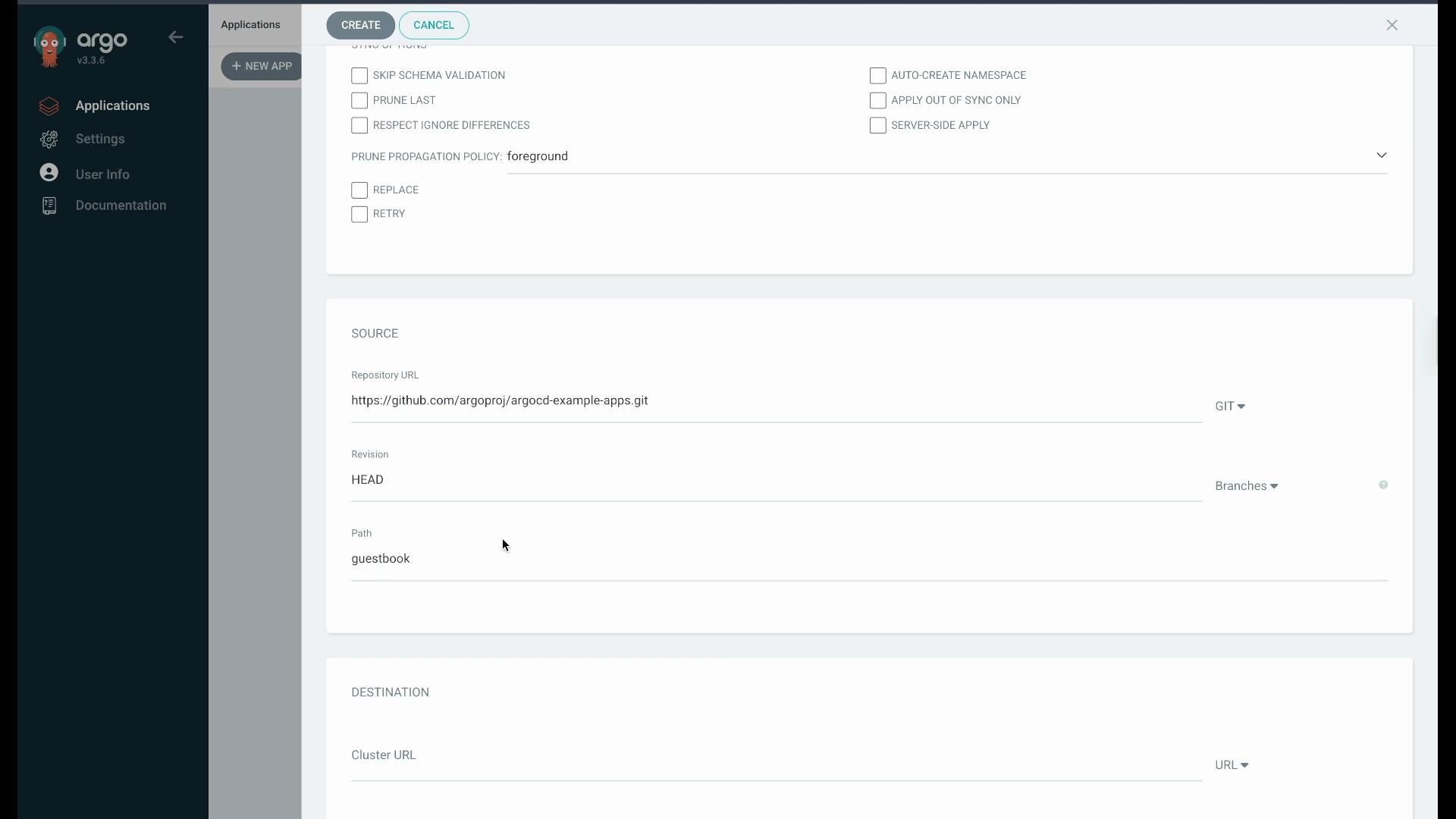
Steps to create a new application via the UI:
* Click **New App**.
* Name: `web-frontend`
* Project: `default`
* Sync policy: start with **Manual** (so you can observe actions before enabling auto-sync).
* Source: point to the Argo CD example repository: `https://github.com/argoproj/argocd-example-apps`, path `guestbook`.
* Destination: your in-cluster API server and choose to use the application namespace.
The New Application configuration in the UI looks like this:
## 2. Create an application from manifests (guestbook example)
Steps to create a new application via the UI:
* Click **New App**.
* Name: `web-frontend`
* Project: `default`
* Sync policy: start with **Manual** (so you can observe actions before enabling auto-sync).
* Source: point to the Argo CD example repository: `https://github.com/argoproj/argocd-example-apps`, path `guestbook`.
* Destination: your in-cluster API server and choose to use the application namespace.
The New Application configuration in the UI looks like this:
 Ensure the target namespace exists (for example `applications`):
```bash theme={null}
kubectl get namespaces
```
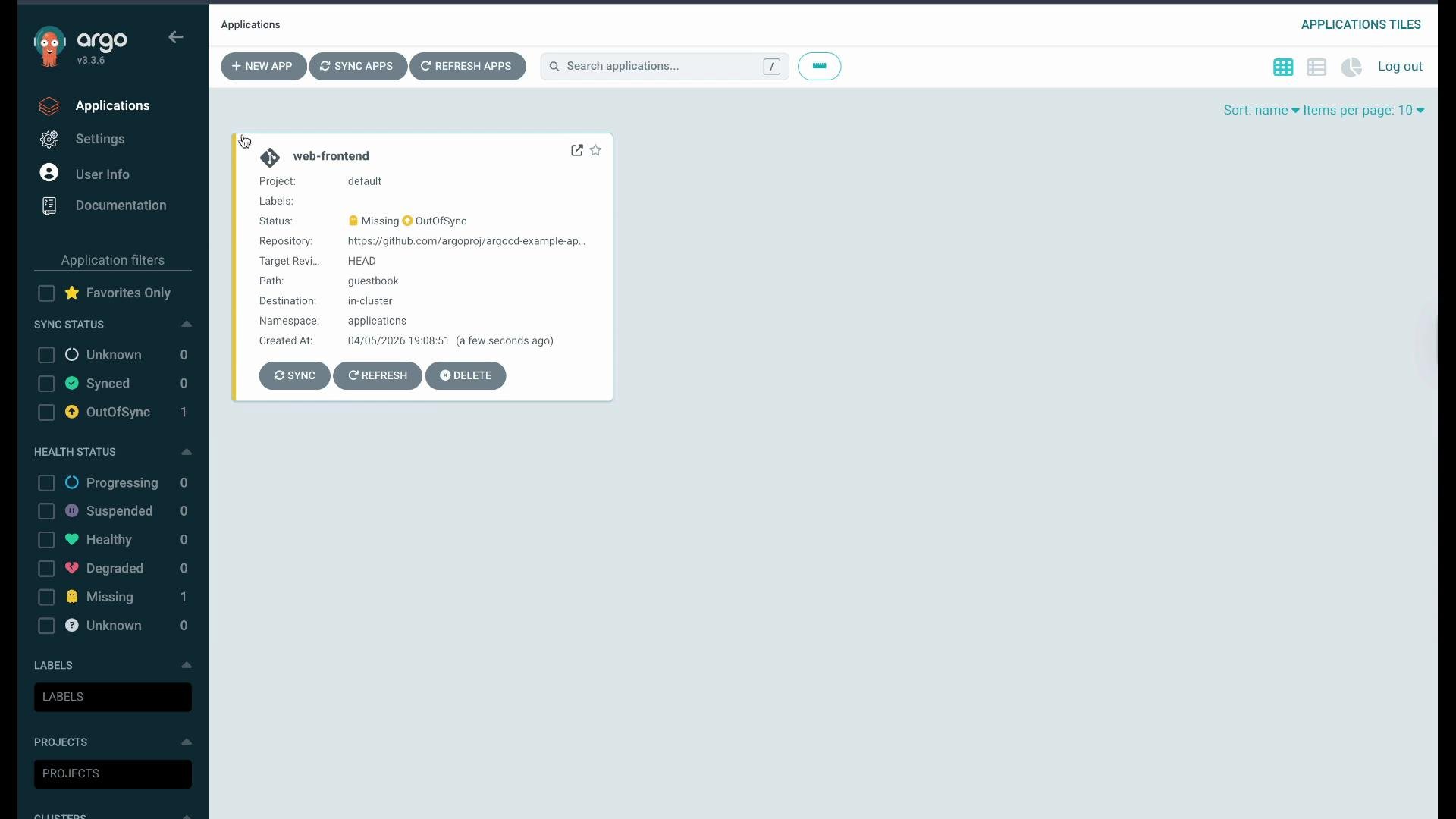
Create the application. After creation Argo CD will compare Git to the cluster and should show the app as OutOfSync since the resources are not yet in-cluster:
Ensure the target namespace exists (for example `applications`):
```bash theme={null}
kubectl get namespaces
```
Create the application. After creation Argo CD will compare Git to the cluster and should show the app as OutOfSync since the resources are not yet in-cluster:
 Open the application to view the resource tree. "OutOfSync / Missing" entries indicate Argo CD detected resources in Git that are not present in the cluster. Click **Sync** and then **Synchronize** to apply the manifests. Argo CD will apply the manifests and the application will move to `Synced` as the cluster state matches the declared state.
You can inspect the deployed resources in the target namespace:
```bash theme={null}
kubectl get all -n applications
```
Example output after syncing:
```bash theme={null}
NAME READY STATUS RESTARTS AGE
pod/guestbook-ui-659f948d8-5xgzh 1/1 Running 0 30s
NAME TYPE CLUSTER-IP EXTERNAL-IP PORT(S) AGE
service/guestbook-ui ClusterIP 172.20.182.60 80/TCP 30s
NAME READY UP-TO-DATE AVAILABLE AGE
deployment.apps/guestbook-ui 1/1 1 1 30s
NAME DESIRED CURRENT READY AGE
replicaset.apps/guestbook-ui-659f948d8 1 1 1 30s
```
Refresh the app in the Argo CD UI and you should see `Healthy` and `Synced`.
## 3. Observe drift detection and reconciliation
Make a manual change on the cluster to simulate drift. For example, scale the deployment to 5 replicas:
```bash theme={null}
kubectl scale deployment guestbook-ui -n applications --replicas=5
kubectl get all -n applications
```
Example output after scaling to five replicas:
```bash theme={null}
NAME READY STATUS RESTARTS AGE
pod/guestbook-ui-6595f948d-aaaa 1/1 Running 0 10s
pod/guestbook-ui-6595f948d-bbbb 1/1 Running 0 10s
pod/guestbook-ui-6595f948d-cccc 1/1 Running 0 10s
pod/guestbook-ui-6595f948d-dddd 1/1 Running 0 10s
pod/guestbook-ui-6595f948d-eeee 1/1 Running 0 10s
NAME READY UP-TO-DATE AVAILABLE AGE
deployment.apps/guestbook-ui 5/5 5 5 10s
```
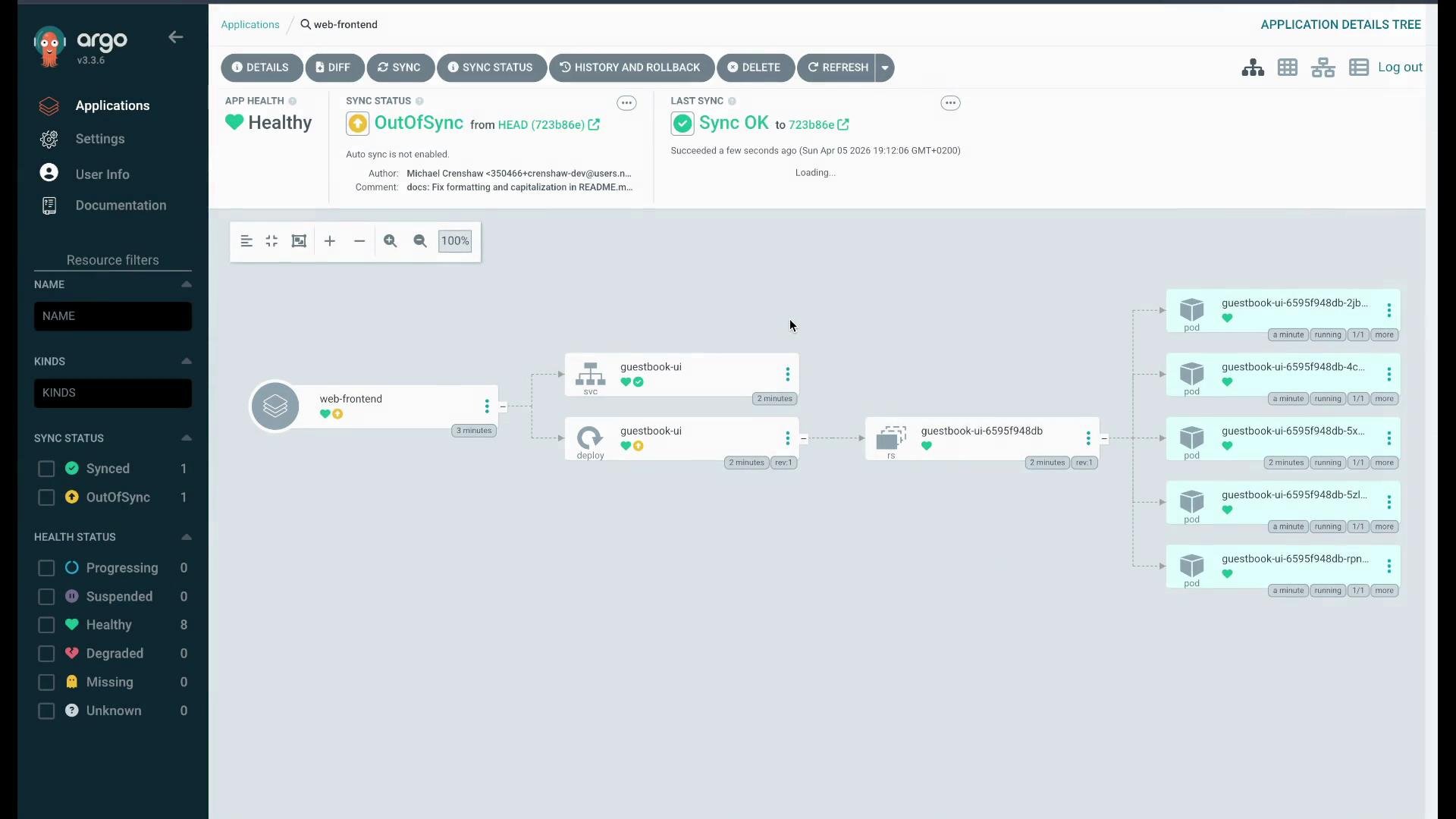
Refresh the application in Argo CD — it will now show `OutOfSync`. Use the Diff view to inspect differences (cluster on the left, Git desired state on the right). For the `replicas` field you’ll see:
Cluster (actual):
```yaml theme={null}
spec:
replicas: 5
```
Desired (Git):
```yaml theme={null}
spec:
replicas: 1
```
Click **Sync** in Argo CD to restore the declared state. Argo CD will scale the deployment back to the desired replica count (1), and the app will return to `Synced` and `Healthy`.
Open the application to view the resource tree. "OutOfSync / Missing" entries indicate Argo CD detected resources in Git that are not present in the cluster. Click **Sync** and then **Synchronize** to apply the manifests. Argo CD will apply the manifests and the application will move to `Synced` as the cluster state matches the declared state.
You can inspect the deployed resources in the target namespace:
```bash theme={null}
kubectl get all -n applications
```
Example output after syncing:
```bash theme={null}
NAME READY STATUS RESTARTS AGE
pod/guestbook-ui-659f948d8-5xgzh 1/1 Running 0 30s
NAME TYPE CLUSTER-IP EXTERNAL-IP PORT(S) AGE
service/guestbook-ui ClusterIP 172.20.182.60 80/TCP 30s
NAME READY UP-TO-DATE AVAILABLE AGE
deployment.apps/guestbook-ui 1/1 1 1 30s
NAME DESIRED CURRENT READY AGE
replicaset.apps/guestbook-ui-659f948d8 1 1 1 30s
```
Refresh the app in the Argo CD UI and you should see `Healthy` and `Synced`.
## 3. Observe drift detection and reconciliation
Make a manual change on the cluster to simulate drift. For example, scale the deployment to 5 replicas:
```bash theme={null}
kubectl scale deployment guestbook-ui -n applications --replicas=5
kubectl get all -n applications
```
Example output after scaling to five replicas:
```bash theme={null}
NAME READY STATUS RESTARTS AGE
pod/guestbook-ui-6595f948d-aaaa 1/1 Running 0 10s
pod/guestbook-ui-6595f948d-bbbb 1/1 Running 0 10s
pod/guestbook-ui-6595f948d-cccc 1/1 Running 0 10s
pod/guestbook-ui-6595f948d-dddd 1/1 Running 0 10s
pod/guestbook-ui-6595f948d-eeee 1/1 Running 0 10s
NAME READY UP-TO-DATE AVAILABLE AGE
deployment.apps/guestbook-ui 5/5 5 5 10s
```
Refresh the application in Argo CD — it will now show `OutOfSync`. Use the Diff view to inspect differences (cluster on the left, Git desired state on the right). For the `replicas` field you’ll see:
Cluster (actual):
```yaml theme={null}
spec:
replicas: 5
```
Desired (Git):
```yaml theme={null}
spec:
replicas: 1
```
Click **Sync** in Argo CD to restore the declared state. Argo CD will scale the deployment back to the desired replica count (1), and the app will return to `Synced` and `Healthy`.
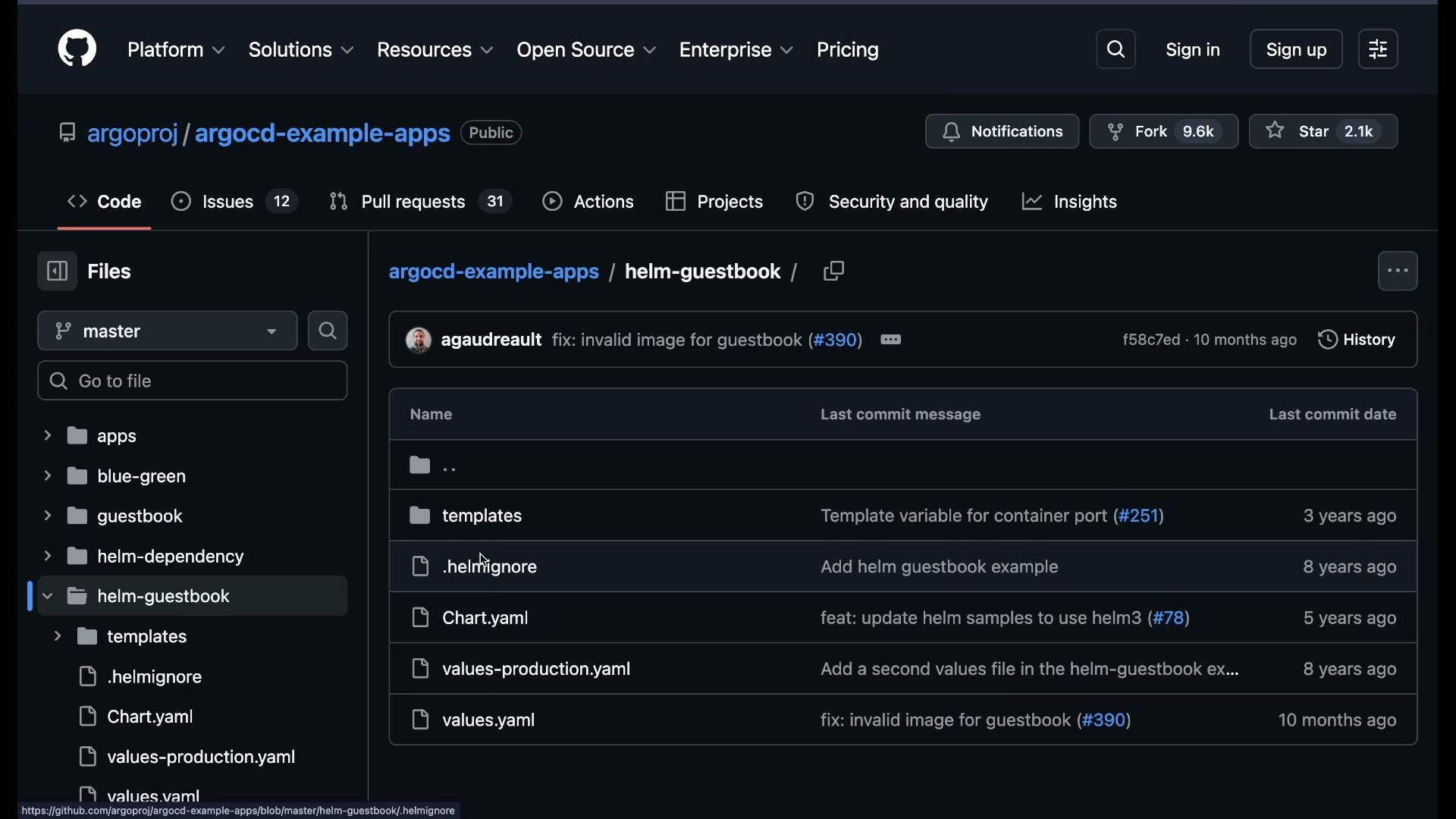
 ## 4. Deploying Helm charts from Git
Argo CD can render and deploy Helm charts directly from a Git repo. The same example repository includes a Helm guestbook chart and values file:
## 4. Deploying Helm charts from Git
Argo CD can render and deploy Helm charts directly from a Git repo. The same example repository includes a Helm guestbook chart and values file:
 Create a new application for the Helm chart:
* Repository: `https://github.com/argoproj/argocd-example-apps`
* Path: `applications-helm/guestbook` (path to the Helm chart)
* Sync policy: set to **Automatic** if you want Argo CD to auto-reconcile (self-heal).
* Destination namespace: `applications-helm` (optionally enable **Auto Create Namespace**).
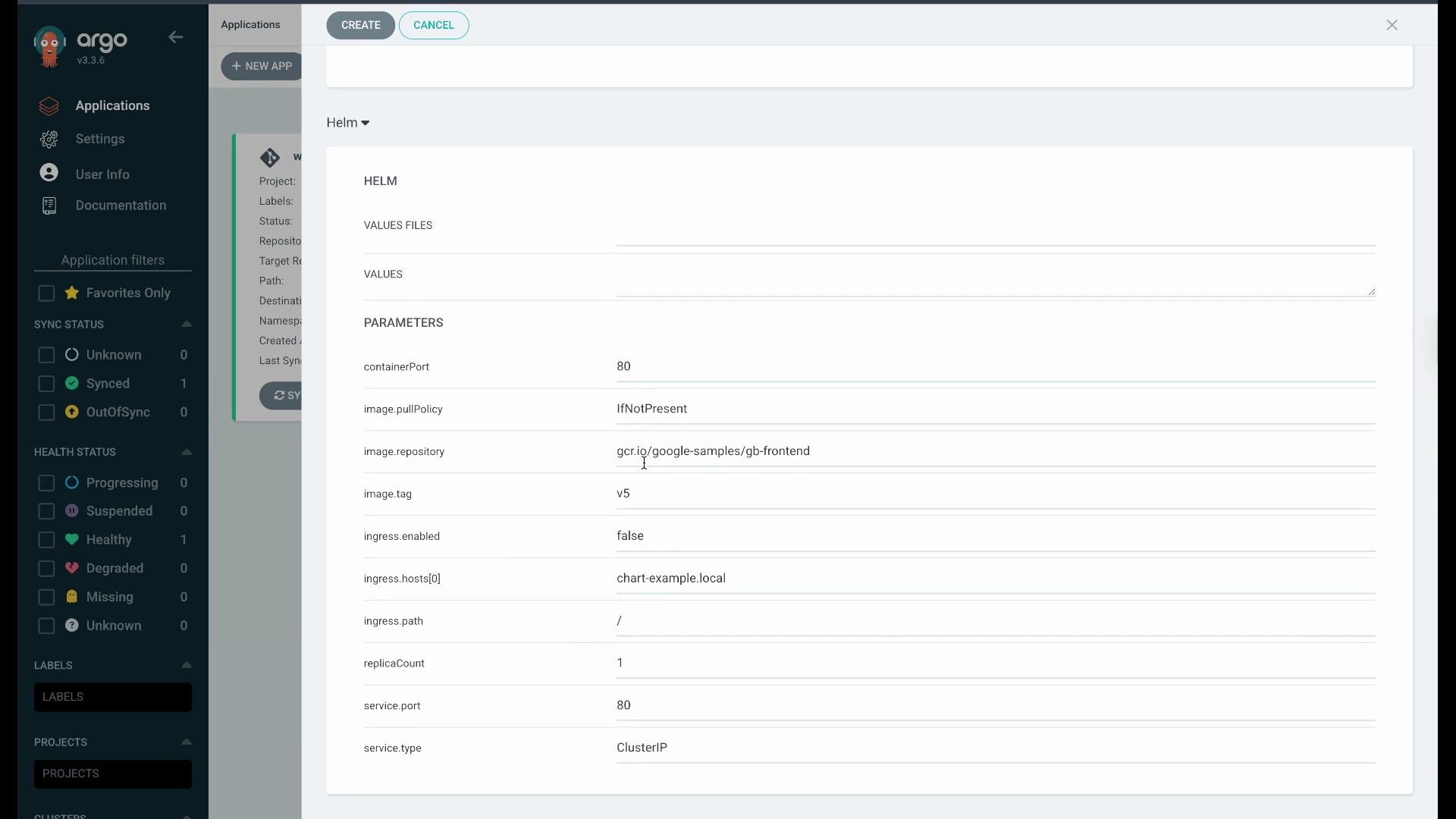
Argo CD will detect the chart and display its `values.yaml` in the UI so you can override values before creating the application. For example, change `replicaCount` from `1` to `2` in the UI:
Create a new application for the Helm chart:
* Repository: `https://github.com/argoproj/argocd-example-apps`
* Path: `applications-helm/guestbook` (path to the Helm chart)
* Sync policy: set to **Automatic** if you want Argo CD to auto-reconcile (self-heal).
* Destination namespace: `applications-helm` (optionally enable **Auto Create Namespace**).
Argo CD will detect the chart and display its `values.yaml` in the UI so you can override values before creating the application. For example, change `replicaCount` from `1` to `2` in the UI:
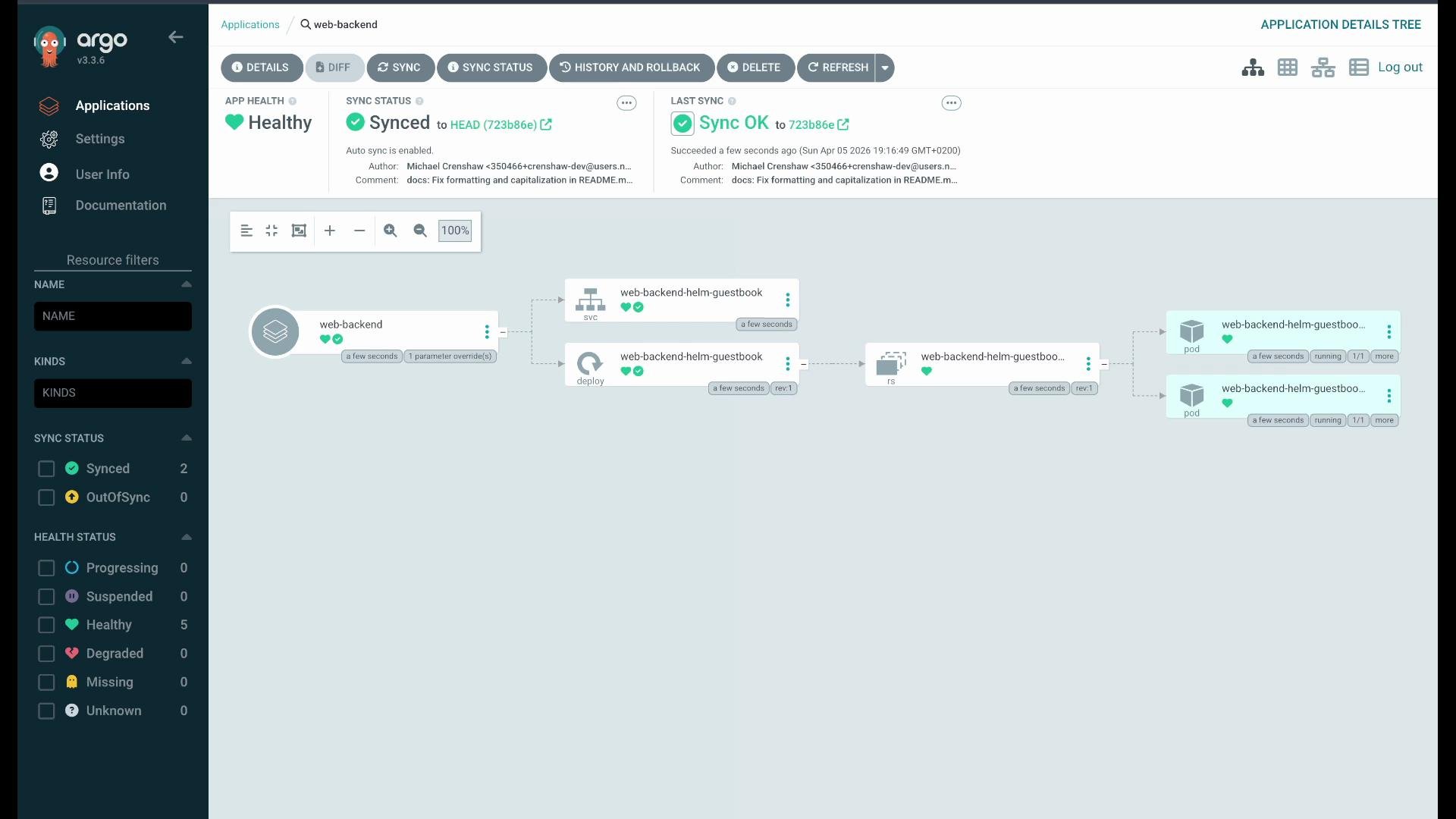
 Click **Create**. Argo CD will render the Helm templates with your overrides and deploy them. Verify with kubectl:
```bash theme={null}
kubectl get pods -n applications-helm
```
You should see the number of pods matching the value you set (for example, two pods if `replicaCount` was set to 2).
Click **Create**. Argo CD will render the Helm templates with your overrides and deploy them. Verify with kubectl:
```bash theme={null}
kubectl get pods -n applications-helm
```
You should see the number of pods matching the value you set (for example, two pods if `replicaCount` was set to 2).
 When enabling Automatic sync, Argo CD will immediately reconcile any divergence. Use automatic sync for production only if you’ve validated the repo and policies; otherwise keep Manual sync while testing.
## Quick reference: Commands & concepts
| Topic | Command / Action | Notes |
| ----------------------------------- | -------------------------------------------------------------------- | --------------------------------------------------------------------- |
| Check Argo CD pods | `kubectl get pods -n argocd` | Ensure core components are Running. |
| Create namespace | `kubectl create namespace applications` | Ensure destination namespace exists or enable Auto Create Namespace. |
| List app resources | `kubectl get all -n applications` | Confirm manifests deployed by Argo CD. |
| Scale a deployment (simulate drift) | `kubectl scale deployment guestbook-ui -n applications --replicas=5` | Observe OutOfSync in UI and use Diff view. |
| Helm chart path example | `applications-helm/guestbook` | Argo CD will render Helm templates and allow `values.yaml` overrides. |
| GitOps pattern | Git repo → Argo CD watches → Reconcile loop | Argo CD enforces desired state and reports drift. |
## Where to go next
* Argo CD docs: [https://argo-cd.readthedocs.io/](https://argo-cd.readthedocs.io/)
* Example repo used in this demo: [https://github.com/argoproj/argocd-example-apps](https://github.com/argoproj/argocd-example-apps)
This overview demonstrated creating applications from plain manifests and Helm charts, inspecting resource diffs, syncing, and observing Argo CD reconciliation behavior. Next you can explore automating Argo CD via the CLI and managing applications using `argocd` commands and ApplicationSets.
When enabling Automatic sync, Argo CD will immediately reconcile any divergence. Use automatic sync for production only if you’ve validated the repo and policies; otherwise keep Manual sync while testing.
## Quick reference: Commands & concepts
| Topic | Command / Action | Notes |
| ----------------------------------- | -------------------------------------------------------------------- | --------------------------------------------------------------------- |
| Check Argo CD pods | `kubectl get pods -n argocd` | Ensure core components are Running. |
| Create namespace | `kubectl create namespace applications` | Ensure destination namespace exists or enable Auto Create Namespace. |
| List app resources | `kubectl get all -n applications` | Confirm manifests deployed by Argo CD. |
| Scale a deployment (simulate drift) | `kubectl scale deployment guestbook-ui -n applications --replicas=5` | Observe OutOfSync in UI and use Diff view. |
| Helm chart path example | `applications-helm/guestbook` | Argo CD will render Helm templates and allow `values.yaml` overrides. |
| GitOps pattern | Git repo → Argo CD watches → Reconcile loop | Argo CD enforces desired state and reports drift. |
## Where to go next
* Argo CD docs: [https://argo-cd.readthedocs.io/](https://argo-cd.readthedocs.io/)
* Example repo used in this demo: [https://github.com/argoproj/argocd-example-apps](https://github.com/argoproj/argocd-example-apps)
This overview demonstrated creating applications from plain manifests and Helm charts, inspecting resource diffs, syncing, and observing Argo CD reconciliation behavior. Next you can explore automating Argo CD via the CLI and managing applications using `argocd` commands and ApplicationSets.