> ## Documentation Index
> Fetch the complete documentation index at: https://notes.kodekloud.com/llms.txt
> Use this file to discover all available pages before exploring further.
# Demo How to Start Managing Your GCP Cloud Cost
> Guide to using Google Cloud Billing console to monitor, report, set budgets, detect anomalies, and optimize costs with FinOps tools, pricing insights, and invoice exports.
Welcome back. In this lesson we’ll walk through Google Cloud Platform’s (GCP) Billing console so you can begin monitoring and managing cloud spend. You’ll learn where to find billing data, how to run reports and set budgets, and where FinOps features live inside the Console.
## Quick access: Open Billing
1. Sign in to the GCP Console.
2. Type "Billing" in the top search bar and select Billing from the results: [https://cloud.google.com/billing/docs/how-to/overview](https://cloud.google.com/billing/docs/how-to/overview)
3. The Billing overview gives a snapshot of current spend and quick links to deeper tools.
The Billing dashboard is GCP’s cost-management center (comparable to AWS Cost Explorer). Note: to view organization-level consolidated costs you must have access to the billing/payer account (for example, Billing Account Viewer or Billing Account Admin). Large enterprises often centralize charges under a single billing account—access to that account is required to see all projects’ consolidated spend.
## Reports and Cost Breakdown
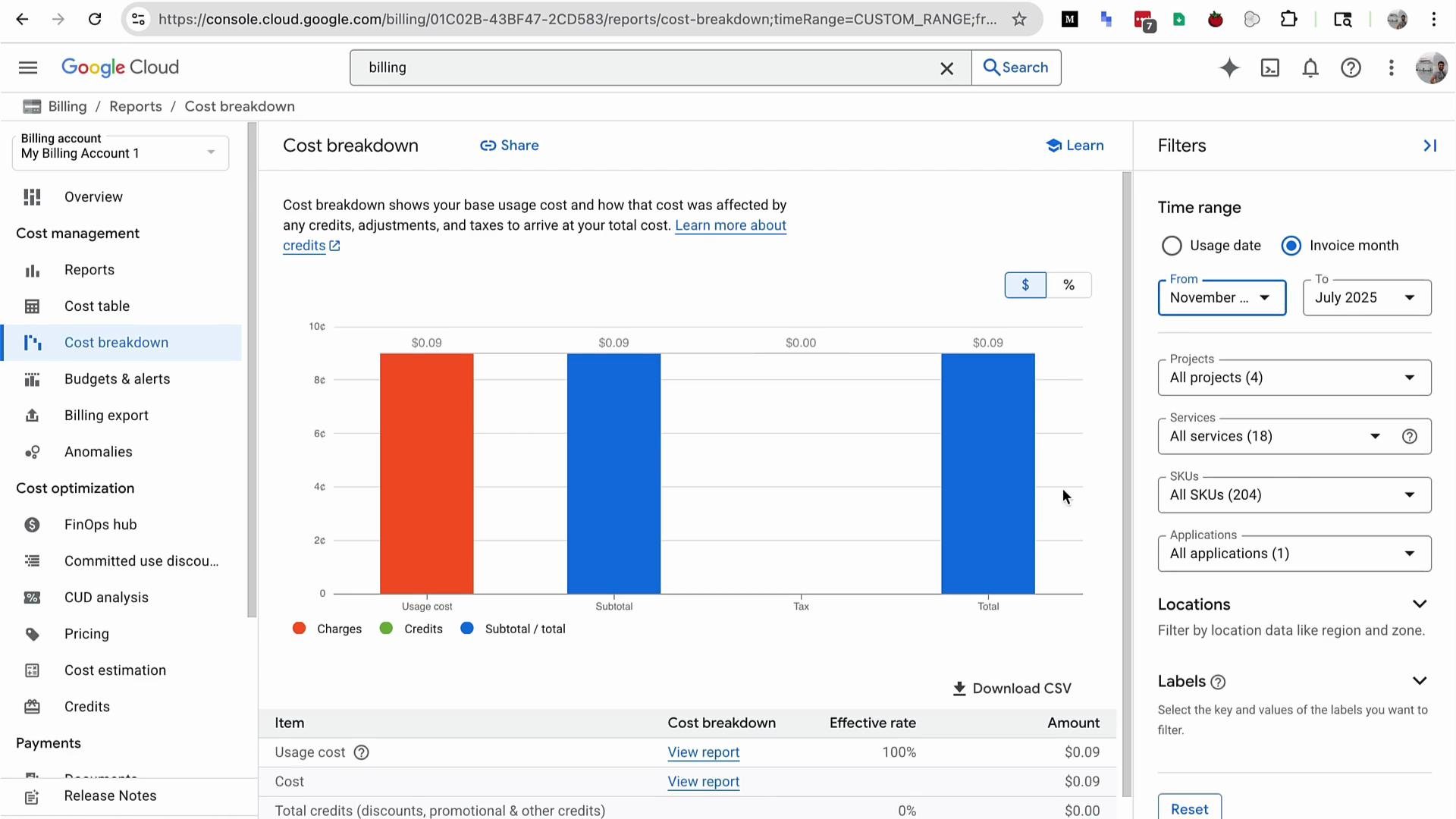
Click Reports to inspect historical usage and cost trends. Use the report filters to slice costs by:
* Timeframe (daily, weekly, monthly)
* Projects
* Services
* SKUs
* Labels or applications
These filters help you trace root causes and allocate costs across teams or applications. In demo accounts without active usage the graphs will be empty:
 ## Budgets, Anomalies, and the FinOps Hub
Beyond Reports and Cost Breakdown, the Billing console provides:
* Budgets & alerts — define thresholds and receive notifications (similar to AWS Budgets)
* Anomalies — automated detection of unusual spend spikes
* FinOps Hub — an area that consolidates actionable FinOps insights (realized savings, active recommendations, potential monthly savings, and priority items)
To view consolidated costs for all projects in an organization you need access to the billing account that pays for those projects. If you only have project-level access, you will see costs only for that project.
The FinOps Hub surfaces recommendations and signals that help prioritize cost optimization work. Featuring a dedicated FinOps experience inside the Billing console indicates GCP’s effort to integrate FinOps workflows directly into billing and operations.
## Discounts, Commitments, and Pricing Details
GCP surfaces discounts and commitment options in Billing—most notably Committed Use Discounts (CUDs) and reservations. If your organization uses CUDs, reservations, sustained-use discounts, or credits, these will appear in relevant Billing pages and affect effective pricing.
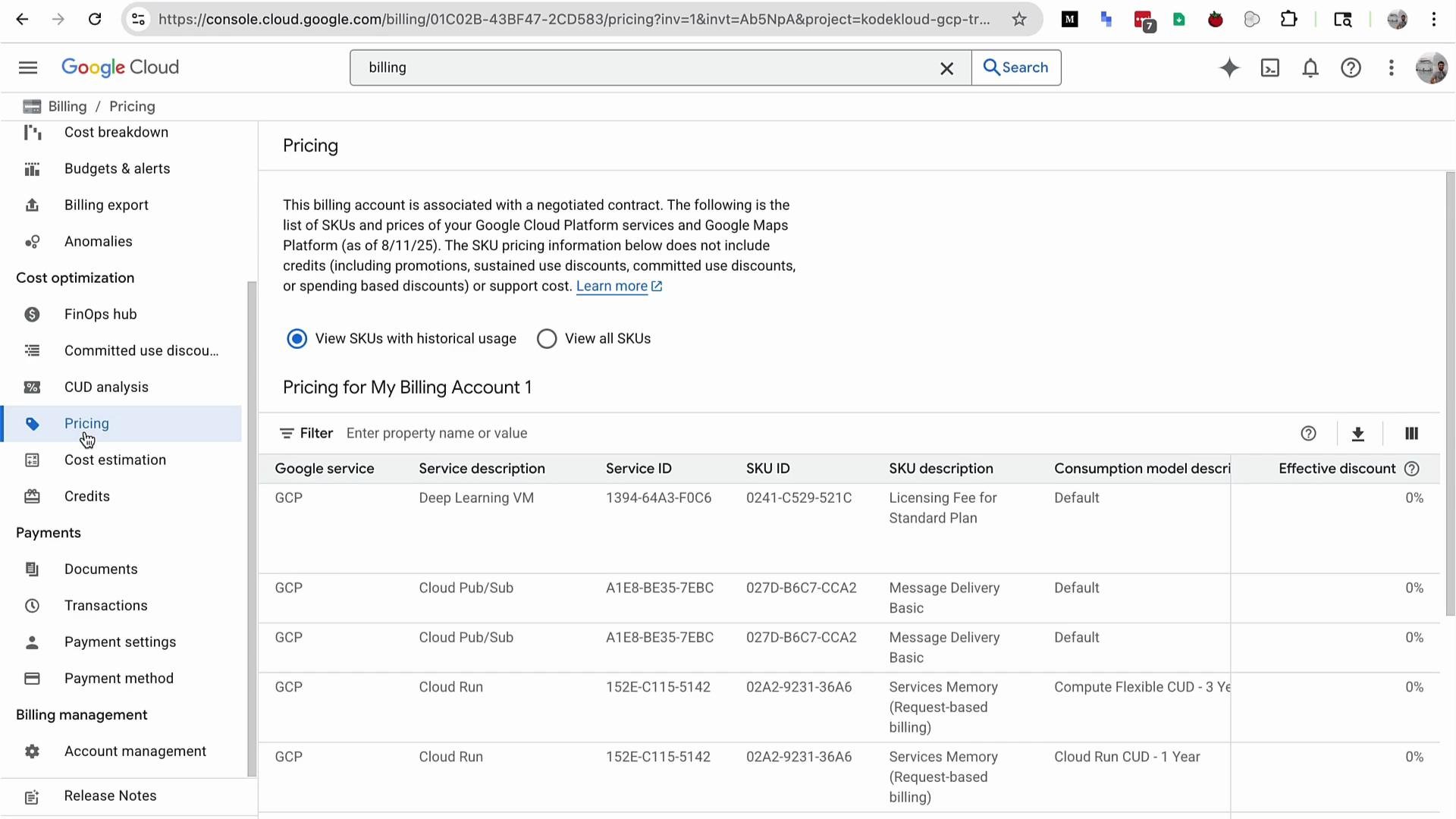
To inspect SKU-level pricing and effective discounts, use the Pricing section. Example services commonly reviewed for pricing and discounts include Deep Learning VM and Cloud Pub/Sub:
## Budgets, Anomalies, and the FinOps Hub
Beyond Reports and Cost Breakdown, the Billing console provides:
* Budgets & alerts — define thresholds and receive notifications (similar to AWS Budgets)
* Anomalies — automated detection of unusual spend spikes
* FinOps Hub — an area that consolidates actionable FinOps insights (realized savings, active recommendations, potential monthly savings, and priority items)
To view consolidated costs for all projects in an organization you need access to the billing account that pays for those projects. If you only have project-level access, you will see costs only for that project.
The FinOps Hub surfaces recommendations and signals that help prioritize cost optimization work. Featuring a dedicated FinOps experience inside the Billing console indicates GCP’s effort to integrate FinOps workflows directly into billing and operations.
## Discounts, Commitments, and Pricing Details
GCP surfaces discounts and commitment options in Billing—most notably Committed Use Discounts (CUDs) and reservations. If your organization uses CUDs, reservations, sustained-use discounts, or credits, these will appear in relevant Billing pages and affect effective pricing.
To inspect SKU-level pricing and effective discounts, use the Pricing section. Example services commonly reviewed for pricing and discounts include Deep Learning VM and Cloud Pub/Sub:
 ## Documents and Invoices
Use the Documents section to download invoices, monthly PDFs, and CSV exports. Scroll through the Documents/invoices list to find months with activity (e.g., September, August) and download the artifacts you need for accounting or audits.
## Feature Summary
| Billing Console Area | Purpose | Where to Start |
| -------------------- | ------------------------------------------------------------------- | -------------------------------- |
| Overview | High-level snapshot of current spend and links to tools | Billing > Overview |
| Reports | Detailed spend analysis with filters for time, project, SKU, labels | Billing > Reports |
| Cost Breakdown | Visualize charges, credits, and totals across dimensions | Billing > Cost Table / Breakdown |
| Budgets & alerts | Set thresholds and notify teams before overruns | Billing > Budgets & alerts |
| Anomalies | Detect unusual spending patterns automatically | Billing > Anomalies |
| FinOps Hub | Prioritize FinOps recommendations, see estimated savings | Billing > FinOps Hub |
| Pricing & SKUs | Inspect SKU pricing, discounts, and effective rates | Billing > Pricing |
| Credits & Documents | View applied credits; download invoices/exports | Billing > Credits / Documents |
## Quick tips
* Use labels or cost-center tags consistently across projects to improve reporting granularity.
* Set conservative budgets and use anomaly detection to catch unexpected spikes early.
* Review committed use and reservation options only after you have stable usage patterns and accurate forecasts.
* Export CSVs or integrate with BigQuery for advanced cost analytics and dashboards.
## References and further reading
* Google Cloud Billing Overview: [https://cloud.google.com/billing/docs/how-to/overview](https://cloud.google.com/billing/docs/how-to/overview)
* Committed Use Discounts (CUDs): [https://cloud.google.com/compute/docs/instances/committed-use-discounts](https://cloud.google.com/compute/docs/instances/committed-use-discounts)
* Deep Learning VM images: [https://cloud.google.com/compute/docs/gpus/deep-learning-vm-images](https://cloud.google.com/compute/docs/gpus/deep-learning-vm-images)
* Cloud Pub/Sub: [https://cloud.google.com/pubsub/docs/overview](https://cloud.google.com/pubsub/docs/overview)
* AWS Cost Explorer (comparison): [https://aws.amazon.com/aws-cost-management/aws-cost-explorer/](https://aws.amazon.com/aws-cost-management/aws-cost-explorer/)
* AWS Budgets (comparison): [https://aws.amazon.com/aws-cost-management/aws-budgets](https://aws.amazon.com/aws-cost-management/aws-budgets)
That wraps up this lesson. Use the Billing console’s Overview, Reports, Cost Breakdown, Budgets & Alerts, Anomalies, FinOps Hub, Pricing, Credits, and Documents to start monitoring, analyzing, and optimizing your GCP spend. See you in the next article.
## Documents and Invoices
Use the Documents section to download invoices, monthly PDFs, and CSV exports. Scroll through the Documents/invoices list to find months with activity (e.g., September, August) and download the artifacts you need for accounting or audits.
## Feature Summary
| Billing Console Area | Purpose | Where to Start |
| -------------------- | ------------------------------------------------------------------- | -------------------------------- |
| Overview | High-level snapshot of current spend and links to tools | Billing > Overview |
| Reports | Detailed spend analysis with filters for time, project, SKU, labels | Billing > Reports |
| Cost Breakdown | Visualize charges, credits, and totals across dimensions | Billing > Cost Table / Breakdown |
| Budgets & alerts | Set thresholds and notify teams before overruns | Billing > Budgets & alerts |
| Anomalies | Detect unusual spending patterns automatically | Billing > Anomalies |
| FinOps Hub | Prioritize FinOps recommendations, see estimated savings | Billing > FinOps Hub |
| Pricing & SKUs | Inspect SKU pricing, discounts, and effective rates | Billing > Pricing |
| Credits & Documents | View applied credits; download invoices/exports | Billing > Credits / Documents |
## Quick tips
* Use labels or cost-center tags consistently across projects to improve reporting granularity.
* Set conservative budgets and use anomaly detection to catch unexpected spikes early.
* Review committed use and reservation options only after you have stable usage patterns and accurate forecasts.
* Export CSVs or integrate with BigQuery for advanced cost analytics and dashboards.
## References and further reading
* Google Cloud Billing Overview: [https://cloud.google.com/billing/docs/how-to/overview](https://cloud.google.com/billing/docs/how-to/overview)
* Committed Use Discounts (CUDs): [https://cloud.google.com/compute/docs/instances/committed-use-discounts](https://cloud.google.com/compute/docs/instances/committed-use-discounts)
* Deep Learning VM images: [https://cloud.google.com/compute/docs/gpus/deep-learning-vm-images](https://cloud.google.com/compute/docs/gpus/deep-learning-vm-images)
* Cloud Pub/Sub: [https://cloud.google.com/pubsub/docs/overview](https://cloud.google.com/pubsub/docs/overview)
* AWS Cost Explorer (comparison): [https://aws.amazon.com/aws-cost-management/aws-cost-explorer/](https://aws.amazon.com/aws-cost-management/aws-cost-explorer/)
* AWS Budgets (comparison): [https://aws.amazon.com/aws-cost-management/aws-budgets](https://aws.amazon.com/aws-cost-management/aws-budgets)
That wraps up this lesson. Use the Billing console’s Overview, Reports, Cost Breakdown, Budgets & Alerts, Anomalies, FinOps Hub, Pricing, Credits, and Documents to start monitoring, analyzing, and optimizing your GCP spend. See you in the next article.