> ## Documentation Index
> Fetch the complete documentation index at: https://notes.kodekloud.com/llms.txt
> Use this file to discover all available pages before exploring further.
# Demo Manual Reconciliation
> Demonstrates Argo CD GitOps manual reconciliation, showing how in-cluster changes cause OutOfSync and how syncing from Git restores desired state.
In this lesson we perform a manual reconciliation of an Argo CD application to illustrate why making ad-hoc changes directly in the Kubernetes cluster results in an OutOfSync state. You will:
* Confirm cluster namespaces.
* Synchronize an Argo CD application from Git.
* Inspect the resulting live resources.
* Make an intentional manual change in-cluster to cause drift.
* Observe Argo CD detecting the OutOfSync state and restore the desired state by synchronizing from Git.
## 1. Confirm existing namespaces
First, verify which namespaces are present in the cluster:
```bash theme={null}
# kubectl get namespaces
NAME STATUS AGE
argocd Active 16m
default Active 3h1m
kube-node-lease Active 3h1m
kube-public Active 3h1m
kube-system Active 3h1m
```
## 2. Synchronize the Argo CD application
In the Argo CD web UI, click "Synchronize" for the application. Choose to auto-create the namespace if prompted and synchronize both the Deployment and Service manifests. Argo CD will apply those manifests and report the created ReplicaSet and Service details (such as the NodePort).
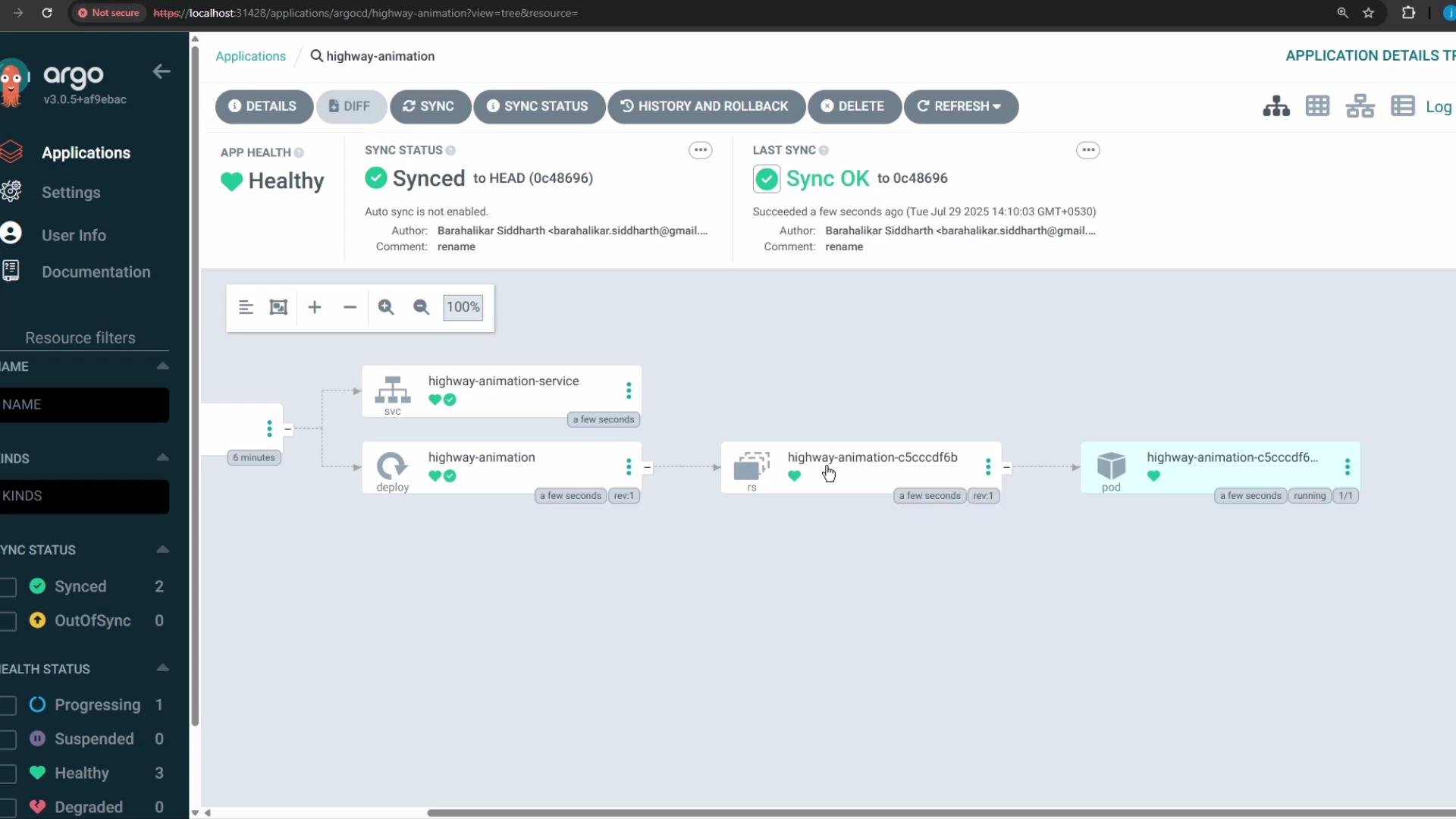 You can inspect logs, events, and a summary of the applied YAML from the Argo CD UI.
## 3. Inspect the created Pod manifest (live cluster)
Here is the Pod manifest that was created by the Deployment in the cluster:
```yaml theme={null}
apiVersion: v1
kind: Pod
metadata:
creationTimestamp: '2025-07-29T08:40:03Z'
generateName: highway-animation-c5ccdf6b-
labels:
app: highway-animation
pod-template-hash: c5ccdf6b
name: highway-animation-c5ccdf6b-5pl4d
namespace: highway-animation
ownerReferences:
- apiVersion: apps/v1
blockOwnerDeletion: true
controller: true
kind: ReplicaSet
name: highway-animation-c5ccdf6b
uid: 175a22f1-a852-4b16-b992-8bf08f8793a52
resourceVersion: '15018'
uid: 57c6c5a5-3497-4104-87c2-26cb35703be2
spec:
containers:
- env:
- name: POD_COUNT
value: '1'
image: siddharth67/highway-animation:blue
imagePullPolicy: IfNotPresent
name: highway-animation
ports:
- containerPort: 3000
protocol: TCP
resources: {}
terminationMessagePath: /dev/termination-log
terminationMessagePolicy: File
```
## 4. Confirm the new namespace and resources
After synchronization, the `highway-animation` namespace should exist:
```bash theme={null}
# kubectl get namespaces
NAME STATUS AGE
argocd Active 17m
default Active 3h2m
highway-animation Active 35s
kube-node-lease Active 3h2m
kube-public Active 3h2m
kube-system Active 3h2m
```
List all resources in the `highway-animation` namespace:
```bash theme={null}
# kubectl -n highway-animation get all
NAME READY STATUS RESTARTS AGE
pod/highway-animation-c5ccdf6b-5pl4d 1/1 Running 0 47s
NAME TYPE CLUSTER-IP EXTERNAL-IP PORT(S) AGE
service/highway-animation-service NodePort 10.100.200.170 3000:32000/TCP 47s
NAME READY UP-TO-DATE AVAILABLE AGE
deployment.apps/highway-animation 1/1 1 1 47s
NAME DESIRED CURRENT READY AGE
replicaSet.apps/highway-animation-c5ccdf6b 1 1 1 47s
```
The app is reachable via the NodePort (e.g., `http://localhost:32000`) and will render the highway animation. With the Deployment set to 1 replica, you will see one vehicle.
## 5. Create drift: manually scale the Deployment in-cluster
In a non-GitOps workflow, an operator might directly edit the Deployment in the cluster to increase replicas:
```bash theme={null}
# kubectl -n highway-animation edit deployment highway-animation
```
Make these edits in the live Deployment manifest:
* Change `replicas: 1` to `replicas: 5`
* Update the container environment variable `POD_COUNT` value from `'1'` to `'5'`
After saving, Kubernetes will create 4 additional pods and the app will show five vehicles.
Important: This manual change modifies the live cluster state but does not update the Git repository. That causes the live state to diverge from the desired state declared in Git.
## 6. Example: live (cluster) Deployment after manual edit
Live (cluster) Deployment snippet showing the manual change:
```yaml theme={null}
apiVersion: apps/v1
kind: Deployment
metadata:
generation: 2
name: highway-animation
namespace: highway-animation
spec:
progressDeadlineSeconds: 600
replicas: 5
revisionHistoryLimit: 10
selector:
matchLabels:
app: highway-animation
strategy:
rollingUpdate:
maxSurge: 25%
maxUnavailable: 25%
template:
spec:
containers:
- name: highway-animation
image: siddharth67/highway-animation:blue
env:
- name: POD_COUNT
value: '5'
```
## 7. Desired (Git) Deployment in the repository
The desired manifest stored in Git still declares 1 replica:
```yaml theme={null}
apiVersion: apps/v1
kind: Deployment
metadata:
name: highway-animation
namespace: highway-animation
spec:
progressDeadlineSeconds: 600
replicas: 1
revisionHistoryLimit: 10
selector:
matchLabels:
app: highway-animation
strategy:
rollingUpdate:
maxSurge: 25%
maxUnavailable: 25%
template:
spec:
containers:
- name: highway-animation
image: siddharth67/highway-animation:blue
env:
- name: POD_COUNT
value: '1'
```
Because the live cluster has 5 replicas while Git declares 1, Argo CD will detect a difference and mark the application OutOfSync. In the Argo CD UI you can click "Diff" to view the highlighted mismatches between the live and desired manifests.
## 8. Reconcile back to Git (manual sync)
To restore the cluster to the Git-declared desired state, click "Synchronize" in Argo CD. Argo CD will reconcile the resources and update the live cluster to match the manifests in the repository. In this scenario it will update the Deployment (not the Service) to revert the replica count back to 1.
You can inspect logs, events, and a summary of the applied YAML from the Argo CD UI.
## 3. Inspect the created Pod manifest (live cluster)
Here is the Pod manifest that was created by the Deployment in the cluster:
```yaml theme={null}
apiVersion: v1
kind: Pod
metadata:
creationTimestamp: '2025-07-29T08:40:03Z'
generateName: highway-animation-c5ccdf6b-
labels:
app: highway-animation
pod-template-hash: c5ccdf6b
name: highway-animation-c5ccdf6b-5pl4d
namespace: highway-animation
ownerReferences:
- apiVersion: apps/v1
blockOwnerDeletion: true
controller: true
kind: ReplicaSet
name: highway-animation-c5ccdf6b
uid: 175a22f1-a852-4b16-b992-8bf08f8793a52
resourceVersion: '15018'
uid: 57c6c5a5-3497-4104-87c2-26cb35703be2
spec:
containers:
- env:
- name: POD_COUNT
value: '1'
image: siddharth67/highway-animation:blue
imagePullPolicy: IfNotPresent
name: highway-animation
ports:
- containerPort: 3000
protocol: TCP
resources: {}
terminationMessagePath: /dev/termination-log
terminationMessagePolicy: File
```
## 4. Confirm the new namespace and resources
After synchronization, the `highway-animation` namespace should exist:
```bash theme={null}
# kubectl get namespaces
NAME STATUS AGE
argocd Active 17m
default Active 3h2m
highway-animation Active 35s
kube-node-lease Active 3h2m
kube-public Active 3h2m
kube-system Active 3h2m
```
List all resources in the `highway-animation` namespace:
```bash theme={null}
# kubectl -n highway-animation get all
NAME READY STATUS RESTARTS AGE
pod/highway-animation-c5ccdf6b-5pl4d 1/1 Running 0 47s
NAME TYPE CLUSTER-IP EXTERNAL-IP PORT(S) AGE
service/highway-animation-service NodePort 10.100.200.170 3000:32000/TCP 47s
NAME READY UP-TO-DATE AVAILABLE AGE
deployment.apps/highway-animation 1/1 1 1 47s
NAME DESIRED CURRENT READY AGE
replicaSet.apps/highway-animation-c5ccdf6b 1 1 1 47s
```
The app is reachable via the NodePort (e.g., `http://localhost:32000`) and will render the highway animation. With the Deployment set to 1 replica, you will see one vehicle.
## 5. Create drift: manually scale the Deployment in-cluster
In a non-GitOps workflow, an operator might directly edit the Deployment in the cluster to increase replicas:
```bash theme={null}
# kubectl -n highway-animation edit deployment highway-animation
```
Make these edits in the live Deployment manifest:
* Change `replicas: 1` to `replicas: 5`
* Update the container environment variable `POD_COUNT` value from `'1'` to `'5'`
After saving, Kubernetes will create 4 additional pods and the app will show five vehicles.
Important: This manual change modifies the live cluster state but does not update the Git repository. That causes the live state to diverge from the desired state declared in Git.
## 6. Example: live (cluster) Deployment after manual edit
Live (cluster) Deployment snippet showing the manual change:
```yaml theme={null}
apiVersion: apps/v1
kind: Deployment
metadata:
generation: 2
name: highway-animation
namespace: highway-animation
spec:
progressDeadlineSeconds: 600
replicas: 5
revisionHistoryLimit: 10
selector:
matchLabels:
app: highway-animation
strategy:
rollingUpdate:
maxSurge: 25%
maxUnavailable: 25%
template:
spec:
containers:
- name: highway-animation
image: siddharth67/highway-animation:blue
env:
- name: POD_COUNT
value: '5'
```
## 7. Desired (Git) Deployment in the repository
The desired manifest stored in Git still declares 1 replica:
```yaml theme={null}
apiVersion: apps/v1
kind: Deployment
metadata:
name: highway-animation
namespace: highway-animation
spec:
progressDeadlineSeconds: 600
replicas: 1
revisionHistoryLimit: 10
selector:
matchLabels:
app: highway-animation
strategy:
rollingUpdate:
maxSurge: 25%
maxUnavailable: 25%
template:
spec:
containers:
- name: highway-animation
image: siddharth67/highway-animation:blue
env:
- name: POD_COUNT
value: '1'
```
Because the live cluster has 5 replicas while Git declares 1, Argo CD will detect a difference and mark the application OutOfSync. In the Argo CD UI you can click "Diff" to view the highlighted mismatches between the live and desired manifests.
## 8. Reconcile back to Git (manual sync)
To restore the cluster to the Git-declared desired state, click "Synchronize" in Argo CD. Argo CD will reconcile the resources and update the live cluster to match the manifests in the repository. In this scenario it will update the Deployment (not the Service) to revert the replica count back to 1.
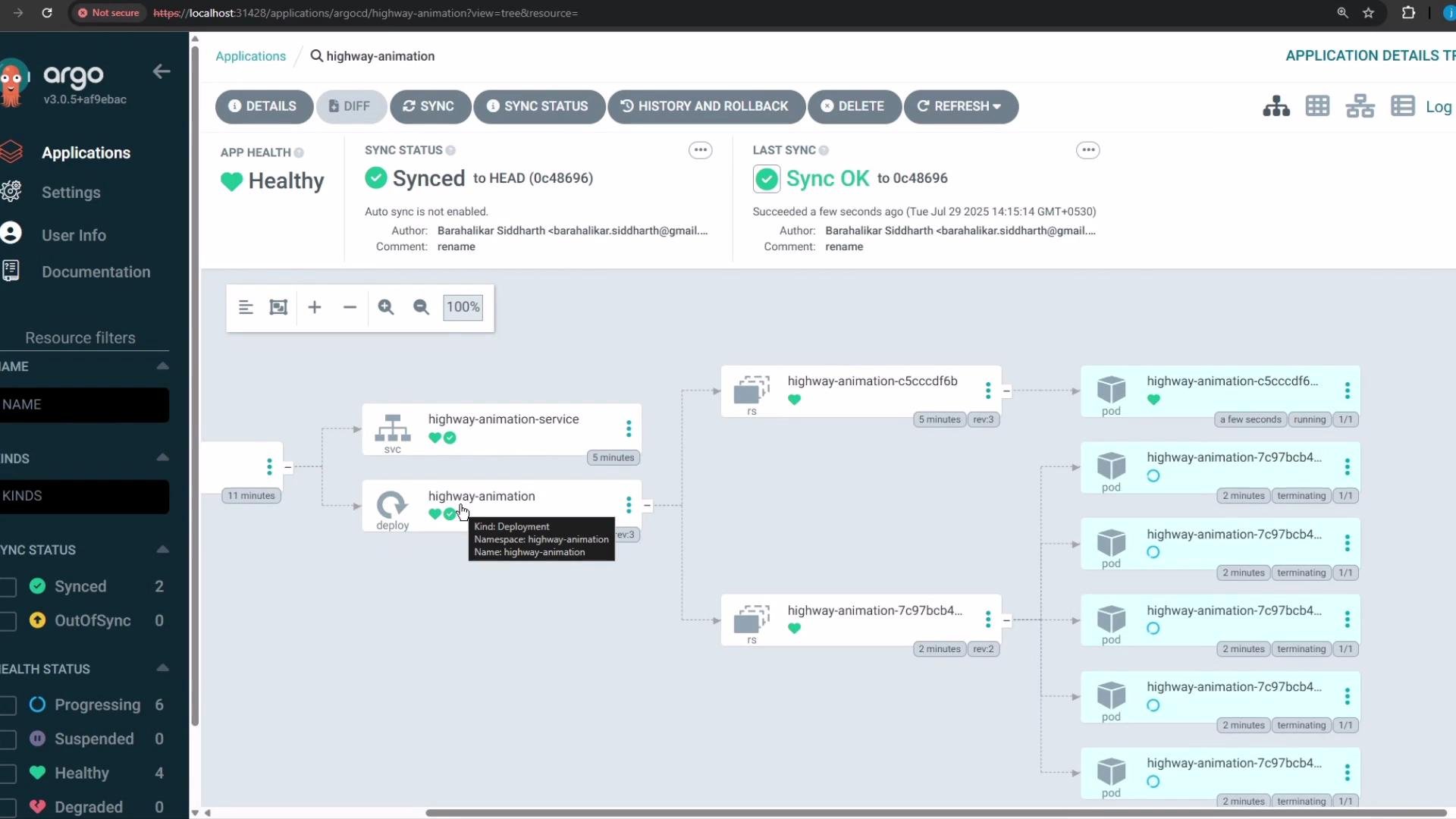 After synchronization, Argo CD will revert the cluster to the Git desired state and the application will again show a single pod/vehicle.
## Quick reference: kubectl & Argo CD actions
| Action | Command or UI step | Purpose |
| --------------------------- | ---------------------------------------------------------------: | ------------------------------------- |
| List namespaces | `kubectl get namespaces` | Verify cluster namespaces |
| List resources in namespace | `kubectl -n highway-animation get all` | Inspect deployed resources |
| Edit a live Deployment | `kubectl -n highway-animation edit deployment highway-animation` | Make ad-hoc changes (not recommended) |
| Sync app in Argo CD | Argo CD UI → Select app → "Synchronize" | Apply Git manifests to cluster |
| View diff in Argo CD | Argo CD UI → Select app → "Diff" | Compare live vs. desired manifests |
## Best practice
Never make long-lived configuration changes directly in the cluster. Always update the Git repository with the desired state and let your GitOps operator (Argo CD) reconcile the cluster. This ensures a single source of truth, prevents configuration drift, and makes rollbacks and audits straightforward.
## Links and references
* Argo CD documentation: [https://argo-cd.readthedocs.io/](https://argo-cd.readthedocs.io/)
* Kubernetes: Deployments — [https://kubernetes.io/docs/concepts/workloads/controllers/deployment/](https://kubernetes.io/docs/concepts/workloads/controllers/deployment/)
* GitOps principles: [https://www.weave.works/technologies/gitops/](https://www.weave.works/technologies/gitops/)
After synchronization, Argo CD will revert the cluster to the Git desired state and the application will again show a single pod/vehicle.
## Quick reference: kubectl & Argo CD actions
| Action | Command or UI step | Purpose |
| --------------------------- | ---------------------------------------------------------------: | ------------------------------------- |
| List namespaces | `kubectl get namespaces` | Verify cluster namespaces |
| List resources in namespace | `kubectl -n highway-animation get all` | Inspect deployed resources |
| Edit a live Deployment | `kubectl -n highway-animation edit deployment highway-animation` | Make ad-hoc changes (not recommended) |
| Sync app in Argo CD | Argo CD UI → Select app → "Synchronize" | Apply Git manifests to cluster |
| View diff in Argo CD | Argo CD UI → Select app → "Diff" | Compare live vs. desired manifests |
## Best practice
Never make long-lived configuration changes directly in the cluster. Always update the Git repository with the desired state and let your GitOps operator (Argo CD) reconcile the cluster. This ensures a single source of truth, prevents configuration drift, and makes rollbacks and audits straightforward.
## Links and references
* Argo CD documentation: [https://argo-cd.readthedocs.io/](https://argo-cd.readthedocs.io/)
* Kubernetes: Deployments — [https://kubernetes.io/docs/concepts/workloads/controllers/deployment/](https://kubernetes.io/docs/concepts/workloads/controllers/deployment/)
* GitOps principles: [https://www.weave.works/technologies/gitops/](https://www.weave.works/technologies/gitops/)