> ## Documentation Index
> Fetch the complete documentation index at: https://notes.kodekloud.com/llms.txt
> Use this file to discover all available pages before exploring further.
# Demo Helm
> Explains using Helm charts with values.yaml and Argo CD to manage Kubernetes deployments via GitOps, enabling templated manifests, versioned configuration, and automated cluster reconciliation
[Helm](https://learn.kodekloud.com/user/courses/helm-for-beginners) is the de facto package manager for Kubernetes. Helm charts combine reusable templates and environment-specific `values.yaml` files to generate Kubernetes manifests (Deployments, Services, RBAC, HPAs, etc.), which makes deployments consistent and repeatable across environments.
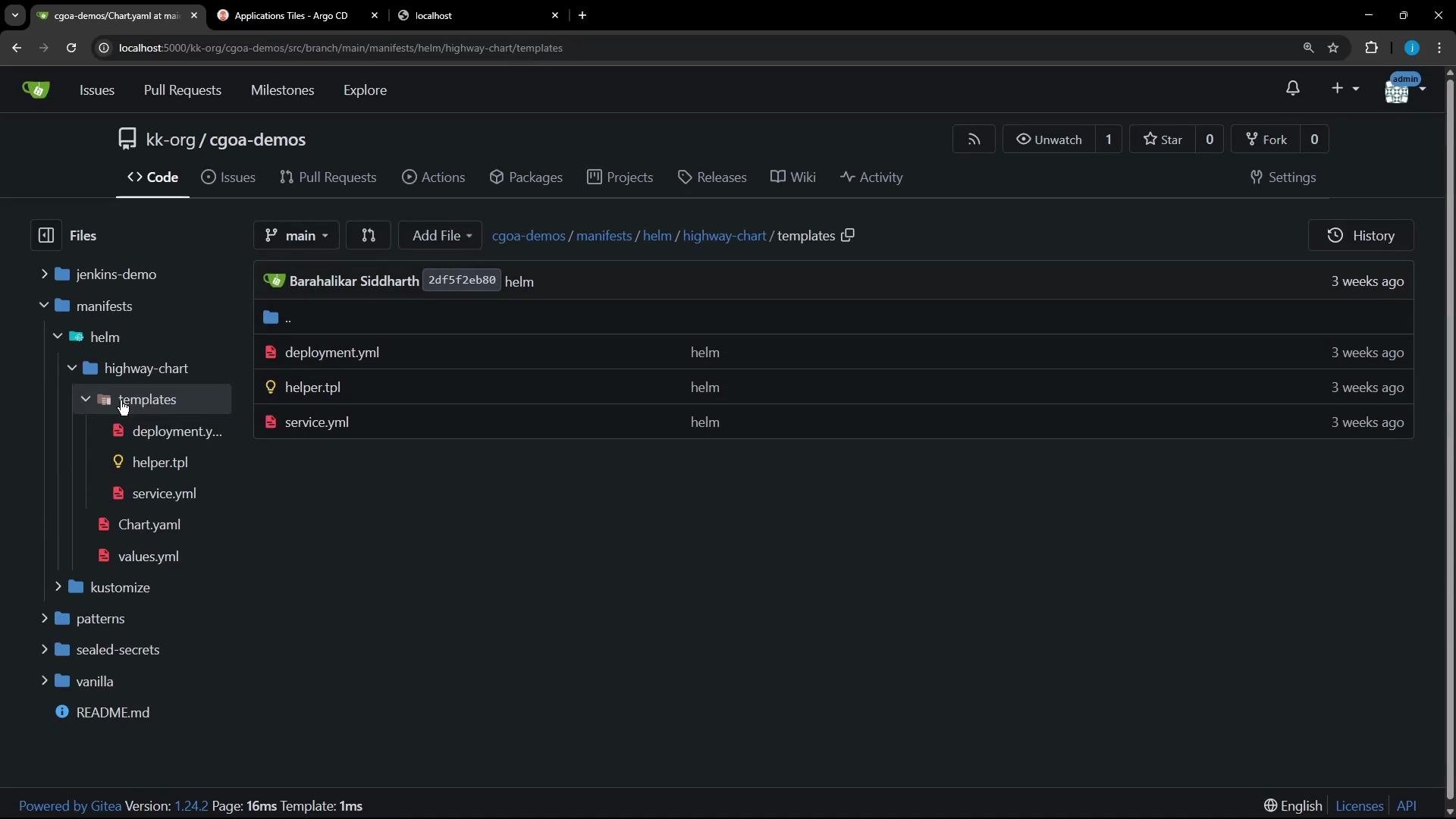 ## Helm chart anatomy (quick reference)
| File / Directory | Purpose | Example |
| ---------------- | ----------------------------------------------: | --------------------------- |
| `Chart.yaml` | Chart metadata (name, version, appVersion) | `Chart.yaml` |
| `values.yaml` | Default configuration consumed by templates | `values.yaml` |
| `templates/` | Resource templates rendered with Helm functions | `templates/deployment.yaml` |
| `charts/` | Subcharts (dependency charts) | `charts/` |
Templates are YAML manifests with Helm template expressions that evaluate at render time. For example, a Deployment template in `templates/deployment.yaml` may look like:
```yaml theme={null}
apiVersion: apps/v1
kind: Deployment
metadata:
name: highway-animation
labels:
app: highway-animation
spec:
replicas: {{ .Values.replicaCount }}
selector:
matchLabels:
app: highway-animation
template:
metadata:
labels:
app: highway-animation
spec:
containers:
- name: highway-animation
image: "{{ .Values.image.repository }}:{{ .Values.image.tag | default .Chart.AppVersion }}"
imagePullPolicy: {{ .Values.image.pullPolicy }}
ports:
- containerPort: {{ .Values.containerPort }}
protocol: TCP
env:
# You can render environment variables from .Values.env (list)
# e.g., {{- toYaml .Values.env | nindent 12 }}
```
Note: Template expressions such as `{{ .Values.replicaCount }}` are shown inside code blocks to avoid MDX parsing issues.
A matching `values.yaml` supplies defaults consumed by the template. A minimal example for this chart:
```yaml theme={null}
replicaCount: 1
image:
repository: siddharth67/highway-animation
pullPolicy: IfNotPresent
tag: "blue"
service:
type: NodePort
port: 3000
targetPort: 3000
containerPort: 3000
env:
- name: POD_COUNT
value: "1"
# Optional resource configuration:
# resources:
# limits:
# cpu: 100m
# memory: 128Mi
# requests:
# cpu: 100m
# memory: 128Mi
```
Using templates + `values.yaml` enables you to:
* Reuse the same chart across environments (dev/staging/prod) by swapping values.
* Maintain a single source of truth for manifests while customizing behavior with values or overrides.
* Keep configuration in Git to satisfy GitOps principles and enable auditability.
Because the chart lives in a Git repository, it aligns with GitOps best practices. Continuous delivery tools like [Argo CD](https://learn.kodekloud.com/user/courses/gitops-with-argocd) or [Flux CD](https://learn.kodekloud.com/user/courses/gitops-with-fluxcd) can render the chart and continuously reconcile the cluster to the desired state.
## Helm chart anatomy (quick reference)
| File / Directory | Purpose | Example |
| ---------------- | ----------------------------------------------: | --------------------------- |
| `Chart.yaml` | Chart metadata (name, version, appVersion) | `Chart.yaml` |
| `values.yaml` | Default configuration consumed by templates | `values.yaml` |
| `templates/` | Resource templates rendered with Helm functions | `templates/deployment.yaml` |
| `charts/` | Subcharts (dependency charts) | `charts/` |
Templates are YAML manifests with Helm template expressions that evaluate at render time. For example, a Deployment template in `templates/deployment.yaml` may look like:
```yaml theme={null}
apiVersion: apps/v1
kind: Deployment
metadata:
name: highway-animation
labels:
app: highway-animation
spec:
replicas: {{ .Values.replicaCount }}
selector:
matchLabels:
app: highway-animation
template:
metadata:
labels:
app: highway-animation
spec:
containers:
- name: highway-animation
image: "{{ .Values.image.repository }}:{{ .Values.image.tag | default .Chart.AppVersion }}"
imagePullPolicy: {{ .Values.image.pullPolicy }}
ports:
- containerPort: {{ .Values.containerPort }}
protocol: TCP
env:
# You can render environment variables from .Values.env (list)
# e.g., {{- toYaml .Values.env | nindent 12 }}
```
Note: Template expressions such as `{{ .Values.replicaCount }}` are shown inside code blocks to avoid MDX parsing issues.
A matching `values.yaml` supplies defaults consumed by the template. A minimal example for this chart:
```yaml theme={null}
replicaCount: 1
image:
repository: siddharth67/highway-animation
pullPolicy: IfNotPresent
tag: "blue"
service:
type: NodePort
port: 3000
targetPort: 3000
containerPort: 3000
env:
- name: POD_COUNT
value: "1"
# Optional resource configuration:
# resources:
# limits:
# cpu: 100m
# memory: 128Mi
# requests:
# cpu: 100m
# memory: 128Mi
```
Using templates + `values.yaml` enables you to:
* Reuse the same chart across environments (dev/staging/prod) by swapping values.
* Maintain a single source of truth for manifests while customizing behavior with values or overrides.
* Keep configuration in Git to satisfy GitOps principles and enable auditability.
Because the chart lives in a Git repository, it aligns with GitOps best practices. Continuous delivery tools like [Argo CD](https://learn.kodekloud.com/user/courses/gitops-with-argocd) or [Flux CD](https://learn.kodekloud.com/user/courses/gitops-with-fluxcd) can render the chart and continuously reconcile the cluster to the desired state.
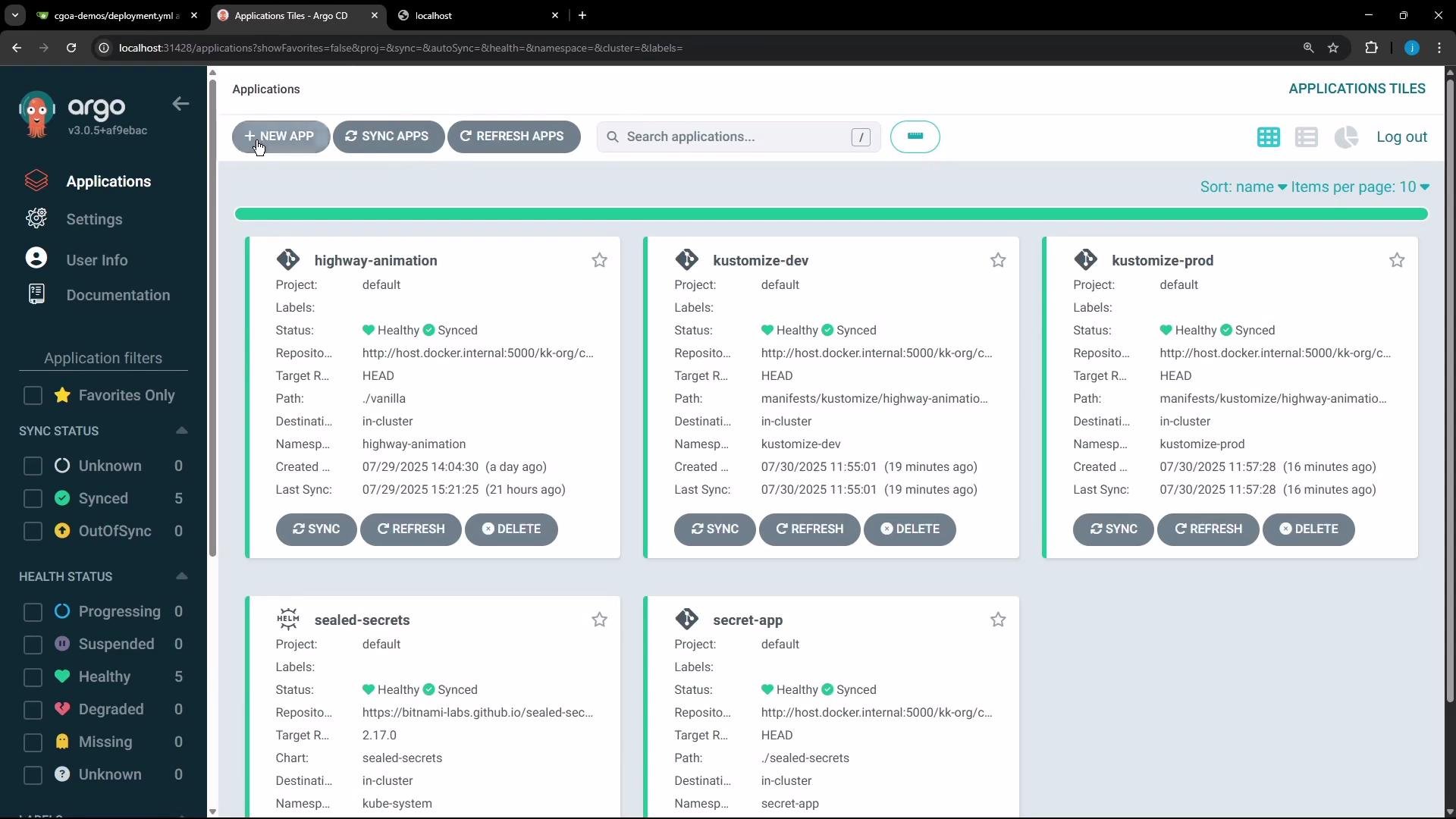 ## Deploying a Helm chart with Argo CD
Argo CD can deploy a Helm chart directly from a Git repo. In the Argo CD UI you typically:
1. Create a new Application.
2. Point `repoURL` to your Git repository and `path` to the chart folder (e.g., `manifests/helm/highway-chart`).
3. Choose a target cluster/namespace and optional automated sync policy.
4. Provide `values.yaml` or overrides if you want to change defaults at deploy time.
## Deploying a Helm chart with Argo CD
Argo CD can deploy a Helm chart directly from a Git repo. In the Argo CD UI you typically:
1. Create a new Application.
2. Point `repoURL` to your Git repository and `path` to the chart folder (e.g., `manifests/helm/highway-chart`).
3. Choose a target cluster/namespace and optional automated sync policy.
4. Provide `values.yaml` or overrides if you want to change defaults at deploy time.
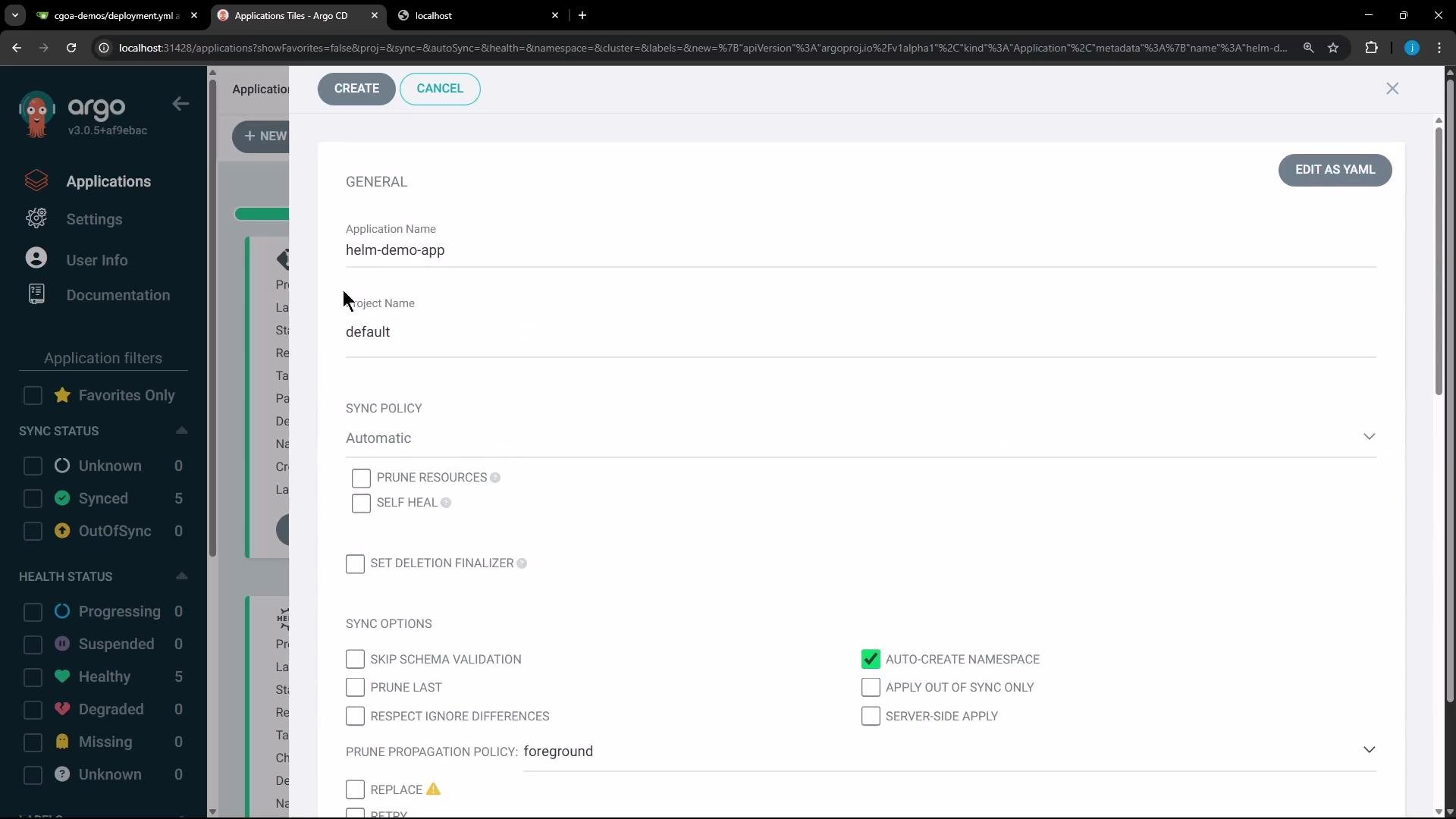 Argo CD recognizes the Helm chart and prompts for values files or overrides. Point it at the chart’s `values.yaml` or supply a custom override file to change runtime configuration.
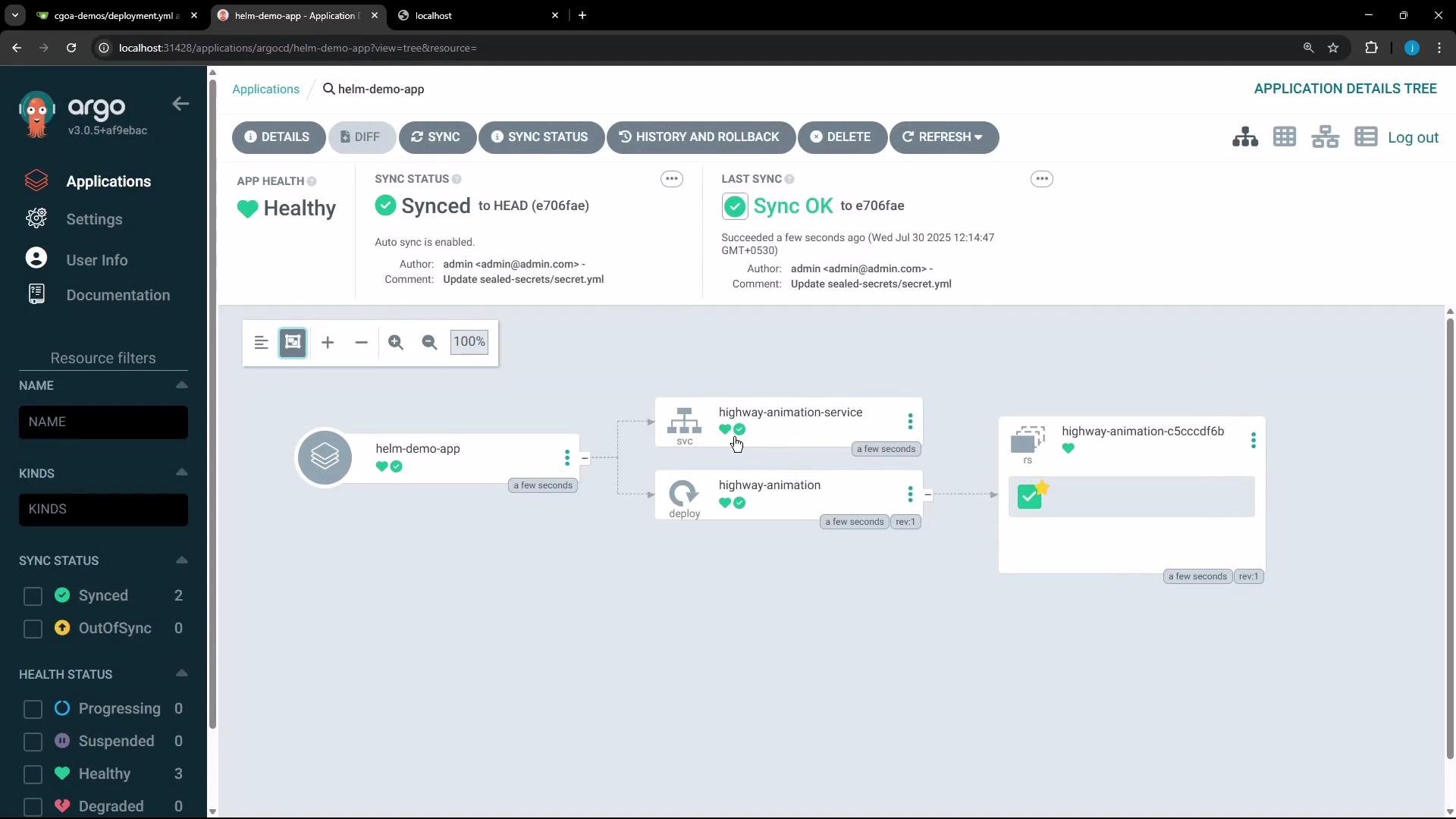
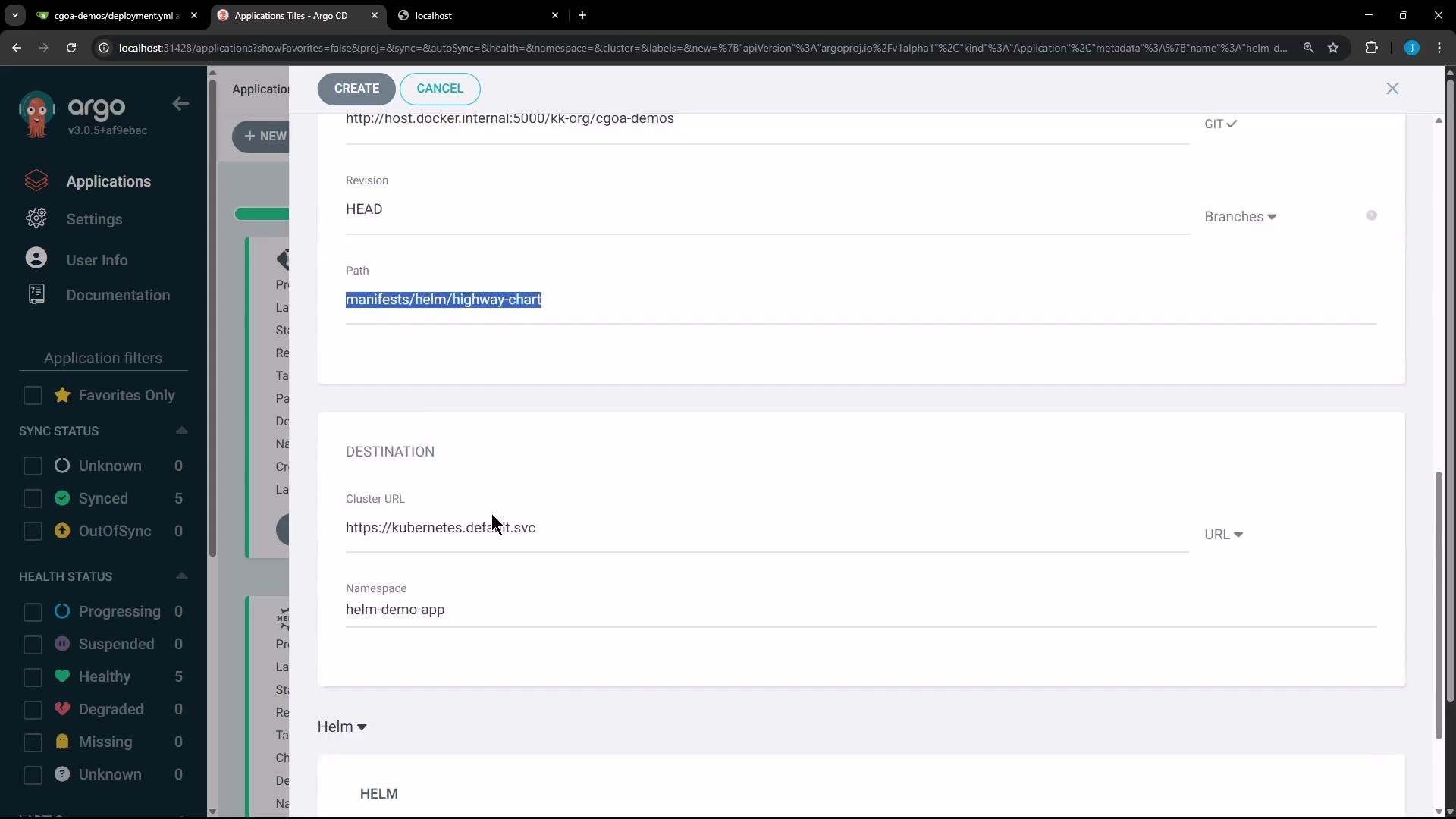 Once created, Argo CD renders the Helm chart and creates the Kubernetes resources — e.g., Deployment, Service, and Pods configured by `values.yaml`. With the example above (replicaCount: 1) you will initially see a single pod.
 ## Updating configuration: Git vs UI overrides
You can change chart configuration in two common ways:
* Edit `values.yaml` in the Git repository and let Argo CD pick up the change via GitOps sync, or
* Provide overrides in the Argo CD Application (UI or Application manifest), which are useful for temporary or environment-specific changes.
Example Argo CD Application manifest that references a Helm chart and passes a values file and parameter overrides:
```yaml theme={null}
apiVersion: argoproj.io/v1alpha1
kind: Application
metadata:
name: helm-demo-app
spec:
project: default
source:
repoURL: http://host.docker.internal:5000/kk-org/cgoa-demos
path: manifests/helm/highway-chart
targetRevision: HEAD
helm:
valueFiles:
- values.yaml
parameters:
- name: replicaCount
value: "7"
- name: image.tag
value: "green"
- name: service.type
value: "NodePort"
destination:
server: https://kubernetes.default.svc
namespace: helm-demo-app
syncPolicy:
automated: {}
syncOptions:
- CreateNamespace=true
```
## Updating configuration: Git vs UI overrides
You can change chart configuration in two common ways:
* Edit `values.yaml` in the Git repository and let Argo CD pick up the change via GitOps sync, or
* Provide overrides in the Argo CD Application (UI or Application manifest), which are useful for temporary or environment-specific changes.
Example Argo CD Application manifest that references a Helm chart and passes a values file and parameter overrides:
```yaml theme={null}
apiVersion: argoproj.io/v1alpha1
kind: Application
metadata:
name: helm-demo-app
spec:
project: default
source:
repoURL: http://host.docker.internal:5000/kk-org/cgoa-demos
path: manifests/helm/highway-chart
targetRevision: HEAD
helm:
valueFiles:
- values.yaml
parameters:
- name: replicaCount
value: "7"
- name: image.tag
value: "green"
- name: service.type
value: "NodePort"
destination:
server: https://kubernetes.default.svc
namespace: helm-demo-app
syncPolicy:
automated: {}
syncOptions:
- CreateNamespace=true
```
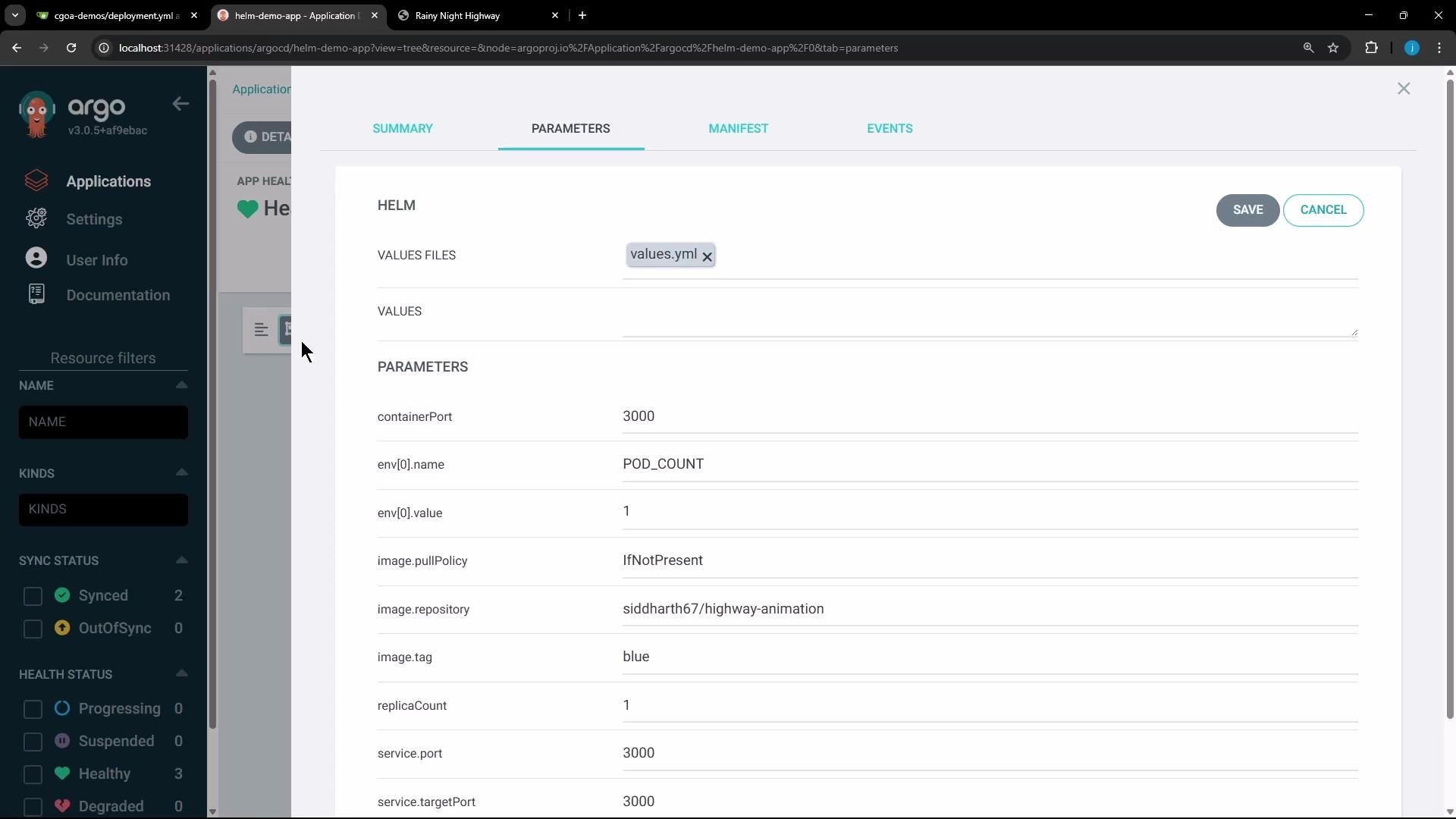
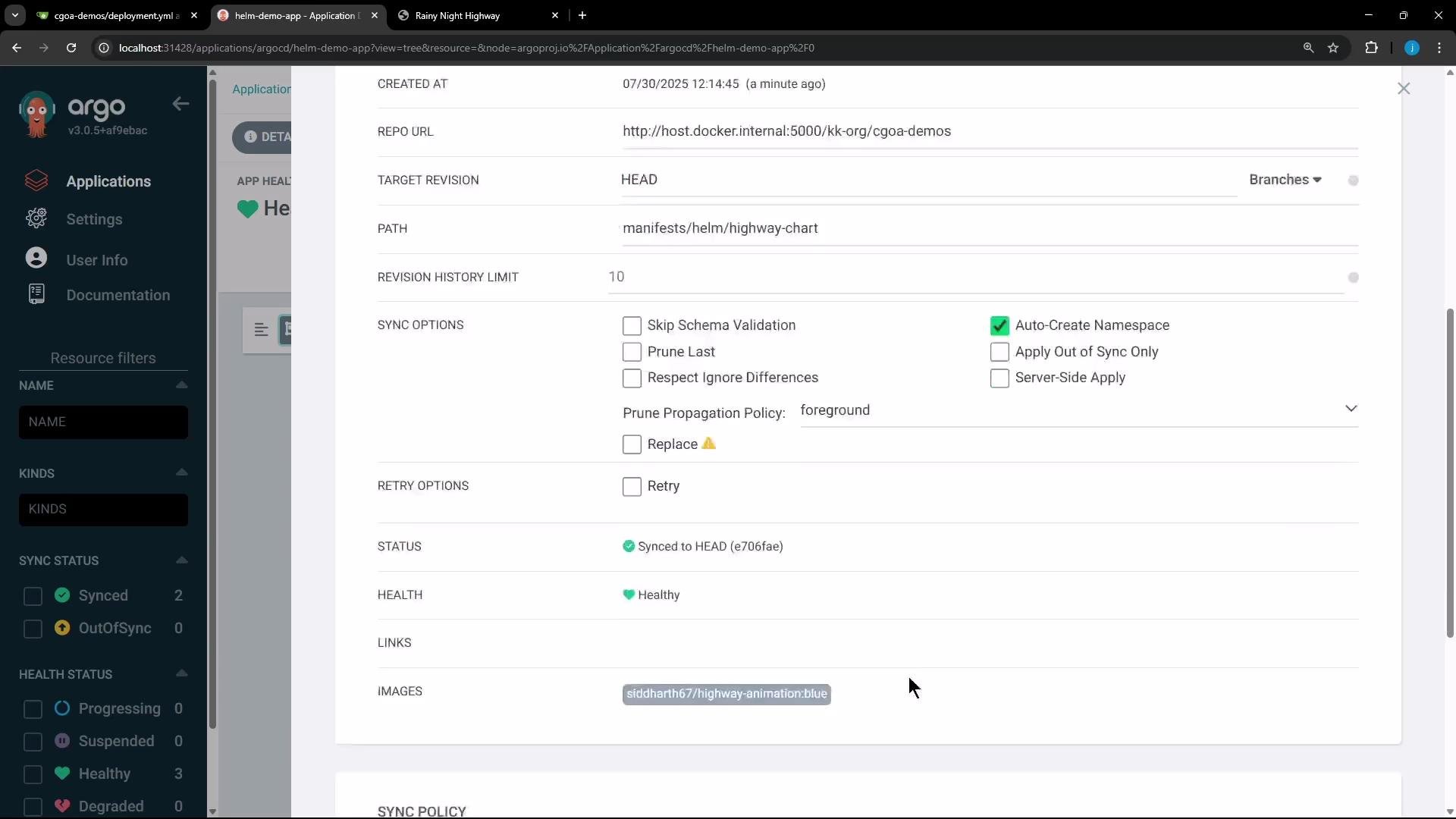 You can also edit parameters from the Argo CD UI. For example, change `replicaCount` to `7`, set `image.tag` to `green`, or update other values. After saving, Argo CD will detect a drift (OutOfSync) between the live cluster and the desired state.
 Argo CD shows diffs between live manifests and desired manifests (e.g., `replicas: 1` vs `replicas: 7`, changed image tags, or modified env vars). When you run a sync, Argo CD applies the updated manifests to the cluster.
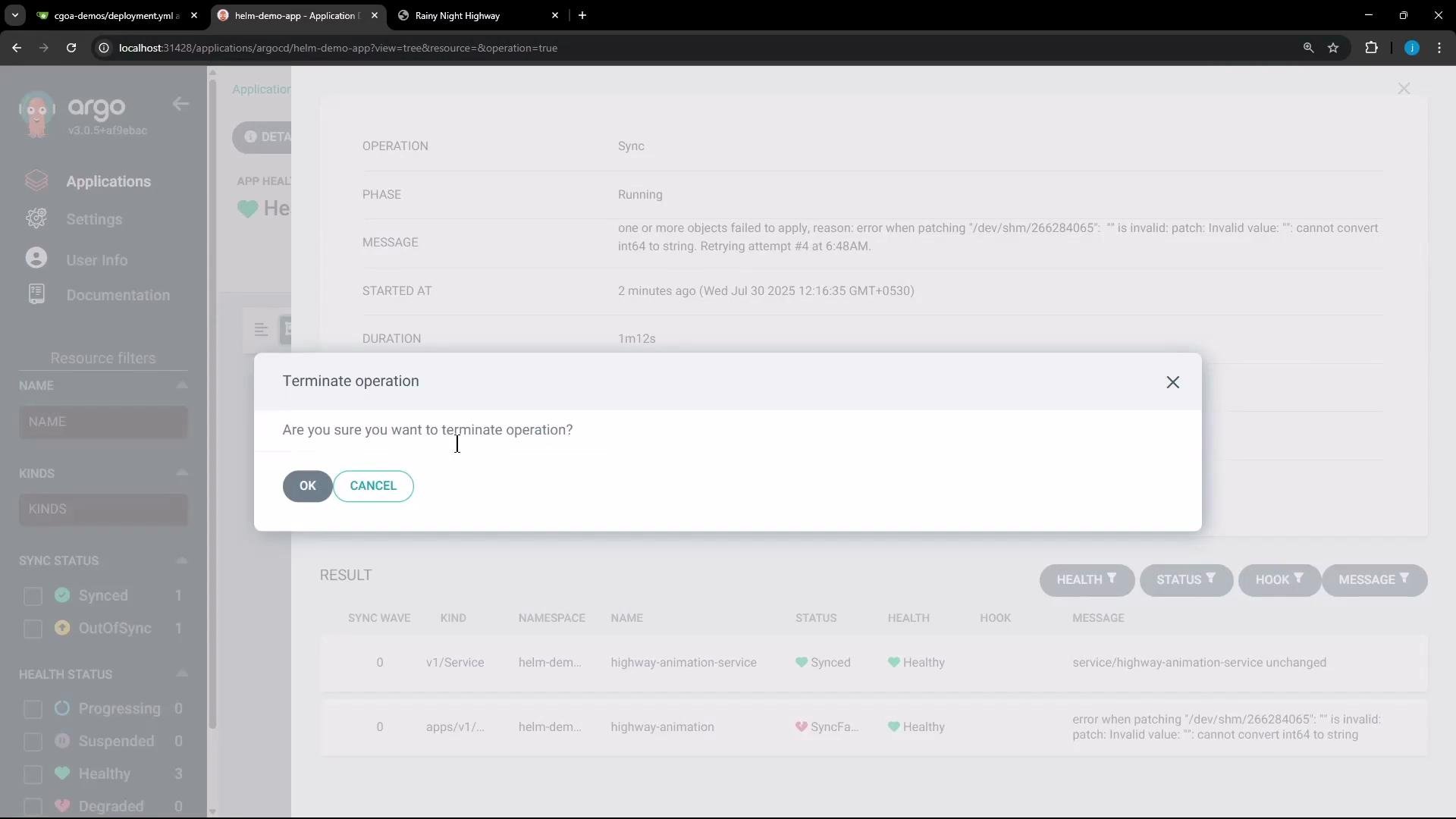
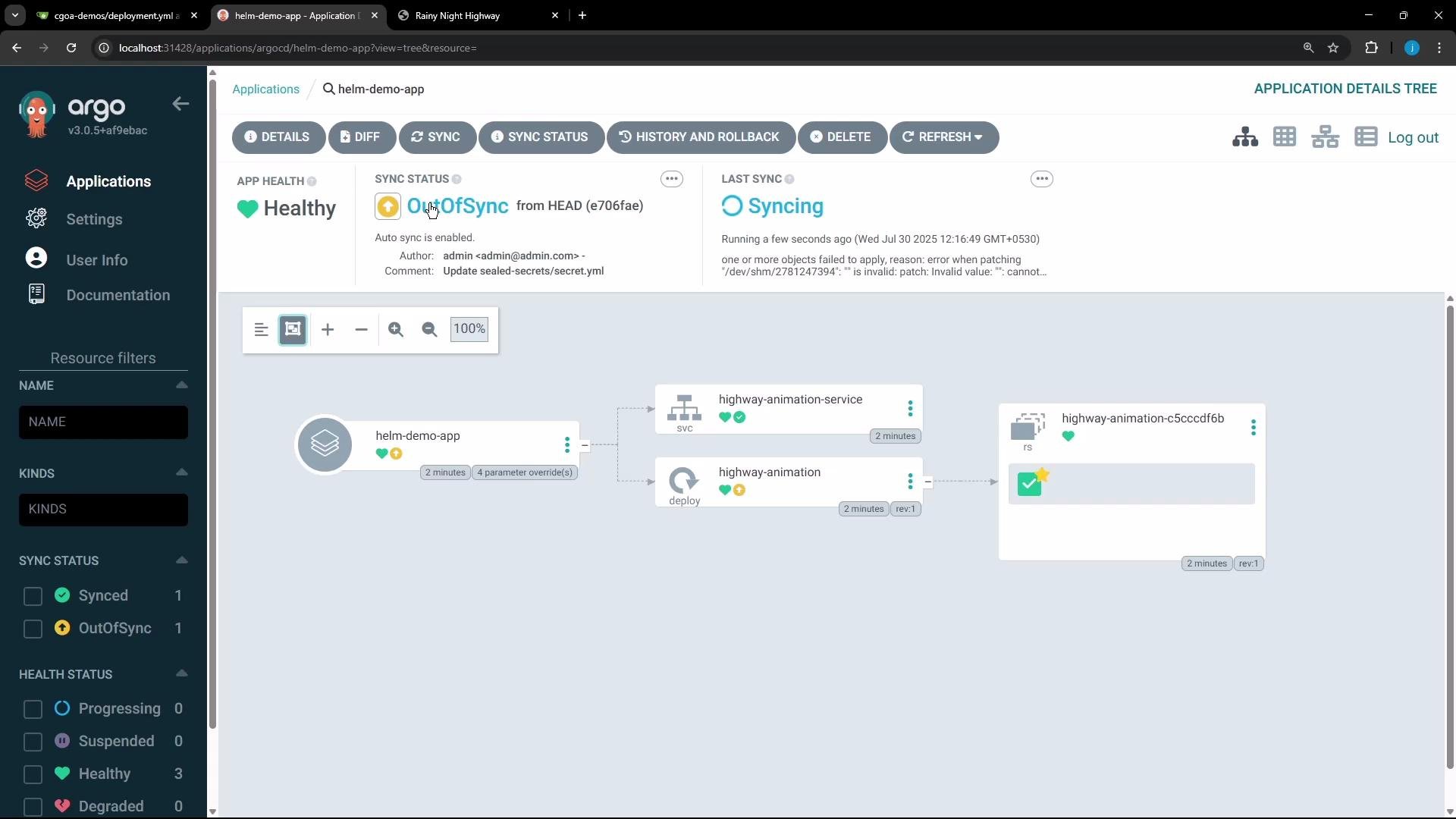 If a sync gets stuck or an operation must be interrupted, Argo CD provides controls to terminate and re-trigger operations.
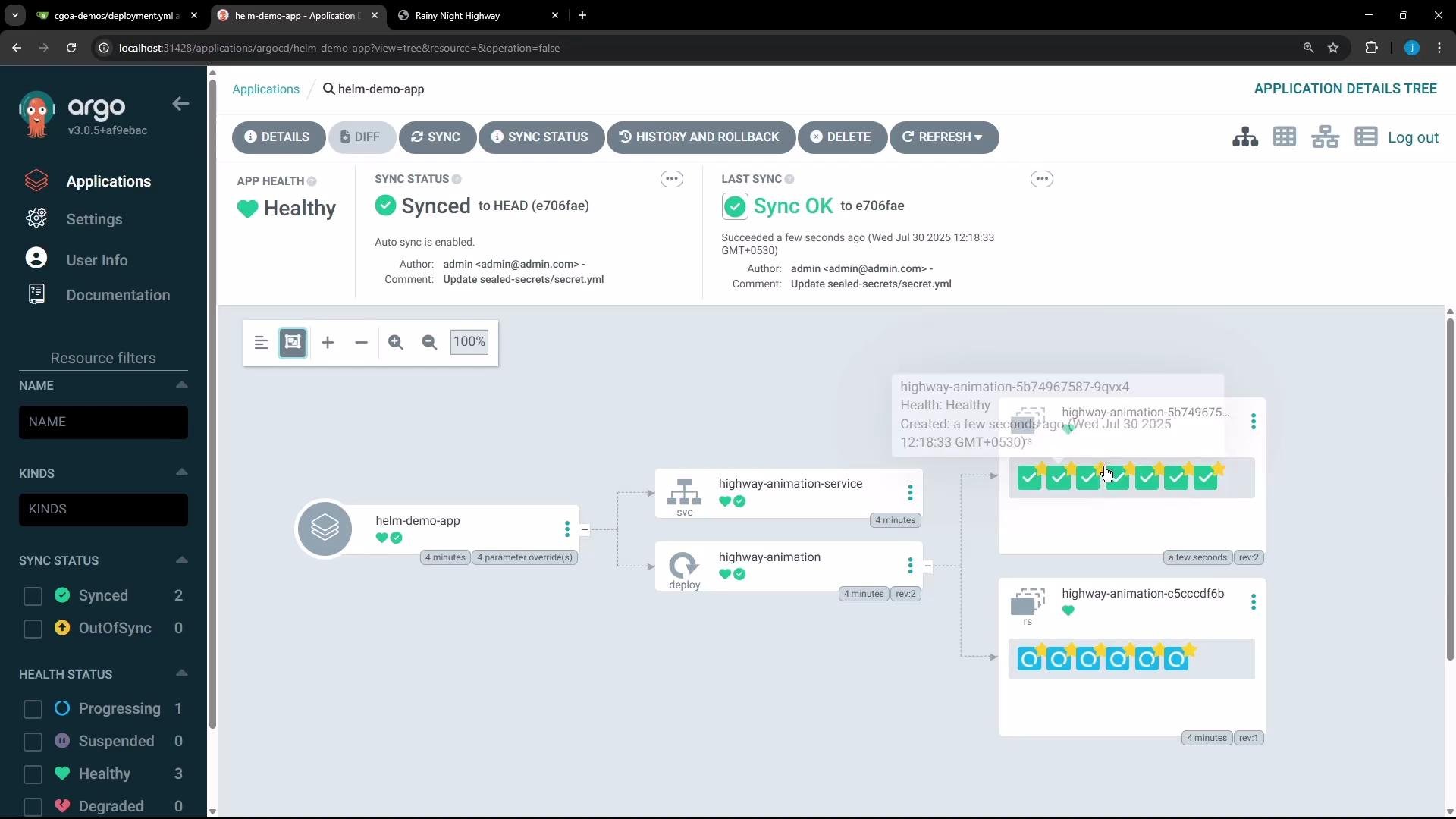
 After a successful sync, the cluster reflects the updated values (for example, `replicaCount: 7` results in 7 running pods). If something doesn’t render properly in the Argo CD UI (for example, quoting/format issues), check your YAML formatting in the override editor and prefer properly formatted YAML.
 A consistent values override you can paste into Argo CD’s editor:
```yaml theme={null}
replicaCount: 9
image:
tag: "green"
env:
- name: POD_COUNT
value: "9"
```
With that override and a sync, the cluster will run nine pods using the updated image tag and environment variable.
Tip: Keep configuration as code in Git (edit `values.yaml` in your repo) so changes remain auditable and follow GitOps best practices. Use Argo CD parameters or UI overrides for temporary or environment-specific adjustments.
## Summary
Helm templates + `values.yaml` let you templatize Kubernetes manifests for reuse and consistency. Pairing Helm with Argo CD creates a GitOps workflow: store charts and values in Git, let Argo CD render and deploy them, and update configuration through Git or controlled UI overrides to reconcile clusters to the desired state.
A consistent values override you can paste into Argo CD’s editor:
```yaml theme={null}
replicaCount: 9
image:
tag: "green"
env:
- name: POD_COUNT
value: "9"
```
With that override and a sync, the cluster will run nine pods using the updated image tag and environment variable.
Tip: Keep configuration as code in Git (edit `values.yaml` in your repo) so changes remain auditable and follow GitOps best practices. Use Argo CD parameters or UI overrides for temporary or environment-specific adjustments.
## Summary
Helm templates + `values.yaml` let you templatize Kubernetes manifests for reuse and consistency. Pairing Helm with Argo CD creates a GitOps workflow: store charts and values in Git, let Argo CD render and deploy them, and update configuration through Git or controlled UI overrides to reconcile clusters to the desired state.