> ## Documentation Index
> Fetch the complete documentation index at: https://notes.kodekloud.com/llms.txt
> Use this file to discover all available pages before exploring further.
# Back Up Files to a Remote System Optional
> This guide explains how to back up files on Linux using rsync and dd for efficient file synchronization and disk imaging.
In this guide, we'll explain how to back up files on Linux using built-in tools. Although advanced backup utilities exist, this article focuses on a straightforward, efficient method to copy files from one system to another's backup location.
A widely used tool for this process is rsync. The name "rsync" is derived from its core functionality—remote synchronization. It allows you to synchronize a directory from one system with a corresponding directory on another system over a network connection. For instance, you might sync "/some/directory" on server 1 with "/some/other/directory" on server 2. Remember, the remote server must have an SSH daemon running so that rsync can transfer data securely.
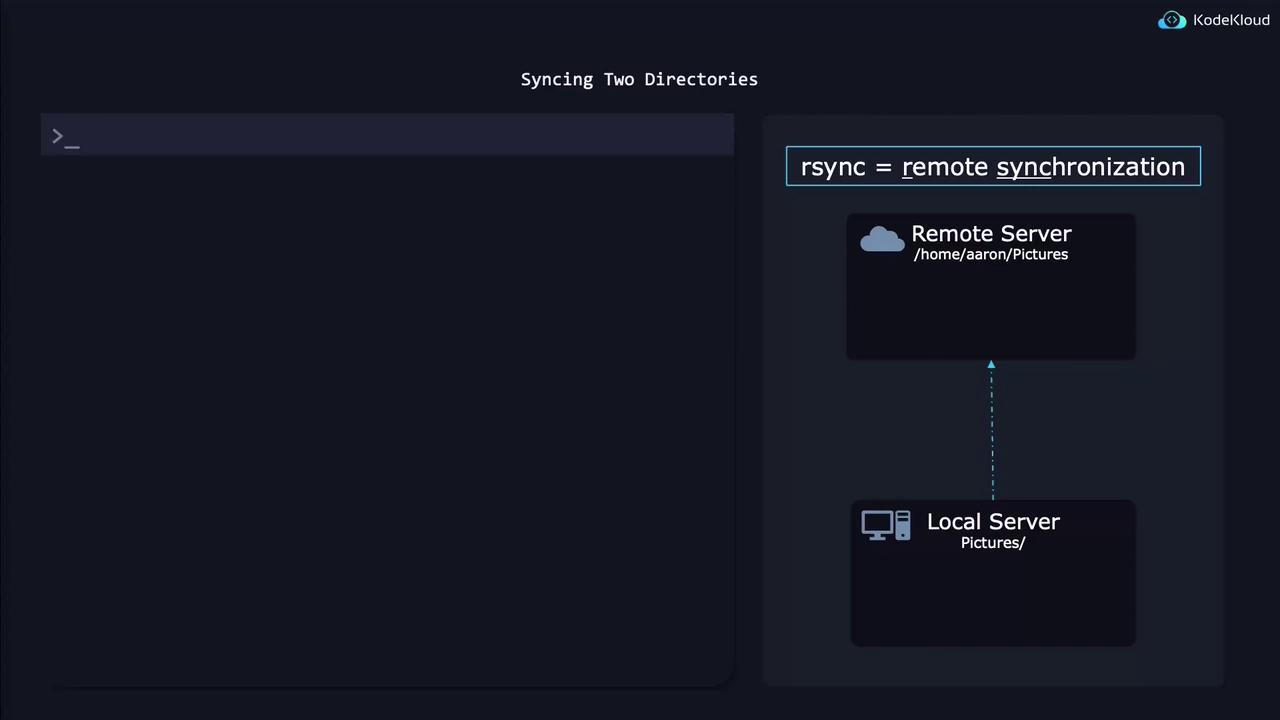
The basic syntax for rsync is as follows:
* The `-a` (archive) option ensures that subdirectories, file permissions, modification times, and other attributes are synchronized.
* Always add a trailing forward slash ("/") at the end of directory paths to explicitly indicate that you are syncing the contents of the directory rather than the directory itself.
For example, to synchronize a local pictures directory with a pictures directory on a remote server, use the following command:
```bash theme={null}
rsync -a /path/to/local/pictures/ Aaron@9.9.9.9:/path/to/remote/pictures/
```
In the command above:
• "Aaron" is the username on the remote system.\
• "9.9.9.9" is the IP address of the remote server.\
• The directory after the colon specifies the destination directory on the remote system.
An advantage of using rsync is that on subsequent runs, it only transfers changed data. This incremental approach can significantly speed up future backups by skipping files that haven't been modified.
You can also reverse the source and destination to copy data from a remote directory back to a local directory. Additionally, rsync works for synchronizing between two local directories.
If you're looking to create a bit-for-bit copy of an entire disk or partition, consider using the dd utility instead of rsync.
The dd command creates an exact clone (or image) of a disk, making it ideal for tasks such as creating full disk backups. To ensure data consistency, always unmount the disk or partition before running dd, so that no data is altered during the imaging process.
Below is an example of using dd to create a disk image. Since accessing disk data requires elevated permissions, the command is prefixed with sudo:
```bash theme={null}
sudo dd if=/dev/vda of=diskimage.raw bs=1M status=progress
```
In this command:
• `if=/dev/vda` specifies the input file (i.e., the source disk or partition).\
• `of=diskimage.raw` specifies the output file where the disk image is saved.\
• `bs=1M` sets the block size to 1 megabyte, which can improve read-write speeds compared to default, smaller sizes.\
• `status=progress` displays real-time progress information during the operation.
To restore a disk image from a file back to a disk, simply reverse the input and output options as shown below:
```bash theme={null}
sudo dd if=diskimage.raw of=/dev/vda bs=1M status=progress
```
Avoid running these dd commands on a virtual machine unless you are absolutely sure you want to overwrite the virtual disk, as this operation can result in data loss.
This guide demonstrated how to use native Linux tools—rsync for file synchronization and dd for full disk imaging—to perform backup operations in a simple and efficient way.
## Related Resources
| Tool | Use Case | Example Command |
| ----- | --------------------------------------- | --------------------------------------------------------------------- |
| rsync | Incremental backup of files/directories | `rsync -a /source/directory/ username@remote:/destination/directory/` |
| dd | Full disk or partition imaging | `sudo dd if=/dev/sda of=diskimage.raw bs=1M status=progress` |
For further reading, consider visiting [Linux Backup Strategies](https://linux.die.net/man/1/rsync) and [dd Command Tutorial](https://www.tecmint.com/backup-and-restore-disk-using-dd-command-in-linux/).