> ## Documentation Index
> Fetch the complete documentation index at: https://notes.kodekloud.com/llms.txt
> Use this file to discover all available pages before exploring further.
# Create Delete Copy and Move Files and Directories
> This guide demonstrates how to manage files and directories on Linux by creating, deleting, copying, and moving them.
This guide demonstrates how to manage files and directories on Linux by creating, deleting, copying, and moving them. Before diving into the commands, ensure you understand these key concepts:
1. File system tree structure
2. Absolute paths
3. Relative paths
## Listing Files and Directories
To list files and directories—including hidden files (those starting with a dot)—use the `ls -la` command. The `-a` flag stands for "all" and the `-l` flag provides a detailed, long listing format. Here are some examples:
```bash theme={null}
$ ls -la
$ ls -a
```
To list files for a specific directory, include the directory path:
```bash theme={null}
$ ls /var/log
$ ls -l /var/log
```
The command `ls -l /var/log` displays detailed information such as file permissions, ownership, and modification dates. Combining options is also possible:
```bash theme={null}
$ ls -ahl
total 76K
drwx------ 16 aaron aaron 4.0K Nov 1 17:57 .
drwxr-xr-x 7 root root 70 Oct 26 16:54 ..
-rw------- 1 aaron aaron 5.0K Nov 1 17:56 .bash_history
-rw-r--r-- 1 aaron aaron 18 Jul 27 09:21 .bash_logout
-rw-r--r-- 1 aaron aaron 141 Jul 27 09:21 .bash_profile
-rw-r--r-- 1 aaron aaron 376 Jul 27 09:21 .bashrc
drwxr-xr-x 2 aaron aaron 6 Oct 19 00:11 Desktop
drwxr-xr-x 3 aaron aaron 25 Oct 23 18:15 Documents
drwxr-xr-x 2 aaron aaron 6 Oct 19 00:11 Downloads
drwxr-xr-x 2 aaron aaron 6 Oct 19 00:11 Music
drwxr-xr-x 2 aaron aaron 2 Oct 19 00:11 Pictures
-rw-rw-r-- 1 aaron aaron 36 Oct 28 20:06 testfile
```
Using combined options like `ls -ahl` makes it quicker to view comprehensive file information.
## Understanding the File System Tree
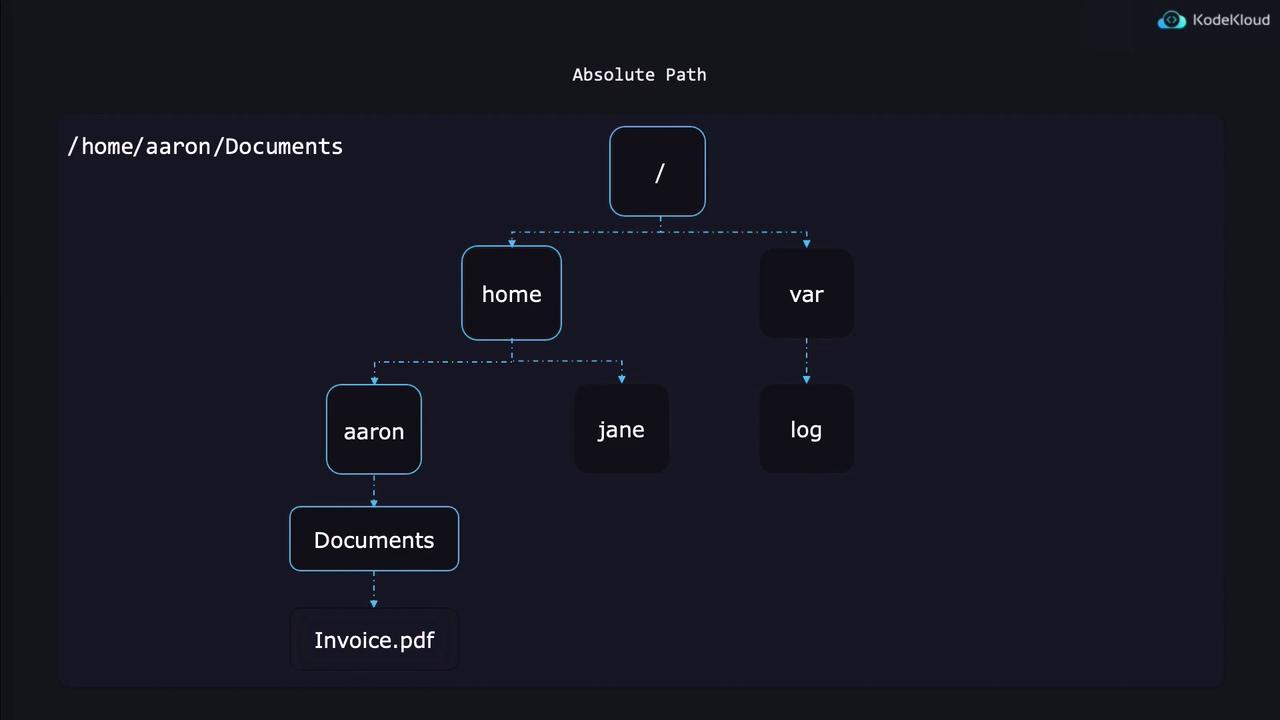
Linux organizes files and directories in what’s known as a file system tree. In this inverted hierarchy, the root is at the top and branches (subdirectories) and leaves (files) extend downward. The root directory is represented by a forward slash (`/`), and it forms the base for other essential directories such as `home`, `var`, and `etc`.
## Absolute and Relative Paths
### Absolute Paths
Absolute paths start from the root directory (`/`) and specify the complete location of a file or directory. For example, consider the following absolute path leading to a file named `Invoice.pdf`:
/home/aaron/Documents/Invoice.pdf
### Relative Paths
Relative paths are defined in relation to your current working directory. To display your current directory, use the `pwd` command:
```bash theme={null}
$ pwd
```
By default, you usually start in your home directory (e.g., `/home/Aaron` or `/home/Jane`). Changing directories can be done using the `cd` command:
```bash theme={null}
$ cd /var/log # Uses an absolute path
$ cd .. # Moves up one directory level
```
Here, `..` refers to the parent directory. For example, if you are in `/home/Aaron`, executing `cd ..` will take you to `/home`.
#### Relative Path Examples
Assume your current directory is `/home/Aaron`:
* To access a file inside the `Documents` subdirectory:
```bash theme={null}
$ Documents/Invoice.pdf
```
* To access a file in the current directory:
```bash theme={null}
$ Invoice.pdf
```
* To access a file located one directory above:
```bash theme={null}
$ ../Invoice.pdf
```
You can chain `..` to move up multiple levels (e.g., `../../Invoice.pdf` moves up two levels).
Additional directory commands:
* Switch to the root directory:
```bash theme={null}
$ cd /
```
* Return to your previous directory:
```bash theme={null}
$ cd -
```
* Return to your home directory:
```bash theme={null}
$ cd
```
## Creating Files and Directories
To create a new file, use the `touch` command. For example, to create `receipt.pdf` in the current directory:
```bash theme={null}
$ touch receipt.pdf
```
You can create a file in another location using an absolute or relative path:
```bash theme={null}
$ touch /home/Jane/receipt.pdf
$ touch ../Jane_receipt.pdf
```
To create a new directory, use the `mkdir` command:
```bash theme={null}
$ mkdir receipts
```
## Copying Files and Directories
The `cp` command copies files. You provide a source file and specify a destination. For instance, to copy `receipt.pdf` to the `receipts` directory:
```bash theme={null}
$ cp receipt.pdf receipts/
```
Adding a trailing slash (i.e., `receipts/`) specifies that the destination is a directory. To copy and rename a file simultaneously:
```bash theme={null}
$ cp receipt.pdf receipts/receipt_copy.pdf
```
To copy an entire directory with its contents, use the `-r` (recursive) flag:
```bash theme={null}
$ cp -r Receipts/ BackupOfReceipts/
```
Ensure the destination directory (e.g., `BackupOfReceipts/`) does not already exist when using recursive copying, as behavior may vary across systems.
## Moving and Renaming Files and Directories
The `mv` command is used for moving files between directories or renaming them. Here are some examples:
* To move a file into another directory:
```bash theme={null}
$ mv Receipt.pdf Receipts/
```
* To rename a file:
```bash theme={null}
$ mv receipt.pdf old_receipt.pdf
```
* To rename a directory:
```bash theme={null}
$ mv receipts old_receipts
```
Note that you don't need a recursive flag when moving directories; `mv` handles them by default.
## Deleting Files and Directories
To delete files, use the `rm` command. For example, to remove `Invoice.pdf`:
```bash theme={null}
$ rm Invoice.pdf
```
To remove a directory and all its contents, apply the `-r` flag:
```bash theme={null}
$ rm -r invoices
```
Always double-check the command before running `rm -r` to avoid accidental deletion of important files or directories.
With these commands and explanations, you are now equipped with a solid foundation for managing files and directories in Linux. For additional Linux command cheatsheets and best practices, consider exploring more guides and tutorials online.