> ## Documentation Index
> Fetch the complete documentation index at: https://notes.kodekloud.com/llms.txt
> Use this file to discover all available pages before exploring further.
# Create and Manage Hard Links
> This article explores how Linux manages hard links for efficient file management and their benefits in sharing data without duplicating storage.
In this article, we'll explore how Linux manages hard links and why they are beneficial for efficient file management. Understanding hard links requires a basic knowledge of file systems and inodes.
## File System Basics
Imagine a Linux system used by two distinct users, Aaron and Jane. Each user logs in with their own credentials, which provide personalized desktops, settings, and file directories.
Suppose Aaron takes a picture of the family dog and saves it as:
/home/aaron/pictures/family\_dog.jpg
To simulate the file creation, we use the following command, which writes a description (acting as the file's content) into the file:
```bash theme={null}
$ echo "Picture of Milo the dog" > Pictures/family_dog.jpg
```
When you inspect the file with the `stat` command, it shows details that include the inode number:
```bash theme={null}
$ stat Pictures/family_dog.jpg
File: Pictures/family_dog.jpg
Size: 49 Blocks: 8 IO Block: 4096 regular file
Device: fd00h/64768d Inode: 52946177 Links: 1
Access: (0640/-rw-r-----) Uid: ( 1000/ aaron) Gid: ( 1005/ family)
Access: 2021-10-27 16:33:18.949749912 -0500
Modify: 2021-10-27 14:41:19.202778881 -0500
Change: 2021-10-27 16:33:18.851749919 -0500
Birth: 2021-10-26 13:37:17.980969655 -0500
```
In Linux, every file is represented by an inode—a data structure that stores metadata (like permissions, modification times, and data block locations). While the inode number is the technical reference, we use the file name (in this case, *family\_dog.jpg*) to map to that inode. Notice the output indicates "Links: 1", meaning there is a single hard link (the original file name) associated with the inode.
## Creating and Using Hard Links
Hard links allow you to reference the same data from different locations without duplicating file content. This is especially useful if you want to share data without unnecessarily consuming additional disk space.
Consider Jane, who has her own pictures directory at /home/jane/pictures. Instead of copying *family\_dog.jpg* from Aaron's directory, which duplicates the file data, you can create a hard link. This avoids the overhead of duplicating thousands of high-resolution images.
While the typical copy command might be:
```bash theme={null}
$ cp -r /home/aaron/Pictures/ /home/jane/Pictures/
```
you can create a hard link using the following syntax:
```bash theme={null}
$ ln /home/aaron/Pictures/family_dog.jpg /home/jane/Pictures/family_dog.jpg
```
After creating the hard link, both file paths reference the same inode. Running the `stat` command now will show the file has two hard links:
```bash theme={null}
$ stat Pictures/family_dog.jpg
File: Pictures/family_dog.jpg
Size: 49 Blocks: 8 IO Block: 4096 regular file
Device: fd00h/64768d Inode: 52946177 Links: 2
Access: (0640/-rw-r-----) Uid: ( 1000/ aaron) Gid: ( 1005/ family)
Access: 2021-10-27 16:33:18.949749912 -0500
Modify: 2021-10-27 14:41:19.20278881 -0500
Change: 2021-10-27 16:33:18.851749919 -0500
Birth: 2021-10-26 13:37:17.980969655 -0500
```
If one user deletes their reference (hard link) to the file, the data remains accessible through the other link. The file data is only removed when the last hard link is deleted.
### Deleting Hard Links
For example, if Aaron removes his file:
```bash theme={null}
$ rm /home/aaron/Pictures/family_dog.jpg
```
Jane still has access via her hard link. However, if Jane then deletes the file as well:
```bash theme={null}
$ rm /home/jane/Pictures/family_dog.jpg
```
the filesystem marks the data blocks as free, and from the user's perspective, the file is gone.
### Managing Permissions with Hard Links
Since hard links share the same inode, any permission changes on one link are reflected on all links. To ensure both Aaron and Jane have correct access to the file, you might add them to the same group (for example, "family") and adjust the file's permissions accordingly:
```bash theme={null}
$ usermod -a -G family aaron
$ usermod -a -G family jane
$ chmod 660 /home/aaron/Pictures/family_dog.jpg
```
These permission changes apply to all hard links referencing the inode, ensuring consistent access.
## Limitations of Hard Links
There are a few limitations to be aware of when working with hard links:
1. Hard links can only be created for files, not directories.
2. Hard links must reside on the same file system; you cannot create a hard link from one file system to another.
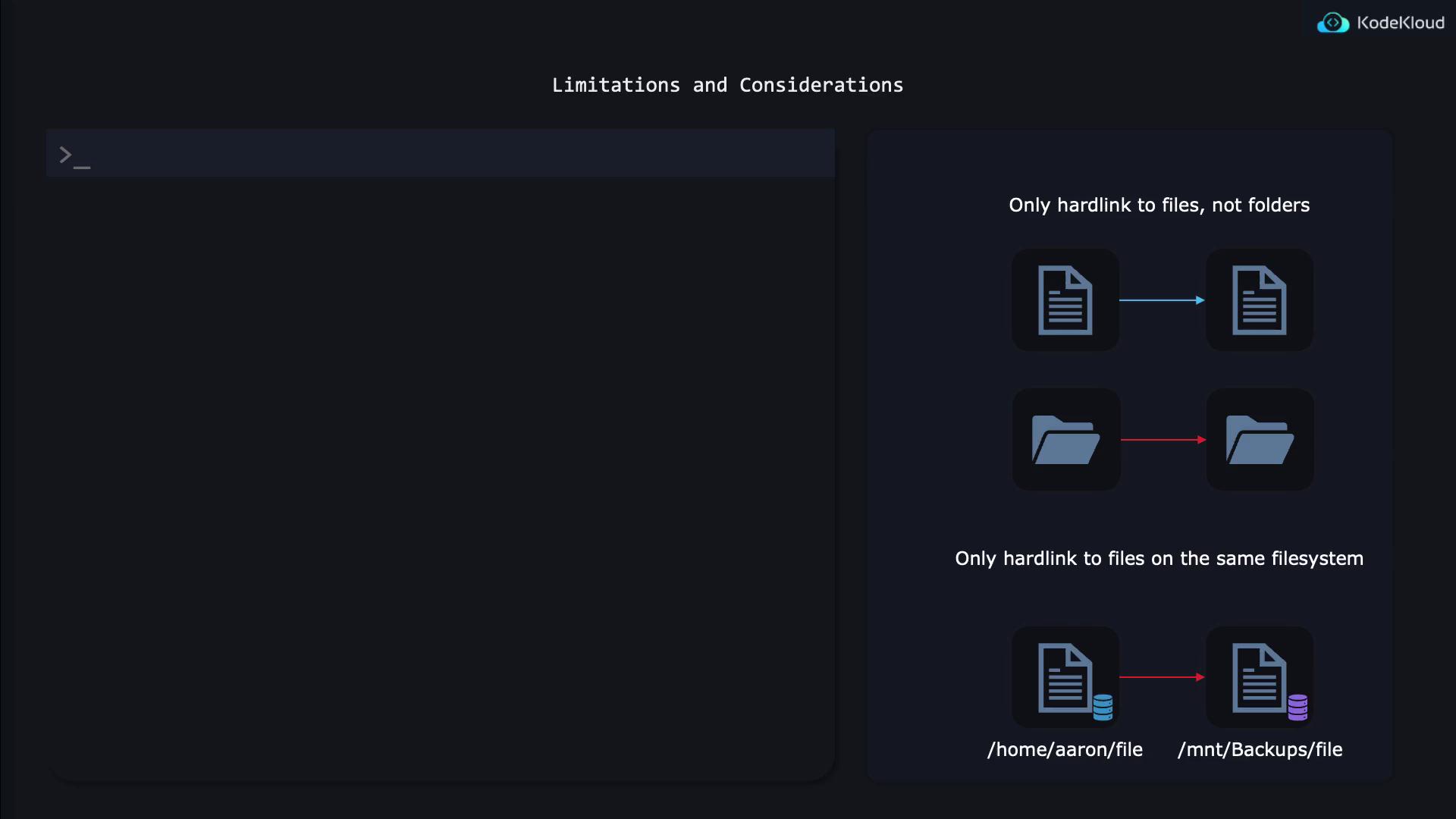
Remember, attempting to create a hard link across different file systems or for directories will result in an error.
## Summary
Hard links allow multiple directory entries to reference the same file data without duplicating storage capacity. This method provides an efficient way to share files between users while ensuring that the data remains accessible until all links are removed.
For further reading on Linux file systems and inode management, consider visiting [Linux File System Hierarchy](https://refspecs.linuxfoundation.org/FHS_3.0/fhs/index.html).