> ## Documentation Index
> Fetch the complete documentation index at: https://notes.kodekloud.com/llms.txt
> Use this file to discover all available pages before exploring further.
# List Set and Change Standard File Permissions
> This article explores how to list, set, and modify standard file permissions in Linux for effective file and directory ownership management.
In this article, we explore how to list, set, and modify standard file permissions in Linux. Mastering file permissions is crucial for managing file and directory ownership effectively.
When you run the following command:
```bash theme={null}
$ ls -l
```
you may see output similar to this, which shows that each file or directory is owned by a particular user:
```bash theme={null}
-rw-r----- 1 aaron family 49 Oct 27 14:41 family_dog.jpg
```
In the example above, the file "family\_dog.jpg" is owned by the user "aaron" and associated with the group "family". Only the file owner or the superuser (root) can change its permissions.
## Changing the Group Owner with chgrp
To change the group of a file or directory, use the `chgrp` command. The syntax is as follows:
```bash theme={null}
$ chgrp group_name file/directory
```
For example, to change the file's group to "sudo", execute:
```bash theme={null}
$ chgrp sudo family_dog.jpg
```
After running this command and listing the file details using `ls -l`, you will see the group updated to "sudo". Note that you can only change the group to one that you are a member of. To display your current groups, run:
```bash theme={null}
$ groups
aaron sudo family
```
Only the root user can change the file group to any group available on the system.
## Changing the User Owner with chown
To change the user owner of a file or directory, use the `chown` command with the syntax below:
```bash theme={null}
$ sudo chown new_owner file/directory
```
For example, to change the ownership of "family\_dog.jpg" to "jane", use:
```bash theme={null}
$ sudo chown jane family_dog.jpg
```
After executing `ls -l`, you will observe that the file's owner is now "jane". Only the root user has the privileges to change the file owner.
You can also modify both the owner and group simultaneously using:
```bash theme={null}
$ sudo chown aaron:family family_dog.jpg
```
This command resets the owner to "aaron" and the group to "family". Here is a sequence of commands demonstrating changing ownership and group:
```bash theme={null}
$ ls -l
-rw-r----- 1 aaron family 49 Oct 27 14:41 family_dog.jpg
$ chgrp sudo family_dog.jpg
$ ls -l
-rw-r----- 1 aaron sudo 49 Oct 27 14:41 family_dog.jpg
$ sudo chown jane family_dog.jpg
$ ls -l
-rw-r----- 1 jane sudo 49 Oct 27 14:41 family_dog.jpg
$ sudo chown aaron:family family_dog.jpg
$ ls -l
-rw-r----- 1 aaron family 49 Oct 27 14:41 family_dog.jpg
```
## Understanding ls -l Output and Permissions
The `ls -l` command output provides detailed file information, including permissions:
* The first character indicates the entry type:
* A dash (-) represents a regular file.
* A "d" signifies a directory.
* An "l" denotes a symbolic link.
* The next nine characters are divided into three groups of three:
* The first trio pertains to the user (owner).
* The second trio is for the group.
* The third trio applies to others.
For example:
```bash theme={null}
$ ls -l
-rwxrwxrwx. 1 aaron family 49 Oct 27 14:41 family_dog.jpg
```
In this listing:
* "rwx" for the owner means the owner can read, write, and execute.
* "rwx" for the group grants identical permissions.
* "rwx" for others provides full access to all users.
### Permissions for Files vs. Directories
For files:
* "r" (read) allows the content to be viewed.
* "w" (write) permits modifications.
* "x" (execute) enables running the file as a program or script.
For directories:
* "r" allows listing the directory’s contents.
* "w" permits creating or deleting files within.
* "x" allows entering the directory using the `cd` command.
For instance, to list files in the "Pictures" directory or create a new subdirectory:
```bash theme={null}
$ ls Pictures/
$ mkdir Pictures/Family
```
## How Permissions Are Evaluated
When accessing a file, Linux evaluates permissions in the following order:
1. If the user is the file owner, user permissions apply.
2. If not, and the user is a member of the file’s group, group permissions apply.
3. Otherwise, the "others" permissions are enforced.
Consider the following output:
```bash theme={null}
(aaron)$ ls -l
-r--rw---- 1 aaron family 49 family_dog.jpg
```
Even though "aaron" is in the "family" group (which has read and write permissions), the file displays the owner’s permissions (r--), meaning Aaron can only read the file. Attempting to append text as Aaron results in:
```bash theme={null}
(aaron)$ echo "Add this content to file" >> family_dog.jpg
bash: family_dog.jpg: Permission denied
```
However, if another user, such as "jane" (a member of the "family" group), accesses the file:
```bash theme={null}
(aaron)$ su jane
(jane)$ echo "Add this content to file" >> family_dog.jpg
(jane)$ cat family_dog.jpg
Picture of Milo the dog
```
If the user is neither the owner nor a member of the file’s group, the "others" permissions are applied.
## Changing File Permissions with chmod
To modify file or directory permissions, use the `chmod` command:
```bash theme={null}
$ chmod permissions file/directory
```
There are two primary methods to specify permissions:
### Using the Plus (+) and Minus (–) Signs
You can add permissions with `+` and remove them with `-`.
* To add write permission for the owner:
```bash theme={null}
$ chmod u+w family_dog.jpg
```
Suppose the file initially shows:
```bash theme={null}
$ ls -l
-r--rw----. 1 aaron family 49 Oct 27 14:41 family_dog.jpg
```
After applying the command:
```bash theme={null}
$ ls -l
-rw-rw----. 1 aaron family 49 Oct 27 14:41 family_dog.jpg
```
* To remove permissions, for example, to remove read permission for others:
```bash theme={null}
$ chmod o-r family_dog.jpg
```
This command ensures that only the owner and group have read access to the file.
### Using the Equal (=) Operator
You can set permissions to exact values using the equal sign. For instance, to set group permissions to read-only:
```bash theme={null}
$ chmod g=r family_dog.jpg
```
This command sets group permissions to exactly "r--", even if write or execute permissions were previously set. To remove all permissions for a group, use:
```bash theme={null}
$ chmod g= family_dog.jpg
```
### Combining Permission Changes
You can combine changes for the user (u), group (g), and others (o) in a single command. For example, to grant the owner read and write permissions, set the group to read-only, and remove all permissions for others:
```bash theme={null}
$ chmod u+rw,g=r,o= family_dog.jpg
```
## Setting Permissions with Octal Notation
The `chmod` command also accepts octal values for specifying permissions. First, view the file’s current permissions with the `stat` command:
```bash theme={null}
$ stat family_dog.jpg
File: family_dog.jpg
Size: 49 Blocks: 8 IO Block: 4096 regular file
Device: fd00h/64768d Inode: 52946177 Links: 1
Access: (0640/-rw-r-----) Uid: ( 1000/ aaron) Gid: ( 27/ sudo)
```
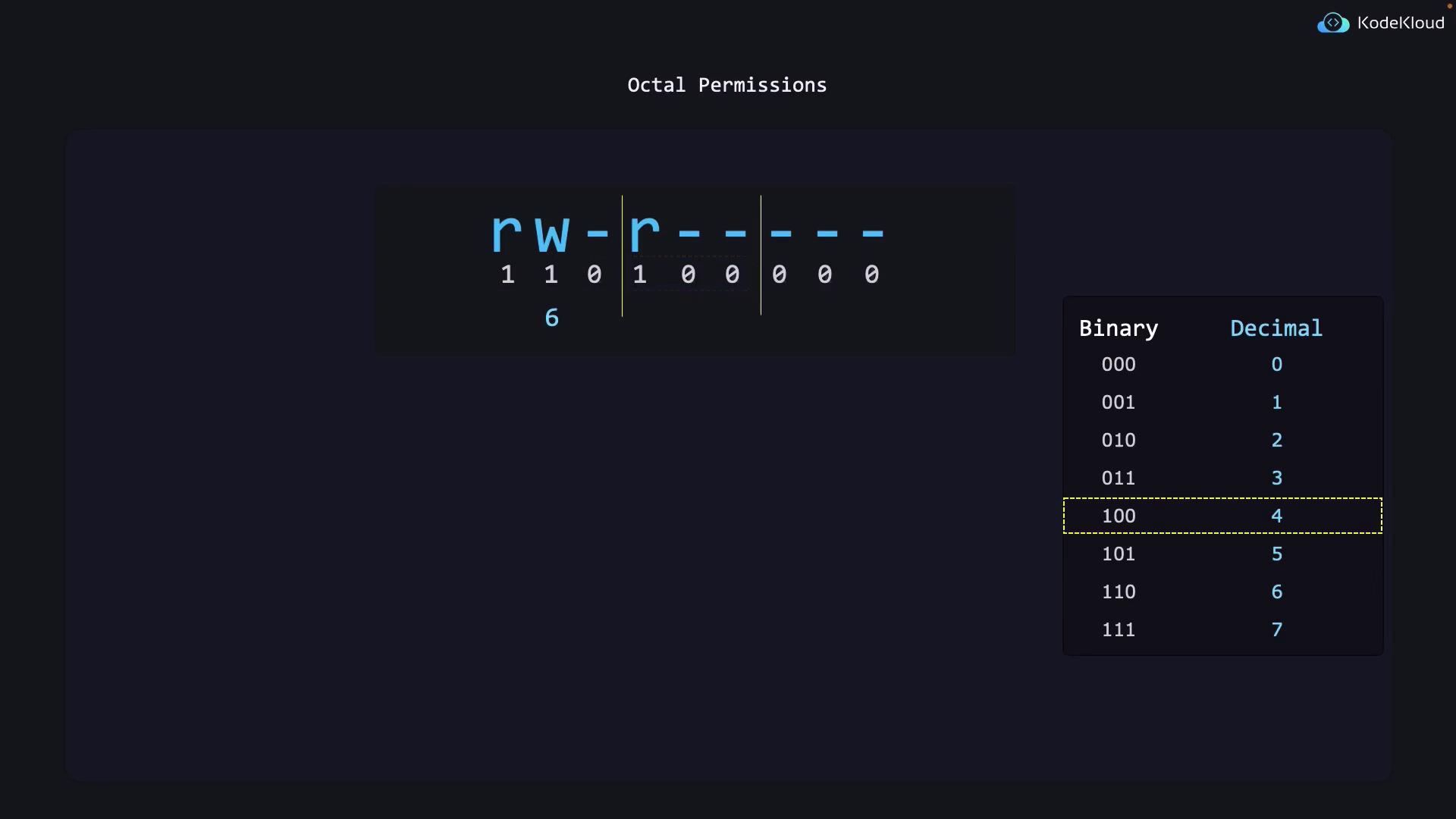
In the output above, "0640" represents the file permissions:
* Owner (6): read (4) + write (2)
* Group (4): read (4)
* Others (0): no permissions
To set the permissions to 640, run:
```bash theme={null}
$ chmod 640 family_dog.jpg
```
### Understanding the Octal Calculation
Permissions can be visualized in binary:
* For the owner, "rw-" translates to 110 in binary (6 in octal).
* For the group, "r--" translates to 100 in binary (4 in octal).
* For others, "---" translates to 000 in binary (0 in octal).
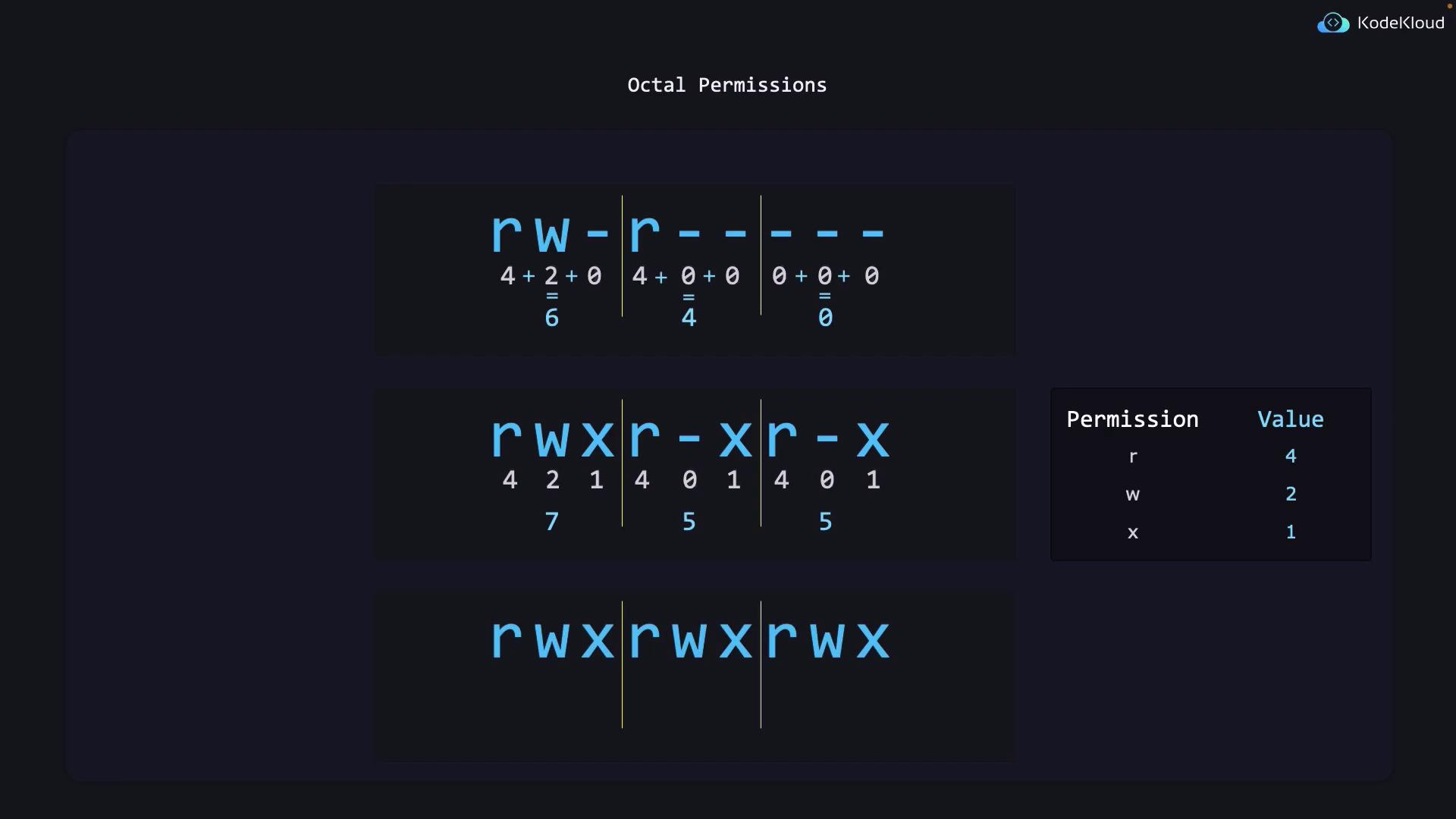
A more common octal permission setting is 755, which means:
* Owner: 7 (rwx, or 111 in binary)
* Group: 5 (r-x, or 101 in binary)
* Others: 5 (r-x, or 101 in binary)
Similarly, 777 means full permissions (read, write, and execute) for all.
Below is an image that illustrates the conversion of binary file permissions to octal values:
Another image further explains the octal permission notation used in Unix-like systems:
## Summary
In this article, we covered the following key topics:
* Viewing file ownership and permissions using `ls -l`
* Changing file group ownership with `chgrp`
* Modifying file user ownership with `chown`
* Understanding the structure and significance of file and directory permissions
* Using `chmod` to modify permissions both with symbolic operators and octal notation
With this detailed guide, you now have the knowledge to effectively manage file permissions on Linux systems, ensuring both security and proper access control. Happy learning and see you in the next article!