> ## Documentation Index
> Fetch the complete documentation index at: https://notes.kodekloud.com/llms.txt
> Use this file to discover all available pages before exploring further.
# Search for Files
> This article explores strategies to search for files in Linux using the `find` command and various search parameters.
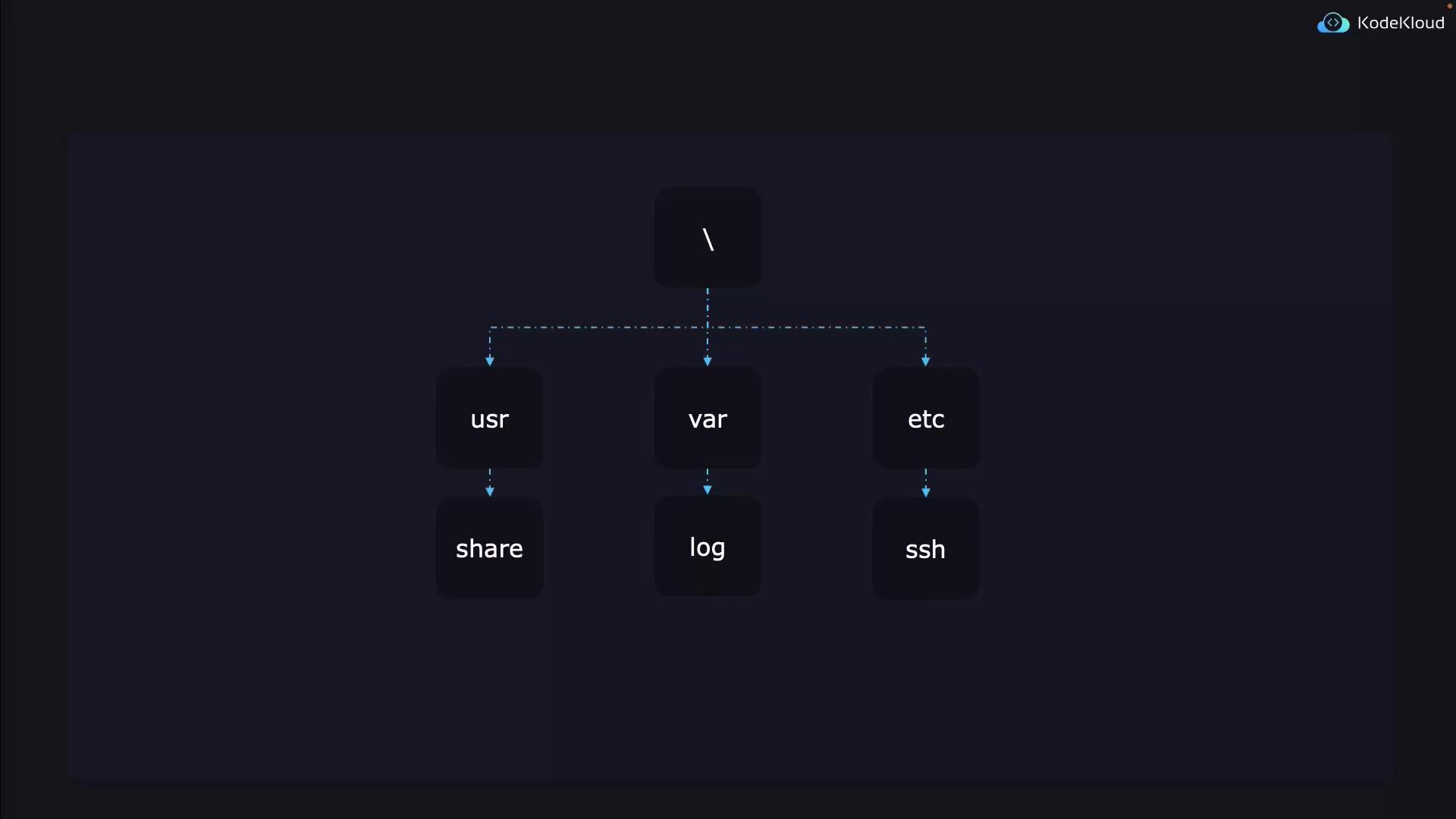
In this article, we explore various strategies to search for files in Linux using the versatile `find` command. Linux systems typically organize files in a structured manner—for example, SSH configuration files are usually found in `/etc/ssh`, while log files are maintained in `/var/log`. Even if you often know the file location, search commands can be invaluable for unexpected cases and complex queries.
Let's dive into some common scenarios.
## Finding Specific File Types
Imagine you have a website and need to find all JPEG images stored in `/usr/share`. The `find` command can easily list all files ending in `.jpg`:
```bash theme={null}
$ find /usr/share/ -name '*.jpg'
1.jpg 2.jpg 3.jpg
```
## Searching by File Size
In another scenario, if your server hosting virtual machines is nearly out of disk space, you might need to identify unusually large files. Although this example does not contain files larger than 20 GB, you can modify the search to find files over a specified size. For example, to search for files larger than 10 megabytes in `/lib64`:
```bash theme={null}
$ find /lib64/ -size +10M
large-file.txt
```
## Searching by Modification Time
When you update an application, you might want to identify which files were modified in the last minute. You can use the `-mmin` flag to achieve this:
```bash theme={null}
$ find /dev/ -mmin -1
abc.txt
```
Using the `find` command in these examples shows how powerful it is for locating files based on a variety of parameters.
## Basic Usage
To search for a file by name within a specific directory, use the `-name` parameter. For example:
```bash theme={null}
$ find /bin -name file1.txt
```
If no path is specified, `find` defaults to searching in the current directory. Always place the search path before the search parameters. An incorrect command such as:
```bash theme={null}
$ find -name file1.txt /bin
```
may yield unexpected results. Think of it like entering your room before looking for your keys.
Always specify the search path before your parameters to ensure accurate search results.
## Detailed Search Parameters
### Case Sensitivity
The `-name` option is case sensitive. For example, searching for "felix" will not match a file named "Felix". Use `-iname` for a case-insensitive search:
```bash theme={null}
$ find -name felix
$ find -iname felix
```
### Wildcard Patterns
Wildcards let you search for files matching a particular pattern. To find all files that begin with a lowercase "f":
```bash theme={null}
$ find -name "f*"
```
The asterisk (\*) acts as a wildcard matching zero or more characters.
### Time-Based Searches
Search for files based on their modification time using the `-mmin` option, which is measured in minutes. Examples include:
* `-mmin 5`: Finds files modified exactly 5 minutes ago.
* `-mmin -5`: Finds files modified in the last 5 minutes.
* `-mmin +5`: Finds files modified more than 5 minutes ago.
Be aware that if it is currently 12:05, `-mmin 5` targets files modified at 12:01. To include files modified at 12:00, use `-mmin +5`.
For searches based on days, the `-mtime` option is used. For instance:
```bash theme={null}
$ find -mtime 2
```
* `-mtime 0` matches files modified in the last 24 hours.
* `-mtime 1` matches files modified between 24 and 48 hours ago.
File modification time measures content changes, not the file creation time.
### Change Time Versus Modification Time
Linux differentiates between modification time (when file contents change) and change time (when file metadata, such as permissions, are altered). The `find` command can help locate files that recently had their metadata changed—a useful feature if you're troubleshooting permission issues.
### Size-Based Searches
To search for files based on file size, the `-size` option is used. For example, to find files that are exactly 512 KB:
```bash theme={null}
$ find -size 512k
```
Here, suffixes indicate the following:
* No suffix: bytes
* K: kilobytes
* M: megabytes
* G: gigabytes (note that M and G must be uppercase)
To search for files greater than or less than a specific size, prefix the size with a `+` or `-` sign respectively:
```bash theme={null}
$ find -size +512k # Files greater than 512 KB
$ find -size -512k # Files less than 512 KB
```
### Combining Multiple Parameters
You can combine multiple parameters to narrow your search. For example, to find files that start with the letter "f" and are exactly 512 KB:
```bash theme={null}
$ find -name "f*" -size 512k
```
The parameters are combined using an implicit AND operator. To use an OR operator, you can insert `-o` between conditions.
### Negation in Searches
To exclude files that meet a certain condition, use the NOT operator (`-not` or `\!`). For instance, to find all files that do not start with the letter "f":
```bash theme={null}
$ find -not -name "f*"
$ find \! -name "f*"
```
Remember that in the Bash shell, the exclamation mark (!) has a special meaning. Escaping it with a backslash (i.e., `\!`) ensures it is interpreted literally.
### Permission-Based Searches
The `-perm` option lets you search for files based on their file permissions. For example, to find files with exactly 664 permissions (user: read/write, group: read/write, others: read):
```bash theme={null}
$ find -perm 664 # Exact match for 664 permissions
```
To find files that have at least these permissions, precede the value with a hyphen:
```bash theme={null}
$ find -perm -664
```
Alternatively, use a slash (`/`) to match any of the listed permissions:
```bash theme={null}
$ find -perm /664
```
Here are a few more examples:
* To find files that only the owner can read and write (600):
```bash theme={null}
$ find -perm 600
```
* To locate files where the owner has at least execute permission:
```bash theme={null}
$ find -perm -100
```
* To find files that others are not allowed to read:
```bash theme={null}
$ find \! -perm -o=r
```
Files that cannot be read by anyone will be excluded from the search results.
## Summary
The `find` command is a powerful tool for locating files based on various criteria such as name, size, modification time, and permissions. By understanding and combining these search parameters, you can efficiently manage and troubleshoot your Linux system.
For more in-depth information, refer to the following documentation:
* [Linux find Command Documentation](https://linux.die.net/man/1/find)
* [Kubernetes Documentation](https://kubernetes.io/docs/)
* [Docker Hub](https://hub.docker.com/)