> ## Documentation Index
> Fetch the complete documentation index at: https://notes.kodekloud.com/llms.txt
> Use this file to discover all available pages before exploring further.
# Create systemd Services
> This article teaches how to create a systemd service file to manage application lifecycles, ensuring they run continuously and restart automatically if they crash.
In this lesson, we'll learn how to create a systemd service file through a practical exercise. Imagine you have an application that must always be running on your servers. Since applications can occasionally crash, a mechanism is required to monitor and automatically restart them. Additionally, you may want the application to start automatically when the system boots. Systemd services offer these features and more by defining the instructions to manage your application's lifecycle.
## Building the Sample Application
Let's begin by creating a sample application. Open your preferred text editor with the following command:
```bash theme={null}
jeremy@kodekloud:~$ sudo vim /usr/local/bin/myapp.sh
[sudo] password for jeremy:
```
Add the following content to the file. The first `echo` statement logs an informational message that "MyApp" has started, while the second statement logs an error after a five-second delay to simulate a crash:
```bash theme={null}
#!/bin/sh
echo "MyApp Started" | systemd-cat -t MyApp -p info
sleep 5
echo "MyApp Crashed" | systemd-cat -t MyApp -p err
```
• `systemd-cat` sends messages directly to the system log.\
• The `-t` option attaches a tag (MyApp) to every log message.\
• The `-p` option sets the logging priority (using `info` for normal status and `err` for error).\
• The `sleep 5` command simulates a delay of five seconds before logging a crash.
Save the file and make it executable:
```bash theme={null}
jeremy@kodekloud:~$ sudo chmod +x /usr/local/bin/myapp.sh
```
## Understanding Systemd Service Options
Detailed explanations for service unit files and configuration options are available in the systemd manual pages. For example, you can learn more by using:
```bash theme={null}
man systemd.service
```
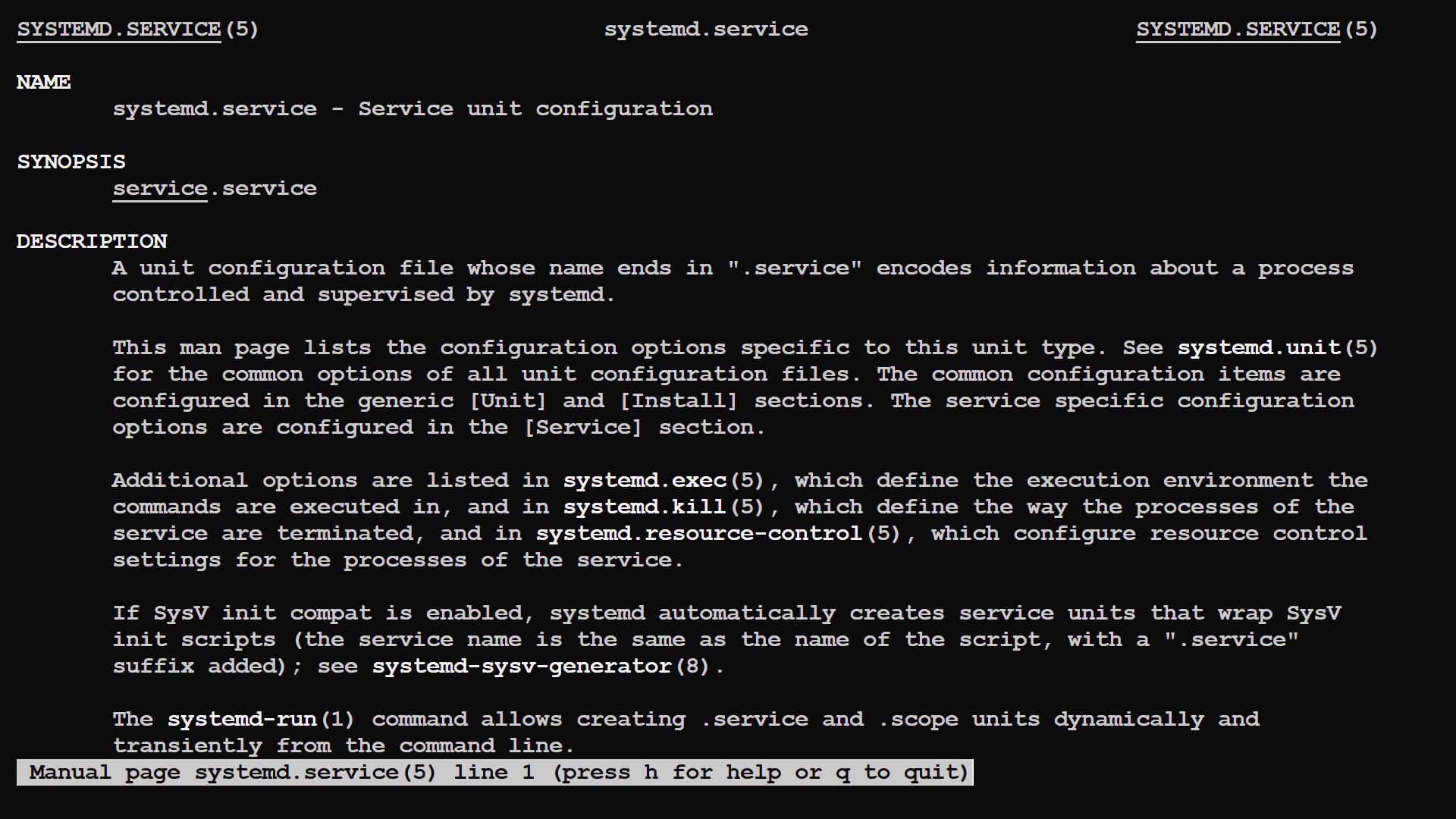
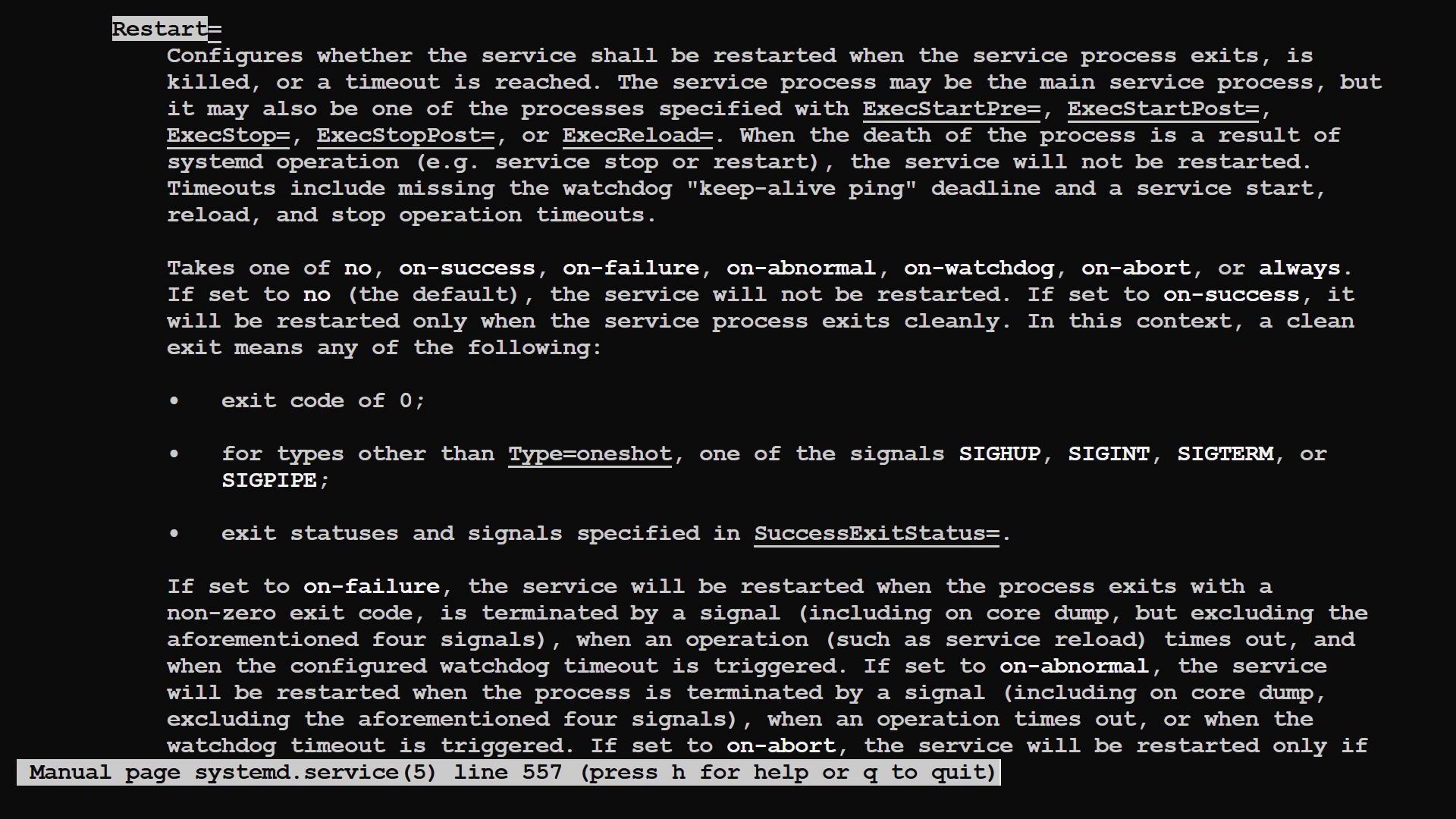
The manual explains useful configuration options. For instance, the `Restart` option specifies under which conditions systemd will restart your application. Even if your application always returns a zero exit code, configuring it to restart every time it exits can be beneficial. Additionally, the `RestartSec` option introduces a delay before restarting, which helps avoid creating a rapid restart loop that can overwhelm the system.
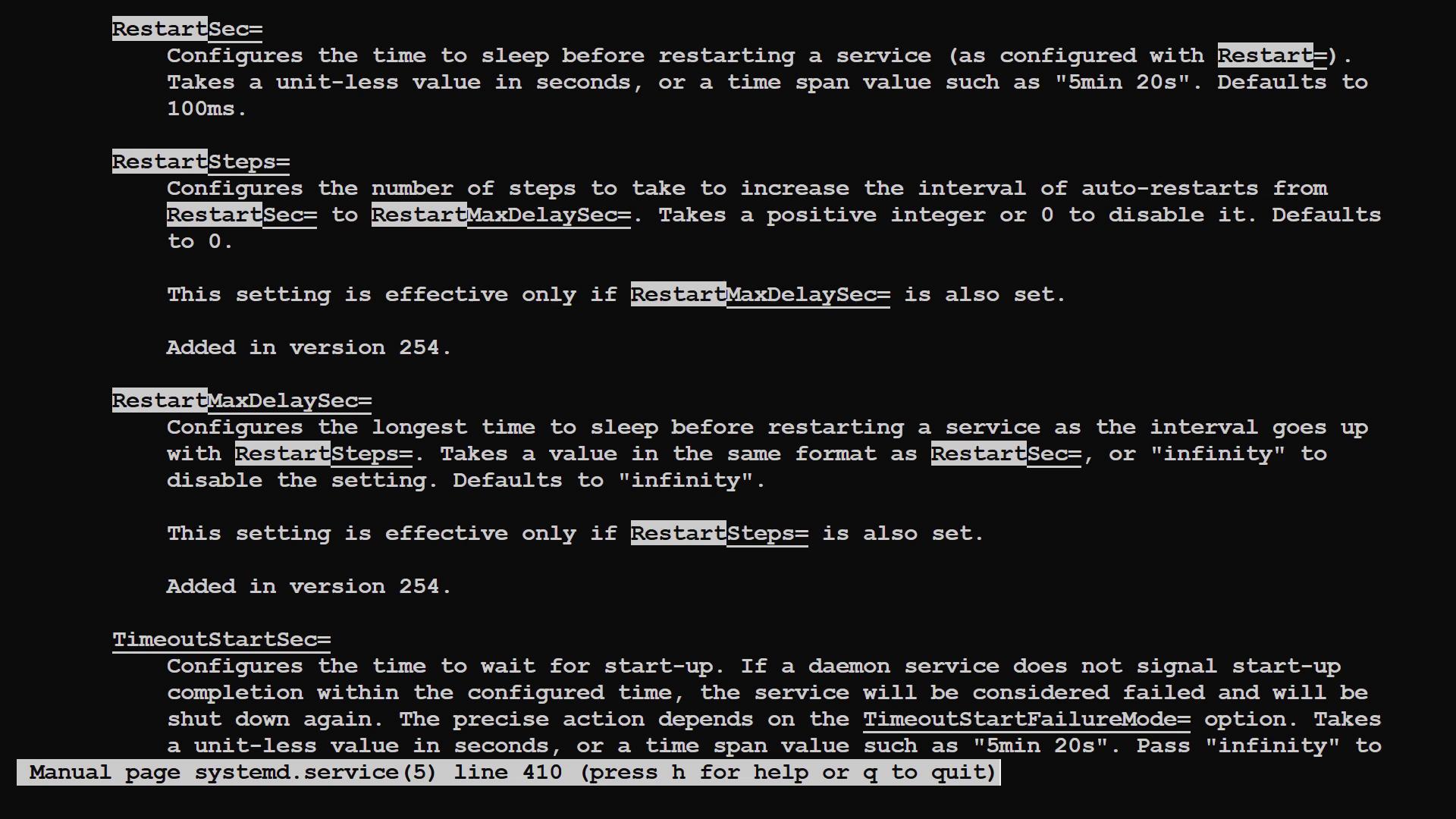
Other parameters, such as `RestartSec`, `RestartSteps`, `RestartMaxDelaySec`, and `TimeoutStartSec`, offer fine-tuned control over the timing and behavior of service restarts in different scenarios.
## Creating a Service Template
Instead of starting from scratch, you can use an existing service file as a template. Pre-existing service files are typically stored in the `/lib/systemd/system` directory. List the contents of this directory with:
```bash theme={null}
jeremy@kodekloud:~$ ls /lib/systemd/system
```
As a starting point, copy the SSH service file to create your application service file:
```bash theme={null}
sudo cp /lib/systemd/system/ssh.service /etc/systemd/system/myapp.service
```
After copying, open the file for editing. A standard service file is divided into three sections: `[Unit]`, `[Service]`, and `[Install]`.
### Modifying the Unit Section
In the `[Unit]` section, update the description to better reflect your application. Additionally, adjust dependencies so the service starts only after critical services like networking and audit are available:
```ini theme={null}
[Unit]
Description=My Application
After=network.target auditd.service
```
Some examples might include conditions like `ConditionPathExists=!/etc/ssh/sshd_not_to_be_run`. This condition prevents the service from starting if the file exists. For our simple application, you can omit such conditions.
### Configuring the Service Section
In the `[Service]` section, define how systemd should manage your application's lifecycle. Remove any settings that are irrelevant to a simple script, and insert a pre-start command that logs when systemd is about to start MyApp. Then specify your application script as the start command:
```ini theme={null}
[Service]
ExecStartPre=/bin/echo "Systemd is preparing to start MyApp"
ExecStart=/usr/local/bin/myapp.sh
KillMode=process
Restart=always
RestartSec=1
Type=simple
```
Key configuration options include:
• `KillMode=process` instructs systemd to terminate only the main process.\
• `Restart=always` ensures that the service is restarted regardless of its exit status.\
• `RestartSec=1` sets a one-second delay before each restart.\
• `Type=simple` is appropriate since the application does not send a readiness notification to systemd.
### Setting Up the Install Section
The `[Install]` section controls how the service integrates with the system startup process. Typically, you would include the service in the `multi-user.target` to ensure it runs in a multi-user environment:
```ini theme={null}
[Install]
WantedBy=multi-user.target
```
Your final service unit file should resemble the following:
```ini theme={null}
[Unit]
Description=My Application
After=network.target auditd.service
[Service]
ExecStartPre=/bin/echo "Systemd is preparing to start MyApp"
ExecStart=/usr/local/bin/myapp.sh
KillMode=process
Restart=always
RestartSec=1
Type=simple
[Install]
WantedBy=multi-user.target
```
## Activating the Service
After saving your service file in `/etc/systemd/system/myapp.service`, reload the systemd daemon so that it recognizes your new service:
```bash theme={null}
jeremy@kodekloud:~$ sudo systemctl daemon-reload
```
Next, start the service with the following command:
```bash theme={null}
jeremy@kodekloud:~$ sudo systemctl start myapp.service
```
## Monitoring the Service Logs
To view your service's logs in real time, use the journalctl command with the follow option:
```bash theme={null}
sudo journalctl -f
```
A typical log output might look like this:
```bash theme={null}
May 22 16:46:55 kodekloud MyApp[1838]: MyApp Started
May 22 16:47:00 kodekloud MyApp[1842]: MyApp Crashed
May 22 16:47:00 kodekloud systemd[1]: myapp.service: Deactivated successfully.
May 22 16:47:00 kodekloud systemd[1]: myapp.service: Scheduled restart job, restart counter is at 4.
May 22 16:47:01 kodekloud systemd[1]: Starting myapp.service - My Application...
May 22 16:47:03 kodekloud systemd[1]: Started myapp.service - My Application.
May 22 16:47:04 kodekloud sudo[1852]: jeremy : TTY=pts/0 ; PWD=/home/jeremy ; USER=root ; COMMAND=/usr/local/bin/myapp.sh
May 22 16:47:07 kodekloud MyApp[1856]: MyApp Crashed
May 22 16:47:07 kodekloud systemd[1]: myapp.service: Deactivated successfully.
May 22 16:47:07 kodekloud systemd[1]: myapp.service: Scheduled restart job, restart counter is at 5.
May 22 16:47:08 kodekloud systemd[1]: Starting myapp.service - My Application...
May 22 16:47:08 kodekloud systemd[1]: Started myapp.service - My Application.
May 22 16:47:08 kodekloud MyApp[1863]: MyApp Started
```
When you have finished reviewing the logs, press Ctrl-C to exit.
## Further Exploration
To learn more about the systemd options we used in this lesson, consult the following manual pages:
```bash theme={null}
man systemd.service
man systemd.unit
man systemd.exec
man systemd.kill
```
Additionally, you can explore existing service files in the `/lib/systemd/system` directory to better understand various service configurations:
```bash theme={null}
jeremy@kodekloud:~$ ls /lib/systemd/system
```
This command will list several service and target files that showcase different configurations used in practice.
## Conclusion
This lesson has guided you through the process of creating a systemd service file, explaining each configuration option and demonstrating how to monitor and manage a service. Although there are many configuration options available, understanding the basics of setting up a service file makes managing your applications much more straightforward. As you continue working with systemd, you'll discover even more advanced configurations and options.
Happy coding, and see you in the next lesson!