> ## Documentation Index
> Fetch the complete documentation index at: https://notes.kodekloud.com/llms.txt
> Use this file to discover all available pages before exploring further.
# Manage Startup Process and Services In Services Configuration
> This article explains managing startup processes and services in Linux using the init system and systemd units for efficient system operation.
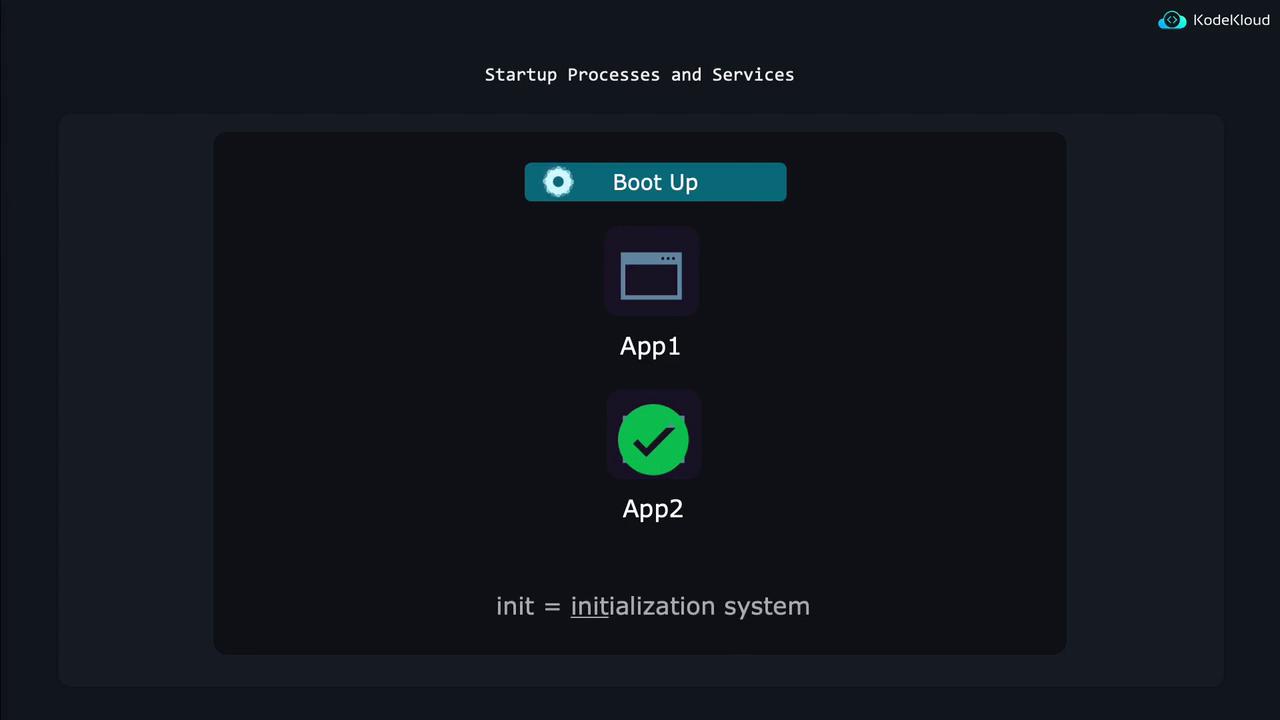
This article explains how to manage startup processes and services in Linux. During the boot sequence, Linux automatically launches several critical applications in a defined order. For example, if Application 2 depends on Application 1, Application 1 will load first. Additionally, if a critical application crashes, the system is configured to automatically restart it to ensure uninterrupted operation.
## The Role of the Init System and Systemd Units
The startup and management of services in Linux are controlled by the init system. This system uses configuration files called systemd units to determine how applications should be started, what actions to take when an application fails, and other necessary operations. The term systemd refers both to the suite of tools that manage Linux systems and the primary program that acts as the init system.
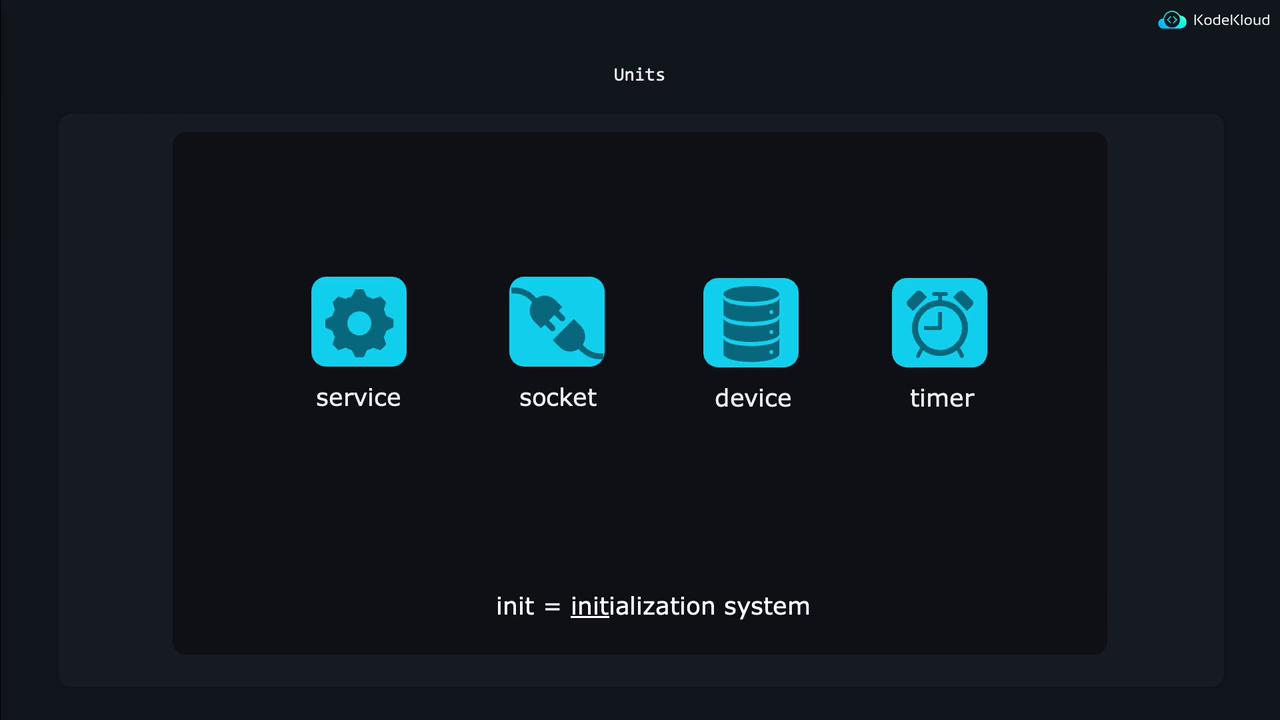
Systemd ensures smooth system operation by initializing and monitoring various system components. There are several types of systemd units such as service, socket, device, and timer units. For example, timer units can schedule tasks like weekly file cleanups or database verifications. In this guide, the focus is on service units.
A service unit provides systemd with all the details required to manage an application’s lifecycle. This includes the command to start the application, what to do if it crashes, how to reload configurations, and more. To explore the various options available in a service unit file, run:
```bash theme={null}
man systemd.service
```
## Example: Managing the SSH Daemon
Many Linux servers run an SSH daemon to enable remote connections. Systemd manages this daemon using a specific service unit. You can display the SSH service unit file by executing:
```bash theme={null}
$ systemctl cat ssh.service
```
The output might resemble the following:
```plaintext theme={null}
# /lib/systemd/system/ssh.service
[Unit]
Description=OpenBSD Secure Shell server
Documentation=man:sshd(8) man:sshd_config(5)
After=network.target auditd.service
ConditionPathExists=!/etc/ssh/sshd_not_to_be_run
[Service]
EnvironmentFile=/etc/default/ssh
ExecStartPre=/usr/sbin/sshd -t
ExecStart=/usr/sbin/sshd -D $SSHD_OPTS
ExecReload=/usr/sbin/sshd -t
ExecReload=/bin/kill -HUP $MAINPID
KillMode=process
Restart=on-failure
RestartPreventExitStatus=255
Type=notify
RuntimeDirectory=sshd
RuntimeDirectoryMode=0755
```
In this file:
* **ExecStart** specifies the command used to launch the SSH daemon.
* **ExecReload** defines the commands to reload the SSH configuration.
* **Restart=on-failure** ensures that systemd automatically restarts the service if it crashes.
If the SSH daemon fails, systemd will restart it to maintain remote connectivity.
## Checking Service Status
To verify the status of the SSH service, run:
```bash theme={null}
$ sudo systemctl status ssh.service
```
A typical output may look like this:
```plaintext theme={null}
● ssh.service - OpenBSD Secure Shell server
Loaded: loaded (/etc/systemd/system/ssh.service; enabled; vendor preset: enabled)
Active: active (running) since Wed 2024-02-28 18:32:18 UTC; 2h 29min ago
Docs: man:sshd(8)
man:sshd_config(5)
Main PID: 688 (sshd)
Tasks: 1 (limit: 4558)
Memory: 7.6M
CPU: 88ms
CGroup: /system.slice/ssh.service
└─688 "sshd: /usr/sbin/sshd -D [listener] 0 of 10-100 startups"
Feb 28 18:32:18 kodekloud systemd[1]: Starting OpenBSD Secure Shell server...
Feb 28 18:32:18 kodekloud sshd[688]: Server listening on 0.0.0.0 port 22.
Feb 28 18:32:18 kodekloud sshd[688]: Server listening on :: port 22.
Feb 28 18:32:18 kodekloud systemd[1]: Started OpenBSD Secure Shell server.
```
The output indicates whether the service is enabled to start at boot, confirms that the process is running, and displays the process identifier (PID) along with log messages for troubleshooting.
## Starting, Stopping, Restarting, and Reloading Services
You can manually manage services using various systemctl commands:
* **Stop a service:**
```bash theme={null}
$ sudo systemctl stop ssh.service
```
* **Start a service:**
```bash theme={null}
$ sudo systemctl start ssh.service
```
* **Restart a service:**\
This command stops and then starts the service to apply new configurations.
```bash theme={null}
$ sudo systemctl restart ssh.service
```
* **Reload a service:**\
This command reloads the service’s configuration without interrupting active sessions, which is particularly useful when users are connected.
```bash theme={null}
$ sudo systemctl reload ssh.service
```
After modifying the SSH configuration file located at `/etc/ssh/sshd_config`, you can enforce the new settings with either of the following commands:
```bash theme={null}
$ sudo systemctl restart ssh.service # Fully stops and starts the service.
$ sudo systemctl reload ssh.service # Gracefully reloads the configuration.
```
You can review the status again to confirm the service behavior:
```bash theme={null}
$ systemctl status ssh.service
Feb 28 21:42:16 kodekloud systemd[1]: Stopped OpenBSD Secure Shell server.
Feb 28 21:42:16 kodekloud systemd[1]: Starting OpenBSD Secure Shell server...
Feb 28 21:42:48 kodekloud systemd[1]: Reloading OpenBSD Secure Shell server...
Feb 28 21:42:48 kodekloud sshd[2413]: Received SIGHUP; restarting.
Feb 28 21:42:48 kodekloud systemd[1]: Reloaded OpenBSD Secure Shell server.
```
Not all applications support configuration reloads. When in doubt, systemd will first attempt a graceful reload and then perform a full restart if necessary.
## Enabling and Disabling Services
To prevent a service from starting automatically at boot, use the disable command:
```bash theme={null}
$ sudo systemctl disable ssh.service
$ systemctl status ssh.service
# Output shows "disabled" in the Loaded line.
```
Verify the service's enablement status with:
```bash theme={null}
$ systemctl is-enabled ssh.service
```
To enable the service for automatic startup at boot, run:
```bash theme={null}
$ sudo systemctl enable ssh.service
```
If you want a daemon to start immediately and at boot, you can use the --now option:
```bash theme={null}
$ sudo systemctl enable --now ssh.service
```
Likewise, to stop a service immediately and disable it for future boots, run:
```bash theme={null}
$ sudo systemctl disable --now ssh.service
```
Be cautious when disabling critical services such as SSH, particularly on remote systems.
## Masking Services
Some services might restart automatically even after being stopped or disabled because other services trigger them. In such cases, you can mask the service to completely prevent it from starting. For example, to prevent the at daemon from being activated:
```bash theme={null}
$ sudo systemctl mask atd.service
```
A masked service cannot be enabled or started. Any attempt to do so will generate an error:
```plaintext theme={null}
Failed to enable unit: Unit file /etc/systemd/system/atd.service is masked.
Failed to start atd.service: Unit atd.service is masked.
```
To reverse the masking and allow the service to operate normally, run:
```bash theme={null}
$ sudo systemctl unmask atd.service
```
## Listing Service Units
Sometimes the service name for an installed application may not be obvious (for instance, Apache might be listed as apache.service or httpd.service depending on your distribution). To display all service units regardless of their state, use:
```bash theme={null}
$ sudo systemctl list-units --type service --all
```
This command lists service units in various states—active, inactive, enabled, or disabled—ensuring you have a complete overview. An example output may look like:
| UNIT | LOAD | ACTIVE | SUB | DESCRIPTION |
| -------------------------- | --------- | -------- | ------- | ------------------------- |
| accounts-daemon.service | loaded | active | running | Accounts Service |
| alsa-restore.service | loaded | inactive | dead | Save/Restore Sound Card |
| alsa-state.service | loaded | active | running | Manage Sound Card State |
| apparmor.service | not-found | inactive | dead | apparmor.service |
| atd.service | loaded | active | running | Job spooling tools |
| auditd.service | loaded | active | running | Security Auditing Service |
| auth-rpcgss-module.service | loaded | inactive | dead | Kernel Module support |
In addition to service units, systemd also manages other types of units such as sockets and timers.
***
In summary, this article demonstrated how systemd manages Linux services through service units—from starting and stopping to restarting and reloading configurations. Mastering these commands is essential for efficient system management and ensuring continuous system reliability.
## Additional Resources
* [Systemd Documentation](https://www.freedesktop.org/wiki/Software/systemd/)
* [Understanding Linux Systemd Services](https://www.digitalocean.com/community/tutorials/understanding-systemd-units-and-unit-files)
Happy managing!