> ## Documentation Index
> Fetch the complete documentation index at: https://notes.kodekloud.com/llms.txt
> Use this file to discover all available pages before exploring further.
# Schedule Tasks to Run at a Set Date and Time
> This article explores scheduling tasks on Linux systems using Cron, Anacron, and At utilities for automation and system maintenance.
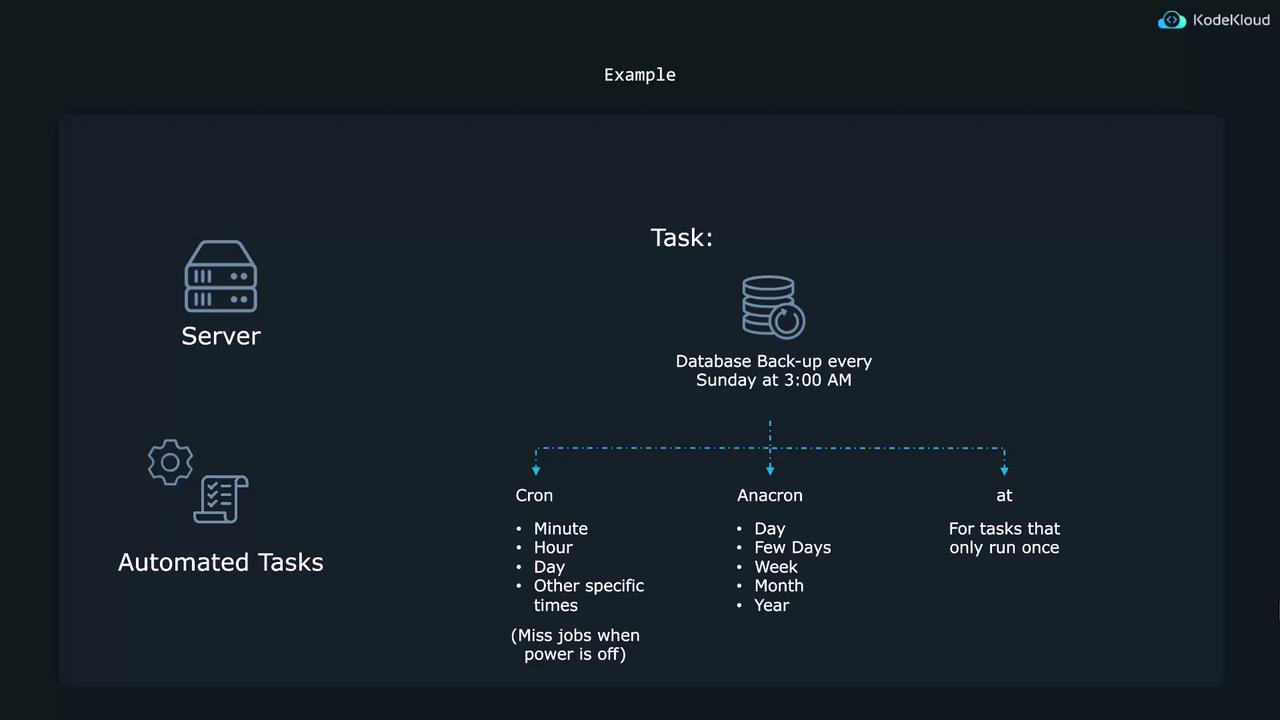
In this article, we explore how to schedule tasks to run at specified times on Linux systems. Automating tasks such as database backups every Sunday at 3:00 AM is crucial for consistent system maintenance. There are three primary tools available for task scheduling:
1. Cron Utility
2. Anacron
3. At Utility
Below, we detail how each tool works and how to configure them for your needs.
***
## Cron Utility
Cron is best suited for repetitive tasks that run at regular intervals—whether every few minutes, specific hours, days, or even months.
The basic syntax for a cron job consists of five time-and-date fields followed by the command to be executed. When editing the system-wide cron table (found at `/etc/crontab`), a username field is included. The time fields are as follows:
* Minute (0–59)
* Hour (0–23)
* Day of the month (1–31)
* Month (1–12)
* Day of the week (0–6, where 0 or 7 denotes Sunday)
You can use special characters in these fields:
* Asterisk (\*) denotes every possible value.
* Comma (,) separates multiple values. For example, "15,45" in the minute field runs the job at minute 15 and 45.
* Dash (-) specifies a range (e.g., "2-4" in the hour field).
* Slash (/) defines steps. For example, "\*/4" in the hour field indicates every 4 hours, and "0-8/4" represents 0 AM, 4 AM, and 8 AM.
The default system-wide cron table, located at `/etc/crontab`, usually includes explanatory comments. Below is a sample excerpt:
```bash theme={null}
$ cat /etc/crontab
SHELL=/bin/sh
# You can also override PATH; by default, newer versions inherit it.
# Example of job definition:
# ----------- minute (0 - 59)
# ----------- hour (0 - 23)
# ----------- day of month (1 - 31)
# ----------- month (1 - 12) OR jan,feb,mar,apr ...
# ----------- day of week (0 - 6) (Sunday=0 or 7) OR
# sun,mon,tue,wed,thu,fri,sat
# * * * * * user-name command to be executed
35 6 * * * root /bin/some_command --some_options
```
When modifying the system-wide cron file, be aware that package updates may overwrite your changes. It is generally safer to add cron jobs using the user's personal cron table.
To edit your personal cron table, run:
```bash theme={null}
$ crontab -e
```
In your personal cron table, the username is not required because the job inherits your current privileges. For example, if you want to create a file named `test_path` every day at 6:35 AM using the `touch` command, first determine its full path:
```bash theme={null}
$ which touch
/usr/bin/touch
```
Then, add the following line using `crontab -e`:
```bash theme={null}
35 6 * * * /usr/bin/touch test_path
```
Save and exit the editor to schedule the job.
Below are additional examples for scheduling tasks:
```bash theme={null}
$ which touch
/usr/bin/touch
$ crontab -e
35 6 * * * /usr/bin/touch test_passed # Every day at 6:35 AM
0 3 * * 0 /usr/bin/touch test_passed # Every Sunday at 3:00 AM
0 3 * * 7 /usr/bin/touch test_passed # Alternative notation for Sunday
0 3 15 * * /usr/bin/touch test_passed # On the 15th of every month at 3:00 AM
```
To run a command every day at 3:00 AM or at the top of every hour (when the minute is 00), adjust the timing fields as needed.
For further testing of your cron expressions, visit [crontab.guru](http://www.crontab.guru).
To list your current cron jobs, use:
```bash theme={null}
$ crontab -l
35 6 * * * /usr/bin/touch aaron_test
```
To view or edit other users' cron jobs (e.g., root or another user), use `sudo`:
```bash theme={null}
$ sudo crontab -l
0 * * * * /usr/bin/touch root_test
$ sudo crontab -e -u jane
30 * * * * /usr/bin/touch jane_test
```
If you need to remove a user's cron jobs entirely, use the `-r` option:
```bash theme={null}
$ crontab -r
$ sudo crontab -r -u jane
```
An alternative to adding jobs to the cron table directly is by placing scripts into specific directories, such as `/etc/cron.daily`, `/etc/cron.hourly`, `/etc/cron.weekly`, or `/etc/cron.monthly`. For instance, to schedule a shell script named `shellscript` to run hourly:
```bash theme={null}
$ touch shellscript
$ sudo cp shellscript /etc/cron.hourly/
```
Make sure the script is both readable and executable. To remove it, simply delete the file from the directory.
***
## Anacron
Anacron is designed for tasks that need to run periodically (daily, weekly, monthly) on systems that are not continuously powered on. If a scheduled cron task is missed because the system is off, anacron will run the task once the system is available.
On many systems, anacron is pre-installed. If not, install it with:
```bash theme={null}
$ sudo apt install anacron
```
Anacron's configuration is in the `/etc/anacrontab` file, which includes helpful comments and examples. Here’s an excerpt:
```bash theme={null}
$ sudo vim /etc/anacrontab
# See anacron(8) and anacrontab(5) for details.
# These entries replace cron's job entries.
1 5 cron.daily run-parts --report /etc/cron.daily
7 10 cron.weekly run-parts --report /etc/cron.weekly
@monthly 15 cron.monthly run-parts --report /etc/cron.monthly
```
The syntax in the anacrontab file consists of four fields:
1. The period in days (e.g., 1 for daily, 7 for weekly).
2. A delay (in minutes) after system startup.
3. A unique job identifier.
4. The command to execute.
For example, to run a job every three days with a 10-minute delay:
```bash theme={null}
3 10 test_job /usr/bin/touch /root/anacron_created_this
```
Other examples include:
```crontab theme={null}
7 10 test_job /usr/bin/touch /root/anacron_created_this
@monthly 10 test_job /usr/bin/touch /root/anacron_created_this
```
After editing, verify your anacrontab syntax with:
```bash theme={null}
$ anacron -T
anacron: /etc/anacrontab: Unknown named period on line 13, skipping
```
If no errors are reported, your anacron entries are correctly formatted.
For more detailed information on anacron, refer to the man pages by running:
```bash theme={null}
$ man 5 anacrontab
```
***
## At Utility
The at utility is ideal for one-time task scheduling, rather than recurring jobs. If at is not already installed on your Ubuntu system, install it with:
```bash theme={null}
$ sudo apt install at
```
To schedule a job with at, specify the desired run time. For example, to run a job at 3:00 PM:
```bash theme={null}
$ at '15:00'
warning: commands will be executed using /bin/sh
at> /usr/bin/touch file_created_by_at
at>
```
You can also schedule jobs for specific dates or relative times. Some examples include:
```bash theme={null}
$ at 'August 20 2024'
$ at '2:30 August 20 2024'
$ at 'now + 30 minutes'
$ at 'now + 3 hours'
$ at 'now + 3 days'
$ at 'now + 3 weeks'
$ at 'now + 3 months'
```
To view scheduled at jobs, use:
```bash theme={null}
$ atq
1 Wed Mar 6 15:00:00 2024 a aaron
```
Here, the first number is the job ID. To inspect a job's details, use the `-c` option, similar to using `cat`. To remove a job, execute:
```bash theme={null}
$ atrm 1
```
For more information on the at utility, refer to the [at documentation](https://linux.die.net/man/1/at).
***
Each of these tools—cron, anacron, and at—has its unique strengths. Cron excels for regular, recurring tasks; anacron ensures tasks are completed even if scheduled times are missed due to system downtime; and at is perfect for one-off commands.
By mastering these scheduling utilities, you can automate and manage tasks efficiently on your Linux system, ensuring a more resilient and well-maintained environment.