> ## Documentation Index
> Fetch the complete documentation index at: https://notes.kodekloud.com/llms.txt
> Use this file to discover all available pages before exploring further.
# Silences
> Explains Alertmanager silences, and how to create, configure, and manage label-based notification suppressions during maintenance while alerts still fire and remain visible.
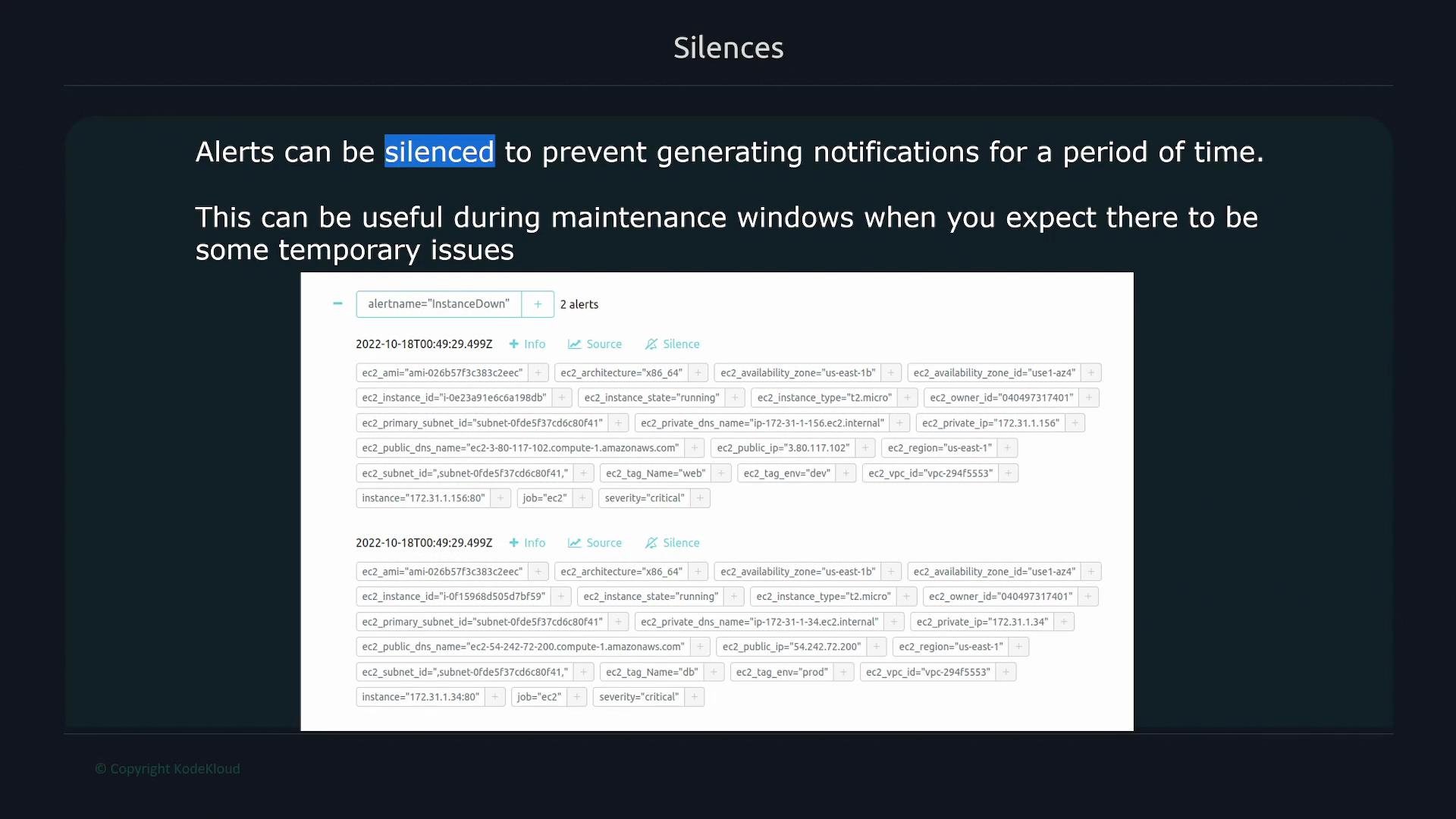
Silences suppress notifications for matching alerts during a defined time window. They are commonly used in Alertmanager (Prometheus alerting) to avoid noisy or unnecessary notifications during planned maintenance, deployments, or known transient issues—while still allowing alerts to be evaluated and visible in the UI.
 When to use silences
* Planned maintenance windows (patching, scaling, configuration changes).
* Controlled testing or deployments where known alerts will fire.
* Scheduled jobs or transient conditions that you do not want to notify on.
Silences are label-based: any alert whose labels satisfy all matchers you provide will be suppressed for the silence duration. Matchers can be exact equality or regular-expression based, depending on your Alertmanager/UI capabilities.
When to use silences
* Planned maintenance windows (patching, scaling, configuration changes).
* Controlled testing or deployments where known alerts will fire.
* Scheduled jobs or transient conditions that you do not want to notify on.
Silences are label-based: any alert whose labels satisfy all matchers you provide will be suppressed for the silence duration. Matchers can be exact equality or regular-expression based, depending on your Alertmanager/UI capabilities.
 How to create a silence
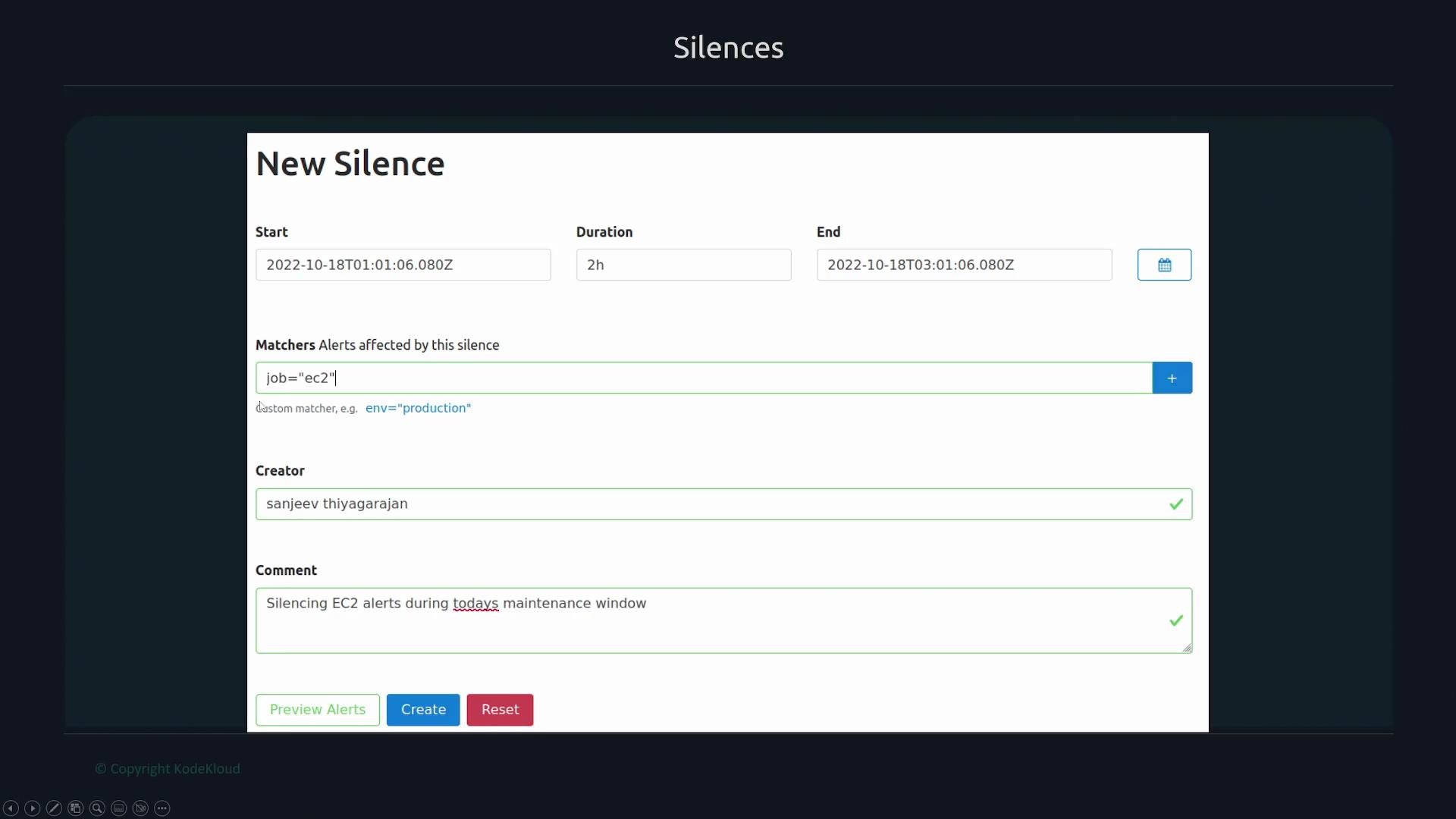
1. Open the Silences section in Alertmanager (or your alerting UI).
2. Click "New Silence".
3. Provide:
* A start time and duration, or an explicit end time.
* One or more matchers (labels) that select which alerts will be silenced.
* The creator/author name and an optional comment describing the reason.
4. Save the silence.
Silence configuration details
| Field | Purpose | Example |
| ----------------- | ------------------------------------------------------------ | ----------------------------------------------------------------- |
| Start / End time | Define when the silence is active | `Start: 2026-07-16T12:00:00Z`, `End: 2026-07-16T14:00:00Z` |
| Duration | Alternative to End time; defines how long the silence lasts | `2h` |
| Matchers | Label filters that determine which alerts are suppressed | `job: "ec2"` or `instance=~"web-.*"` |
| Creator / Comment | Who created the silence and why | `creator: "oncall@example.com"`, `comment: "Routine maintenance"` |
| Status | Indicates whether the silence is pending, active, or expired | `active` / `pending` / `expired` |
Example: silence all alerts from the `ec2` job
```yaml theme={null}
job: "ec2"
```
(When using the UI, add a matcher by clicking the blue plus sign and entering the label name and value. For regex matchers, use `=~` syntax if supported, e.g. `job=~"ec2|aws"`.)
Silences suppress notifications—they do not stop alert rules from being evaluated or recorded. Alerts will still fire and be visible in the Alertmanager UI and Prometheus; only notifications (emails, Slack messages, etc.) are suppressed while the silence is active.
Managing and reviewing silences
* The Silences tab lists all configured silences with their matchers, creator, comments, start/end times, and current status.
* Use this list to verify active silences, extend durations, edit matchers, or delete silences when maintenance completes.
* Consider tagging silences with clear comments and creator information so on-call engineers can quickly understand why a silence exists.
| Status | Meaning |
| --------- | ---------------------------------------------------- |
| `pending` | Silence is scheduled to start in the future |
| `active` | Silence is currently suppressing notifications |
| `expired` | Silence end time has passed and it no longer applies |
Be careful with broad matchers (for example, matching on a high-level label like `environment="production"`). Broad silences can suppress many unrelated alerts and may hide critical issues. Prefer the narrowest set of matchers that describe the intended scope.
References
* Alertmanager Silences documentation: [https://prometheus.io/docs/alerting/latest/alertmanager/#silences](https://prometheus.io/docs/alerting/latest/alertmanager/#silences)
* Alertmanager matchers and syntax: [https://prometheus.io/docs/alerting/latest/alertmanager/#matching-using-labels](https://prometheus.io/docs/alerting/latest/alertmanager/#matching-using-labels)
Use the Silences view regularly to audit active silences and ensure you’re not unintentionally missing important notifications.
How to create a silence
1. Open the Silences section in Alertmanager (or your alerting UI).
2. Click "New Silence".
3. Provide:
* A start time and duration, or an explicit end time.
* One or more matchers (labels) that select which alerts will be silenced.
* The creator/author name and an optional comment describing the reason.
4. Save the silence.
Silence configuration details
| Field | Purpose | Example |
| ----------------- | ------------------------------------------------------------ | ----------------------------------------------------------------- |
| Start / End time | Define when the silence is active | `Start: 2026-07-16T12:00:00Z`, `End: 2026-07-16T14:00:00Z` |
| Duration | Alternative to End time; defines how long the silence lasts | `2h` |
| Matchers | Label filters that determine which alerts are suppressed | `job: "ec2"` or `instance=~"web-.*"` |
| Creator / Comment | Who created the silence and why | `creator: "oncall@example.com"`, `comment: "Routine maintenance"` |
| Status | Indicates whether the silence is pending, active, or expired | `active` / `pending` / `expired` |
Example: silence all alerts from the `ec2` job
```yaml theme={null}
job: "ec2"
```
(When using the UI, add a matcher by clicking the blue plus sign and entering the label name and value. For regex matchers, use `=~` syntax if supported, e.g. `job=~"ec2|aws"`.)
Silences suppress notifications—they do not stop alert rules from being evaluated or recorded. Alerts will still fire and be visible in the Alertmanager UI and Prometheus; only notifications (emails, Slack messages, etc.) are suppressed while the silence is active.
Managing and reviewing silences
* The Silences tab lists all configured silences with their matchers, creator, comments, start/end times, and current status.
* Use this list to verify active silences, extend durations, edit matchers, or delete silences when maintenance completes.
* Consider tagging silences with clear comments and creator information so on-call engineers can quickly understand why a silence exists.
| Status | Meaning |
| --------- | ---------------------------------------------------- |
| `pending` | Silence is scheduled to start in the future |
| `active` | Silence is currently suppressing notifications |
| `expired` | Silence end time has passed and it no longer applies |
Be careful with broad matchers (for example, matching on a high-level label like `environment="production"`). Broad silences can suppress many unrelated alerts and may hide critical issues. Prefer the narrowest set of matchers that describe the intended scope.
References
* Alertmanager Silences documentation: [https://prometheus.io/docs/alerting/latest/alertmanager/#silences](https://prometheus.io/docs/alerting/latest/alertmanager/#silences)
* Alertmanager matchers and syntax: [https://prometheus.io/docs/alerting/latest/alertmanager/#matching-using-labels](https://prometheus.io/docs/alerting/latest/alertmanager/#matching-using-labels)
Use the Silences view regularly to audit active silences and ensure you’re not unintentionally missing important notifications.