> ## Documentation Index
> Fetch the complete documentation index at: https://notes.kodekloud.com/llms.txt
> Use this file to discover all available pages before exploring further.
# Modifying the System Bootloader
> Guide to inspecting and safely modifying GRUB2 bootloader on RHEL 10, using grubby to manage default kernels and kernel parameters and regenerating grub configuration after edits
In this lesson we work directly with the system bootloader — specifically GRUB2 on RHEL 10 — to inspect and safely modify which kernel is selected and what kernel parameters are passed at boot.
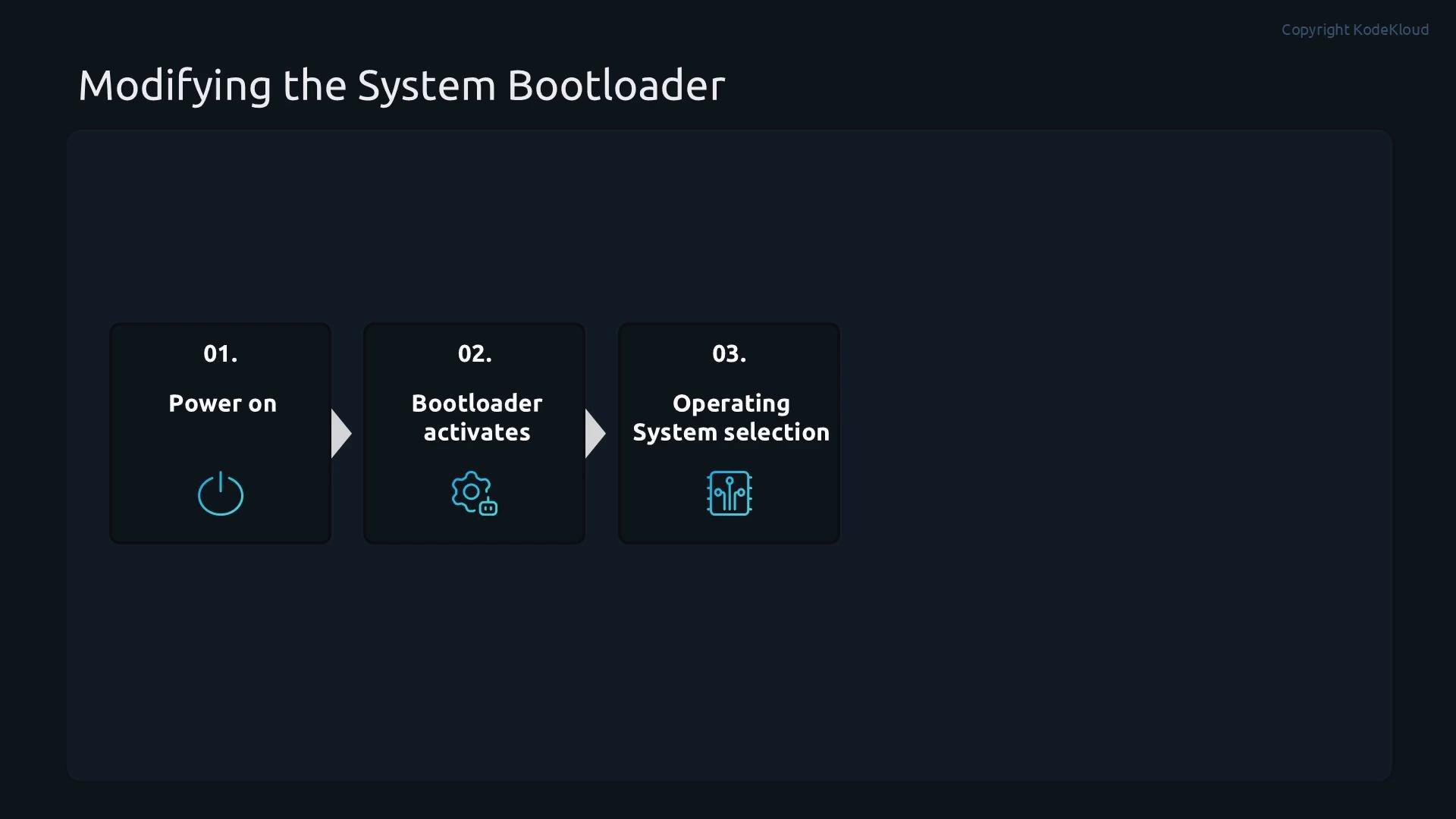
When a machine powers on, firmware (BIOS or UEFI) initializes hardware and then hands control to the bootloader. The bootloader’s job is to decide which kernel to load and how to invoke it. Without a correct bootloader configuration, a system may fail to boot or boot with incorrect kernel options.
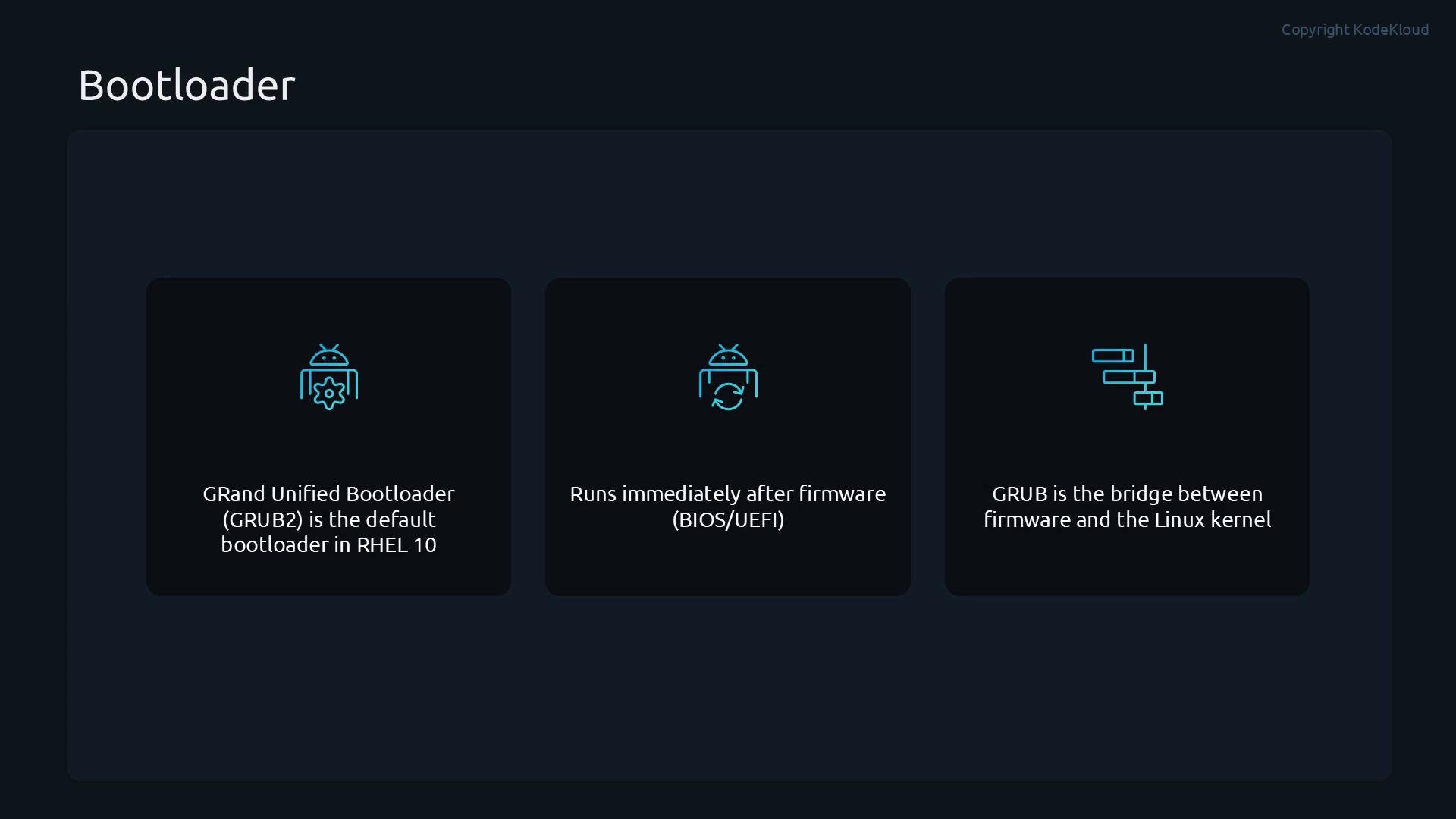
 GRUB2 (GNU GRand Unified Bootloader) is the default bootloader in RHEL 10. It runs immediately after system firmware, loads the chosen Linux kernel into memory, and passes any command-line arguments you specify. Think of GRUB2 as the bridge between firmware and the operating system kernel.
 ## Use grubby — the safe tool for kernel entries and kernel arguments
On RHEL 10, avoid hand-editing the generated GRUB configuration file (for example, ` /boot/grub2/grub.cfg` on BIOS systems). Use `grubby` to query and modify kernel entries and kernel command-line arguments safely. Use `grub2-mkconfig` only to regenerate the `grub.cfg` after you update configuration sources such as `/etc/default/grub` or scripts under `/etc/grub.d/`.
### Common grubby commands
| Command | Purpose | Example |
| - | - | - |
| `grubby --info=ALL` | Show detailed info for all installed boot entries (including `args`). | `grubby --info=ALL` |
| `grubby --default-kernel` | Print the kernel path that will boot by default. | `grubby --default-kernel` |
| `grubby --set-default=/boot/vmlinuz-...` | Set the default kernel to a specific kernel image. | `grubby --set-default=/boot/vmlinuz-6.12.0-124.8.1.el10_1.x86_64` |
| `grubby --update-kernel=ALL --args="..."` | Add kernel arguments to all entries (or target a single kernel path). | `grubby --update-kernel=ALL --args="selinux=0"` |
| `grubby --update-kernel=ALL --remove-args="..."` | Remove kernel arguments previously added. | `grubby --update-kernel=ALL --remove-args="selinux=0"` |
| `grub2-mkconfig -o ` | Regenerate the GRUB `grub.cfg` used at boot. | `grub2-mkconfig -o /boot/grub2/grub.cfg` |
## Examples and commands you’ll use
List installed kernel RPMs:
```bash theme={null}
root@control:/home/student# rpm -q kernel
kernel-6.12.0-124.8.1.el10_1.x86_64
```
Show all boot entries and their arguments:
```bash theme={null}
root@control:/home/student# grubby --info=ALL
index=0
kernel=/boot/vmlinuz-6.12.0-124.8.1.el10_1.x86_64
args="ro crashkernel=auto rhgb quiet"
...other fields...
```
Check which kernel is the current default:
```bash theme={null}
root@control:/home/student# grubby --default-kernel
/boot/vmlinuz-6.12.0-124.8.1.el10_1.x86_64
```
Set a different default kernel (use the full path from `--info=ALL`):
```bash theme={null}
root@control:/home/student# grubby --set-default=/boot/vmlinuz-6.12.0-124.8.1.el10_1.x86_64
```
Add a kernel argument to all installed kernels (example: disable SELinux at boot):
```bash theme={null}
root@control:/home/student# grubby --update-kernel=ALL --args="selinux=0"
```
Verify that the argument was added:
```bash theme={null}
root@control:/home/student# grubby --info=ALL | grep -i args
args="ro crashkernel=auto rhgb quiet selinux=0"
```
Remove the kernel argument:
```bash theme={null}
root@control:/home/student# grubby --update-kernel=ALL --remove-args="selinux=0"
```
Verify it was removed:
```bash theme={null}
root@control:/home/student# grubby --info=ALL | grep -i args
args="ro crashkernel=auto rhgb quiet"
```
## Where grubby makes changes
`grubby` updates the kernel entries GRUB2 uses at boot time:
* On BIOS-based systems, the active GRUB configuration is at ` /boot/grub2/grub.cfg`.
* On UEFI systems, GRUB files are typically placed on the EFI system partition — e.g. ` /boot/efi/EFI/redhat`.
Example listing on a BIOS system:
```bash theme={null}
root@control:/boot/efi/EFI/redhat# cd ~
root@control:~# cd /boot/grub2/
root@control:/boot/grub2# ls
device.map fonts grub.cfg grubenv i386-pc locale
```
## Regenerate GRUB configuration after editing configuration sources
Only run `grub2-mkconfig` after you update configuration sources such as `/etc/default/grub` or scripts under `/etc/grub.d/`.
* BIOS systems:
```bash theme={null}
root@control:/home/student# grub2-mkconfig -o /boot/grub2/grub.cfg
```
* UEFI systems (example path):
```bash theme={null}
root@control:/home/student# grub2-mkconfig -o /boot/efi/EFI/redhat/grub.cfg
```
Before changing GRUB configuration files, back up the current configuration — for example, copy ` /boot/grub2/grub.cfg` and files under `/etc/default`. Prefer `grubby` for per-kernel parameter changes instead of editing `grub.cfg` directly.
Manual edits to ` /boot/grub2/grub.cfg` are error-prone and can render a system unbootable. Only edit generated `grub.cfg` temporarily if you have a recovery plan (rescue media or alternate boot methods). When in doubt, use `grubby` or update `/etc/default/grub` and regenerate with `grub2-mkconfig`.
## When to use grubby vs. direct edits
* Use `grubby` to:
* Add or remove kernel command-line arguments safely.
* Set the default kernel without manually editing `grub.cfg`.
* Use `grub2-mkconfig` after updating configuration sources in `/etc/default/grub` or `/etc/grub.d/`.
* Avoid hand-editing ` /boot/grub2/grub.cfg` except for temporary troubleshooting with a recovery plan in place.
## Summary
* GRUB2 is the bootloader used on RHEL 10 and runs directly after BIOS/UEFI firmware.
* Use `grubby` to inspect installed boot entries, change the default kernel, and add or remove kernel boot arguments safely.
* Regenerate the active `grub.cfg` with `grub2-mkconfig -o ` only after updating configuration sources.
* Always back up existing GRUB files before making changes to avoid rendering the system unbootable.
## Use grubby — the safe tool for kernel entries and kernel arguments
On RHEL 10, avoid hand-editing the generated GRUB configuration file (for example, ` /boot/grub2/grub.cfg` on BIOS systems). Use `grubby` to query and modify kernel entries and kernel command-line arguments safely. Use `grub2-mkconfig` only to regenerate the `grub.cfg` after you update configuration sources such as `/etc/default/grub` or scripts under `/etc/grub.d/`.
### Common grubby commands
| Command | Purpose | Example |
| - | - | - |
| `grubby --info=ALL` | Show detailed info for all installed boot entries (including `args`). | `grubby --info=ALL` |
| `grubby --default-kernel` | Print the kernel path that will boot by default. | `grubby --default-kernel` |
| `grubby --set-default=/boot/vmlinuz-...` | Set the default kernel to a specific kernel image. | `grubby --set-default=/boot/vmlinuz-6.12.0-124.8.1.el10_1.x86_64` |
| `grubby --update-kernel=ALL --args="..."` | Add kernel arguments to all entries (or target a single kernel path). | `grubby --update-kernel=ALL --args="selinux=0"` |
| `grubby --update-kernel=ALL --remove-args="..."` | Remove kernel arguments previously added. | `grubby --update-kernel=ALL --remove-args="selinux=0"` |
| `grub2-mkconfig -o ` | Regenerate the GRUB `grub.cfg` used at boot. | `grub2-mkconfig -o /boot/grub2/grub.cfg` |
## Examples and commands you’ll use
List installed kernel RPMs:
```bash theme={null}
root@control:/home/student# rpm -q kernel
kernel-6.12.0-124.8.1.el10_1.x86_64
```
Show all boot entries and their arguments:
```bash theme={null}
root@control:/home/student# grubby --info=ALL
index=0
kernel=/boot/vmlinuz-6.12.0-124.8.1.el10_1.x86_64
args="ro crashkernel=auto rhgb quiet"
...other fields...
```
Check which kernel is the current default:
```bash theme={null}
root@control:/home/student# grubby --default-kernel
/boot/vmlinuz-6.12.0-124.8.1.el10_1.x86_64
```
Set a different default kernel (use the full path from `--info=ALL`):
```bash theme={null}
root@control:/home/student# grubby --set-default=/boot/vmlinuz-6.12.0-124.8.1.el10_1.x86_64
```
Add a kernel argument to all installed kernels (example: disable SELinux at boot):
```bash theme={null}
root@control:/home/student# grubby --update-kernel=ALL --args="selinux=0"
```
Verify that the argument was added:
```bash theme={null}
root@control:/home/student# grubby --info=ALL | grep -i args
args="ro crashkernel=auto rhgb quiet selinux=0"
```
Remove the kernel argument:
```bash theme={null}
root@control:/home/student# grubby --update-kernel=ALL --remove-args="selinux=0"
```
Verify it was removed:
```bash theme={null}
root@control:/home/student# grubby --info=ALL | grep -i args
args="ro crashkernel=auto rhgb quiet"
```
## Where grubby makes changes
`grubby` updates the kernel entries GRUB2 uses at boot time:
* On BIOS-based systems, the active GRUB configuration is at ` /boot/grub2/grub.cfg`.
* On UEFI systems, GRUB files are typically placed on the EFI system partition — e.g. ` /boot/efi/EFI/redhat`.
Example listing on a BIOS system:
```bash theme={null}
root@control:/boot/efi/EFI/redhat# cd ~
root@control:~# cd /boot/grub2/
root@control:/boot/grub2# ls
device.map fonts grub.cfg grubenv i386-pc locale
```
## Regenerate GRUB configuration after editing configuration sources
Only run `grub2-mkconfig` after you update configuration sources such as `/etc/default/grub` or scripts under `/etc/grub.d/`.
* BIOS systems:
```bash theme={null}
root@control:/home/student# grub2-mkconfig -o /boot/grub2/grub.cfg
```
* UEFI systems (example path):
```bash theme={null}
root@control:/home/student# grub2-mkconfig -o /boot/efi/EFI/redhat/grub.cfg
```
Before changing GRUB configuration files, back up the current configuration — for example, copy ` /boot/grub2/grub.cfg` and files under `/etc/default`. Prefer `grubby` for per-kernel parameter changes instead of editing `grub.cfg` directly.
Manual edits to ` /boot/grub2/grub.cfg` are error-prone and can render a system unbootable. Only edit generated `grub.cfg` temporarily if you have a recovery plan (rescue media or alternate boot methods). When in doubt, use `grubby` or update `/etc/default/grub` and regenerate with `grub2-mkconfig`.
## When to use grubby vs. direct edits
* Use `grubby` to:
* Add or remove kernel command-line arguments safely.
* Set the default kernel without manually editing `grub.cfg`.
* Use `grub2-mkconfig` after updating configuration sources in `/etc/default/grub` or `/etc/grub.d/`.
* Avoid hand-editing ` /boot/grub2/grub.cfg` except for temporary troubleshooting with a recovery plan in place.
## Summary
* GRUB2 is the bootloader used on RHEL 10 and runs directly after BIOS/UEFI firmware.
* Use `grubby` to inspect installed boot entries, change the default kernel, and add or remove kernel boot arguments safely.
* Regenerate the active `grub.cfg` with `grub2-mkconfig -o ` only after updating configuration sources.
* Always back up existing GRUB files before making changes to avoid rendering the system unbootable.
 This completes the lesson on modifying the system bootloader and safely managing kernel boot parameters.
## Links and references
* [GRUB Manual (GNU)](https://www.gnu.org/software/grub/manual/grub/)
* [Red Hat Enterprise Linux documentation — Boot Loader](https://access.redhat.com/documentation/en-us/red_hat_enterprise_linux/)
* `grubby` man page: run `man grubby` on your RHEL system
* `grub2-mkconfig` man page: run `man grub2-mkconfig` on your RHEL system
This documentation is built and hosted on [Mintlify](https://mintlify.com), a developer documentation platform.
This completes the lesson on modifying the system bootloader and safely managing kernel boot parameters.
## Links and references
* [GRUB Manual (GNU)](https://www.gnu.org/software/grub/manual/grub/)
* [Red Hat Enterprise Linux documentation — Boot Loader](https://access.redhat.com/documentation/en-us/red_hat_enterprise_linux/)
* `grubby` man page: run `man grubby` on your RHEL system
* `grub2-mkconfig` man page: run `man grub2-mkconfig` on your RHEL system
This documentation is built and hosted on [Mintlify](https://mintlify.com), a developer documentation platform.