> ## Documentation Index
> Fetch the complete documentation index at: https://notes.kodekloud.com/llms.txt
> Use this file to discover all available pages before exploring further.
# Selecting the Boot Target
> How to control systemd boot targets, change default or immediate boot modes, recover by resetting root password, and troubleshoot boot failures using systemctl and journalctl
Sometimes a system boots into the wrong mode — for example, it may start a graphical desktop when you only need a server environment, or it may fail to boot properly and leave you unable to recover it. Without understanding the boot process and systemd targets, you have limited control over what starts, what doesn't, and how to troubleshoot startup problems.
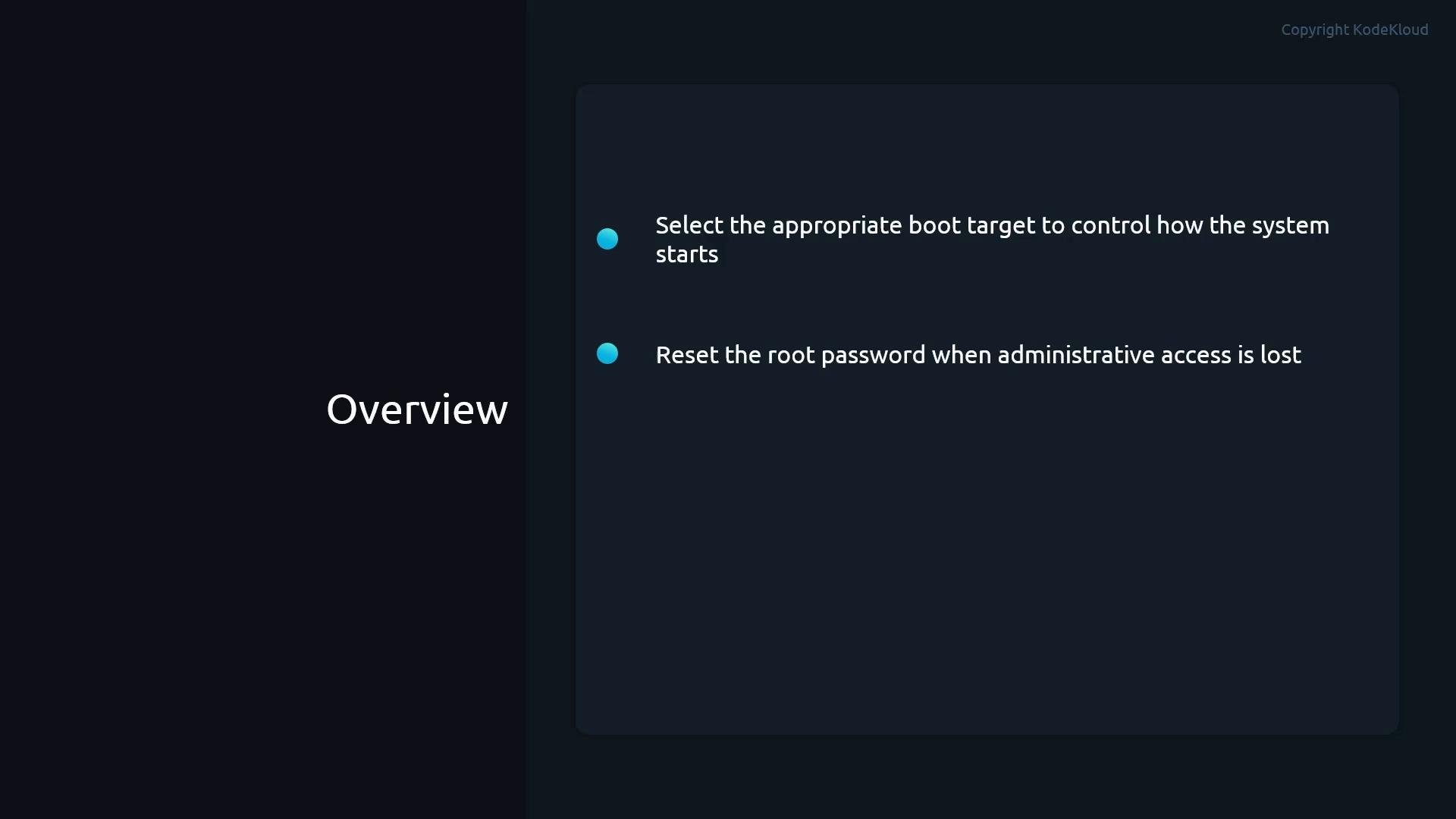
This section explains how to control how the system boots, switch operating modes, and recover safely when things go wrong. You will learn how to:
* Select and change the default boot target.
* Switch targets immediately for maintenance or recovery.
* Reset the root password if administrative access is lost.
* Troubleshoot common boot issues and examine relevant logs.
 ## What is a systemd target?
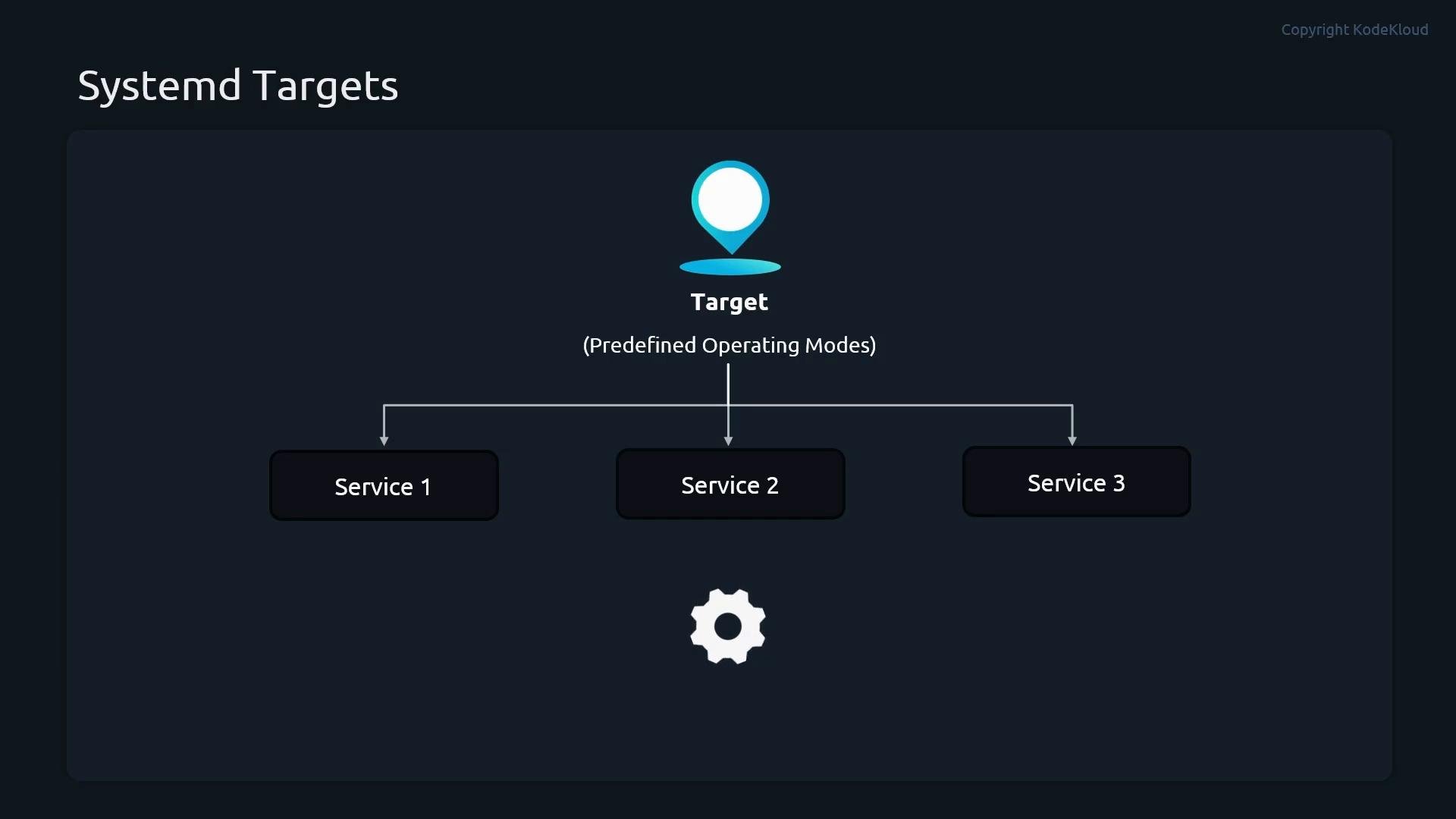
A systemd target is a named state that groups together the unit files (services, mounts, sockets, timers, etc.) required to reach a particular operating mode. Think of a target as a destination on a GPS: systemd starts all the units necessary to reach that destination.
Common targets map to classic SysV runlevels but are more flexible and expressive.
## What is a systemd target?
A systemd target is a named state that groups together the unit files (services, mounts, sockets, timers, etc.) required to reach a particular operating mode. Think of a target as a destination on a GPS: systemd starts all the units necessary to reach that destination.
Common targets map to classic SysV runlevels but are more flexible and expressive.
 ## Common targets and what they provide
* `emergency.target` — The most minimal environment. Typically a root shell on the console with almost nothing else running. Use for severe troubleshooting and recovery when filesystems or system state are compromised.
* `rescue.target` — Equivalent to single-user or maintenance mode. Provides a root shell and a minimal set of services; usually no networking or multi-user services.
* `multi-user.target` — Standard non-graphical multi-user mode. Networking enabled and system services available, but no graphical display manager.
* `graphical.target` — Builds on `multi-user.target` and adds display manager and graphical session services for desktop systems.
### Runlevel mappings
| SysV Runlevel | systemd Target | Description |
| - | - | - |
| 1 | `rescue.target` | Single-user maintenance mode |
| 3 | `multi-user.target` | Multi-user, non-graphical |
| 5 | `graphical.target` | Multi-user with graphical session |
## Inspecting and controlling targets with systemctl
Use the following commands to inspect, change, or switch targets:
```bash theme={null}
# Show the default target (what the system boots to)
systemctl get-default
# Change the default target permanently (affects future boots)
sudo systemctl set-default multi-user.target
# Switch the current session immediately to a target (may stop units not wanted by the target)
sudo systemctl isolate multi-user.target
# Enter rescue (single-user) mode immediately
sudo systemctl rescue
# Enter emergency mode immediately (very minimal)
sudo systemctl emergency
# List active targets
systemctl list-units --type=target --state=active
```
Key behavior to remember:
* `systemctl set-default` changes the persistent default used at boot.
* `systemctl isolate` switches the running system immediately to the requested target and stops services that are not dependencies of that target; this can drop network connections.
* `systemctl rescue` and `systemctl emergency` are convenient shortcuts to enter `rescue.target` and `emergency.target`, respectively. `emergency` is more restrictive than `rescue`.
When performing immediate target switches on a remote machine, prefer using a console or ensure an out‑of‑band management channel is available. Switching to `rescue` or `emergency` mode can stop networking and disconnect SSH sessions.
## Resetting the root password when you’re locked out
If you lose administrative access, booting into a minimal target can let you reset the root password. A typical process:
1. Reboot and interrupt the bootloader (GRUB) to edit the kernel command line (or use your remote console).
2. Append `systemd.unit=emergency.target` (or boot to rescue/emergency via the boot menu) to drop to a root shell.
3. Once at the emergency shell, remount the root filesystem read-write:
```bash theme={null}
mount -o remount,rw /
```
4. Reset the root password:
```bash theme={null}
passwd root
```
5. If SELinux is enabled, you may need to relabel on next boot:
```bash theme={null}
touch /.autorelabel
```
6. Reboot normally:
```bash theme={null}
reboot
```
Always ensure the root filesystem is mounted read-write before changing passwords or system files. Editing kernel boot parameters or selecting emergency mode may vary by distribution and environment — follow your distro's recovery guidance.
## Troubleshooting boot failures
When a system fails to boot properly, gather information before making changes:
* Check the system journal for the current or previous boot:
```bash theme={null}
journalctl -b # current boot
journalctl -b -1 # previous boot
journalctl -xe # real-time, extended logs
```
* List failed units to find services preventing boot:
```bash theme={null}
systemctl --failed
systemctl list-units --type=service --state=failed
```
* Inspect the boot loader configuration and kernel parameters if hardware or initramfs issues are suspected.
* Use `systemctl isolate rescue.target` or `systemctl rescue` to enter maintenance and diagnose (with caution on remote systems).
## Useful references
* systemd man pages: `man systemctl`, `man systemd.target`
* [systemd documentation](https://www.freedesktop.org/wiki/Software/systemd/)
* Distribution recovery guides (check your distro vendor docs for GRUB and SELinux-specific steps)
With this knowledge you can control how your system boots, move between operating modes, and create a safer path for system recovery and maintenance.
This documentation is built and hosted on [Mintlify](https://mintlify.com), a developer documentation platform.
## Common targets and what they provide
* `emergency.target` — The most minimal environment. Typically a root shell on the console with almost nothing else running. Use for severe troubleshooting and recovery when filesystems or system state are compromised.
* `rescue.target` — Equivalent to single-user or maintenance mode. Provides a root shell and a minimal set of services; usually no networking or multi-user services.
* `multi-user.target` — Standard non-graphical multi-user mode. Networking enabled and system services available, but no graphical display manager.
* `graphical.target` — Builds on `multi-user.target` and adds display manager and graphical session services for desktop systems.
### Runlevel mappings
| SysV Runlevel | systemd Target | Description |
| - | - | - |
| 1 | `rescue.target` | Single-user maintenance mode |
| 3 | `multi-user.target` | Multi-user, non-graphical |
| 5 | `graphical.target` | Multi-user with graphical session |
## Inspecting and controlling targets with systemctl
Use the following commands to inspect, change, or switch targets:
```bash theme={null}
# Show the default target (what the system boots to)
systemctl get-default
# Change the default target permanently (affects future boots)
sudo systemctl set-default multi-user.target
# Switch the current session immediately to a target (may stop units not wanted by the target)
sudo systemctl isolate multi-user.target
# Enter rescue (single-user) mode immediately
sudo systemctl rescue
# Enter emergency mode immediately (very minimal)
sudo systemctl emergency
# List active targets
systemctl list-units --type=target --state=active
```
Key behavior to remember:
* `systemctl set-default` changes the persistent default used at boot.
* `systemctl isolate` switches the running system immediately to the requested target and stops services that are not dependencies of that target; this can drop network connections.
* `systemctl rescue` and `systemctl emergency` are convenient shortcuts to enter `rescue.target` and `emergency.target`, respectively. `emergency` is more restrictive than `rescue`.
When performing immediate target switches on a remote machine, prefer using a console or ensure an out‑of‑band management channel is available. Switching to `rescue` or `emergency` mode can stop networking and disconnect SSH sessions.
## Resetting the root password when you’re locked out
If you lose administrative access, booting into a minimal target can let you reset the root password. A typical process:
1. Reboot and interrupt the bootloader (GRUB) to edit the kernel command line (or use your remote console).
2. Append `systemd.unit=emergency.target` (or boot to rescue/emergency via the boot menu) to drop to a root shell.
3. Once at the emergency shell, remount the root filesystem read-write:
```bash theme={null}
mount -o remount,rw /
```
4. Reset the root password:
```bash theme={null}
passwd root
```
5. If SELinux is enabled, you may need to relabel on next boot:
```bash theme={null}
touch /.autorelabel
```
6. Reboot normally:
```bash theme={null}
reboot
```
Always ensure the root filesystem is mounted read-write before changing passwords or system files. Editing kernel boot parameters or selecting emergency mode may vary by distribution and environment — follow your distro's recovery guidance.
## Troubleshooting boot failures
When a system fails to boot properly, gather information before making changes:
* Check the system journal for the current or previous boot:
```bash theme={null}
journalctl -b # current boot
journalctl -b -1 # previous boot
journalctl -xe # real-time, extended logs
```
* List failed units to find services preventing boot:
```bash theme={null}
systemctl --failed
systemctl list-units --type=service --state=failed
```
* Inspect the boot loader configuration and kernel parameters if hardware or initramfs issues are suspected.
* Use `systemctl isolate rescue.target` or `systemctl rescue` to enter maintenance and diagnose (with caution on remote systems).
## Useful references
* systemd man pages: `man systemctl`, `man systemd.target`
* [systemd documentation](https://www.freedesktop.org/wiki/Software/systemd/)
* Distribution recovery guides (check your distro vendor docs for GRUB and SELinux-specific steps)
With this knowledge you can control how your system boots, move between operating modes, and create a safer path for system recovery and maintenance.
This documentation is built and hosted on [Mintlify](https://mintlify.com), a developer documentation platform.