

- Save time by bundling repeated sequences of commands into reusable scripts.
- Reduce human error when performing administrative tasks.
- Make outputs predictable and easier to parse with tools and regular expressions.
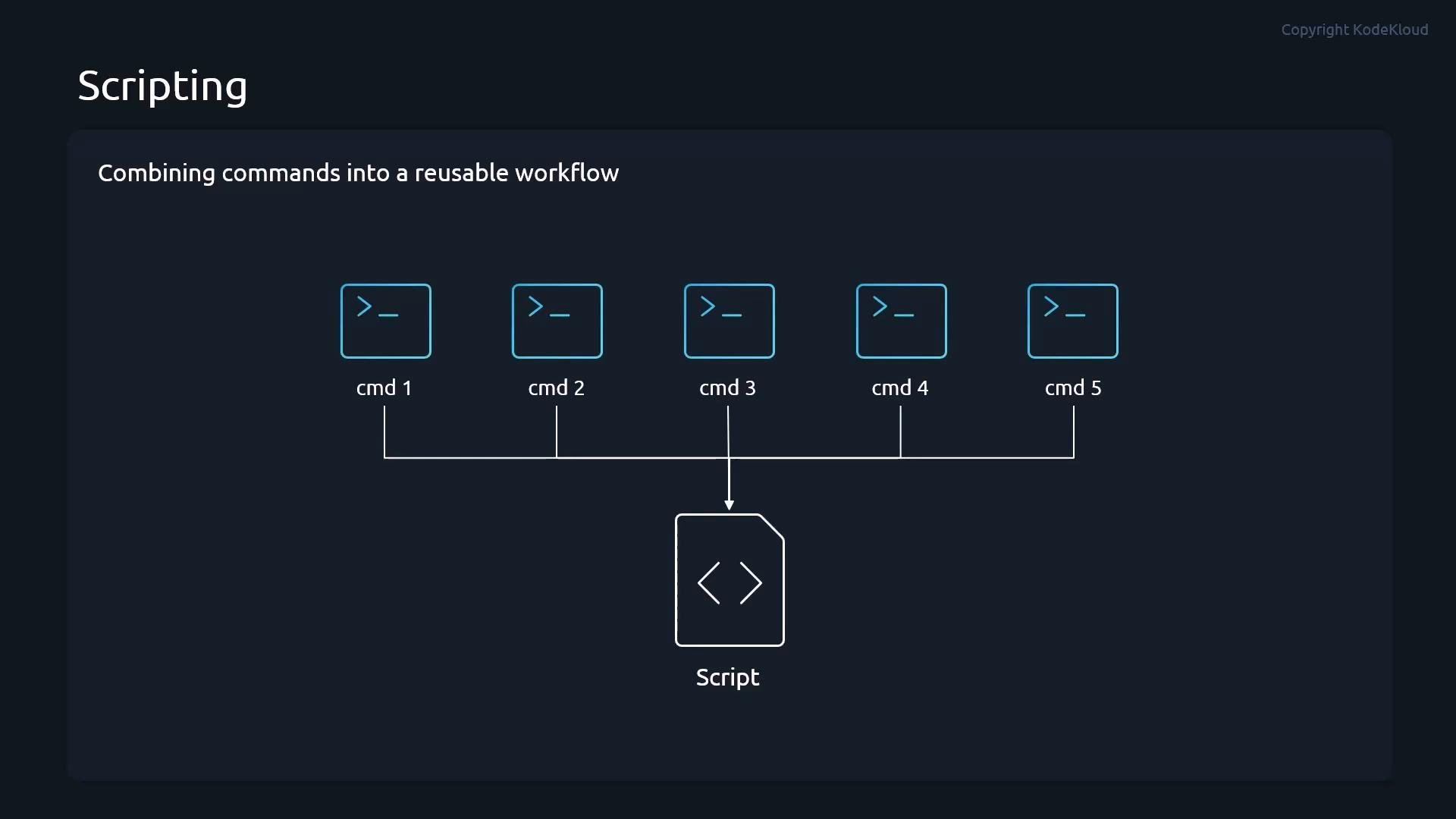
- Create the file, then grant execution rights:
chmod +x ./script.sh
- Run it with its path:
./script.shor/path/to/script.sh
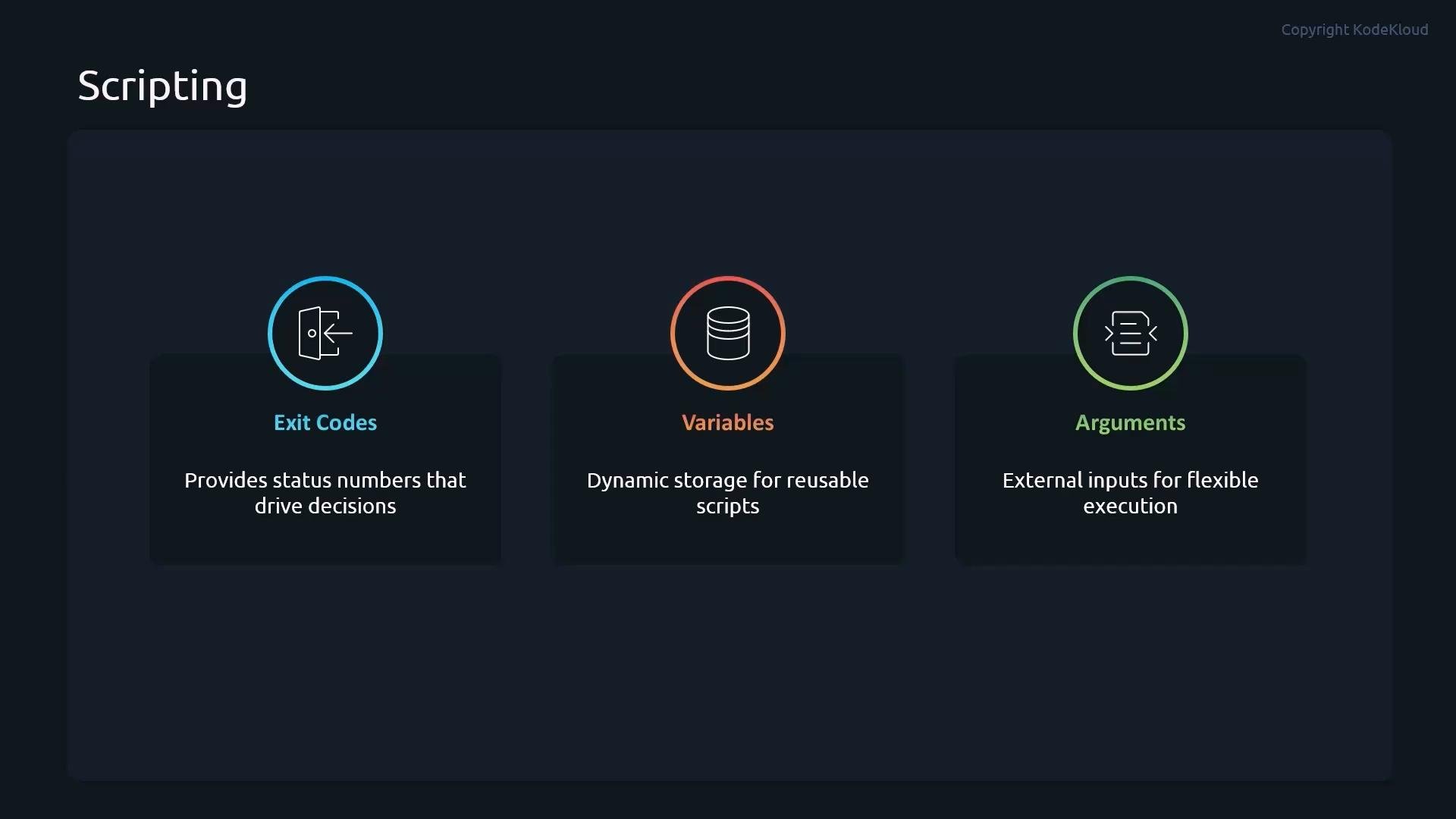
- Exit codes — Every command returns a numeric status:
0means success; non-zero indicates failure. Scripts rely on exit codes to make flow decisions. - Variables — Store data inside the script (usernames, paths, service names, or command output) so you don’t hard-code values and your script becomes reusable.
- Arguments — Allow a script to accept input from the command line (for example,
$1,$@,$#) so you can change behavior without editing the script.
$@, $#, $0) and never put raw { or } in plain paragraph text — always wrap such snippets in code ticks.
Exit codes are essential for error handling. Use
if statements or &&/|| to act based on a command’s exit status ($?).Never run downloaded scripts from untrusted sources without inspecting them. Grant execute permission only after verification (
chmod +x).
Practical examples
Below are short, focused examples that demonstrate the core scripting concepts in a compact, reproducible way.
- Shebang and a simple script
hello.sh), give it execute permission, and run it:
- Variables (no spaces around the
=; expand with$)
- Arguments — positional parameters and counts
- Exit status of the last command
$? immediately after a command to inspect its exit status.
From theory to practice — building a demo script
We’ll create a small script from scratch, make it executable, and run it. The sequence below shows the commands run on the shell and the contents of the script.
Create and edit the script:
demo.sh write:
demo.sh to include variables and use them:
- No spaces around the
=when assigning. - Quote expansions when values may contain spaces (
"$VAR"). - Use braces for clarity when concatenating (
${VAR}text).
demo.sh so it reports its name and the first two arguments:
- Add
if/elseandcasestatements to branch logic based on exit codes or argument values. - Use loops (
for,while,until) to iterate over lists of items or files. - Capture and parse command output with regular expressions (
grep,sed,awk) to extract precise data from logs and text files. - Combine
set -e,set -u, andset -o pipefailin your scripts for stricter error handling.
- Place sequences of commands into files to reuse and automate them.
- Add
#!/bin/bashat the top to specify the interpreter. - Make scripts executable with
chmod +x. - Use variables for reusable values; use positional parameters (
$0,$1,$@,$#) for input; inspect exit statuses with$?or check commands directly. - With these basics you can begin automating common administrative tasks instead of running them manually.