> ## Documentation Index
> Fetch the complete documentation index at: https://notes.kodekloud.com/llms.txt
> Use this file to discover all available pages before exploring further.
# Archive Compress Pack and Unpack Files Using tar
> How to create, inspect, compress, and extract tar archives on Linux for backups, transfers, and preserving metadata, with examples and common tar options
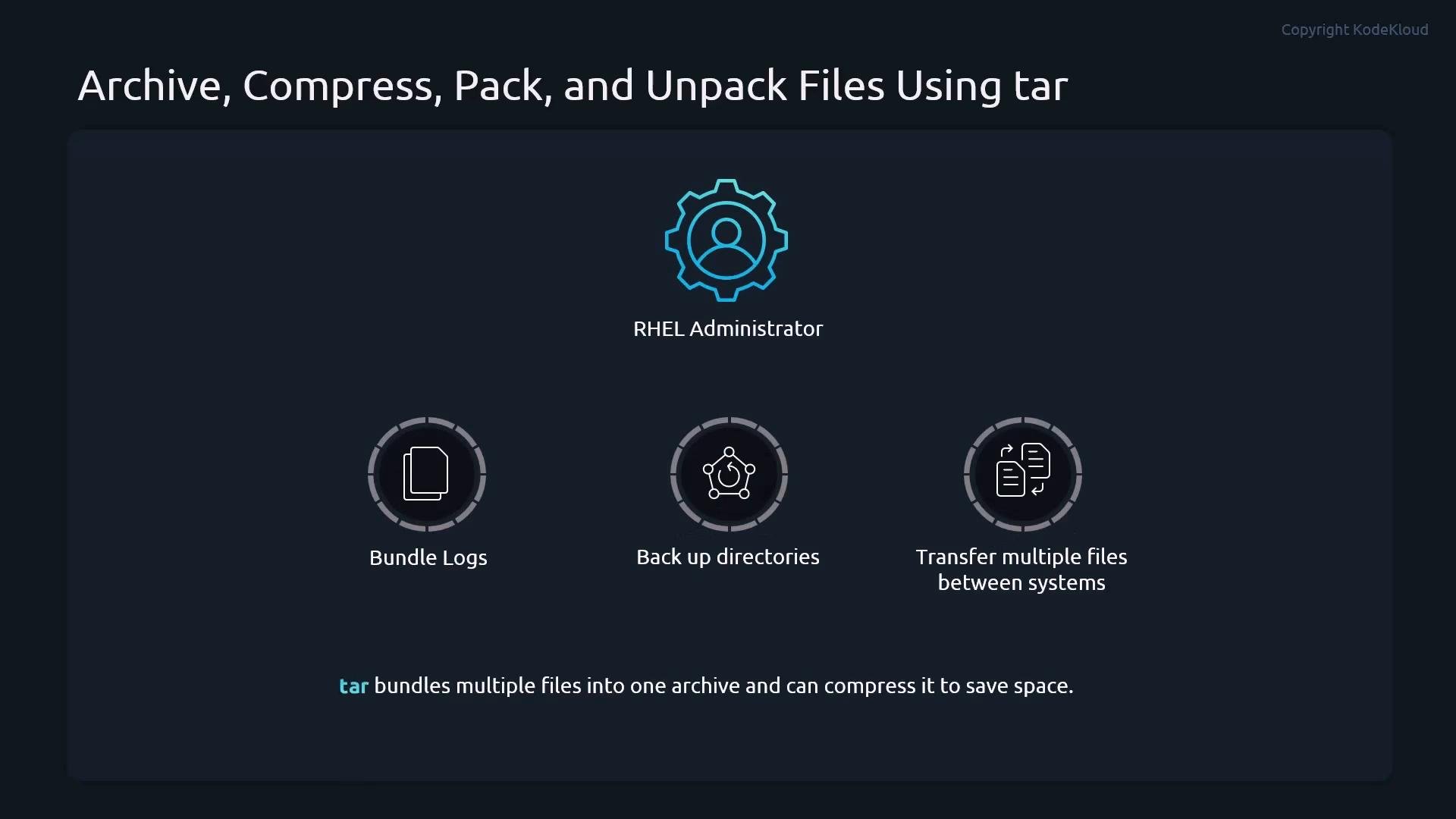
In this lesson we'll cover how to create, inspect, compress, and extract tar archives on Linux. Think of TAR (Tape ARchive) as placing multiple files and folders into a single box; compression is like vacuum-sealing that box to make it smaller. For RHEL administrators and RHCSA candidates, tar is indispensable for bundling logs, backing up directories, and transferring multiple files between systems.
 What is an archive?
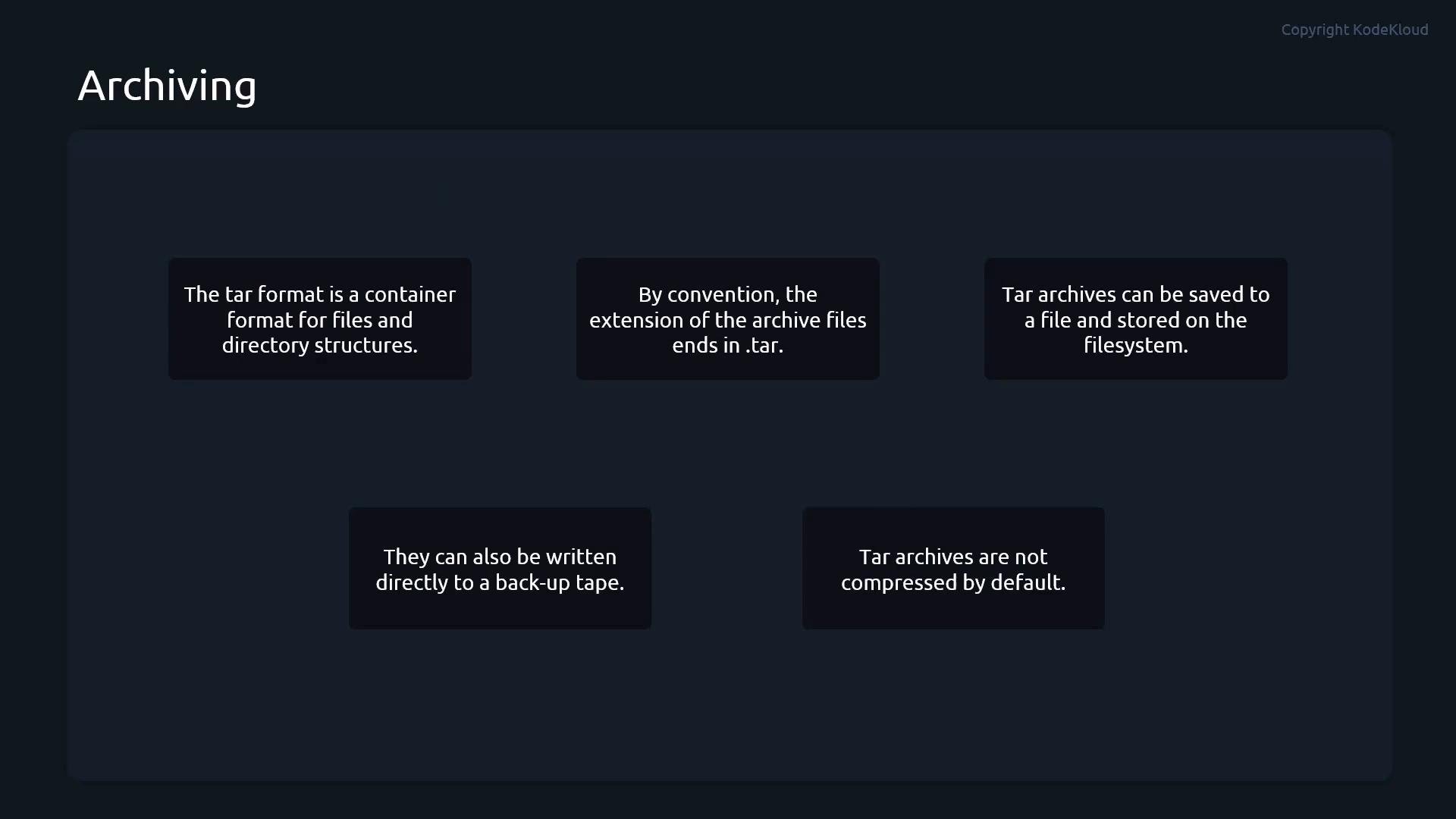
* An archive is a single file that contains a collection of files and directories (useful for transfer or backup).
* The tar format is a container that preserves file metadata and directory structure; tar archives typically end in `.tar`.
* Tar archives are not compressed by default; you can compress them using tar options (`-z`, `-j`, `-J`) or separate compression utilities (gzip, bzip2, xz).
What is an archive?
* An archive is a single file that contains a collection of files and directories (useful for transfer or backup).
* The tar format is a container that preserves file metadata and directory structure; tar archives typically end in `.tar`.
* Tar archives are not compressed by default; you can compress them using tar options (`-z`, `-j`, `-J`) or separate compression utilities (gzip, bzip2, xz).
 Basic tar operations and options
| Operation | Short option | Description | Example |
| - | - | - | - |
| Create archive | `-c` | Create a new archive | `tar -cvf archive.tar files/` |
| List archive contents | `-t` | View files inside an archive | `tar -tvf archive.tar` |
| Extract archive | `-x` | Extract files from an archive | `tar -xvf archive.tar` |
| Verbose output | `-v` | Show processed files | `tar -cvf archive.tar files/` |
| Specify archive file | `-f` | Archive filename must immediately follow `-f` | `tar -cvf archive.tar files/` |
| Change extraction directory | `-C` | Extract into a specific directory | `tar -xvf archive.tar -C /target/` |
Tip: `-f` requires the archive filename as the very next argument (e.g., `tar -cvf archive.tar files/`). Use `-C ` to extract into a different location.
Compression flags
| Compression | tar flag | Common filename suffix |
| - | - | - |
| gzip | `-z` | `.tar.gz` or `.tgz` |
| bzip2 | `-j` | `.tar.bz2` |
| xz | `-J` | `.tar.xz` |
Examples of creating and extracting archives
Create an uncompressed archive:
```bash theme={null}
tar -cvf /home/andrei/archive2.tar file1
```
List contents:
```bash theme={null}
tar -tvf /home/andrei/archive2.tar
```
Extract into the current directory:
```bash theme={null}
tar -xvf /home/andrei/archive2.tar
```
Extract into a specific directory:
```bash theme={null}
tar -xvf /home/andrei/archive2.tar -C /path/to/target/
```
Create and extract compressed archives:
```bash theme={null}
# gzip-compressed archive:
tar -czvf /home/andrei/archive2.tar.gz file1
# bzip2-compressed archive:
tar -cjvf /home/andrei/archive2.tar.bz2 file1
# Extract gzip-compressed archive:
tar -xvzf /home/andrei/archive2.tar.gz
# Extract bzip2-compressed archive:
tar -xvjf /home/andrei/archive2.tar.bz2
```
Demo: create, compress, and extract archives
Step through a practical example to see how tar behaves with real files.
Create a working directory and sample files:
```bash theme={null}
student@control:~/tar-demo$ mkdir -p tar-demo/data
student@control:~/tar-demo$ cd tar-demo
student@control:~/tar-demo$ mkdir -p data
student@control:~/tar-demo$ touch data/file1 data/file2 data/file3
student@control:~/tar-demo$ tree
.
└── data
├── file1
├── file2
└── file3
```
Create an uncompressed tar archive:
```bash theme={null}
student@control:~/tar-demo$ tar -cvf archive.tar data/
data/
data/file1
data/file2
data/file3
student@control:~/tar-demo$ ls
archive.tar data
```
List archive contents with details:
```bash theme={null}
student@control:~/tar-demo$ tar -tvf archive.tar
-rw-r--r-- user/group 0 2024-04-15 16:19 data/file1
-rw-r--r-- user/group 0 2024-04-15 16:19 data/file2
-rw-r--r-- user/group 0 2024-04-15 16:19 data/file3
```
Extract into a different directory using `-C`:
```bash theme={null}
student@control:~/tar-demo$ mkdir data_backup
student@control:~/tar-demo$ tar -xvf archive.tar -C data_backup/
data/
data/file1
data/file2
data/file3
student@control:~/tar-demo$ ls data_backup/
data
student@control:~/tar-demo$ tree data_backup/
data_backup/
└── data
├── file1
├── file2
└── file3
2 directories, 3 files
```
Create gzip and bzip2 compressed archives:
```bash theme={null}
student@control:~/tar-demo$ tar -czvf archive.tar.gz data/
data/
data/file1
data/file2
data/file3
student@control:~/tar-demo$ tar -cjvf archive.tar.bz2 data/
data/
data/file1
data/file2
data/file3
student@control:~/tar-demo$ ls -l
total 20
-rw-r--r--. 1 student student 10240 Apr 15 16:20 archive.tar
-rw-r--r--. 1 student student 167 Apr 15 16:24 archive.tar.bz2
-rw-r--r--. 1 student student 162 Apr 15 16:23 archive.tar.gz
drwxr-xr-x. 2 student student 45 Apr 15 16:19 data
drwxr-xr-x. 3 student student 18 Apr 15 16:21 data_backup
```
Extract a bzip2 archive into a chosen directory:
```bash theme={null}
student@control:~/tar-demo$ mkdir uncompressed
student@control:~/tar-demo$ tar -xjvf archive.tar.bz2 -C uncompressed/
data/
data/file1
data/file2
data/file3
student@control:~/tar-demo$ ls -l uncompressed/data
total 0
-rw-r--r-- 1 student student 0 Apr 15 16:19 file1
-rw-r--r-- 1 student student 0 Apr 15 16:19 file2
-rw-r--r-- 1 student student 0 Apr 15 16:19 file3
```
Using standalone compression utilities
If you forget tar's compression flags, you can compress/decompress an existing `.tar` file with dedicated tools:
```bash theme={null}
# Compress with gzip (adds .gz suffix)
student@control:~/tar-demo$ gzip archive.tar
student@control:~/tar-demo$ ls -l
total 4
-rw-r--r--. 1 student student 162 Apr 15 16:20 archive.tar.gz
drwxr-xr-x. 2 student student 45 Apr 15 16:19 data
drwxr-xr-x. 3 student student 18 Apr 15 16:21 data_backup
drwxr-xr-x. 3 student student 18 Apr 15 16:26 uncompressed
# Decompress with gzip
student@control:~/tar-demo$ gzip -d archive.tar.gz
# Compress with bzip2 (adds .bz2 suffix)
student@control:~/tar-demo$ bzip2 archive.tar
student@control:~/tar-demo$ ls -l
total 4
-rw-r--r--. 1 student student 167 Apr 15 16:20 archive.tar.bz2
# Decompress with bzip2
student@control:~/tar-demo$ bzip2 -d archive.tar.bz2
```
Warning: When extracting archives, be cautious—archives may contain absolute paths or files that overwrite existing data. Audit contents with `tar -tvf archive.tar` before extraction, and use `-C` to extract into a safe directory when unsure.
Quick reference: common patterns
| Task | Command |
| - | - |
| Create archive of directory | `tar -cvf archive.tar /path/to/dir` |
| Create gzip archive | `tar -czvf archive.tar.gz /path/to/dir` |
| Create bzip2 archive | `tar -cjvf archive.tar.bz2 /path/to/dir` |
| Extract archive to current directory | `tar -xvf archive.tar` |
| Extract archive to specific directory | `tar -xvf archive.tar -C /target/dir` |
| List archive contents | `tar -tvf archive.tar` |
Further reading and references
* tar manual: `man tar`
* [GNU tar documentation](https://www.gnu.org/software/tar/manual/tar.html)
* [Kubernetes and backup strategies](/docs/backup) (related patterns for archiv-ing and transfer)
This concludes the lesson. With tar you can efficiently archive, compress, and extract file collections—either using tar's built-in compression flags or separate compression utilities—making backups and transfers straightforward for system administrators and RHCSA candidates.
This documentation is built and hosted on [Mintlify](https://mintlify.com), a developer documentation platform.
Basic tar operations and options
| Operation | Short option | Description | Example |
| - | - | - | - |
| Create archive | `-c` | Create a new archive | `tar -cvf archive.tar files/` |
| List archive contents | `-t` | View files inside an archive | `tar -tvf archive.tar` |
| Extract archive | `-x` | Extract files from an archive | `tar -xvf archive.tar` |
| Verbose output | `-v` | Show processed files | `tar -cvf archive.tar files/` |
| Specify archive file | `-f` | Archive filename must immediately follow `-f` | `tar -cvf archive.tar files/` |
| Change extraction directory | `-C` | Extract into a specific directory | `tar -xvf archive.tar -C /target/` |
Tip: `-f` requires the archive filename as the very next argument (e.g., `tar -cvf archive.tar files/`). Use `-C ` to extract into a different location.
Compression flags
| Compression | tar flag | Common filename suffix |
| - | - | - |
| gzip | `-z` | `.tar.gz` or `.tgz` |
| bzip2 | `-j` | `.tar.bz2` |
| xz | `-J` | `.tar.xz` |
Examples of creating and extracting archives
Create an uncompressed archive:
```bash theme={null}
tar -cvf /home/andrei/archive2.tar file1
```
List contents:
```bash theme={null}
tar -tvf /home/andrei/archive2.tar
```
Extract into the current directory:
```bash theme={null}
tar -xvf /home/andrei/archive2.tar
```
Extract into a specific directory:
```bash theme={null}
tar -xvf /home/andrei/archive2.tar -C /path/to/target/
```
Create and extract compressed archives:
```bash theme={null}
# gzip-compressed archive:
tar -czvf /home/andrei/archive2.tar.gz file1
# bzip2-compressed archive:
tar -cjvf /home/andrei/archive2.tar.bz2 file1
# Extract gzip-compressed archive:
tar -xvzf /home/andrei/archive2.tar.gz
# Extract bzip2-compressed archive:
tar -xvjf /home/andrei/archive2.tar.bz2
```
Demo: create, compress, and extract archives
Step through a practical example to see how tar behaves with real files.
Create a working directory and sample files:
```bash theme={null}
student@control:~/tar-demo$ mkdir -p tar-demo/data
student@control:~/tar-demo$ cd tar-demo
student@control:~/tar-demo$ mkdir -p data
student@control:~/tar-demo$ touch data/file1 data/file2 data/file3
student@control:~/tar-demo$ tree
.
└── data
├── file1
├── file2
└── file3
```
Create an uncompressed tar archive:
```bash theme={null}
student@control:~/tar-demo$ tar -cvf archive.tar data/
data/
data/file1
data/file2
data/file3
student@control:~/tar-demo$ ls
archive.tar data
```
List archive contents with details:
```bash theme={null}
student@control:~/tar-demo$ tar -tvf archive.tar
-rw-r--r-- user/group 0 2024-04-15 16:19 data/file1
-rw-r--r-- user/group 0 2024-04-15 16:19 data/file2
-rw-r--r-- user/group 0 2024-04-15 16:19 data/file3
```
Extract into a different directory using `-C`:
```bash theme={null}
student@control:~/tar-demo$ mkdir data_backup
student@control:~/tar-demo$ tar -xvf archive.tar -C data_backup/
data/
data/file1
data/file2
data/file3
student@control:~/tar-demo$ ls data_backup/
data
student@control:~/tar-demo$ tree data_backup/
data_backup/
└── data
├── file1
├── file2
└── file3
2 directories, 3 files
```
Create gzip and bzip2 compressed archives:
```bash theme={null}
student@control:~/tar-demo$ tar -czvf archive.tar.gz data/
data/
data/file1
data/file2
data/file3
student@control:~/tar-demo$ tar -cjvf archive.tar.bz2 data/
data/
data/file1
data/file2
data/file3
student@control:~/tar-demo$ ls -l
total 20
-rw-r--r--. 1 student student 10240 Apr 15 16:20 archive.tar
-rw-r--r--. 1 student student 167 Apr 15 16:24 archive.tar.bz2
-rw-r--r--. 1 student student 162 Apr 15 16:23 archive.tar.gz
drwxr-xr-x. 2 student student 45 Apr 15 16:19 data
drwxr-xr-x. 3 student student 18 Apr 15 16:21 data_backup
```
Extract a bzip2 archive into a chosen directory:
```bash theme={null}
student@control:~/tar-demo$ mkdir uncompressed
student@control:~/tar-demo$ tar -xjvf archive.tar.bz2 -C uncompressed/
data/
data/file1
data/file2
data/file3
student@control:~/tar-demo$ ls -l uncompressed/data
total 0
-rw-r--r-- 1 student student 0 Apr 15 16:19 file1
-rw-r--r-- 1 student student 0 Apr 15 16:19 file2
-rw-r--r-- 1 student student 0 Apr 15 16:19 file3
```
Using standalone compression utilities
If you forget tar's compression flags, you can compress/decompress an existing `.tar` file with dedicated tools:
```bash theme={null}
# Compress with gzip (adds .gz suffix)
student@control:~/tar-demo$ gzip archive.tar
student@control:~/tar-demo$ ls -l
total 4
-rw-r--r--. 1 student student 162 Apr 15 16:20 archive.tar.gz
drwxr-xr-x. 2 student student 45 Apr 15 16:19 data
drwxr-xr-x. 3 student student 18 Apr 15 16:21 data_backup
drwxr-xr-x. 3 student student 18 Apr 15 16:26 uncompressed
# Decompress with gzip
student@control:~/tar-demo$ gzip -d archive.tar.gz
# Compress with bzip2 (adds .bz2 suffix)
student@control:~/tar-demo$ bzip2 archive.tar
student@control:~/tar-demo$ ls -l
total 4
-rw-r--r--. 1 student student 167 Apr 15 16:20 archive.tar.bz2
# Decompress with bzip2
student@control:~/tar-demo$ bzip2 -d archive.tar.bz2
```
Warning: When extracting archives, be cautious—archives may contain absolute paths or files that overwrite existing data. Audit contents with `tar -tvf archive.tar` before extraction, and use `-C` to extract into a safe directory when unsure.
Quick reference: common patterns
| Task | Command |
| - | - |
| Create archive of directory | `tar -cvf archive.tar /path/to/dir` |
| Create gzip archive | `tar -czvf archive.tar.gz /path/to/dir` |
| Create bzip2 archive | `tar -cjvf archive.tar.bz2 /path/to/dir` |
| Extract archive to current directory | `tar -xvf archive.tar` |
| Extract archive to specific directory | `tar -xvf archive.tar -C /target/dir` |
| List archive contents | `tar -tvf archive.tar` |
Further reading and references
* tar manual: `man tar`
* [GNU tar documentation](https://www.gnu.org/software/tar/manual/tar.html)
* [Kubernetes and backup strategies](/docs/backup) (related patterns for archiv-ing and transfer)
This concludes the lesson. With tar you can efficiently archive, compress, and extract file collections—either using tar's built-in compression flags or separate compression utilities—making backups and transfers straightforward for system administrators and RHCSA candidates.
This documentation is built and hosted on [Mintlify](https://mintlify.com), a developer documentation platform.