

- The Linux filesystem hierarchy and what each top-level directory is for.
- Specifying files by name using absolute and relative paths.
- Command-line file operations: create, copy, move, delete, and view files.
- Links: hard links vs symbolic links and when to use each.
- Archiving with
tar: create, list, and extract archives. - Finding files quickly with tools like
findandlocate. - Practical command-line exercises for real-world administration and RHCSA preparation.
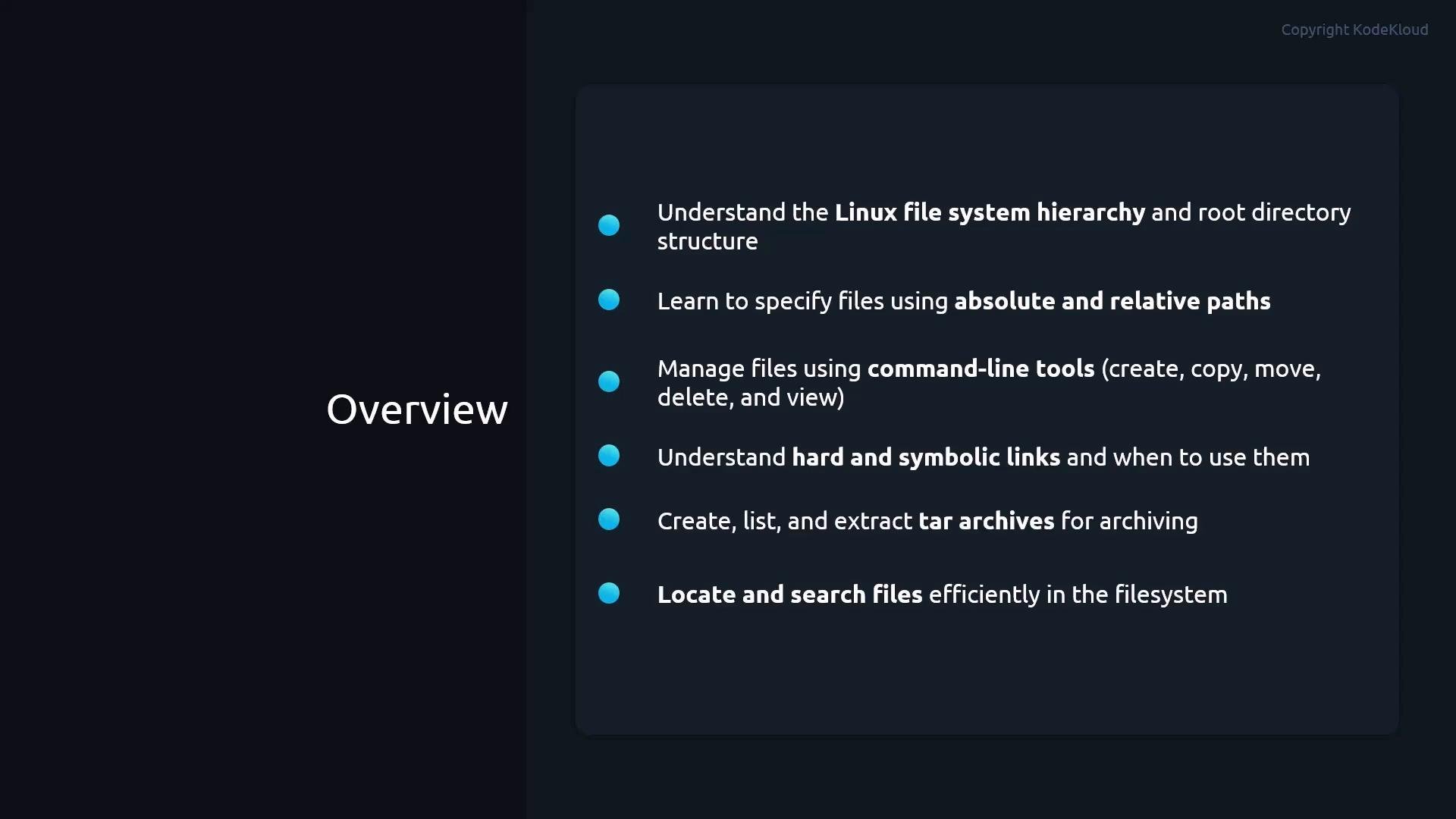
/) and what each top-level directory is intended for, you’ll know exactly where to look and where to place files as a system administrator.
Think of the Linux filesystem like a city map: every type of file has a designated district.
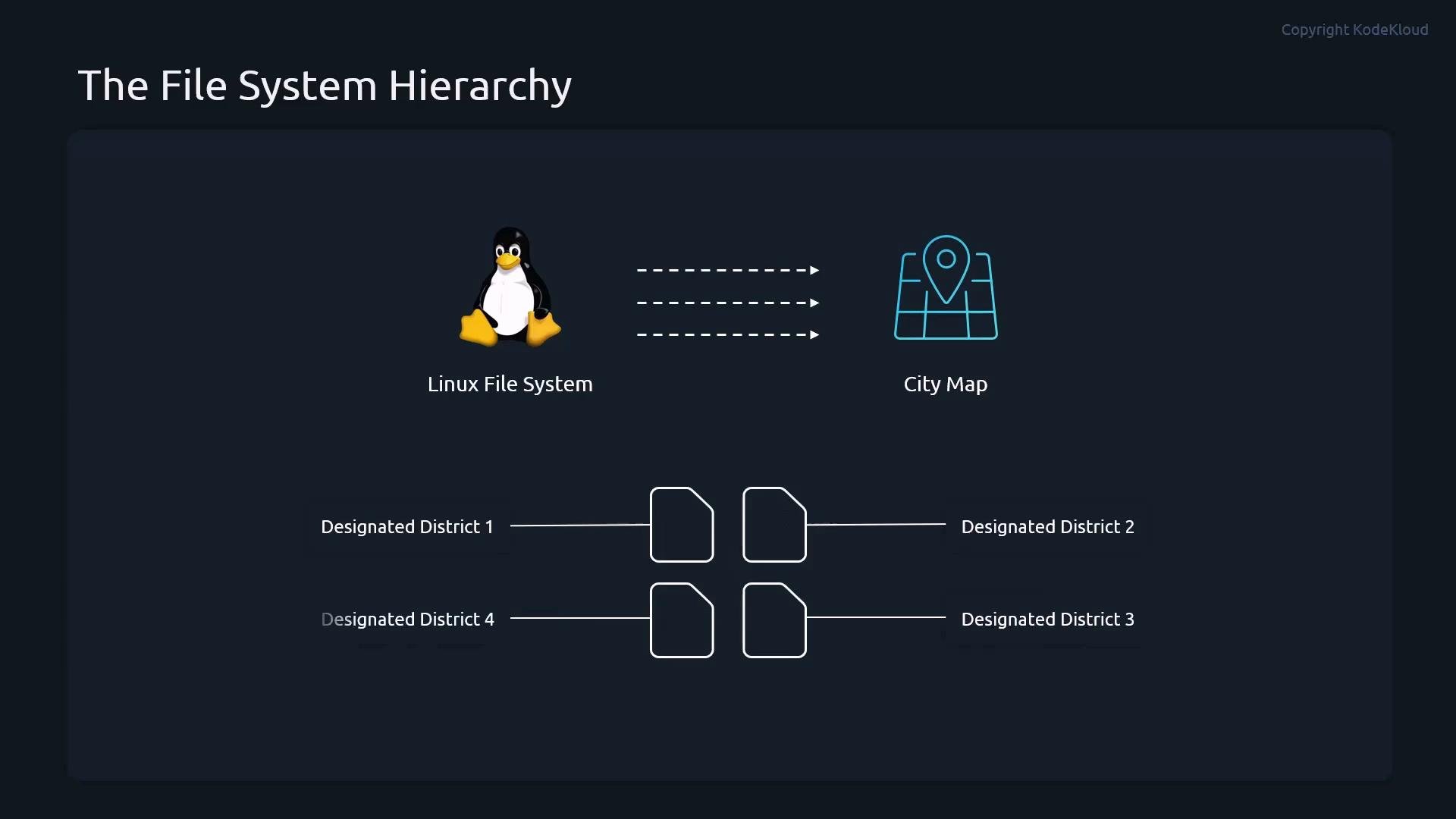
/bin, /etc, /home, and /tmp act like neighborhoods with specific, predictable purposes.
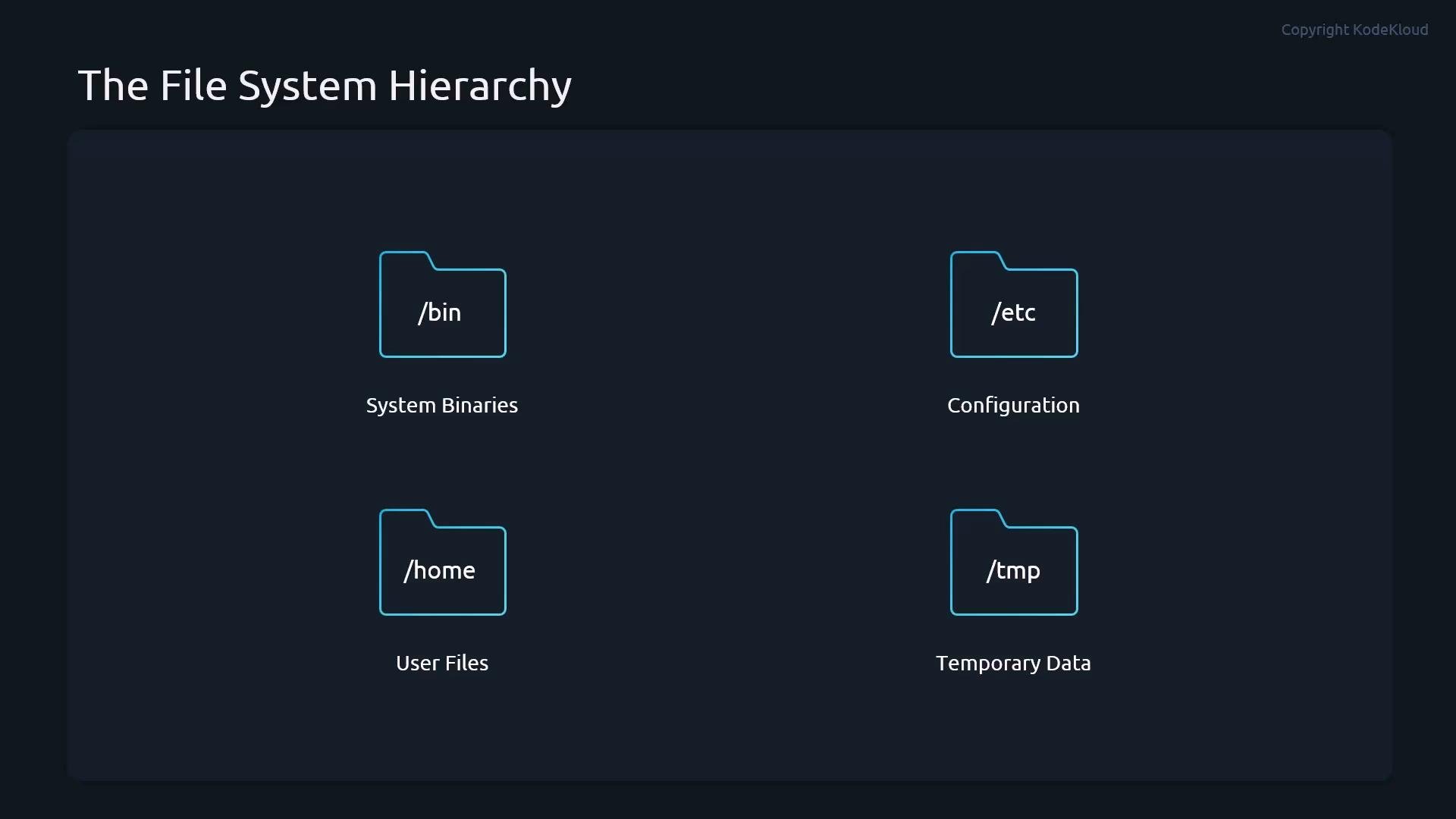
/— The root directory is the top of the filesystem tree and is mounted at boot. All other files and directories live under/./bin— Essential user command binaries required early in boot or in single-user mode (e.g.,ls,cp,mv)./sbin— System administration binaries intended for the superuser (examples:fsck,ifconfigon some systems). These may not be in a regular user’sPATH./lib— Shared libraries used by programs in/binand/sbin. Kernel modules are in subdirectories such as/lib/modules.
/etc— System and service configuration files (mostly plain-text). Exercise care with sensitive data stored here./usr— Unix System Resources: application programs, libraries, documentation, and other shareable, mostly read-only data installed by the distribution or package manager./opt— Optional add-on or third-party software that the distribution’s package manager typically does not manage.
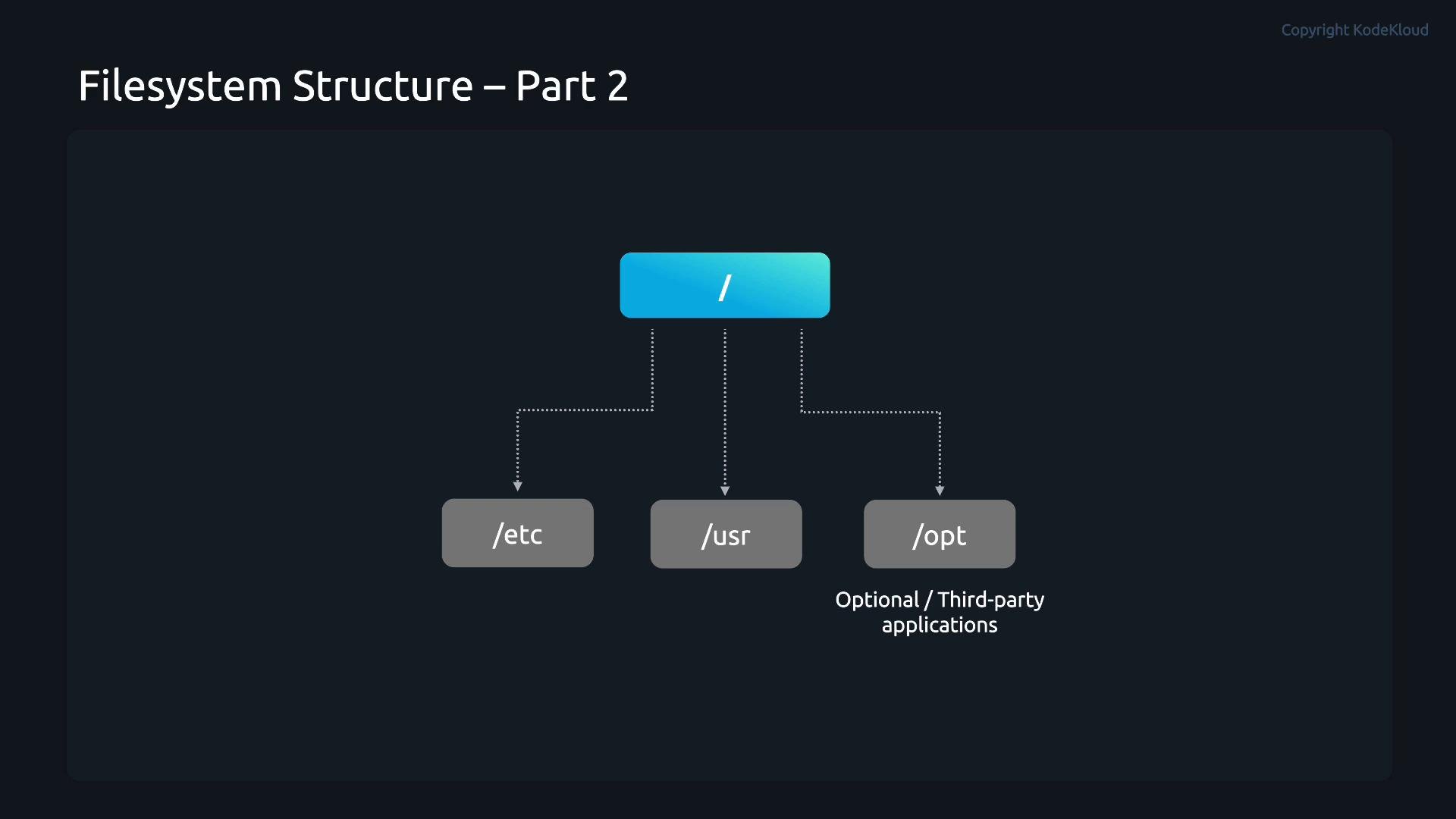
More directory details and operational notes
/bootcontains static files needed by the bootloader (GRUB2) and kernel images. Don’t delete kernels unless you know what you’re doing./rootis the root account’s home directory so the superuser can work even if other filesystems (like/home) are not mounted./homeis typically where regular users have their personal files and settings; it might be on a separate partition or remote mount./mntis the conventional place for temporary mounts. Administrators create subdirectories here and mount devices withmountand unmount withumount./srvholds data for services (for example, web site files)./varcontains files that change at runtime, such as logs (/var/log), mail spools, caches, and temporary application data.
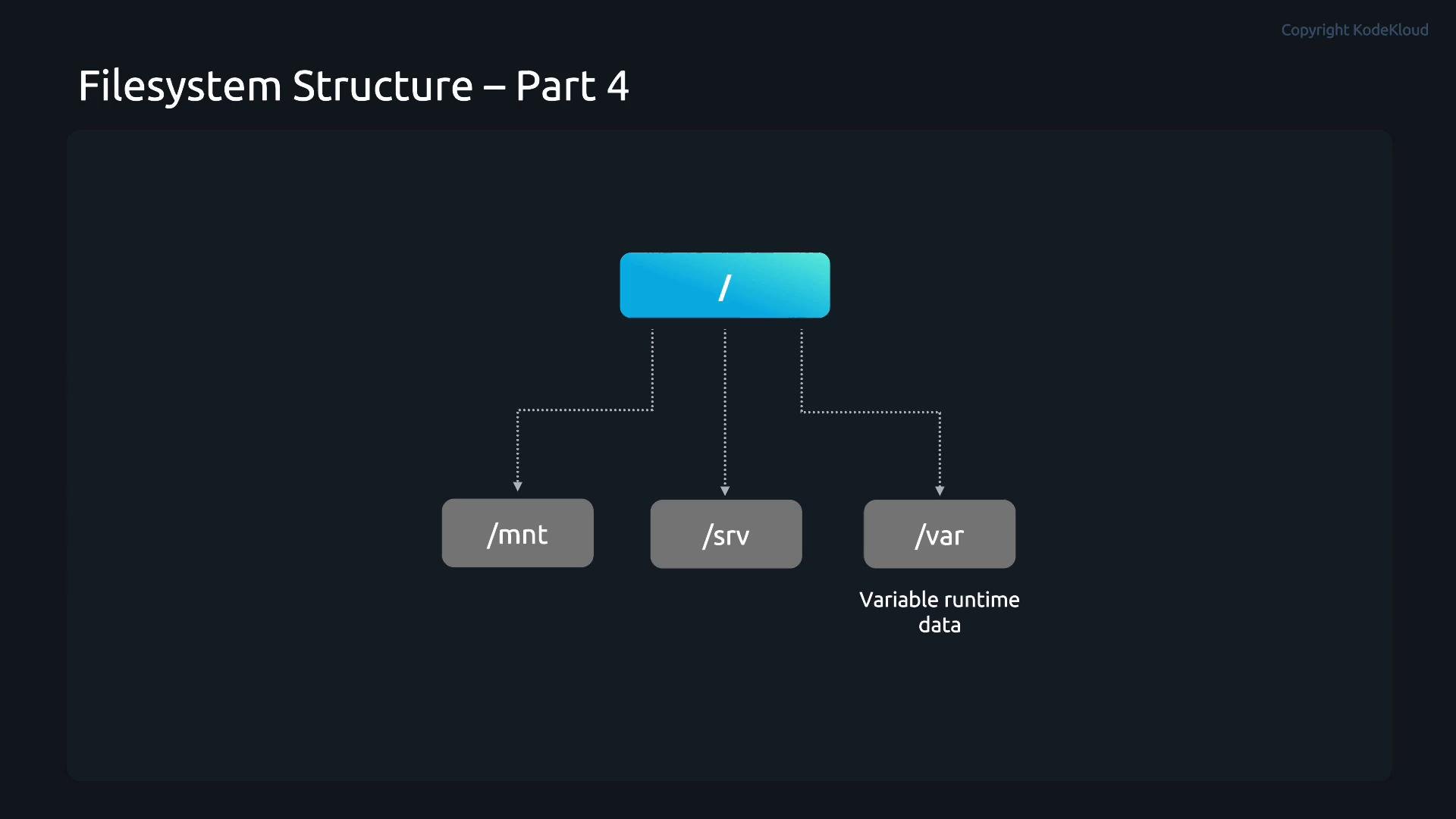
/tmpholds temporary files created by programs. The system or administrators may remove files here on reboot or after a period of inactivity — do not rely on/tmpfor persistent storage./devcontains device nodes representing hardware components. Programs interact with hardware by reading and writing these special files./procis a virtual filesystem that exposes kernel and process state as files. It provides a live view of kernel data structures and running processes.
Files under
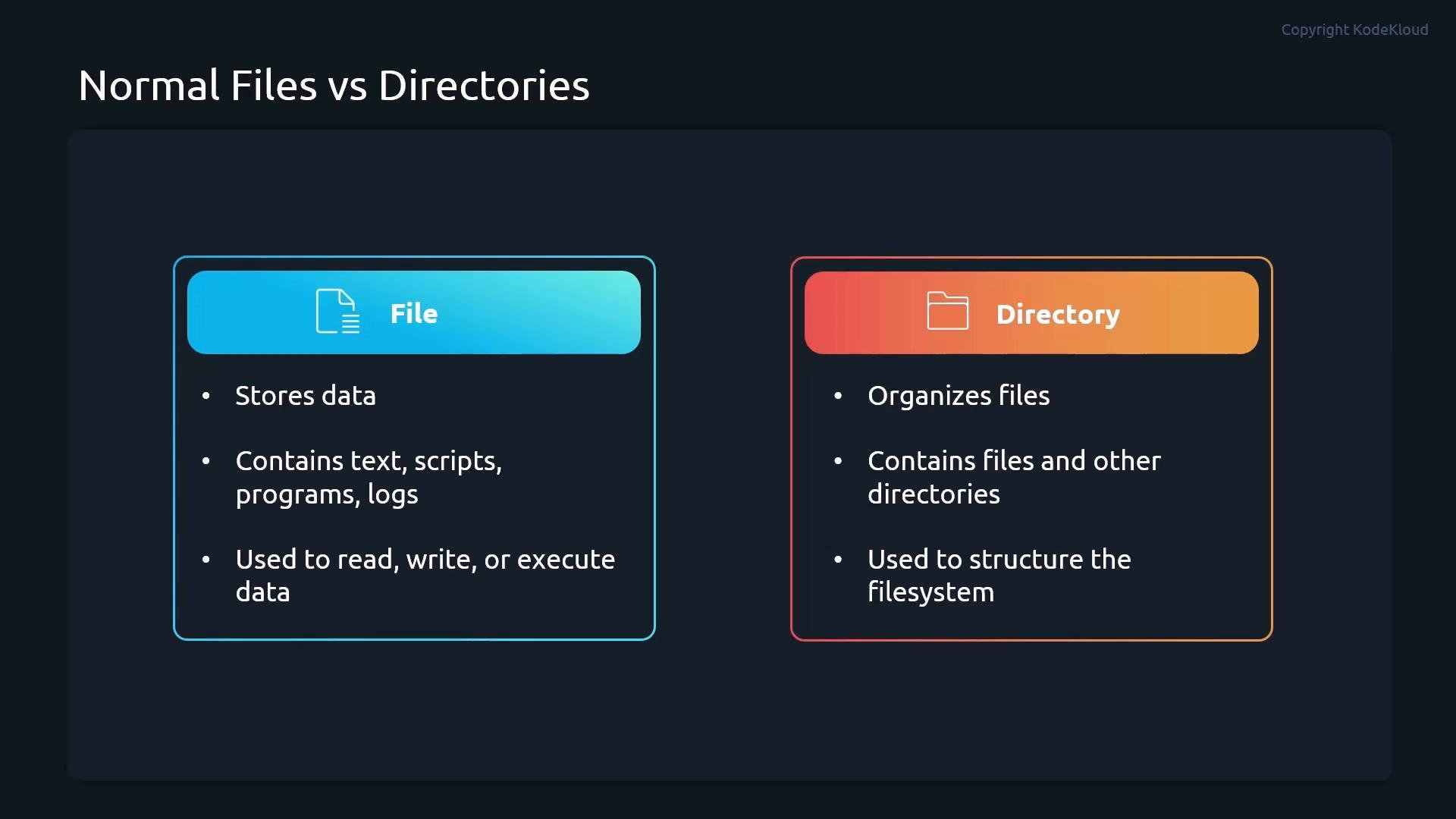
/etc, /bin, /sbin, and /lib are critical to system operation. Editing or removing them incorrectly can make the system unbootable. Always back up configuration files before making changes.- A file stores data: text, configuration settings, binaries, scripts, or logs — anything you open, edit, or execute is usually a file.
- A directory is a special file that contains entries mapping names to inodes (metadata and disk locations). Directories function as containers that organize files and subdirectories, providing hierarchical paths across the filesystem.
Tip: Use
ls -la to inspect directory contents and metadata, and stat <file> to view inode and timestamp information. These commands help you understand whether an entry is a file, a directory, or a special device node.- Practice navigating the filesystem using absolute paths (starting with
/) and relative paths (relative to your current working directory). - Learn the basic file-management commands (
touch,mkdir,cp,mv,rm,cat,less) and their common options. - Study links (
lnfor hard links andln -sfor symbolic links) to understand shared references to data. - Master
tarfor archiving and compression tasks: creating archives (tar -cvf), listing (tar -tvf), and extracting (tar -xvf). - Learn
find,locate, andupdatedbfor efficient file discovery.