> ## Documentation Index
> Fetch the complete documentation index at: https://notes.kodekloud.com/llms.txt
> Use this file to discover all available pages before exploring further.
# Default Permissions
> Explains Linux umask, how it sets default file and directory permissions, demonstrates effects at runtime, and shows how to persist per-user or systemwide umask for safer defaults
When you create files or directories on a Linux system, their initial permissions are determined automatically. If you don't control this mechanism, newly created files might be too open (readable by others) or too restrictive for collaboration. Understanding the umask (user file-creation mode mask) lets you define a safe baseline and prevent accidental exposure of sensitive data.
By default, without any umask applied, the presumptive permissions are:
* Files: 666 (rw-rw-rw-)
* Directories: 777 (rwxrwxrwx)
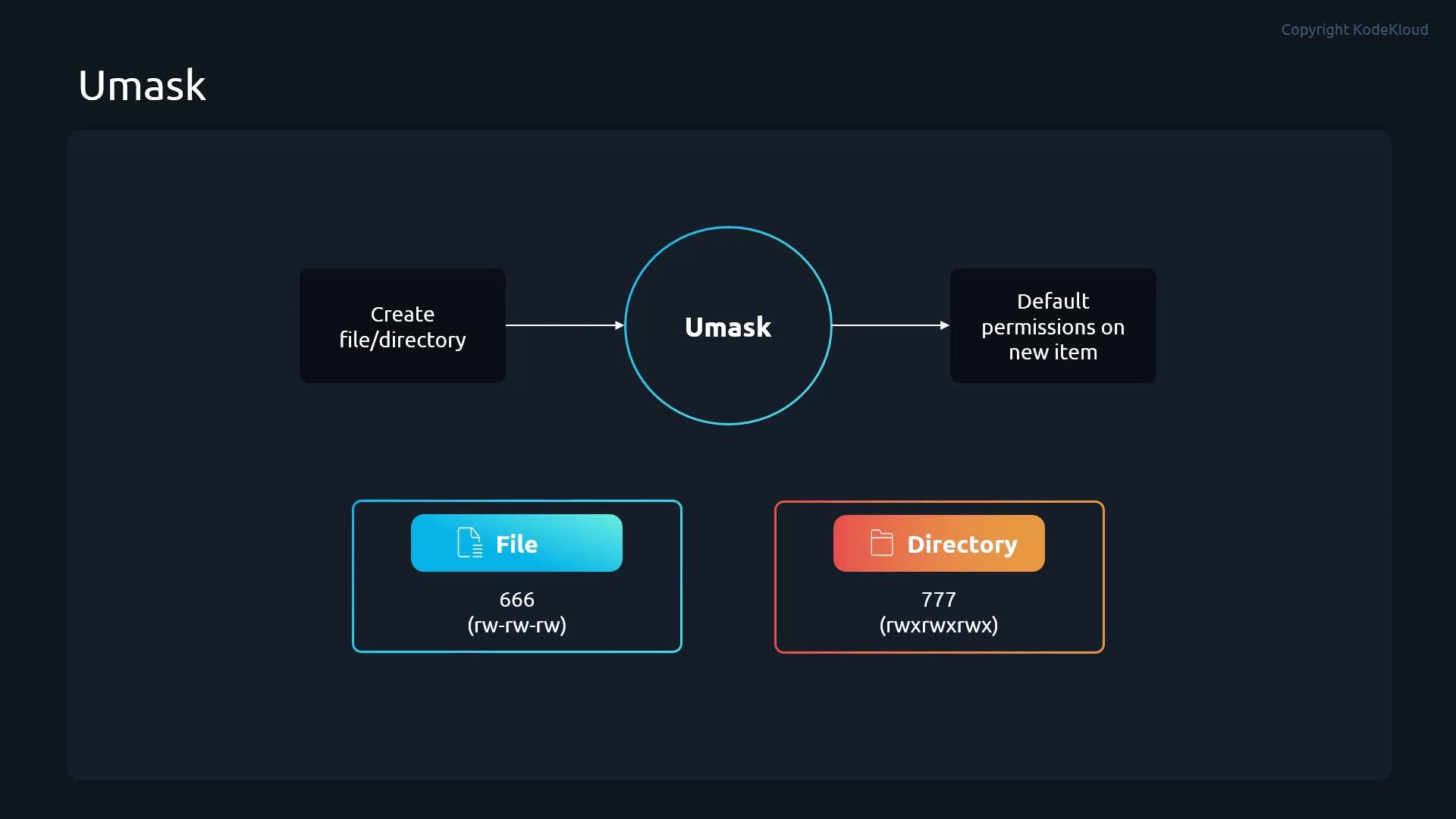 How umask works
* The umask subtracts (masks off) permission bits from those defaults when a file or directory is created.
* Practically, `umask` is subtractive: bits set in the umask are removed from the default permission sets (files: `666`, directories: `777`).
* You can set `umask` temporarily for the current shell session with the `umask` command, or persist it by adding it to shell startup files (per-user) or system-wide scripts.
`umask` is subtractive: the bits set in the umask are removed from the defaults (`666` for files, `777` for directories).
Common examples
| umask | Resulting file perms | Resulting directory perms | Explanation |
| -: | - | - | - |
| `0022` | `644` (`rw-r--r--`) | `755` (`rwxr-xr-x`) | Removes write for group/other: `666 - 022 = 644`, `777 - 022 = 755`. |
| `0002` | `664` (`rw-rw-r--`) | `775` (`rwxrwxr-x`) | Keeps group write, removes other write. |
| `0077` | `600` (`rw-------`) | `700` (`rwx------`) | Removes all group/other permissions. |
| `0000` | `666` (`rw-rw-rw-`) | `777` (`rwxrwxrwx`) | No masking; fully permissive defaults. |
Demonstration: runtime umask and its effects
* Scenario: perform operations as user `student`, check current `umask`, create directories/files, and inspect permissions/ACLs.
```bash theme={null}
# Check current umask (example shows 0022)
student@control:~$ umask
0022
# Create a directory and view its ACL (mask applied to default 777)
student@control:~$ mkdir umask
student@control:~$ getfacl umask/
# file: umask/
# owner: student
# group: student
user::rwx
group::r-x
other::r-x
# Set a more restrictive umask for this session: remove all group/other permissions
student@control:~$ umask 0077
# Recreate the directory to see the new defaults applied
student@control:~$ rm -rf umask/
student@control:~$ mkdir umask
student@control:~$ getfacl umask
# file: umask
# owner: student
# group: student
user::rwx
group::----
other::----
# Create a file inside and list it
student@control:~$ touch umask/file1
student@control:~$ ls -l umask/
total 0
-rw--------. 1 student student 0 Apr 20 16:31 file1
student@control:~$
```
Explanation of the demo
* With `umask 0022`, group and others lose write permission: directory `755`, file `644`.
* With `umask 0077`, group and others lose all permissions: only the owner retains full access—directories `700`, files `600`. The file listing shows `-rw--------`.
Note: `umask` set from the shell applies only to that shell session. Logging out and back in resets the runtime umask to whatever is configured for the account.
Persisting a umask for a single user
* To make a user's umask persistent, add a `umask` line to their shell startup file (for example, `~/.bashrc`, `~/.profile`, or `~/.bash_profile` depending on shell and distribution).
Example `~/.bashrc` snippet (add `umask 0077` at the end):
```bash theme={null}
# Source global definitions
if [ -f /etc/bashrc ]; then
. /etc/bashrc
fi
# User specific environment
if ! [[ "$PATH" =~ "$HOME/.local/bin:$HOME/bin:" ]]; then
PATH="$HOME/.local/bin:$HOME/bin:$PATH"
fi
export PATH
# Uncomment the following line if you don't like systemctl's auto-paging feature:
# User specific aliases and functions
if [ -d ~/.bashrc.d ]; then
for rc in ~/.bashrc.d/*; do
if [ -f "$rc" ]; then
. "$rc"
fi
done
fi
unset rc
# Set a secure default umask for this user
umask 0077
```
After saving the file, log in again to confirm:
```bash theme={null}
student@control:~$ su - student
Password:
Last login: Mon Apr 20 14:48:55 EEST 2026 on tty2
student@control:~$ umask
0077
student@control:~$
```
Persisting a umask system-wide
* To enforce a default umask for all interactive logins, place a small script containing the `umask` command in `/etc/profile.d/`. Files ending with `.sh` in that directory are sourced by `/etc/profile` on login shells.
Better practice: create `/etc/profile.d/umask.sh`:
```bash theme={null}
# As root or with sudo:
echo 'umask 0077' | sudo tee /etc/profile.d/umask.sh
sudo chmod 0644 /etc/profile.d/umask.sh
```
Ensure the script is readable by all users (mode `0644`); otherwise it may not be sourced when `/etc/profile` iterates files in that directory.
Example listing showing the `umask.sh` file with proper permissions:
```bash theme={null}
$ ls -l /etc/profile.d | grep umask.sh
-rw-r--r--. 1 root root 11 Apr 20 16:36 umask.sh
```
After creating the file, new login sessions will inherit the system-wide umask:
```bash theme={null}
# Create a test user and log in (example)
sudo useradd -m test
sudo passwd test
# Then switch to test and confirm
su - test
Password:
test@control:/home/test$ umask
0077
```
If a script in `/etc/profile.d/` is not world-readable (ensure mode `0644`), non-root logins may not source it. Set the file's permissions so it can be read by all users.
Troubleshooting and tips
* If your expected umask is not applied:
* Check shell startup order (`/etc/profile`, `~/.bash_profile`, `~/.bashrc`, `~/.profile`) for overriding `umask` settings.
* System services and non-interactive shells (cron, systemd units) might not source the same files—set umask appropriately within service unit files or the specific environment.
* For Samba, FTP servers, or other services, consult their configuration options; they may have their own `create mask`/`directory mask` settings.
* Use `getfacl` to confirm ACLs and effective permissions if extended ACLs are in use.
Summary
* `umask` controls default permissions by subtracting bits from file (`666`) and directory (`777`) defaults.
* `umask` set in a shell affects only that session; persist per-user in `~/.bashrc`/`~/.profile` or system-wide via `/etc/profile.d/*.sh`.
* Always ensure `/etc/profile.d/*.sh` scripts are readable (`0644`) so they're applied to all users.
* Choosing a secure default like `0077` helps prevent accidental exposure by ensuring new files and directories are owner-only by default.
Links and references
* [umask(1) manual page](https://man7.org/linux/man-pages/man1/umask.1.html)
* [Linux file permissions overview (GNU coreutils)](https://www.gnu.org/software/coreutils/manual/html_node/Permissions.html)
* [Red Hat: Managing user umask](https://access.redhat.com/documentation/en-us/)
This article explained how Linux assigns default filesystem permissions, how to test umask values at runtime, and how to persist umask settings for individual users or system-wide to establish consistent baseline security.
This documentation is built and hosted on [Mintlify](https://mintlify.com), a developer documentation platform.
How umask works
* The umask subtracts (masks off) permission bits from those defaults when a file or directory is created.
* Practically, `umask` is subtractive: bits set in the umask are removed from the default permission sets (files: `666`, directories: `777`).
* You can set `umask` temporarily for the current shell session with the `umask` command, or persist it by adding it to shell startup files (per-user) or system-wide scripts.
`umask` is subtractive: the bits set in the umask are removed from the defaults (`666` for files, `777` for directories).
Common examples
| umask | Resulting file perms | Resulting directory perms | Explanation |
| -: | - | - | - |
| `0022` | `644` (`rw-r--r--`) | `755` (`rwxr-xr-x`) | Removes write for group/other: `666 - 022 = 644`, `777 - 022 = 755`. |
| `0002` | `664` (`rw-rw-r--`) | `775` (`rwxrwxr-x`) | Keeps group write, removes other write. |
| `0077` | `600` (`rw-------`) | `700` (`rwx------`) | Removes all group/other permissions. |
| `0000` | `666` (`rw-rw-rw-`) | `777` (`rwxrwxrwx`) | No masking; fully permissive defaults. |
Demonstration: runtime umask and its effects
* Scenario: perform operations as user `student`, check current `umask`, create directories/files, and inspect permissions/ACLs.
```bash theme={null}
# Check current umask (example shows 0022)
student@control:~$ umask
0022
# Create a directory and view its ACL (mask applied to default 777)
student@control:~$ mkdir umask
student@control:~$ getfacl umask/
# file: umask/
# owner: student
# group: student
user::rwx
group::r-x
other::r-x
# Set a more restrictive umask for this session: remove all group/other permissions
student@control:~$ umask 0077
# Recreate the directory to see the new defaults applied
student@control:~$ rm -rf umask/
student@control:~$ mkdir umask
student@control:~$ getfacl umask
# file: umask
# owner: student
# group: student
user::rwx
group::----
other::----
# Create a file inside and list it
student@control:~$ touch umask/file1
student@control:~$ ls -l umask/
total 0
-rw--------. 1 student student 0 Apr 20 16:31 file1
student@control:~$
```
Explanation of the demo
* With `umask 0022`, group and others lose write permission: directory `755`, file `644`.
* With `umask 0077`, group and others lose all permissions: only the owner retains full access—directories `700`, files `600`. The file listing shows `-rw--------`.
Note: `umask` set from the shell applies only to that shell session. Logging out and back in resets the runtime umask to whatever is configured for the account.
Persisting a umask for a single user
* To make a user's umask persistent, add a `umask` line to their shell startup file (for example, `~/.bashrc`, `~/.profile`, or `~/.bash_profile` depending on shell and distribution).
Example `~/.bashrc` snippet (add `umask 0077` at the end):
```bash theme={null}
# Source global definitions
if [ -f /etc/bashrc ]; then
. /etc/bashrc
fi
# User specific environment
if ! [[ "$PATH" =~ "$HOME/.local/bin:$HOME/bin:" ]]; then
PATH="$HOME/.local/bin:$HOME/bin:$PATH"
fi
export PATH
# Uncomment the following line if you don't like systemctl's auto-paging feature:
# User specific aliases and functions
if [ -d ~/.bashrc.d ]; then
for rc in ~/.bashrc.d/*; do
if [ -f "$rc" ]; then
. "$rc"
fi
done
fi
unset rc
# Set a secure default umask for this user
umask 0077
```
After saving the file, log in again to confirm:
```bash theme={null}
student@control:~$ su - student
Password:
Last login: Mon Apr 20 14:48:55 EEST 2026 on tty2
student@control:~$ umask
0077
student@control:~$
```
Persisting a umask system-wide
* To enforce a default umask for all interactive logins, place a small script containing the `umask` command in `/etc/profile.d/`. Files ending with `.sh` in that directory are sourced by `/etc/profile` on login shells.
Better practice: create `/etc/profile.d/umask.sh`:
```bash theme={null}
# As root or with sudo:
echo 'umask 0077' | sudo tee /etc/profile.d/umask.sh
sudo chmod 0644 /etc/profile.d/umask.sh
```
Ensure the script is readable by all users (mode `0644`); otherwise it may not be sourced when `/etc/profile` iterates files in that directory.
Example listing showing the `umask.sh` file with proper permissions:
```bash theme={null}
$ ls -l /etc/profile.d | grep umask.sh
-rw-r--r--. 1 root root 11 Apr 20 16:36 umask.sh
```
After creating the file, new login sessions will inherit the system-wide umask:
```bash theme={null}
# Create a test user and log in (example)
sudo useradd -m test
sudo passwd test
# Then switch to test and confirm
su - test
Password:
test@control:/home/test$ umask
0077
```
If a script in `/etc/profile.d/` is not world-readable (ensure mode `0644`), non-root logins may not source it. Set the file's permissions so it can be read by all users.
Troubleshooting and tips
* If your expected umask is not applied:
* Check shell startup order (`/etc/profile`, `~/.bash_profile`, `~/.bashrc`, `~/.profile`) for overriding `umask` settings.
* System services and non-interactive shells (cron, systemd units) might not source the same files—set umask appropriately within service unit files or the specific environment.
* For Samba, FTP servers, or other services, consult their configuration options; they may have their own `create mask`/`directory mask` settings.
* Use `getfacl` to confirm ACLs and effective permissions if extended ACLs are in use.
Summary
* `umask` controls default permissions by subtracting bits from file (`666`) and directory (`777`) defaults.
* `umask` set in a shell affects only that session; persist per-user in `~/.bashrc`/`~/.profile` or system-wide via `/etc/profile.d/*.sh`.
* Always ensure `/etc/profile.d/*.sh` scripts are readable (`0644`) so they're applied to all users.
* Choosing a secure default like `0077` helps prevent accidental exposure by ensuring new files and directories are owner-only by default.
Links and references
* [umask(1) manual page](https://man7.org/linux/man-pages/man1/umask.1.html)
* [Linux file permissions overview (GNU coreutils)](https://www.gnu.org/software/coreutils/manual/html_node/Permissions.html)
* [Red Hat: Managing user umask](https://access.redhat.com/documentation/en-us/)
This article explained how Linux assigns default filesystem permissions, how to test umask values at runtime, and how to persist umask settings for individual users or system-wide to establish consistent baseline security.
This documentation is built and hosted on [Mintlify](https://mintlify.com), a developer documentation platform.