> ## Documentation Index
> Fetch the complete documentation index at: https://notes.kodekloud.com/llms.txt
> Use this file to discover all available pages before exploring further.
# Demo Configuring Firewalld
> Guide to inspecting and managing firewalld on RHEL, covering status checks, zones, services, ports, sources, persistence and rich rules using firewall-cmd
This short demo walks through common firewalld tasks on Red Hat Enterprise Linux (RHEL). You'll verify the daemon is running, inspect active zones and interfaces, list zone settings, and modify the firewall at runtime and persistently. By the end you should be comfortable inspecting and changing firewall rules using `firewall-cmd`.
## Verify firewalld is running
Start by checking the systemd service and the firewalld runtime state:
```bash theme={null}
# Check systemd service status
root@control:~# systemctl status firewalld
# Check firewalld runtime state
root@control:~# firewall-cmd --state
running
```
If `firewall-cmd --state` returns `running`, the daemon is active and ready to accept commands.
## Active zones and interfaces
List active zones to see which network interface(s) are bound to which zone:
```bash theme={null}
root@control:~# firewall-cmd --get-active-zones
public (default)
interfaces: enp0s3
```
Zones map network interfaces and sources to a predefined set of rules (services, ports, targets). Knowing which zone applies to an interface is key to applying the correct policy.
## Show full zone configuration
To inspect all settings for the current (active or default) zone, use `--list-all`:
```bash theme={null}
root@control:~# firewall-cmd --list-all
public (default, active)
target: default
ingress-priority: 0
egress-priority: 0
icmp-block-inversion: no
interfaces: enp0s3
sources:
services: cockpit dhcpv6-client ssh
ports:
protocols:
forward: yes
masquerade: no
forward-ports:
source-ports:
icmp-blocks:
rich rules:
```
To view every zone (including inactive ones) and their settings, use:
```bash theme={null}
root@control:~# firewall-cmd --list-all-zones
```
This output is useful for auditing which services and ports are allowed across all zones.
## Adding and persisting services
Allow an existing service (for example, HTTP) at runtime only:
```bash theme={null}
root@control:~# firewall-cmd --add-service=http
success
```
Make the same change persistent (written into firewalld configuration):
```bash theme={null}
root@control:~# firewall-cmd --add-service=http --permanent
success
```
Important: adding with `--permanent` updates configuration files but does not change the current runtime rules. Either add the non-permanent rule (without `--permanent`) to apply immediately, or reload persistent configuration into runtime:
```bash theme={null}
# Apply permanent changes to the running firewall
root@control:~# firewall-cmd --reload
success
```
List currently enabled services (runtime):
```bash theme={null}
root@control:~# firewall-cmd --list-services
cockpit dhcpv6-client http ssh
```
Using `--permanent` writes the rule to the configuration. To apply those persistent rules to the running firewall, run `firewall-cmd --reload`.
## Adding and persisting ports
Open a custom port (for example TCP 9294) at runtime:
```bash theme={null}
root@control:~# firewall-cmd --add-port=9294/tcp
success
```
Make the port permanent:
```bash theme={null}
root@control:~# firewall-cmd --add-port=9294/tcp --permanent
success
```
Then reload to apply permanent changes to the running daemon:
```bash theme={null}
root@control:~# firewall-cmd --reload
success
```
## Adding sources to zones and blocking traffic
You can bind a specific IP source to a zone. For example, add a source to the default zone (runtime):
```bash theme={null}
# Add source 10.0.2.10 to the default zone (runtime)
root@control:~# firewall-cmd --add-source=10.0.2.10
success
```
Or add a source directly to the `block` zone (runtime):
```bash theme={null}
# Add source 10.2.3.4 to the block zone (runtime)
root@control:~# firewall-cmd --zone=block --add-source=10.2.3.4
success
```
Assigning a source to the `block` zone rejects or drops packets according to that zone's `target`. Verify zones and their sources:
```bash theme={null}
root@control:~# firewall-cmd --list-all-zones
block (active)
target: %%REJECT%%
ingress-priority: 0
egress-priority: 0
icmp-block-inversion: no
interfaces:
sources: 10.2.3.4
services:
ports:
protocols:
forward: yes
masquerade: no
forward-ports:
source-ports:
icmp-blocks:
rich rules:
dmz
target: default
ingress-priority: 0
egress-priority: 0
icmp-block-inversion: no
interfaces:
sources:
services: ssh
ports:
...
```
When assigning sources to restrictive zones (for example `block`), confirm the IPs are correct. Mistakenly blocking legitimate clients can cause loss of access.
If you used `--permanent` when adding a source, remember to `--reload` to apply it to the running firewall.
## Removing rules
To remove a rule, replace `--add-*` with `--remove-*`. Examples:
* Remove an enabled service at runtime:
```bash theme={null}
root@control:~# firewall-cmd --remove-service=http
success
```
* Remove a persistent service and reload:
```bash theme={null}
root@control:~# firewall-cmd --remove-service=http --permanent
success
root@control:~# firewall-cmd --reload
success
```
This same pattern applies to ports, sources, and other rule types.
## Rich rules
Firewalld rich rules provide advanced, expressive controls (logging, matching by source/protocol, forwarding, rate limiting, etc.). They are not required for the RHCSA exam but are extremely useful in production environments where you need fine-grained behavior.
See firewalld rich rule examples in the official documentation for patterns and syntax.
## Quick reference — common firewall-cmd tasks
| Action | Runtime command | Persistent command | Notes |
| - | - | - | - |
| Check state | `firewall-cmd --state` | — | Shows whether firewalld is running |
| List active zones | `firewall-cmd --get-active-zones` | — | Shows interfaces bound to zones |
| Show zone details | `firewall-cmd --list-all` | `firewall-cmd --zone= --list-all --permanent` | View runtime or persistent zone configuration |
| Add service | `firewall-cmd --add-service=http` | `firewall-cmd --add-service=http --permanent` | Use `--reload` to apply permanent changes |
| Add port | `firewall-cmd --add-port=9294/tcp` | `firewall-cmd --add-port=9294/tcp --permanent` | Ports are in the form `port/protocol` |
| Add source to zone | `firewall-cmd --zone=block --add-source=10.2.3.4` | Add `--permanent` for persistence | Useful to block or apply a specific zone to an IP |
| Remove rule | `firewall-cmd --remove-service=http` | `firewall-cmd --remove-service=http --permanent` | Replace `add` with `remove` for any rule type |
| Reload runtime | `firewall-cmd --reload` | — | Applies `--permanent` settings to runtime |
## Summary
This demo covered essential firewalld tasks on RHEL:
* Verifying firewalld status and runtime state
* Viewing active zones and their interfaces
* Inspecting zone configuration with `--list-all` and `--list-all-zones`
* Allowing services and ports at runtime and persisting them with `--permanent`
* Assigning sources to zones (including the `block` zone) and understanding targets
* Removing rules and using `--reload` to apply persistent changes
* A brief note about advanced rich rules
For exam preparation see the RHCSA certification details: [RHCSA exam information](https://www.redhat.com/en/services/certification/rhcsa).
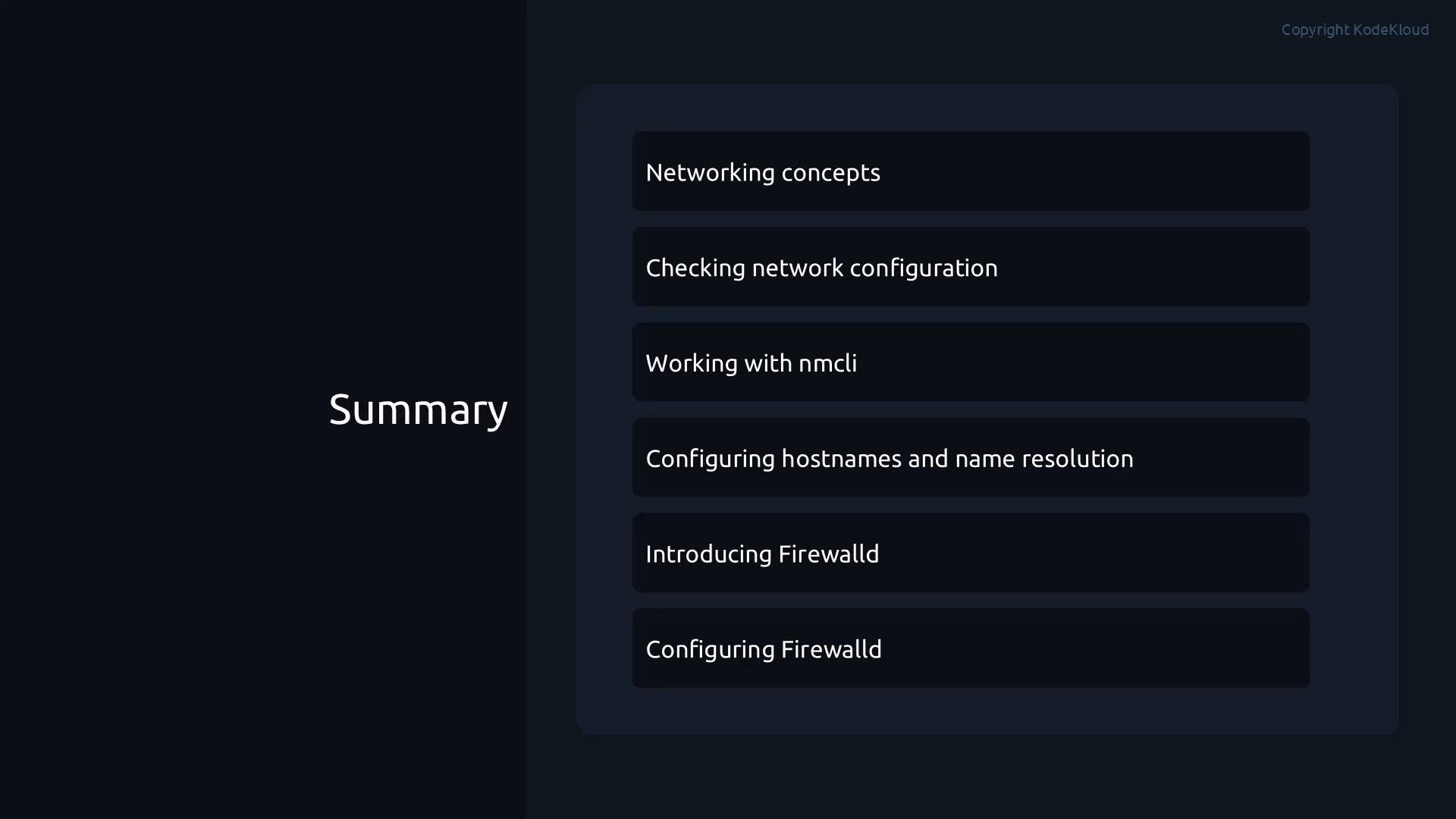 Together, these skills will help you configure networking and troubleshoot connectivity issues on Red Hat Enterprise Linux systems.
This documentation is built and hosted on [Mintlify](https://mintlify.com), a developer documentation platform.
Together, these skills will help you configure networking and troubleshoot connectivity issues on Red Hat Enterprise Linux systems.
This documentation is built and hosted on [Mintlify](https://mintlify.com), a developer documentation platform.