> ## Documentation Index
> Fetch the complete documentation index at: https://notes.kodekloud.com/llms.txt
> Use this file to discover all available pages before exploring further.
# Firewalld Introduction
> Introduction to firewalld explaining zones, services, ports, interfaces, and firewall-cmd commands for managing network access and security on Red Hat based Linux systems.
Imagine a server connected to a network where any open service can be reached by anyone on that network. Without a firewall, services such as SSH, web servers, or databases can be exposed to attacks. Firewalld helps you control which network traffic is allowed or blocked on your system so only the intended services are reachable.
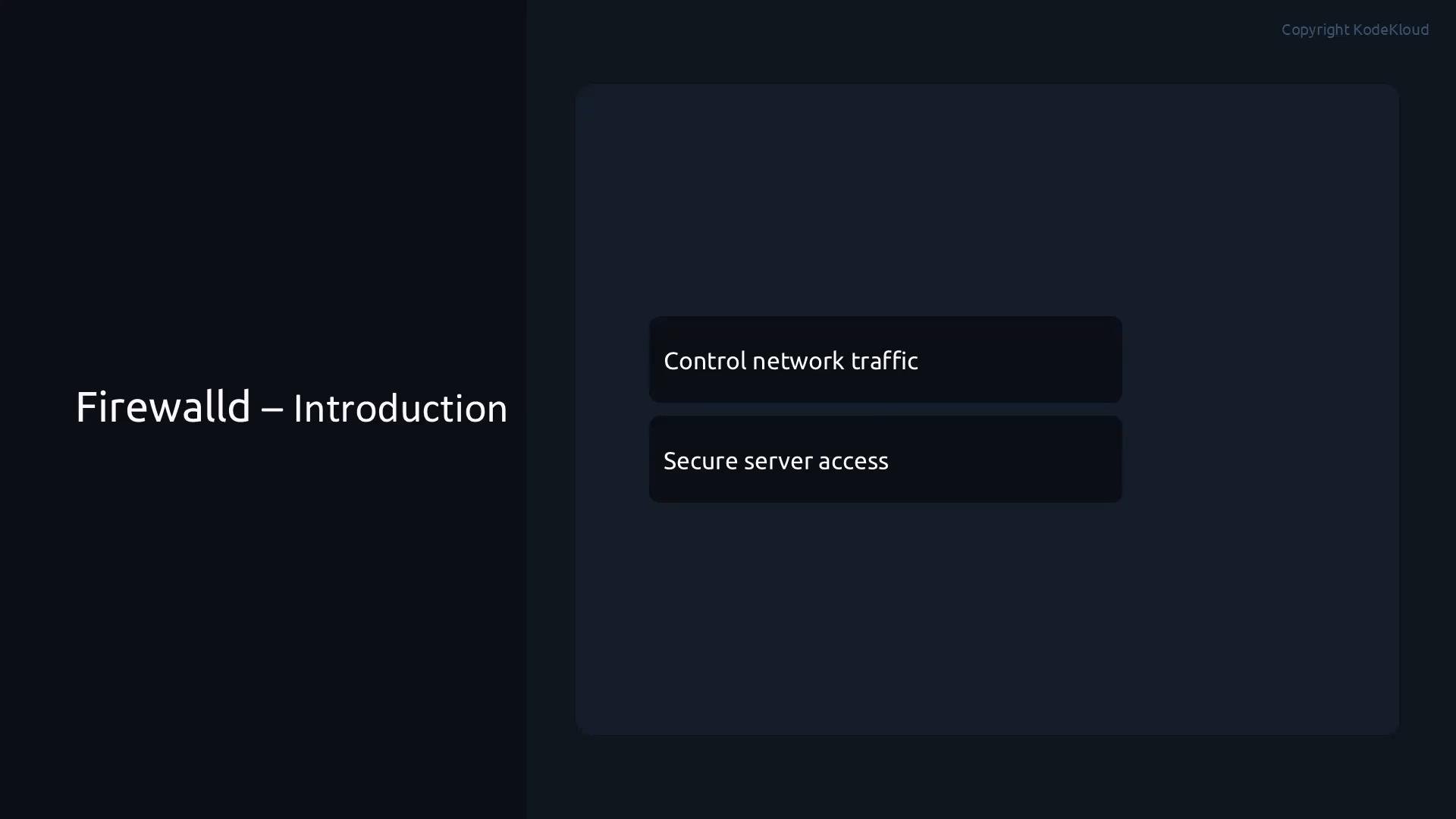 A firewall is like security at a building entrance: it decides which visitors are allowed in and which are denied. firewalld is the firewall service used on Red Hat Enterprise Linux and compatible distributions. It provides a higher-level, zone-based abstraction over low-level packet filtering so you can manage access more easily.
Zones let you express how much trust you place in network traffic from different sources. Think of zones as security profiles for network connections: traffic from your internal network may be trusted, while traffic from the public Internet should be restricted. Each zone contains rules that permit or block specific services, ports, and protocols.
A firewall is like security at a building entrance: it decides which visitors are allowed in and which are denied. firewalld is the firewall service used on Red Hat Enterprise Linux and compatible distributions. It provides a higher-level, zone-based abstraction over low-level packet filtering so you can manage access more easily.
Zones let you express how much trust you place in network traffic from different sources. Think of zones as security profiles for network connections: traffic from your internal network may be trusted, while traffic from the public Internet should be restricted. Each zone contains rules that permit or block specific services, ports, and protocols.
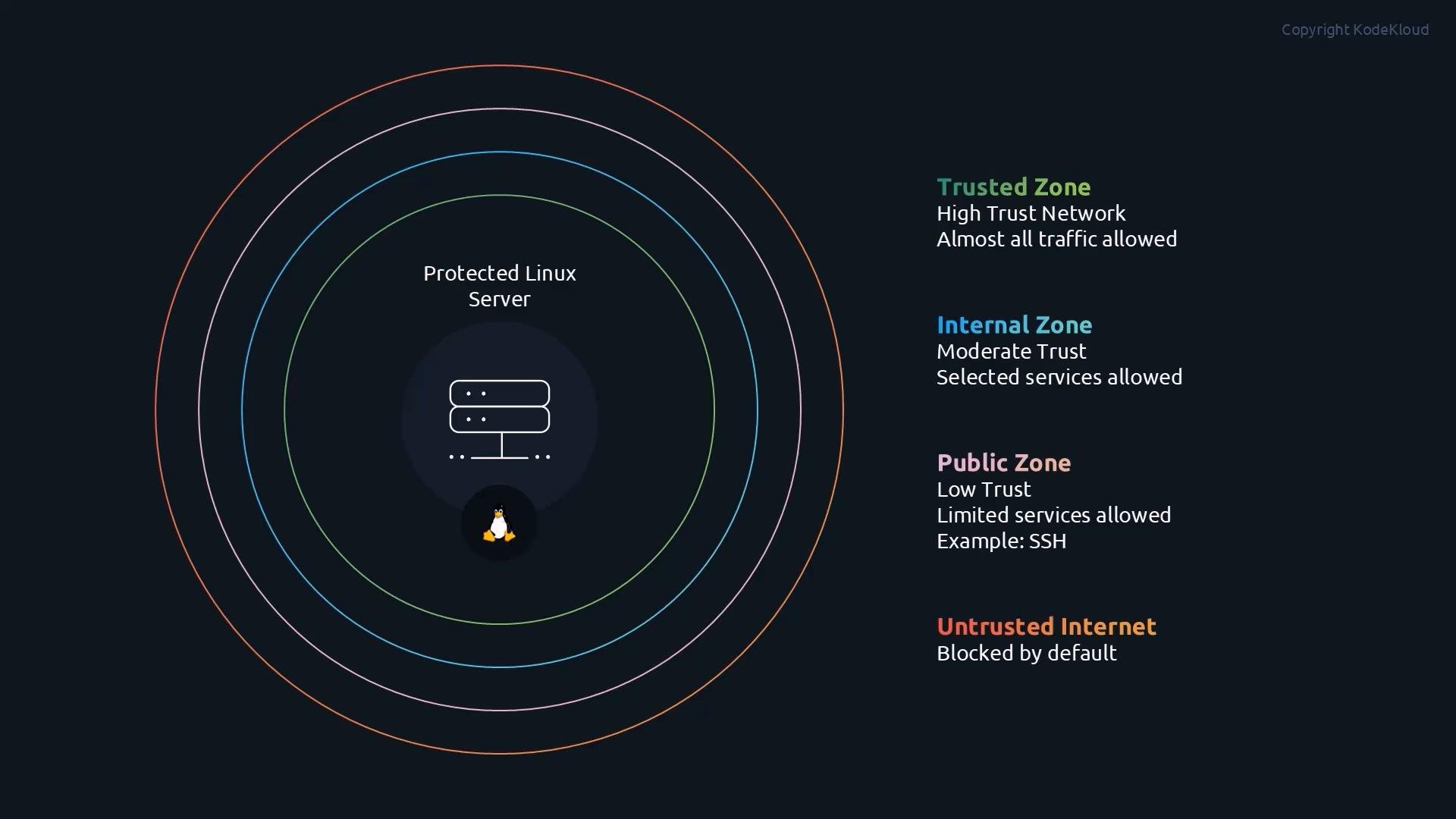 When you assign a network interface to a zone, that zone’s rules apply to all traffic on that interface. For example, the `public` zone typically allows a few essential services (like SSH) while blocking most incoming traffic. A `trusted` zone might allow nearly all connections. Assigning interfaces and sources to appropriate zones simplifies firewall management—you don't need to write many low-level rules; pick the right zone and firewalld enforces the policy.
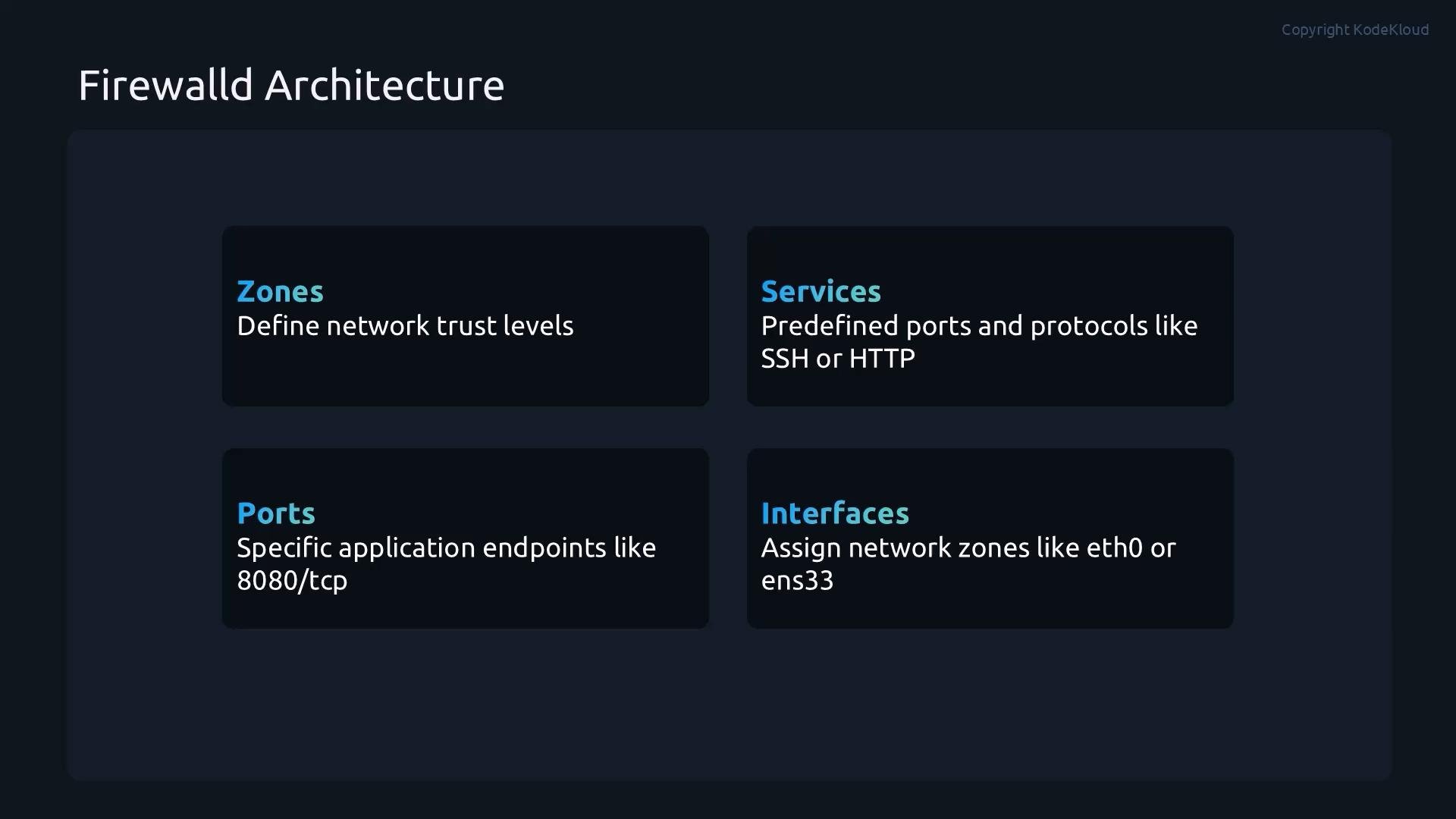
To understand firewalld, focus on its four main building blocks: zones, services, ports, and interfaces. The following table summarizes their purpose and examples.
| Component | Purpose | Example |
| -: | - | - |
| Zones | Define the trust level and default rules for traffic | `public`, `trusted`, `internal` |
| Services | Predefined sets of ports/protocols associated with common applications | `ssh` → opens `22/tcp`; `http` → opens `80/tcp` |
| Ports | Explicit port/protocol endpoints you can open or close | `8080/tcp`, `514/udp` |
| Interfaces | Network interfaces assigned to zones to apply zone policies | `eth0`, `ens33` |
When you assign a network interface to a zone, that zone’s rules apply to all traffic on that interface. For example, the `public` zone typically allows a few essential services (like SSH) while blocking most incoming traffic. A `trusted` zone might allow nearly all connections. Assigning interfaces and sources to appropriate zones simplifies firewall management—you don't need to write many low-level rules; pick the right zone and firewalld enforces the policy.
To understand firewalld, focus on its four main building blocks: zones, services, ports, and interfaces. The following table summarizes their purpose and examples.
| Component | Purpose | Example |
| -: | - | - |
| Zones | Define the trust level and default rules for traffic | `public`, `trusted`, `internal` |
| Services | Predefined sets of ports/protocols associated with common applications | `ssh` → opens `22/tcp`; `http` → opens `80/tcp` |
| Ports | Explicit port/protocol endpoints you can open or close | `8080/tcp`, `514/udp` |
| Interfaces | Network interfaces assigned to zones to apply zone policies | `eth0`, `ens33` |
 Below are the common commands you will use to inspect and modify the firewall. Commands without `--permanent` modify the runtime configuration and are lost on reboot. Use `--permanent` to change the saved configuration and run `firewall-cmd --reload` to apply permanent changes to the current runtime.
Commands quick reference:
| Action | Command |
| - | - |
| Check service status | `systemctl status firewalld` |
| Show firewall runtime state | `firewall-cmd --state` |
| Show default zone configuration | `firewall-cmd --list-all` |
| List active zones and interfaces | `firewall-cmd --get-active-zones` |
| Show a specific zone (example: `public`) | `firewall-cmd --zone=public --list-all` |
Common changes (runtime vs. permanent)
* Allow a service (runtime only):
```bash theme={null}
firewall-cmd --add-service=http
```
* Remove a service (runtime only):
```bash theme={null}
firewall-cmd --remove-service=http
```
* Make a service change permanent:
```bash theme={null}
firewall-cmd --add-service=http --permanent
```
* Add a specific port (example: `8080/tcp`):
```bash theme={null}
# Temporary (runtime only)
firewall-cmd --add-port=8080/tcp
# Permanent
firewall-cmd --add-port=8080/tcp --permanent
```
* Remove a port:
```bash theme={null}
# Temporary removal
firewall-cmd --remove-port=8080/tcp
# Permanent removal
firewall-cmd --remove-port=8080/tcp --permanent
```
* Assign an interface to a zone:
```bash theme={null}
# Assign eth0 to the public zone (runtime)
firewall-cmd --zone=public --change-interface=eth0
# Assign eth0 to the public zone permanently
firewall-cmd --zone=public --change-interface=eth0 --permanent
```
* Reload to apply permanent configuration to the runtime:
```bash theme={null}
firewall-cmd --reload
```
By default, commands without `--permanent` change only the runtime configuration and are lost on reboot. Using `--permanent` modifies the saved configuration, and `firewall-cmd --reload` applies those permanent changes to the current runtime.
With zones, services, ports, and interfaces, firewalld gives you a flexible, higher-level way to control network access without composing complex, low-level `iptables` rules.
Links and references
* firewalld official documentation: [https://firewalld.org/](https://firewalld.org/)
* iptables (background on low-level packet filtering): [https://www.netfilter.org/projects/iptables/](https://www.netfilter.org/projects/iptables/)
This documentation is built and hosted on [Mintlify](https://mintlify.com), a developer documentation platform.
Below are the common commands you will use to inspect and modify the firewall. Commands without `--permanent` modify the runtime configuration and are lost on reboot. Use `--permanent` to change the saved configuration and run `firewall-cmd --reload` to apply permanent changes to the current runtime.
Commands quick reference:
| Action | Command |
| - | - |
| Check service status | `systemctl status firewalld` |
| Show firewall runtime state | `firewall-cmd --state` |
| Show default zone configuration | `firewall-cmd --list-all` |
| List active zones and interfaces | `firewall-cmd --get-active-zones` |
| Show a specific zone (example: `public`) | `firewall-cmd --zone=public --list-all` |
Common changes (runtime vs. permanent)
* Allow a service (runtime only):
```bash theme={null}
firewall-cmd --add-service=http
```
* Remove a service (runtime only):
```bash theme={null}
firewall-cmd --remove-service=http
```
* Make a service change permanent:
```bash theme={null}
firewall-cmd --add-service=http --permanent
```
* Add a specific port (example: `8080/tcp`):
```bash theme={null}
# Temporary (runtime only)
firewall-cmd --add-port=8080/tcp
# Permanent
firewall-cmd --add-port=8080/tcp --permanent
```
* Remove a port:
```bash theme={null}
# Temporary removal
firewall-cmd --remove-port=8080/tcp
# Permanent removal
firewall-cmd --remove-port=8080/tcp --permanent
```
* Assign an interface to a zone:
```bash theme={null}
# Assign eth0 to the public zone (runtime)
firewall-cmd --zone=public --change-interface=eth0
# Assign eth0 to the public zone permanently
firewall-cmd --zone=public --change-interface=eth0 --permanent
```
* Reload to apply permanent configuration to the runtime:
```bash theme={null}
firewall-cmd --reload
```
By default, commands without `--permanent` change only the runtime configuration and are lost on reboot. Using `--permanent` modifies the saved configuration, and `firewall-cmd --reload` applies those permanent changes to the current runtime.
With zones, services, ports, and interfaces, firewalld gives you a flexible, higher-level way to control network access without composing complex, low-level `iptables` rules.
Links and references
* firewalld official documentation: [https://firewalld.org/](https://firewalld.org/)
* iptables (background on low-level packet filtering): [https://www.netfilter.org/projects/iptables/](https://www.netfilter.org/projects/iptables/)
This documentation is built and hosted on [Mintlify](https://mintlify.com), a developer documentation platform.