This guide explains how to control where a command’s output goes in Linux—whether to the terminal, to files, or to other programs. System administrators and power users commonly need to:
  • Read long outputs without losing them on the screen
  • Save command output for later analysis or auditing
  • Capture only error messages
  • Chain commands so the output of one becomes the input to another
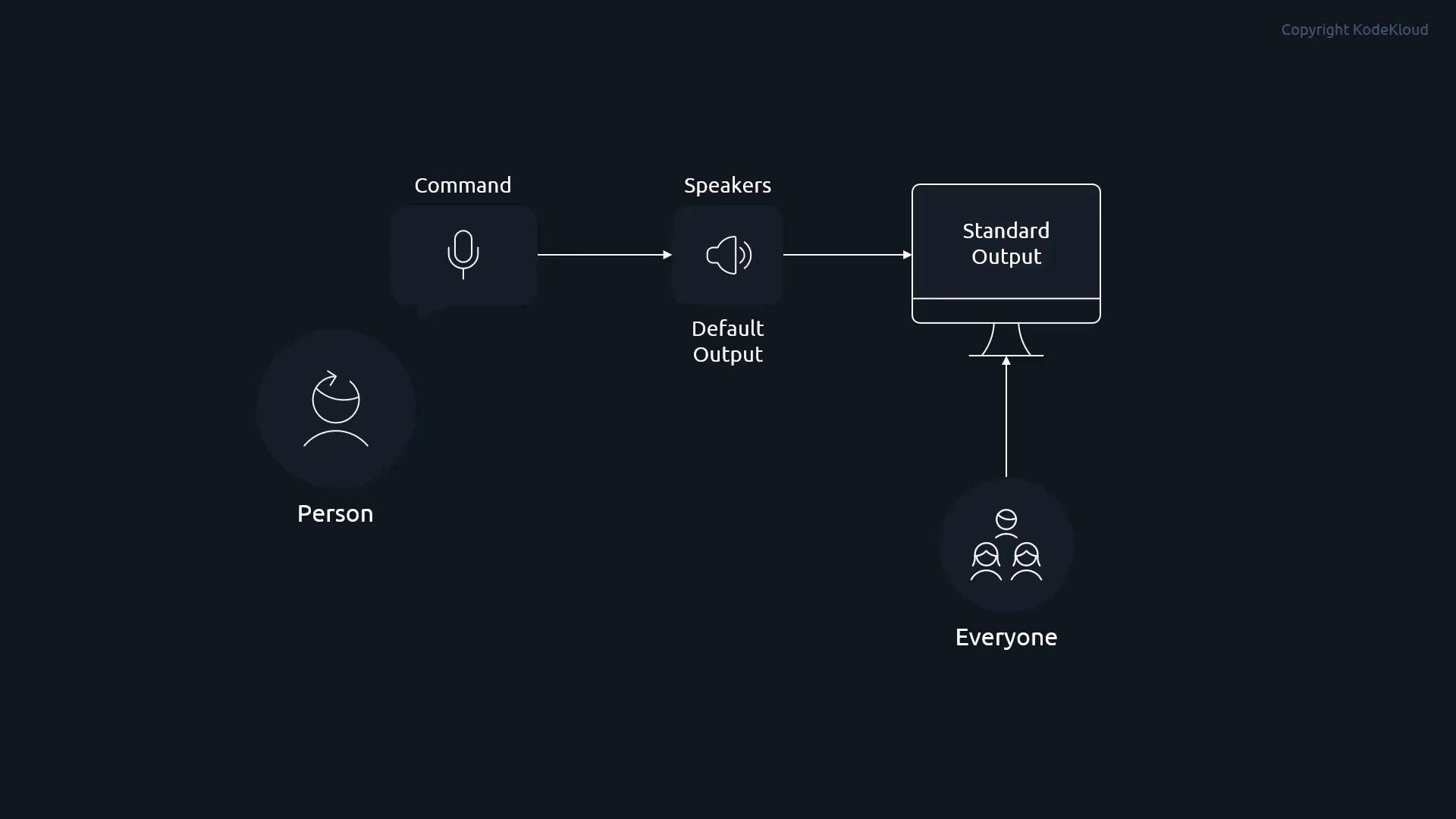
By default, command output appears on your terminal and disappears when the session ends. Output redirection gives you control over those data streams so you can log, filter, or forward them to other tools. Think of a command like someone speaking into a microphone: normally their voice comes out of the speakers (the terminal screen). Output redirection lets you route that voice to a recording instead of (or in addition to) the speakers.
A simple flow diagram showing a person speaking a command into a microphone which is routed through speakers as the default output. The audio then goes to a monitor labeled "Standard Output" for everyone to hear.
Technical basics: standard streams and file descriptors Linux processes use three standard data channels (file descriptors): Both stdout and stderr go to the terminal by default. Redirection changes those destinations so you can store output in files, pass it to other commands, or separate normal output from errors. Common redirection examples
  • Redirect stdout to a file (overwrite):
This writes the standard output of ls -l to out.txt, replacing any existing contents.
  • Redirect stdout to a file (append):
Appends stdout to out.txt instead of overwriting.
  • Redirect stderr to a file:
Only error messages (from stderr) are written to errors.txt.
  • Redirect both stdout and stderr to the same file (portable form):
This first sends stdout to all-output.txt and then redirects stderr (file descriptor 2) to wherever stdout (1) is currently going.
  • Redirect both stdout and stderr to the same file (Bash shorthand):
To append with the Bash shorthand:
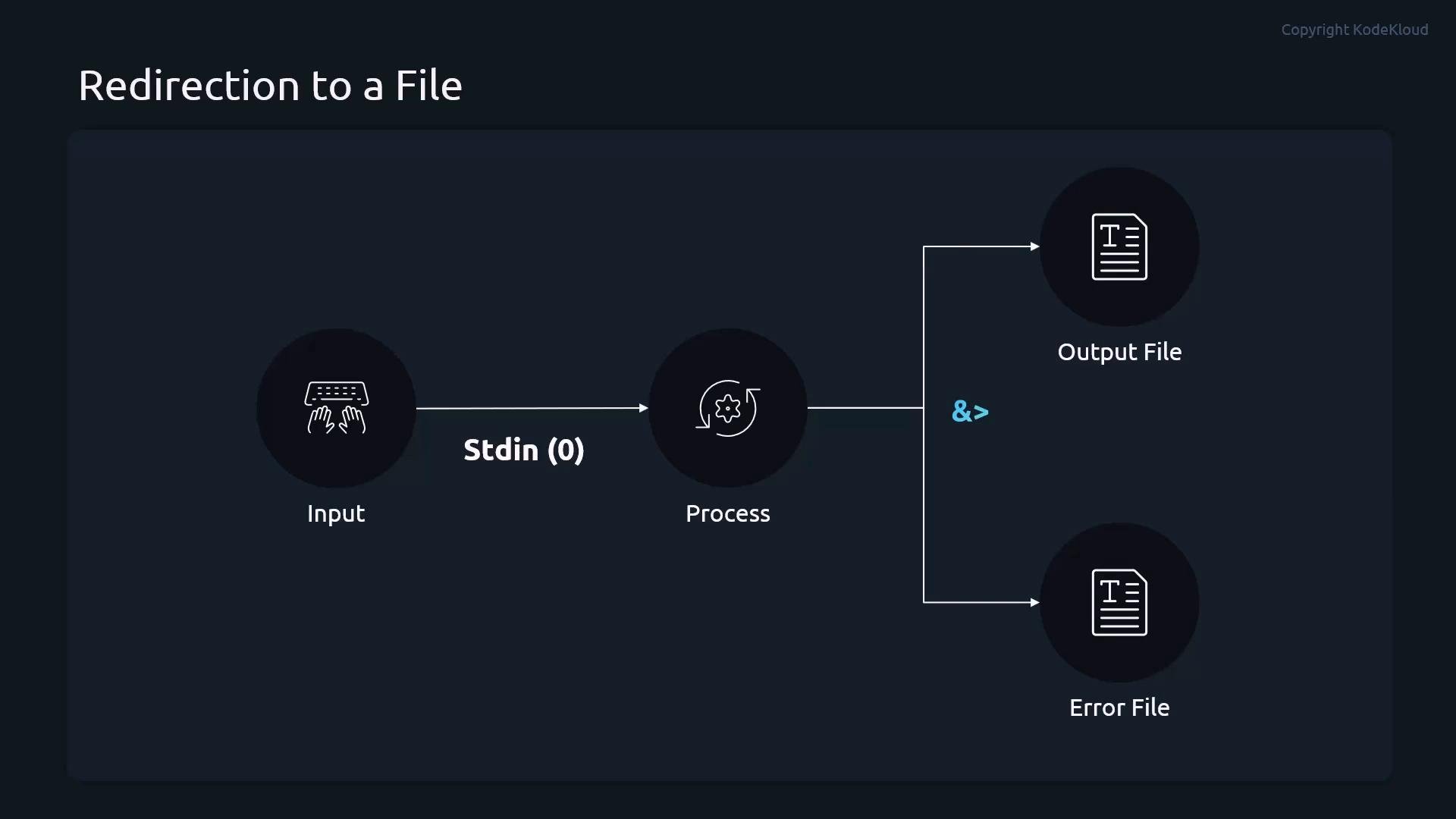
A dark-themed diagram titled "Redirection to a File" showing keyboard input sent as stdin (0) into a process, which then redirects output and errors to separate files using the &> notation. Icons label Input, Process, Output File, and Error File.
Pipes, ordering, and merging streams
  • A pipe (|) passes the stdout of the command on its left to the stdin of the command on its right.
  • If you need both stdout and stderr to flow through a pipe, merge stderr into stdout before piping:
  • Beware of placement: some-command | other-command 2>&1 will redirect other-command’s stderr to its stdout, not some-command’s stderr.
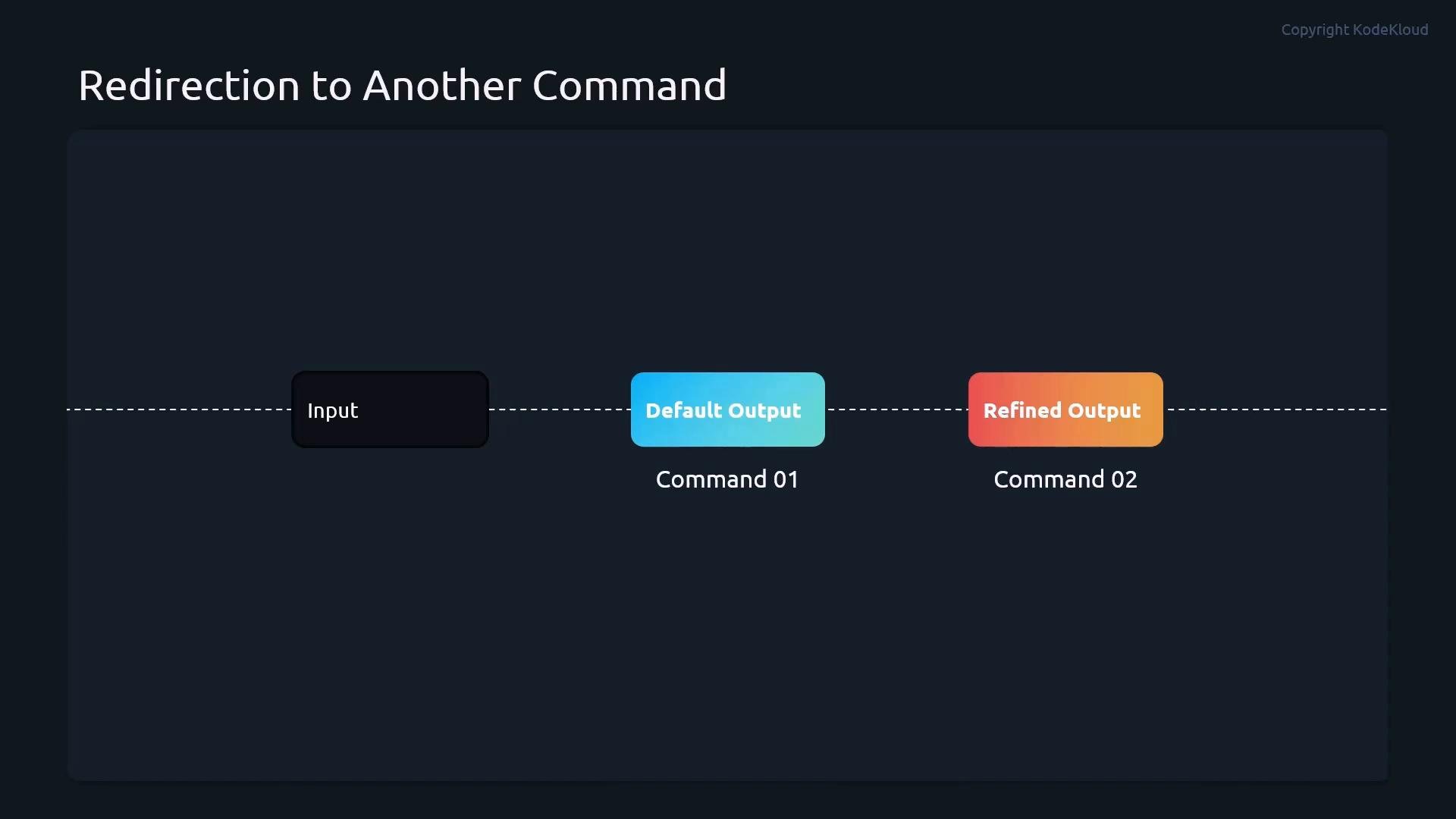
Analogy: a pipe is an assembly line—Command 1 produces data, and Command 2 refines or filters it. Example:
A slide titled "Redirection to Another Command" showing a simple flow: an "Input" box connected by dashed lines to a "Default Output" box (Command 01), which then links to a "Refined Output" box (Command 02). The output boxes are color-coded (blue for default, orange for refined).
Viewing and saving output at the same time with tee The tee utility reads from stdin, writes the data to stdout, and also writes it to files. Use it when you want to monitor output in real time while preserving a copy.
  • Write and display:
  • Append rather than overwrite:
Use case example:
Quick reference: redirection cheatsheet
Remember: the order of redirections matters. To capture both stdout and stderr into a pipe or file, merge streams using 2>&1 (or use the Bash shorthand &>). If you only redirect stdout, stderr will still appear on the terminal unless you redirect it explicitly.
Summary
  • Use > / >> to redirect or append stdout to files.
  • Use 2> / 2>> to redirect or append stderr.
  • Use 2>&1 (or &>) to combine stderr and stdout into a single destination.
  • Use pipes (|) to pass stdout from one command to another.
  • Use tee when you must both display output and write it to a file.
These redirection techniques help you capture, filter, and pipeline command output for logging, debugging, automation, and auditing. Links and references

Watch Video