> ## Documentation Index
> Fetch the complete documentation index at: https://notes.kodekloud.com/llms.txt
> Use this file to discover all available pages before exploring further.
# Process Management and Tuning
> Guide to Linux process lifecycle, monitoring, signals, job control, and tuning using tools like ps top pstree kill nohup to diagnose and manage system performance
Imagine a server suddenly becoming slow, users complaining that applications are unresponsive, and you don't know why.
Or imagine a single process consuming all the CPU and affecting everything else on the system.
Without a solid grasp of process management and tuning, you are left guessing instead of diagnosing. This article teaches how to monitor running processes, control them, and adjust priority so the system stays stable and responsive.
We'll start with the Linux process lifecycle — how processes start, run, and terminate — then cover real-time monitoring, managing running processes and background jobs, process priority, and basic tuning. By the end you'll be able to diagnose performance problems and apply the right controls.
 What is a process?
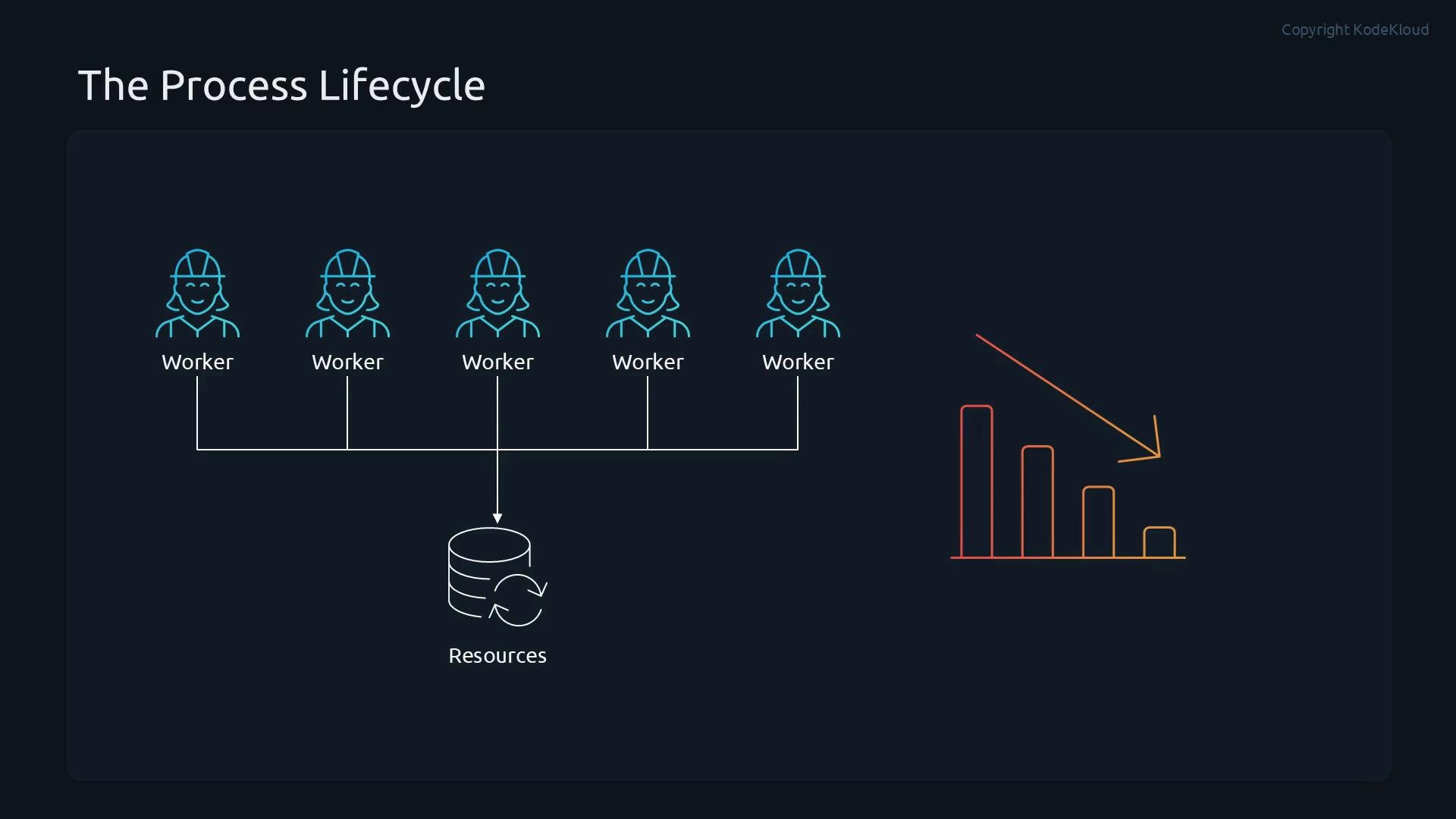
When you run a command or program, think of it as hiring a worker to perform a task: the worker uses tools and resources, does the job, and then leaves when the task is complete. A worker may spawn assistants — child processes — to help. If too many workers use too many resources at once, overall system performance suffers.
What is a process?
When you run a command or program, think of it as hiring a worker to perform a task: the worker uses tools and resources, does the job, and then leaves when the task is complete. A worker may spawn assistants — child processes — to help. If too many workers use too many resources at once, overall system performance suffers.
 Terminology recap
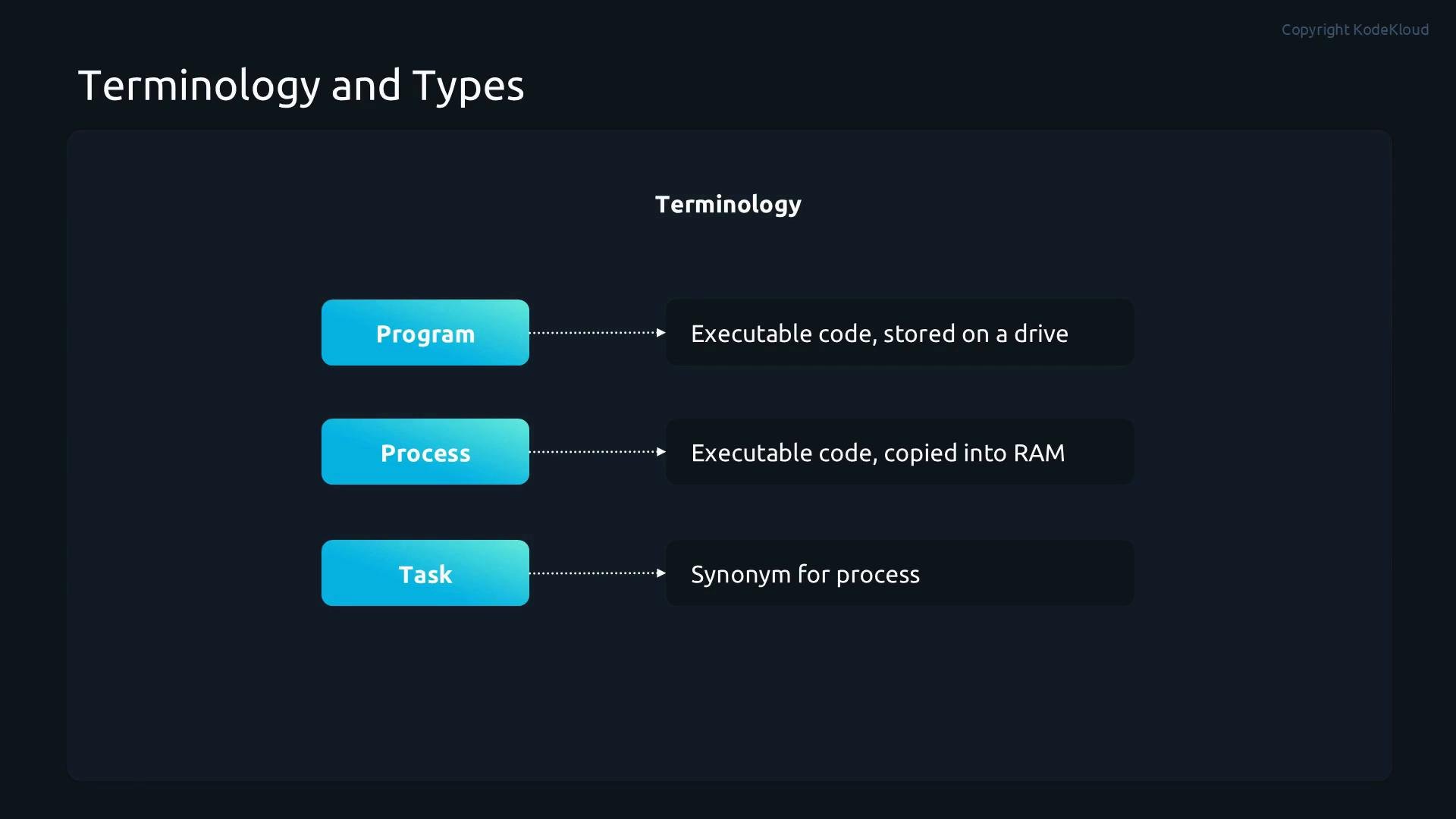
* Program — executable code stored on disk.
* Process — the running instance of that code, loaded into RAM.
* Task — often used interchangeably with “process” in kernel contexts.
Important: on Linux a running process is not permanently tied to the executable file on disk. If the file is removed after execution, the process can continue because its code and data are already in memory.
Terminology recap
* Program — executable code stored on disk.
* Process — the running instance of that code, loaded into RAM.
* Task — often used interchangeably with “process” in kernel contexts.
Important: on Linux a running process is not permanently tied to the executable file on disk. If the file is removed after execution, the process can continue because its code and data are already in memory.
 Process types
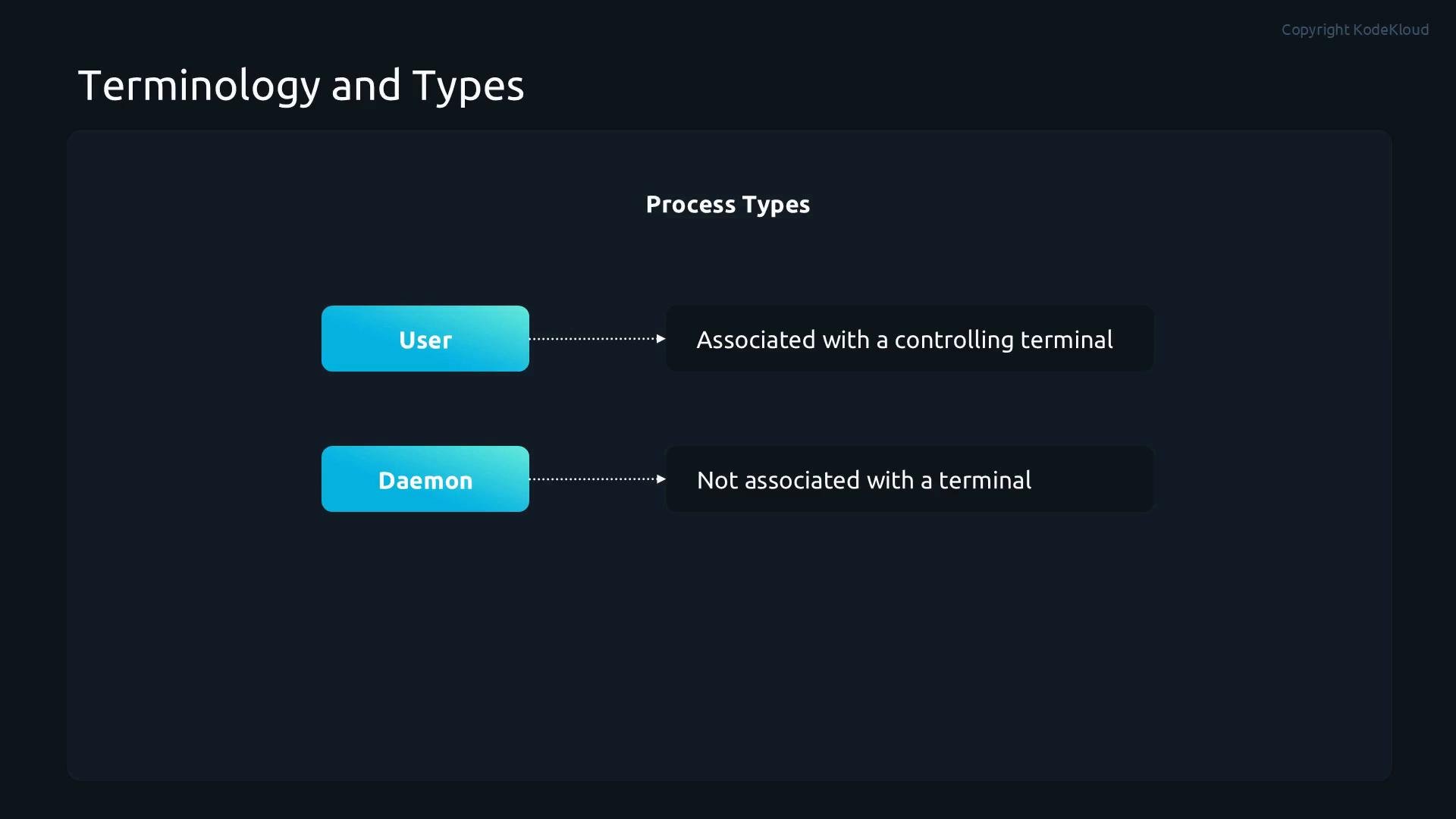
* User processes: started by interactive users via terminal or GUI; typically have a controlling terminal.
* Daemons (services): run in the background without a terminal, waiting for events (network requests, timers, etc.).
Examples: a network server daemon waits for incoming connections; `cron` and `atd` run scheduled jobs.
Process types
* User processes: started by interactive users via terminal or GUI; typically have a controlling terminal.
* Daemons (services): run in the background without a terminal, waiting for events (network requests, timers, etc.).
Examples: a network server daemon waits for incoming connections; `cron` and `atd` run scheduled jobs.
 Process states — quick reference
The `STAT` (or `S`) column shown by `ps`, `top`, and similar tools indicates a process state. Use this table to translate the flag you see into real behavior:
| State code | Meaning | When you see it |
| - | - | - |
| `R` | Runnable — running on CPU or ready to run | Active CPU usage or high run queue |
| `S` | Sleeping — waiting for an event (e.g., input) | Idle waiting for I/O, network, or signal |
| `D` | Uninterruptible sleep | Typically waiting on disk I/O; cannot be killed |
| `T` | Stopped or suspended | After `Ctrl-Z`, `SIGSTOP`, or debugging suspension |
| `Z` | Zombie | Child exited but parent has not reaped it |
| `X` | Dead | Process finished; rarely shown by `ps` |
Inspect IDs and states:
```bash theme={null}
# Basic snapshot with common columns, sorted by CPU
ps -eo pid,ppid,stat,cmd --sort=-%cpu | head -n 20
# Classic BSD-style listing
ps aux | head -n 20
```
Signals — controlled communication with processes
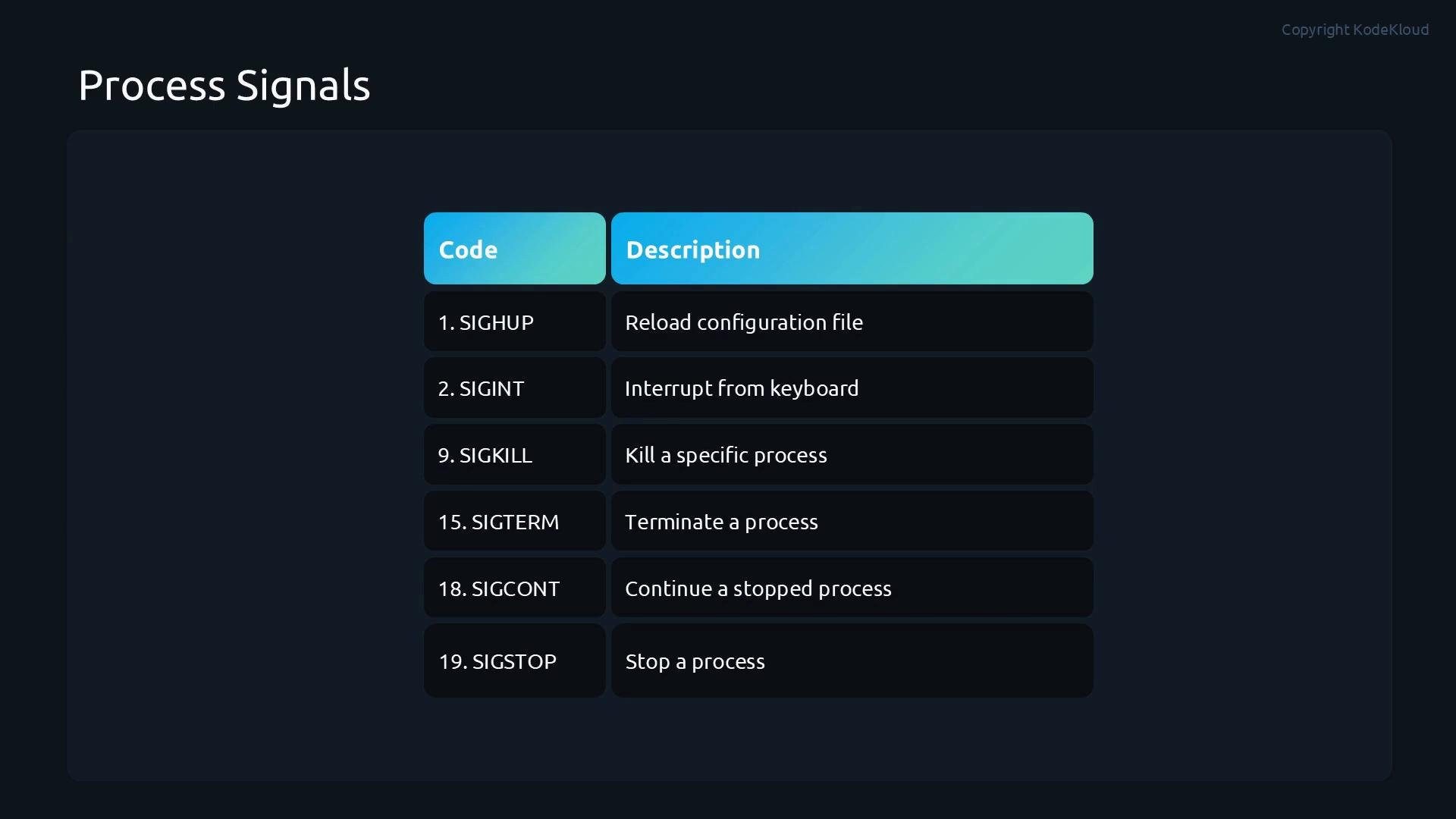
Signals are the kernel's lightweight IPC for process control: reloading config, requesting graceful shutdown, stopping, or forcing termination. Common signals:
| Signal | Number | Typical use |
| - | - | - |
| `SIGHUP` | 1 | "Hang up" — many daemons reload configuration |
| `SIGINT` | 2 | Keyboard interrupt (`Ctrl-C`) |
| `SIGTERM` | 15 | Polite termination request — default for `kill` |
| `SIGKILL` | 9 | Force kill — cannot be caught or ignored |
| `SIGSTOP` | N/A | Stop/suspend process — cannot be caught |
| `SIGCONT` | N/A | Resume a stopped process |
| `SIGCHLD` | N/A | Sent to parent when a child exits (used to reap zombies) |
When a child process exits, its parent must collect the exit status (e.g. via `wait()`). If it does not, the child remains a zombie (`Z`) and holds a PID slot until reaped.
Common `kill` usage:
```bash theme={null}
# Send SIGTERM (default) to PID 1234
kill 1234
# Send a named signal
kill -SIGTERM 1234
kill -HUP 1234
# Force kill (SIGKILL)
kill -9 1234
# Pause and resume
kill -SIGSTOP 1234
kill -SIGCONT 1234
```
Process states — quick reference
The `STAT` (or `S`) column shown by `ps`, `top`, and similar tools indicates a process state. Use this table to translate the flag you see into real behavior:
| State code | Meaning | When you see it |
| - | - | - |
| `R` | Runnable — running on CPU or ready to run | Active CPU usage or high run queue |
| `S` | Sleeping — waiting for an event (e.g., input) | Idle waiting for I/O, network, or signal |
| `D` | Uninterruptible sleep | Typically waiting on disk I/O; cannot be killed |
| `T` | Stopped or suspended | After `Ctrl-Z`, `SIGSTOP`, or debugging suspension |
| `Z` | Zombie | Child exited but parent has not reaped it |
| `X` | Dead | Process finished; rarely shown by `ps` |
Inspect IDs and states:
```bash theme={null}
# Basic snapshot with common columns, sorted by CPU
ps -eo pid,ppid,stat,cmd --sort=-%cpu | head -n 20
# Classic BSD-style listing
ps aux | head -n 20
```
Signals — controlled communication with processes
Signals are the kernel's lightweight IPC for process control: reloading config, requesting graceful shutdown, stopping, or forcing termination. Common signals:
| Signal | Number | Typical use |
| - | - | - |
| `SIGHUP` | 1 | "Hang up" — many daemons reload configuration |
| `SIGINT` | 2 | Keyboard interrupt (`Ctrl-C`) |
| `SIGTERM` | 15 | Polite termination request — default for `kill` |
| `SIGKILL` | 9 | Force kill — cannot be caught or ignored |
| `SIGSTOP` | N/A | Stop/suspend process — cannot be caught |
| `SIGCONT` | N/A | Resume a stopped process |
| `SIGCHLD` | N/A | Sent to parent when a child exits (used to reap zombies) |
When a child process exits, its parent must collect the exit status (e.g. via `wait()`). If it does not, the child remains a zombie (`Z`) and holds a PID slot until reaped.
Common `kill` usage:
```bash theme={null}
# Send SIGTERM (default) to PID 1234
kill 1234
# Send a named signal
kill -SIGTERM 1234
kill -HUP 1234
# Force kill (SIGKILL)
kill -9 1234
# Pause and resume
kill -SIGSTOP 1234
kill -SIGCONT 1234
```
 Prefer `SIGTERM` (the default `kill`) so processes can exit cleanly. Use `SIGKILL` (`kill -9`) only when a process refuses to terminate.
Viewing processes — tools and examples
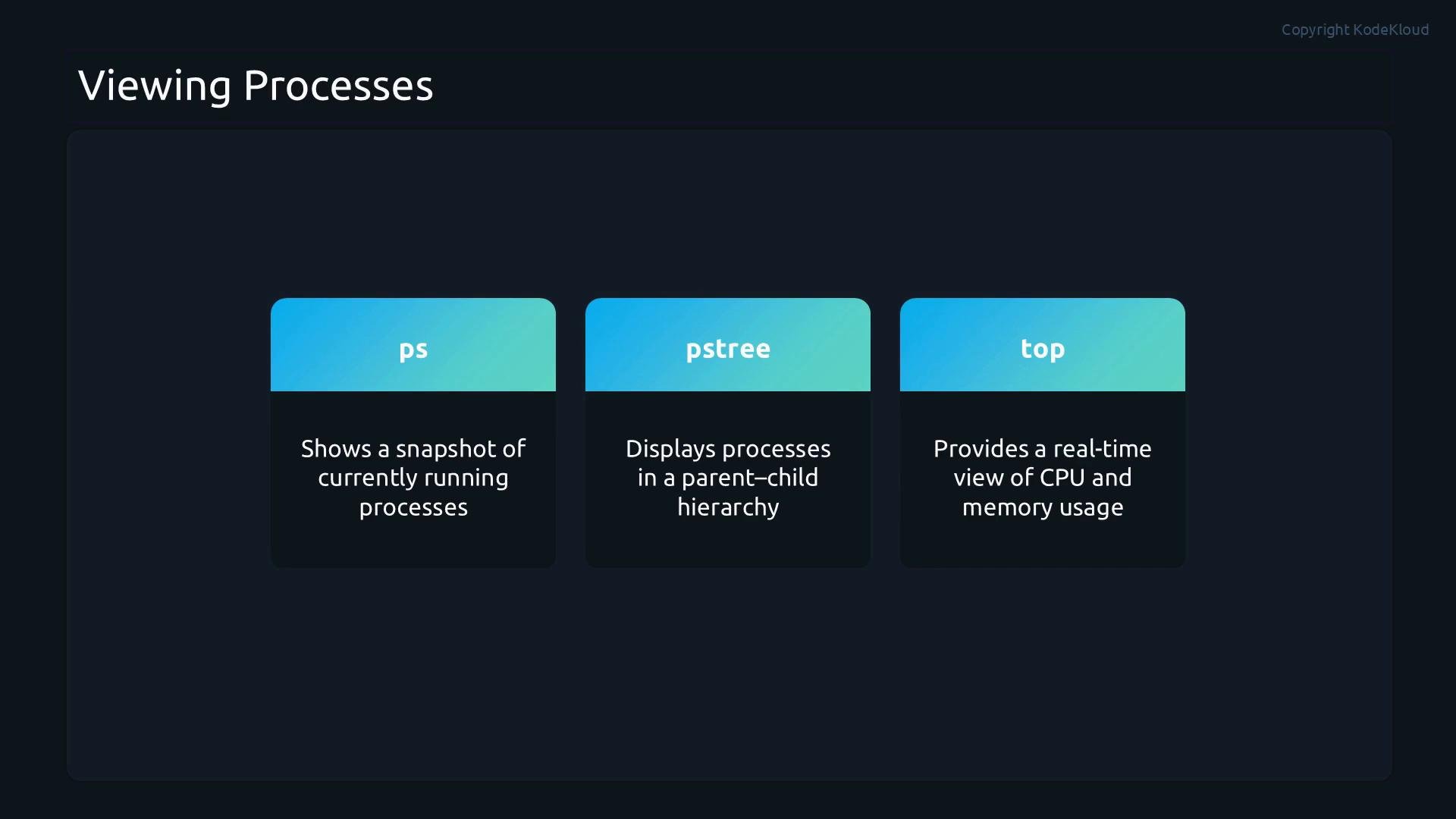
Before acting, identify what is running and how it behaves. Useful tools and short examples:
* `ps` — snapshot of processes; scriptable and flexible.
* `pstree` — shows parent/child hierarchies.
* `top` — interactive, real-time view of CPU/memory and process metrics.
* `htop` — enhanced `top` with keyboard-driven UI (if installed).
Commands:
```bash theme={null}
# Snapshot with full details for a service
ps -ef | grep myservice
# Show process tree starting at PID 1 (system init)
pstree -p 1
# Process tree for current shell
pstree -p $$
# Start top and then use interactive sorting/filtering
top
```
Prefer `SIGTERM` (the default `kill`) so processes can exit cleanly. Use `SIGKILL` (`kill -9`) only when a process refuses to terminate.
Viewing processes — tools and examples
Before acting, identify what is running and how it behaves. Useful tools and short examples:
* `ps` — snapshot of processes; scriptable and flexible.
* `pstree` — shows parent/child hierarchies.
* `top` — interactive, real-time view of CPU/memory and process metrics.
* `htop` — enhanced `top` with keyboard-driven UI (if installed).
Commands:
```bash theme={null}
# Snapshot with full details for a service
ps -ef | grep myservice
# Show process tree starting at PID 1 (system init)
pstree -p 1
# Process tree for current shell
pstree -p $$
# Start top and then use interactive sorting/filtering
top
```
 Controlling processes
* `kill ` — send a signal to one PID.
* `killall ` — send a signal to all processes with that name.
* `pkill ` — send a signal to processes matching a pattern or other attributes.
* `top` and `htop` — provide interactive options to kill or change priority (`renice`) for processes.
Examples:
```bash theme={null}
# Kill all nginx worker processes politely
killall nginx
# Kill processes whose command line contains "worker"
pkill -f worker
# Using top: press 'k', enter PID and signal to kill interactively
```
Background jobs and job control (interactive shell)
When you start a process from a shell, you can run it in foreground or background. Shell job control commands:
* `Ctrl-Z` — suspend current foreground job (sends `SIGSTOP`).
* `bg` — resume a suspended job in background.
* `fg` — bring a background job to the foreground.
* `jobs` — list shell jobs with job IDs.
* `disown` — remove a job from the shell's job table so it won't receive `SIGHUP`.
* `nohup &` — run a command immune to hangups and in the background.
Examples:
```bash theme={null}
# Start a long-running command in the background
sleep 3600 &
# List jobs
jobs
# Suspend (Ctrl-Z), then move job 1 to background and then foreground
# Ctrl-Z
bg %1
fg %1
# Run a command that persists after logout
nohup long_script.sh > output.log 2>&1 &
disown %1
```
Quick commands cheat sheet
| Task | Command example |
| - | - |
| Snapshot by CPU | `ps -eo pid,ppid,stat,pcpu,pmem,cmd --sort=-pcpu \| head` |
| Find processes by name | `pgrep -a nginx` |
| Kill a PID politely | `kill 1234` |
| Force kill | `kill -9 1234` |
| Reparented process tree | `pstree -p ` |
Summary
Understanding the Linux process lifecycle, states, signals, and the tools to inspect and control processes is essential for diagnosing performance issues and keeping systems responsive. Use `ps`, `pstree`, and `top` (or `htop`) to discover what is running; use `kill`, `pkill`, and `killall` with appropriate signals to control processes; and use shell job control (`jobs`, `bg`, `fg`, `disown`, `nohup`) to manage interactive and background workloads.
Next topics to explore (recommended)
* Process priority and scheduling: `nice`, `renice`, and scheduler basics.
* System tuning tools: `tuned`, `sysctl`, and cgroup resource controls.
* Service management: `systemctl` for daemon lifecycle and resource limits.
Links and references
* [Linux ps man page](https://man7.org/linux/man-pages/man1/ps.1.html)
* [kill(1) — Send signals to processes](https://man7.org/linux/man-pages/man1/kill.1.html)
* [top(1) — Display Linux tasks](https://man7.org/linux/man-pages/man1/top.1.html)
* [pstree(1) — Display a tree of processes](https://man7.org/linux/man-pages/man1/pstree.1.html)
* [Systemd service management (systemctl)](https://www.freedesktop.org/software/systemd/man/systemctl.html)
This documentation is built and hosted on [Mintlify](https://mintlify.com), a developer documentation platform.
Controlling processes
* `kill ` — send a signal to one PID.
* `killall ` — send a signal to all processes with that name.
* `pkill ` — send a signal to processes matching a pattern or other attributes.
* `top` and `htop` — provide interactive options to kill or change priority (`renice`) for processes.
Examples:
```bash theme={null}
# Kill all nginx worker processes politely
killall nginx
# Kill processes whose command line contains "worker"
pkill -f worker
# Using top: press 'k', enter PID and signal to kill interactively
```
Background jobs and job control (interactive shell)
When you start a process from a shell, you can run it in foreground or background. Shell job control commands:
* `Ctrl-Z` — suspend current foreground job (sends `SIGSTOP`).
* `bg` — resume a suspended job in background.
* `fg` — bring a background job to the foreground.
* `jobs` — list shell jobs with job IDs.
* `disown` — remove a job from the shell's job table so it won't receive `SIGHUP`.
* `nohup &` — run a command immune to hangups and in the background.
Examples:
```bash theme={null}
# Start a long-running command in the background
sleep 3600 &
# List jobs
jobs
# Suspend (Ctrl-Z), then move job 1 to background and then foreground
# Ctrl-Z
bg %1
fg %1
# Run a command that persists after logout
nohup long_script.sh > output.log 2>&1 &
disown %1
```
Quick commands cheat sheet
| Task | Command example |
| - | - |
| Snapshot by CPU | `ps -eo pid,ppid,stat,pcpu,pmem,cmd --sort=-pcpu \| head` |
| Find processes by name | `pgrep -a nginx` |
| Kill a PID politely | `kill 1234` |
| Force kill | `kill -9 1234` |
| Reparented process tree | `pstree -p ` |
Summary
Understanding the Linux process lifecycle, states, signals, and the tools to inspect and control processes is essential for diagnosing performance issues and keeping systems responsive. Use `ps`, `pstree`, and `top` (or `htop`) to discover what is running; use `kill`, `pkill`, and `killall` with appropriate signals to control processes; and use shell job control (`jobs`, `bg`, `fg`, `disown`, `nohup`) to manage interactive and background workloads.
Next topics to explore (recommended)
* Process priority and scheduling: `nice`, `renice`, and scheduler basics.
* System tuning tools: `tuned`, `sysctl`, and cgroup resource controls.
* Service management: `systemctl` for daemon lifecycle and resource limits.
Links and references
* [Linux ps man page](https://man7.org/linux/man-pages/man1/ps.1.html)
* [kill(1) — Send signals to processes](https://man7.org/linux/man-pages/man1/kill.1.html)
* [top(1) — Display Linux tasks](https://man7.org/linux/man-pages/man1/top.1.html)
* [pstree(1) — Display a tree of processes](https://man7.org/linux/man-pages/man1/pstree.1.html)
* [Systemd service management (systemctl)](https://www.freedesktop.org/software/systemd/man/systemctl.html)
This documentation is built and hosted on [Mintlify](https://mintlify.com), a developer documentation platform.