> ## Documentation Index
> Fetch the complete documentation index at: https://notes.kodekloud.com/llms.txt
> Use this file to discover all available pages before exploring further.
# Process Priority
> Explains Linux process niceness, how the scheduler uses it, viewing and changing priorities with nice, renice and top, and privilege differences between root and regular users.
Not all processes are equally important. If a CPU-heavy process consumes all CPU time, it can slow down critical services. Process priority (niceness) lets you influence how much CPU time a process receives relative to others.
In this article we explain how the Linux scheduler uses niceness values, how to view and change them, and demonstrate common commands to adjust priorities safely.
What you will learn
* What niceness means and how the scheduler uses it
* The niceness value range and semantics
* How to view processes and their niceness
* How to change niceness for running and new processes
How Linux uses niceness
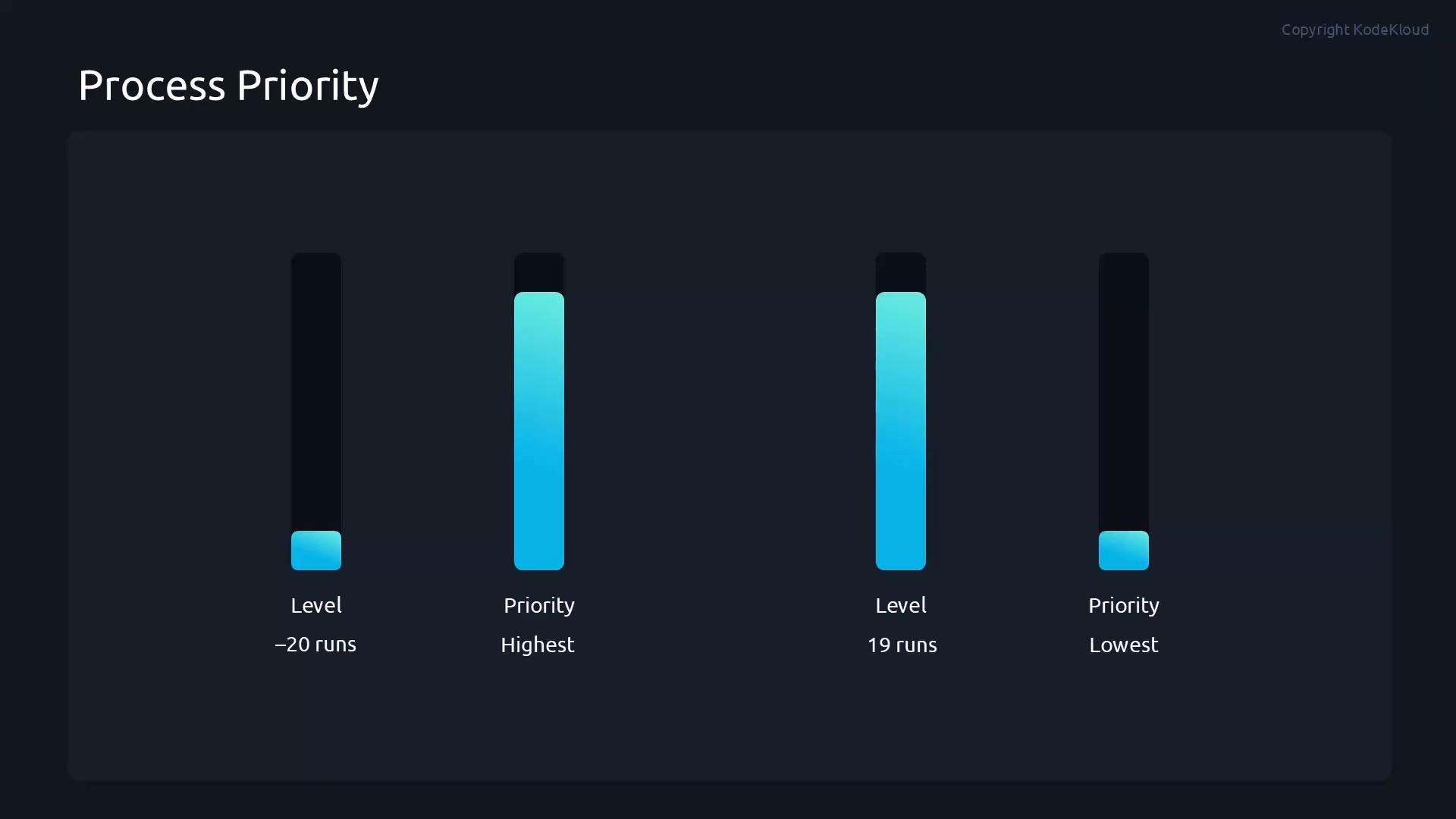
Linux attempts to distribute CPU time fairly across processes. The scheduler uses the niceness (nice) value as a bias when deciding how frequently to run each process.
* Lower nice values → higher priority (scheduled more often).
* Highest priority: `-20`
* Lowest priority: `19`
The scheduler factors in the nice value when allocating CPU slices; changing a process's nice value changes how the scheduler prioritizes it.
 Root vs. regular user privileges
Only the root user (or a process granted the `CAP_SYS_NICE` capability) can assign a negative niceness (increase priority) or reduce the niceness of an existing process. Unprivileged users may only increase the niceness of their own processes (make them "nicer" to others), which lowers their priority.
Root vs. regular user privileges
Only the root user (or a process granted the `CAP_SYS_NICE` capability) can assign a negative niceness (increase priority) or reduce the niceness of an existing process. Unprivileged users may only increase the niceness of their own processes (make them "nicer" to others), which lowers their priority.
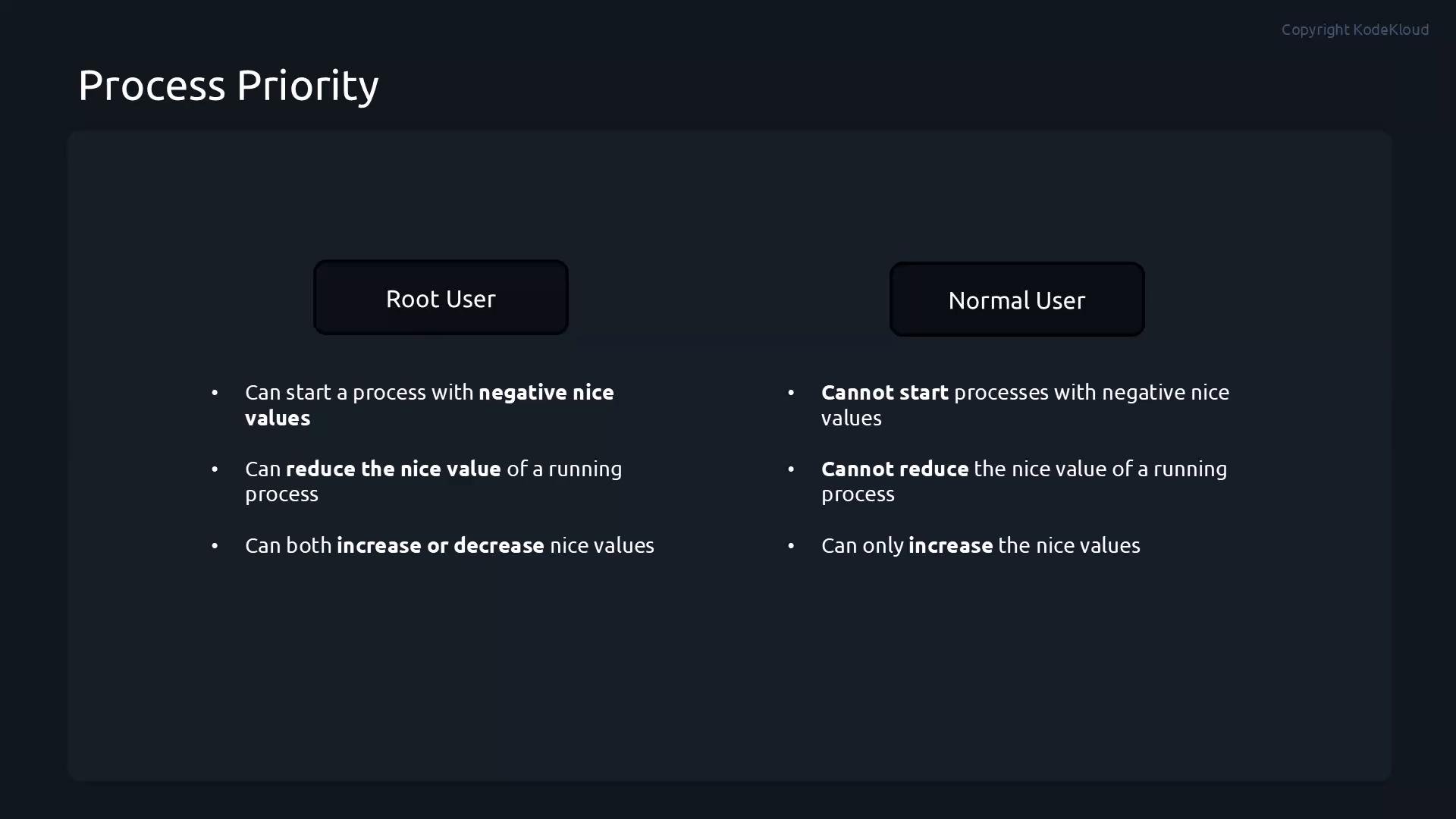 Only root (or a user/process granted the CAP\_SYS\_NICE capability) can assign negative niceness or make a process less "nice" (i.e., lower the nice value and increase priority). Regular users can only make their own processes nicer (increase the nice value).
Practical demo — view and change niceness
The following steps show how to start a CPU-bound process, inspect its niceness with `top` and `ps`, and change it with `renice` or by starting a process with `nice`.
1. Start a CPU-intensive process in the background (example uses `sha1sum` reading from `/dev/zero`):
```bash theme={null}
root@control:~# sha1sum /dev/zero &
[1] 6258
```
2. Inspect processes with `top`. While `top` is running you can press `r` to renice a process interactively; `top` will prompt for a PID:
```console theme={null}
top - 15:04:19 up 50 min, 4 users, load average: 0.75, 0.26, 0.09
Tasks: 288 total, 2 running, 285 sleeping, 1 stopped, 0 zombie
%Cpu(s): 4.8 us, 0.6 sy, 0.0 ni, 94.0 id, 0.0 wa, 0.5 hi, 0.1 si, 0.0 st
MiB Mem : 3652.4 total, 1747.4 free, 1441.9 used, 694.5 buff/cache
MiB Swap: 2048.0 total, 2048.0 free, 0.0 used. 2210.5 avail Mem
PID to renice [default pid = 6258]
UID USER PID NI COMMAND S %CPU %MEM
0 root 6258 0 sha1sum R 98.5 0.1
1000 student 3465 0 ptyxis S 6.0 9.1
1000 student 2577 0 gnome-shell S 4.0 11.6
0 root 5292 0 kworker/u28:1-events_unbound I 1.5 0.0
0 root 1 0 systemd S 0.0 1.1
0 root 2 0 kthreadd S 0.0 0.0
0 root 3 0 pool_workqueue_release S 0.0 0.0
0 root 4 -20 kworker/R-rcu_gp I 0.0 0.0
0 root 5 -20 kworker/R-sync_wq I 0.0 0.0
0 root 6 -20 kworker/R-slub_flushwq I 0.0 0.0
0 root 7 -20 kworker/R-netns I 0.0 0.0
0 root 10 -20 kworker/0:0H-events_highpri I 0.0 0.0
0 root 11 0 kworker/u24:0-events_unbound I 0.0 0.0
0 root 12 0 kworker/u24:1-ipv6_addrconf I 0.0 0.0
0 root 13 -20 kworker/R-mm_percpu_wq I 0.0 0.0
0 root 14 0 rcu_tasks_kthread I 0.0 0.0
0 root 15 0 rcu_tasks_rude_kthread I 0.0 0.0
0 root 16 0 rcu_tasks_trace_kthread I 0.0 0.0
0 root 17 0 ksoftirqd/0 I 0.0 0.0
0 root 18 0 rcu_preempt S 0.0 0.0
0 root 19 0 rcu_exp_par_gp_kthread_worker/0 S 0.0 0.0
```
3. Change niceness using `renice`. For example, set PID `6258` to niceness `12`:
```bash theme={null}
root@control:~# renice -n 12 -p 6258
6258 (process ID) old priority 0, new priority 12
```
* Increasing the niceness (higher number) lowers the process priority.
* Decreasing niceness (smaller or negative number) raises priority.
4. Start a new process with a specified niceness using `nice -n N`. Example: start a `sleep` process with niceness `14` and verify with `ps`:
```bash theme={null}
root@control:~# nice -n 14 sleep 100 &
[3] 6571
root@control:~# ps -o pid,ni,cmd 6571
PID NI CMD
6571 14 sleep 100
```
Quick reference — commands
| Command | Purpose | Example |
| - | - | - |
| `nice -n N ` | Start `` with niceness `N` | `nice -n 10 tar -cf archive.tar /data` |
| `renice -n N -p ` | Change niceness of running process by PID | `renice -n 12 -p 6258` |
| `top` (press `r`) | Interactive renice while `top` is running | Press `r` then enter PID and new niceness |
| `ps -o pid,ni,cmd ` | Show PID, NI (niceness), and command | `ps -o pid,ni,cmd 6571` |
Niceness levels summary
| Range | Meaning |
| - | - |
| `-20` | Highest scheduling priority |
| `0` | Default (typical) priority |
| `19` | Lowest scheduling priority |
Best practices and notes
* Use niceness to lower CPU priority for non-critical, CPU-bound background tasks (e.g., backups, batch jobs) so interactive services remain responsive.
* Avoid giving lots of processes negative niceness unless necessary; increasing overall system responsiveness via careful resource planning is preferable.
* Only root (or a process with `CAP_SYS_NICE`) can assign negative niceness — consider using `sudo` if you must raise priority.
See also
* [man nice](https://man7.org/linux/man-pages/man1/nice.1.html)
* [man renice](https://man7.org/linux/man-pages/man1/renice.1.html)
* [Linux kernel scheduler overview](https://www.kernel.org/doc/html/latest/scheduler/index.html)
Summary
* Niceness ranges from `-20` (highest priority) to `19` (lowest priority).
* Lower niceness value means higher CPU scheduling priority.
* Root can set negative niceness or reduce niceness for processes; regular users can only increase niceness of their own processes.
This documentation is built and hosted on [Mintlify](https://mintlify.com), a developer documentation platform.
Only root (or a user/process granted the CAP\_SYS\_NICE capability) can assign negative niceness or make a process less "nice" (i.e., lower the nice value and increase priority). Regular users can only make their own processes nicer (increase the nice value).
Practical demo — view and change niceness
The following steps show how to start a CPU-bound process, inspect its niceness with `top` and `ps`, and change it with `renice` or by starting a process with `nice`.
1. Start a CPU-intensive process in the background (example uses `sha1sum` reading from `/dev/zero`):
```bash theme={null}
root@control:~# sha1sum /dev/zero &
[1] 6258
```
2. Inspect processes with `top`. While `top` is running you can press `r` to renice a process interactively; `top` will prompt for a PID:
```console theme={null}
top - 15:04:19 up 50 min, 4 users, load average: 0.75, 0.26, 0.09
Tasks: 288 total, 2 running, 285 sleeping, 1 stopped, 0 zombie
%Cpu(s): 4.8 us, 0.6 sy, 0.0 ni, 94.0 id, 0.0 wa, 0.5 hi, 0.1 si, 0.0 st
MiB Mem : 3652.4 total, 1747.4 free, 1441.9 used, 694.5 buff/cache
MiB Swap: 2048.0 total, 2048.0 free, 0.0 used. 2210.5 avail Mem
PID to renice [default pid = 6258]
UID USER PID NI COMMAND S %CPU %MEM
0 root 6258 0 sha1sum R 98.5 0.1
1000 student 3465 0 ptyxis S 6.0 9.1
1000 student 2577 0 gnome-shell S 4.0 11.6
0 root 5292 0 kworker/u28:1-events_unbound I 1.5 0.0
0 root 1 0 systemd S 0.0 1.1
0 root 2 0 kthreadd S 0.0 0.0
0 root 3 0 pool_workqueue_release S 0.0 0.0
0 root 4 -20 kworker/R-rcu_gp I 0.0 0.0
0 root 5 -20 kworker/R-sync_wq I 0.0 0.0
0 root 6 -20 kworker/R-slub_flushwq I 0.0 0.0
0 root 7 -20 kworker/R-netns I 0.0 0.0
0 root 10 -20 kworker/0:0H-events_highpri I 0.0 0.0
0 root 11 0 kworker/u24:0-events_unbound I 0.0 0.0
0 root 12 0 kworker/u24:1-ipv6_addrconf I 0.0 0.0
0 root 13 -20 kworker/R-mm_percpu_wq I 0.0 0.0
0 root 14 0 rcu_tasks_kthread I 0.0 0.0
0 root 15 0 rcu_tasks_rude_kthread I 0.0 0.0
0 root 16 0 rcu_tasks_trace_kthread I 0.0 0.0
0 root 17 0 ksoftirqd/0 I 0.0 0.0
0 root 18 0 rcu_preempt S 0.0 0.0
0 root 19 0 rcu_exp_par_gp_kthread_worker/0 S 0.0 0.0
```
3. Change niceness using `renice`. For example, set PID `6258` to niceness `12`:
```bash theme={null}
root@control:~# renice -n 12 -p 6258
6258 (process ID) old priority 0, new priority 12
```
* Increasing the niceness (higher number) lowers the process priority.
* Decreasing niceness (smaller or negative number) raises priority.
4. Start a new process with a specified niceness using `nice -n N`. Example: start a `sleep` process with niceness `14` and verify with `ps`:
```bash theme={null}
root@control:~# nice -n 14 sleep 100 &
[3] 6571
root@control:~# ps -o pid,ni,cmd 6571
PID NI CMD
6571 14 sleep 100
```
Quick reference — commands
| Command | Purpose | Example |
| - | - | - |
| `nice -n N ` | Start `` with niceness `N` | `nice -n 10 tar -cf archive.tar /data` |
| `renice -n N -p ` | Change niceness of running process by PID | `renice -n 12 -p 6258` |
| `top` (press `r`) | Interactive renice while `top` is running | Press `r` then enter PID and new niceness |
| `ps -o pid,ni,cmd ` | Show PID, NI (niceness), and command | `ps -o pid,ni,cmd 6571` |
Niceness levels summary
| Range | Meaning |
| - | - |
| `-20` | Highest scheduling priority |
| `0` | Default (typical) priority |
| `19` | Lowest scheduling priority |
Best practices and notes
* Use niceness to lower CPU priority for non-critical, CPU-bound background tasks (e.g., backups, batch jobs) so interactive services remain responsive.
* Avoid giving lots of processes negative niceness unless necessary; increasing overall system responsiveness via careful resource planning is preferable.
* Only root (or a process with `CAP_SYS_NICE`) can assign negative niceness — consider using `sudo` if you must raise priority.
See also
* [man nice](https://man7.org/linux/man-pages/man1/nice.1.html)
* [man renice](https://man7.org/linux/man-pages/man1/renice.1.html)
* [Linux kernel scheduler overview](https://www.kernel.org/doc/html/latest/scheduler/index.html)
Summary
* Niceness ranges from `-20` (highest priority) to `19` (lowest priority).
* Lower niceness value means higher CPU scheduling priority.
* Root can set negative niceness or reduce niceness for processes; regular users can only increase niceness of their own processes.
This documentation is built and hosted on [Mintlify](https://mintlify.com), a developer documentation platform.