> ## Documentation Index
> Fetch the complete documentation index at: https://notes.kodekloud.com/llms.txt
> Use this file to discover all available pages before exploring further.
# System Tuning with TuneD
> Guide to TuneD system tuning, installing and managing profiles, using tuned-adm to list, apply, merge, and verify performance and power saving configurations.
TuneD is a system service that monitors a host and applies tuning profiles to optimize performance for different workloads. It simplifies system tuning by providing curated profiles and the ability to switch or combine them to match your environment. Common scenarios include high-throughput servers, low-latency workloads, virtualization, and power-saving configurations.
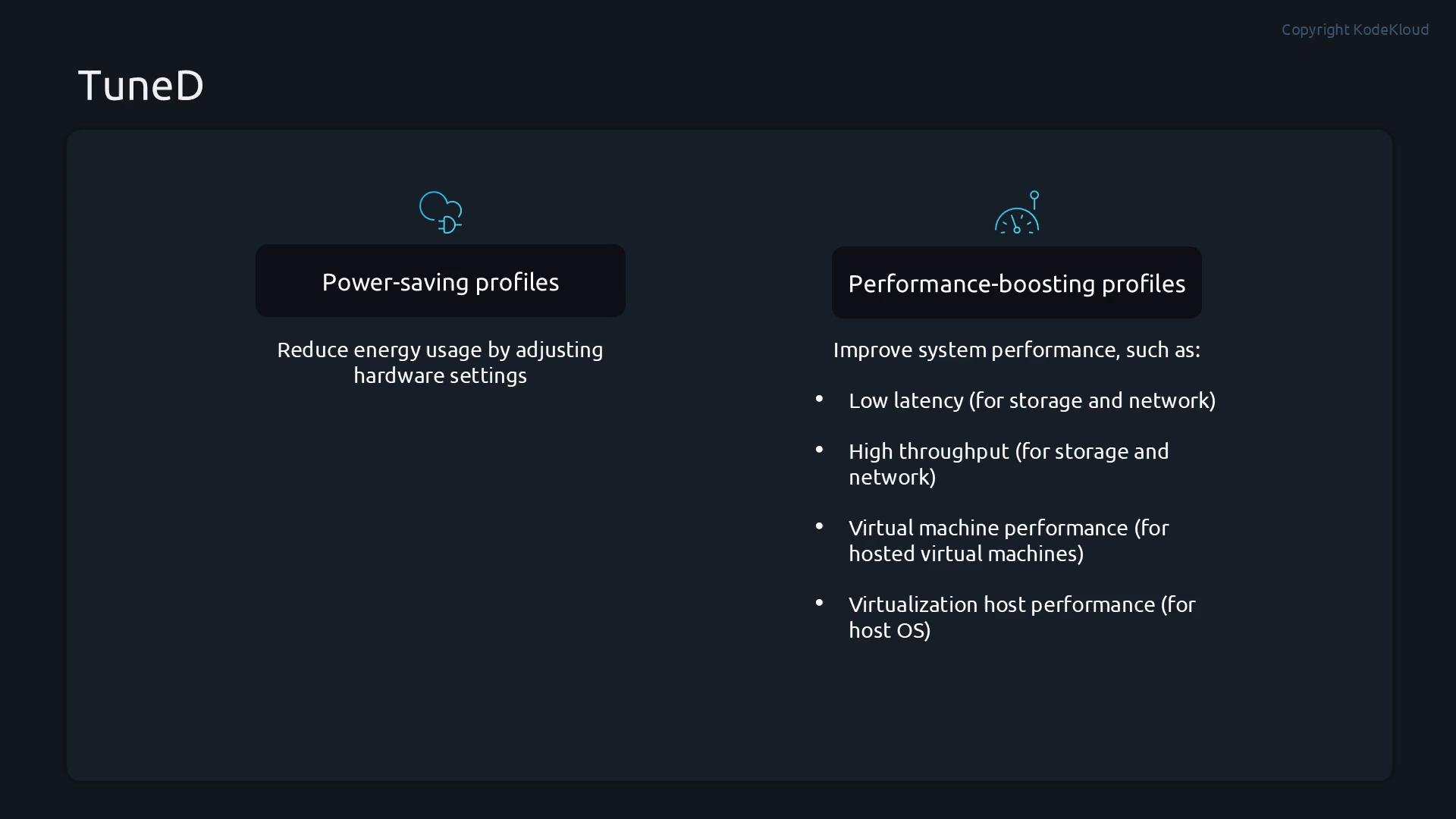
Key profile categories:
* Power‑saving profiles: reduce energy use by disabling inactive devices or using low-power modes.
* Performance‑boosting profiles: tune for low latency, high throughput, or virtualization (guest/host).
 ## Automatic profile selection
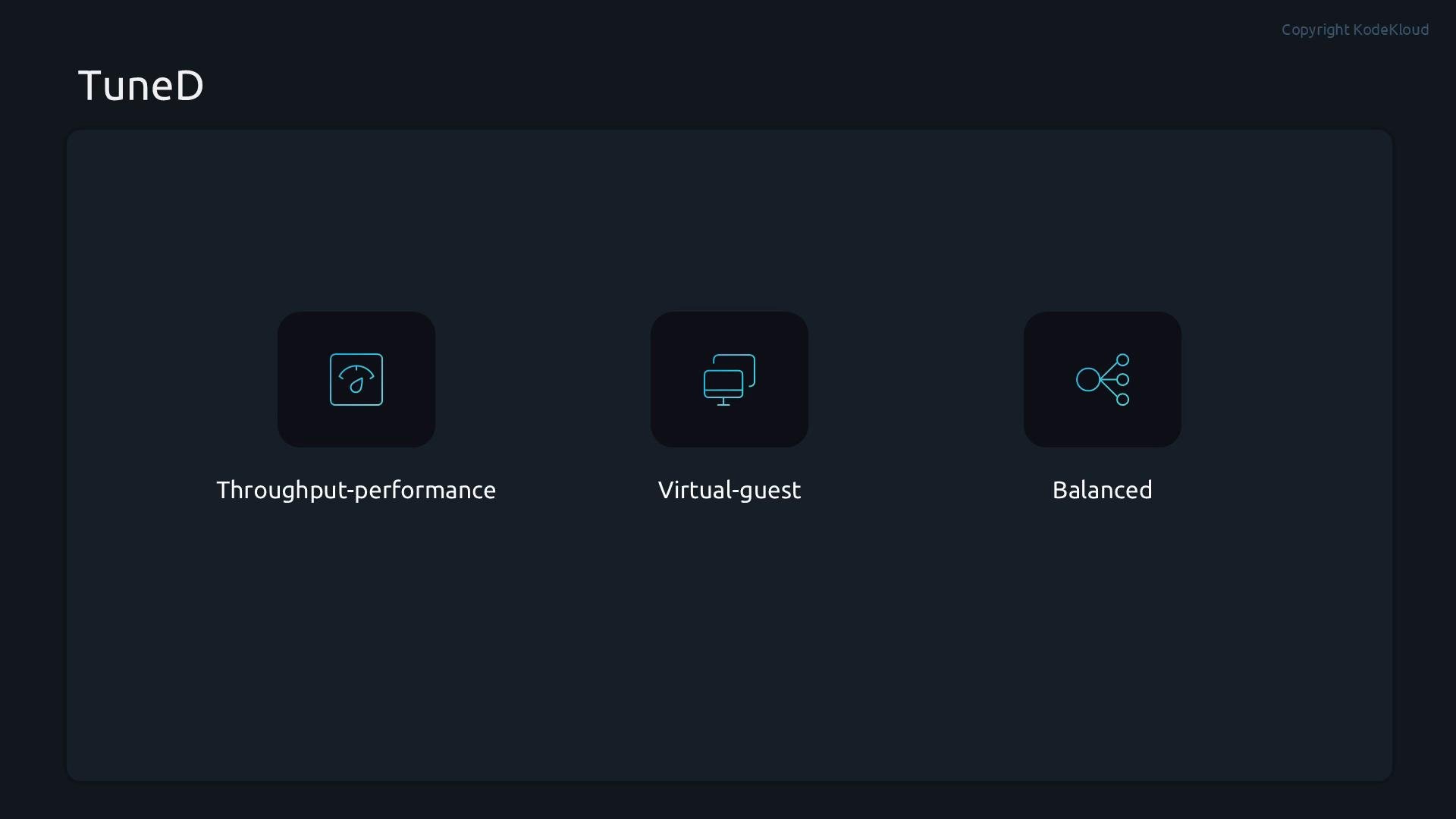
When TuneD is installed and running it can automatically pick the most appropriate profile for the current environment:
* Throughput-optimized servers typically receive `throughput-performance`.
* Virtual machines often receive `virtual-guest`.
* All other cases default to `balanced` to balance performance and power.
## Automatic profile selection
When TuneD is installed and running it can automatically pick the most appropriate profile for the current environment:
* Throughput-optimized servers typically receive `throughput-performance`.
* Virtual machines often receive `virtual-guest`.
* All other cases default to `balanced` to balance performance and power.
 ## Install and start TuneD
Install TuneD with your package manager (RHEL/Fedora family shown):
```bash theme={null}
# Using yum
sudo yum install tuned
# Or using dnf
sudo dnf install tuned
```
Enable and start the service:
```bash theme={null}
sudo systemctl enable --now tuned
```
Verify service and active profile:
```bash theme={null}
# Service status
sudo systemctl status tuned.service
# Show current active profile
tuned-adm active
# Verify system state matches the active profile
tuned-adm verify
```
## Where profiles and configuration live
TuneD ships profiles under `/usr/lib/tuned`. System-wide or administrator overrides are placed under `/etc/tuned`. The primary configuration file is `/etc/tuned/tuned-main.conf`.
| Resource | Typical path | Notes |
| - | - | - |
| Shipped profiles | `/usr/lib/tuned` | Contains the prepackaged profiles (do not edit here) |
| Local/override profiles | `/etc/tuned` | Files here take precedence over `/usr/lib/tuned` |
| Main configuration | `/etc/tuned/tuned-main.conf` | Controls options such as `dynamic_tuning` |
Example directory listings:
```bash theme={null}
$ ls /usr/lib/tuned
accelerator-performance balanced desktop
hpc-compute intel-sst latency-performance
network-latency network-throughput optimize-serial-console
powersave recommend.d throughput-performance
virtual-guest virtual-host functions
$ ls /etc/tuned
tuned-main.conf
```
See the manual for the tuned configuration file format:
```bash theme={null}
man tuned.conf
```
## Common tuned-adm commands
`tuned-adm` is the main CLI to interact with TuneD. Use the table below for a quick reference, then see examples and workflows.
| Task | Command |
| - | - |
| List available profiles | `tuned-adm list` |
| Show active profile | `tuned-adm active` |
| Switch to a profile | `tuned-adm profile ` |
| Show profile description | `tuned-adm profile_info ` |
| Ask TuneD to recommend a profile | `tuned-adm recommend` |
| Verify system matches active profile | `tuned-adm verify` |
| Enable automatic profile selection | `tuned-adm auto_profile` |
| Show current profile selection mode | `tuned-adm profile_mode` |
| Turn off all TuneD tunings | `tuned-adm off` |
| Get help | `tuned-adm --help` |
Example interactive session:
```bash theme={null}
# List profiles
$ tuned-adm list
Available profiles:
- accelerator-performance
- balanced
- desktop
- hpc-compute
- intel-sst
- latency-performance
- network-latency
- network-throughput
- optimize-serial-console
- powersave
- throughput-performance
- virtual-guest
- virtual-host
Current active profile: balanced
# Ask for a recommendation
$ tuned-adm recommend
virtual-guest
# Apply the recommended profile and confirm
$ tuned-adm profile virtual-guest
$ tuned-adm active
Current active profile: virtual-guest
```
Get profile details:
```bash theme={null}
$ tuned-adm profile_info virtual-guest
Profile name: virtual-guest
Profile summary: Optimize for running inside a virtual guest
Profile description:
(profile-specific tuning details...)
```
## Merging multiple profiles
TuneD can merge multiple profiles in one command. Supply several profile names and TuneD will combine settings where applicable:
```bash theme={null}
# Apply and merge virtual-host and powersave
tuned-adm profile virtual-host powersave
# Verify active profile(s)
tuned-adm active
```
This is useful for hybrid requirements (e.g., a host running VMs while conserving power).
When merging profiles, TuneD applies settings from all given profiles. If profiles define conflicting settings, the behavior depends on how the profiles are implemented. Always verify with `tuned-adm verify` and check `/var/log/tuned/tuned.log` for details.
## Dynamic tuning (monitor and react at runtime)
TuneD supports dynamic tuning: the daemon can monitor system state and reapply or adjust settings at runtime. This is controlled by the `dynamic_tuning` option in `/etc/tuned/tuned-main.conf` (defaults to `0` — disabled).
Check the current setting:
```bash theme={null}
grep "dynamic_tuning" /etc/tuned/tuned-main.conf
# Example output:
# dynamic_tuning = 0
```
Enable dynamic tuning:
```text theme={null}
# Edit /etc/tuned/tuned-main.conf and set:
dynamic_tuning = 1
```
Then restart TuneD:
```bash theme={null}
sudo systemctl restart tuned.service
```
Enabling dynamic tuning makes TuneD more active (it will re-evaluate and reapply settings). This can increase CPU or I/O activity from the daemon; test changes in a non-production environment first and monitor `/var/log/tuned/tuned.log`.
Other related options in `tuned-main.conf` include `sleep_interval` and `update_interval` — review file comments to tune these safely.
## Useful `tuned-adm` subcommands (quick reference)
`tuned-adm --help` lists the available subcommands and options. Below is a condensed excerpt:
```text theme={null}
{list,active,off,profile,profile_info,recommend,verify,auto_profile,profile_mode,...}
list list available profiles or plugins
active show active profile
off switch off all tunings
profile switch to a given profile
profile_info show information about a profile
recommend recommend profile
verify verify profile
auto_profile enable automatic profile selection mode
profile_mode show current profile selection mode
options:
-h, --help show this help message and exit
--version, -v show program's version number and exit
--debug, -d show debug messages
--timeout TIMEOUT use specific timeout for sync operations
--loglevel LEVEL capture log messages (debug, info, warn, error, console, none)
```
## Quick demo workflow
A concise workflow for testing TuneD (useful in VMs or lab hosts):
1. Check current active profile:
```bash theme={null}
tuned-adm active
```
2. List what is available:
```bash theme={null}
tuned-adm list
```
3. Ask for a recommendation:
```bash theme={null}
tuned-adm recommend
```
4. Apply the recommended profile:
```bash theme={null}
tuned-adm profile
tuned-adm active
```
5. Verify system settings:
```bash theme={null}
tuned-adm verify
```
6. If necessary, disable TuneD tunings:
```bash theme={null}
tuned-adm off
```
## Summary
This article covered:
* What TuneD does and typical profile categories (power-saving vs. performance).
* How to install, enable, and verify the TuneD service.
* Where TuneD profiles and configuration files are located.
* How to list, apply, merge, and verify profiles using `tuned-adm`.
* How to enable dynamic tuning and considerations for runtime adjustments.
TuneD provides an easy, consistent way to apply system tuning across a variety of workloads. For more details, consult `tuned-adm --help`, `man tuned.conf`, and your distribution documentation.
## Links and References
* [TuneD man pages — tuned-adm](https://man7.org/linux/man-pages/man8/tuned-adm.8.html)
* [TuneD configuration reference — tuned.conf](https://linux.die.net/man/5/tuned.conf)
* [Systemd — Managing systemd services](https://www.freedesktop.org/wiki/Software/systemd/)
This documentation is built and hosted on [Mintlify](https://mintlify.com), a developer documentation platform.
## Install and start TuneD
Install TuneD with your package manager (RHEL/Fedora family shown):
```bash theme={null}
# Using yum
sudo yum install tuned
# Or using dnf
sudo dnf install tuned
```
Enable and start the service:
```bash theme={null}
sudo systemctl enable --now tuned
```
Verify service and active profile:
```bash theme={null}
# Service status
sudo systemctl status tuned.service
# Show current active profile
tuned-adm active
# Verify system state matches the active profile
tuned-adm verify
```
## Where profiles and configuration live
TuneD ships profiles under `/usr/lib/tuned`. System-wide or administrator overrides are placed under `/etc/tuned`. The primary configuration file is `/etc/tuned/tuned-main.conf`.
| Resource | Typical path | Notes |
| - | - | - |
| Shipped profiles | `/usr/lib/tuned` | Contains the prepackaged profiles (do not edit here) |
| Local/override profiles | `/etc/tuned` | Files here take precedence over `/usr/lib/tuned` |
| Main configuration | `/etc/tuned/tuned-main.conf` | Controls options such as `dynamic_tuning` |
Example directory listings:
```bash theme={null}
$ ls /usr/lib/tuned
accelerator-performance balanced desktop
hpc-compute intel-sst latency-performance
network-latency network-throughput optimize-serial-console
powersave recommend.d throughput-performance
virtual-guest virtual-host functions
$ ls /etc/tuned
tuned-main.conf
```
See the manual for the tuned configuration file format:
```bash theme={null}
man tuned.conf
```
## Common tuned-adm commands
`tuned-adm` is the main CLI to interact with TuneD. Use the table below for a quick reference, then see examples and workflows.
| Task | Command |
| - | - |
| List available profiles | `tuned-adm list` |
| Show active profile | `tuned-adm active` |
| Switch to a profile | `tuned-adm profile ` |
| Show profile description | `tuned-adm profile_info ` |
| Ask TuneD to recommend a profile | `tuned-adm recommend` |
| Verify system matches active profile | `tuned-adm verify` |
| Enable automatic profile selection | `tuned-adm auto_profile` |
| Show current profile selection mode | `tuned-adm profile_mode` |
| Turn off all TuneD tunings | `tuned-adm off` |
| Get help | `tuned-adm --help` |
Example interactive session:
```bash theme={null}
# List profiles
$ tuned-adm list
Available profiles:
- accelerator-performance
- balanced
- desktop
- hpc-compute
- intel-sst
- latency-performance
- network-latency
- network-throughput
- optimize-serial-console
- powersave
- throughput-performance
- virtual-guest
- virtual-host
Current active profile: balanced
# Ask for a recommendation
$ tuned-adm recommend
virtual-guest
# Apply the recommended profile and confirm
$ tuned-adm profile virtual-guest
$ tuned-adm active
Current active profile: virtual-guest
```
Get profile details:
```bash theme={null}
$ tuned-adm profile_info virtual-guest
Profile name: virtual-guest
Profile summary: Optimize for running inside a virtual guest
Profile description:
(profile-specific tuning details...)
```
## Merging multiple profiles
TuneD can merge multiple profiles in one command. Supply several profile names and TuneD will combine settings where applicable:
```bash theme={null}
# Apply and merge virtual-host and powersave
tuned-adm profile virtual-host powersave
# Verify active profile(s)
tuned-adm active
```
This is useful for hybrid requirements (e.g., a host running VMs while conserving power).
When merging profiles, TuneD applies settings from all given profiles. If profiles define conflicting settings, the behavior depends on how the profiles are implemented. Always verify with `tuned-adm verify` and check `/var/log/tuned/tuned.log` for details.
## Dynamic tuning (monitor and react at runtime)
TuneD supports dynamic tuning: the daemon can monitor system state and reapply or adjust settings at runtime. This is controlled by the `dynamic_tuning` option in `/etc/tuned/tuned-main.conf` (defaults to `0` — disabled).
Check the current setting:
```bash theme={null}
grep "dynamic_tuning" /etc/tuned/tuned-main.conf
# Example output:
# dynamic_tuning = 0
```
Enable dynamic tuning:
```text theme={null}
# Edit /etc/tuned/tuned-main.conf and set:
dynamic_tuning = 1
```
Then restart TuneD:
```bash theme={null}
sudo systemctl restart tuned.service
```
Enabling dynamic tuning makes TuneD more active (it will re-evaluate and reapply settings). This can increase CPU or I/O activity from the daemon; test changes in a non-production environment first and monitor `/var/log/tuned/tuned.log`.
Other related options in `tuned-main.conf` include `sleep_interval` and `update_interval` — review file comments to tune these safely.
## Useful `tuned-adm` subcommands (quick reference)
`tuned-adm --help` lists the available subcommands and options. Below is a condensed excerpt:
```text theme={null}
{list,active,off,profile,profile_info,recommend,verify,auto_profile,profile_mode,...}
list list available profiles or plugins
active show active profile
off switch off all tunings
profile switch to a given profile
profile_info show information about a profile
recommend recommend profile
verify verify profile
auto_profile enable automatic profile selection mode
profile_mode show current profile selection mode
options:
-h, --help show this help message and exit
--version, -v show program's version number and exit
--debug, -d show debug messages
--timeout TIMEOUT use specific timeout for sync operations
--loglevel LEVEL capture log messages (debug, info, warn, error, console, none)
```
## Quick demo workflow
A concise workflow for testing TuneD (useful in VMs or lab hosts):
1. Check current active profile:
```bash theme={null}
tuned-adm active
```
2. List what is available:
```bash theme={null}
tuned-adm list
```
3. Ask for a recommendation:
```bash theme={null}
tuned-adm recommend
```
4. Apply the recommended profile:
```bash theme={null}
tuned-adm profile
tuned-adm active
```
5. Verify system settings:
```bash theme={null}
tuned-adm verify
```
6. If necessary, disable TuneD tunings:
```bash theme={null}
tuned-adm off
```
## Summary
This article covered:
* What TuneD does and typical profile categories (power-saving vs. performance).
* How to install, enable, and verify the TuneD service.
* Where TuneD profiles and configuration files are located.
* How to list, apply, merge, and verify profiles using `tuned-adm`.
* How to enable dynamic tuning and considerations for runtime adjustments.
TuneD provides an easy, consistent way to apply system tuning across a variety of workloads. For more details, consult `tuned-adm --help`, `man tuned.conf`, and your distribution documentation.
## Links and References
* [TuneD man pages — tuned-adm](https://man7.org/linux/man-pages/man8/tuned-adm.8.html)
* [TuneD configuration reference — tuned.conf](https://linux.die.net/man/5/tuned.conf)
* [Systemd — Managing systemd services](https://www.freedesktop.org/wiki/Software/systemd/)
This documentation is built and hosted on [Mintlify](https://mintlify.com), a developer documentation platform.