> ## Documentation Index
> Fetch the complete documentation index at: https://notes.kodekloud.com/llms.txt
> Use this file to discover all available pages before exploring further.
# Scheduling Recurring Jobs
> Guide explaining how to schedule and manage recurring UNIX jobs with cron, covering crontab locations, format, special patterns, run-parts, system-wide jobs, and troubleshooting.
Running a task once is useful, but in production systems many jobs must run repeatedly: nightly backups, weekly log rotation, or health checks every minute. Automating these recurring tasks is essential. This guide explains how to schedule recurring jobs using cron — the standard UNIX job scheduler — and how to manage both per-user and system-wide crontabs.
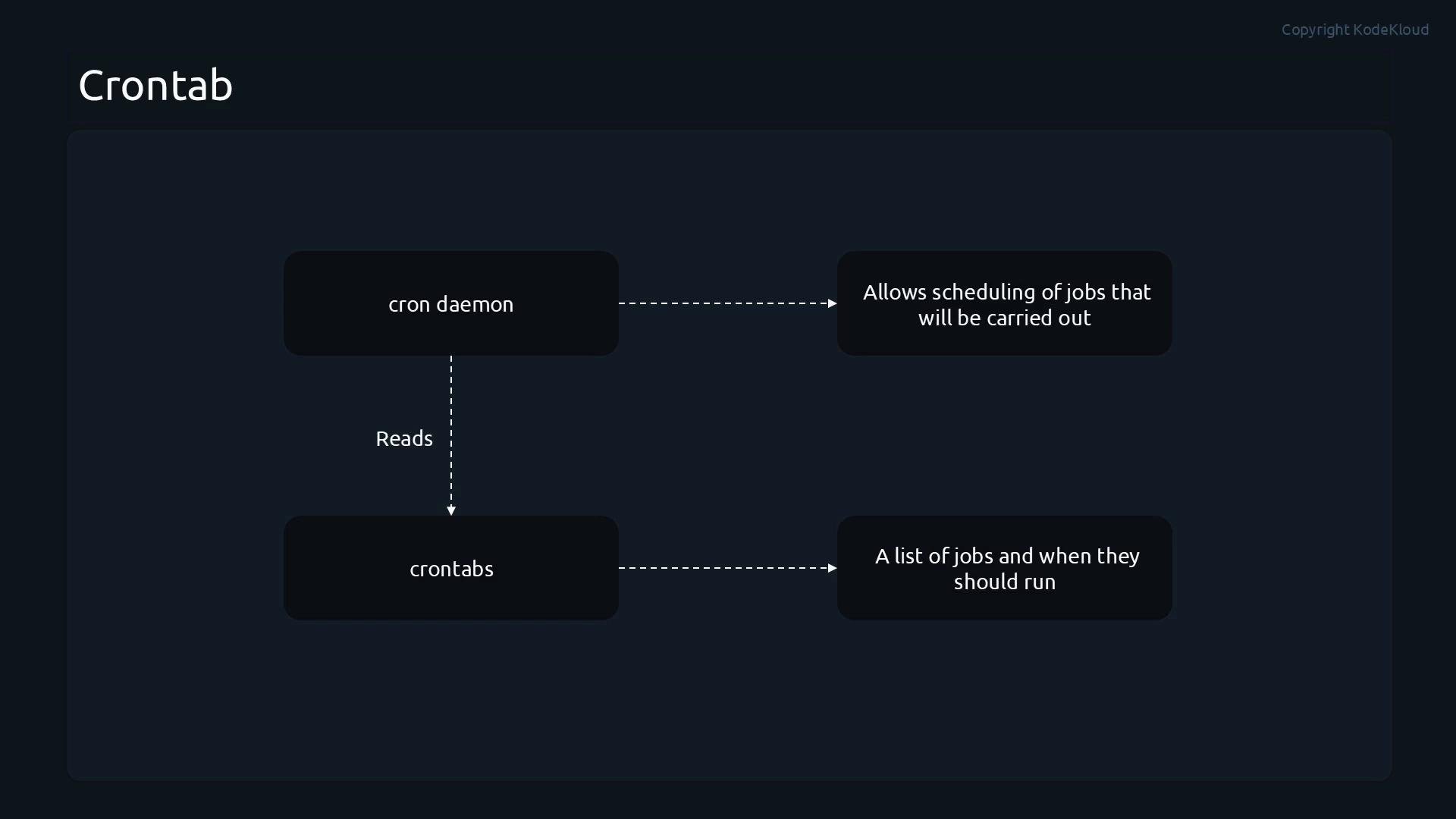
Cron is driven by the cron daemon (crond), which checks crontab files once a minute and runs any jobs scheduled for the current time. Jobs are defined in crontab files — plain-text lists that describe when commands should run.
 ## Where crontab files live
Use the following locations depending on whether you need per-user jobs, periodic scripts, or system-wide jobs:
| Location | Purpose |
| - | - |
| `/etc/crontab` | System-wide crontab. Includes a `user` field. |
| `/etc/cron.d/` | Drop-in files for system jobs. Files must follow system crontab format (include the `user` field). |
| `/etc/cron.hourly` | Executable scripts run hourly via `run-parts`. |
| `/etc/cron.daily` | Executable scripts run daily via `run-parts`. |
| `/etc/cron.weekly` | Executable scripts run weekly via `run-parts`. |
| `/etc/cron.monthly` | Executable scripts run monthly via `run-parts`. |
| `/var/spool/cron` or `/var/spool/cron/crontabs` | Per-user crontabs (path varies by distribution) |
## Managing user crontabs with the crontab command
Use the `crontab` helper to edit, list, or remove a user's crontab:
* `crontab -e` — edit the current user's crontab (opens the editor defined by `$EDITOR`).
* `crontab -l` — list the current user's crontab.
* `crontab -r` — remove the current user's crontab.
* `crontab -r -u username` — remove another user's crontab (requires root).
## Crontab format: schedule fields and command
Each non-comment line in a crontab defines one job. The first five whitespace-separated fields set when the job runs:
| Field position | Name | Allowed values |
| - | - | - |
| 1 | minute | `0-59` |
| 2 | hour | `0-23` |
| 3 | day of month | `1-31` |
| 4 | month | `1-12` or `jan,feb,...` |
| 5 | day of week | `0-7` (`0` and `7` both mean Sunday) or `sun,mon,...` |
* In a per-user crontab, the sixth field onward is the command to execute.
* In a system crontab (such as `/etc/crontab` or files under `/etc/cron.d/`), the sixth field is the user account to run the command as, and the rest form the command.
Example — user crontab (fields: minute hour day month weekday command):
```bash theme={null}
# Example entry for a user crontab
10 11 15 4 * /path/to/command --option
```
Example — system crontab or `/etc/cron.d` file (fields: minute hour day month weekday user command):
```bash theme={null}
# Example entries for a system crontab
*/10 11 15 4 * root /path/to/command --option
*/10 11-12 15 4 * root /path/to/command --option
```
## Special characters and common patterns
* `*` — every unit (every minute, every hour, etc.).
* `-` — range (e.g., `9-17` for hours 9 through 17).
* `/` — step values (e.g., `*/10` for every 10 minutes).
* `,` — list values (e.g., `11,12` for minute 11 and 12).
* You can combine ranges, steps, and lists in one field.
## Using run-parts for periodic directories
Many Linux distributions use `run-parts` to execute scripts placed in periodic directories:
* `/etc/cron.hourly`
* `/etc/cron.daily`
* `/etc/cron.weekly`
* `/etc/cron.monthly`
Place executable scripts (not plain text) in the appropriate directory to run them at the matching interval. Ensure they have the proper shebang and executable permissions (e.g., `chmod +x script`).
## Practical demo: create several user cron jobs
Below is a consolidated example showing how a user (student) might add recurring jobs with `crontab -e`. These examples demonstrate specific minutes/hours, intervals, ranges, and lists.
Open the crontab for the `student` user:
```bash theme={null}
student@control:~$ crontab -e
# (If there is no existing crontab, you'll be given an empty one to edit.)
```
Add the following lines to schedule several recurring jobs:
```bash theme={null}
# Run at 10:05 every day
5 10 * * * echo "Running a job at a specific minute and hour" >> /home/student/cronjob1
# Run every 5 minutes
*/5 * * * * echo "Running every 5 minutes" >> /home/student/cronjob2
# Run at the top of the hour between 09:00 and 17:00 (inclusive)
0 9-17 * * * echo "Work hours job" >> /home/student/cronjob3
# Run at minute 11 and 12 every hour
11,12 * * * * echo "Running at specific minutes" >> /home/student/cronjob4
# Run every 10 minutes during working hours (08:00-17:59) Monday through Friday
*/10 8-17 * * 1-5 echo "Frequent work job" >> /home/student/cronjob5
```
Save and exit the editor (for example, in vim: `:wq`). The new crontab is installed automatically.
Verify the installed crontab:
```bash theme={null}
student@control:~$ crontab -l
5 10 * * * echo "Running a job at a specific minute and hour" >> /home/student/cronjob1
*/5 * * * * echo "Running every 5 minutes" >> /home/student/cronjob2
0 9-17 * * * echo "Work hours job" >> /home/student/cronjob3
11,12 * * * * echo "Running at specific minutes" >> /home/student/cronjob4
*/10 8-17 * * 1-5 echo "Frequent work job" >> /home/student/cronjob5
```
Note: Each user can edit and list their own crontab. Only an administrative user (root) can edit or view another user's crontab.
You can combine ranges, intervals, and lists in a single crontab entry. Always test commands manually to verify paths and behavior before scheduling them in cron.
## System-wide cron jobs
For system-level scheduled tasks, prefer adding files to `/etc/cron.d/` rather than editing `/etc/crontab` directly. Files placed in `/etc/cron.d/` must use the system crontab format (i.e., include the `user` field).
Example: create `/etc/cron.d/sysjob` that runs every 2 minutes as `root`.
```bash theme={null}
# as root
root@control:/home/student# vim /etc/cron.d/sysjob
```
Add the following to `/etc/cron.d/sysjob`:
```bash theme={null}
# Run every 2 minutes as root
*/2 * * * * root echo "system job" >> /root/system_job
```
Save the file. The cron daemon will pick up the new file automatically.
## Removing a user's crontab (as root)
To remove a specific user's crontab as root:
```bash theme={null}
root@control:/home/student# crontab -r -u student
# Possible output:
# Backup of student's previous crontab saved to /root/.cache/crontab/crontab.student.bak
```
After removal, the user will see:
```bash theme={null}
student@control:~$ crontab -l
no crontab for student
```
## Checking the cron daemon (crond)
On systemd-based systems, check the status of the cron daemon (name varies by distribution: `crond` or `cron`):
```bash theme={null}
sudo systemctl status crond
```
If jobs do not run as expected:
* Confirm the cron service is active and enabled.
* Inspect logs for cron-related activity (e.g., `journalctl -u crond` or `/var/log/cron`).
* Make sure scripts in periodic directories are executable and have correct shebangs.
* Use full paths in crontab commands and redirect stdout/stderr to files for easier debugging.
## Wrap-up
You now know how to:
* Write crontab schedule expressions and the meaning of each time field.
* Manage per-user crontabs with `crontab -e`, `-l`, and `-r`.
* Use `run-parts` for periodic scripts in `/etc/cron.*`.
* Create system-wide cron jobs under `/etc/cron.d/` or `/etc/crontab`.
* Verify the cron daemon and troubleshoot scheduled jobs.
Further reading and references:
* [Cron Wikipedia](https://en.wikipedia.org/wiki/Cron)
* [Crontab(5) manual page](https://man7.org/linux/man-pages/man5/crontab.5.html)
* [systemd and cron integration — checking service status](https://www.freedesktop.org/wiki/Software/systemd/)
This documentation is built and hosted on [Mintlify](https://mintlify.com), a developer documentation platform.
## Where crontab files live
Use the following locations depending on whether you need per-user jobs, periodic scripts, or system-wide jobs:
| Location | Purpose |
| - | - |
| `/etc/crontab` | System-wide crontab. Includes a `user` field. |
| `/etc/cron.d/` | Drop-in files for system jobs. Files must follow system crontab format (include the `user` field). |
| `/etc/cron.hourly` | Executable scripts run hourly via `run-parts`. |
| `/etc/cron.daily` | Executable scripts run daily via `run-parts`. |
| `/etc/cron.weekly` | Executable scripts run weekly via `run-parts`. |
| `/etc/cron.monthly` | Executable scripts run monthly via `run-parts`. |
| `/var/spool/cron` or `/var/spool/cron/crontabs` | Per-user crontabs (path varies by distribution) |
## Managing user crontabs with the crontab command
Use the `crontab` helper to edit, list, or remove a user's crontab:
* `crontab -e` — edit the current user's crontab (opens the editor defined by `$EDITOR`).
* `crontab -l` — list the current user's crontab.
* `crontab -r` — remove the current user's crontab.
* `crontab -r -u username` — remove another user's crontab (requires root).
## Crontab format: schedule fields and command
Each non-comment line in a crontab defines one job. The first five whitespace-separated fields set when the job runs:
| Field position | Name | Allowed values |
| - | - | - |
| 1 | minute | `0-59` |
| 2 | hour | `0-23` |
| 3 | day of month | `1-31` |
| 4 | month | `1-12` or `jan,feb,...` |
| 5 | day of week | `0-7` (`0` and `7` both mean Sunday) or `sun,mon,...` |
* In a per-user crontab, the sixth field onward is the command to execute.
* In a system crontab (such as `/etc/crontab` or files under `/etc/cron.d/`), the sixth field is the user account to run the command as, and the rest form the command.
Example — user crontab (fields: minute hour day month weekday command):
```bash theme={null}
# Example entry for a user crontab
10 11 15 4 * /path/to/command --option
```
Example — system crontab or `/etc/cron.d` file (fields: minute hour day month weekday user command):
```bash theme={null}
# Example entries for a system crontab
*/10 11 15 4 * root /path/to/command --option
*/10 11-12 15 4 * root /path/to/command --option
```
## Special characters and common patterns
* `*` — every unit (every minute, every hour, etc.).
* `-` — range (e.g., `9-17` for hours 9 through 17).
* `/` — step values (e.g., `*/10` for every 10 minutes).
* `,` — list values (e.g., `11,12` for minute 11 and 12).
* You can combine ranges, steps, and lists in one field.
## Using run-parts for periodic directories
Many Linux distributions use `run-parts` to execute scripts placed in periodic directories:
* `/etc/cron.hourly`
* `/etc/cron.daily`
* `/etc/cron.weekly`
* `/etc/cron.monthly`
Place executable scripts (not plain text) in the appropriate directory to run them at the matching interval. Ensure they have the proper shebang and executable permissions (e.g., `chmod +x script`).
## Practical demo: create several user cron jobs
Below is a consolidated example showing how a user (student) might add recurring jobs with `crontab -e`. These examples demonstrate specific minutes/hours, intervals, ranges, and lists.
Open the crontab for the `student` user:
```bash theme={null}
student@control:~$ crontab -e
# (If there is no existing crontab, you'll be given an empty one to edit.)
```
Add the following lines to schedule several recurring jobs:
```bash theme={null}
# Run at 10:05 every day
5 10 * * * echo "Running a job at a specific minute and hour" >> /home/student/cronjob1
# Run every 5 minutes
*/5 * * * * echo "Running every 5 minutes" >> /home/student/cronjob2
# Run at the top of the hour between 09:00 and 17:00 (inclusive)
0 9-17 * * * echo "Work hours job" >> /home/student/cronjob3
# Run at minute 11 and 12 every hour
11,12 * * * * echo "Running at specific minutes" >> /home/student/cronjob4
# Run every 10 minutes during working hours (08:00-17:59) Monday through Friday
*/10 8-17 * * 1-5 echo "Frequent work job" >> /home/student/cronjob5
```
Save and exit the editor (for example, in vim: `:wq`). The new crontab is installed automatically.
Verify the installed crontab:
```bash theme={null}
student@control:~$ crontab -l
5 10 * * * echo "Running a job at a specific minute and hour" >> /home/student/cronjob1
*/5 * * * * echo "Running every 5 minutes" >> /home/student/cronjob2
0 9-17 * * * echo "Work hours job" >> /home/student/cronjob3
11,12 * * * * echo "Running at specific minutes" >> /home/student/cronjob4
*/10 8-17 * * 1-5 echo "Frequent work job" >> /home/student/cronjob5
```
Note: Each user can edit and list their own crontab. Only an administrative user (root) can edit or view another user's crontab.
You can combine ranges, intervals, and lists in a single crontab entry. Always test commands manually to verify paths and behavior before scheduling them in cron.
## System-wide cron jobs
For system-level scheduled tasks, prefer adding files to `/etc/cron.d/` rather than editing `/etc/crontab` directly. Files placed in `/etc/cron.d/` must use the system crontab format (i.e., include the `user` field).
Example: create `/etc/cron.d/sysjob` that runs every 2 minutes as `root`.
```bash theme={null}
# as root
root@control:/home/student# vim /etc/cron.d/sysjob
```
Add the following to `/etc/cron.d/sysjob`:
```bash theme={null}
# Run every 2 minutes as root
*/2 * * * * root echo "system job" >> /root/system_job
```
Save the file. The cron daemon will pick up the new file automatically.
## Removing a user's crontab (as root)
To remove a specific user's crontab as root:
```bash theme={null}
root@control:/home/student# crontab -r -u student
# Possible output:
# Backup of student's previous crontab saved to /root/.cache/crontab/crontab.student.bak
```
After removal, the user will see:
```bash theme={null}
student@control:~$ crontab -l
no crontab for student
```
## Checking the cron daemon (crond)
On systemd-based systems, check the status of the cron daemon (name varies by distribution: `crond` or `cron`):
```bash theme={null}
sudo systemctl status crond
```
If jobs do not run as expected:
* Confirm the cron service is active and enabled.
* Inspect logs for cron-related activity (e.g., `journalctl -u crond` or `/var/log/cron`).
* Make sure scripts in periodic directories are executable and have correct shebangs.
* Use full paths in crontab commands and redirect stdout/stderr to files for easier debugging.
## Wrap-up
You now know how to:
* Write crontab schedule expressions and the meaning of each time field.
* Manage per-user crontabs with `crontab -e`, `-l`, and `-r`.
* Use `run-parts` for periodic scripts in `/etc/cron.*`.
* Create system-wide cron jobs under `/etc/cron.d/` or `/etc/crontab`.
* Verify the cron daemon and troubleshoot scheduled jobs.
Further reading and references:
* [Cron Wikipedia](https://en.wikipedia.org/wiki/Cron)
* [Crontab(5) manual page](https://man7.org/linux/man-pages/man5/crontab.5.html)
* [systemd and cron integration — checking service status](https://www.freedesktop.org/wiki/Software/systemd/)
This documentation is built and hosted on [Mintlify](https://mintlify.com), a developer documentation platform.