> ## Documentation Index
> Fetch the complete documentation index at: https://notes.kodekloud.com/llms.txt
> Use this file to discover all available pages before exploring further.
# Demo Working With Network Attached Storage
> Shows how to connect to an NFS server, mount and verify a remote export, and configure /etc/fstab for persistent network storage across reboots.
In this lesson you'll learn to connect to an NFS server, mount a remote export on a client, verify access, and make the mount persistent across reboots so your network storage remains available.
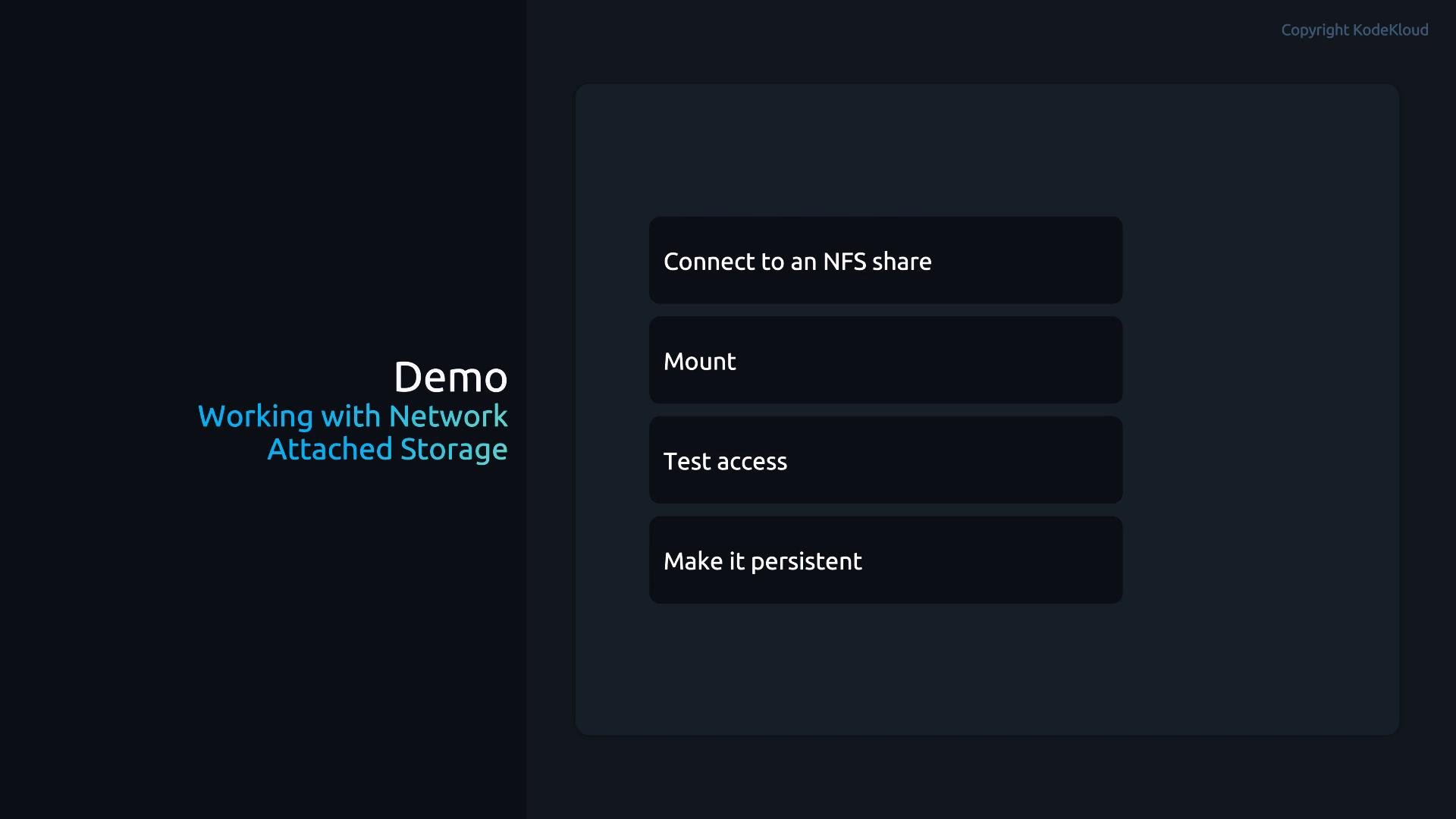 By the end of this walkthrough you'll understand how to extend a system's storage using NFS, validate the mount, and ensure the export is re-mounted automatically on boot.
## Step 1 — Verify connectivity to the NFS server
First, confirm the client can reach the NFS server over the network. Replace the example IP with your server's address (here: `10.0.2.15`).
```bash theme={null}
root@control:/# ping -c 4 10.0.2.15
PING 10.0.2.15 (10.0.2.15) 56(84) bytes of data.
64 bytes from 10.0.2.15: icmp_seq=1 ttl=64 time=9.83 ms
64 bytes from 10.0.2.15: icmp_seq=2 ttl=64 time=0.591 ms
64 bytes from 10.0.2.15: icmp_seq=3 ttl=64 time=0.584 ms
64 bytes from 10.0.2.15: icmp_seq=4 ttl=64 time=0.617 ms
--- 10.0.2.15 ping statistics ---
4 packets transmitted, 4 received, 0% packet loss, time 3074ms
rtt min/avg/max/mdev = 0.584/2.904/9.825/3.995 ms
root@control:/#
```
If ping fails, check routing, firewall rules, or that the NFS server is running and reachable on the expected network.
Network connectivity and appropriate firewall rules (e.g., allowing NFS/RPC ports) are required before mounting. Ensure you have administrative privileges on the client to create mount points and perform mounts.
## Step 2 — Create a mount point on the client
Create the directory where the remote export will be mounted. Use `-p` to avoid errors if the parent exists already.
```bash theme={null}
root@control:/# mkdir -p /mountnfs
```
## Step 3 — Mount the NFS share manually (runtime)
Mount the remote export. In this example the server export path is `/srv/nfs/share/nfs-lab` on host `10.0.2.15`.
```bash theme={null}
root@control:/# mount -t nfs 10.0.2.15:/srv/nfs/share/nfs-lab /mountnfs
```
Validate the mount by checking the list of mounted filesystems for the mount point:
```bash theme={null}
root@control:/# mount | grep /mountnfs
10.0.2.15:/srv/nfs/share/nfs-lab on /mountnfs type nfs4 (rw,relatime,vers=4.2,rsize=262144,wsize=262144,hard,proto=tcp,sec=sys,addr=10.0.2.15)
```
Quick access tests:
```bash theme={null}
# list files on the NFS export
root@control:/# ls -l /mountnfs
# create a small test file to verify write access (if permitted)
root@control:/# touch /mountnfs/.$(date +%s)-test
```
The `mount` command above performs a runtime (ephemeral) mount. It remains until unmounted or the system reboots. To ensure automatic mounting after reboot, add the export to `/etc/fstab` with appropriate options.
## Step 4 — Make the mount persistent by editing /etc/fstab
Add an entry to `/etc/fstab` so the NFS share is mounted automatically on boot. Common and useful NFS mount options include `_netdev`, `nofail`, and `vers=`.
Example `/etc/fstab` entry (server: `10.0.2.15`, export: `/srv/nfs/share/nfs-lab`, mount point: `/mountnfs`):
```text theme={null}
10.0.2.15:/srv/nfs/share/nfs-lab /mountnfs nfs defaults,_netdev,nofail,vers=4 0 0
```
After saving `/etc/fstab`, apply mounts without rebooting:
```bash theme={null}
# if currently mounted, unmount first
root@control:/# umount /mountnfs
# re-evaluate fstab and mount all entries
root@control:/# mount -a
```
Confirm the persistent mount is active:
```bash theme={null}
root@control:/# mount | grep /mountnfs
10.0.2.15:/srv/nfs/share/nfs-lab on /mountnfs type nfs4 (rw,relatime,vers=4.2,rsize=262144,wsize=262144,hard,proto=tcp,sec=sys,addr=10.0.2.15)
```
### Common NFS mount options
| Option | Purpose | Example usage |
| - | - | - |
| `_netdev` | Delay mount until network is available (recommended for network filesystems) | `defaults,_netdev` |
| `nofail` | Allow boot to continue even if the mount fails | `nofail` |
| `vers=` | Force NFS protocol version (e.g., 3 or 4) | `vers=4` or `vers=3` |
| `rsize=` / `wsize=` | Set read/write buffer sizes for performance tuning | `rsize=262144,wsize=262144` |
| `ro` / `rw` | Mount read-only or read-write | `rw` |
## Step 5 — Summary and considerations
* Use `_netdev` to avoid attempting to mount network filesystems before network interfaces are up.
* Use `nofail` so booting continues when the remote share is unavailable.
* Force `vers=` if your server requires a specific NFS protocol version.
* Adjust `rsize`/`wsize`, locking, and security options (`sec=`) as required by your environment and workload.
* If you need automount behavior rather than static fstab entries, consider systemd automount units or autofs for on-demand mounting.
## References and further reading
* NFS overview: [https://nfs.sourceforge.io/](https://nfs.sourceforge.io/) (or your distro's NFS docs)
* `fstab(5)` manual: [https://man7.org/linux/man-pages/man5/fstab.5.html](https://man7.org/linux/man-pages/man5/fstab.5.html)
* `mount(8)` manual: [https://man7.org/linux/man-pages/man8/mount.8.html](https://man7.org/linux/man-pages/man8/mount.8.html)
This completes the lesson on mounting an NFS share and making the mount persistent across reboots.
This documentation is built and hosted on [Mintlify](https://mintlify.com), a developer documentation platform.
By the end of this walkthrough you'll understand how to extend a system's storage using NFS, validate the mount, and ensure the export is re-mounted automatically on boot.
## Step 1 — Verify connectivity to the NFS server
First, confirm the client can reach the NFS server over the network. Replace the example IP with your server's address (here: `10.0.2.15`).
```bash theme={null}
root@control:/# ping -c 4 10.0.2.15
PING 10.0.2.15 (10.0.2.15) 56(84) bytes of data.
64 bytes from 10.0.2.15: icmp_seq=1 ttl=64 time=9.83 ms
64 bytes from 10.0.2.15: icmp_seq=2 ttl=64 time=0.591 ms
64 bytes from 10.0.2.15: icmp_seq=3 ttl=64 time=0.584 ms
64 bytes from 10.0.2.15: icmp_seq=4 ttl=64 time=0.617 ms
--- 10.0.2.15 ping statistics ---
4 packets transmitted, 4 received, 0% packet loss, time 3074ms
rtt min/avg/max/mdev = 0.584/2.904/9.825/3.995 ms
root@control:/#
```
If ping fails, check routing, firewall rules, or that the NFS server is running and reachable on the expected network.
Network connectivity and appropriate firewall rules (e.g., allowing NFS/RPC ports) are required before mounting. Ensure you have administrative privileges on the client to create mount points and perform mounts.
## Step 2 — Create a mount point on the client
Create the directory where the remote export will be mounted. Use `-p` to avoid errors if the parent exists already.
```bash theme={null}
root@control:/# mkdir -p /mountnfs
```
## Step 3 — Mount the NFS share manually (runtime)
Mount the remote export. In this example the server export path is `/srv/nfs/share/nfs-lab` on host `10.0.2.15`.
```bash theme={null}
root@control:/# mount -t nfs 10.0.2.15:/srv/nfs/share/nfs-lab /mountnfs
```
Validate the mount by checking the list of mounted filesystems for the mount point:
```bash theme={null}
root@control:/# mount | grep /mountnfs
10.0.2.15:/srv/nfs/share/nfs-lab on /mountnfs type nfs4 (rw,relatime,vers=4.2,rsize=262144,wsize=262144,hard,proto=tcp,sec=sys,addr=10.0.2.15)
```
Quick access tests:
```bash theme={null}
# list files on the NFS export
root@control:/# ls -l /mountnfs
# create a small test file to verify write access (if permitted)
root@control:/# touch /mountnfs/.$(date +%s)-test
```
The `mount` command above performs a runtime (ephemeral) mount. It remains until unmounted or the system reboots. To ensure automatic mounting after reboot, add the export to `/etc/fstab` with appropriate options.
## Step 4 — Make the mount persistent by editing /etc/fstab
Add an entry to `/etc/fstab` so the NFS share is mounted automatically on boot. Common and useful NFS mount options include `_netdev`, `nofail`, and `vers=`.
Example `/etc/fstab` entry (server: `10.0.2.15`, export: `/srv/nfs/share/nfs-lab`, mount point: `/mountnfs`):
```text theme={null}
10.0.2.15:/srv/nfs/share/nfs-lab /mountnfs nfs defaults,_netdev,nofail,vers=4 0 0
```
After saving `/etc/fstab`, apply mounts without rebooting:
```bash theme={null}
# if currently mounted, unmount first
root@control:/# umount /mountnfs
# re-evaluate fstab and mount all entries
root@control:/# mount -a
```
Confirm the persistent mount is active:
```bash theme={null}
root@control:/# mount | grep /mountnfs
10.0.2.15:/srv/nfs/share/nfs-lab on /mountnfs type nfs4 (rw,relatime,vers=4.2,rsize=262144,wsize=262144,hard,proto=tcp,sec=sys,addr=10.0.2.15)
```
### Common NFS mount options
| Option | Purpose | Example usage |
| - | - | - |
| `_netdev` | Delay mount until network is available (recommended for network filesystems) | `defaults,_netdev` |
| `nofail` | Allow boot to continue even if the mount fails | `nofail` |
| `vers=` | Force NFS protocol version (e.g., 3 or 4) | `vers=4` or `vers=3` |
| `rsize=` / `wsize=` | Set read/write buffer sizes for performance tuning | `rsize=262144,wsize=262144` |
| `ro` / `rw` | Mount read-only or read-write | `rw` |
## Step 5 — Summary and considerations
* Use `_netdev` to avoid attempting to mount network filesystems before network interfaces are up.
* Use `nofail` so booting continues when the remote share is unavailable.
* Force `vers=` if your server requires a specific NFS protocol version.
* Adjust `rsize`/`wsize`, locking, and security options (`sec=`) as required by your environment and workload.
* If you need automount behavior rather than static fstab entries, consider systemd automount units or autofs for on-demand mounting.
## References and further reading
* NFS overview: [https://nfs.sourceforge.io/](https://nfs.sourceforge.io/) (or your distro's NFS docs)
* `fstab(5)` manual: [https://man7.org/linux/man-pages/man5/fstab.5.html](https://man7.org/linux/man-pages/man5/fstab.5.html)
* `mount(8)` manual: [https://man7.org/linux/man-pages/man8/mount.8.html](https://man7.org/linux/man-pages/man8/mount.8.html)
This completes the lesson on mounting an NFS share and making the mount persistent across reboots.
This documentation is built and hosted on [Mintlify](https://mintlify.com), a developer documentation platform.