

Why storage fundamentals matter
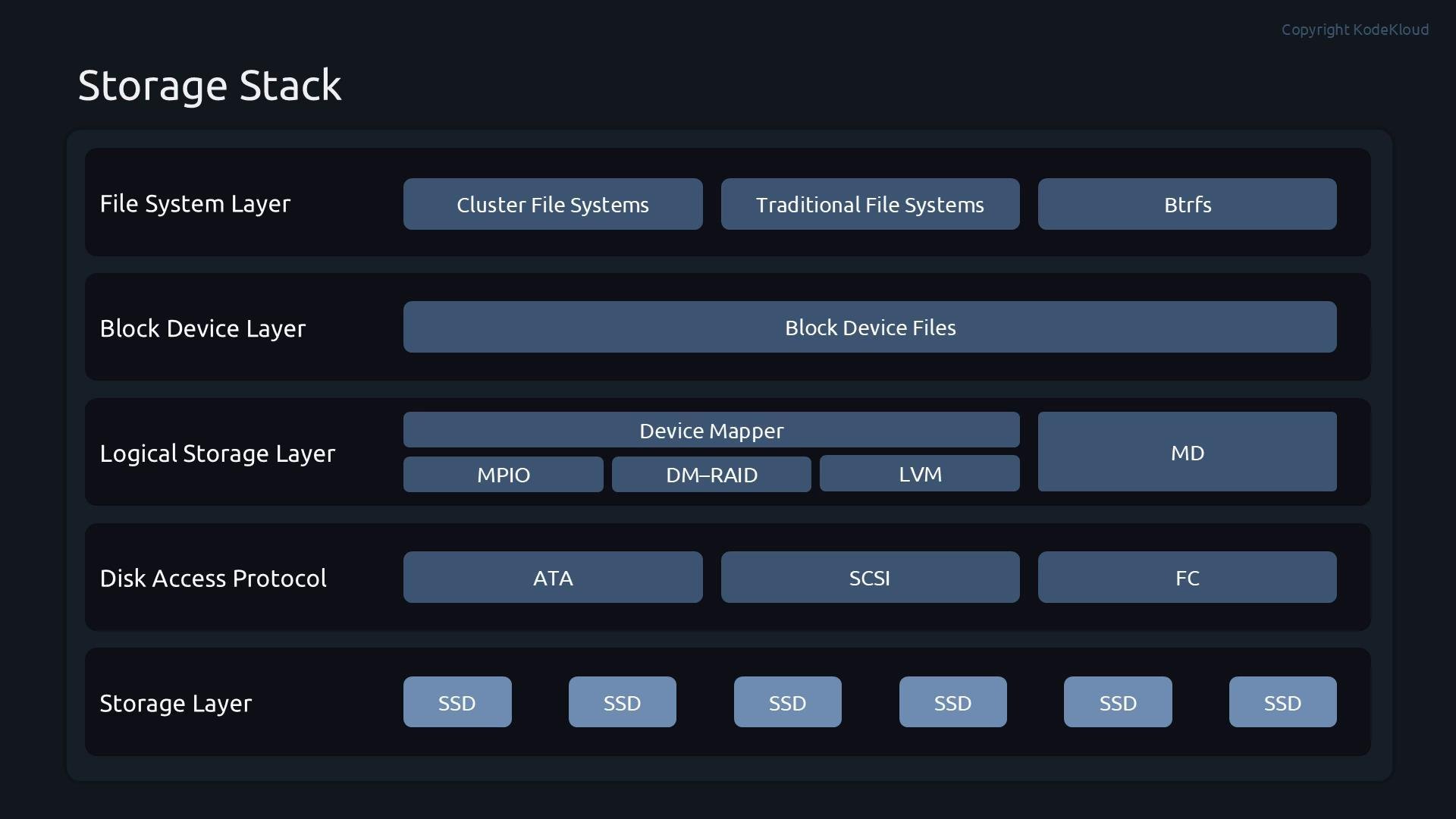
Before jumping into LVM, RAID, or network storage, you must understand how Linux represents and layers storage. That foundation makes troubleshooting predictable and efficient. Storage in Linux is layered:- Physical layer: SSDs / HDDs where bits are stored.
- Protocols: ATA, SCSI, Fibre Channel used to communicate with hardware.
- Logical layer: device-mapper, LVM, RAID, MPIO — abstractions that combine or transform physical disks.
- Block devices:
/dev/sda,/dev/mapper/*— the system’s presentable devices. - File systems: XFS, ext4, Btrfs, VFAT — where files and directories live.
Disk partitioning basics (MBR vs GPT)
Most disks need a partition table before you create filesystems or use LVM. Two common partition table formats are MBR (msdos) and GPT.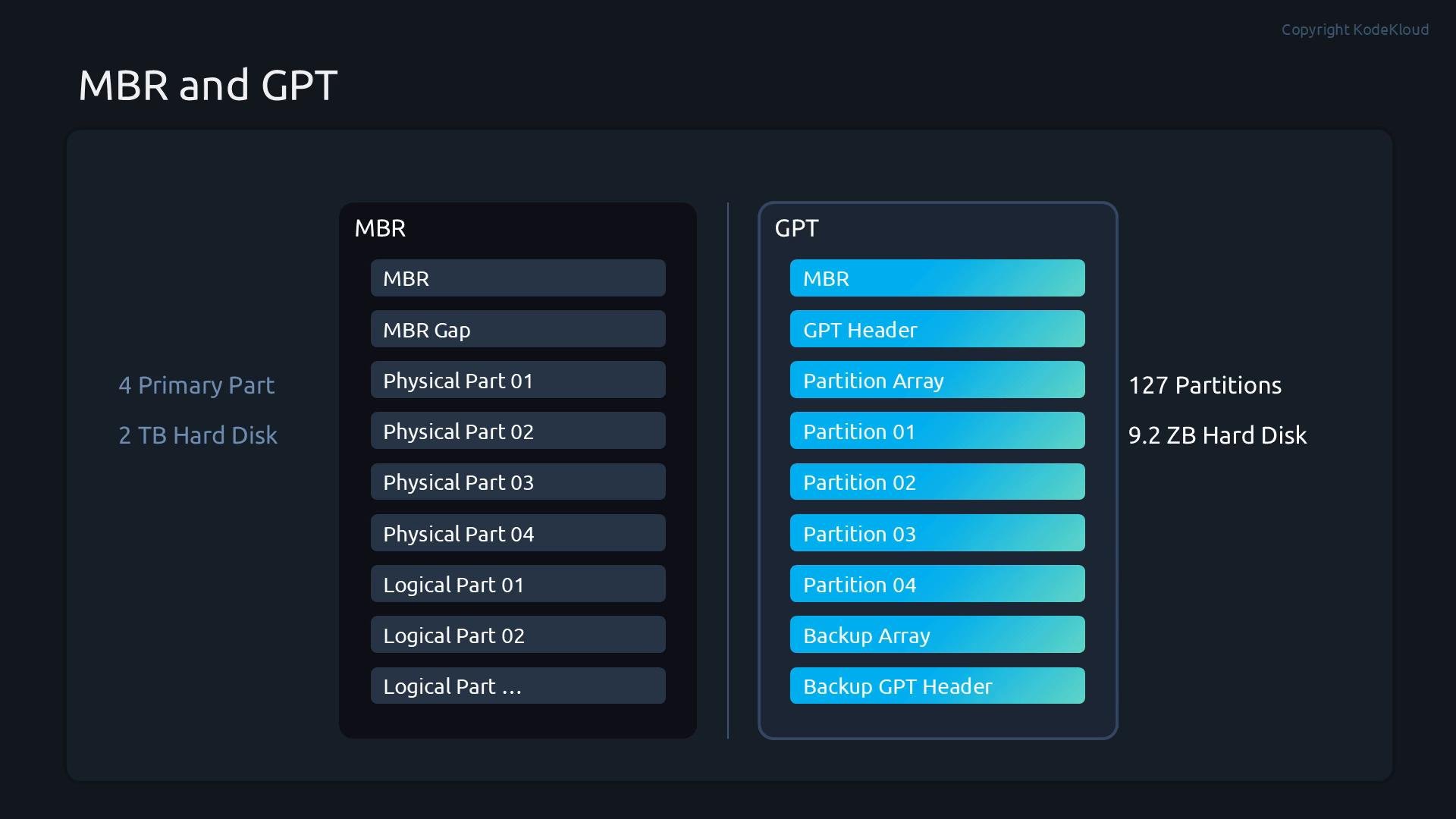
Use GPT for modern systems and large disks. Use MBR only for legacy compatibility.
Inspecting block devices
Before changing anything, always inspect what the kernel currently sees. Useful lsblk commands:sudo so device information is complete.
Partitioning with parted
On RHEL-based systems,parted is a common tool for creating and modifying partition tables and partitions.
Common parted interactive commands:
Always back up important data before modifying partition tables.
Choosing a file system
After partitioning, format partitions with a filesystem. Choose based on workload, compatibility, and performance.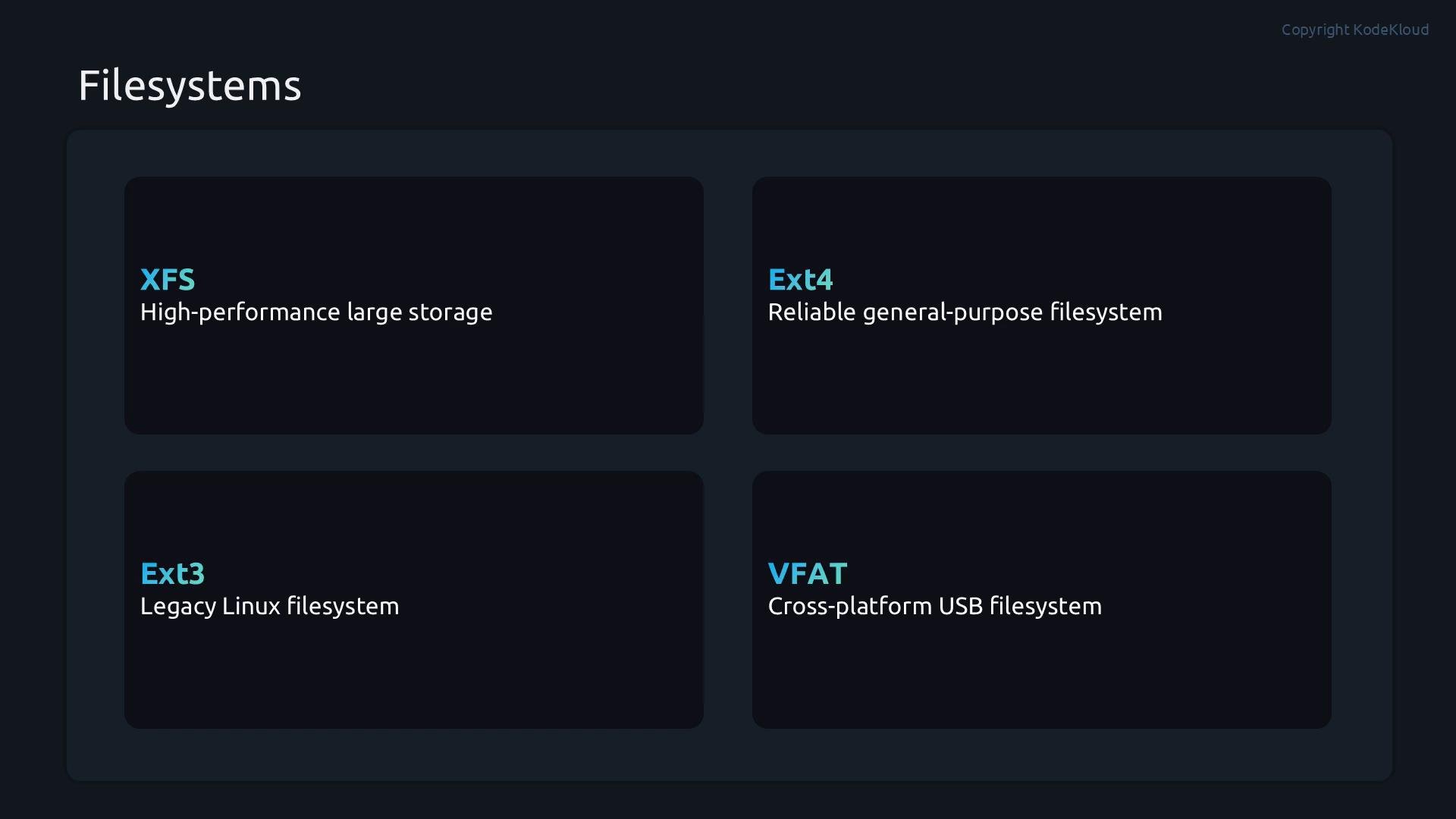
Formatting examples:
mkfs.vfat without -F 32 can produce FAT12/FAT16 on small media—use -F 32 for FAT32.
Always run filesystem creation commands on the correct device. A small typo (e.g.,
/dev/sdb1 vs /dev/sda1) can overwrite data irrecoverably. Back up important data before formatting.Mounting filesystems and persistent mounts
A newly formatted partition must be mounted to be accessible.mount /dev/sdb1 /mnt/mydiskmounts manually (not persistent).- To mount automatically on boot, add entries to
/etc/fstab.
/etc/fstab contains six fields:
- Device (or
UUID=orLABEL=) - Mount point
- Filesystem type (e.g.,
xfs,ext4,swap) - Mount options (comma-separated; use
defaultsfor typical behavior) - Dump (0 or 1 — used by dump utility)
- Pass (fsck order at boot: 0 = skip, 1 = root, 2 = other filesystems)
/dev/sdb can change after hardware re-enumeration or when adding new disks. Using UUID= makes mounts stable across reboots.
Do not place network mounts (NFS, CIFS) in
/etc/fstab with required (defaults) options without testing. If the network resource is unavailable at boot, the system can hang waiting for the mount. Use autofs or noauto,x-systemd.automount options to avoid boot hangs. This lesson covers configuring autofs for safe NFS automounting.Quick references and further reading
- man pages:
man lsblk,man parted,man mkfs,man mount,man fstab - Red Hat Storage and File Systems documentation: https://access.redhat.com/documentation/en-us/red_hat_enterprise_linux/latest/html/storage_administration_guide/
- GNU Parted: https://www.gnu.org/software/parted/