

- Linux users and groups (the foundation of access control)
- Superuser access (the power and risks of
root) - Managing user accounts (
create,modify,remove) - Group management (organizing permissions efficiently)
- Password management and policies
Concepts: users, groups, UIDs and GIDs
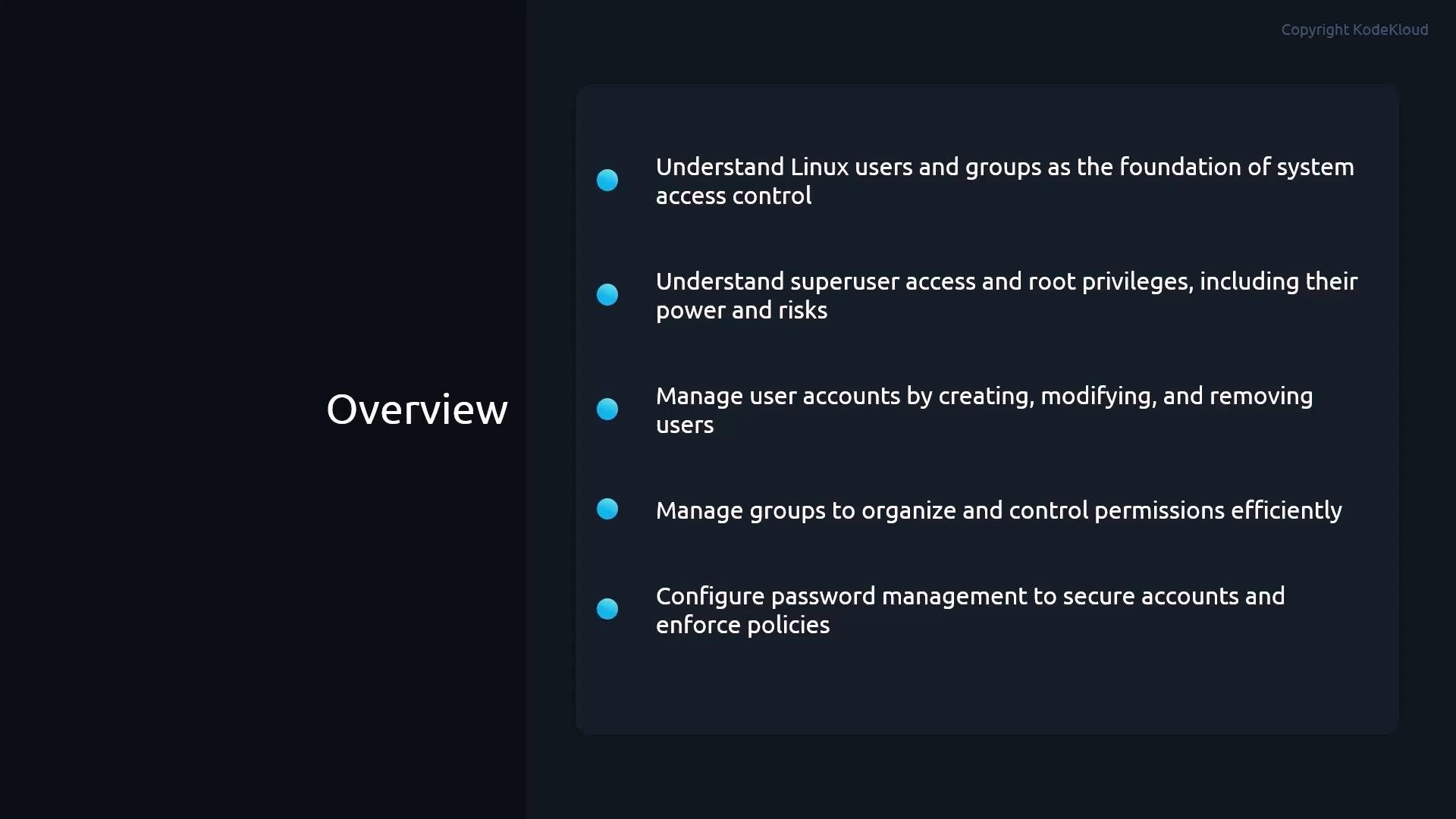
Before creating or modifying accounts, understand how Linux models identities and permissions. Think of a Linux system like a company building:- Each person is a user account.
- Groups are teams or departments.
- Files and directories are offices or storage rooms.
- Permissions determine which teams can enter which rooms.
What is a user? UIDs and user types
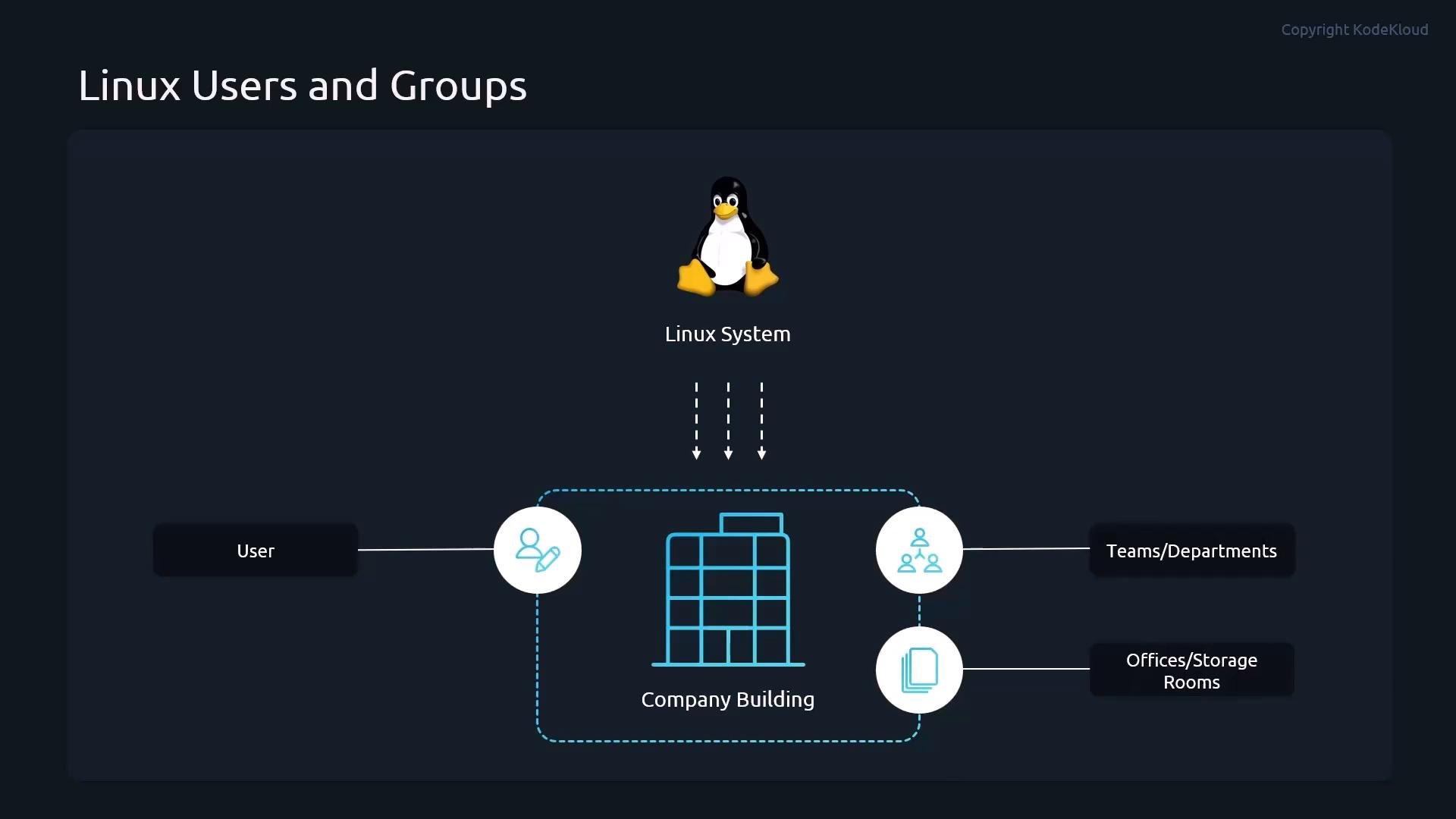
A user is an entity that can manipulate files and run processes. The kernel tracks users by numeric IDs because numbers are faster and more consistent than names.- The privileged administrative user is
rootand always has UID0. - Normal user UIDs typically start at
1000on many modern distributions (including Red Hat Enterprise Linux). - System accounts (daemons, service users) use lower-numbered UIDs reserved for the OS.
The
root account can perform any action, including destructive ones. Use sudo and least-privilege principles to reduce the risk of accidental or malicious changes.Groups and GIDs
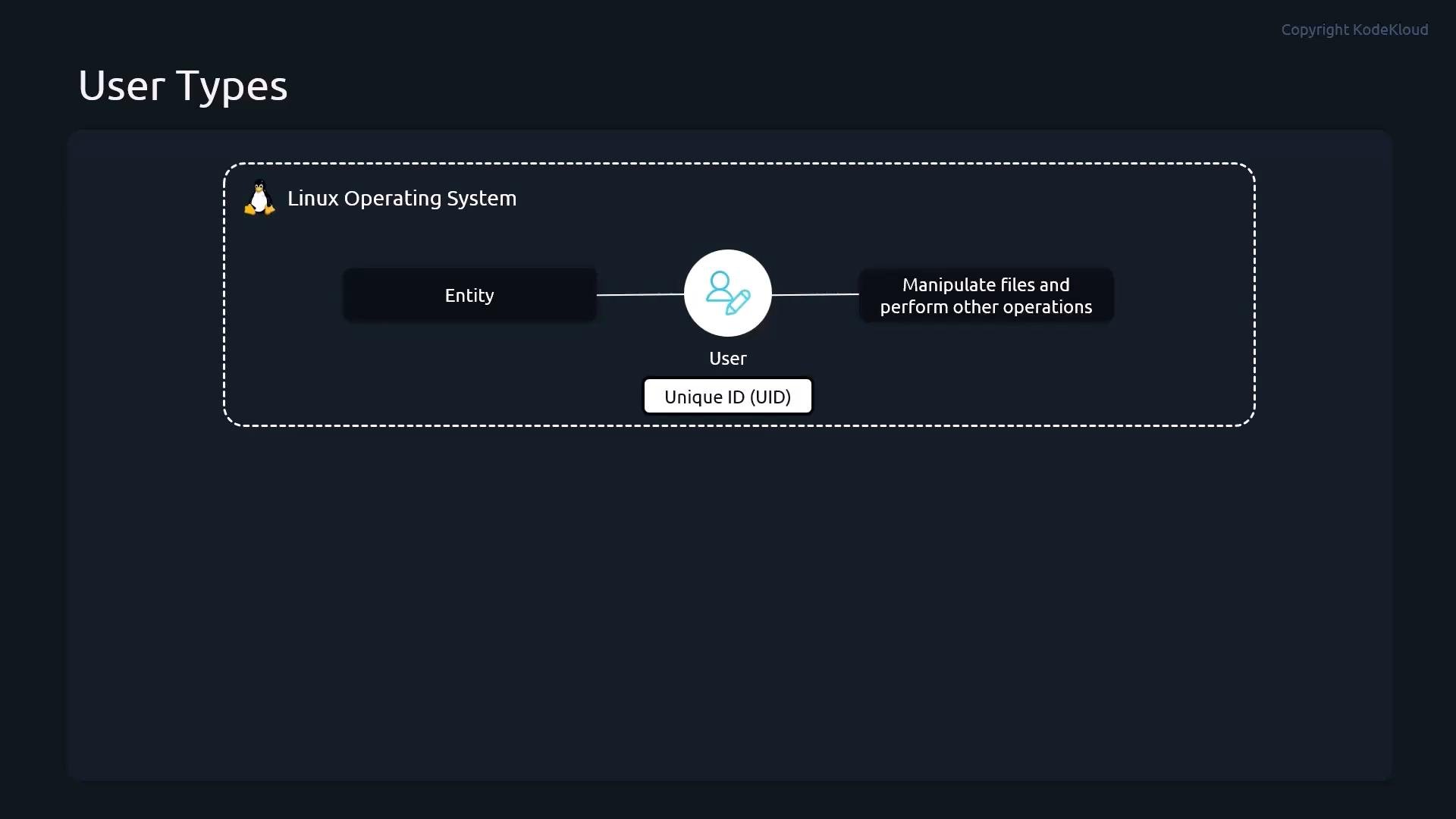
Groups aggregate users for easier permission management. Each group has a numeric Group ID (GID). Users have:- a primary group (GID recorded in
/etc/passwd), and - zero or more supplementary (secondary) groups listed in
/etc/group.
Where user and group data are stored
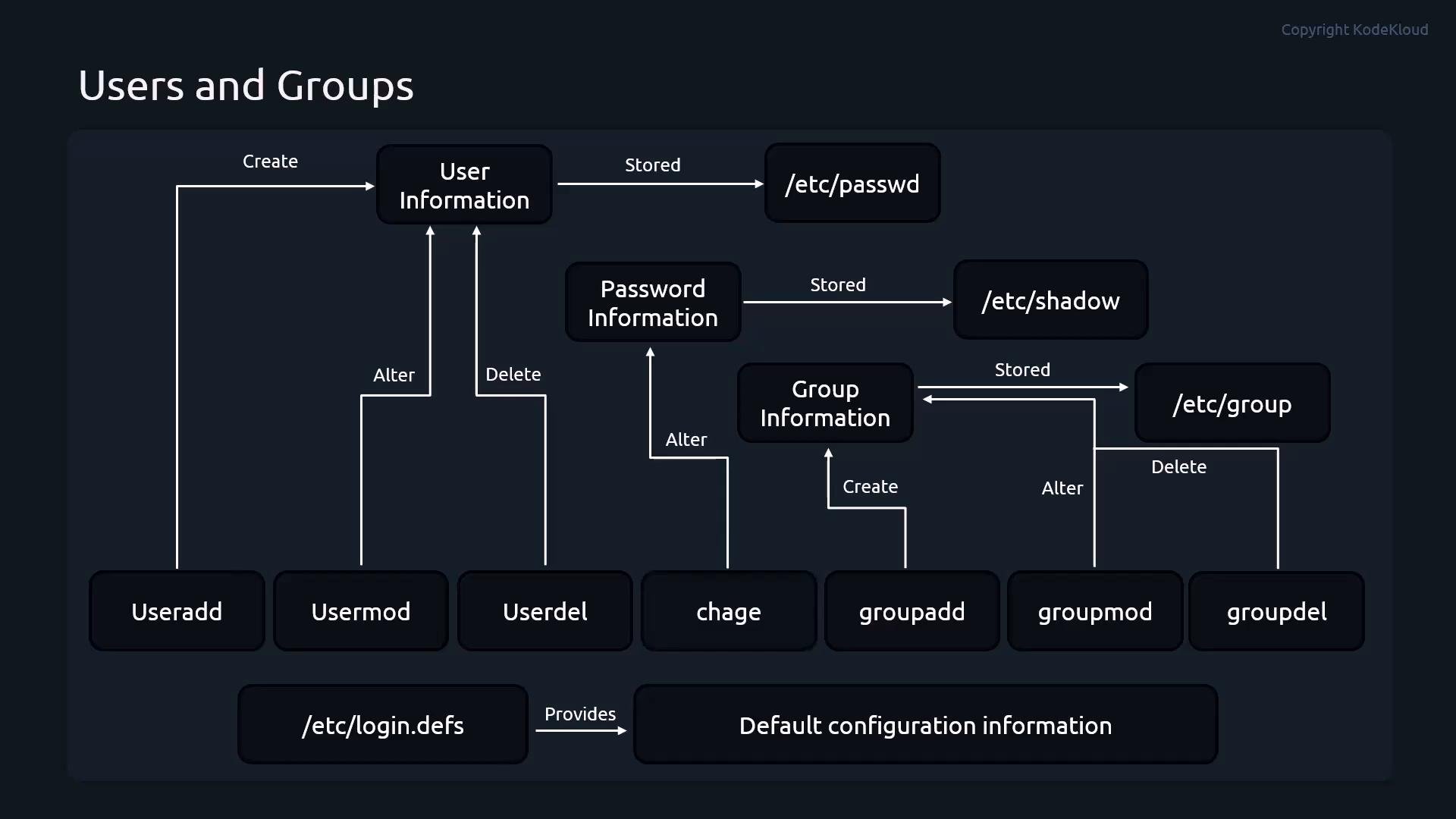
Important files:/etc/passwd— basic account information (login name, UID, GID, home, shell). The password field usually containsxwhen shadowing is enabled./etc/shadow— stores password hashes and password-aging fields; readable only byroot./etc/group— group names and membership.- Configuration defaults for account creation and password policy are in files like
/etc/login.defsand distribution-specific files such as/etc/default/useradd.
Keep /etc/shadow readable only by root. If its permissions are relaxed, password hashes may be exposed, creating a significant security risk.
Common administration commands
Use these tools to create, modify, and remove users and groups, and to manage password aging.
Refer to the manual pages for details: man useradd, man usermod, man userdel.
Understanding /etc/passwd and /etc/shadow
When a user is created, the system updates/etc/passwd and /etc/shadow.
Example /etc/passwd line:
/etc/passwd (colon-separated):
- Login name
- Password placeholder (
xwhen using shadowing) - UID
- GID (primary group ID)
- Comment (GECOS) field — often full name or description
- Home directory
- Default shell
/etc/shadow line:
/etc/shadow (colon-separated):
- Login name
- Encrypted password hash (or special values such as
!or*to lock the account) - Last password change (days since epoch)
- Minimum days between password changes
- Maximum days the password is valid
- Warning period (days before expiry to warn the user)
- Inactivity period (days after password expiration until the account is disabled)
- Account expiration date (days since epoch) or empty
- Reserved (unused)
User shell startup files and the environment
When a user logs in, shell startup files set aliases, environment variables, PATH, and startup commands. For Bash:~/.bash_profile— executed for login shells; sets session-level environment variables and typically sources~/.bashrc.~/.bashrc— executed for interactive non-login shells; used for aliases, functions, and per-shell settings.~/.profile— fallback for login shells if~/.bash_profileand~/.bash_loginare absent.- System-wide settings are typically in
/etc/profileand/etc/profile.d/*and are processed before user-level files.
Next steps
Now that you understand the data model (UIDs/GIDs), where account information is stored, and the standard administrative commands, you can begin creating and managing users and groups safely. Links and references- Kubernetes Documentation (general ops reference)
- passwd(5) manual - linux
- shadow(5) manual - linux
- useradd(8) manual - linux
- Red Hat Enterprise Linux documentation: https://access.redhat.com/documentation/en-us/red_hat_enterprise_linux/