> ## Documentation Index
> Fetch the complete documentation index at: https://notes.kodekloud.com/llms.txt
> Use this file to discover all available pages before exploring further.
# Maintaining Accurate Time
> Guidance on maintaining accurate system time using NTP and Chrony, configuring time zones, enabling synchronization, and verifying clock accuracy to ensure reliable log timestamps across servers
Accurate timestamps are essential for useful logs. If a system clock is wrong, log entries can appear out of order, making troubleshooting, auditing, and forensic correlation across multiple machines unreliable.
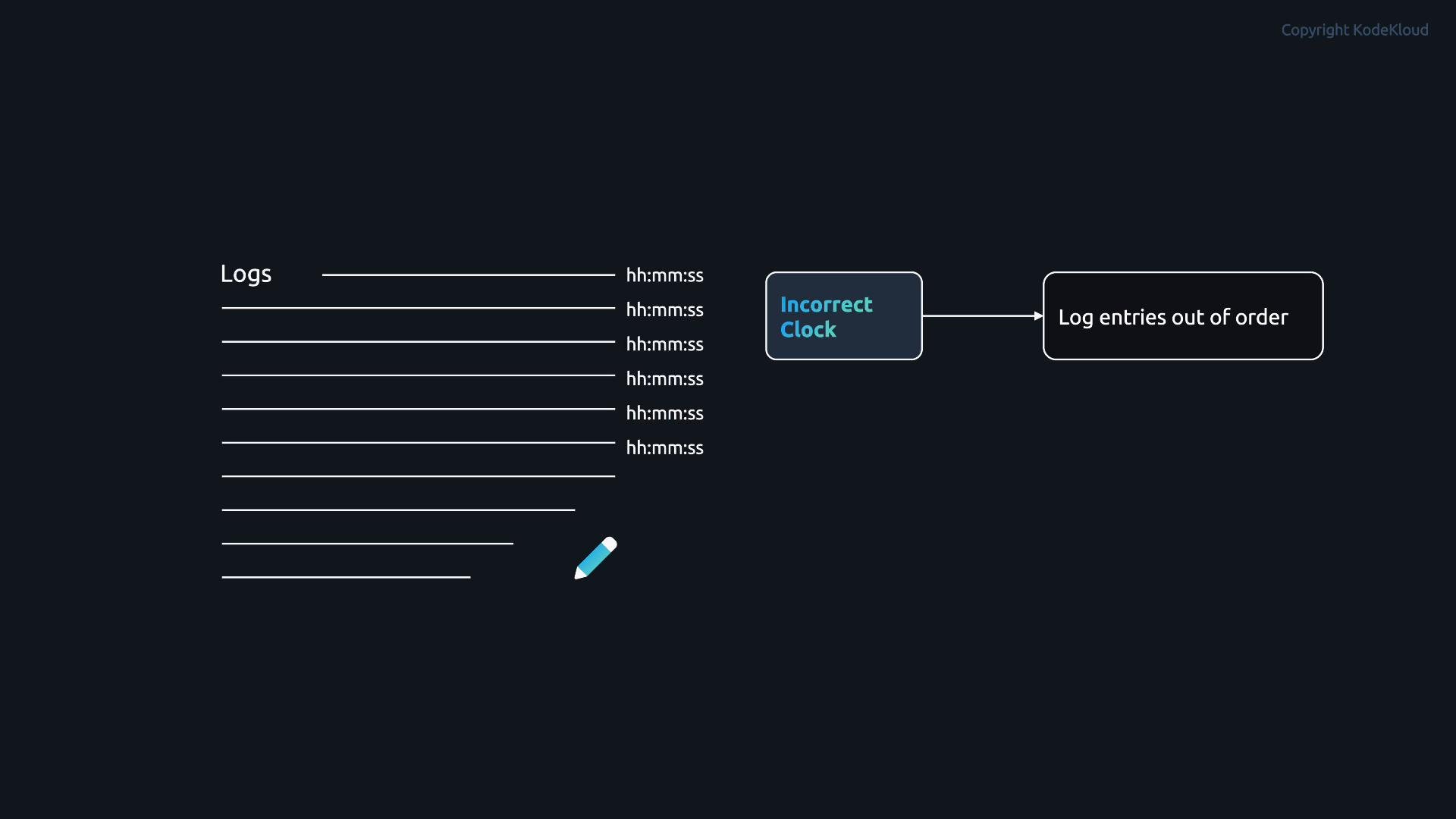 For example, authentication failures, service restarts, or security events recorded on different hosts become hard to correlate if their clocks drift. To avoid this, servers must synchronize to a common, reliable time source.
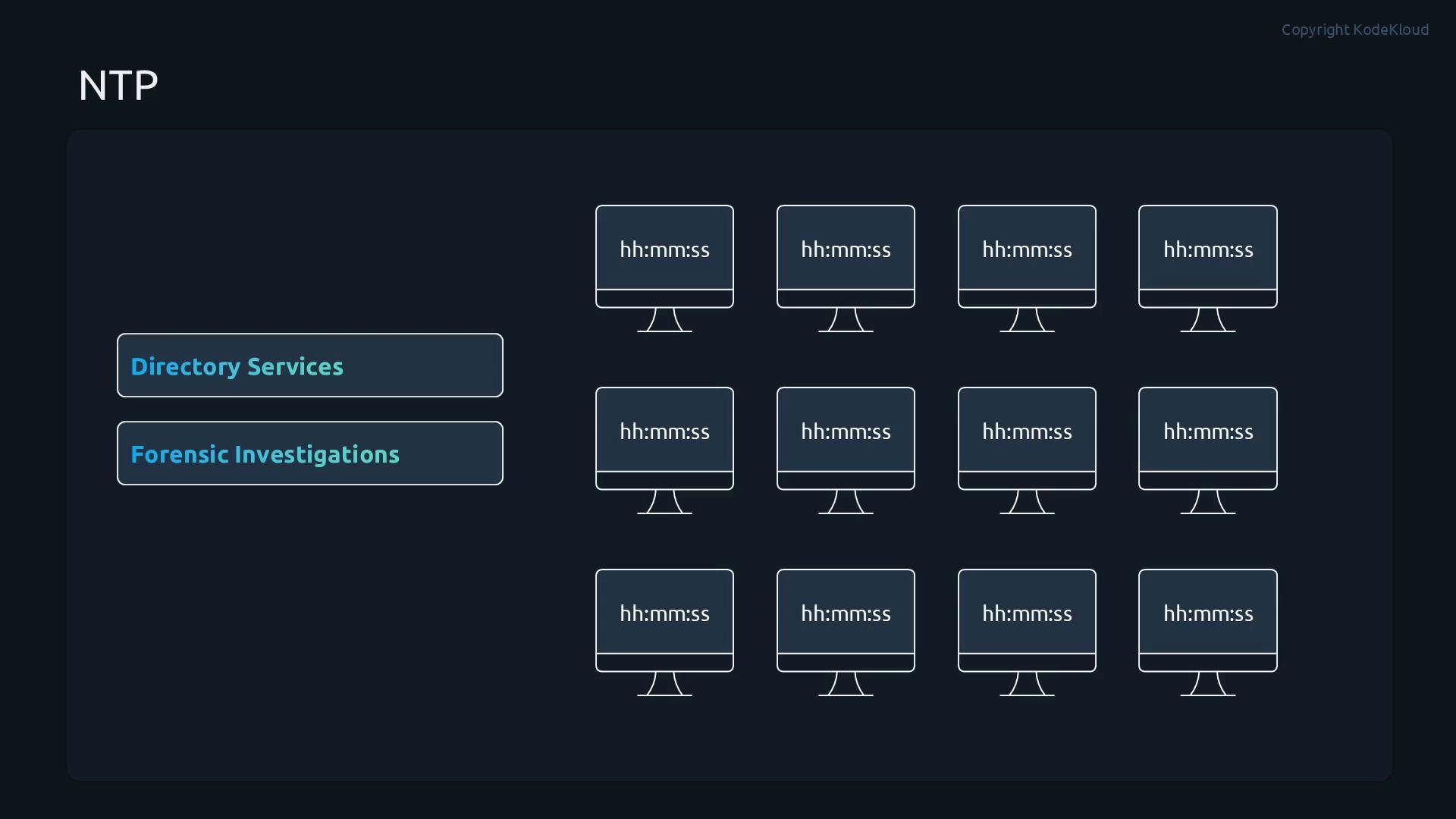 To implement uniform time settings, systems use Network Time Protocol (NTP) to synchronize clocks to UTC. Key points:
* NTP communicates over UDP port 123.
* A time server provides time to clients; clients periodically adjust their clocks and can, in turn, serve others.
* NTP corrects clock drift and smooths adjustments to minimize disruption and network traffic.
NTP uses a hierarchical stratum model—lower stratum numbers indicate a server closer to the reference clock:
To implement uniform time settings, systems use Network Time Protocol (NTP) to synchronize clocks to UTC. Key points:
* NTP communicates over UDP port 123.
* A time server provides time to clients; clients periodically adjust their clocks and can, in turn, serve others.
* NTP corrects clock drift and smooths adjustments to minimize disruption and network traffic.
NTP uses a hierarchical stratum model—lower stratum numbers indicate a server closer to the reference clock:
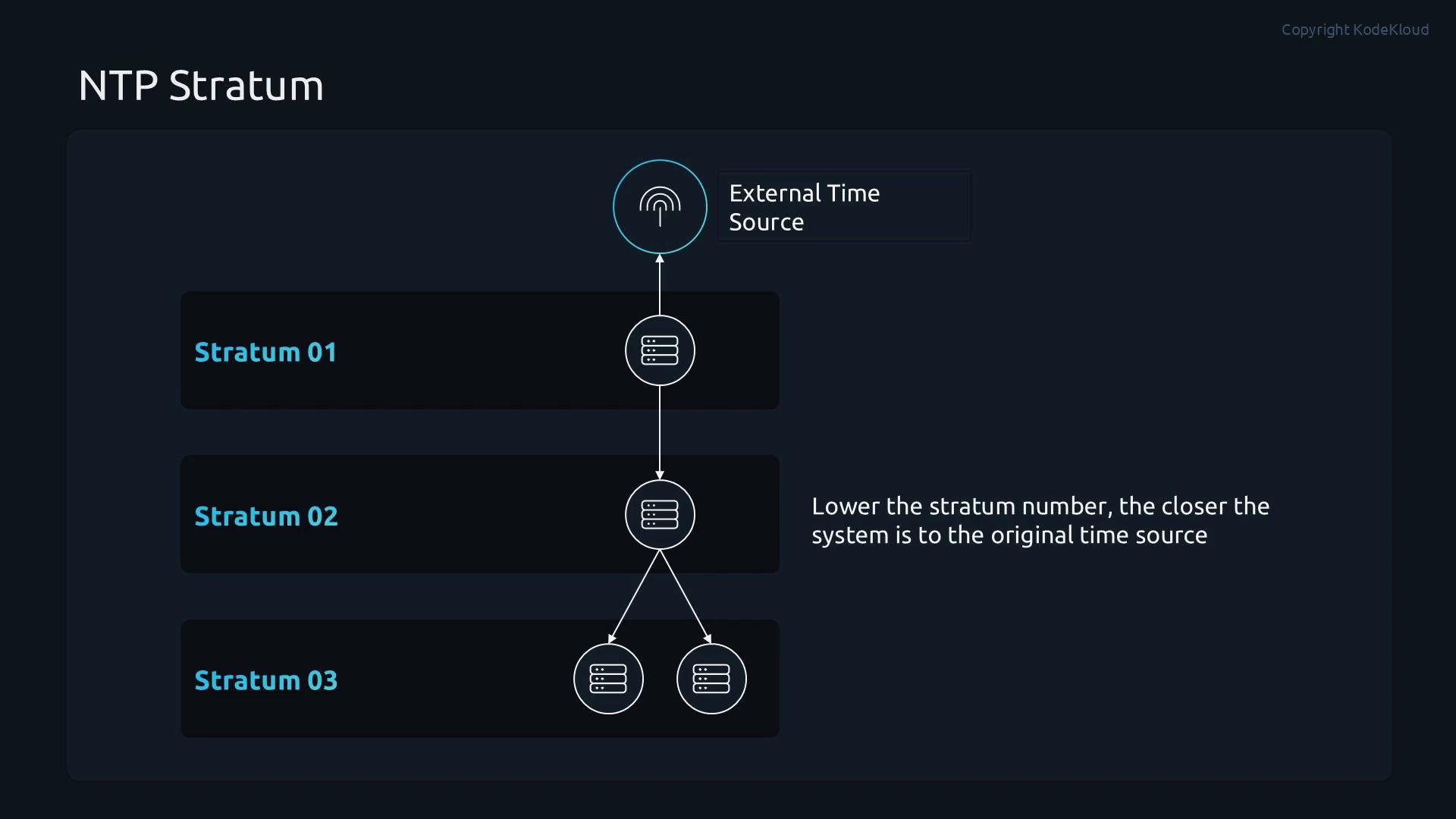 * Stratum 0: Reference clocks (GPS, atomic).
* Stratum 1: Servers directly connected to reference clocks.
* Stratum 2+: Servers synchronized from higher-level strata.
This distributes load and maintains reliable synchronization across infrastructure. Most servers synchronize from Stratum 2 or Stratum 3 hosts rather than connecting to reference clocks directly.
On most modern Linux distributions, time synchronization is handled by Chrony.
* Chrony provides fast, accurate synchronization and is resilient on intermittent networks.
* Chrony has two main components:
* `chronyd` — the background daemon that runs at boot and continuously synchronizes the system clock (`/etc/chrony.conf`).
* `chronyc` — the CLI client to query and control `chronyd` (view sources, tracking, force steps).
* Stratum 0: Reference clocks (GPS, atomic).
* Stratum 1: Servers directly connected to reference clocks.
* Stratum 2+: Servers synchronized from higher-level strata.
This distributes load and maintains reliable synchronization across infrastructure. Most servers synchronize from Stratum 2 or Stratum 3 hosts rather than connecting to reference clocks directly.
On most modern Linux distributions, time synchronization is handled by Chrony.
* Chrony provides fast, accurate synchronization and is resilient on intermittent networks.
* Chrony has two main components:
* `chronyd` — the background daemon that runs at boot and continuously synchronizes the system clock (`/etc/chrony.conf`).
* `chronyc` — the CLI client to query and control `chronyd` (view sources, tracking, force steps).
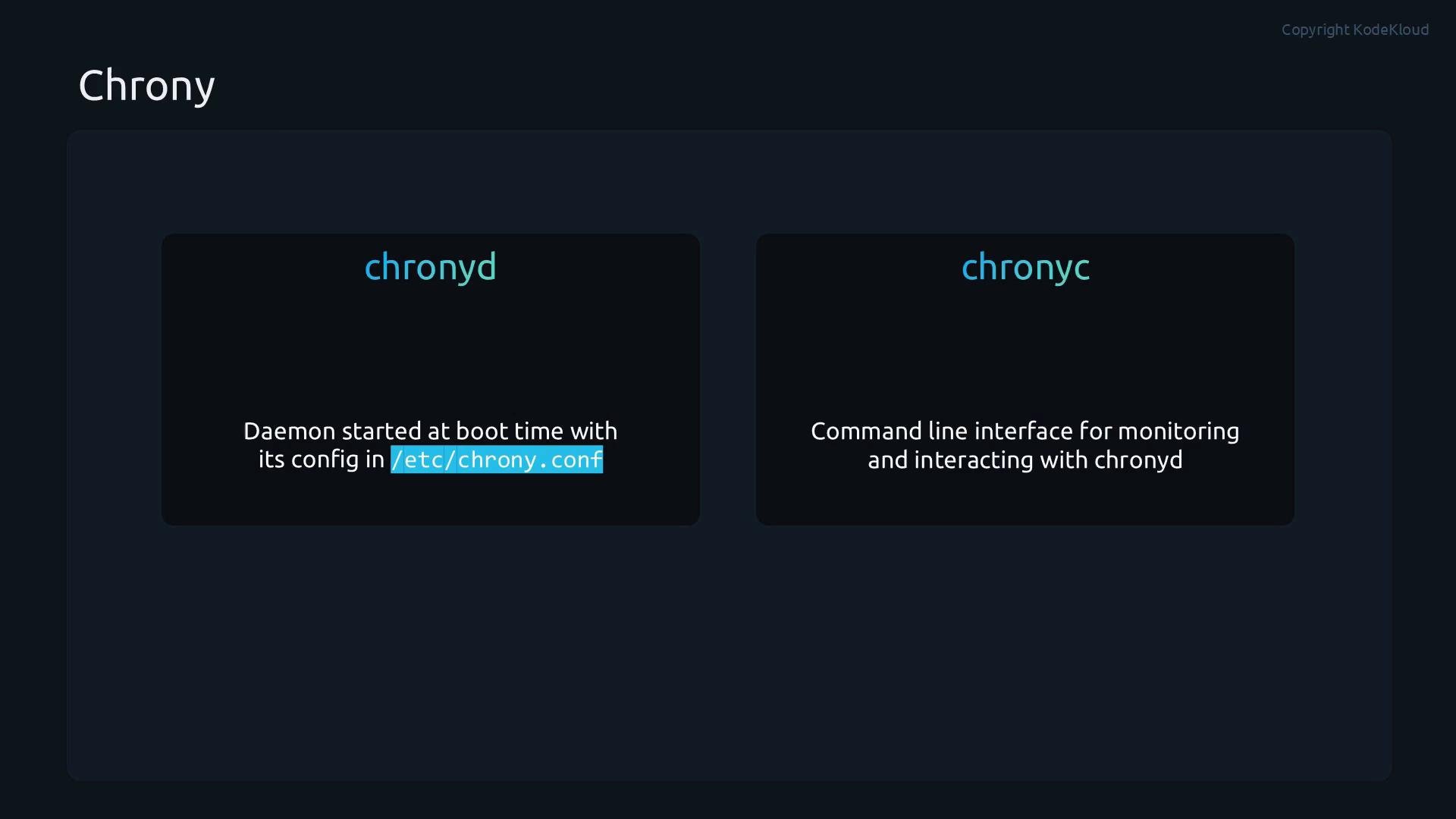 chronyd keeps the system clock accurate; use `chronyc` to inspect and control chronyd (e.g., check sources, tracking, or force an immediate step).
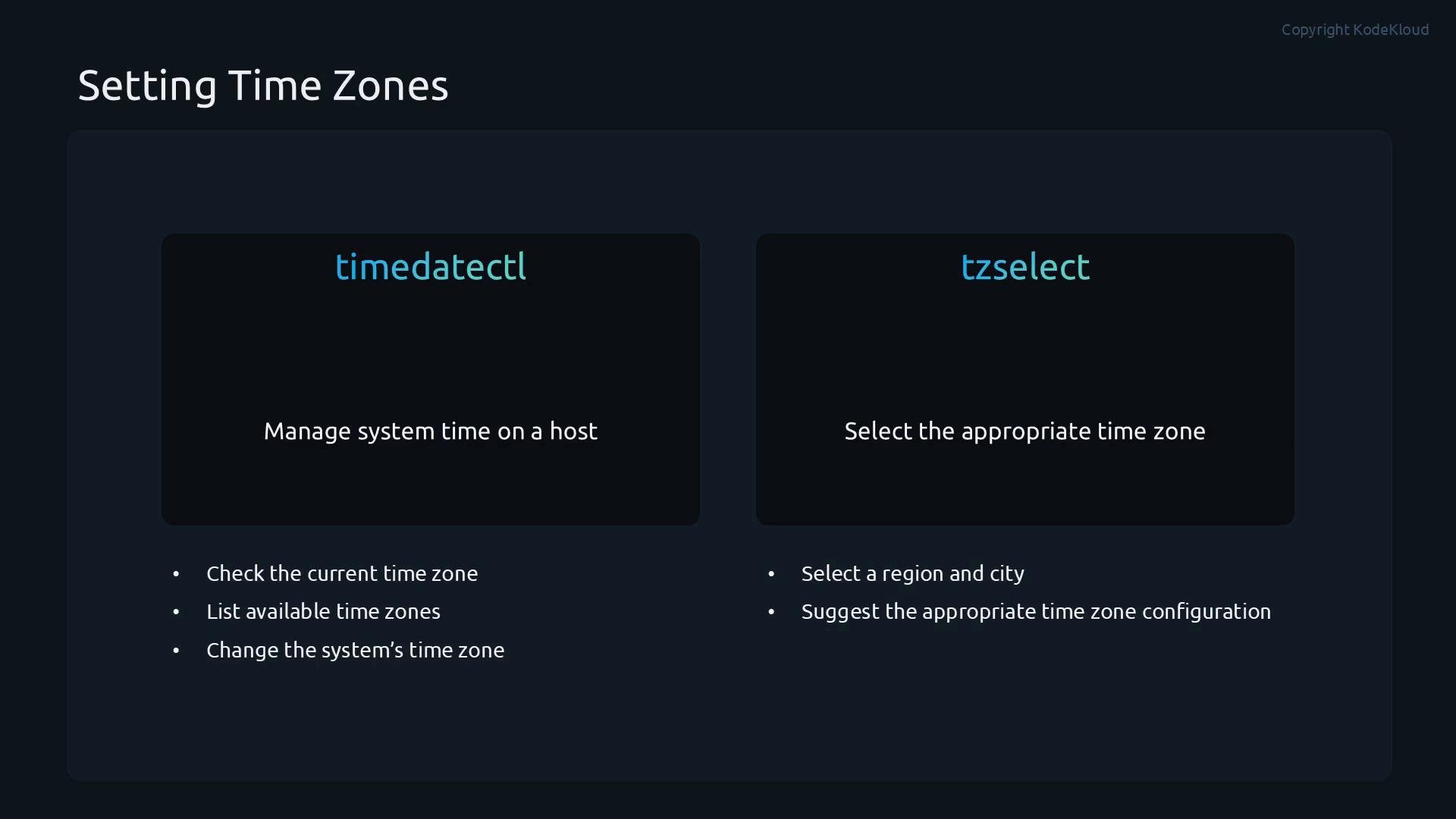
Even when NTP is running, local time can still appear incorrect if the time zone is misconfigured. Two common utilities for time zone management are:
| Command | Purpose | When to use |
| - | - | - |
| `timedatectl` | View and manage system clock, time zone, and NTP status (systemd systems) | Primary tool on modern Linux servers |
| `tzselect` | Interactive helper to find the correct time zone string | Useful when you need an interactive selection to identify the right zone |
chronyd keeps the system clock accurate; use `chronyc` to inspect and control chronyd (e.g., check sources, tracking, or force an immediate step).
Even when NTP is running, local time can still appear incorrect if the time zone is misconfigured. Two common utilities for time zone management are:
| Command | Purpose | When to use |
| - | - | - |
| `timedatectl` | View and manage system clock, time zone, and NTP status (systemd systems) | Primary tool on modern Linux servers |
| `tzselect` | Interactive helper to find the correct time zone string | Useful when you need an interactive selection to identify the right zone |
 In the following demo we verify and maintain accurate system time: display current time, inspect `timedatectl`, set time zones, enable NTP, configure Chrony with public servers, and verify synchronization.
Start by displaying the current system time and full timedatectl status:
```bash theme={null}
root@control:/var/log# date
Thu Apr 23 14:37:50 EEST 2026
root@control:/var/log# timedatectl
Local time: Thu 2026-04-23 14:37:57 EEST
Universal time: Thu 2026-04-23 11:37:57 UTC
RTC time: Thu 2026-04-23 11:37:56
Time zone: Europe/Bucharest (EEST, +0300)
System clock synchronized: yes
NTP service: inactive
RTC in local TZ: no
root@control:/var/log#
```
To change the time zone, use `timedatectl set-timezone `. To list available zones:
```bash theme={null}
root@control:/var/log# timedatectl list-timezones | grep ^Europe
Europe/Paris
Europe/Podgorica
Europe/Prague
Europe/Riga
Europe/Rome
Europe/Samara
Europe/San_Marino
Europe/Sarajevo
Europe/Saratov
Europe/Simferopol
Europe/Skopje
Europe/Sofia
Europe/Stockholm
Europe/Tallinn
Europe/Tirane
Europe/Tiraspol
Europe/Ulyanovsk
Europe/Uzhgorod
Europe/Vaduz
Europe/Vatican
Europe/Vienna
Europe/Vilnius
Europe/Volgograd
Europe/Warsaw
Europe/Zagreb
Europe/Zaporozhye
Europe/Zurich
root@control:/var/log#
```
If you prefer an interactive selection, run `tzselect` and follow the prompts:
```text theme={null}
Please select a continent, ocean, "coord", or "TZ".
1) Africa
2) Americas
3) Antarctica
4) Asia
5) Atlantic Ocean
6) Australia
7) Europe
8) Indian Ocean
9) Pacific Ocean
10) coord - I want to use geographical coordinates.
11) TZ - I want to specify the timezone using the Posix TZ format.
#? 7
Please select a country whose clocks agree with yours.
1) Albania 14) France 27) Luxembourg 40) Serbia
2) Andorra 15) Germany 28) Malta 41) Slovakia
3) Austria 16) Gibraltar 29) Moldova 42) Slovenia
4) Belarus 17) Greece 30) Monaco 43) Spain
5) Belgium 18) Guernsey 31) Montenegro 44) Svalbard & Jan Mayen
6) Bosnia & Herzegovina 19) Hungary 32) Netherlands 45) Sweden
7) Britain (UK) 20) Ireland 33) North Macedonia 46) Switzerland
8) Bulgaria 21) Isle of Man 34) Norway 47) Turkey
9) Croatia 22) Italy 35) Poland 48) Ukraine
10) Czech Republic 23) Jersey 36) Portugal 49) Vatican City
11) Denmark 24) Latvia 37) Romania 50) Åland Islands
12) Estonia 25) Liechtenstein 38) Russia
13) Finland 26) Lithuania 39) San Marino
#?
```
After choosing a zone (for example, `Europe/Paris`), apply it:
```bash theme={null}
root@control:/var/log# timedatectl set-timezone Europe/Paris
root@control:/var/log# timedatectl
Local time: Thu 2026-04-23 13:42:44 CEST
Universal time: Thu 2026-04-23 11:42:44 UTC
RTC time: Thu 2026-04-23 11:42:44
Time zone: Europe/Paris (CEST, +0200)
System clock synchronized: no
NTP service: active
RTC in local TZ: no
root@control:/var/log#
```
Control NTP sync with `timedatectl set-ntp true|false`:
```bash theme={null}
# Enable NTP
root@control:/var/log# timedatectl set-ntp true
# Disable NTP
root@control:/var/log# timedatectl set-ntp false
root@control:/var/log#
```
Chrony reads its configuration from `/etc/chrony.conf`. To use public pool servers, add `server` lines such as `server 0.pool.ntp.org iburst` and restart `chronyd`. Example `/etc/chrony.conf` fragment:
```ini theme={null}
# Use public servers from the pool.ntp.org project.
# Please consider joining the pool (https://www.pool.ntp.org/join.html).
server 0.pool.ntp.org iburst
# Use NTP servers from DHCP.
sourcedir /run/chrony-dhcp
# Record the rate at which the system clock gains/losses time.
driftfile /var/lib/chrony/drift
# Allow the system clock to be stepped in the first three updates
# if its offset is larger than 1 second.
makestep 1.0 3
# Enable kernel synchronization of the real-time clock (RTC).
rtcsync
# Enable hardware timestamping on all interfaces that support it.
#hwtimestamp *
# Increase the minimum number of selectable sources required to adjust
# the system clock.
#minsources 2
# Allow NTP client access from local network.
#allow 192.168.0.0/16
# Serve time even if not synchronized to a time source.
#local stratum 10
```
Save the configuration, restart chronyd, and enable NTP via timedatectl:
```bash theme={null}
root@control:/var/log# systemctl restart chronyd
root@control:/var/log# timedatectl set-ntp true
```
Use `chronyc` to inspect sources and tracking:
```bash theme={null}
root@control:/var/log# chronyc sources
MS Name/IP address Stratum Poll Reach LastRx Last sample
===============================================================
^* 185.86.67.2 4 6 33 5 +29us[ +267us] +/- 20ms
root@control:/var/log#
```
```bash theme={null}
root@control:/var/log# chronyc tracking
Reference ID : B9564302 (185.86.67.2)
Stratum : 5
Ref time (UTC) : Thu Apr 23 11:45:16 2026
System time : 0.000000315 seconds slow of NTP time
Last offset : +0.000238083 seconds
RMS offset : 0.000238083 seconds
Frequency : 1.997 ppm fast
Residual freq : -18.817 ppm
Skew : 2.314 ppm
Root delay : 0.039378446 seconds
Root dispersion : 0.001387529 seconds
Update interval : 2.0 seconds
Leap status : Normal
root@control:/var/log#
```
If a large offset requires an immediate correction (for example, after a long offline period), you can force a step:
```bash theme={null}
root@control:/var/log# chronyc makestep
200 OK
```
`chronyc makestep` immediately adjusts the system clock. Use it cautiously—stepping the clock can disrupt time-sensitive services (databases, Kerberos, scheduled tasks). Prefer controlled maintenance windows when forcing large corrections.
This demo covered how to:
* Display current time and `timedatectl` status.
* Change and list time zones with `timedatectl` and `tzselect`.
* Enable/disable NTP with `timedatectl`.
* Configure Chrony (`/etc/chrony.conf`) to use public NTP servers.
* Verify synchronization with `chronyc sources` and `chronyc tracking`.
* Force an immediate correction with `chronyc makestep` (use with care).
These techniques ensure log timestamps are consistent across your infrastructure and improve the reliability of troubleshooting, monitoring, and forensic analysis.
In the following demo we verify and maintain accurate system time: display current time, inspect `timedatectl`, set time zones, enable NTP, configure Chrony with public servers, and verify synchronization.
Start by displaying the current system time and full timedatectl status:
```bash theme={null}
root@control:/var/log# date
Thu Apr 23 14:37:50 EEST 2026
root@control:/var/log# timedatectl
Local time: Thu 2026-04-23 14:37:57 EEST
Universal time: Thu 2026-04-23 11:37:57 UTC
RTC time: Thu 2026-04-23 11:37:56
Time zone: Europe/Bucharest (EEST, +0300)
System clock synchronized: yes
NTP service: inactive
RTC in local TZ: no
root@control:/var/log#
```
To change the time zone, use `timedatectl set-timezone `. To list available zones:
```bash theme={null}
root@control:/var/log# timedatectl list-timezones | grep ^Europe
Europe/Paris
Europe/Podgorica
Europe/Prague
Europe/Riga
Europe/Rome
Europe/Samara
Europe/San_Marino
Europe/Sarajevo
Europe/Saratov
Europe/Simferopol
Europe/Skopje
Europe/Sofia
Europe/Stockholm
Europe/Tallinn
Europe/Tirane
Europe/Tiraspol
Europe/Ulyanovsk
Europe/Uzhgorod
Europe/Vaduz
Europe/Vatican
Europe/Vienna
Europe/Vilnius
Europe/Volgograd
Europe/Warsaw
Europe/Zagreb
Europe/Zaporozhye
Europe/Zurich
root@control:/var/log#
```
If you prefer an interactive selection, run `tzselect` and follow the prompts:
```text theme={null}
Please select a continent, ocean, "coord", or "TZ".
1) Africa
2) Americas
3) Antarctica
4) Asia
5) Atlantic Ocean
6) Australia
7) Europe
8) Indian Ocean
9) Pacific Ocean
10) coord - I want to use geographical coordinates.
11) TZ - I want to specify the timezone using the Posix TZ format.
#? 7
Please select a country whose clocks agree with yours.
1) Albania 14) France 27) Luxembourg 40) Serbia
2) Andorra 15) Germany 28) Malta 41) Slovakia
3) Austria 16) Gibraltar 29) Moldova 42) Slovenia
4) Belarus 17) Greece 30) Monaco 43) Spain
5) Belgium 18) Guernsey 31) Montenegro 44) Svalbard & Jan Mayen
6) Bosnia & Herzegovina 19) Hungary 32) Netherlands 45) Sweden
7) Britain (UK) 20) Ireland 33) North Macedonia 46) Switzerland
8) Bulgaria 21) Isle of Man 34) Norway 47) Turkey
9) Croatia 22) Italy 35) Poland 48) Ukraine
10) Czech Republic 23) Jersey 36) Portugal 49) Vatican City
11) Denmark 24) Latvia 37) Romania 50) Åland Islands
12) Estonia 25) Liechtenstein 38) Russia
13) Finland 26) Lithuania 39) San Marino
#?
```
After choosing a zone (for example, `Europe/Paris`), apply it:
```bash theme={null}
root@control:/var/log# timedatectl set-timezone Europe/Paris
root@control:/var/log# timedatectl
Local time: Thu 2026-04-23 13:42:44 CEST
Universal time: Thu 2026-04-23 11:42:44 UTC
RTC time: Thu 2026-04-23 11:42:44
Time zone: Europe/Paris (CEST, +0200)
System clock synchronized: no
NTP service: active
RTC in local TZ: no
root@control:/var/log#
```
Control NTP sync with `timedatectl set-ntp true|false`:
```bash theme={null}
# Enable NTP
root@control:/var/log# timedatectl set-ntp true
# Disable NTP
root@control:/var/log# timedatectl set-ntp false
root@control:/var/log#
```
Chrony reads its configuration from `/etc/chrony.conf`. To use public pool servers, add `server` lines such as `server 0.pool.ntp.org iburst` and restart `chronyd`. Example `/etc/chrony.conf` fragment:
```ini theme={null}
# Use public servers from the pool.ntp.org project.
# Please consider joining the pool (https://www.pool.ntp.org/join.html).
server 0.pool.ntp.org iburst
# Use NTP servers from DHCP.
sourcedir /run/chrony-dhcp
# Record the rate at which the system clock gains/losses time.
driftfile /var/lib/chrony/drift
# Allow the system clock to be stepped in the first three updates
# if its offset is larger than 1 second.
makestep 1.0 3
# Enable kernel synchronization of the real-time clock (RTC).
rtcsync
# Enable hardware timestamping on all interfaces that support it.
#hwtimestamp *
# Increase the minimum number of selectable sources required to adjust
# the system clock.
#minsources 2
# Allow NTP client access from local network.
#allow 192.168.0.0/16
# Serve time even if not synchronized to a time source.
#local stratum 10
```
Save the configuration, restart chronyd, and enable NTP via timedatectl:
```bash theme={null}
root@control:/var/log# systemctl restart chronyd
root@control:/var/log# timedatectl set-ntp true
```
Use `chronyc` to inspect sources and tracking:
```bash theme={null}
root@control:/var/log# chronyc sources
MS Name/IP address Stratum Poll Reach LastRx Last sample
===============================================================
^* 185.86.67.2 4 6 33 5 +29us[ +267us] +/- 20ms
root@control:/var/log#
```
```bash theme={null}
root@control:/var/log# chronyc tracking
Reference ID : B9564302 (185.86.67.2)
Stratum : 5
Ref time (UTC) : Thu Apr 23 11:45:16 2026
System time : 0.000000315 seconds slow of NTP time
Last offset : +0.000238083 seconds
RMS offset : 0.000238083 seconds
Frequency : 1.997 ppm fast
Residual freq : -18.817 ppm
Skew : 2.314 ppm
Root delay : 0.039378446 seconds
Root dispersion : 0.001387529 seconds
Update interval : 2.0 seconds
Leap status : Normal
root@control:/var/log#
```
If a large offset requires an immediate correction (for example, after a long offline period), you can force a step:
```bash theme={null}
root@control:/var/log# chronyc makestep
200 OK
```
`chronyc makestep` immediately adjusts the system clock. Use it cautiously—stepping the clock can disrupt time-sensitive services (databases, Kerberos, scheduled tasks). Prefer controlled maintenance windows when forcing large corrections.
This demo covered how to:
* Display current time and `timedatectl` status.
* Change and list time zones with `timedatectl` and `tzselect`.
* Enable/disable NTP with `timedatectl`.
* Configure Chrony (`/etc/chrony.conf`) to use public NTP servers.
* Verify synchronization with `chronyc sources` and `chronyc tracking`.
* Force an immediate correction with `chronyc makestep` (use with care).
These techniques ensure log timestamps are consistent across your infrastructure and improve the reliability of troubleshooting, monitoring, and forensic analysis.
 Links and references:
* NTP: [https://www.ntp.org/](https://www.ntp.org/)
* Chrony: [https://chrony.tuxfamily.org/](https://chrony.tuxfamily.org/)
* timedatectl (systemd): [https://www.freedesktop.org/software/systemd/man/timedatectl.html](https://www.freedesktop.org/software/systemd/man/timedatectl.html)
* tzselect: [https://man7.org/linux/man-pages/man1/tzselect.1.html](https://man7.org/linux/man-pages/man1/tzselect.1.html)
This documentation is built and hosted on [Mintlify](https://mintlify.com), a developer documentation platform.
Links and references:
* NTP: [https://www.ntp.org/](https://www.ntp.org/)
* Chrony: [https://chrony.tuxfamily.org/](https://chrony.tuxfamily.org/)
* timedatectl (systemd): [https://www.freedesktop.org/software/systemd/man/timedatectl.html](https://www.freedesktop.org/software/systemd/man/timedatectl.html)
* tzselect: [https://man7.org/linux/man-pages/man1/tzselect.1.html](https://man7.org/linux/man-pages/man1/tzselect.1.html)
This documentation is built and hosted on [Mintlify](https://mintlify.com), a developer documentation platform.