> ## Documentation Index
> Fetch the complete documentation index at: https://notes.kodekloud.com/llms.txt
> Use this file to discover all available pages before exploring further.
# Demo Editing Text Files
> Step-by-step demo of editing files with Vim, covering modes, common commands, searching, saving, and safe editing practices
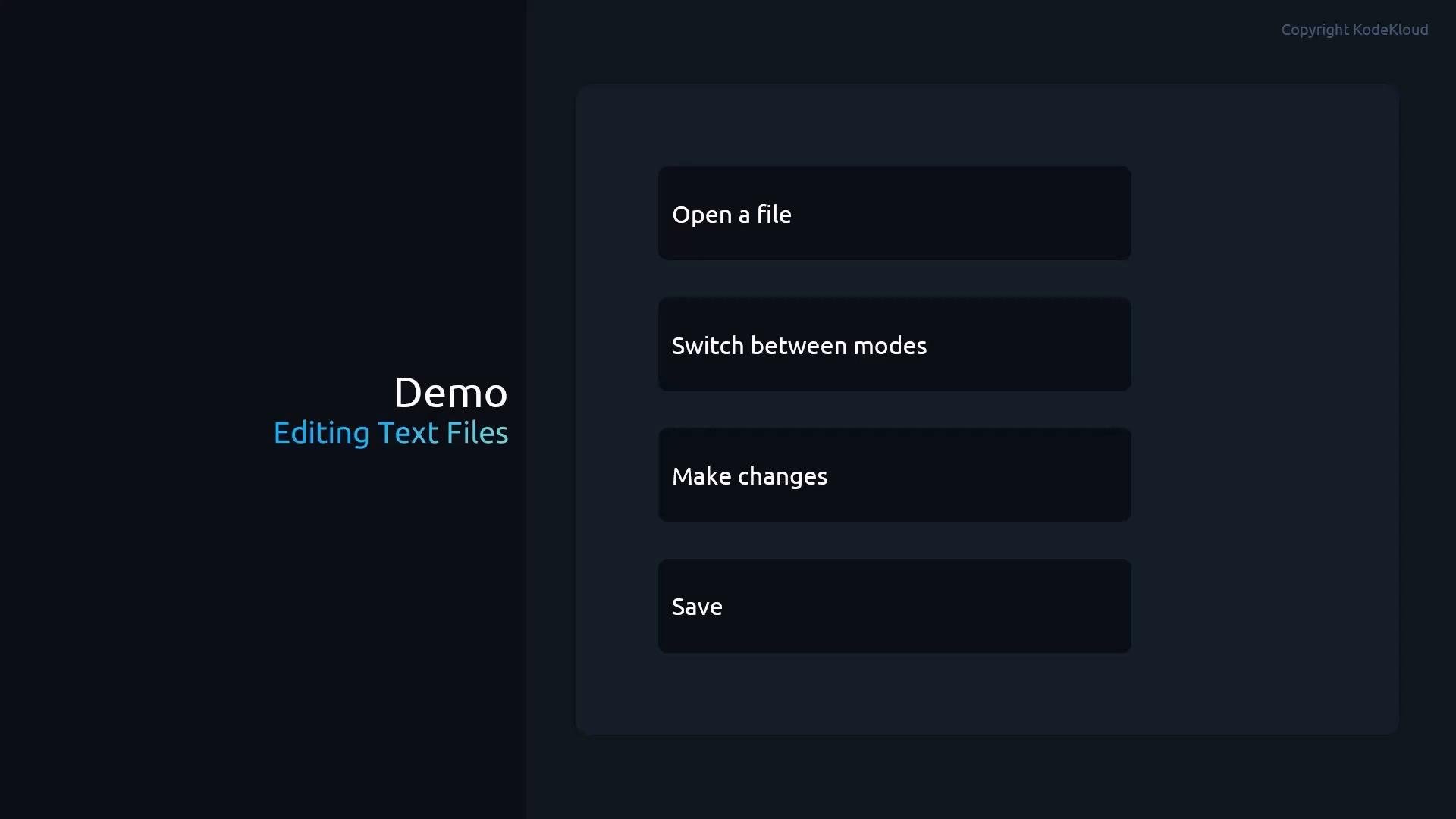
In this lesson you'll see a live demo of editing text files using Vim. The objective is simple: after following the steps you should be comfortable opening, modifying, and saving files directly from the terminal.
We will:
* prepare a working copy of `/etc/passwd`,
* open it with Vim,
* switch between modes,
* perform common edits,
* save and exit.
 Step 1 — Prepare a working copy of /etc/passwd
* Become root (or use sudo).
* Copy `/etc/passwd` to a working file named `editme` in the student's home directory, then open it with Vim:
```bash theme={null}
root@control:/home/student# cp /etc/passwd /home/student/editme
root@control:/home/student# vim /home/student/editme
```
Be careful when editing system files like `/etc/passwd`. Always work on a copy (as shown above) and never edit your live system files unless you know the exact impact. Mistakes can prevent logins or break services.
Step 2 — Vim modes (quick overview)
Vim operates with distinct modes. Knowing which mode you're in is essential for the right behavior.
| Mode | Purpose | How to enter |
| - | - | - |
| Normal (command) | Navigate, delete, yank, search, and run commands | Default on open, or press `Esc` |
| Insert | Insert or edit text | `i` (insert before cursor), `a` (insert after), `o` (open new line) |
| Visual (character/line/block) | Select regions to operate on | `v` (char), `V` (line), `Ctrl-v` (block) |
| Command-line | Run colon commands (`:wq`, `:q!`, etc.) | `:` from Normal mode |
Vim commands are case- and context-sensitive. Press `Esc` to ensure Normal mode before using movement or command keys (for example `dd`, `x`, `/pattern`, `:wq`). If unsure, press `Esc` a few times to return to Normal mode.
Step 3 — Example file contents
Below is an excerpt of the copied file (`/home/student/editme`). Use this sample to follow along with editing examples:
```text theme={null}
root:x:0:0:Super User:/root:/bin/bash
bin:x:1:1:bin:/bin:/usr/sbin/nologin
daemon:x:2:2:daemon:/sbin:/usr/sbin/nologin
adm:x:3:4:adm:/var/adm:/usr/sbin/nologin
lp:x:4:7:lp:/var/spool/lpd:/usr/sbin/nologin
sync:x:5:0:sync:/sbin:/bin/sync
shutdown:x:6:0:shutdown:/sbin:/sbin/shutdown
halt:x:7:0:halt:/sbin:/sbin/halt
mail:x:8:12:mail:/var/spool/mail:/usr/sbin/nologin
operator:x:11:0:operator:/root:/usr/sbin/nologin
games:x:12:100:games:/usr/games:/usr/sbin/nologin
ftp:x:14:50:FTP User:/var/ftp:/usr/sbin/nologin
nobody:x:65534:65534:Kernel Overflow User:/:/usr/sbin/nologin
dbus:x:81:81:System Message Bus:/:/usr/sbin/nologin
student:x:1000:1000:student:/home/student:/bin/bash
```
Step 4 — Common editing operations
Here are the most frequently used commands and workflows for quick edits.
Insert, change, and exit insert mode:
* `i` — enter Insert mode (insert before cursor).
* `a` — enter Insert mode after cursor.
* `o` — open a new line below and start Insert mode.
* `Esc` — return to Normal mode.
Delete operations:
* `dd` — delete the entire current line.
* `x` — delete the character under the cursor.
* In Visual mode, select then press `d` to delete selection.
Undo / Redo:
* `u` — undo last change.
* `Ctrl-r` — redo.
Copy (yank) and paste:
* `yy` — yank (copy) the current line.
* In Visual mode, highlight and press `y` to yank.
* Move to target and press `p` to paste after the cursor or `P` to paste before.
Visual selection modes:
* `v` — character-wise selection.
* `V` — line-wise selection.
* `Ctrl-v` — block (column) selection (useful for column edits).
Common commands reference table
| Action | Command (Normal mode) | Notes |
| - | - | - |
| Delete line | `dd` | Deletes the current line |
| Delete character | `x` | Deletes char under cursor |
| Yank line | `yy` | Copy current line |
| Paste | `p` / `P` | Paste after / before cursor |
| Undo | `u` | Undo last change |
| Redo | `Ctrl-r` | Redo last undone change |
| Search | `/pattern` | Press `Enter` to run |
| Save & quit | `:wq` | Command-line mode |
| Quit (no changes) | `:q` | Only if buffer unchanged |
| Quit without saving | `:q!` | Force quit, discards changes |
Step 5 — Searching
Search forward with `/` from Normal mode:
```text theme={null}
/student
```
* Press `n` to jump to the next match.
* Press `N` to jump to the previous match.
Tip: Combine searches with motions. For example `:/^student` searches for lines starting with `student`.
Step 6 — Saving and quitting
Use colon commands from Normal mode. Examples:
```bash theme={null}
:wq # write (save) and quit
:q # quit (only if no unsaved changes)
:q! # quit and discard any unsaved changes
```
Enter `:` to start command-line mode, then type the command and press `Enter`.
Step 7 — Learn more with vimtutor
For a guided, interactive tutorial run `vimtutor`:
* Vim Tutor is included with many Linux distributions, including Red Hat Enterprise Linux.
* It provides step-by-step lessons covering insertions, movements, text objects, and more.
Wrapping up
Practice switching modes (`i`, `Esc`, `v`, `V`, `Ctrl-v`) and using Normal-mode commands (`dd`, `x`, `yy`, `y`, `p`, `/pattern`, `:wq`) to build speed and precision. With repeated use, Vim becomes a very fast and powerful editor for terminal-based workflows.
Links and references
* [Vim — Official site](https://www.vim.org/)
* [vimtutor](https://vimhelp.org/vimtutor.txt)
* [Red Hat Enterprise Linux](https://www.redhat.com/en/technologies/linux-platforms/enterprise-linux)
This documentation is built and hosted on [Mintlify](https://mintlify.com), a developer documentation platform.
Step 1 — Prepare a working copy of /etc/passwd
* Become root (or use sudo).
* Copy `/etc/passwd` to a working file named `editme` in the student's home directory, then open it with Vim:
```bash theme={null}
root@control:/home/student# cp /etc/passwd /home/student/editme
root@control:/home/student# vim /home/student/editme
```
Be careful when editing system files like `/etc/passwd`. Always work on a copy (as shown above) and never edit your live system files unless you know the exact impact. Mistakes can prevent logins or break services.
Step 2 — Vim modes (quick overview)
Vim operates with distinct modes. Knowing which mode you're in is essential for the right behavior.
| Mode | Purpose | How to enter |
| - | - | - |
| Normal (command) | Navigate, delete, yank, search, and run commands | Default on open, or press `Esc` |
| Insert | Insert or edit text | `i` (insert before cursor), `a` (insert after), `o` (open new line) |
| Visual (character/line/block) | Select regions to operate on | `v` (char), `V` (line), `Ctrl-v` (block) |
| Command-line | Run colon commands (`:wq`, `:q!`, etc.) | `:` from Normal mode |
Vim commands are case- and context-sensitive. Press `Esc` to ensure Normal mode before using movement or command keys (for example `dd`, `x`, `/pattern`, `:wq`). If unsure, press `Esc` a few times to return to Normal mode.
Step 3 — Example file contents
Below is an excerpt of the copied file (`/home/student/editme`). Use this sample to follow along with editing examples:
```text theme={null}
root:x:0:0:Super User:/root:/bin/bash
bin:x:1:1:bin:/bin:/usr/sbin/nologin
daemon:x:2:2:daemon:/sbin:/usr/sbin/nologin
adm:x:3:4:adm:/var/adm:/usr/sbin/nologin
lp:x:4:7:lp:/var/spool/lpd:/usr/sbin/nologin
sync:x:5:0:sync:/sbin:/bin/sync
shutdown:x:6:0:shutdown:/sbin:/sbin/shutdown
halt:x:7:0:halt:/sbin:/sbin/halt
mail:x:8:12:mail:/var/spool/mail:/usr/sbin/nologin
operator:x:11:0:operator:/root:/usr/sbin/nologin
games:x:12:100:games:/usr/games:/usr/sbin/nologin
ftp:x:14:50:FTP User:/var/ftp:/usr/sbin/nologin
nobody:x:65534:65534:Kernel Overflow User:/:/usr/sbin/nologin
dbus:x:81:81:System Message Bus:/:/usr/sbin/nologin
student:x:1000:1000:student:/home/student:/bin/bash
```
Step 4 — Common editing operations
Here are the most frequently used commands and workflows for quick edits.
Insert, change, and exit insert mode:
* `i` — enter Insert mode (insert before cursor).
* `a` — enter Insert mode after cursor.
* `o` — open a new line below and start Insert mode.
* `Esc` — return to Normal mode.
Delete operations:
* `dd` — delete the entire current line.
* `x` — delete the character under the cursor.
* In Visual mode, select then press `d` to delete selection.
Undo / Redo:
* `u` — undo last change.
* `Ctrl-r` — redo.
Copy (yank) and paste:
* `yy` — yank (copy) the current line.
* In Visual mode, highlight and press `y` to yank.
* Move to target and press `p` to paste after the cursor or `P` to paste before.
Visual selection modes:
* `v` — character-wise selection.
* `V` — line-wise selection.
* `Ctrl-v` — block (column) selection (useful for column edits).
Common commands reference table
| Action | Command (Normal mode) | Notes |
| - | - | - |
| Delete line | `dd` | Deletes the current line |
| Delete character | `x` | Deletes char under cursor |
| Yank line | `yy` | Copy current line |
| Paste | `p` / `P` | Paste after / before cursor |
| Undo | `u` | Undo last change |
| Redo | `Ctrl-r` | Redo last undone change |
| Search | `/pattern` | Press `Enter` to run |
| Save & quit | `:wq` | Command-line mode |
| Quit (no changes) | `:q` | Only if buffer unchanged |
| Quit without saving | `:q!` | Force quit, discards changes |
Step 5 — Searching
Search forward with `/` from Normal mode:
```text theme={null}
/student
```
* Press `n` to jump to the next match.
* Press `N` to jump to the previous match.
Tip: Combine searches with motions. For example `:/^student` searches for lines starting with `student`.
Step 6 — Saving and quitting
Use colon commands from Normal mode. Examples:
```bash theme={null}
:wq # write (save) and quit
:q # quit (only if no unsaved changes)
:q! # quit and discard any unsaved changes
```
Enter `:` to start command-line mode, then type the command and press `Enter`.
Step 7 — Learn more with vimtutor
For a guided, interactive tutorial run `vimtutor`:
* Vim Tutor is included with many Linux distributions, including Red Hat Enterprise Linux.
* It provides step-by-step lessons covering insertions, movements, text objects, and more.
Wrapping up
Practice switching modes (`i`, `Esc`, `v`, `V`, `Ctrl-v`) and using Normal-mode commands (`dd`, `x`, `yy`, `y`, `p`, `/pattern`, `:wq`) to build speed and precision. With repeated use, Vim becomes a very fast and powerful editor for terminal-based workflows.
Links and references
* [Vim — Official site](https://www.vim.org/)
* [vimtutor](https://vimhelp.org/vimtutor.txt)
* [Red Hat Enterprise Linux](https://www.redhat.com/en/technologies/linux-platforms/enterprise-linux)
This documentation is built and hosted on [Mintlify](https://mintlify.com), a developer documentation platform.