> ## Documentation Index
> Fetch the complete documentation index at: https://notes.kodekloud.com/llms.txt
> Use this file to discover all available pages before exploring further.
# Working With the Command Line
> Guide to using the Bash command line in RHEL covering command execution, common commands, aliases, history, variables, and troubleshooting resources
This section helps you become productive on the command line in Red Hat Enterprise Linux (RHEL). As a system administrator, the shell is your primary interface for managing files, services, users, and troubleshooting — whether you are logged in locally or via SSH.
Two foundational skills covered here:
* How the Bash shell executes commands — what happens from the moment you type a command until it runs as a process.
* How to find help and the right options inside RHEL — using built-in tools and documentation.
Understanding how commands are interpreted and where to get help is essential for the Red Hat Certified System Administrator (RHCSA) exam and day-to-day administration.
Overview: how the Bash shell runs commands
Bash translates the text you type into actions on the operating system. When you enter a command, Bash parses and interprets it, locates the executable (or built-in), starts a process, and then returns output and an exit status.
When you log into a RHEL server you will perform most administration from the command-line interface (CLI). Before configuring users, services, or storage, you should understand what the CLI is, what Bash does, and how commands become running processes.
 Key terms (conceptually)
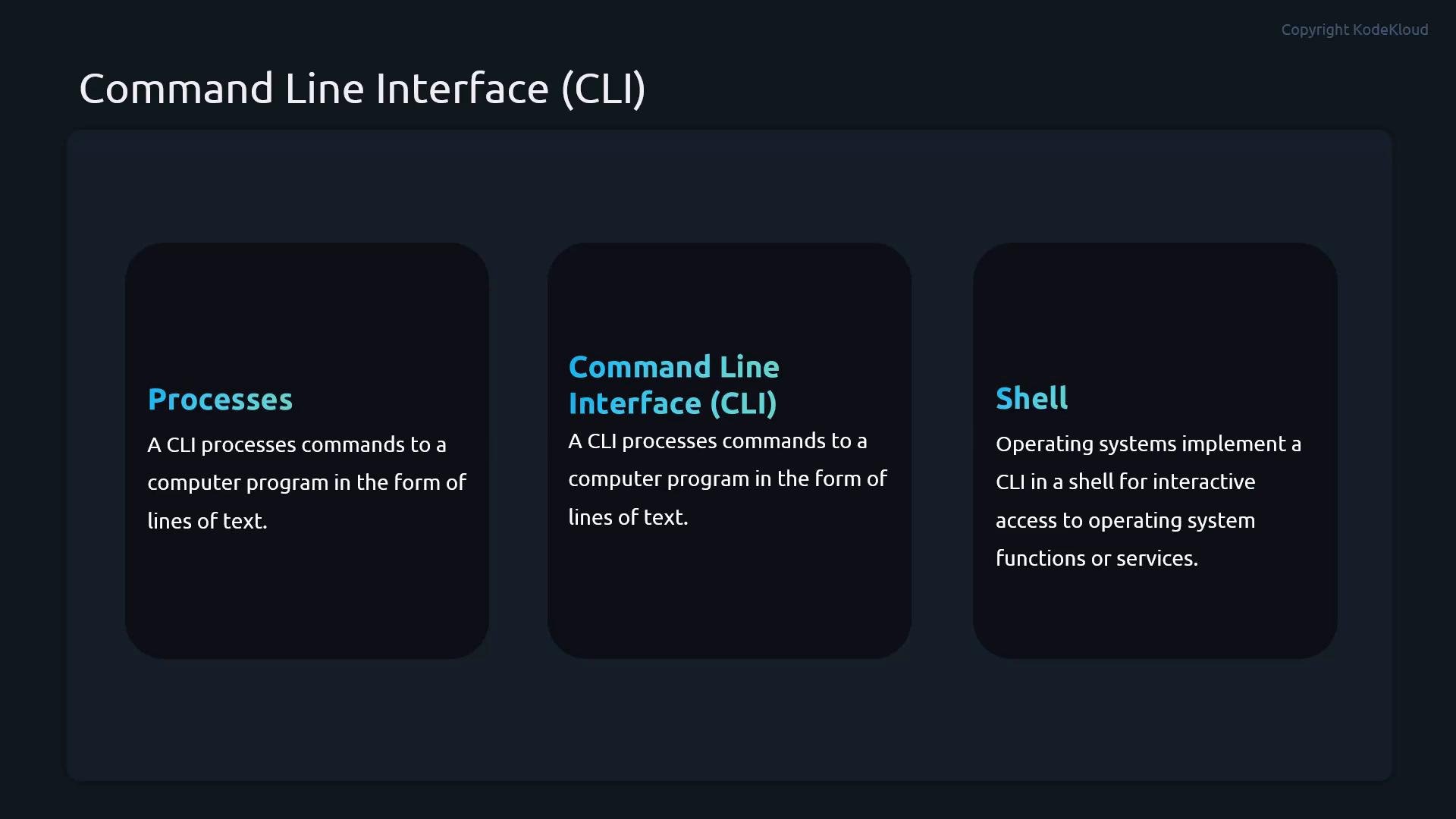
* CLI — where you type commands.
* Shell — the interpreter that processes your input (Bash is the default on RHEL).
* Process — a running instance of a program created when a command executes.
Command structure
A typical command consists of three parts:
* The command name — what to run.
* Options (flags) — modify behavior.
* Arguments — targets or inputs.
Example:
```bash theme={null}
ls -l /etc
# command: ls
# option: -l
# argument: /etc
```
Essential commands (quick reference)
Below are commonly used commands with short descriptions and examples.
| Command | Purpose | Example |
| -: | - | - |
| `ls` | List files and directories | `ls -la /var/log` |
| `pwd` | Print working directory | `pwd` |
| `cat` | Output file contents | `cat /etc/os-release` |
| `tail` | Show last lines of a file | `tail -n 50 /var/log/messages` |
| `echo` | Print text or variable values | `echo $HOME` |
| `whoami` | Show the effective user name | `whoami` |
| `touch` | Create an empty file or update timestamps | `touch /tmp/testfile` |
| `wc` | Count lines, words, bytes | `wc -l /var/log/messages` |
Bash shell features
Bash supplies many features to speed up administration and reduce typing:
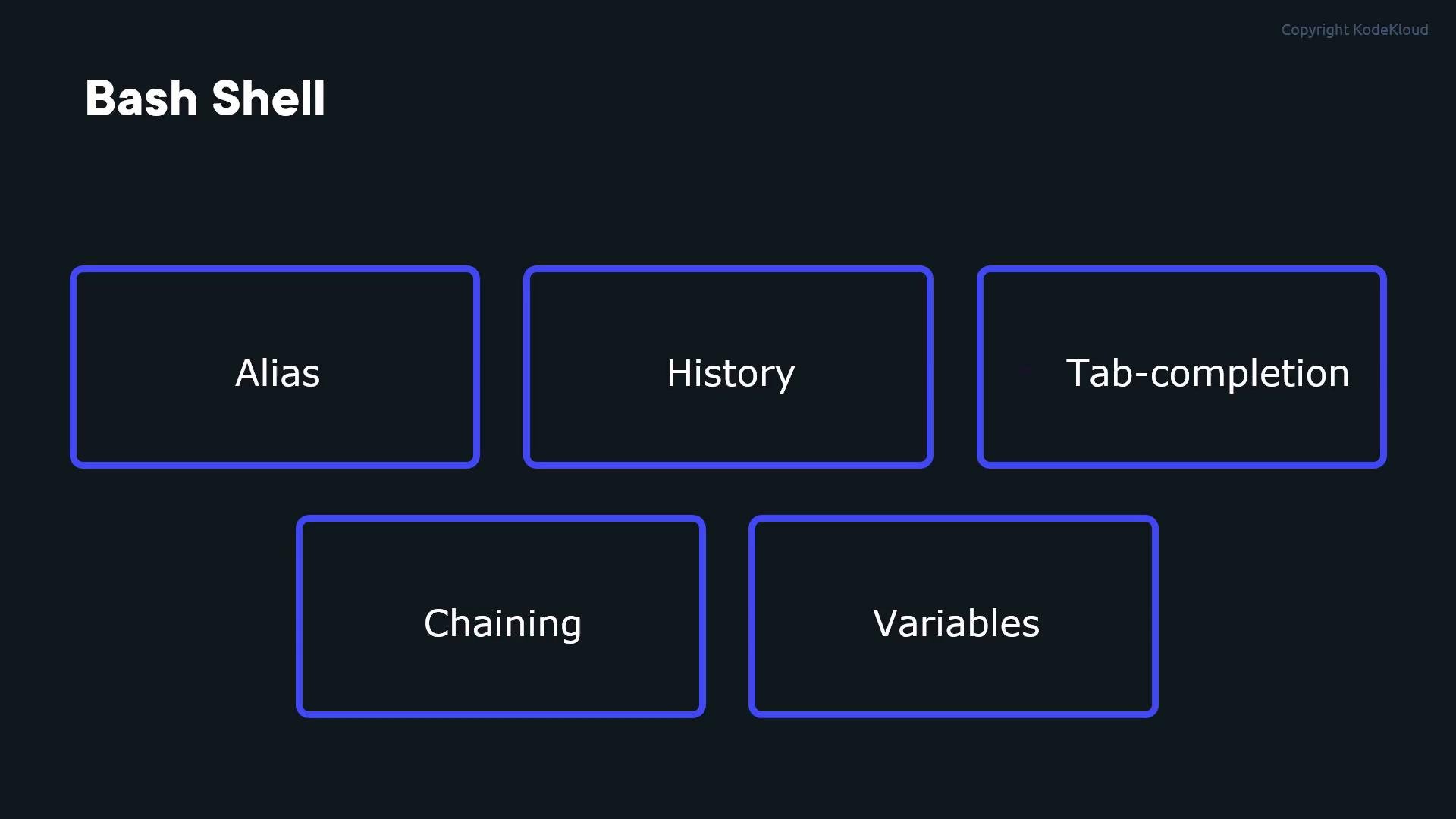
* Aliases — create shortcuts for long commands.
* History — your command history is recorded and searchable.
* Tab completion — quickly complete filenames, commands, and paths.
* Chaining and conditional execution — run multiple commands on one line.
* Variables & command substitution — reuse values and command output.
Key terms (conceptually)
* CLI — where you type commands.
* Shell — the interpreter that processes your input (Bash is the default on RHEL).
* Process — a running instance of a program created when a command executes.
Command structure
A typical command consists of three parts:
* The command name — what to run.
* Options (flags) — modify behavior.
* Arguments — targets or inputs.
Example:
```bash theme={null}
ls -l /etc
# command: ls
# option: -l
# argument: /etc
```
Essential commands (quick reference)
Below are commonly used commands with short descriptions and examples.
| Command | Purpose | Example |
| -: | - | - |
| `ls` | List files and directories | `ls -la /var/log` |
| `pwd` | Print working directory | `pwd` |
| `cat` | Output file contents | `cat /etc/os-release` |
| `tail` | Show last lines of a file | `tail -n 50 /var/log/messages` |
| `echo` | Print text or variable values | `echo $HOME` |
| `whoami` | Show the effective user name | `whoami` |
| `touch` | Create an empty file or update timestamps | `touch /tmp/testfile` |
| `wc` | Count lines, words, bytes | `wc -l /var/log/messages` |
Bash shell features
Bash supplies many features to speed up administration and reduce typing:
* Aliases — create shortcuts for long commands.
* History — your command history is recorded and searchable.
* Tab completion — quickly complete filenames, commands, and paths.
* Chaining and conditional execution — run multiple commands on one line.
* Variables & command substitution — reuse values and command output.
 Aliases
Create simple shortcuts for frequently used commands:
```bash theme={null}
alias ll="ls -la"
alias # lists all defined aliases
unalias ll # removes the alias named ll
```
To make an alias persistent across sessions, add it to `~/.bashrc` or another shell initialization file and reload the file with `source ~/.bashrc`.
History
Bash tracks commands you run so you can re-run or inspect them later. Common history operations:
* View recent commands: `history`
* Navigate interactively: Up / Down arrow keys
* Re-run a listed command: `!` e.g. `!42`
Aliases
Create simple shortcuts for frequently used commands:
```bash theme={null}
alias ll="ls -la"
alias # lists all defined aliases
unalias ll # removes the alias named ll
```
To make an alias persistent across sessions, add it to `~/.bashrc` or another shell initialization file and reload the file with `source ~/.bashrc`.
History
Bash tracks commands you run so you can re-run or inspect them later. Common history operations:
* View recent commands: `history`
* Navigate interactively: Up / Down arrow keys
* Re-run a listed command: `!` e.g. `!42`
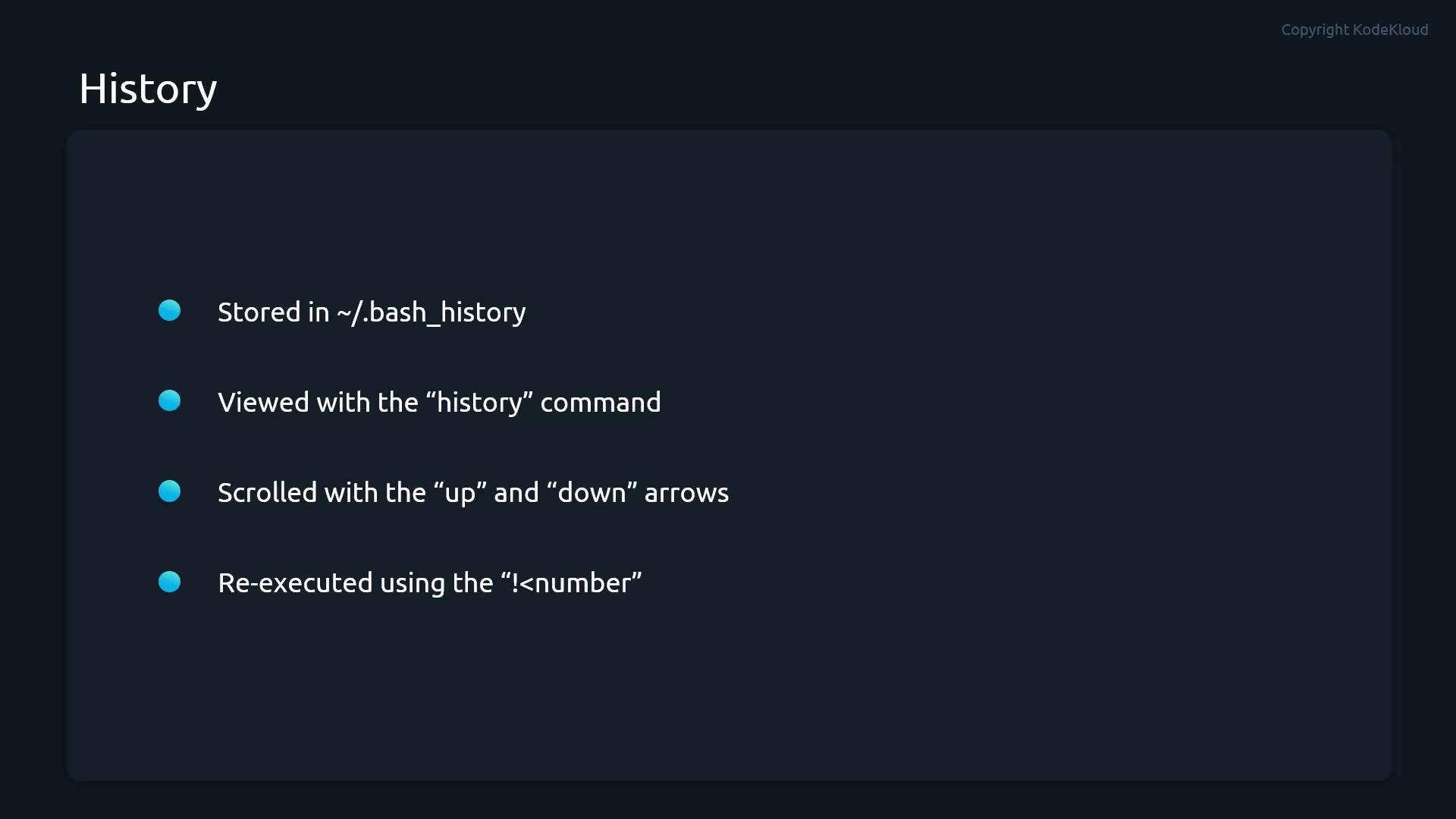 The history file `~/.bash_history` is typically written when a shell session exits. Some shells are configured to append commands in real time; check your `HISTCONTROL`, `HISTSIZE`, and `PROMPT_COMMAND` settings if you need immediate persistence.
Variables and command substitution
Shell variables store values you can reference later. Use `$` to retrieve a variable value.
Example:
```bash theme={null}
MYVAR="hello"
echo $MYVAR # prints: hello
```
Command substitution inserts the output of one command into another. Preferred form is `$(...)`:
```bash theme={null}
# Pass the list of files from /files/ to cat
cat $(ls /files/)
```
Be careful using `$(ls ...)` when filenames may contain spaces or special characters — this can break. For robust handling of arbitrary filenames, use `find -print0 | xargs -0` or `while IFS= read -r -d '' file; do ...; done < <(find ... -print0)`.
Command chaining and sequencing
Combine commands on one line to build workflows:
| Operator | Behavior | Example |
| -: | - | - |
| `;` | Run commands sequentially regardless of success | `cmd1; cmd2` |
| `&&` | Run second only if first succeeds (exit status 0) | `cmd1 && cmd2` |
| `\|\|` | Run second only if first fails (non-zero exit) | `cmd1 \|\| cmd2` |
These operators let you create quick checks and conditional flows without writing a script.
Additional tips
* Use `man ` or `--help` (e.g. `ls --help`) for command-specific options.
* Combine `man` with search: `man -k keyword` to find related commands.
* Use `type ` to check whether a name is a shell builtin, function, or external executable.
* Practice in a non-production environment before running commands that modify system state.
Summary
This guide covered the essentials of working with the Bash shell on RHEL: how commands are structured and executed, high-value utilities and shortcuts, and important shell features like aliases, history, tab-completion, variables, and command substitution. Mastering these fundamentals will make you more efficient when administering RHEL systems and prepare you for RHCSA tasks.
Links and references
* [Red Hat Enterprise Linux Documentation](https://access.redhat.com/documentation/en-us/)
* [Bash Reference Manual](https://www.gnu.org/software/bash/manual/bash.html)
* [Linux man pages online](https://man7.org/linux/man-pages/)
This documentation is built and hosted on [Mintlify](https://mintlify.com), a developer documentation platform.
The history file `~/.bash_history` is typically written when a shell session exits. Some shells are configured to append commands in real time; check your `HISTCONTROL`, `HISTSIZE`, and `PROMPT_COMMAND` settings if you need immediate persistence.
Variables and command substitution
Shell variables store values you can reference later. Use `$` to retrieve a variable value.
Example:
```bash theme={null}
MYVAR="hello"
echo $MYVAR # prints: hello
```
Command substitution inserts the output of one command into another. Preferred form is `$(...)`:
```bash theme={null}
# Pass the list of files from /files/ to cat
cat $(ls /files/)
```
Be careful using `$(ls ...)` when filenames may contain spaces or special characters — this can break. For robust handling of arbitrary filenames, use `find -print0 | xargs -0` or `while IFS= read -r -d '' file; do ...; done < <(find ... -print0)`.
Command chaining and sequencing
Combine commands on one line to build workflows:
| Operator | Behavior | Example |
| -: | - | - |
| `;` | Run commands sequentially regardless of success | `cmd1; cmd2` |
| `&&` | Run second only if first succeeds (exit status 0) | `cmd1 && cmd2` |
| `\|\|` | Run second only if first fails (non-zero exit) | `cmd1 \|\| cmd2` |
These operators let you create quick checks and conditional flows without writing a script.
Additional tips
* Use `man ` or `--help` (e.g. `ls --help`) for command-specific options.
* Combine `man` with search: `man -k keyword` to find related commands.
* Use `type ` to check whether a name is a shell builtin, function, or external executable.
* Practice in a non-production environment before running commands that modify system state.
Summary
This guide covered the essentials of working with the Bash shell on RHEL: how commands are structured and executed, high-value utilities and shortcuts, and important shell features like aliases, history, tab-completion, variables, and command substitution. Mastering these fundamentals will make you more efficient when administering RHEL systems and prepare you for RHCSA tasks.
Links and references
* [Red Hat Enterprise Linux Documentation](https://access.redhat.com/documentation/en-us/)
* [Bash Reference Manual](https://www.gnu.org/software/bash/manual/bash.html)
* [Linux man pages online](https://man7.org/linux/man-pages/)
This documentation is built and hosted on [Mintlify](https://mintlify.com), a developer documentation platform.