> ## Documentation Index
> Fetch the complete documentation index at: https://notes.kodekloud.com/llms.txt
> Use this file to discover all available pages before exploring further.
# If Statements Making Decisions
> A tutorial on Python if statements explaining comparisons, input handling, branching with if elif else, logical operators, and example dashboard code
Welcome back.
Your dashboard can now take input, store it, and repeat it back to you. The next step is letting the program choose different behavior depending on inputs — that's what if-statements do.
In this lesson you will learn to:
* Write conditional logic using `if`, `elif`, and `else`.
* Use comparison operators to check conditions.
* Combine conditions with `and` and `or`.
* Respond to user input with branching logic.
Think about the apps you use every day: Instagram shows your feed if you’re logged in, otherwise it shows a login screen. Netflix lets you play videos if you’re a subscriber, otherwise it shows payment options. Programs must make choices — and your dashboard is no different.
Conceptually, if-statements let you branch program behavior. Simple examples:
* If energy is high → show "Great energy!"
* If energy is low → show "Time to rest."
To make those decisions you compare values using comparison operators.
Comparison operators
| Operator | Meaning | Example |
| -: | - | - |
| `==` | equal to | `age == 18` |
| `!=` | not equal to | `mood != "sad"` |
| `>` | greater than | `energy > 50` |
| `<` | less than | `temperature < 20` |
| `>=` | greater than or equal | `score >= 100` |
| `<=` | less than or equal | `age <= 18` |
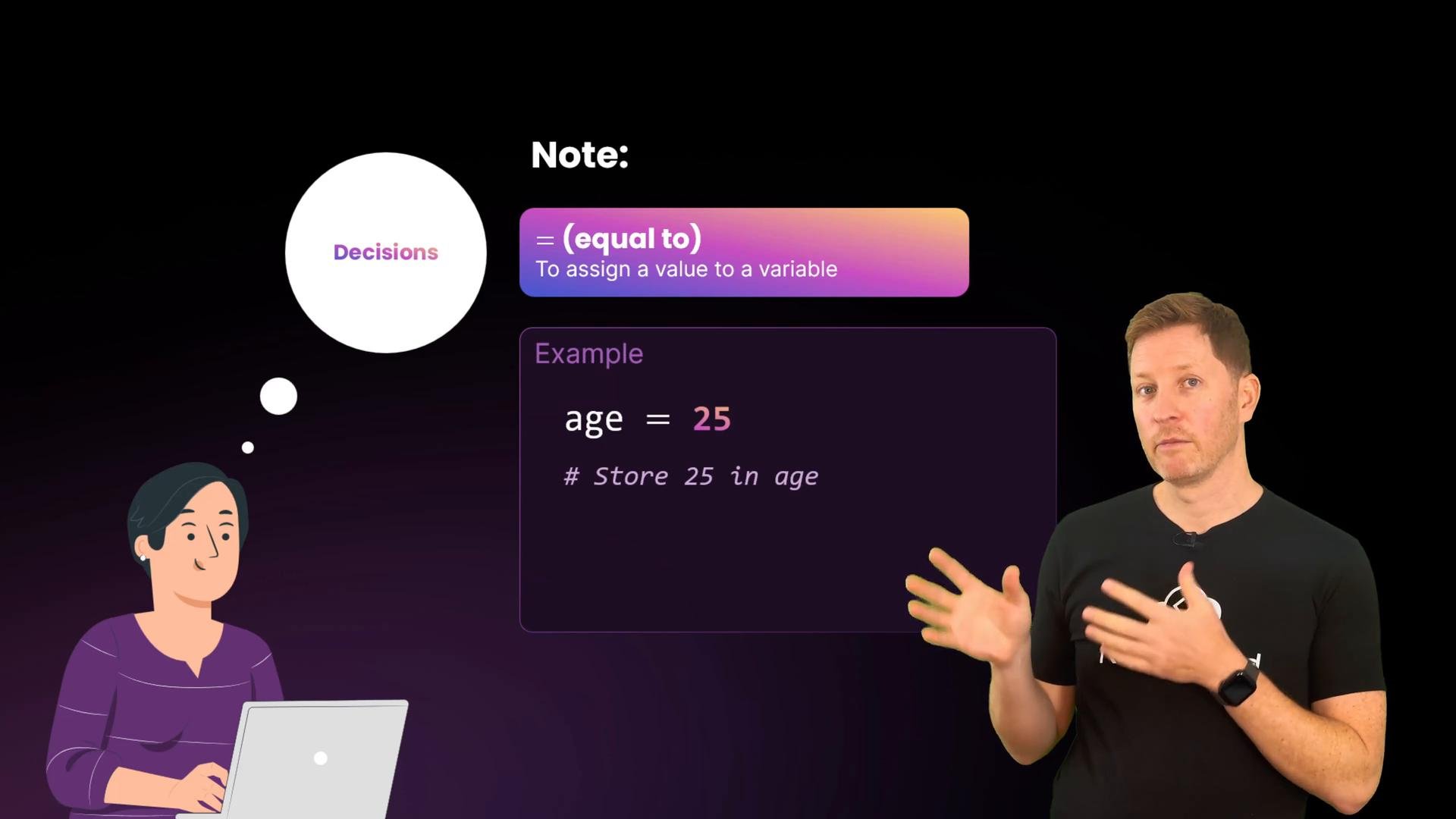
A reminder: a single `=` assigns a value to a variable, e.g. `age = 25`.
 Basic comparisons in code
Create a new file named `if.py` and try this minimal comparison:
```python theme={null}
# if.py
energy = 60
print(energy > 50)
print(energy < 50)
```
Running this prints boolean results:
```Python theme={null}
True
False
```
Comparisons evaluate to `True` or `False`, which is what `if` uses to decide whether to run a block of code.
Using input(): strings vs numbers
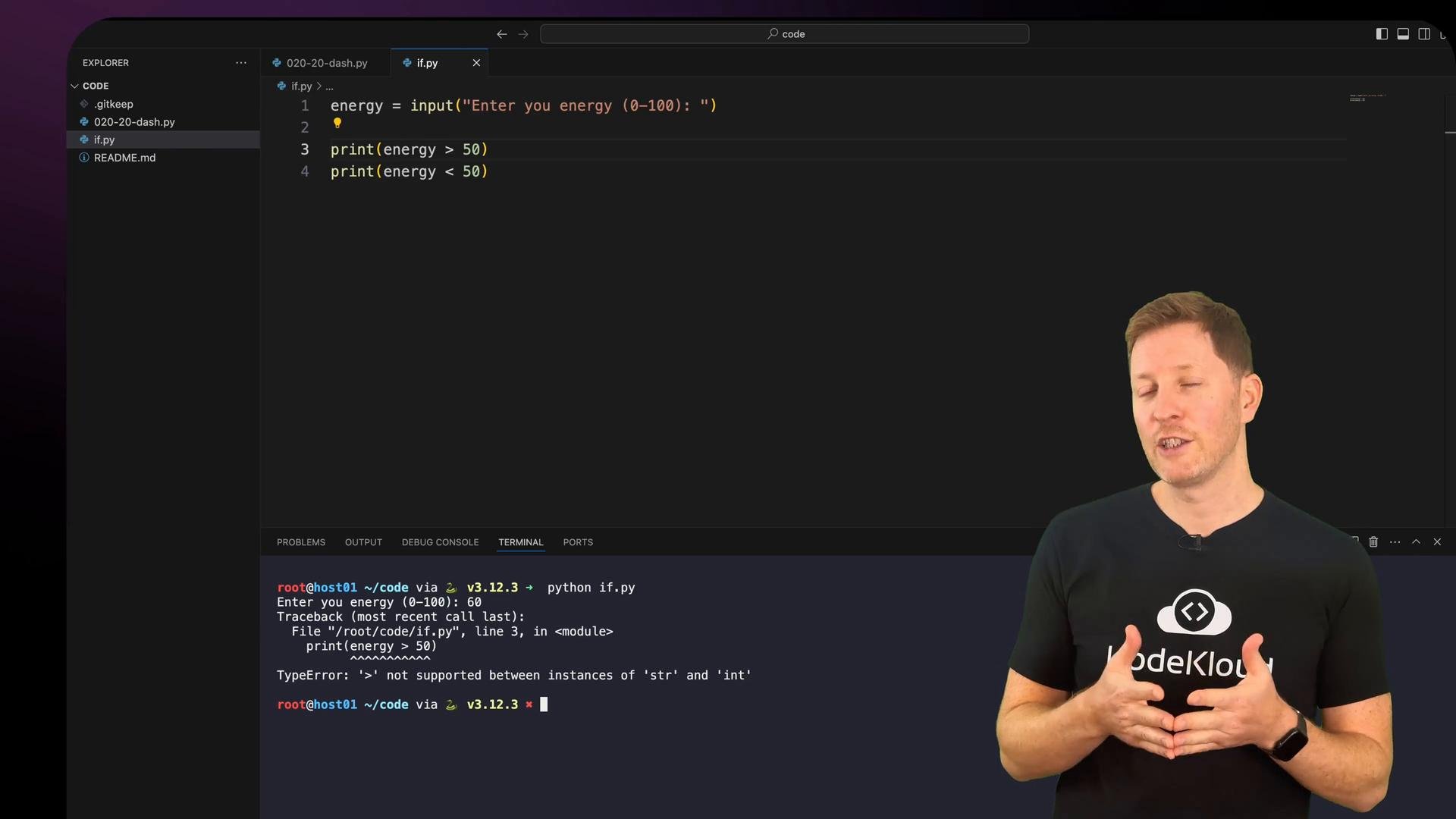
A common pitfall is that `input()` always returns a string. Comparing that string directly to an integer raises a `TypeError`. Example:
```python theme={null}
# if.py
energy = input("Enter your energy (0-100): ")
print(energy > 50)
print(energy < 50)
```
If you type `60` this will raise an error like:
```Python theme={null}
TypeError: '>' not supported between instances of 'str' and 'int'
```
Basic comparisons in code
Create a new file named `if.py` and try this minimal comparison:
```python theme={null}
# if.py
energy = 60
print(energy > 50)
print(energy < 50)
```
Running this prints boolean results:
```Python theme={null}
True
False
```
Comparisons evaluate to `True` or `False`, which is what `if` uses to decide whether to run a block of code.
Using input(): strings vs numbers
A common pitfall is that `input()` always returns a string. Comparing that string directly to an integer raises a `TypeError`. Example:
```python theme={null}
# if.py
energy = input("Enter your energy (0-100): ")
print(energy > 50)
print(energy < 50)
```
If you type `60` this will raise an error like:
```Python theme={null}
TypeError: '>' not supported between instances of 'str' and 'int'
```
 Convert input to an integer
Convert the string returned by `input()` to an integer with `int()` so numeric comparisons work:
```python theme={null}
energy = int(input("Enter your energy (0-100): "))
print(energy > 50)
print(energy < 50)
```
Now the comparisons will evaluate correctly.
If the user types something that isn't a valid integer (for example, "sixty"), `int(...)` will raise a `ValueError`. To make input handling robust, either validate the input before converting or wrap the conversion in a `try`/`except` block and re-prompt the user until valid input is provided.
Robust integer parsing (example)
Here's a simple loop that keeps asking until the user supplies a valid integer:
```python theme={null}
while True:
raw = input("Enter your energy (0-100): ")
try:
energy = int(raw)
break
except ValueError:
print("Please enter a number like 42.")
```
First if statement and indentation
Replace a direct comparison with an `if` statement. Python uses indentation (conventionally 4 spaces) to define the body of `if`, `elif`, and `else` blocks:
```python theme={null}
energy = int(input("Enter your energy (0-100): "))
if energy > 50:
print("Great energy!")
```
Most editors auto-indent after you type the colon; that indentation is required — missing it causes an `IndentationError`. For style guidance, see [Python's PEP 8 style guide](https://peps.python.org/pep-0008/).
If-else for two choices
To handle both true and false outcomes, use `if`...`else`:
```python theme={null}
energy = int(input("Enter your energy (0-100): "))
if energy > 50:
print("Great energy!")
else:
print("Time to rest.")
```
Mood example (single-check)
A simple mood check:
```python theme={null}
mood = input("How do you feel today? ")
if mood == "happy":
print("Wonderful, keep smiling!")
else:
print("Oh dear, chin up!")
```
Note: that `else` assumes anything not `"happy"` should get the "Oh dear" response. To handle more than two possible moods, use `elif`.
Using if, elif, else for multiple choices
Use `if`, `elif`, and `else` to create multiple branches. Python evaluates conditions from top to bottom and executes the first true branch — so order matters. Example energy classification:
```python theme={null}
energy = int(input("Enter your energy (0-100): "))
if energy > 80:
print("Great energy!")
elif energy > 50:
print("Good energy.")
elif energy > 20:
print("Low energy.")
else:
print("Time to rest.")
```
Validating mood with three branches
A more explicit mood prompt that enforces expected inputs:
```python theme={null}
mood = input("How do you feel today (happy/sad)? ")
if mood == "happy":
print("Wonderful, keep smiling!")
elif mood == "sad":
print("Oh dear, chin up!")
else:
print("Enter happy/sad only.")
```
Combining conditions with and / or
Use `and` when multiple conditions must all be true, `or` when at least one condition must be true.
Examples:
```python theme={null}
# Both must be true
if mood == "happy" and energy > 70:
print("Your wellbeing is great today!")
# At least one must be true
if mood == "happy" or energy > 70:
print("Your wellbeing is great today!")
```
Putting it all together — a simple dashboard
This compact example combines mood, energy classification, a wellbeing summary, and a goals prompt. Save it as `dash.py` and run it to try different inputs.
```python theme={null}
# dash.py
print("===========================")
print("DAILY DASHBOARD")
print("===========================\n")
print("Welcome back, Ada Lovelace\n")
# Mood
mood = input("How do you feel today (happy/sad)? ")
if mood == "happy":
print("Wonderful, keep smiling!")
elif mood == "sad":
print("Oh dear, chin up!")
else:
print("Enter happy/sad only.")
# Energy
energy = int(input("Enter your energy (0-100): "))
if energy > 80:
print("Great energy!")
elif energy > 50:
print("Good energy.")
elif energy > 20:
print("Low energy.")
else:
print("Time to rest.")
# Wellbeing summary (combine mood and energy)
if mood == "happy" and energy > 70:
print("Your wellbeing is great today!")
elif mood == "happy" or energy > 70:
print("Your wellbeing is good today.")
else:
print("Take care of yourself today.")
# Goals
print("\nGOALS")
goals = input("Enter your goals: ")
print("Thanks — your goals have been recorded.")
```
Sample runs (interactive):
* Enter `happy` and `75` → script acknowledges mood, classifies energy, and prints that your wellbeing is great.
* Enter `sad` and `75` → mood branch prints the sad message, energy is classified, and the wellbeing summary reflects the high energy.
Common mistakes to avoid
* Missing the colon (`:`) at the end of an `if`, `elif`, or `else` line — causes a `SyntaxError`.
* Incorrect indentation or mixing tabs and spaces — causes an `IndentationError`.
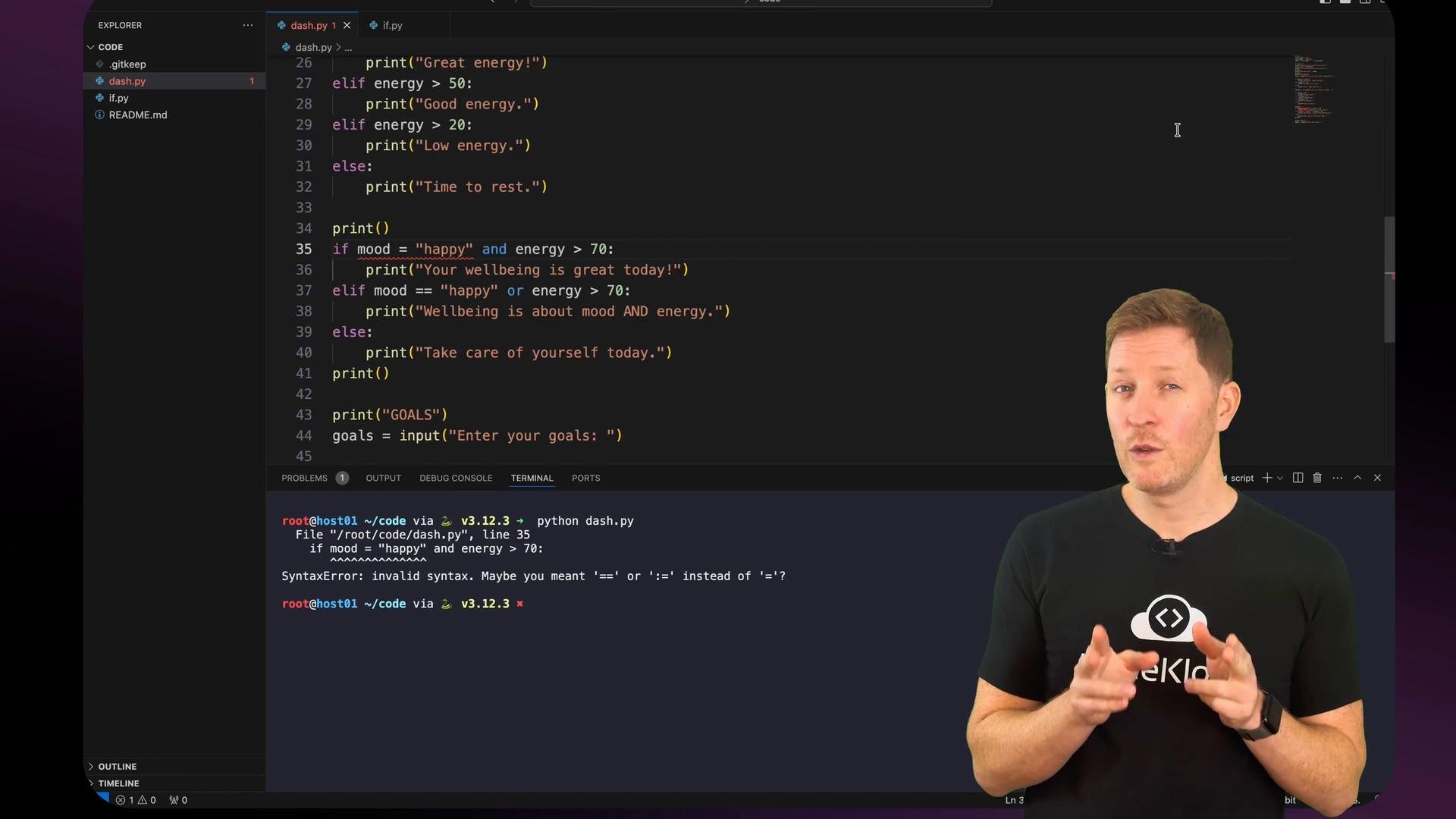
* Using a single equals (`=`) instead of double equals (`==`) for comparison — `=` assigns a value and using it in a conditional will raise a `SyntaxError` or behave unexpectedly.
Convert input to an integer
Convert the string returned by `input()` to an integer with `int()` so numeric comparisons work:
```python theme={null}
energy = int(input("Enter your energy (0-100): "))
print(energy > 50)
print(energy < 50)
```
Now the comparisons will evaluate correctly.
If the user types something that isn't a valid integer (for example, "sixty"), `int(...)` will raise a `ValueError`. To make input handling robust, either validate the input before converting or wrap the conversion in a `try`/`except` block and re-prompt the user until valid input is provided.
Robust integer parsing (example)
Here's a simple loop that keeps asking until the user supplies a valid integer:
```python theme={null}
while True:
raw = input("Enter your energy (0-100): ")
try:
energy = int(raw)
break
except ValueError:
print("Please enter a number like 42.")
```
First if statement and indentation
Replace a direct comparison with an `if` statement. Python uses indentation (conventionally 4 spaces) to define the body of `if`, `elif`, and `else` blocks:
```python theme={null}
energy = int(input("Enter your energy (0-100): "))
if energy > 50:
print("Great energy!")
```
Most editors auto-indent after you type the colon; that indentation is required — missing it causes an `IndentationError`. For style guidance, see [Python's PEP 8 style guide](https://peps.python.org/pep-0008/).
If-else for two choices
To handle both true and false outcomes, use `if`...`else`:
```python theme={null}
energy = int(input("Enter your energy (0-100): "))
if energy > 50:
print("Great energy!")
else:
print("Time to rest.")
```
Mood example (single-check)
A simple mood check:
```python theme={null}
mood = input("How do you feel today? ")
if mood == "happy":
print("Wonderful, keep smiling!")
else:
print("Oh dear, chin up!")
```
Note: that `else` assumes anything not `"happy"` should get the "Oh dear" response. To handle more than two possible moods, use `elif`.
Using if, elif, else for multiple choices
Use `if`, `elif`, and `else` to create multiple branches. Python evaluates conditions from top to bottom and executes the first true branch — so order matters. Example energy classification:
```python theme={null}
energy = int(input("Enter your energy (0-100): "))
if energy > 80:
print("Great energy!")
elif energy > 50:
print("Good energy.")
elif energy > 20:
print("Low energy.")
else:
print("Time to rest.")
```
Validating mood with three branches
A more explicit mood prompt that enforces expected inputs:
```python theme={null}
mood = input("How do you feel today (happy/sad)? ")
if mood == "happy":
print("Wonderful, keep smiling!")
elif mood == "sad":
print("Oh dear, chin up!")
else:
print("Enter happy/sad only.")
```
Combining conditions with and / or
Use `and` when multiple conditions must all be true, `or` when at least one condition must be true.
Examples:
```python theme={null}
# Both must be true
if mood == "happy" and energy > 70:
print("Your wellbeing is great today!")
# At least one must be true
if mood == "happy" or energy > 70:
print("Your wellbeing is great today!")
```
Putting it all together — a simple dashboard
This compact example combines mood, energy classification, a wellbeing summary, and a goals prompt. Save it as `dash.py` and run it to try different inputs.
```python theme={null}
# dash.py
print("===========================")
print("DAILY DASHBOARD")
print("===========================\n")
print("Welcome back, Ada Lovelace\n")
# Mood
mood = input("How do you feel today (happy/sad)? ")
if mood == "happy":
print("Wonderful, keep smiling!")
elif mood == "sad":
print("Oh dear, chin up!")
else:
print("Enter happy/sad only.")
# Energy
energy = int(input("Enter your energy (0-100): "))
if energy > 80:
print("Great energy!")
elif energy > 50:
print("Good energy.")
elif energy > 20:
print("Low energy.")
else:
print("Time to rest.")
# Wellbeing summary (combine mood and energy)
if mood == "happy" and energy > 70:
print("Your wellbeing is great today!")
elif mood == "happy" or energy > 70:
print("Your wellbeing is good today.")
else:
print("Take care of yourself today.")
# Goals
print("\nGOALS")
goals = input("Enter your goals: ")
print("Thanks — your goals have been recorded.")
```
Sample runs (interactive):
* Enter `happy` and `75` → script acknowledges mood, classifies energy, and prints that your wellbeing is great.
* Enter `sad` and `75` → mood branch prints the sad message, energy is classified, and the wellbeing summary reflects the high energy.
Common mistakes to avoid
* Missing the colon (`:`) at the end of an `if`, `elif`, or `else` line — causes a `SyntaxError`.
* Incorrect indentation or mixing tabs and spaces — causes an `IndentationError`.
* Using a single equals (`=`) instead of double equals (`==`) for comparison — `=` assigns a value and using it in a conditional will raise a `SyntaxError` or behave unexpectedly.
 Summary
* `if` statements let your program make decisions by evaluating conditions that are `True` or `False`.
* Comparison operators (`==`, `!=`, `>`, `<`, `>=`, `<=`) are used to build conditions.
* Logical operators (`and`, `or`) combine multiple conditions into richer tests.
* Chains of `if` → `elif` → `else` handle multiple possibilities; order matters because Python stops at the first true condition.
Your dashboard now stores input in variables, makes decisions with `if` statements, and responds based on user input. Next you'll learn how to repeat actions efficiently using loops.
Links and references
* [PEP 8 — Style Guide for Python Code](https://peps.python.org/pep-0008/)
* Python input documentation: [https://docs.python.org/3/library/functions.html#input](https://docs.python.org/3/library/functions.html#input)
This documentation is built and hosted on [Mintlify](https://mintlify.com), a developer documentation platform.
Summary
* `if` statements let your program make decisions by evaluating conditions that are `True` or `False`.
* Comparison operators (`==`, `!=`, `>`, `<`, `>=`, `<=`) are used to build conditions.
* Logical operators (`and`, `or`) combine multiple conditions into richer tests.
* Chains of `if` → `elif` → `else` handle multiple possibilities; order matters because Python stops at the first true condition.
Your dashboard now stores input in variables, makes decisions with `if` statements, and responds based on user input. Next you'll learn how to repeat actions efficiently using loops.
Links and references
* [PEP 8 — Style Guide for Python Code](https://peps.python.org/pep-0008/)
* Python input documentation: [https://docs.python.org/3/library/functions.html#input](https://docs.python.org/3/library/functions.html#input)
This documentation is built and hosted on [Mintlify](https://mintlify.com), a developer documentation platform.