> ## Documentation Index
> Fetch the complete documentation index at: https://notes.kodekloud.com/llms.txt
> Use this file to discover all available pages before exploring further.
# Variables Program Memory
> Introduction to Python variables, data types, input and basic operations for building an interactive daily dashboard with naming conventions and examples
Welcome back.
Right now your dashboard prints the same static information every time. To change values like your mood without editing many lines of code each time, you use variables.
In this lesson you will learn to:
* create and use variables to store data
* distinguish between strings, integers, floats, and booleans
* use `input()` to make a program interactive
* perform calculations and build messages with variables
What is a variable?
A variable is like a labeled box on a shelf: you give it a name and store a value in it. Later you refer to the variable name to access or change the value.
Example — the original hard-coded dashboard
```python theme={null}
print("===============================")
print("DAILY DASHBOARD")
print("===============================")
print()
print("Welcome back, Ada!")
print()
print("WELLBEING")
print("Mood: Happy")
print("Energy: High")
print()
print("GOALS")
print("Learn Python basics")
```
Create and use a simple variable
```python theme={null}
name = "Ada"
print(name)
```
When you run this, Python prints the value stored in `name`.
Using variables in multiple places
```python theme={null}
name = "Ada"
print("Welcome back")
print(name)
print("Have a great day")
print(name)
```
Output:
```bash theme={null}
Welcome back
Ada
Have a great day
Ada
```
You typed `"Ada"` once, but reused it multiple times via the variable.
Order matters
Python executes code from top to bottom. If you try to use a variable before assigning it, you'll get an error:
Do not reference variables before they are assigned. This causes a `NameError` because Python hasn't stored a value yet.
Example that raises an error:
```python theme={null}
print("Welcome back")
print(name)
print("Have a great day")
print(name)
name = "Ada"
```
Running this results in:
```bash theme={null}
Traceback (most recent call last):
File "dash.py", line 2, in
print(name)
NameError: name 'name' is not defined
```
Always assign `name` before you use it.
Tip: If your terminal output is cluttered, use the `clear` command (or `cls` on Windows) to wipe the slate.
Comments to temporarily disable code
If parts of the dashboard distract you while you test other sections, comment them out so they won't execute. In many editors (for example, VS Code) press Command+/ on macOS or Control+/ on Windows to toggle `#` at the start of selected lines.
Basic data types
Python infers a variable's type from the value you assign. The most common primitive types are in the table below.
| Type | Use | Example |
| - | - | - |
| String (text) | Textual data; use quotes | `city = "Paris"` |
| Integer | Whole numbers | `age = 25` |
| Float | Decimal numbers | `temperature = 36.5` |
| Boolean | True/False values | `is_happy = True` |
Strings (text)
* Use single or double quotes (be consistent).
```python theme={null}
city = "Paris"
mood = 'Happy'
```
Integers (whole numbers)
```python theme={null}
age = 25
days = 7
```
Floats (numbers with a decimal point)
```python theme={null}
temperature = 36.5
price = 19.99
```
Booleans (`True` or `False`)
```python theme={null}
is_raining = False
is_happy = True
```
Embedding variables into output
You can pass text and variables as separate arguments to `print()` to show them on one line:
```python theme={null}
name = "Ada"
print("Welcome back,", name)
```
For clearer formatting, consider Python f-strings (available in Python 3.6+):
```python theme={null}
name = "Ada"
print(f"Welcome back, {name}")
```
Building the dashboard with variables
Create variables at the top and use them in the dashboard print statements:
```python theme={null}
name = "Ada"
mood = "Happy"
energy = "High"
goals = "Learn Python basics"
print("===============================")
print("DAILY DASHBOARD")
print("===============================")
print()
print("Welcome back,", name)
print()
print("WELLBEING")
print("Mood:", mood)
print("Energy:", energy)
print()
print("GOALS")
print(goals)
```
Numeric variables and calculations
To do math with a variable, store it as a number (integer or float) rather than text. For example, use an integer for `energy` so you can add or subtract points:
```python theme={null}
name = "Ada"
mood = "Happy"
energy = 80
goals = "Learn Python basics"
print("===============================")
print("DAILY DASHBOARD")
print("===============================")
print()
print("Welcome back,", name)
print()
print("WELLBEING")
print("Mood:", mood)
print("Energy:", energy, "%")
print()
print("GOALS")
print(goals)
```
If you nap and restore 10 points of energy:
```python theme={null}
old_energy = 80
rest = 10
energy = old_energy + rest
print("Energy now:", energy) # Energy now: 90
```
Organize code with comments
Use comments to group related variables and make your script easier to read:
```python theme={null}
# user
first_name = "Ada"
last_name = "Lovelace"
name = first_name + " " + last_name
# wellbeing
mood = "Happy"
old_energy = 80
rest = 10
energy = old_energy + rest
# goals
goals = "Learn Python basics"
# dashboard
print("==============================")
print("DAILY DASHBOARD")
print("==============================")
print()
print("Welcome back,", name)
print()
print("WELLBEING")
print("Mood:", mood)
print("Energy:", energy, "%")
print()
print("GOALS")
print(goals)
```
String concatenation
Joining strings together is called concatenation. Example:
```python theme={null}
first_name = "Ada"
last_name = "Lovelace"
name = first_name + " " + last_name
```
Concatenation lets you store the combined string in a variable and reuse it later, which is better than recreating the same output repeatedly inside `print()`.
User input
Use `input()` to get information from the user. Note: `input()` always returns a string.
`input()` returns text. If you need numeric input for calculations, convert the result with `int()` or `float()`. Always validate or handle invalid input in real programs.
Example showing raw input:
```python theme={null}
energy = input("Enter your energy (0-100): ")
print("Energy:", energy, "%")
```
Converting input for arithmetic:
```python theme={null}
old_energy = int(input("Enter your previous energy (0-100): "))
rest = int(input("Enter how much you rested: "))
energy = old_energy + rest
print("Energy now:", energy)
```
Make the dashboard interactive
Add inputs for `mood`, `energy`, and `goals` so the dashboard reflects the user's responses:
```python theme={null}
first_name = "Ada"
last_name = "Lovelace"
name = first_name + " " + last_name
mood = input("How do you feel today? ")
energy = input("Enter your energy (0-100): ")
goals = input("Enter your goals: ")
print("===============================")
print("DAILY DASHBOARD")
print("===============================")
print()
print("Welcome back,", name)
print()
print("WELLBEING")
print("Mood:", mood)
print("Energy:", energy, "%")
print()
print("GOALS")
print(goals)
```
If you plan to calculate with `energy`, wrap the `input()` call in `int()` as shown earlier.
Variable naming rules and conventions
* Use underscores for multi-word names: `user_age`, not `user age`.
* Start names with a letter or underscore (not a number).
* Use only letters, numbers, and underscores (no hyphens).
* Pick clear, descriptive names (avoid `n`; use `name` or `user_count` instead).
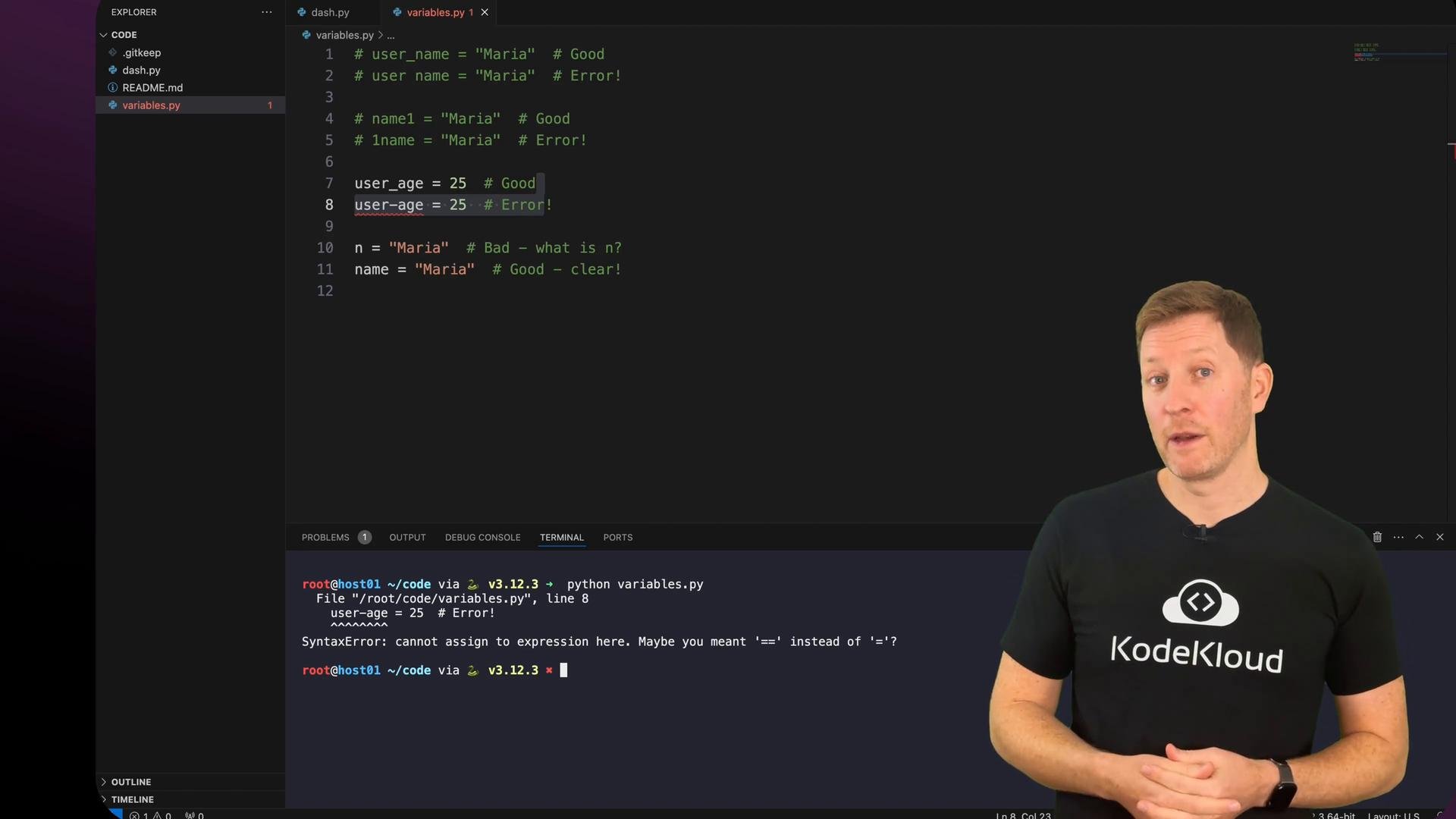 There should be a `variables.py` script in your workspace — try experimenting with naming conventions and see which ones cause syntax errors.
Summary
* Variables store information so your program can remember and reuse values.
* Python detects data types automatically: strings use quotes, integers and floats are numeric, booleans are `True`/`False`.
* `input()` collects text from the user (cast it with `int()` or `float()` if you need numbers).
* Variables let you combine text (concatenation) and perform arithmetic with numbers.
* Good naming and organization (comments, grouping) make code easier to read and maintain.
Next: you will use variables to make decisions — for example, show one message if a user is happy and a different message if they are sad.
This documentation is built and hosted on [Mintlify](https://mintlify.com), a developer documentation platform.
There should be a `variables.py` script in your workspace — try experimenting with naming conventions and see which ones cause syntax errors.
Summary
* Variables store information so your program can remember and reuse values.
* Python detects data types automatically: strings use quotes, integers and floats are numeric, booleans are `True`/`False`.
* `input()` collects text from the user (cast it with `int()` or `float()` if you need numbers).
* Variables let you combine text (concatenation) and perform arithmetic with numbers.
* Good naming and organization (comments, grouping) make code easier to read and maintain.
Next: you will use variables to make decisions — for example, show one message if a user is happy and a different message if they are sad.
This documentation is built and hosted on [Mintlify](https://mintlify.com), a developer documentation platform.