> ## Documentation Index
> Fetch the complete documentation index at: https://notes.kodekloud.com/llms.txt
> Use this file to discover all available pages before exploring further.
# Create manage and diagnose advanced file system permissions
> This comprehensive guide covers creating, managing, and diagnosing advanced file system permissions in Linux using standard permissions, ACLs, and additional file attributes.
Welcome to this comprehensive guide on advanced file system permissions in Linux. In this tutorial, we cover how to create, manage, and diagnose file permissions using standard permissions as well as Access Control Lists (ACLs) and additional file attributes.
Imagine issuing the command:
```bash theme={null}
ls -l
```
This command lists files along with their permissions. In our example, files are owned by the user "adm" and belong to the "ftp" group. The permission sets are broken down as follows:
* The first three bits (`rw-`) indicate that the owner ("adm") can read and write.
* The next three bits (`rw-`) allow members of the "ftp" group to also read and write.
* The final three bits (`r--`) provide read-only access for other users.
Below is a sample output of the `ls -l` command:
```bash theme={null}
[aaron@LFCS-CentOS attributes]$ ls -l
total 0
-rw-rw-r--. 1 adm ftp 0 Mar 24 17:55 file1
-rw-rw-r--. 1 adm ftp 0 Mar 24 17:55 file2
-rw-rw-r--. 1 adm ftp 0 Mar 24 17:55 file3
[aaron@LFCS-CentOS attributes]$
```
Notice how the permissions allow the group and others different levels of access. For a user like Aaron Lockhart, who is not in the "ftp" group, only the read permission from the third set is applicable.
If we need to grant specific users additional access—such as providing Aaron Lockhart with write access to "file3" without altering his permissions for "file1" and "file2"—reassigning file ownership is not ideal, as it would remove write access from the regular owner ("adm"). Instead, Access Control Lists (ACLs) offer a more granular approach.
## Creating a File with Standard Permissions
Let's start by creating a new file called `examplefile` and setting its content to "This is the file content". We then change the file's ownership to user "adm" and group "ftp":
```bash theme={null}
echo "This is the file content" > examplefile
sudo chown adm:ftp examplefile
ls -l examplefile
```
Since the current user is neither "adm" nor a member of the "ftp" group, attempts to overwrite the file will result in a permission error. For example:
```bash theme={null}
echo "This is the NEW file content" > examplefile
```
This command will yield an error such as "Permission denied". However, reading the file with:
```bash theme={null}
cat examplefile
```
will correctly display its content:
```bash theme={null}
[aaron@LFCS-CentOS attributes]$ cat examplefile
This is the file content
[aaron@LFCS-CentOS attributes]$
```
Standard file permissions work well in most cases, but when finer control is necessary, ACLs can be used to grant specific permissions to additional users.
## Granting Specific Permissions Using ACLs
To allow Aaron Lockhart to both read and modify `examplefile`, apply the following ACL command. If the file is not owned by the user, prepend the command with `sudo`:
```bash theme={null}
sudo setfacl --modify user:aaron:rw examplefile
```
With this ACL in place, Aaron can now overwrite the file:
```bash theme={null}
echo "This is the NEW file content" > examplefile
cat examplefile
```
After modifying the file, the presence of ACLs is indicated by a plus sign (`+`) in the permission listing:
```bash theme={null}
[aaron@LFCS-CentOS attributes]$ ls -l
total 4
-rw-rw-r--+ 1 adm ftp 29 Mar 24 18:04 examplefile
...
```
To inspect detailed ACL settings, use the `getfacl` command:
```bash theme={null}
getfacl examplefile
```
Example output:
```bash theme={null}
[aaron@LFCS-CentOS attributes]$ getfacl examplefile
# file: examplefile
# owner: adm
# group: ftp
user::rw-
user:aaron:rw-
group::rw-
mask::rw-
other::r--
[aaron@LFCS-CentOS attributes]$
```
The mask setting defines the maximum permissions available to users and groups affected by ACLs. This means that even if an ACL grants extended permissions, the effective permissions will be restricted by the mask. To enforce read-only access despite broader ACL entries, set the mask to `r--`:
```bash theme={null}
sudo setfacl --modify mask:r-- examplefile
getfacl examplefile
```
## Modifying ACLs for Groups and Removing ACL Entries
ACLs can also apply to groups. To grant the "wheel" group read and write access, execute:
```bash theme={null}
sudo setfacl --modify group:wheel:rw examplefile
```
If you need to restrict a user’s permissions completely (for example, to deny Aaron Lockhart any access), set his permissions to none:
```bash theme={null}
sudo setfacl --modify user:aaron:--- examplefile
```
Should you wish to remove a specific ACL entry entirely, use the `--remove` option:
```bash theme={null}
sudo setfacl --remove user:aaron examplefile
```
Similarly, to remove a group ACL entry:
```bash theme={null}
sudo setfacl --remove group:wheel examplefile
```
## Applying ACLs Recursively
In cases where you need to update ACLs for an entire directory and its contents, utilize the recursive flag (`--recursive` or `-R`). For example, to grant Aaron full permissions on all files within directory `dir1`:
```bash theme={null}
mkdir dir1
sudo setfacl --recursive -m user:aaron:rwx dir1/
```
To remove an ACL entry recursively from a directory:
```bash theme={null}
sudo setfacl --recursive --remove user:aaron dir1/
```
## Managing File and Directory Attributes
Beyond ACLs, Linux file systems support attributes that serve as on/off switches to control file behavior. Two frequently used attributes are append-only and immutable.
### Append-Only Attribute
First, create a new file with initial content:
```bash theme={null}
echo "This is old content" > newfile
```
To enable the append-only attribute, use `chattr` with the `+a` flag. With this attribute active, you can append data but cannot overwrite the file's existing contents:
```bash theme={null}
sudo chattr +a newfile
```
Verifying the content:
```bash theme={null}
cat newfile
```
Attempting to overwrite the file:
```bash theme={null}
echo "Replace with this content" > newfile
# Output: bash: newfile: Operation not permitted
```
Appending new content is allowed:
```bash theme={null}
echo "Replace with this content" >> newfile
cat newfile
```
To remove the append-only attribute, use:
```bash theme={null}
sudo chattr -a newfile
```
### Immutable Attribute
When a file is marked as immutable (indicated by the letter `i`), it becomes completely unmodifiable—even root cannot delete or alter the file. To set the immutable attribute:
```bash theme={null}
sudo chattr +i newfile
```
Any attempt to remove the file, even with elevated privileges, will result in an error:
```bash theme={null}
sudo rm newfile
# Output: rm: cannot remove 'newfile': Operation not permitted
```
To view file attributes, run:
```bash theme={null}
lsattr newfile
```
Expected output:
```bash theme={null}
[aaron@LFCS-CentOS attributes]$ lsattr newfile
----i------------ newfile
[aaron@LFCS-CentOS attributes]$
```
Remove the immutable attribute with:
```bash theme={null}
sudo chattr -i newfile
```
For further information on available attributes beyond append-only and immutable, refer to the manual page for `chattr`. Note that some attributes may have no effect, depending on your file system type. For instance, the `c` attribute for compression does not work on file systems such as ext4 that do not support on-the-fly compression.
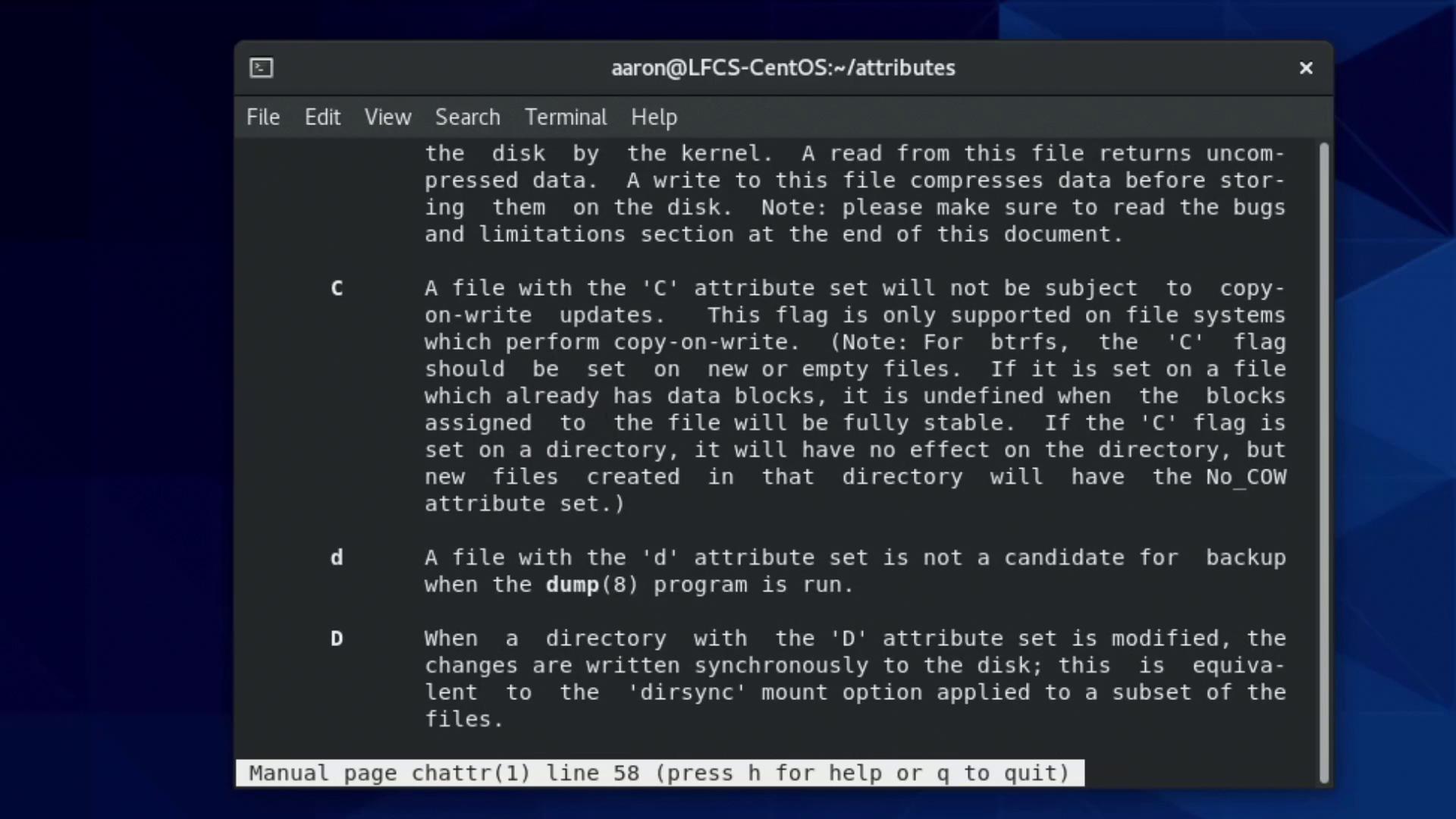
Always verify your file system's support for specific attributes to avoid unexpected behavior. Explore `man chattr` for a detailed list.
## Conclusion
This tutorial provided an in-depth look at managing advanced file system permissions and attributes in Linux. You learned how to work with standard file permissions, leverage ACLs to grant specific user and group privileges, and handle additional file attributes like append-only and immutable. Continue practicing these commands in your lab exercises to enhance your proficiency in Linux system management.
For more detailed information, consider exploring additional resources:
* [Kubernetes Documentation](https://kubernetes.io/docs/)
* [Docker Hub](https://hub.docker.com/)
* [Terraform Registry](https://registry.terraform.io/)
Happy learning!