> ## Documentation Index
> Fetch the complete documentation index at: https://notes.kodekloud.com/llms.txt
> Use this file to discover all available pages before exploring further.
# Restore default file contexts
> This article covers modifying SELinux settings at boot and diagnosing policy violations, including restoring default file contexts for Apache.
In this lesson, we explore two key concepts related to SELinux:
1. Modifying SELinux settings at boot time using Boolean values.
2. Diagnosing and resolving routine SELinux policy violations.
***
## Using Boolean Values to Modify SELinux Settings at Boot Time
We'll start by modifying SELinux behavior directly from the GRUB boot screen of a RHEL machine.
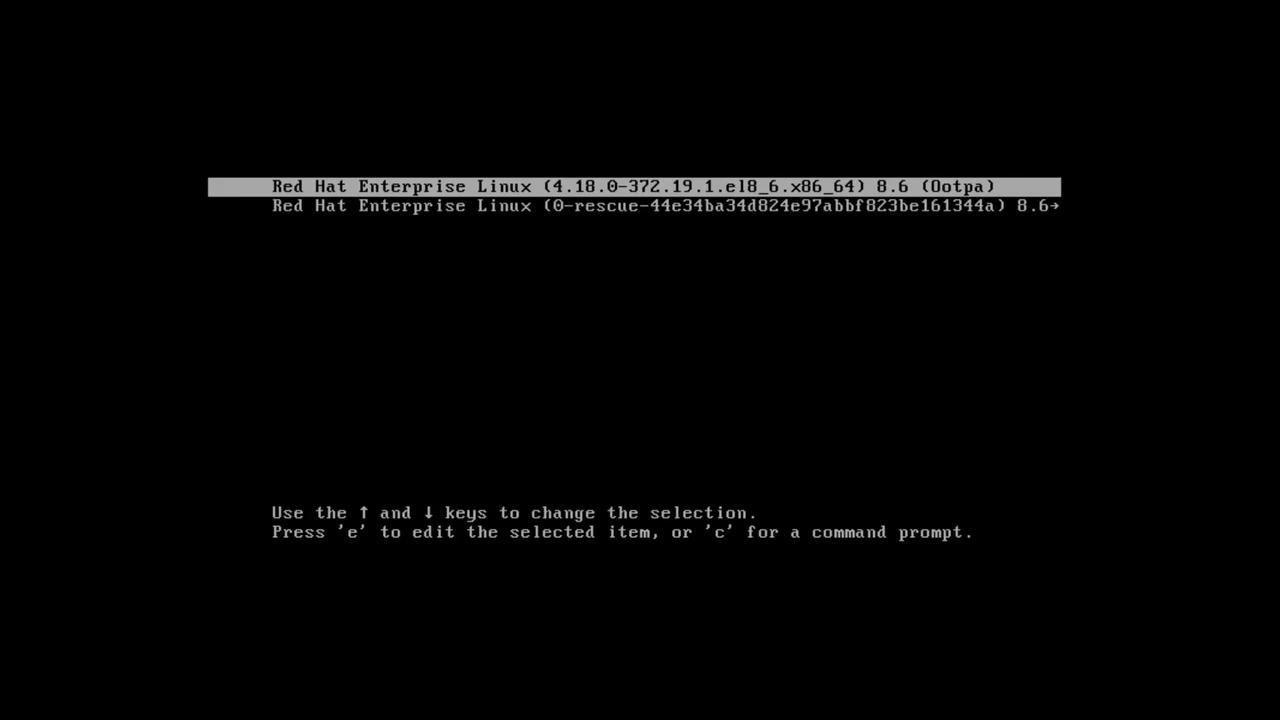
At the GRUB screen, press "E" to edit the default kernel entry. In the editor, scroll down to the line beginning with "linux". Press Control + E to jump to the end of this line, then move the cursor one space before the "quiet" keyword. Here, you can append one of the following Boolean parameters to adjust SELinux behavior at boot:
### 1. Booting in Permissive Mode
Appending `enforcing=0` will start SELinux in permissive mode while still applying the appropriate SELinux labels. This method is the Red Hat recommended approach to boot in permissive mode. For example:
```bash theme={null}
load_video
set gfx_payload=keep
insmod gzio
linux ($root)/vmlinuz-4.18.0-372.19.1.el8_6.x86_64 root=/dev/mapper/rhel-root \
ro crashkernel=auto resume=/dev/mapper/rhel-swap rd.lvm.lv=rhel/root rd.lvm.lv=rhel/swap rhgb quiet enforcing=0
initrd ($root)/initramfs-4.18.0-372.19.1.el8_6.x86_64.img $tuned_initrd
```
### 2. Disabling SELinux Support at Boot
Alternatively, you can disable SELinux entirely during boot by appending `selinux=0` to the kernel command line. When this parameter is used, no SELinux components will be loaded by the kernel. A subsequent boot without this parameter will trigger an automatic filesystem relabel.
```bash theme={null}
load_video
set gfx_payload=keep
insmod gfxio
linux ($root)/vmlinuz-4.18.0-372.19.1.el8_6.x86_64 root=/dev/mapper/rhel-root \
ro crashkernel=auto resume=/dev/mapper/rhel-swap rd.lvm.lv=rhel/root rd.lvm.lv=rhel/swap rhgb quiet selinux=0
initrd ($root)/initramfs-4.18.0-372.19.1.el8_6.x86_64.img $tumed_initrd
```
### 3. Enabling Auto Relabel
You can force a full filesystem relabel by appending `autorelabel=1`. This is equivalent to creating the `/etc/selinux/auto_relabel` file and rebooting.
```bash theme={null}
load_video
set gfx_payload=keep
insmod gzio
linux ($root)/vmlinuz-4.18.0-372.19.1.el8_6.x86_64 root=/dev/mapper/rhel-root \
ro crashkernel=auto resume=/dev/mapper/rhel-swap rd.lvm.lv=rhel/root rd.lvm.lv=rhel/swap rhgb quiet autorelabel=1
initrd ($root)/initramfs-4.18.0-372.19.1.el8_6.x86_64.img $tuned_initrd
```
After making your desired changes, press Control + X to boot normally. This concludes the first part of the lesson.
***
## Diagnosing and Addressing Routine SELinux Policy Violations
Once the system has booted, log in to your RHEL system.
Even though some systems may boot into a text console, this demonstration uses graphical mode for ease of use. Next, we will explore how to handle one common SELinux issue by changing the default HTTPD port.
### Example: Changing the HTTPD Port
A typical issue arises when you modify the default port for the Apache HTTPD service. First, verify HTTPD is installed, then inspect the Apache configuration file to locate the `Listen` directive.
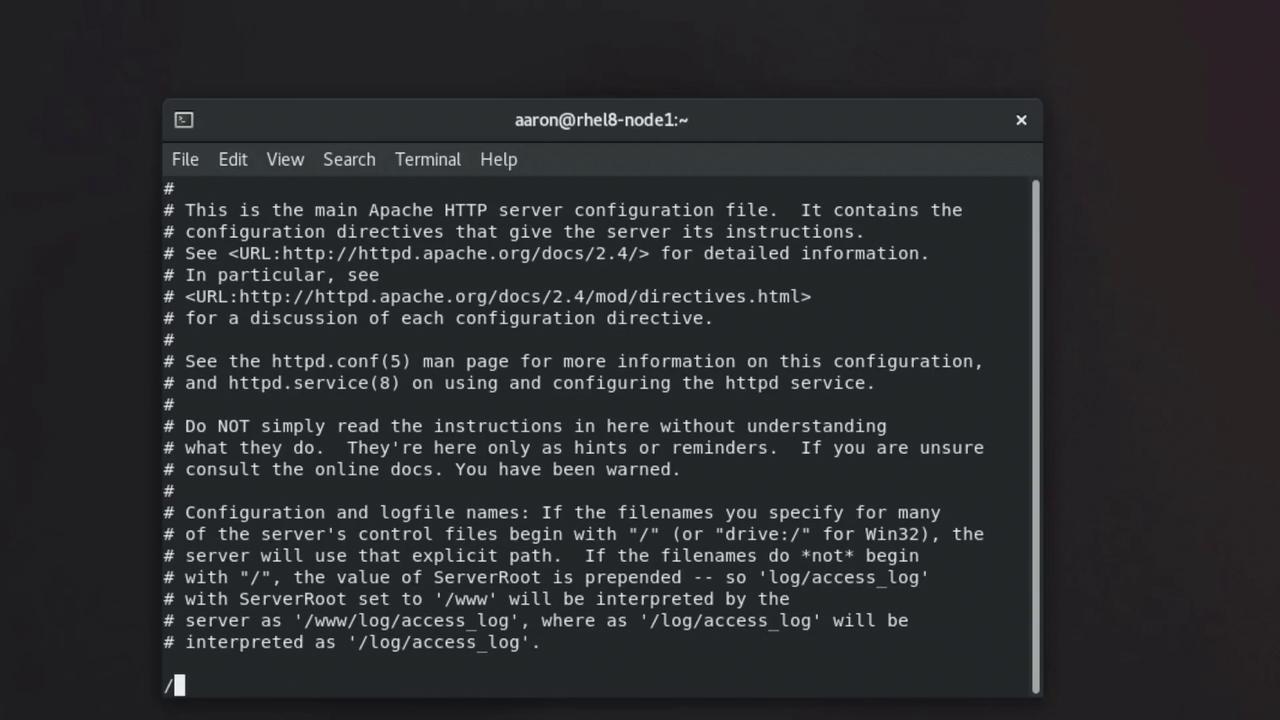
By default, Apache listens on port 80. Assume you change this setting to port 88. Edit the configuration file with:
```bash theme={null}
sudo vi /etc/httpd/conf/httpd.conf
```
After saving your changes, attempt to start Apache:
```bash theme={null}
sudo systemctl start httpd.service
```
If the service fails to start, you might see an error similar to:
```plaintext theme={null}
Job for httpd.service failed because the control process exited with error code.
See "systemctl status httpd.service" and "journalctl -xe" for details.
```
Checking the status helps reveal that Apache encountered a permission error when binding to port 88:
```bash theme={null}
sudo systemctl status httpd.service
```
Example output:
```plaintext theme={null}
httpd.service - The Apache HTTP Server
Loaded: loaded (/usr/lib/systemd/system/httpd.service; disabled; vendor preset: disabled)
Active: failed (Result: exit-code) since Wed 2022-09-07 01:36:08 CDT; 29s ago
Docs: man:httpd.service(8)
Process: 3853 ExecStart=/usr/sbin/httpd $OPTIONS -DFOREGROUND (code=exited, status=1/FAILURE)
Main PID: 3853 (code=exited, status=1/FAILURE)
Sep 07 01:36:08 rhel8-node1 httpd[3853]: (13)Permission denied: AH00072: make_sock: could not bind to address 0.0.0.0:88
Sep 07 01:36:08 rhel8-node1 httpd[3853]: AH00015: Unable to open logs
```
Investigating further with `journalctl -xe` may point out that SELinux is preventing HTTPD from binding to port 88:
```plaintext theme={null}
... SELinux is preventing /usr/sbin/httpd from name_bind access on the tcp_socket port 88. For complete SELinux messages run: sealert -l
```
The error message advises generating a local policy module with the following commands:
```bash theme={null}
ausearch -c 'httpd' --raw | audit2allow -M my-httpd
semodule -X 300 -i my-httpd.pp
```
It is recommended to switch to the root shell for these operations:
```bash theme={null}
sudo -i
```
Then, execute the commands:
```bash theme={null}
ausearch -c 'httpd' --raw | audit2allow -M my-httpd
semodule -X 300 -i my-httpd.pp
```
Once the policy module `my-httpd` is installed, restart Apache:
```bash theme={null}
systemctl start httpd.service
systemctl status httpd.service
```
A successful service status should indicate that Apache is active and running on port 88:
```plaintext theme={null}
httpd.service - The Apache HTTP Server
Active: active (running) since Wed 2022-09-07 01:39:14 CDT; 95s ago
...
Sep 07 01:39:14 rhel8-node1 httpd[3977]: Server configured, listening on: port 88
```
Confirm the service response with a curl command:
```bash theme={null}
curl 127.0.0.1:88
```
You should see the HTML content of Apache's default page in the terminal.
***
## Restoring Default File Contexts for Apache
Another common issue occurs when file contexts do not align with SELinux expectations, particularly when Apache’s `DocumentRoot` is changed to a non-default directory.
In this scenario, modify the Apache configuration file to update the `DocumentRoot`. For example, change it to `/kodedu`:
```apache theme={null}
# DocumentRoot: The directory out of which you will serve your documents.
DocumentRoot "/kodedu"
# Further configuration...
```
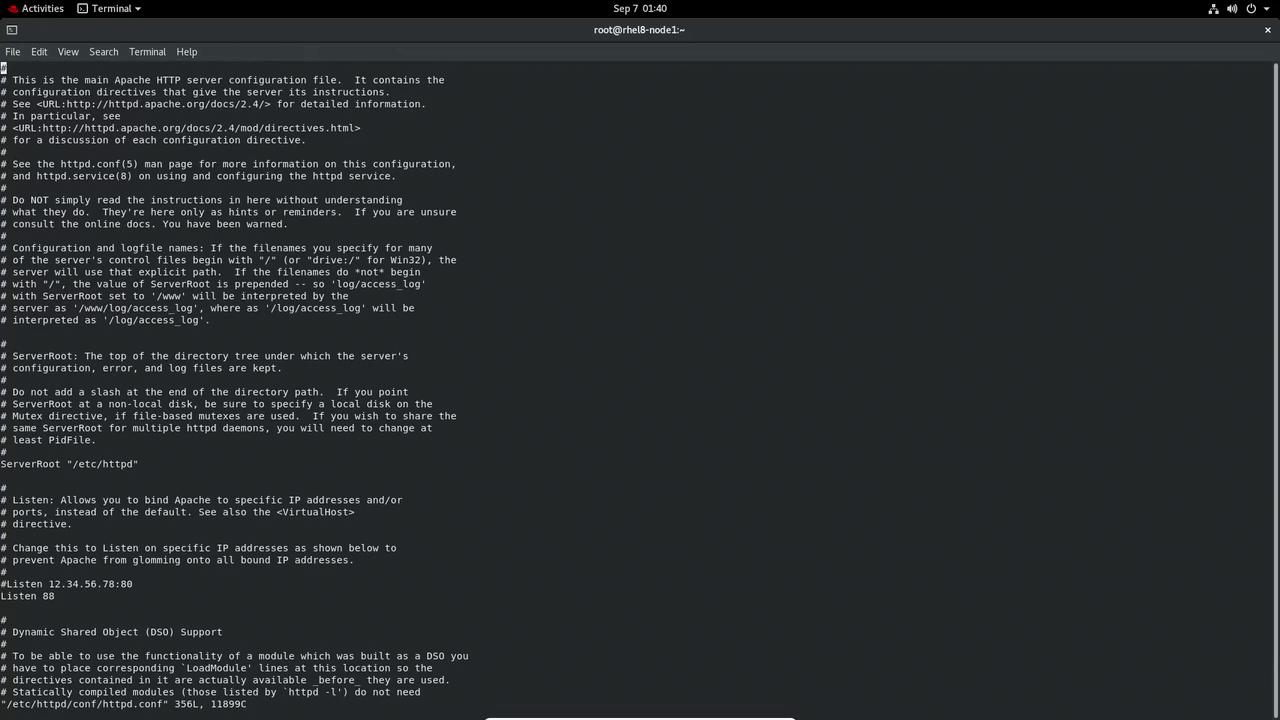
After updating the configuration, create the new document root directory and add a simple HTML file:
```bash theme={null}
mkdir /kodedu
echo "KodeKloud" > /kodedu/kodekloud.html
```
Restart Apache to apply the changes:
```bash theme={null}
systemctl restart httpd.service
```
When you access `http://127.0.0.1:88/kodekloud.html`, you might receive a "Forbidden" error. This error indicates that SELinux is denying access because the file contexts are incorrect. Check the current SELinux labels with:
```bash theme={null}
ls -laZ /kodedu/
```
Files in `/kodedu` often have a generic context (e.g., `default_t`) instead of the required `httpd_sys_content_t`.
To resolve this, use the `semanage` command to assign the proper context.
Apply the correct file context with:
```bash theme={null}
semanage fcontext -a -t httpd_sys_content_t '/kodedu(/.*)?'
```
Then, run the following command to update the file contexts recursively:
```bash theme={null}
restorecon -R /kodedu/
```
Confirm the updated context by checking again:
```bash theme={null}
ls -laZ /kodedu/
```
Finally, verify that the Apache default page is accessible:
```bash theme={null}
curl 127.0.0.1:88/kodekloud.html
```
The output should display the expected HTML ("KodeKloud") content.
***
## Summary
In this lesson, you learned how to:
* Use Boolean values at boot time to modify SELinux behavior.
* Diagnose SELinux policy violations through `systemctl` and `journalctl`.
* Generate and apply local SELinux policy modules.
* Correct file contexts using `semanage` and `restorecon` to resolve access issues with Apache.
Proceed to your next lab or lecture with these troubleshooting techniques to ensure a secure and smoothly functioning SELinux environment.