> ## Documentation Index
> Fetch the complete documentation index at: https://notes.kodekloud.com/llms.txt
> Use this file to discover all available pages before exploring further.
# Backup files to a Remote System
> This article explains how to back up files on Linux using rsync for synchronization and dd for creating disk images.
In this lesson, we explore how to perform backups on Linux systems using native tools. Although modern backup solutions exist, this guide focuses on two fundamental methods: synchronizing files using rsync and creating disk images with dd.
## Using rsync for Remote Synchronization
rsync (short for "remote synchronization") is a powerful tool for backing up data. It efficiently synchronizes directories between a local and remote system by transferring only changed files.
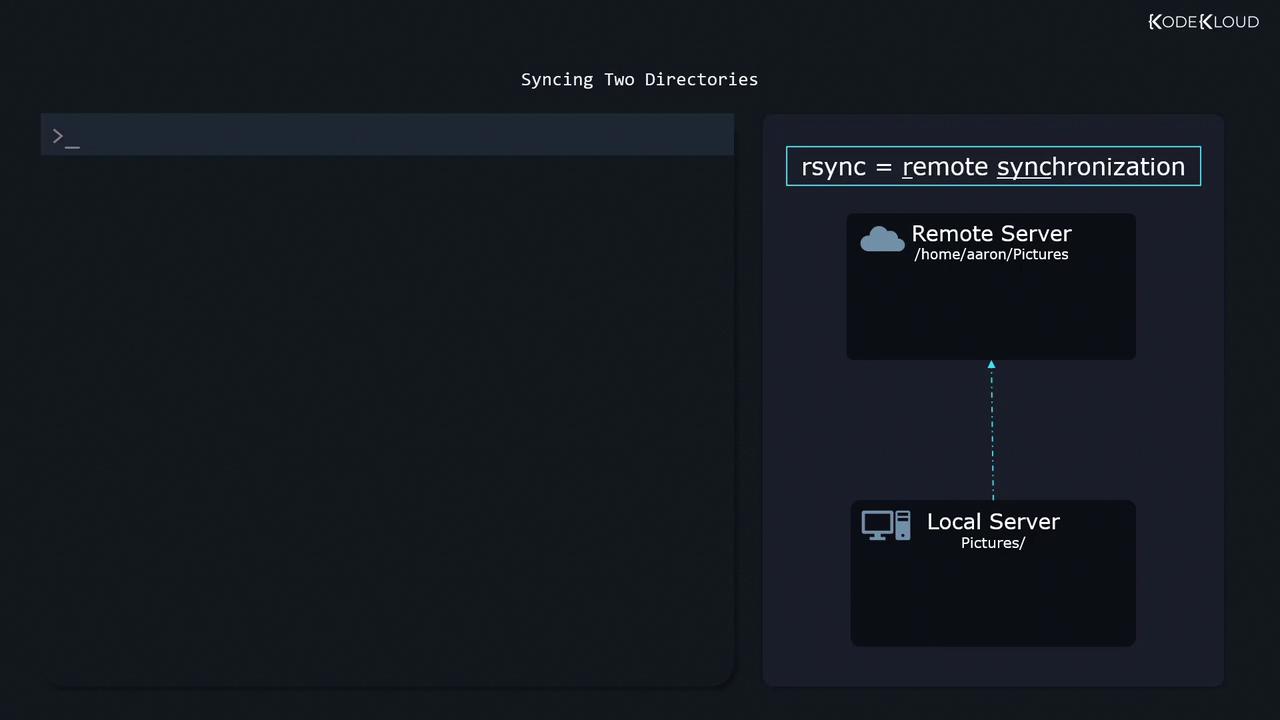
Before getting started, ensure that the remote server has an SSH daemon running, as rsync uses SSH to perform secure data transfers.
### Basic rsync Command Syntax
The general syntax for rsync is:
```bash theme={null}
rsync -a [source_directory/] username@IP_address:/path/to/destination_directory/
```
Here, the `-a` (archive) flag ensures that subdirectories, file permissions, modification times, and other attributes are preserved during synchronization.
For example, to synchronize a local "Pictures" directory with a remote "Pictures" directory, you would use:
```bash theme={null}
rsync -a Pictures/ aaron@9.9.9.9:/home/aaron/Pictures/
```
Ensure a trailing slash is added at the end of your directory names to indicate the correct source path. Running the command a second time causes rsync to only copy files that have changed since the last synchronization.
If you need to restore from the remote backup to your local system, simply swap the source and destination:
```bash theme={null}
rsync -a aaron@9.9.9.9:/home/aaron/Pictures/ Pictures/
```
You can also synchronize two local directories:
```bash theme={null}
rsync -a Pictures/ /Backups/Pictures/
```
## Using dd for Disk Imaging
When you need to back up an entire disk or partition, instead of just individual files, the `dd` utility becomes essential. It creates an exact, bit-by-bit copy of a disk or partition, a process commonly referred to as disk imaging.
Before creating a disk image, ensure the disk or partition is unmounted to prevent data modifications during the imaging process.
### Creating a Disk Image with dd
Run the following command with root permissions to create a disk image:
```bash theme={null}
sudo dd if=/dev/vda of=diskimage.raw bs=1M status=progress
```
Breakdown of the command:
* `sudo dd`: Runs the `dd` command with elevated permissions.
* `if=/dev/vda`: Specifies the input file—the disk or partition you want to back up.
* `of=diskimage.raw`: Defines the output file where the disk image is saved.
* `bs=1M`: Sets the block size to one megabyte, which can enhance the performance of the backup process.
* `status=progress`: Displays progress information as the backup operation proceeds.
A typical output might be:
```bash theme={null}
1340080128 bytes (1.3GB, 1.2GB) copied, 3s, 432 MB/s
```
### Restoring a Disk Image
Restoring the disk image is just as straightforward. Reverse the input and output parameters:
```bash theme={null}
sudo dd if=diskimage.raw of=/dev/vda bs=1M status=progress
```
Restoring a disk image will overwrite the destination disk entirely. Ensure you are restoring to the correct disk to avoid unintended data loss.
## Summary
In this lesson, we discussed two essential Linux backup methodologies:
| Method | Use Case | Command Example |
| ------ | ------------------------------------------- | ------------------------------------------------------------ |
| rsync | File-level backup and synchronization | `rsync -a Pictures/ aaron@9.9.9.9:/home/aaron/Pictures/` |
| dd | Creating and restoring complete disk images | `sudo dd if=/dev/vda of=diskimage.raw bs=1M status=progress` |
Using rsync, you can maintain reliable and efficient file-level backups, while dd provides a means to create exact images of entire disks or partitions.
Proceed to the next article for more in-depth discussions on Linux administration and advanced backup strategies.