> ## Documentation Index
> Fetch the complete documentation index at: https://notes.kodekloud.com/llms.txt
> Use this file to discover all available pages before exploring further.
# Create delete copy and move files and directories
> This article covers essential Linux commands for creating, deleting, copying, and moving files and directories for effective file management.
In this lesson, we explore essential Linux commands to create, delete, copy, and move files and directories. Understanding these commands is crucial for effective file management in Linux. Before using these commands, ensure you are familiar with these fundamental concepts:
* What is a file system tree?
* What is an absolute path?
* What is a relative path?
## Listing Files and Directories
The `ls` command lists the files and directories in your current (or working) directory. The term `ls` is short for "list." Here are several common usages:
### Basic Listing
Running the simple `ls` command in a typical home directory might display:
```bash theme={null}
$ ls
Pictures Desktop
Documents Videos
Downloads Music
```
Files and directories starting with a dot (such as `.ssh`) are hidden by default. To view hidden files, include the `-a` option:
```bash theme={null}
$ ls -a
. ..
.ssh .bash_logout .bash_profile .bashrc
Pictures Desktop Downloads Documents Music
```
### Listing Files in a Specific Location
To list files from another directory, provide the path to the `ls` command:
```bash theme={null}
$ ls /log
```
### Long Listing Format
For extended details like permissions, ownership, and modification times, use the `-l` option:
```bash theme={null}
$ ls -l /var/log/
total 4064
drwxr-xr-x. 2 root root 4096 Oct 18 22:52 anaconda
drwx------. 2 root root 23 Oct 18 22:53 audit
-rw-------. 1 root root 19524 Nov 1 17:56 boot.log
-rw-rw----. 1 root utmp 0 Nov 1 14:08 btmp
-rw-------. 1 root utmp 0 Oct 18 22:38 btmp-20211101
drwxr-x---. 2 chrony chrony 6 Jun 24 09:21 chrony
...
```
### Combining Options for Detailed and Inclusive Listings
The `-a` and `-l` options can be combined, and their order is not important:
```bash theme={null}
$ ls -a -l
total 76
drwx------ 16 aaron aaron 4096 Nov 1 17:57 .
drwxr-xr-x 7 root root 70 Oct 26 16:54 ..
-rw------- 1 aaron aaron 5085 Nov 1 17:56 .bash_history
-rw-r--r-- 1 aaron aaron 141 Jul 27 09:21 .bash_logout
-rw-r--r-- 1 aaron aaron 376 Jul 27 09:21 .bash_profile
-rw-r--r-- 1 aaron aaron 141 Jul 27 09:21 .bashrc
drwxr-xr-x 2 aaron aaron 6 Oct 19 00:11 Desktop
drwxr-xr-x 3 aaron aaron 25 Oct 23 18:15 Documents
drwxr-xr-x 2 aaron aaron 6 Oct 19 00:11 Downloads
drwxr-xr-x 2 aaron aaron 6 Oct 19 00:11 Music
drwxr-xr-x 2 aaron aaron 2 Oct 6 19:37 Pictures
-rw-rw-r-- 1 aaron aaron 36 Oct 28 20:06 testfile
```
To display file sizes in a human-friendly format (bytes, kilobytes, megabytes, etc.), combine the `-h` option:
```bash theme={null}
$ ls -ahl
total 76K
drwx------ 16 aaron aaron 4.0K Nov 1 17:57 .
drwxr-xr-x 7 root root 70 Oct 26 16:54 ..
-rw------- 1 aaron aaron 5.0K Nov 1 17:56 .bash_history
-rw-r--r-- 1 aaron aaron 18 Jul 27 09:21 .bash_logout
-rw-r--r-- 1 aaron aaron 141 Jul 27 09:21 .bash_profile
-rw-r--r-- 1 aaron aaron 376 Jul 27 09:21 .bashrc
drwxr-xr-x 2 aaron aaron 6 Oct 19 00:11 Desktop
drwxr-xr-x 3 aaron aaron 25 Oct 23 18:15 Documents
drwxr-xr-x 2 aaron aaron 6 Oct 19 00:11 Downloads
drwxr-xr-x 2 aaron aaron 6 Oct 19 00:11 Music
drwxr-xr-x 2 aaron aaron 6 Oct 19 00:11 Pictures
-rw-rw-r-- 1 aaron aaron 36 Oct 28 20:06 testfile
```
## Understanding the File System Tree
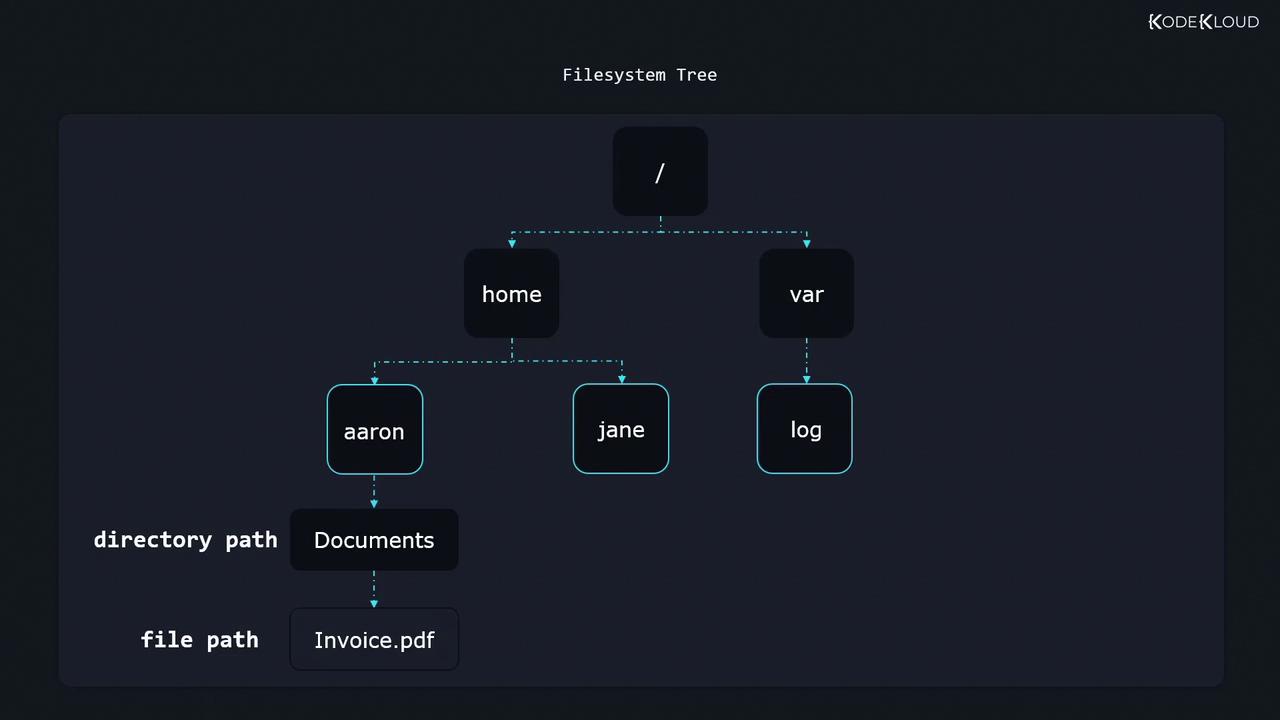
Linux organizes all files and directories into a hierarchical structure known as the file system tree. Think of it like an inverted tree, where the root directory (`/`) sits at the top, and all subdirectories branch out from there.
### Paths Explained
#### Absolute Path
An absolute path starts from the root directory. For example:
```bash theme={null}
/home/aaron/Documents/Invoice.pdf
```
This path begins at the root (`/`), moves through the `home` directory, then `aaron`, followed by `Documents`, and finally accesses the file `Invoice.pdf`.
#### Relative Path
A relative path describes a location relative to the current working directory. To see your current working directory, use the `pwd` command:
```bash theme={null}
$ pwd
/root
```
If you're logged in as user Aaron with the starting directory `/home/aaron`, the path `Documents/Invoice.pdf` would reference `/home/aaron/Documents/Invoice.pdf`. Likewise, `Invoice.pdf` without any directory designation refers to a file in the current directory, while `../Invoice.pdf` navigates one level up.
Consider this structure: the root directory (/) branches into several subdirectories and further levels until it eventually leads to files like "Invoice.pdf".
* Use `cd /var/log` to change to the `/var/log` directory using an absolute path.
* Enter `cd ..` to move up one directory level (to the parent directory).
* Simply type `cd` without arguments to return to your home directory.
* Use `cd -` (or `cd --` in some shells) to switch back to your previous directory.
## Creating Files and Directories
Creating files and directories in Linux is simple with the following commands:
### Creating Files
The `touch` command creates a new, empty file. For example, to create a file named `Receipt.pdf` in the current directory:
```bash theme={null}
$ touch Receipt.pdf
```
To create a file in another location, specify the file path. Both absolute and relative paths work:
```bash theme={null}
$ touch /home/jane/Receipt.pdf
$ touch ../jane/Receipt.pdf
```
### Creating Directories
Use the `mkdir` command (short for "make directory") to create new directories. For instance:
```bash theme={null}
$ mkdir receipts
```
## Copying Files and Directories
The `cp` command copies files and directories with ease.
### Copy a File
To copy a file, provide its source path and destination path:
```bash theme={null}
$ cp Receipt.pdf receipts/
```
It is advisable to end directory paths with a slash (`/`) to indicate that the destination is a directory. You can also copy a file and rename it simultaneously:
```bash theme={null}
$ cp Receipt.pdf receipts/Receipt_copy.pdf
```
### Copy a Directory Recursively
To duplicate an entire directory and its contents, use the `-r` (recursive) flag:
```bash theme={null}
$ cp -r Receipts/ BackupOfReceipts/
```
Ensure the destination directory (e.g., `BackupOfReceipts/`) does not exist if you intend to create a new copy of the source directory.
## Moving and Renaming Files and Directories
The `mv` command is versatile—it moves files or folders and also renames them.
### Moving a File
To move a file to a different location:
```bash theme={null}
$ mv Receipt.pdf receipts/
```
### Renaming a File or Directory
To rename `Receipt.pdf` to `old_receipt.pdf`:
```bash theme={null}
$ mv Receipt.pdf old_receipt.pdf
```
When moving directories, `mv` automatically processes all contained files and subdirectories without needing a recursive flag.
## Deleting Files and Directories
Deleting files and directories is straightforward with the `rm` command.
### Deleting Files
To remove a file:
```bash theme={null}
$ rm Invoice.pdf
```
### Deleting Directories Recursively
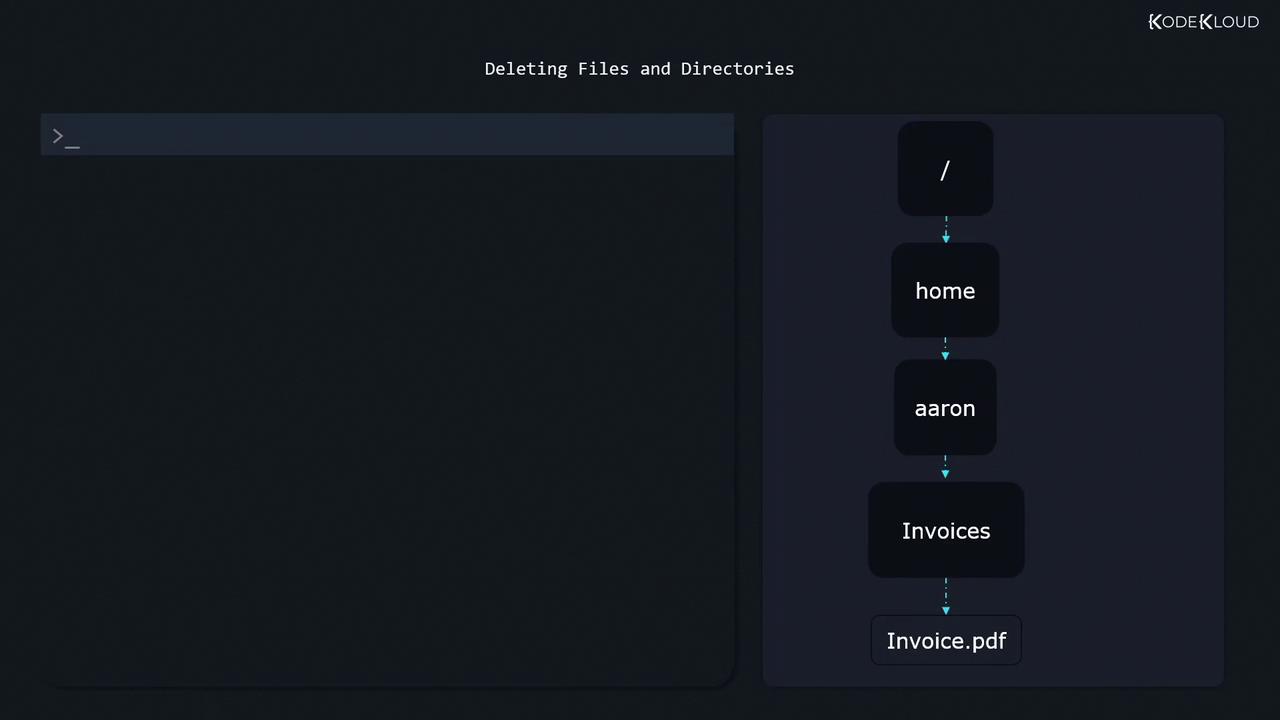
To delete a directory and all its contents, use the `-r` option:
```bash theme={null}
$ rm -r Invoices/
```
Be cautious when using the `rm -r` command. Once executed, recovering a deleted directory and its contents can be difficult.
Visual aids, like command-line interfaces and directory structure diagrams, can help illustrate how paths reference files such as "Invoice.pdf". However, the commands function independently of any visual representations.
## Summary
In this lesson, you learned how to:
* List files and directories utilizing `ls` and its various options (`-a`, `-l`, `-h`).
* Understand the differences between absolute and relative paths.
* Create files with `touch` and directories with `mkdir`.
* Copy files and directories using `cp`, including the recursive copy option for entire directories.
* Move and rename files or directories with `mv`.
* Delete files using `rm` and remove directories recursively with `rm -r`.
Happy learning and efficient file management in Linux!