> ## Documentation Index
> Fetch the complete documentation index at: https://notes.kodekloud.com/llms.txt
> Use this file to discover all available pages before exploring further.
# List set and change standard ugorwx permissions
> Learn to list, set, and change standard file permissions in Linux for effective access management.
In this article, you will learn how to list, set, and change standard file permissions in Linux. Mastering file and directory ownership along with permission settings is essential for effective access management on any Linux system.
## Viewing File Ownership and Permissions
Every file and directory has an associated owner. To view detailed information—including owner details and permission settings—use the following command:
```bash theme={null}
$ ls -l
-rw-r----- aaron family 49 Oct 27 14:41 family_dog.jpg
```
In the example above, the file "family\_dog.jpg" is owned by the user "aaron". Only the owner (or a root user) can modify the file’s permissions.
The second field in the output indicates the file’s group; here, it is the "family" group.
## Changing File Group
To change the group of a file or directory, use the `chgrp` command. The syntax is:
```bash theme={null}
# chgrp group_name file/directory
$ chgrp wheel family_dog.jpg
```
After running the command, verify the change:
```bash theme={null}
$ ls -l
-rw-r----- 1 aaron wheel 49 Oct 27 14:41 family_dog.jpg
```
You may only change the group to one that your user belongs to. To check your group memberships, run:
```bash theme={null}
$ groups
aaron wheel family
```
This output shows that you can change the file group to "aaron", "wheel", or "family" if those groups are associated with your account.
## Changing File Owner
To change the owner of a file or directory, use the `chown` command with the following syntax:
```bash theme={null}
$ sudo chown new_owner file/directory
```
For example, to change the file's owner from "aaron" to "jane" (which requires root privileges):
```bash theme={null}
$ sudo chown jane family_dog.jpg
```
The change is reflected with:
```bash theme={null}
$ ls -l
-rw-r----- 1 jane family 49 Oct 27 14:41 family_dog.jpg
```
You can also change both the owner and the group simultaneously by specifying them separated by a colon. For example, to revert the file's ownership back to "aaron" with the group "family":
```bash theme={null}
$ sudo chown aaron:family family_dog.jpg
```
Verifying with:
```bash theme={null}
$ ls -l
-rw-r----- 1 aaron family 49 Oct 27 14:41 family_dog.jpg
```
## Understanding the Permission String
The first character of the output produced by `ls -l` indicates the file type:
* A dash (-) for a regular file
* "d" for a directory
* "l" for a symbolic link
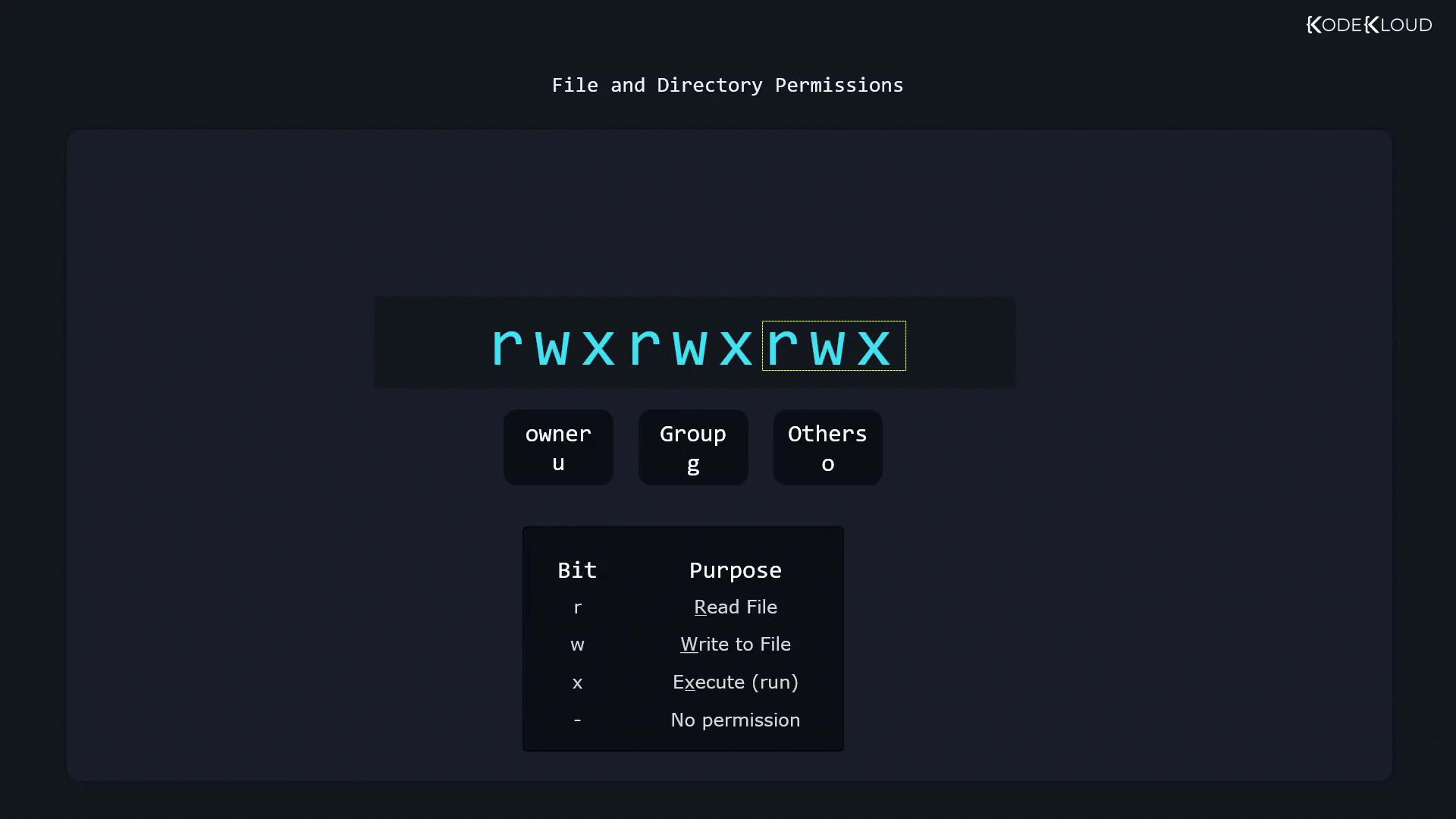
Following this, the next nine characters represent permissions divided into three distinct groups:
* **User (owner) permissions**
* **Group permissions**
* **Others (everyone else)**
For regular files, permissions are represented as:
* "r" for read
* "w" for write
* "x" for execute
In the case of directories:
* "r" allows listing of the directory's contents,
* "w" permits creating or deleting files,
* "x" enables entering the directory (via the `cd` command).
The diagram below visually explains how file and directory permissions work:
Consider the following example where the file "family\_dog.jpg" has permissions set to read-only for the owner, read-write for the group, and no permissions for others:
```bash theme={null}
$ ls -l
-r--rw---- 1 aaron family 49 family_dog.jpg
```
Even though user “aaron” is part of the "family" group (which has write permissions), the system applies the owner's permissions first. Since the owner is limited to read-only, write operations are denied. For instance, attempting to append text as the owner results in:
```bash theme={null}
(aaron)$ echo "Add this content to file" >> family_dog.jpg
bash: family_dog.jpg: Permission denied
```
If another user, such as "jane" (also a member of the "family" group), accesses the file, group permissions are applied:
```bash theme={null}
(aaron)$ su jane
(jane)$ echo "Add this content to file" >> family_dog.jpg
```
After this operation, verifying the file contents shows that Jane was able to write to it:
```bash theme={null}
(jane)$ cat family_dog.jpg
Picture of Milo the dog
```
For users who are neither the owner nor members of the file's group, the "others" permissions will determine the level of access.
## Changing Permissions with chmod
The `chmod` command is used to modify file or directory permissions. Its basic syntax is:
```bash theme={null}
chmod [who][+|-|=][permissions] file/directory
```
Where:
* "who" can be:
* u for user (owner)
* g for group
* o for others
* The operators:
* * to add permissions
* * to remove permissions
* \= to set permissions exactly
### Adding Permissions
For example, if the user "aaron" needs write permission added to his current read-only state, run:
```bash theme={null}
$ chmod u+w family_dog.jpg
```
After execution, the owner’s permissions change from read-only (r--) to read and write (rw-):
```bash theme={null}
$ ls -l
-rw-rw----. 1 aaron family 49 Oct 27 14:41 family_dog.jpg
```
### Removing Permissions
To remove permissions—for instance, to remove the read permission for others:
```bash theme={null}
$ chmod o-r family_dog.jpg
```
Only the owner and group will have read access after this change.
### Setting Exact Permissions
Using the equals operator allows you to define permissions exactly. For example, to set the group’s permissions to read-only (r--):
```bash theme={null}
$ chmod g=r family_dog.jpg
```
To remove all permissions from the group, you can either omit all letters with the equals operator:
```bash theme={null}
$ chmod g= family_dog.jpg
```
Or use the minus operator to remove read, write, and execute permissions:
```bash theme={null}
$ chmod g-rwx family_dog.jpg
```
### Multiple Changes in a Single Command
To specify multiple permission changes, separate them with commas. For example:
```bash theme={null}
$ chmod u+rw,g=r,o= family_dog.jpg
```
Alternatively, if you want to ensure that the user has exactly read and write permissions and remove write permission from the group without altering other group settings:
```bash theme={null}
$ chmod u=rw,g-w family_dog.jpg
```
## Using Octal Values for Permissions
Another method for setting permissions is by using octal values. The `stat` command displays file permissions in both symbolic and octal formats:
```bash theme={null}
$ stat family_dog.jpg
File: family_dog.jpg
Size: 49 Blocks: 8 IO Block: 4096 regular file
Device: fd00h/64768d Inode: 52946177 Links: 1
Access: (0640/-rw-r-----) Uid: ( 1000/ aaron) Gid: ( 10/ wheel)
```
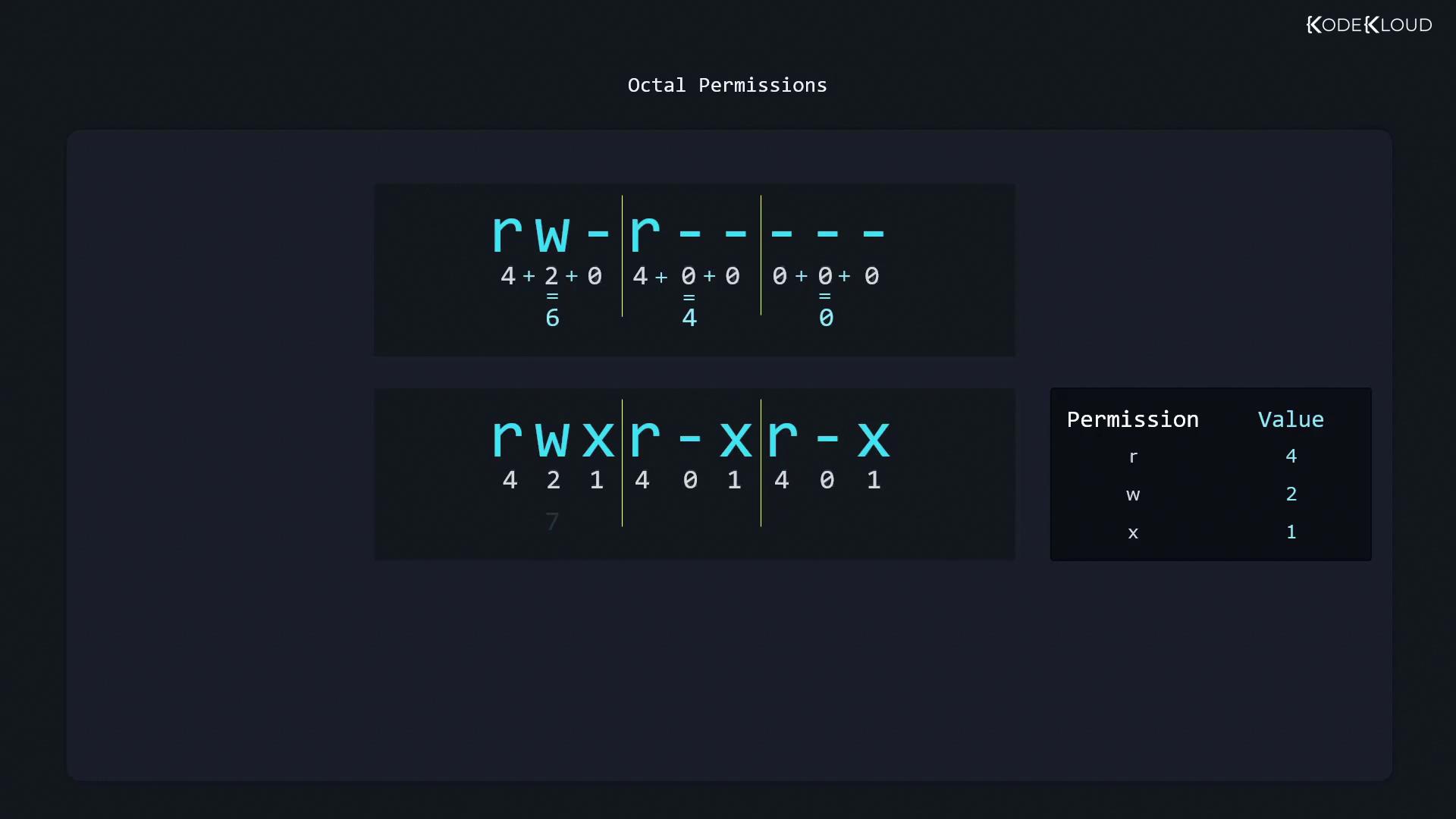
In this output, the octal value "640" corresponds to:
* 6 (4+2) for the user (read and write)
* 4 for the group (read-only)
* 0 for others (no permissions)
To calculate these values:
* Read (r) = 4
* Write (w) = 2
* Execute (x) = 1
For example:
* rw- equals 4+2 = 6
* r-- equals 4
* \--- equals 0
Other common permission sets include 755 (rwx, r-x, r-x) and 777 (full permissions for everyone).
Once the desired octal value is determined, set the permissions with:
```bash theme={null}
$ chmod 640 family_dog.jpg
```
Now, "family\_dog.jpg" is set to:
* Owner: rw-
* Group: r--
* Others: no permissions
The diagram below illustrates how read, write, and execute permissions translate to their corresponding octal values:
## Summary
This article covered the fundamentals of listing file details, changing ownership, and modifying file permissions using both symbolic and octal notations. Understanding the Linux permission model is key to maintaining secure file management practices.
Well done, and see you in the next article!