> ## Documentation Index
> Fetch the complete documentation index at: https://notes.kodekloud.com/llms.txt
> Use this file to discover all available pages before exploring further.
# Locate read and use system documentation including man info and files in usrsharedoc
> This guide explores essential Linux documentation sources, including the info system and the /usr/share/doc directory, to enhance understanding of commands and system features.
In this guide, we explore two essential sources of Linux documentation that provide in-depth explanations of commands and system features. Whether you're troubleshooting an issue or preparing for a certification exam, leveraging these resources can significantly enhance your understanding.
## The Info System
The info documentation system is a hypertext-based alternative to traditional man pages. It offers multi-page documentation that allows you to navigate seamlessly through interconnected sections. For example, to view detailed information about the Bash shell, execute:
```bash theme={null}
info bash
```
Here are some key navigation tips for using the info system effectively:
* Press the **Space** bar to scroll down within the current node or move to the next node when you reach the end.
* Press **Backspace** to return to the previous node.
* Use the **Close Bracket (])** key to jump to the next node.
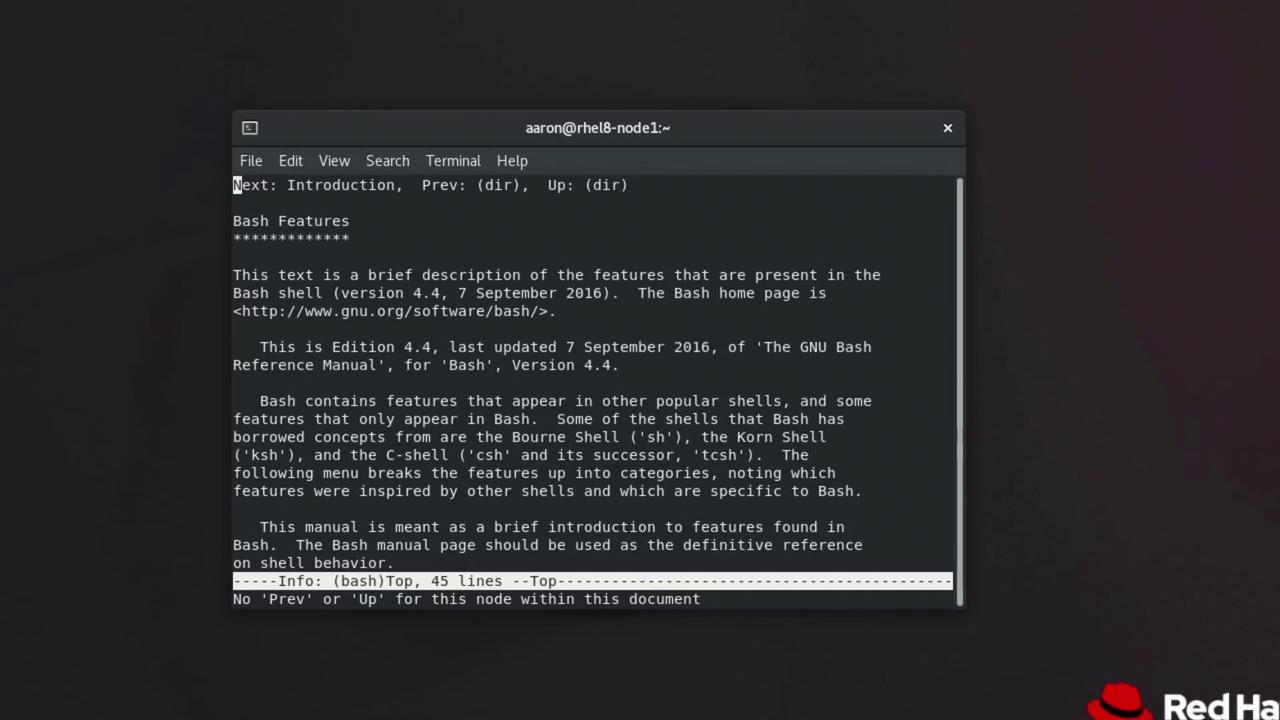
* Press the **Open Bracket (\[)** key to navigate to the previous node.
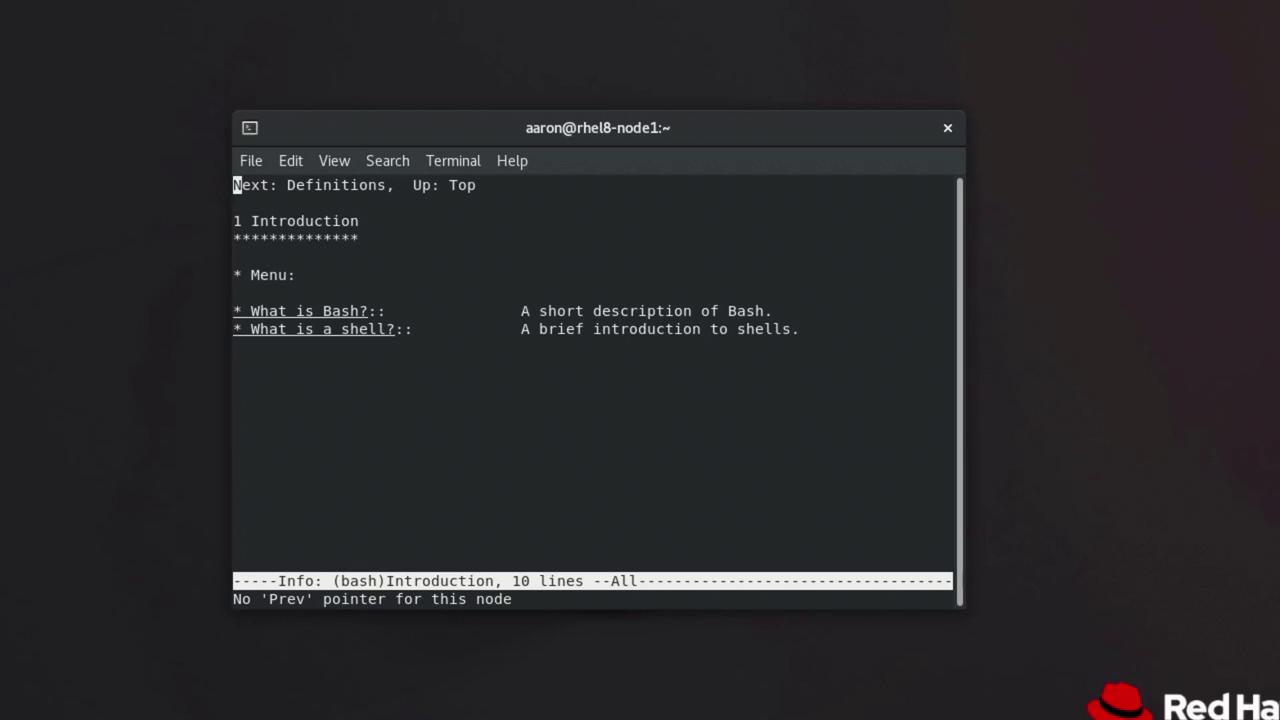
* Press **n** to move to the next node on the same level.
* Press **p** (as in "papa") to go to the previous node on the same level (if available).
* Press **u** to jump up to the parent node.
* Press **l** (as in "lima") to return to the last visited node.
* Press **q** to exit the info system.
In the info pages, links are marked with asterisks. For a quick navigation, simply hover over a link and press **Enter**. The **Tab** key can help you move the cursor to the nearest link. Keep in mind that while the info system is comprehensive, not every command has an associated info page.
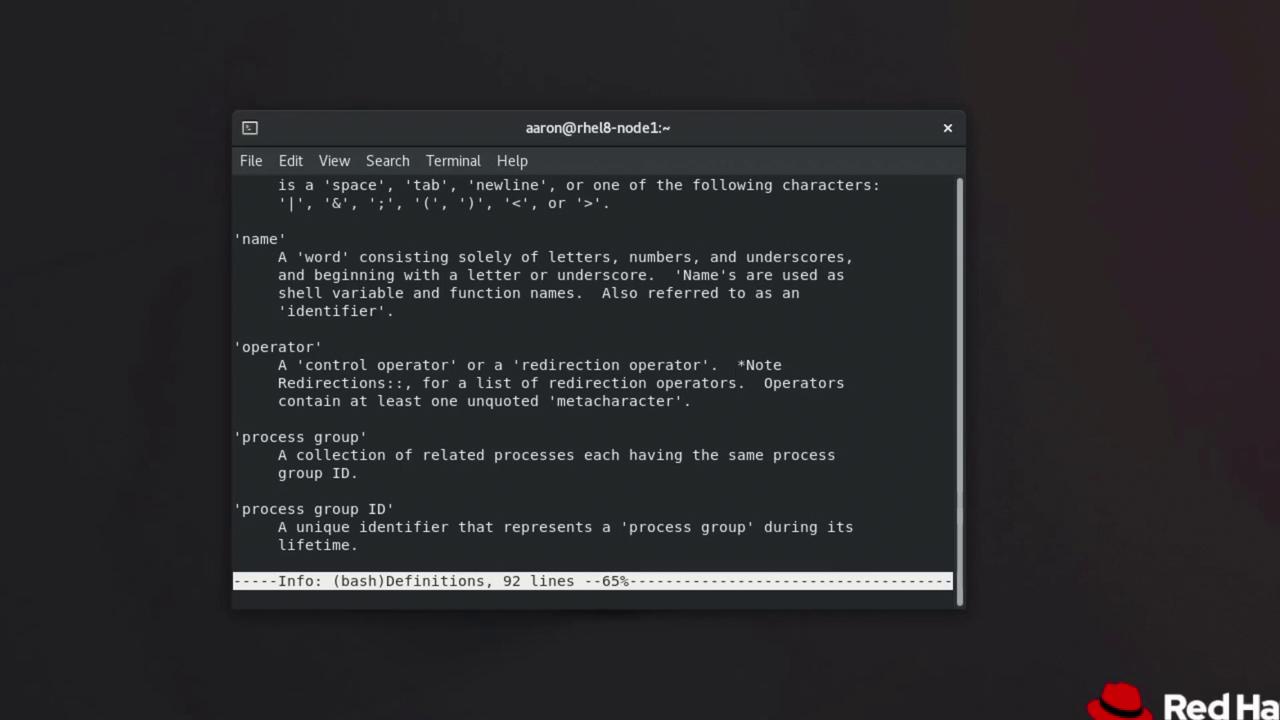
If you get stuck while browsing, simply use the command `info ` to retrieve detailed documentation for the command you're working with.
## Documentation in /usr/share/doc
Another valuable resource is the `/usr/share/doc` directory, which contains documentation for many of the software packages installed on your system. This directory typically holds FAQs, README files, introductory notes, and sometimes HTML-formatted guides.
To begin exploring the documentation, change to the directory:
```bash theme={null}
cd /usr/share/doc
```
You will notice a variety of subdirectories, each corresponding to an installed package. To view these directories, run:
```bash theme={null}
ls | less
```
For instance, to inspect documentation for Bash, navigate to its directory:
```bash theme={null}
cd /usr/share/doc/bash
ls
```
Within the Bash documentation directory, you might find files such as `bash.html`, `bashref.html`, `FAQ`, `INTRO`, `RBASH`, and `README`. To read the introductory documentation, you can use a pager like `less`:
```bash theme={null}
less INTRO
```
Alternatively, you can open the file with an editor such as `vi`:
```bash theme={null}
vi INTRO
```
Or use `grep` to search for specific terms in the document, for example:
```bash theme={null}
grep "comma" INTRO
```
These commands and tools (less, vi, grep) allow you to navigate and search the content efficiently, ensuring you can quickly access the information you need.
When you're finished, clear your terminal screen by running:
```bash theme={null}
clear
```
Both the info system and the `/usr/share/doc` directory are comprehensive resources. By mastering their navigation and search functionalities, you can easily find detailed documentation and enhance your expertise in using Linux commands.