> ## Documentation Index
> Fetch the complete documentation index at: https://notes.kodekloud.com/llms.txt
> Use this file to discover all available pages before exploring further.
# Search for files
> This article explores how to search for files on a Linux system using the find command and its various options.
In this article, we explore how to search for files on a Linux system using the versatile and powerful find command. Familiarity with your system’s directory structure is essential—for example, SSH configuration files are typically found in /etc/ssh, while system logs reside in /var/log.
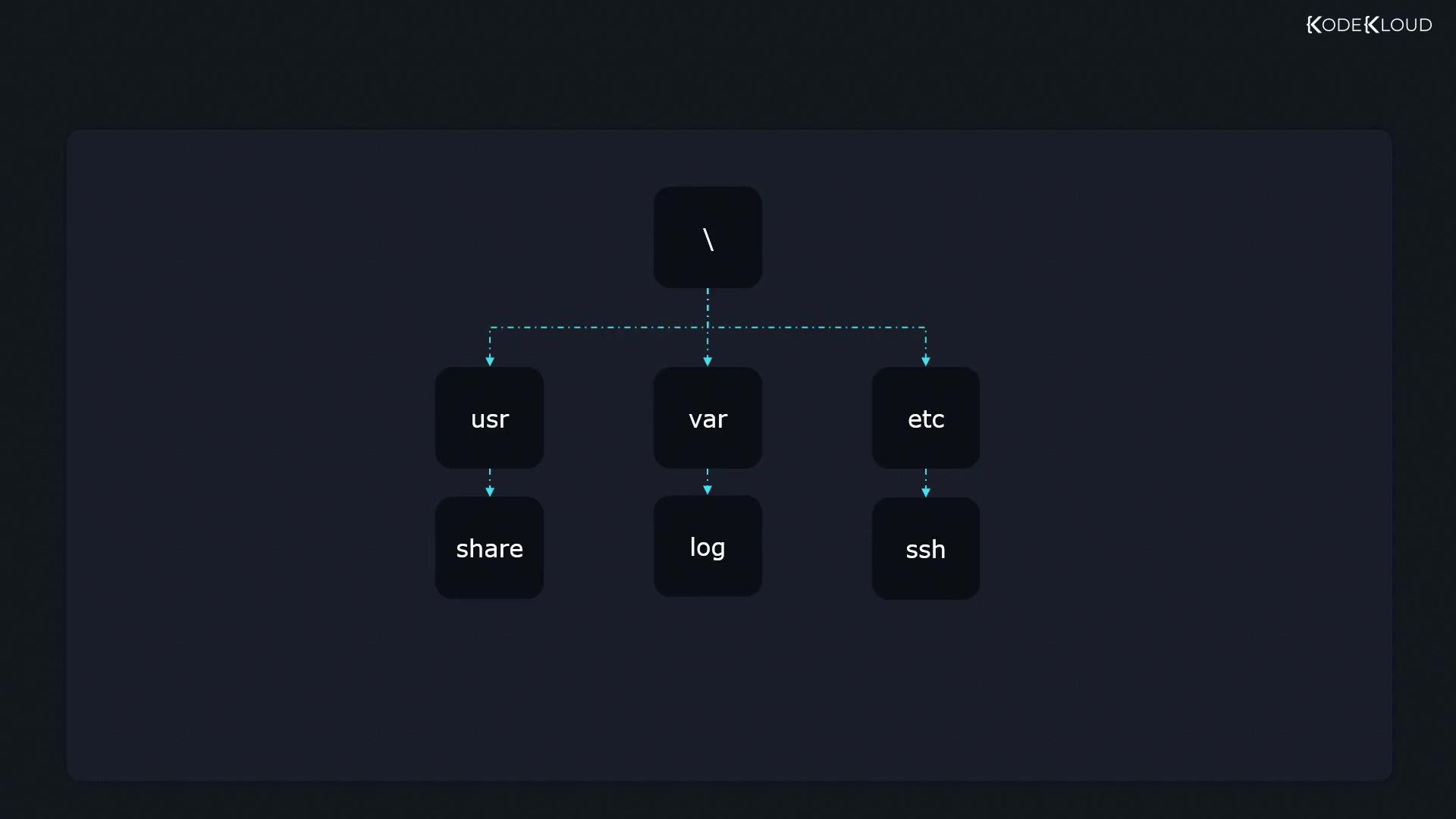
Most of the time, you have a good idea of where your files are located. However, certain scenarios require more specific searches:
* **Website Maintenance:** If your website files are stored in /usr/share, and you need to list all image files (e.g., with a .jpg extension), you can run:
```bash theme={null}
$ find /usr/share/ -name '*.jpg'
# Example output:
# 1.jpg
# 2.jpg
# 3.jpg
```
* **Disk Space Management:** When hosting virtual machines, you might encounter low disk space situations. Since most VM files are usually under 20 GB, filtering out unusually large files is critical. For example, to find files larger than 10 megabytes, execute:
```bash theme={null}
$ find /lib64/ -size +10M
# Example output:
# large_file.txt
```
* **Monitoring File Changes:** After deploying an application, you may want to verify which files have been modified recently. To list files modified within the last minute, use the mmin parameter:
```bash theme={null}
$ find /path/to/directory -mmin -1
```
These examples illustrate the find command’s versatility when handling various search requirements.
## Find Command Syntax
The basic syntax for the find command is:
```bash theme={null}
# find [/path/to/directory] [search_parameters]
```
For instance, to locate a file named file1.txt in the /bin directory, use:
```bash theme={null}
$ find /bin -name file1.txt
```
If you don’t specify a directory path, the command searches from your current working directory. Always specify the search location first, followed by the desired search parameters.
If no directory is specified, remember that find will perform a recursive search starting in the current directory.
## Common Search Parameters
### Name and Wildcards
The -name option allows you to search for files by their name. Note that this search is case sensitive:
```bash theme={null}
$ find -name felix
```
To perform a case-insensitive search, utilize the -iname option:
```bash theme={null}
$ find -iname felix
```
Wildcards can also be used. For example, to find all files beginning with the letter "f":
```bash theme={null}
$ find -name "f*"
```
Here, the asterisk (\*) serves as a wildcard, matching any number of characters.
### Time-Based Searches
The -mmin option lets you find files based on their modification time in minutes. For example, to list files modified exactly 5 minutes ago:
```bash theme={null}
$ find -mmin 5
```
For files modified within the last 5 minutes, apply a negative value:
```bash theme={null}
$ find -mmin -5
```
Similarly, the -mtime option works with 24-hour periods. For instance:
* -mtime 0 returns files modified within the past 24 hours.
* -mtime 1 returns files modified between 24 and 48 hours ago.
* To find files modified between 48 and 72 hours ago, you would use:
```bash theme={null}
$ find -mtime 2
```
### Size-Based Searches
The -size parameter allows searching for files based on file size. For example, to find files that are exactly 512 kilobytes in size:
```bash theme={null}
$ find -size 512k
```
Use a plus sign (+) to search for files larger than the specified size, or a minus sign (–) for files smaller than that size. The following suffixes denote size units:
| Size Suffix | Unit |
| ----------- | --------- |
| C | Bytes |
| K | Kilobytes |
| M | Megabytes |
| G | Gigabytes |
### Combining Search Parameters
Multiple search conditions can be combined to refine your results. For example, to search for files that start with the letter "f" and are exactly 512K in size:
```bash theme={null}
$ find -name "f*" -size 512k
```
For OR expressions (files that either start with "f" or are 512K in size), use the -o flag:
```bash theme={null}
$ find \( -name "f*" -o -size 512k \)
```
To exclude a particular pattern, use the NOT operator with -not or an escaped exclamation mark. For example, to omit files that start with a capital "F", you can run:
```bash theme={null}
$ find -not -name "f*"
```
Alternatively:
```bash theme={null}
$ find \! -name "f*"
```
### Permission-Based Searches
The -perm option finds files based on their permission settings. Here are several examples:
* **Exact permissions:** To search for files with precisely 664 permissions (read and write permissions for the user and group; read permission for others):
```bash theme={null}
$ find -perm 664
```
* **At least these permissions:** To find files having at least these permissions, prefix the mode with a hyphen:
```bash theme={null}
$ find -perm -664
```
* **Any of the specified permissions:** To search for files where any one of the specified permissions is present, use a slash:
```bash theme={null}
$ find -perm /u=r,g=r,o=r
```
Additional permission examples include:
* To find files that only the owner can read and write:
```bash theme={null}
$ find -perm 600
```
* To find files that the owner can execute (regardless of additional permissions):
```bash theme={null}
$ find -perm -100
```
* To ensure that others do not have read permission, combine conditions with the NOT operator:
```bash theme={null}
$ find \! -perm -o=r
```
## Conclusion
The find command is an indispensable tool in Linux for locating files based on name, size, modification time, and permissions. With its extensive set of options, you can efficiently tailor your searches to meet various system administration needs.
Now that you have a deeper understanding of how to leverage the find command, it’s time to practice these techniques and sharpen your Linux file management skills.