> ## Documentation Index
> Fetch the complete documentation index at: https://notes.kodekloud.com/llms.txt
> Use this file to discover all available pages before exploring further.
# Use input output redirection 2 etc
> This article explores methods for redirecting input and output in Linux, focusing on standard streams and techniques for efficient command-line operations.
In this lesson, we explore various methods for redirecting input and output in Linux. Understanding how Linux programs handle standard streams is crucial for efficient command-line operations.
## Overview of Standard Streams
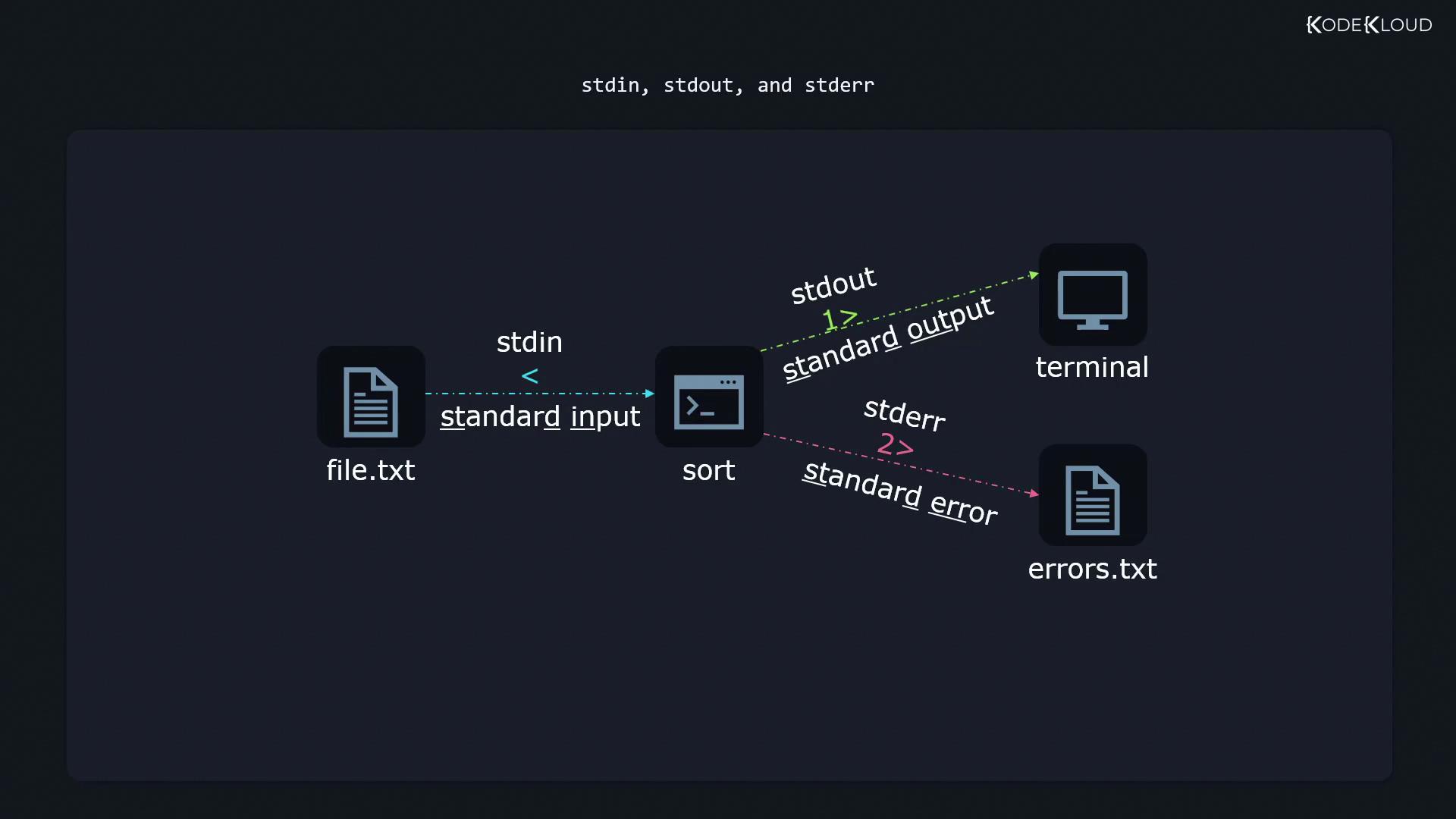
Linux programs use three primary standard streams:
* **Standard Input (stdin):** Receives input data.
* **Standard Output (stdout):** Sends processed output.
* **Standard Error (stderr):** Outputs error messages.
By default, most programs display output on the terminal. However, output redirection allows you to save results to files or combine multiple streams.
## Redirecting Output
### Redirecting to a File
Consider the utility `sort` which arranges text after reading it from a file. For example, given a file named `file.txt`:
```bash theme={null}
$ cat file.txt
6
5
1
3
4
2
```
Sorting the file outputs the ordered numbers to the terminal:
```bash theme={null}
$ sort file.txt
1
2
3
4
5
6
```
To save the sorted output to a new file instead of displaying it, you can use the redirection operator `>`:
```bash theme={null}
$ sort file.txt > sortedfile.txt
```
The target file (`sortedfile.txt`) is created automatically if it does not exist.
### Overwriting Versus Appending
Using a single `>` operator overwrites the contents of the target file. For example:
```bash theme={null}
$ date > file.txt
$ date > file.txt
$ cat file.txt
Mon Nov 8 18:50:30 CST 2021
```
If you want to preserve existing content and append new output, use the `>>` operator:
```bash theme={null}
$ date >> file.txt
$ date >> file.txt
$ date >> file.txt
$ date >> file.txt
$ date >> file.txt
$ cat file.txt
Mon Nov 8 18:50:30 CST 2021
Mon Nov 8 18:50:31 CST 2021
Mon Nov 8 18:50:32 CST 2021
Mon Nov 8 18:50:34 CST 2021
Mon Nov 8 18:50:35 CST 2021
```
You can also explicitly target the standard output file descriptor with `1>`:
```bash theme={null}
$ date > file.txt
$ date 1>file.txt
```
Both commands will redirect the standard output to `file.txt`.
## Input Redirection
Sometimes, rather than receiving input directly from the keyboard, programs can read data from a file using the `<` symbol. For example, to send the contents of `emailcontent.txt` to the `sendemail` command:
```bash theme={null}
$ sendemail someone@example.com < emailcontent.txt
```
This operation makes it appear as though you have manually input the email content.
## Redirecting Error Messages
Linux allows you to handle error messages separately by using the file descriptor `2`. For example, to redirect error messages to a file named `errors.txt`:
```bash theme={null}
$ command 2>errors.txt
```
Be sure to differentiate between standard output and error messages. This helps in troubleshooting issues effectively.
For instance, running:
```bash theme={null}
$ grep -r '^The' /etc/
```
might display many "Permission denied" errors. To suppress these errors, they can be redirected to `/dev/null`, a special file that discards input:
```bash theme={null}
$ grep -r '^The' /etc/ 2>/dev/null
```
## Redirecting Both Standard Output and Standard Error
At times, you might want to capture both standard output and error messages into a single file. You can achieve this by redirecting stdout to a file and then sending stderr to the same location:
```bash theme={null}
$ grep -r '^The' /etc/ 1>all_output.txt 2>&1
```
> The `2>&1` operator redirects stderr to the current destination of stdout. Ensure you place `2>&1` **after** the stdout redirection to avoid errors being displayed in the terminal.
## Here Documents and Here Strings
### Here Documents
A here document is a way to provide inline input to commands. For example, sorting numbers using an inline document:
```bash theme={null}
$ sort < sortedfile.txt` | | |
| **Appending Output** | Add output to the end of an existing file | `date >> file.txt` | | |
| **Redirecting Error Messages** | Redirect stderr to a file | `command 2>errors.txt` | | |
| **Combining Output and Error** | Send both stdout and stderr to a single file | `command 1>output.txt 2>&1` | | |
| **Input Redirection** | Direct input from a file instead of the keyboard | `sendemail someone@example.com < emailcontent.txt` | | |
| **Here Documents** | Provide multiline input directly in the terminal | `sort <