> ## Documentation Index
> Fetch the complete documentation index at: https://notes.kodekloud.com/llms.txt
> Use this file to discover all available pages before exploring further.
# Leveraging Ollama Models in Application Development
> Learn to build AI applications by integrating local Ollama models into your code, covering workflows from user input to response processing.
In this lesson, you’ll learn how to build AI-powered applications by integrating local Ollama models directly into your code. We’ll cover the end-to-end workflow—from capturing user input and invoking an LLM to processing and displaying responses. Our examples focus on Python, but the same patterns apply to Go, JavaScript, and more.
## Recap: Interacting with Ollama via REST API
Before diving into code, let’s revisit how we used `curl` to query local models:
Key takeaways:
* Use `curl` to POST messages to your Ollama server.
* Retrieve structured JSON responses from any running model.
## Integrating API Calls into Your Application
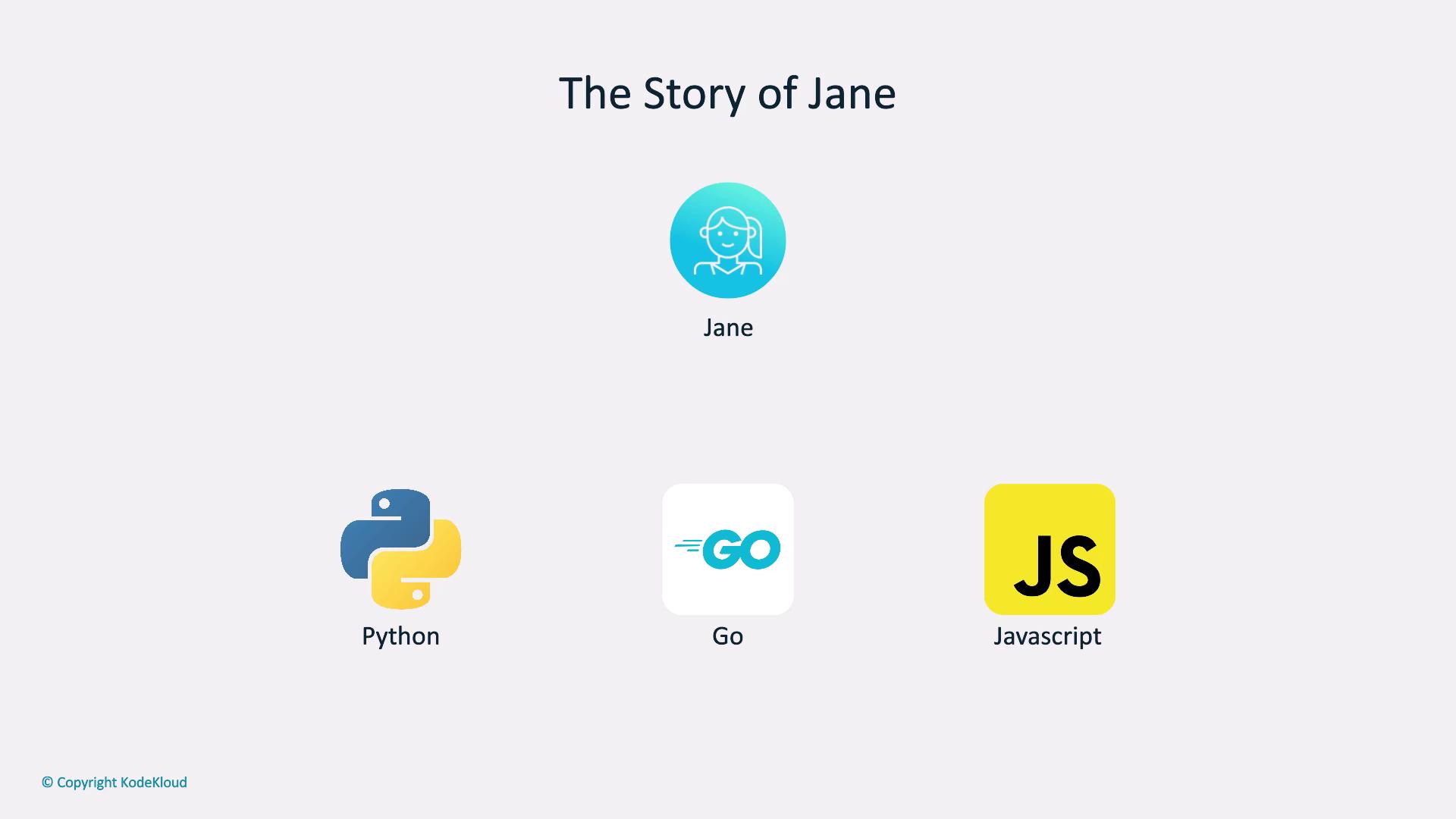
Instead of shell commands, embed API calls in your code. Whether you write in Python, Go, or JavaScript, you can leverage the OpenAI client libraries to target your local Ollama endpoint:
### Core AI Application Workflow
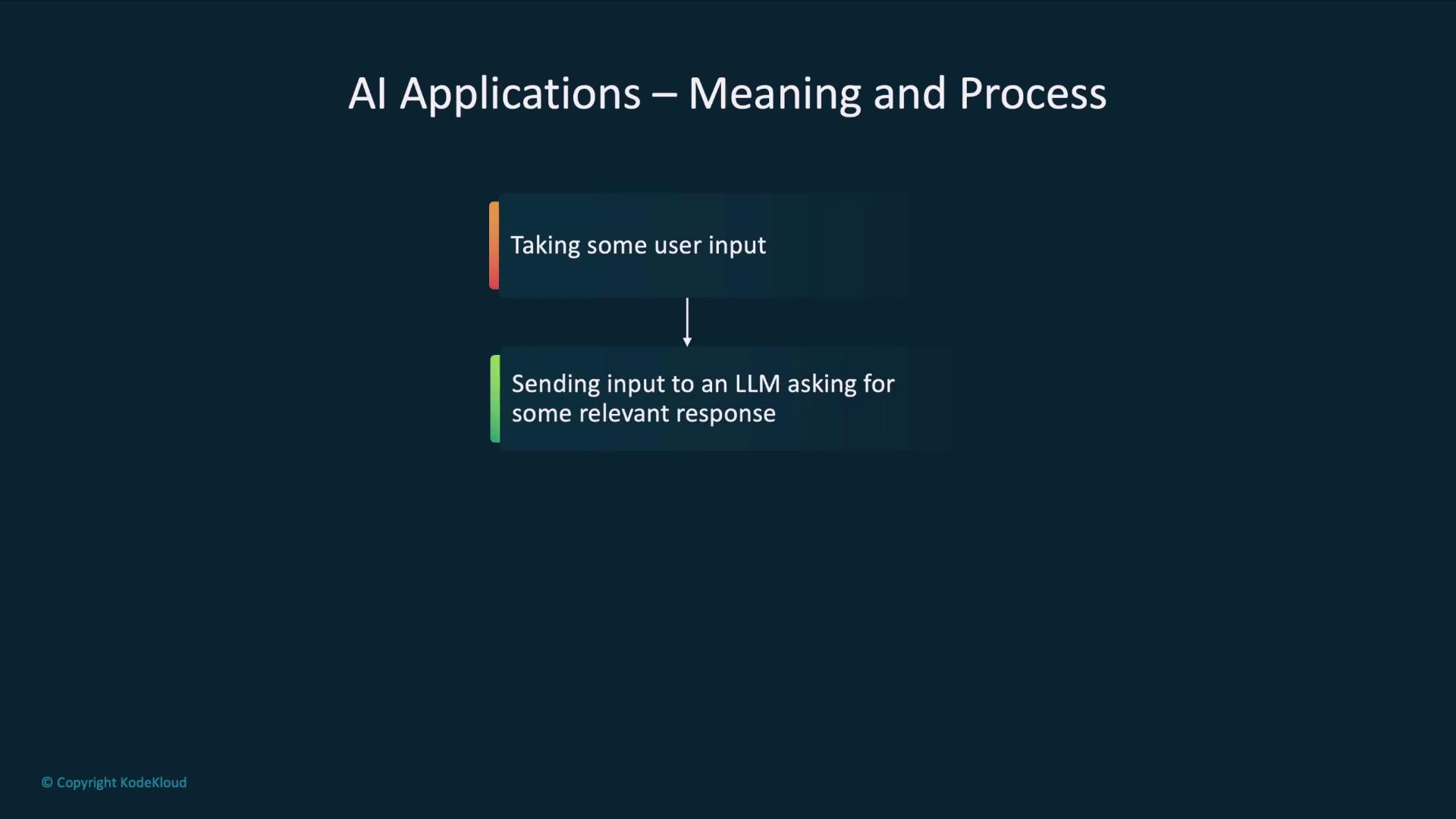
1. Collect user input or fetch existing data.
2. Send that input to a large language model (LLM).
3. Process the response through your business logic.
4. Present the final result to the user.
## Real-World Scenarios
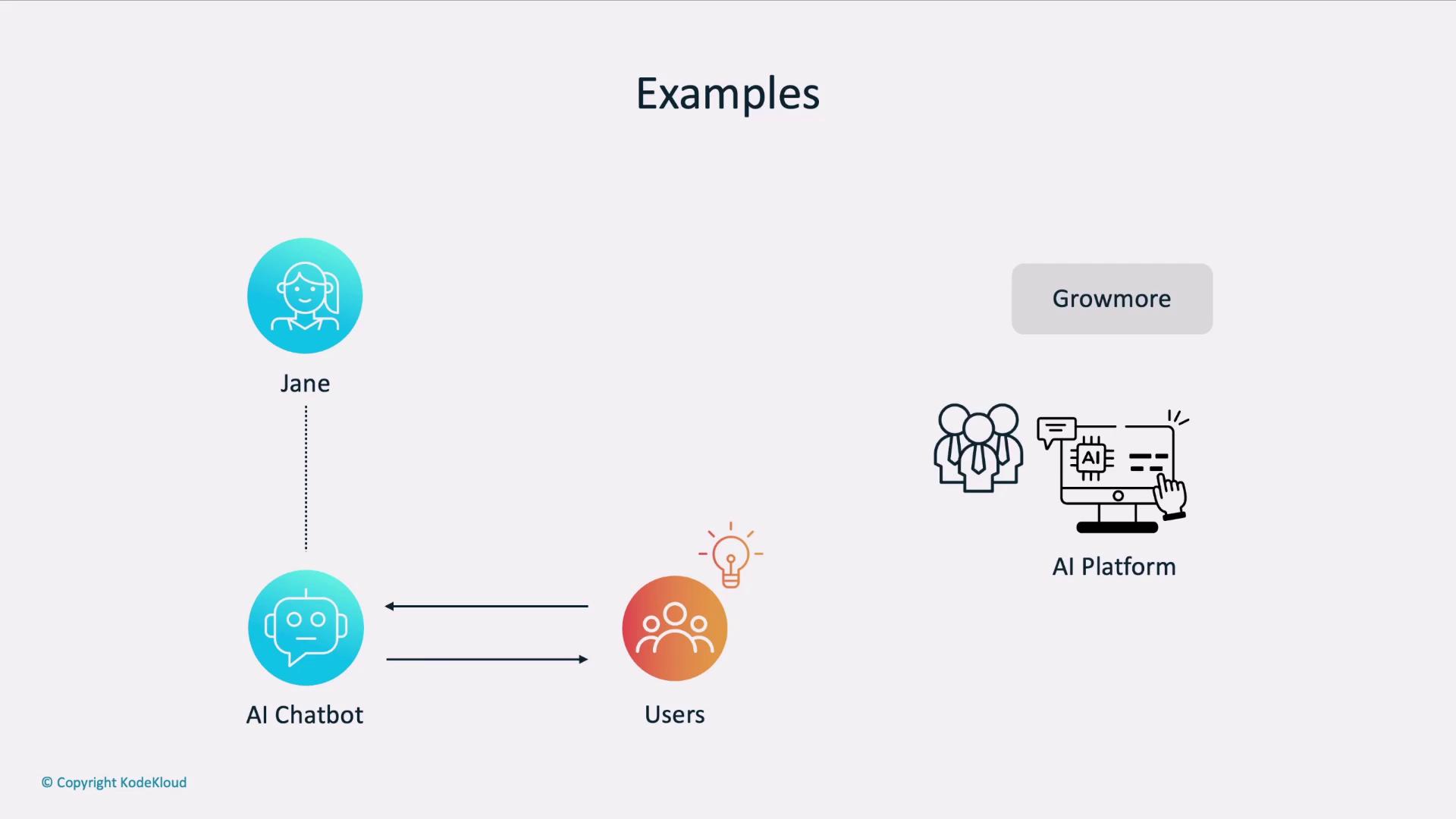
| Use Case | Description |
| ------------------------ | -------------------------------------------------------------- |
| AI-Driven Chatbot | Jane’s product docs bot answers user questions with context. |
| Risk Assessment Platform | Growmore’s internal tool analyzes client data for risk scores. |
## Example: Pulumi’s Infrastructure Chatbot
Pulumi’s [AI chatbot](https://pulumi.com/ai) lets you describe infrastructure in natural language and returns code in C#, Go, or Python:
```go theme={null}
package main
import (
"github.com/pulumi/pulumi-aws/sdk/v6/go/aws/s3"
"github.com/pulumi/pulumi/sdk/v3/go/pulumi"
)
func main() {
pulumi.Run(func(ctx *pulumi.Context) error {
bucket, err := s3.NewBucket(ctx, "my-bucket", nil)
if err != nil {
return err
}
ctx.Export("bucketName", bucket.ID())
return nil
})
}
```
By using OpenAI libraries, you can replicate this experience in your own app, swapping between a local Ollama host in development and the hosted OpenAI API in production—no code changes required.
## Choosing Your Client Library
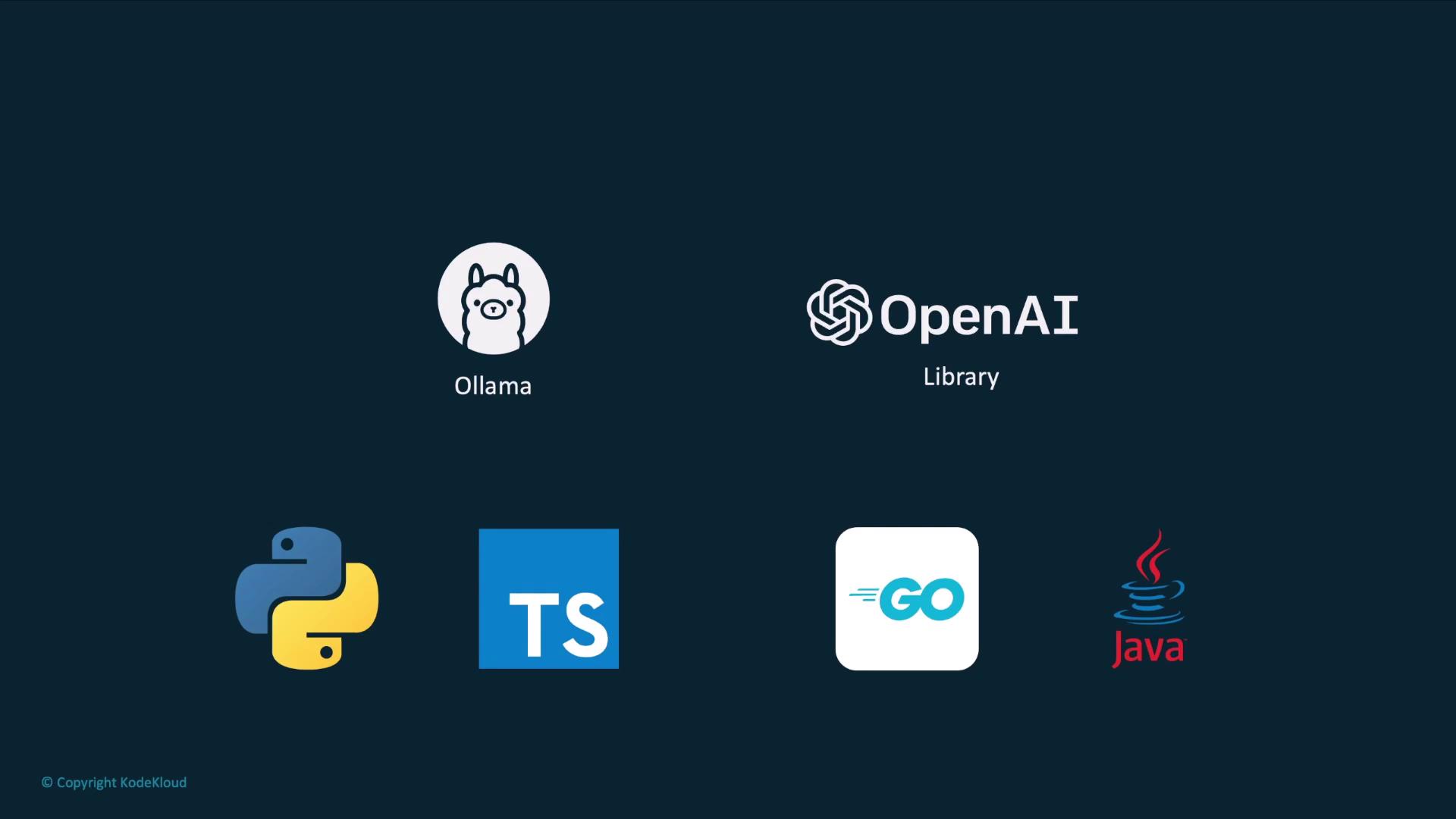
Both Ollama and OpenAI support multiple languages. Below is a quick reference:
| Language | Library | Local + Hosted Compatibility |
| ---------- | ----------------------------------- | ---------------------------- |
| Python | `openai` | ✔️ |
| TypeScript | `openai` | ✔️ |
| Go | `github.com/sashabaranov/go-openai` | ✔️ |
| Java | `com.theokanning.openai` | ✔️ |
## Hands-On: Poem Generator in Python
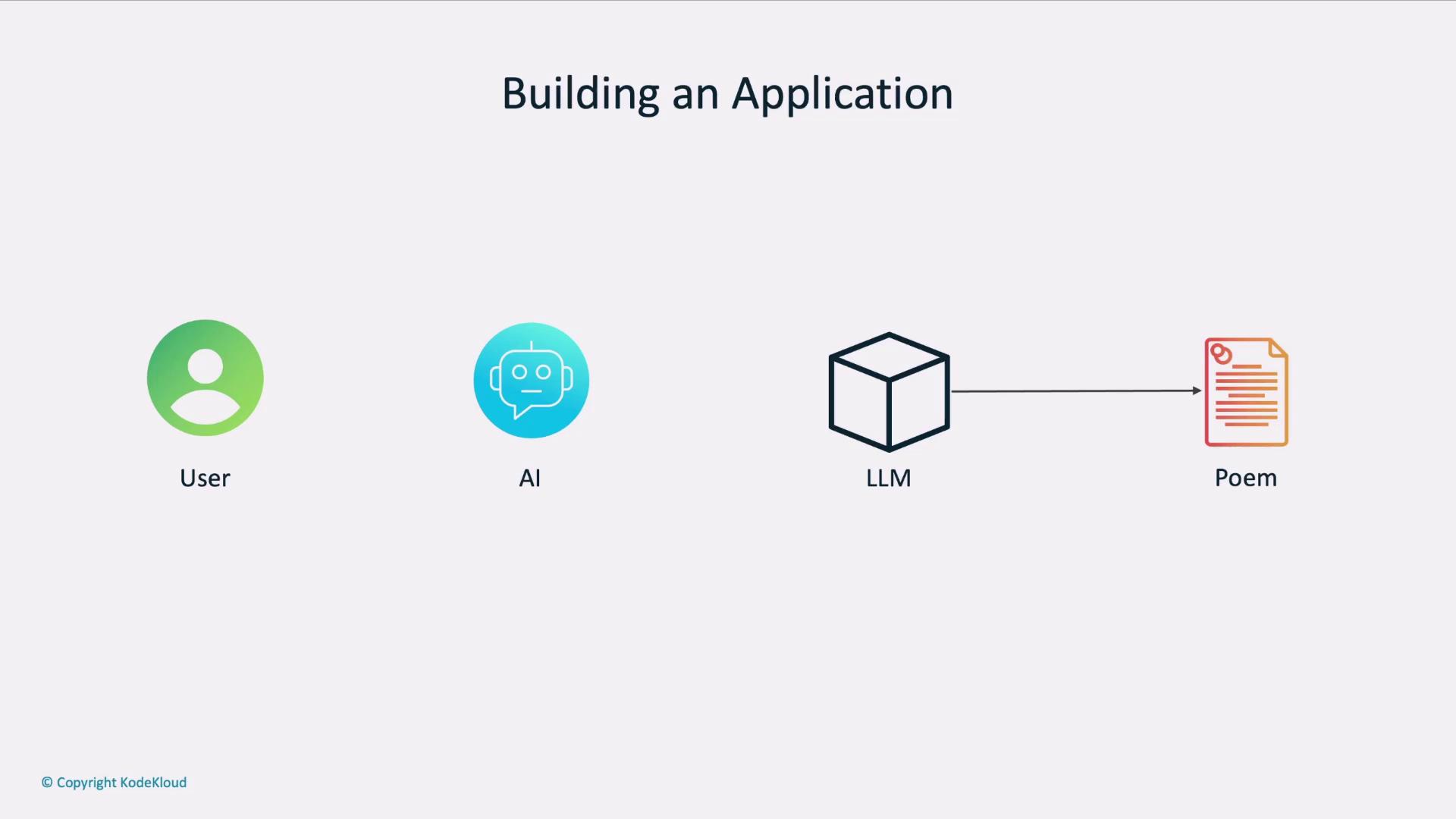
Imagine an app where users submit prompts and receive custom poems:
```python theme={null}
import os
from openai import OpenAI
from dotenv import load_dotenv
load_dotenv()
client = OpenAI(
api_key=os.getenv("OPENAI_API_KEY"),
base_url=os.getenv("LLM_ENDPOINT") # e.g., "http://localhost:11434"
)
# User prompt for poem generation
input_message = "Write a haiku about autumn leaves."
response = client.chat.completions.create(
model=os.getenv("MODEL"),
messages=[
{"role": "system", "content": "You are an AI chatbot specialized in writing poems."},
{"role": "user", "content": input_message}
]
)
poem = response.choices[0].message.content
print(poem)
```
Ensure your environment variables (`OPENAI_API_KEY`, `LLM_ENDPOINT`, `MODEL`) are correctly set before running the script.
You can switch between your local Ollama server and the hosted OpenAI API simply by updating the `LLM_ENDPOINT` URL.
## Next Steps
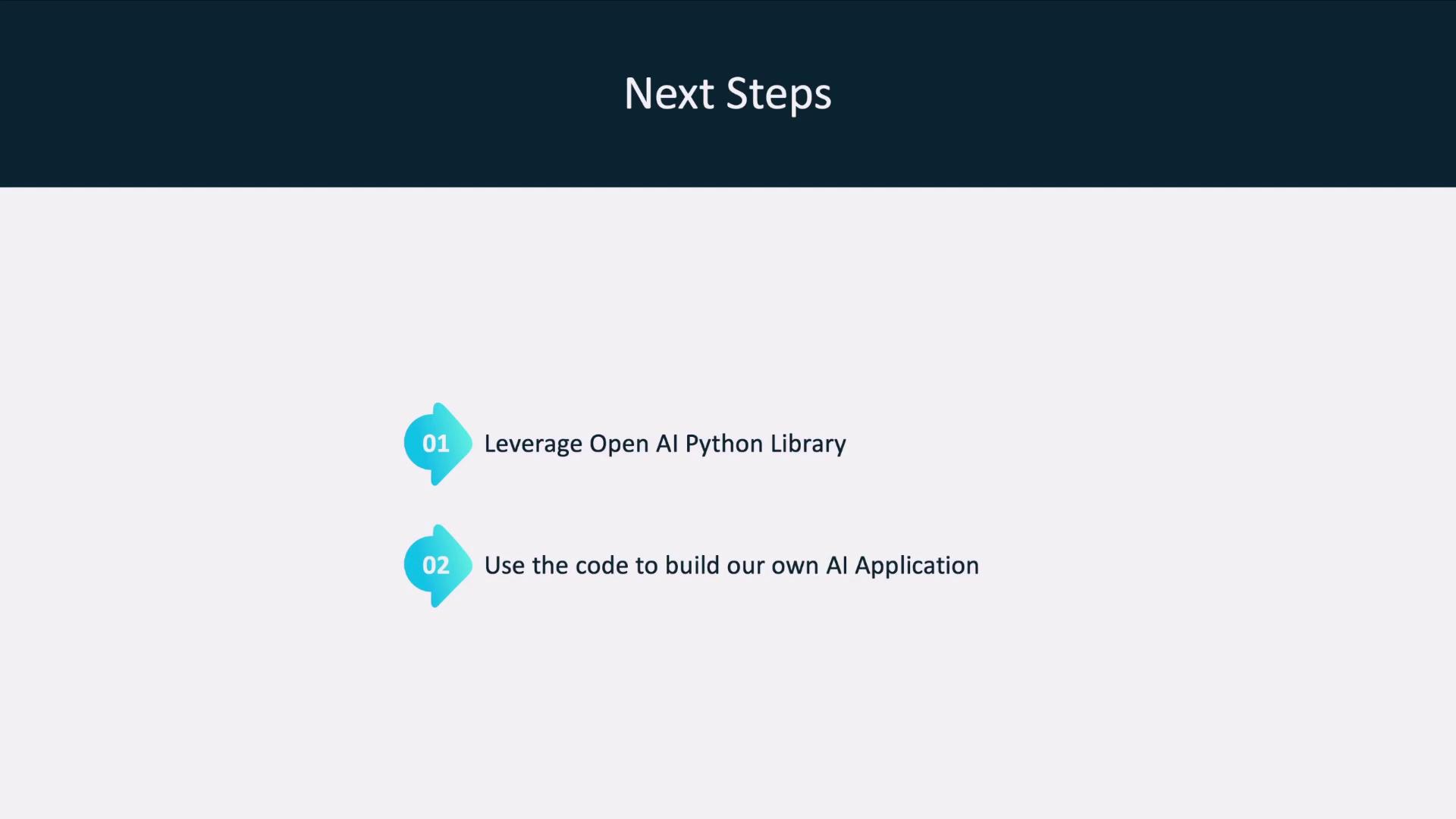
Now that you’ve seen how to:
1. Initialize the OpenAI client for local Ollama models
2. Send chat completion requests
3. Extract and display the generated text
You’re ready to build the full poem-generator application step by step.
## References and Further Reading
* [OpenAI Python Library Documentation](https://github.com/openai/openai-python)
* [Ollama Official Guide](https://ollama.com/docs)
* [Kubernetes Basics](https://kubernetes.io/docs/concepts/overview/what-is-kubernetes/)