> ## Documentation Index
> Fetch the complete documentation index at: https://notes.kodekloud.com/llms.txt
> Use this file to discover all available pages before exploring further.
# Uploading Custom Models
> This tutorial explains how to upload and share custom local LLMs using the Ollama model registry.
In this tutorial, you'll learn how to share your custom local LLMs by uploading them to the Ollama model registry. We’ll start with a quick recap of model customization and then walk through the steps to publish and distribute models seamlessly.
## Recap
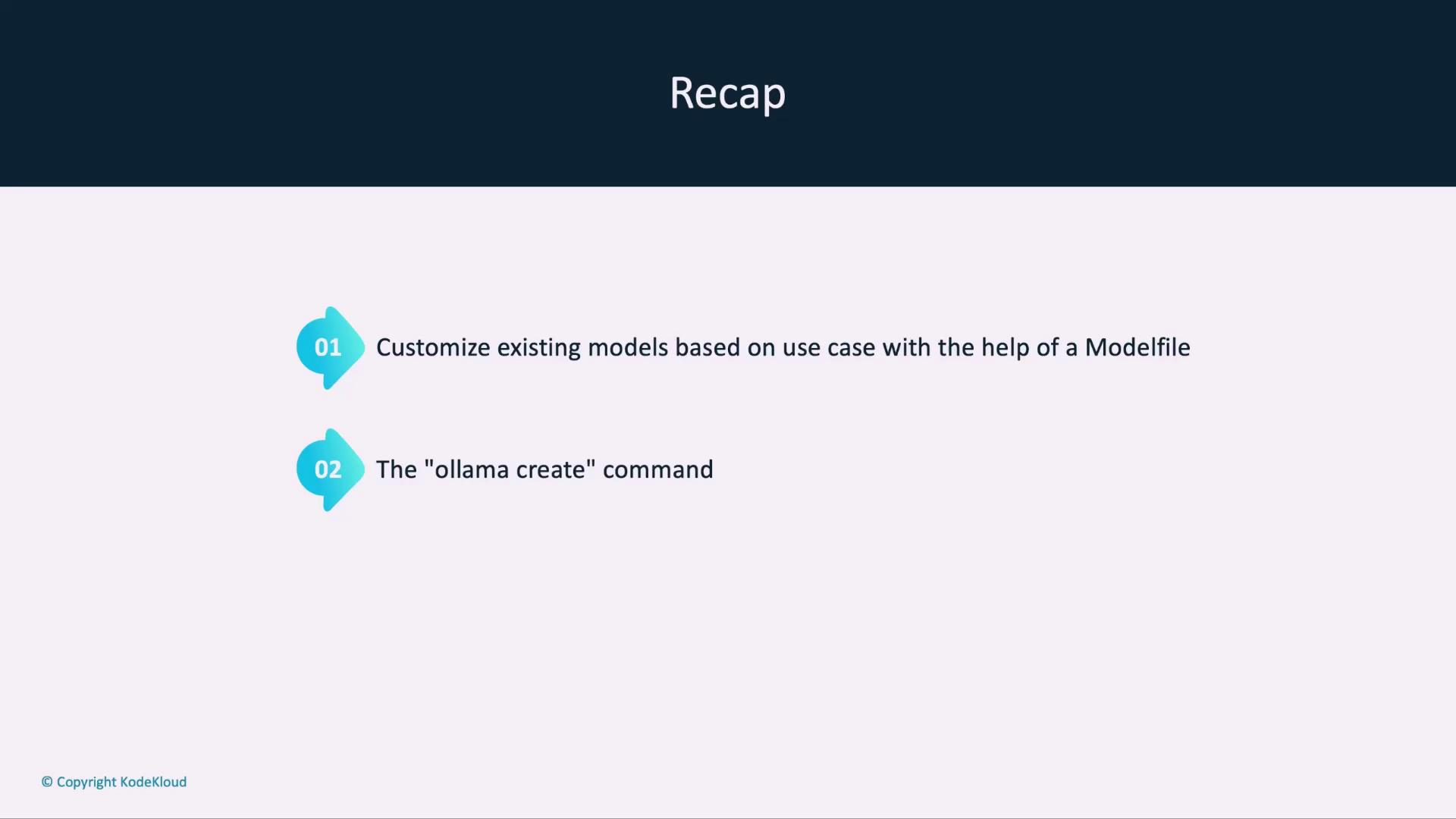
We’ve already covered:
* Customizing existing models with a `Modelfile` definition
* Building a new model using the `ollama create` command
## Why Use a Model Registry?
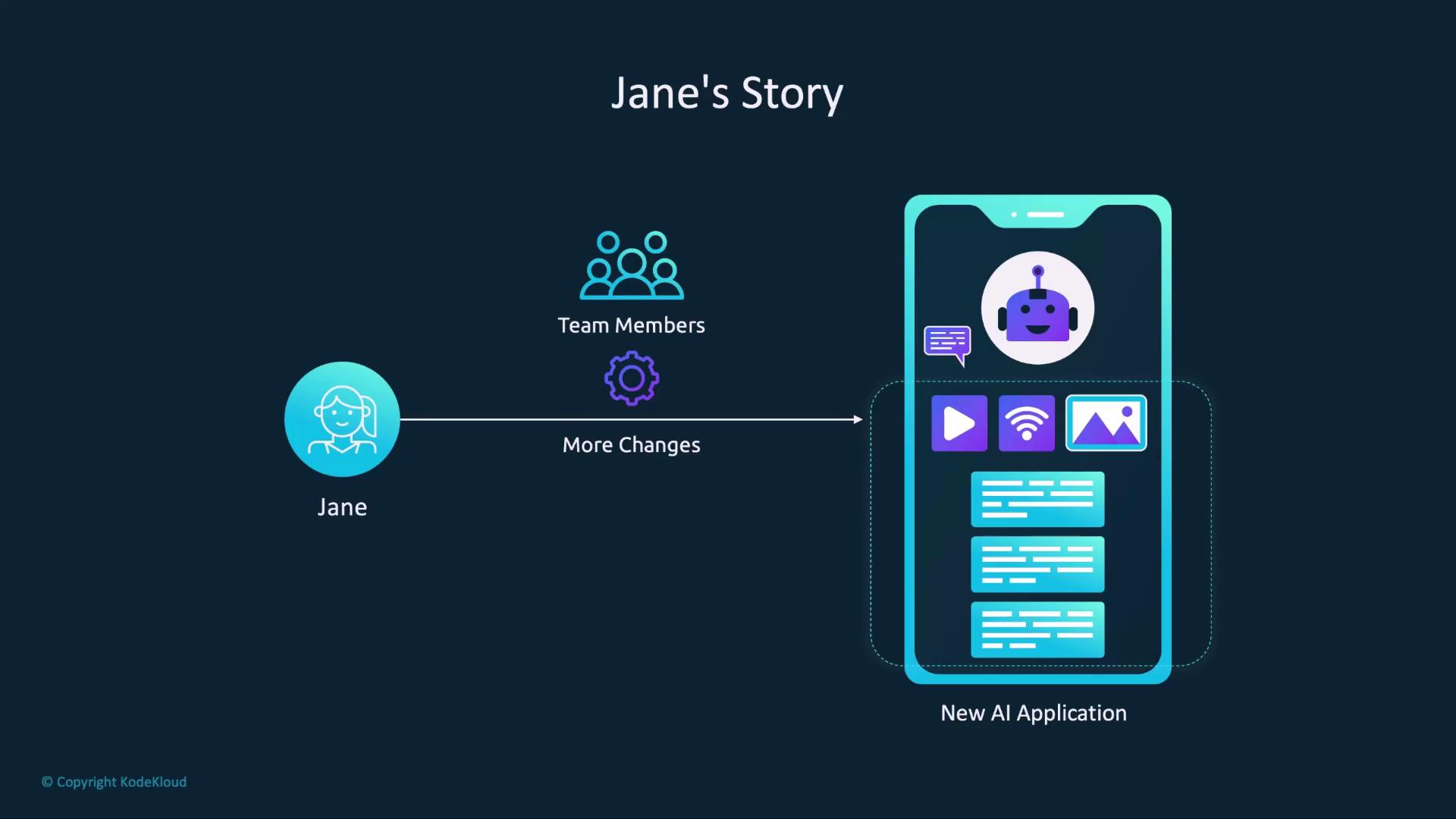
Imagine Jane, an AI developer, has fine-tuned a model for her application. Distributing the raw `Modelfile` means each teammate must pull and rebuild the model locally every time there’s an update—error prone and time-consuming:
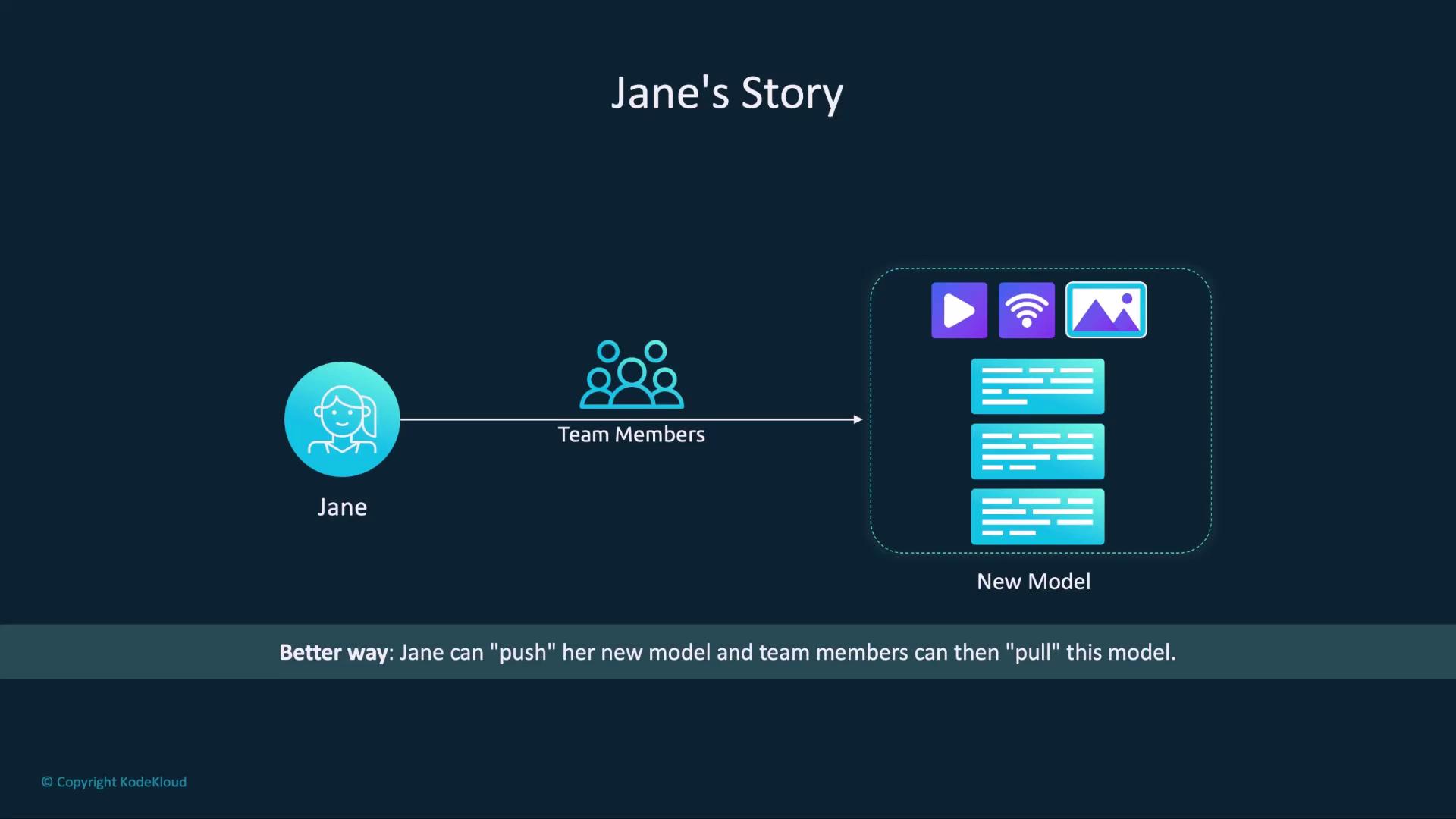
A registry-based approach mirrors how container images work with [Docker Hub](https://hub.docker.com):\
Just push updates once, and everyone can pull the latest version:
## Publishing Your Model
Follow these steps to upload and share your custom model on Ollama:
1. **Create an Ollama Account**\
Sign up at [ollama.com](https://ollama.com) and verify your email. You’ll use this account to push and manage models.
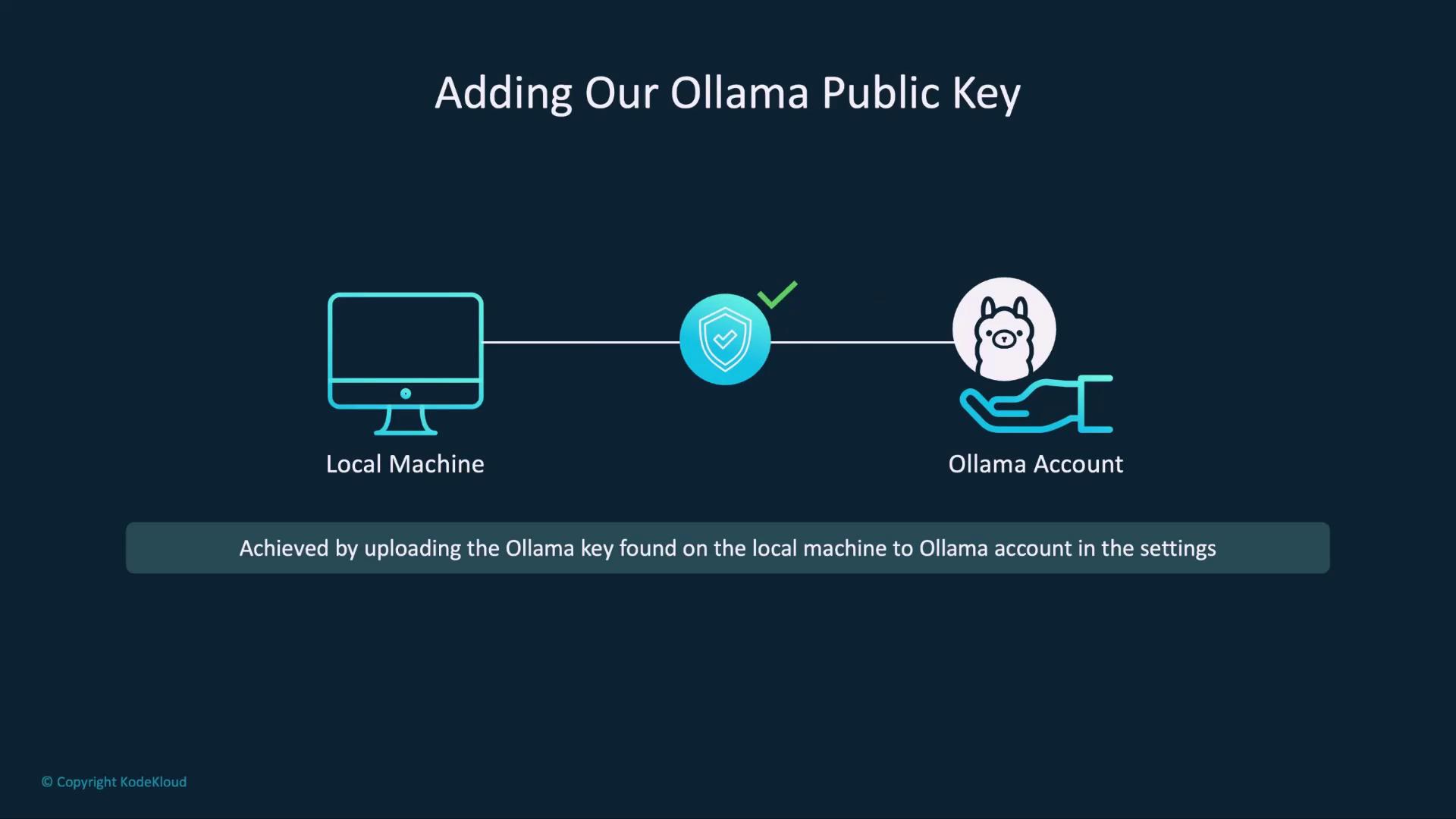
2. **Configure Your SSH Public Key**\
Ollama uses SSH keys to authenticate model uploads. Locate or generate your public key and add it to your account settings.
| Platform | Default Public Key Path |
| -------- | -------------------------------------------- |
| macOS | `~/.ollama/id_ed25519.pub` |
| Linux | `~/.ollama/id_ed25519.pub` |
| Windows | `C:\Users\\.ollama\id_ed25519.pub` |
If you don’t have an SSH key pair yet, generate one with:
```bash theme={null}
ssh-keygen -t ed25519 -f ~/.ollama/id_ed25519 -C "you@example.com"
```
3. **Tag Your Model for Your Namespace**\
Prefix your local model name with your Ollama username:
```bash theme={null}
$ ollama cp harris your_username/harris
copied 'harris' to 'your_username/harris'
```
Make sure to replace `your_username` with your actual Ollama username to avoid naming conflicts.
4. **Push the Model to the Registry**\
Upload your tagged model:
```bash theme={null}
$ ollama push your_username/harris
retrieving manifest
pushing dde5aa3fc5ff... 100% 2.0 GB
pushing 966de95ca8a6... 100% 1.4 KB
...
success
You can find your model at: https://ollama.com/your_username/harris
```
5. **View and Run Your Published Model**\
Open your model’s page to see details like architecture, parameters, and license—similar to [Llama 3.2](https://ai.meta.com/llama/) and other public models. You’ll also find the `ollama run` command to pull and launch the model locally:

Once configured, any update to your `Modelfile` can be published with:
```bash theme={null}
$ ollama push your_username/harris
```
Teammates can instantly pull the latest build:
```bash theme={null}
$ ollama run your_username/harris
```
Proceed to the demonstration below to see this process in action!
## Links and References
* [Ollama Documentation](https://ollama.com/docs)
* [Docker Hub](https://hub.docker.com/)
* [Llama 3.2 Model by Meta AI](https://ai.meta.com/llama/)