> ## Documentation Index
> Fetch the complete documentation index at: https://notes.kodekloud.com/llms.txt
> Use this file to discover all available pages before exploring further.
# Demo Setting Up a ChatGPT Like Interface With Ollama
> This article guides users in setting up a ChatGPT-like interface using the Ollama project and Open Web UI for local language models.
Ollama is an open-source project that lets you run large language models locally via the terminal or integrate them into custom tools. Its thriving community has built numerous extensions and UIs, enabling a chat-style experience similar to ChatGPT—all on your own hardware. In this guide, we’ll explore community integrations and walk through setting up the popular Open Web UI.
## 1. Explore the Ollama Repository
Start by visiting the Ollama GitHub repository for code, documentation, and community links:
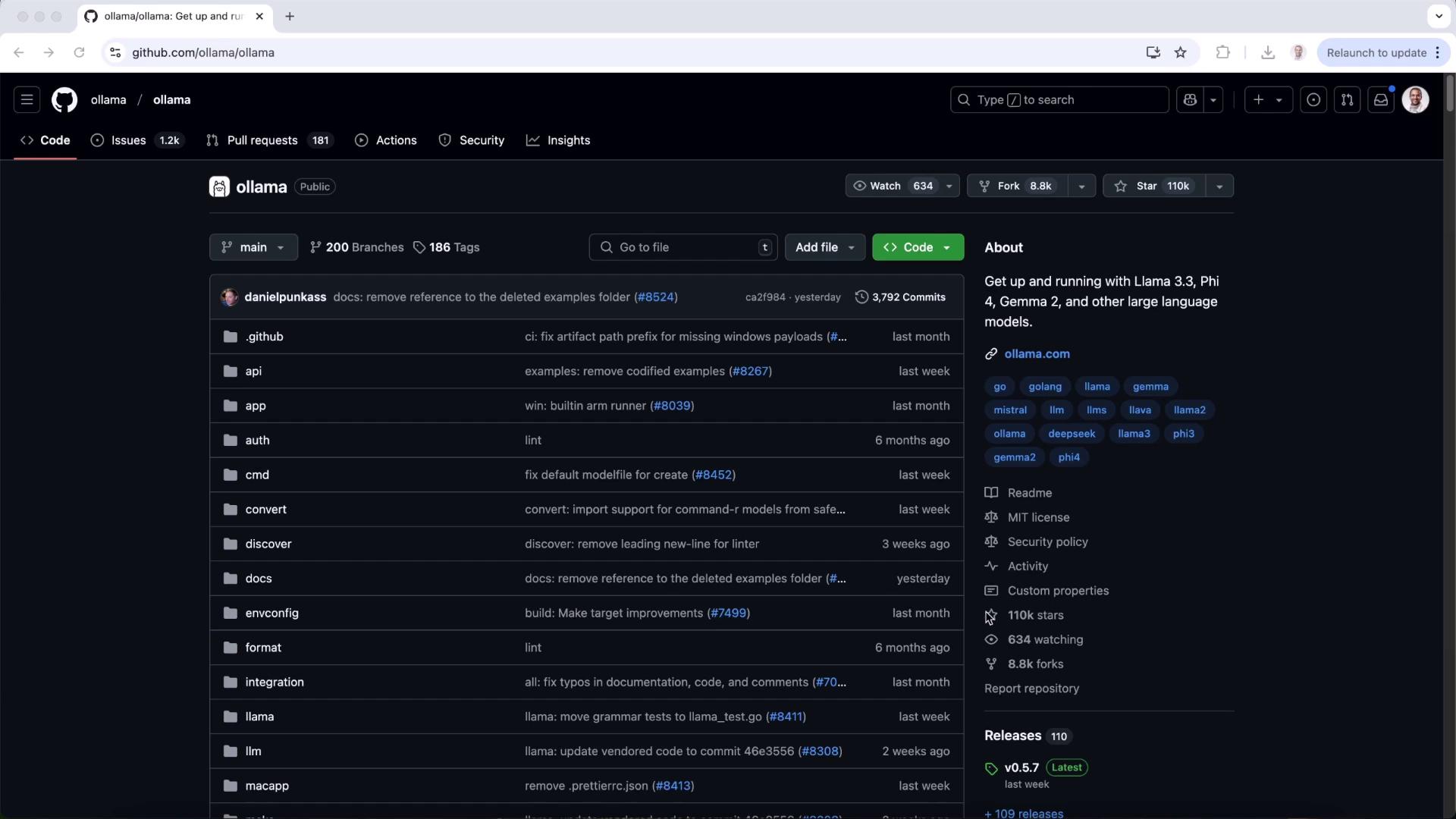
Scroll to the **Community Integrations** section to find tools, scripts, and libraries contributed by users.
### Run Models from the Terminal
Use the `ollama run` command to launch models locally:
```bash theme={null}
ollama run llama3.2
ollama run llama3.3
ollama run llama3.2:1b
ollama run llama3.2-vision
ollama run llama3.2-vision:90b
ollama run llama3.1
ollama run llama3.1:405b
ollama run phi4
ollama run phi3
ollama run gemma2:2b
ollama run gemma2
ollama run gemma2:27b
```
These cover everything from basic LLMs to vision-enabled models and domain-specific variants.
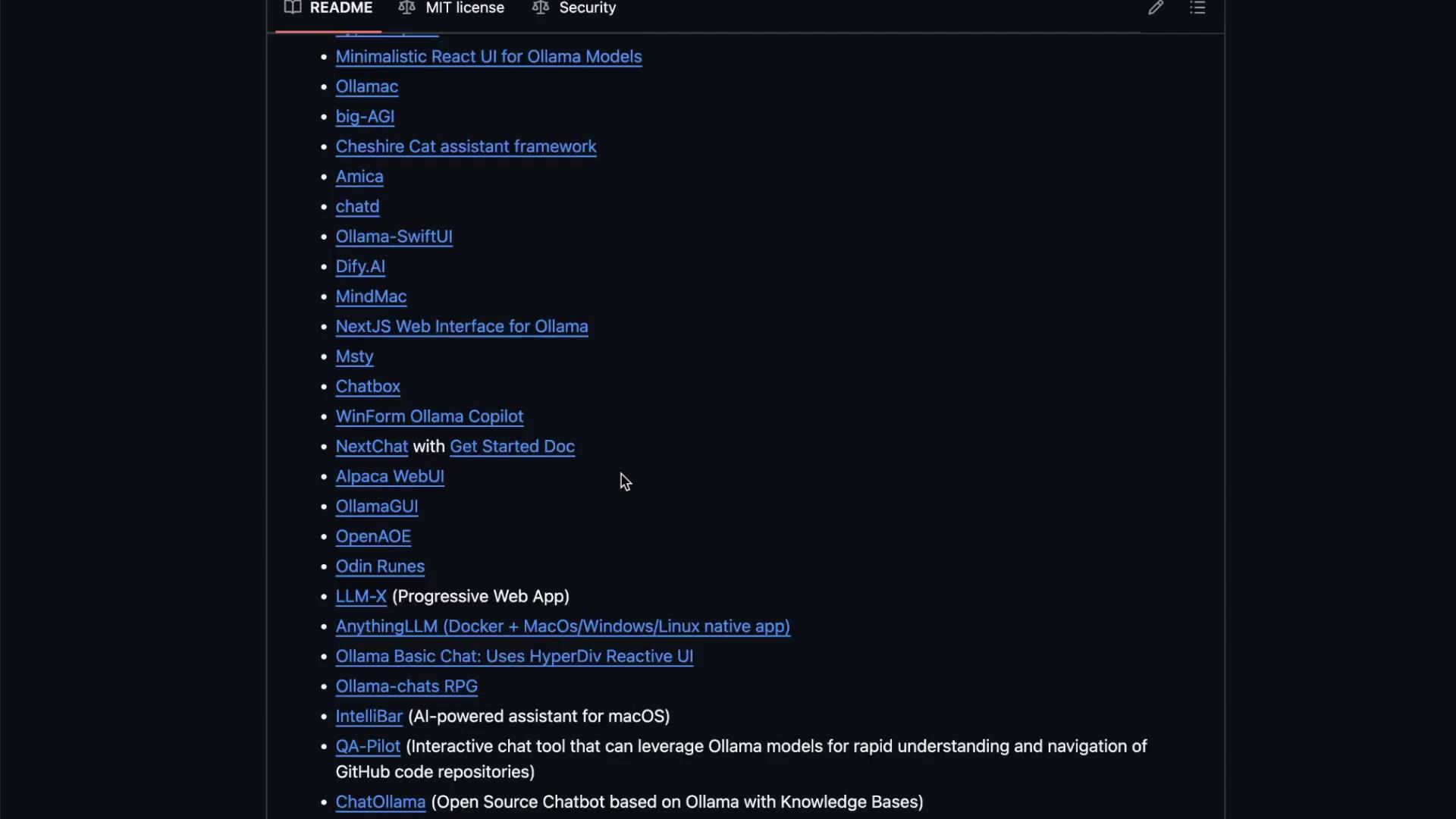
## 2. Integrate with Open Web UI
[Open Web UI](https://github.com/open-webui/open-webui) provides a browser-based chat interface for your local Ollama models. Instead of command-line prompts, you get a sleek web app similar to ChatGPT.
### 2.1 Test the Chat API
Before installing the UI, verify the REST endpoint:
```bash theme={null}
curl http://localhost:11434/api/chat -d '{
"model": "llama3.2",
"messages": [
{ "role": "user", "content": "Why is the sky blue?" }
]
}'
```
### 2.2 Install Open Web UI
You can choose between a Python package or Docker container.
| Method | Installation Commands | Pros |
| -------------------- | --------------------------------------------------------------------------------------------------------------------------------------------------------------------------------------------------------------------------------------- | ---------------------------------------- |
| Python package | `bash
pip install open-webui
open-webui serve` | Quick dev setup |
| Docker (recommended) | `bash
docker run -d \
-p 3000:8080 \
--add-host host.docker.internal:host-gateway \
-v open-webui:/app/backend/data \
--name open-webui \
--restart always \
ghcr.io/open-webui/open-webui:main` | Isolated, auto-updates, production-ready |
If you plan to share the UI across a team or deploy in production, Docker ensures consistent environments and easy upgrades.
When using Docker, you should see output like:
```text theme={null}
Unable to find image 'ghcr.io/open-webui/open-webui:main' locally
main: Pulling from open-webui/open-webui
7ce705000c3: Pull complete
8154794b2156: Pull complete
...
Status: Downloaded newer image for ghcr.io/open-webui/open-webui:main
```
Once running, open [http://localhost:3000](http://localhost:3000) in your browser.
### 2.3 Sign In and Model Discovery
On first access, create an admin user and sign in. The layout will resemble popular chat apps. If no models appear, the Ollama service is inactive.
## 3. Start and Connect Ollama
Activate the Ollama background service so Open Web UI can list and query models:
```bash theme={null}
ollama ps
```
Refresh your browser. You should now see models such as `llama3.2` available in the dropdown.
### 3.1 Chat with Your Model
1. Select **llama3.2** from the model list.
2. Type a prompt, e.g., “Compose a poem on Kubernetes.”
3. Hit **Send** and watch your local LLM respond in real time.
### 3.2 Switch and Compare Models
Pull a different model:
```bash theme={null}
ollama pull llama3.3
```
After the download completes, refresh the UI and choose **llama3.3**. Compare outputs side by side to determine which model suits your use case best.
## 4. Admin Features
For team deployments, Open Web UI includes an **Admin Panel** to manage users, roles, and permissions—all within your on-prem infrastructure.
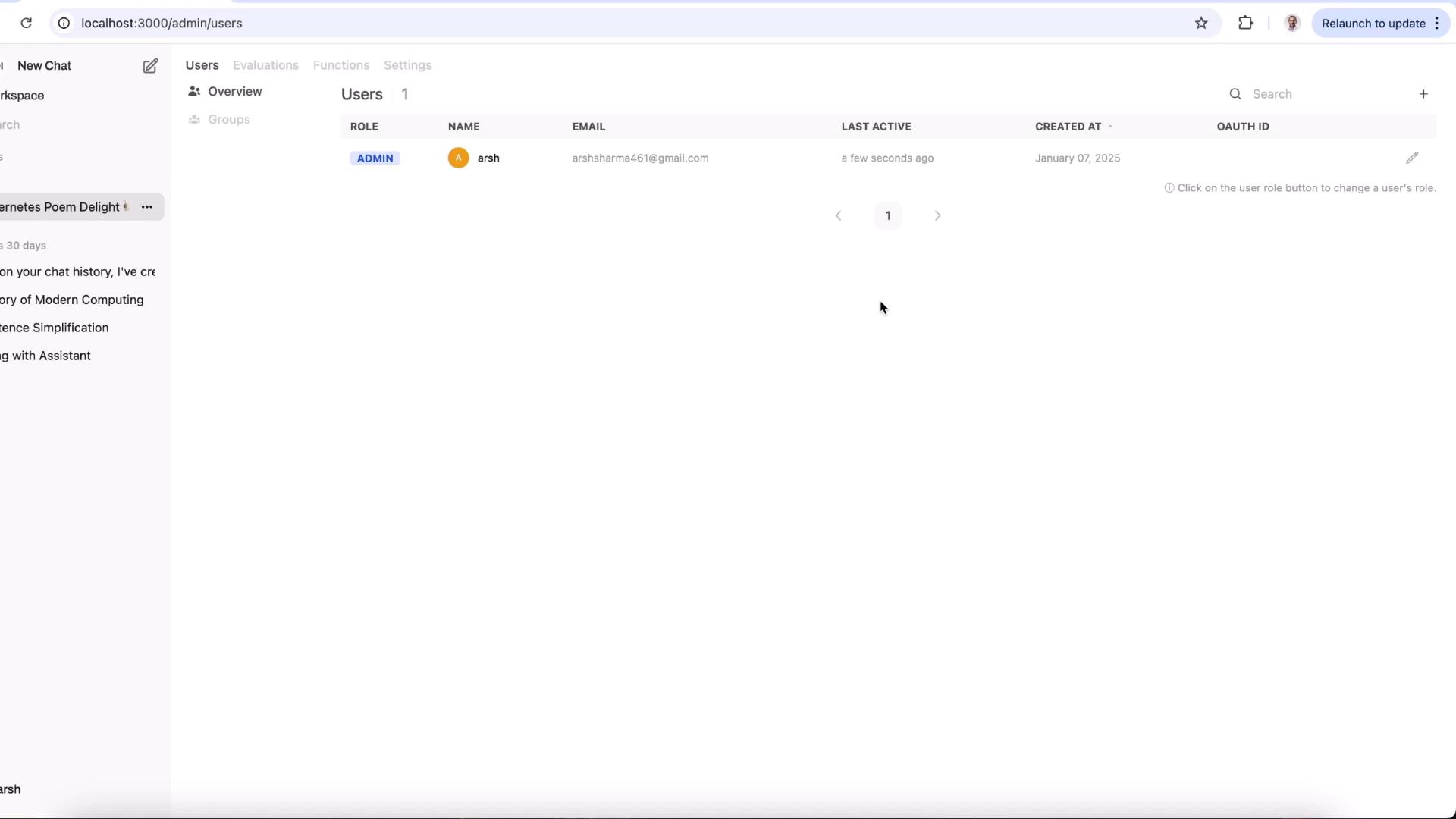
Here you can:
* Add or remove users
* Assign roles (admin, member)
* Monitor last active times and creation dates
Always ensure your admin account has a strong, unique password to protect your on-premises data.
***
## Links and References
* [Ollama GitHub Repository](https://github.com/ollama/ollama)
* [Open Web UI Documentation](https://github.com/open-webui/open-webui)
* [Docker Installation Guide](https://docs.docker.com/get-docker/)
Explore these resources to extend your local LLM setup and discover more community integrations!