> ## Documentation Index
> Fetch the complete documentation index at: https://notes.kodekloud.com/llms.txt
> Use this file to discover all available pages before exploring further.
# Rust specific tools rust gdb rust lldb
> This article explores using Rust LLDB, a debugging tool tailored for Rust development, guiding through essential concepts and procedures.
In this lesson, we explore a powerful debugging tool tailored for Rust development: Rust LLDB. Although debugging might seem challenging at first, this guide will walk you through the essential concepts and procedures step by step.
## What is LLDB?
LLDB (Low-Level Debugger) is an efficient and user-friendly debugger that is part of the LLVM project. As the default debugger on macOS, it enables you to pause program execution, inspect variables, and step through code interactively.

## Introducing Rust LLDB
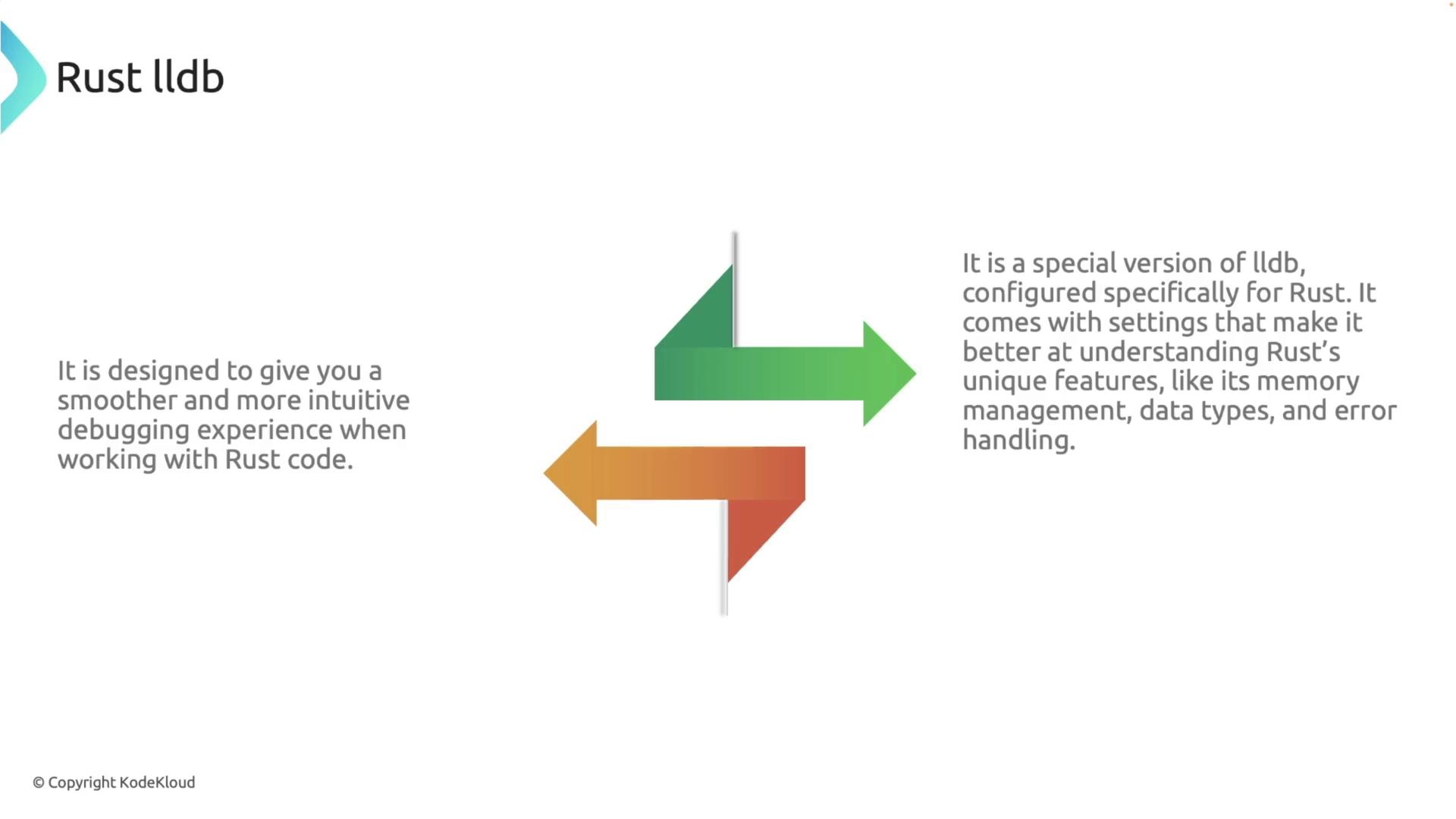
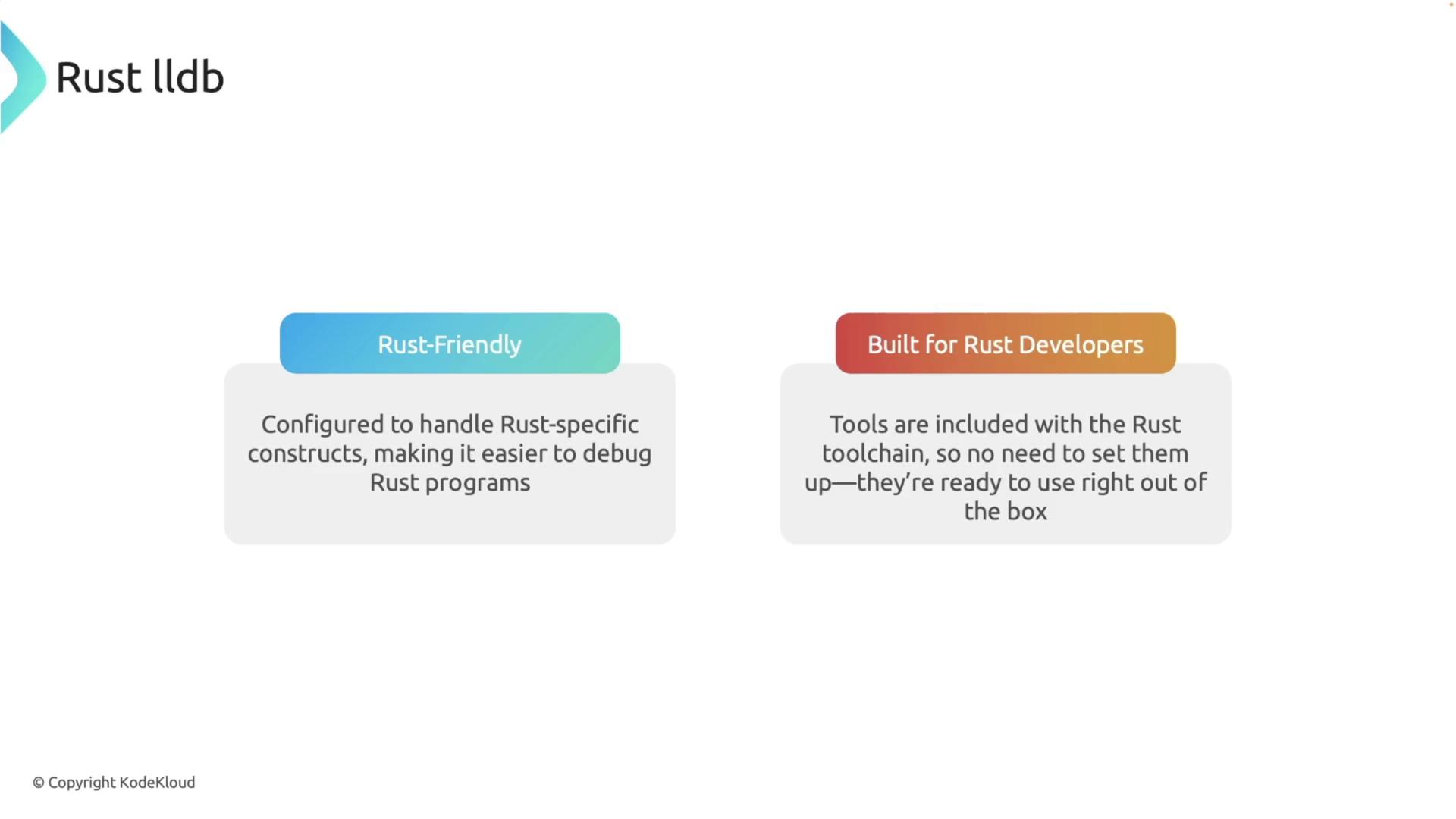
Rust LLDB is a customized version of LLDB designed specifically for Rust. It is configured to understand Rust’s unique memory management, data types, and error handling. This Rust-friendly debugger is integrated seamlessly into the Rust toolchain. If you installed Rust via Rustup, Rust LLDB is already available. Confirm your installation with:
```bash theme={null}
rust-lldb --version
```
If version information is displayed, Rust LLDB is installed and ready to use.
Rust LLDB is ready to use out of the box as it comes bundled with the Rust toolchain.
## Launching Rust LLDB
To start debugging, launch Rust LLDB by executing the following command with the compiled executable from your project's debug directory:
```bash theme={null}
rust-lldb target/debug/your_project_name
```
For demonstration, consider a simple Rust program that calculates the factorial of a number.
## Writing and Compiling a Factorial Program
Before debugging, compile your Rust program with debug information. Below is a basic example of a factorial function:
```rust theme={null}
fn factorial(n: u32) -> u32 {
if n <= 1 {
1
} else {
n * factorial(n - 1)
}
}
fn main() {
let number: u32 = 5;
let result: u32 = factorial(number);
println!("The factorial of {} is {}", number, result);
}
```
Compile the program using Cargo:
```bash theme={null}
cargo build --quiet
```
After a successful build, the executable will be located in your project's debug folder.
## Introducing a Bug for Debugging
To demonstrate the debugging process, let's intentionally introduce a subtle bug. Instead of subtracting 1 in the recursive call, we accidentally add 1:
```rust theme={null}
fn factorial(n: u32) -> u32 {
if n <= 1 {
1
} else {
n * factorial(n + 1) // Bug: should be n - 1
}
}
fn main() {
let number: u32 = 5;
let result: u32 = factorial(number);
println!("The factorial of {} is {}", number, result);
}
```
Rebuild the project with:
```bash theme={null}
cargo build --quiet
```
This error causes the recursion never to satisfy the base case, leading to a stack overflow.
Next, navigate to your project directory (for example, "debug-rust") and launch Rust LLDB with:
```bash theme={null}
rust-lldb target/debug/debug_rust
```
Once launched, you'll see the LLDB prompt. Type `help` for a list of available commands.
## Setting Breakpoints and Starting a Debug Session
You can set breakpoints to inspect your code execution. To set a breakpoint at the beginning of the `factorial` function, enter:
```bash theme={null}
(lldb) breakpoint set --name factorial
```
Alternatively, set a breakpoint at a specific line (e.g., line 5):
```bash theme={null}
(lldb) breakpoint set --line 5
```
A sample output might look like:
```text theme={null}
(lldb) breakpoint set --name factorial
Breakpoint 1: where = debug_rust`debug_rust::factorial::hc2078a81714cb92f + 20 at main.rs:2:8, address = 0x00000001000148c
(lldb) breakpoint set --line 5
Breakpoint 2: where = debug_rust`debug_rust::factorial::hc2078a81714cb92f + 36 at main.rs:5:23, address = 0x00000001000149c
```
Now, start the debugging session by running:
```bash theme={null}
(lldb) run
```
When the first breakpoint is hit, you will see output similar to:
```Rust theme={null}
Process 70628 launched: '/Users/priyadav/projects/debug_rust/target/debug/debug_rust' (arm64)
Process 70628 stopped
* thread #1, name = 'main', queue = 'com.apple.main-thread', stop reason = breakpoint 1.1
frame #0: 0x00000001000148c debug_rust`factorial::hc2078a81714cb92f(n=5) at main.rs:2:8
1 fn factorial(n: u32) -> u32 {
-> 2 if n <= 1 {
3 1
4 } else {
5 n * factorial(n + 1)
6 }
7 }
Target 2: (debug_rust) stopped.
```
At this point, inspect variables like `n`:
```bash theme={null}
(lldb) print n
(unsigned int) 5
```
Stepping through the code reveals that the value of `n` increases rather than decreasing. For example, after stepping into the recursive call, you might see:
```text theme={null}
(lldb) step
Process 70628 stopped
* thread #1, name = 'main', queue = 'com.apple.main-thread', stop reason = breakpoint 2.1
frame #0: 0x00000001000149c debug_rust`debug_rust::factorial::hc2078a81714cb92f(n=6) at main.rs:5:23
```
This confirms that `n` becomes 6 and continues increasing, which prevents the recursion from reaching its base case and ultimately leads to a stack overflow.
Using an incorrect recursive call (i.e., adding instead of subtracting) will cause an infinite loop, leading to a stack overflow error. Always verify the logic of recursive functions.
## Fixing the Bug
Exit the debugger and correct the error by replacing `n + 1` with `n - 1` in the recursive call. The fixed code is:
```rust theme={null}
fn factorial(n: u32) -> u32 {
if n <= 1 {
1
} else {
n * factorial(n - 1)
}
}
fn main() {
let number: u32 = 5;
let result: u32 = factorial(number);
println!("The factorial of {} is {}", number, result);
}
```
Compile and run your project:
```bash theme={null}
cargo run --quiet
```
The output should now correctly display:
```text theme={null}
The factorial of 5 is 120
```
For comparison, running the buggy version would result in a stack overflow error:
```rust theme={null}
fn factorial(n: u32) -> u32 {
if n <= 1 {
1
} else {
n * factorial(n + 1)
}
}
fn main() {
let number: u32 = 5;
let result: u32 = factorial(number);
println!("The factorial of {} is {}", number, result);
}
```
```bash theme={null}
cargo run --quiet
thread 'main' has overflowed its stack
fatal runtime error: stack overflow
zsh: abort cargo run --quiet
```
By using Rust LLDB to step through your code and inspect variable values, you can efficiently pinpoint and resolve subtle bugs in your Rust applications.
Happy debugging!